How to Fix Android Phone Issues Without Factory Reset
Android smartphones have become an essential part of our daily lives. We use them for communication, work, entertainment, banking, navigation, and much more. However, as powerful and flexible as Android devices are, they are not immune to problems. Many users experience slow performance, app crashes, battery drain, overheating, network issues, or system glitches over time.
When problems occur, one of the most common suggestions you’ll hear is to perform a factory reset. While this can solve many issues, it comes with a major downside: you lose all your data, including apps, photos, messages, and settings unless everything is backed up properly.
The good news is that most Android phone issues can be fixed without doing a factory reset. In this guide, you’ll learn practical, safe, and effective methods to troubleshoot and fix common Android problems while keeping your data intact.
Why You Should Avoid Factory Reset Unless Necessary
Before diving into solutions, it’s important to understand why factory resets should be a last resort.
A factory reset:
- Erases all personal data and apps
- Requires time to restore backups
- May not fix hardware-related issues
- Can cause data loss if backups fail
In many cases, Android problems are caused by software bugs, corrupted cache files, misconfigured settings, or problematic apps, all of which can be fixed without wiping the device.
1. Restart Your Android Phone Properly
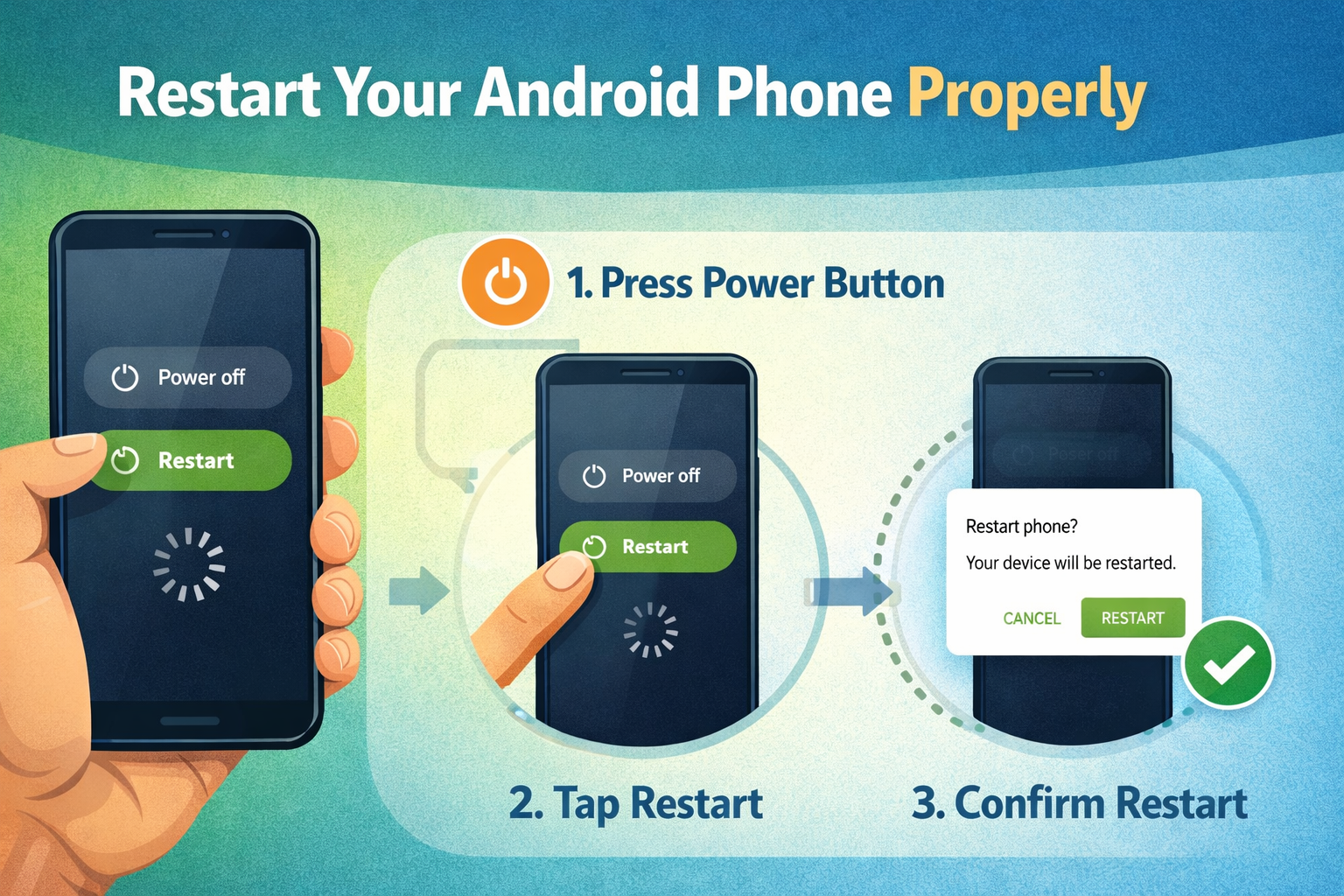
It may sound simple, but restarting your phone is one of the most effective fixes.
Why Restarting Helps
- Clears temporary system memory (RAM)
- Stops background processes
- Fixes minor software glitches
- Improves performance instantly
How to Do It
- Press and hold the Power button
- Tap Restart (or Power Off → Turn back on)
- Wait for the system to reboot fully
If your phone feels slow, overheats, or apps behave strangely, restarting should always be your first step.
2. Clear App Cache and App Data
Over time, apps store temporary files (cache) that can become corrupted and cause crashes or slow performance.
Clear App Cache (Safe Method)
Clearing cache does not delete personal data.
- Go to Settings
- Open Apps or App Management
- Select the problematic app
- Tap Storage
- Choose Clear Cache
Clear App Data (Use with Caution)
This resets the app to its default state.
- May log you out of accounts
- Deletes app settings and local data
Use this if clearing cache does not help.
3. Update Android System and Apps
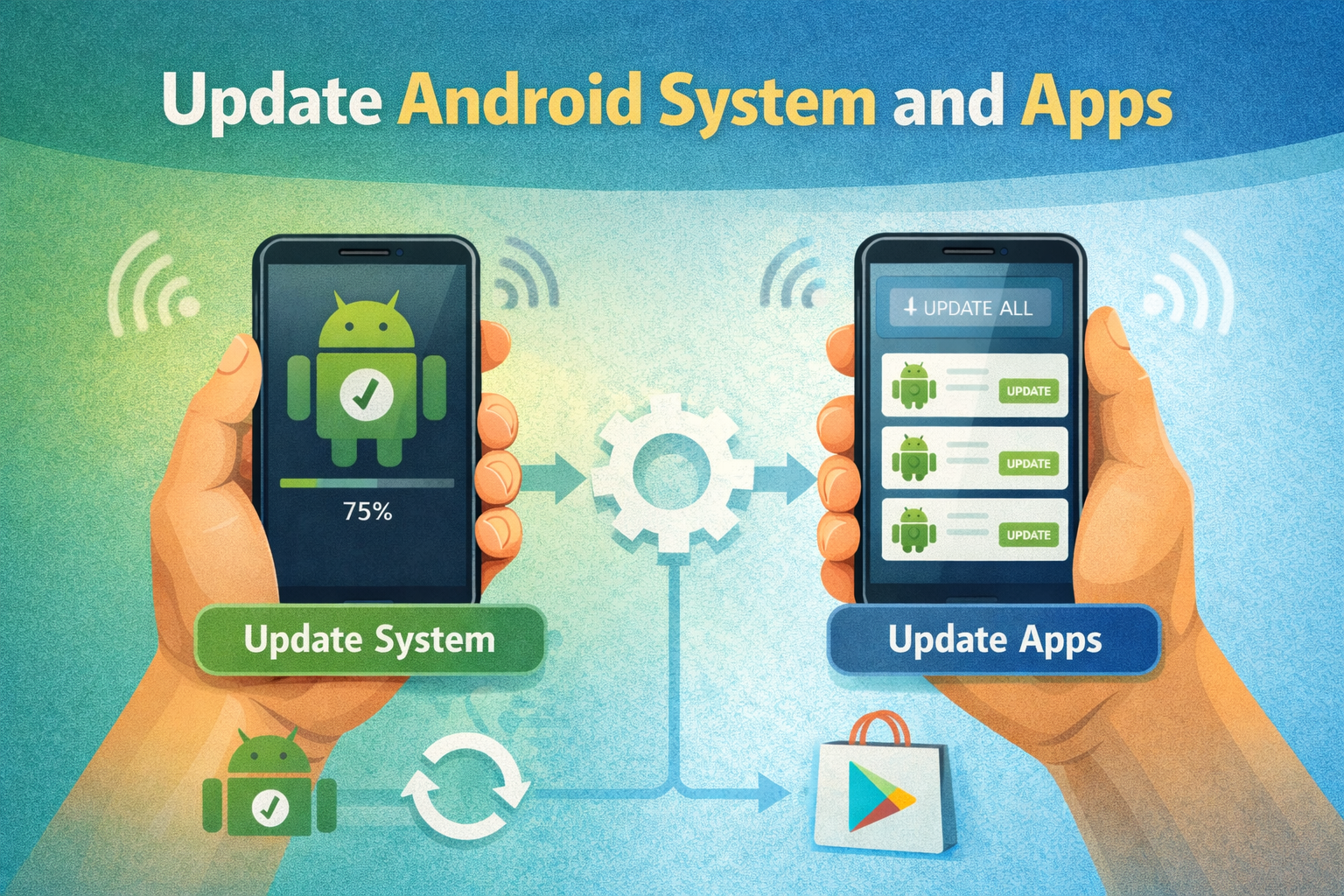
Outdated software is a common cause of bugs, crashes, and security issues.
Update Android OS
- Go to Settings
- Tap Software Update
- Check for updates
- Download and install if available
Update Apps
- Open Google Play Store
- Tap your profile icon
- Select Manage apps & device
- Update all apps
Developers regularly release updates to fix bugs, improve performance, and enhance compatibility with new Android versions.
4. Boot into Safe Mode to Identify Problematic Apps
If your phone is crashing, freezing, or restarting randomly, a third-party app may be the cause.
What Is Safe Mode?
Safe Mode temporarily disables all downloaded apps and runs only system apps.
How to Enter Safe Mode
- Press and hold the Power button
- Tap and hold Power Off
- Select Safe Mode
What to Do in Safe Mode
- Use your phone normally
- Check if problems still occur
If the issue disappears in Safe Mode, a third-party app is responsible. Uninstall recently installed or suspicious apps one by one until the issue is resolved.
5. Free Up Storage Space
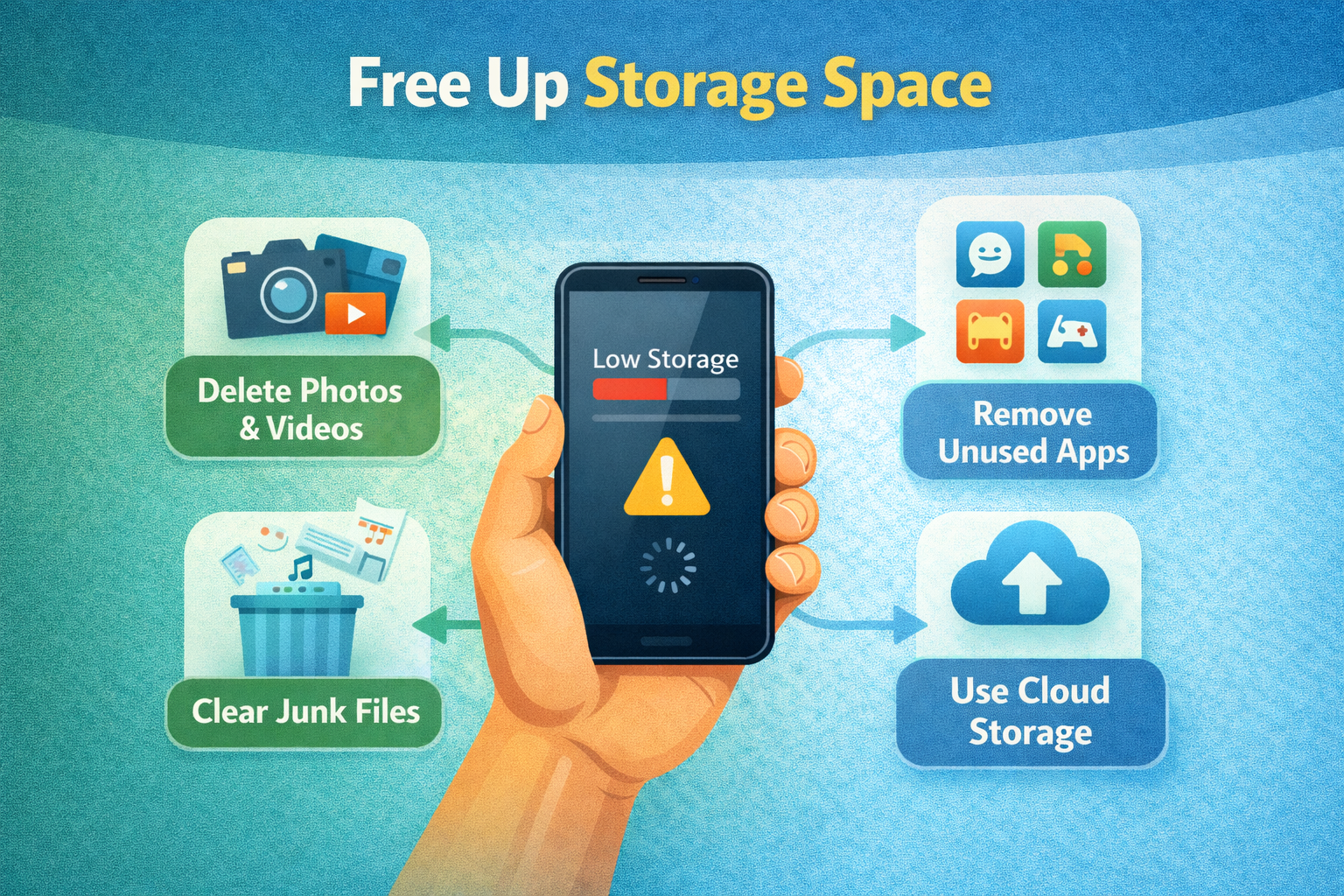
Low storage can severely affect Android performance.
Problems Caused by Low Storage
- Phone becomes slow
- Apps crash or fail to install
- System updates fail
- Camera stops working
How to Free Storage
- Delete unused apps
- Remove duplicate photos and videos
- Clear app cache
- Move files to cloud storage or SD card
Check storage usage:
- Settings → Storage
Aim to keep at least 15–20% free storage for optimal performance.
6. Fix Battery Drain Without Reset
Battery drain is one of the most common Android complaints.
Check Battery Usage
- Go to Settings
- Tap Battery
- View battery usage by apps
Solutions
- Uninstall battery-hogging apps
- Disable background activity for unused apps
- Reduce screen brightness
- Turn off Bluetooth, GPS, and Wi-Fi when not needed
- Enable Battery Saver Mode
You can also restrict background data for apps that constantly sync.
7. Fix Android Overheating Issues
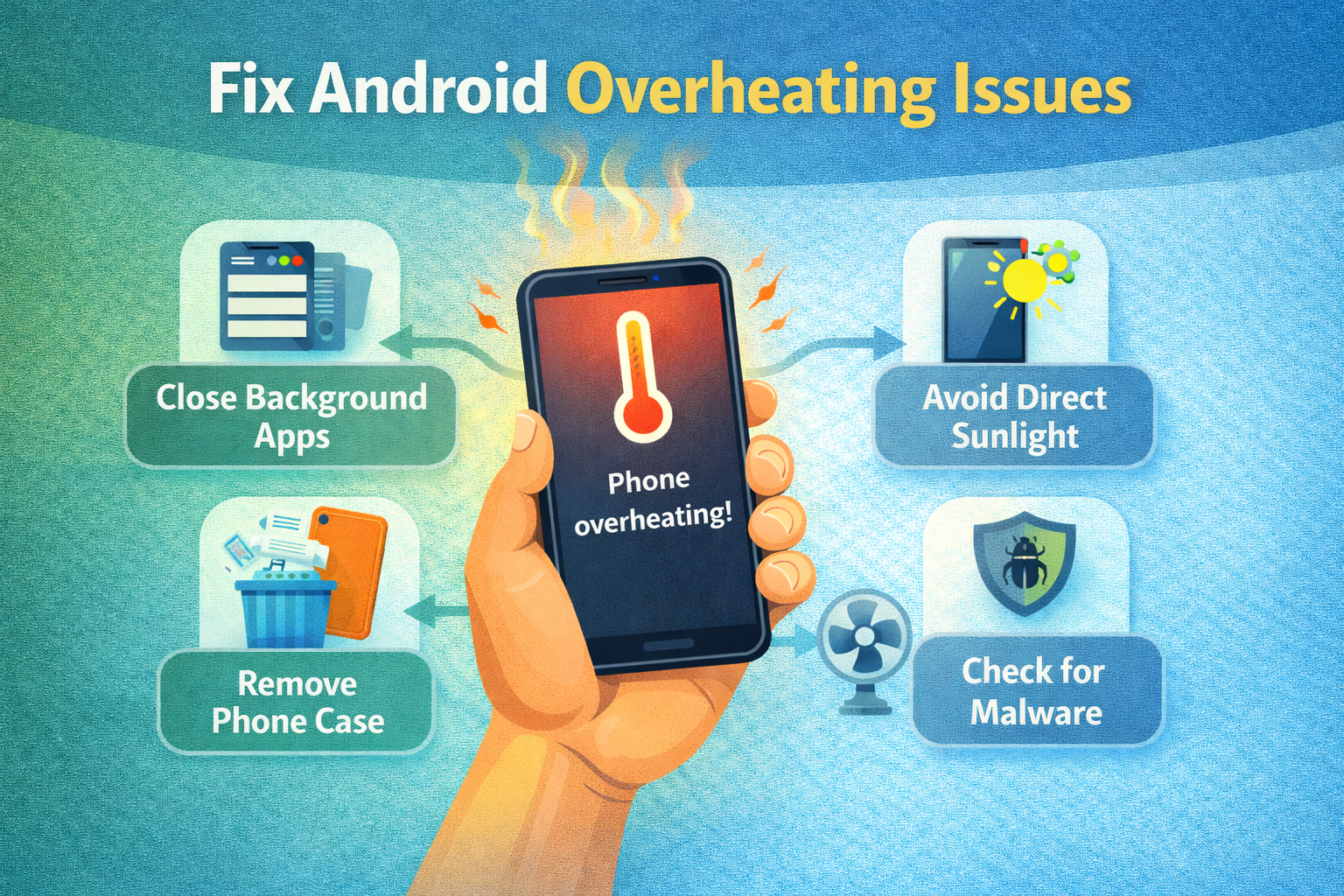
Overheating can slow down your phone and damage internal components.
Common Causes
- Heavy gaming or multitasking
- Charging while using the phone
- Poor signal strength
- Background apps running continuously
Solutions
- Close unused apps
- Remove phone case temporarily
- Avoid direct sunlight
- Use original charger only
- Restart the phone
If overheating persists, check battery health or visit a service center.
8. Fix Network, Wi-Fi, and Mobile Data Problems
Network issues are often caused by misconfigured settings rather than system failure.
Reset Network Settings (Safe Option)
This does not erase personal data.
- Go to Settings
- Tap System
- Select Reset options
- Choose Reset Wi-Fi, Mobile & Bluetooth
This will remove saved Wi-Fi networks and Bluetooth devices but often fixes connectivity issues.
9. Fix App Crashes and “App Keeps Stopping” Errors

If apps crash frequently:
Try These Steps
- Clear app cache and data
- Update the app
- Reinstall the app
- Check app permissions
- Disable battery optimization for the app
Also ensure the app is compatible with your Android version.
10. Check for Malware and Suspicious Apps
Malware can cause slow performance, ads, pop-ups, and data usage spikes.
Signs of Malware
- Unexpected ads
- Unknown apps installed
- Battery draining fast
- Phone heating up
How to Remove Malware
- Uninstall unknown apps
- Scan with Google Play Protect
- Avoid apps from unofficial sources
- Disable “Install unknown apps” permission
11. Disable Unnecessary System Features
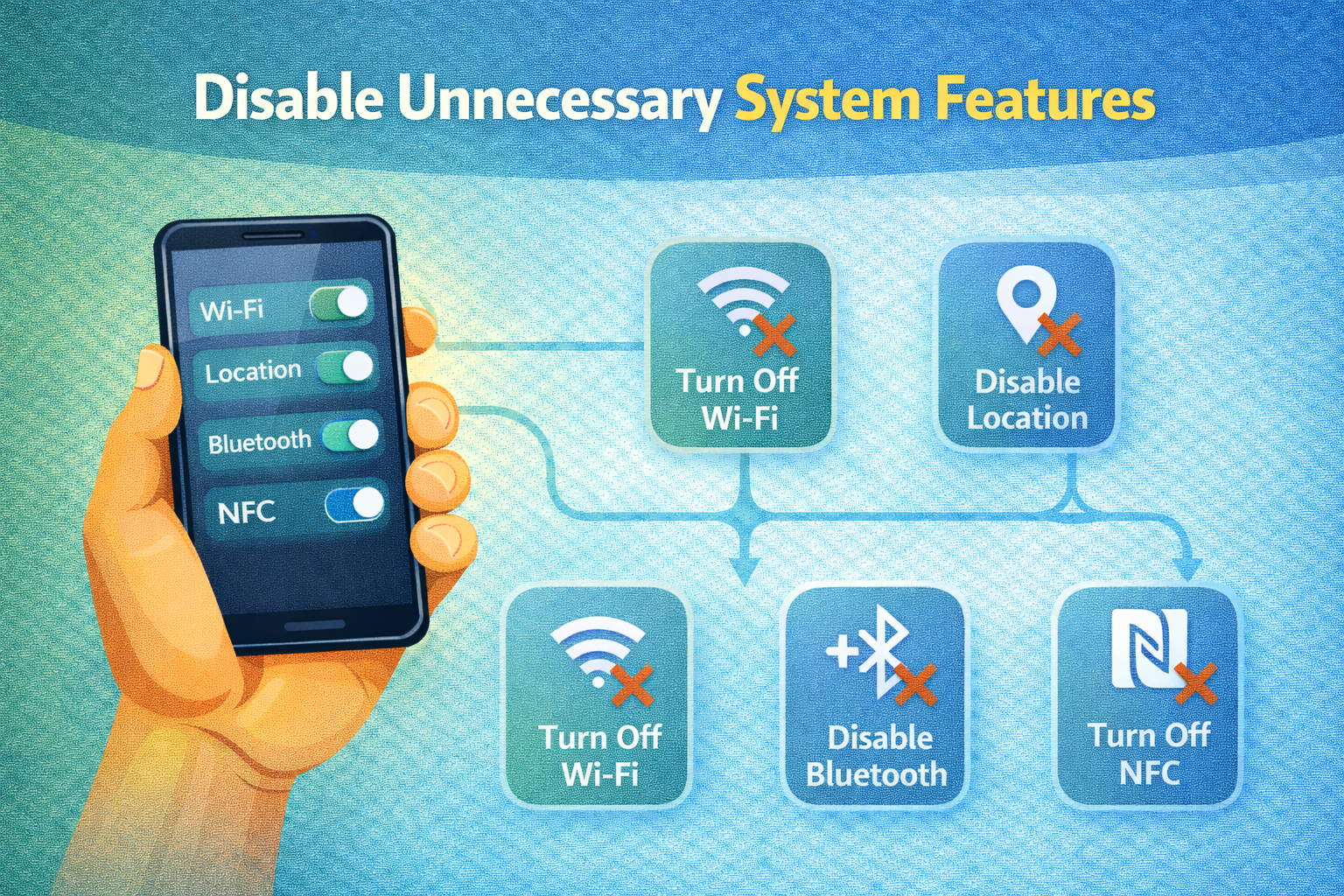
Some built-in features consume resources.
Consider Disabling:
- Always-on display
- Live wallpapers
- Background sync for unused accounts
- Unused accessibility services
These small changes can significantly improve performance.
12. Wipe Cache Partition (Advanced but Safe)
Wiping cache partition removes system cache without deleting personal data.
How to Do It
- Power off the phone
- Press and hold Power + Volume Up (varies by device)
- Enter Recovery Mode
- Select Wipe Cache Partition
- Reboot system
This method is very effective after system updates.
When Should You Consider Factory Reset?
Despite all methods, sometimes a factory reset is unavoidable.
Consider it only if:
- Phone is stuck in boot loop
- System files are severely corrupted
- Phone remains unusable after all fixes
- You plan to sell the device
Always back up data before resetting.
Final Thoughts
Android phones are powerful, flexible, and customizable, but they can develop issues over time. Fortunately, most Android problems can be fixed without a factory reset. By using simple troubleshooting techniques like clearing cache, updating software, managing apps, and adjusting settings, you can restore your phone’s performance while keeping your data safe.
A factory reset should always be your last option, not the first. With the right approach, patience, and basic Android knowledge, you can solve most issues on your own and extend the life of your device.
