How to Fix Windows Errors Without Reinstalling Windows
Windows is one of the most widely used operating systems in the world, powering millions of personal computers and workstations. Despite its popularity and continuous improvements, Windows is not immune to errors. Users often encounter issues such as system crashes, blue screens, slow performance, startup failures, corrupted files, or error messages that disrupt daily work.
Many people believe that reinstalling Windows is the only solution when serious problems arise. However, reinstalling the operating system can be time-consuming, risky, and inconvenient, especially if you have important data or installed software. The good news is that most Windows errors can be fixed without reinstalling Windows. This article explains practical and effective methods to diagnose and resolve Windows problems while keeping your system intact.
1. Understand the Type of Windows Error
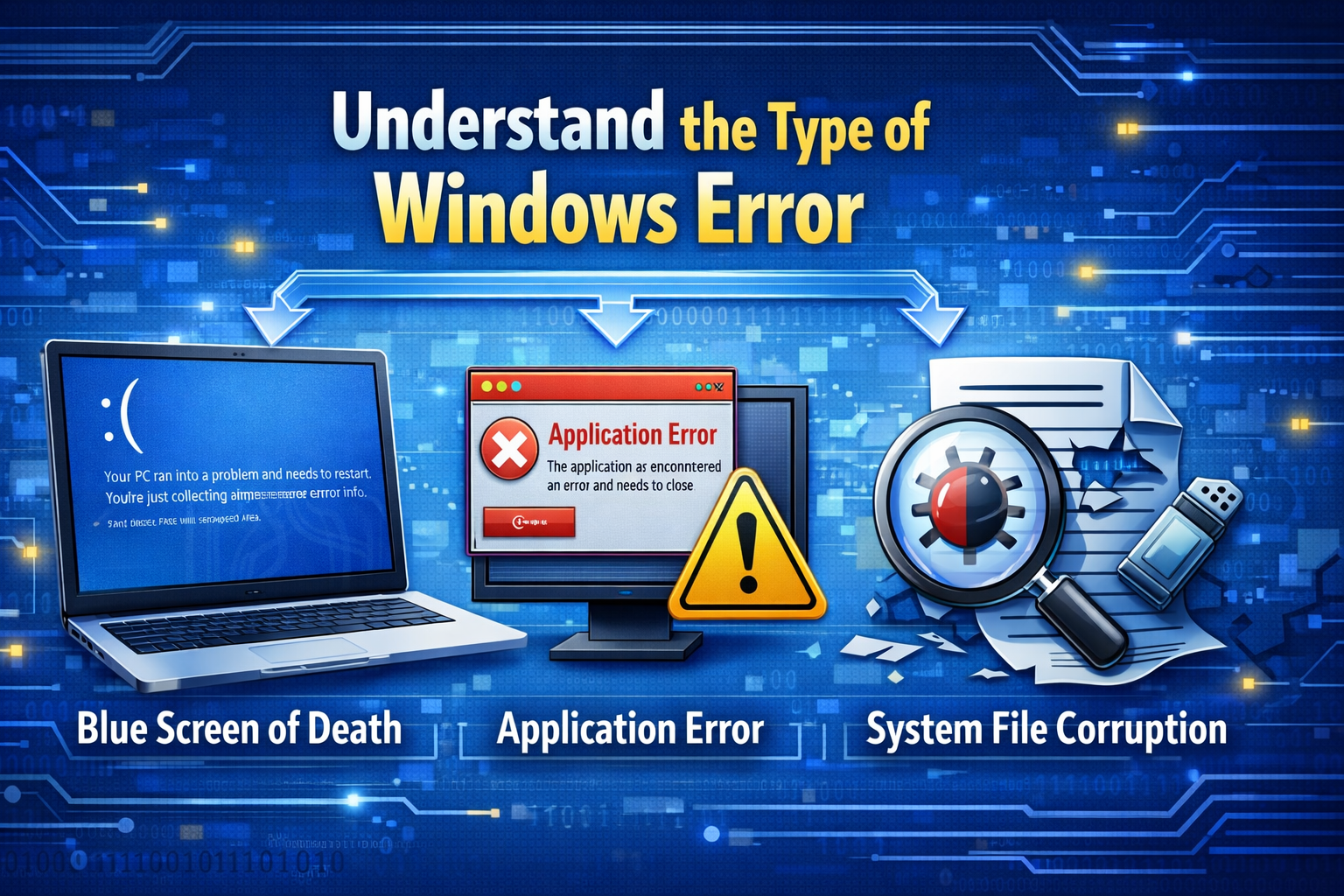
Before attempting any fix, it is important to understand what kind of error you are facing. Windows errors generally fall into the following categories:
- System file corruption
- Driver-related issues
- Software conflicts
- Disk or file system errors
- Windows update failures
- Malware or virus infections
Identifying the category helps you choose the right solution. For example, a blue screen error may point to driver problems, while slow performance could be caused by background applications or malware.
2. Restart Your Computer (Simple but Effective)
Although it sounds basic, restarting your computer can fix many temporary Windows errors. A restart clears system memory, stops malfunctioning processes, and reloads system services. If an error appeared suddenly, always try restarting before moving on to advanced solutions.
3. Use Windows Built-in Troubleshooters
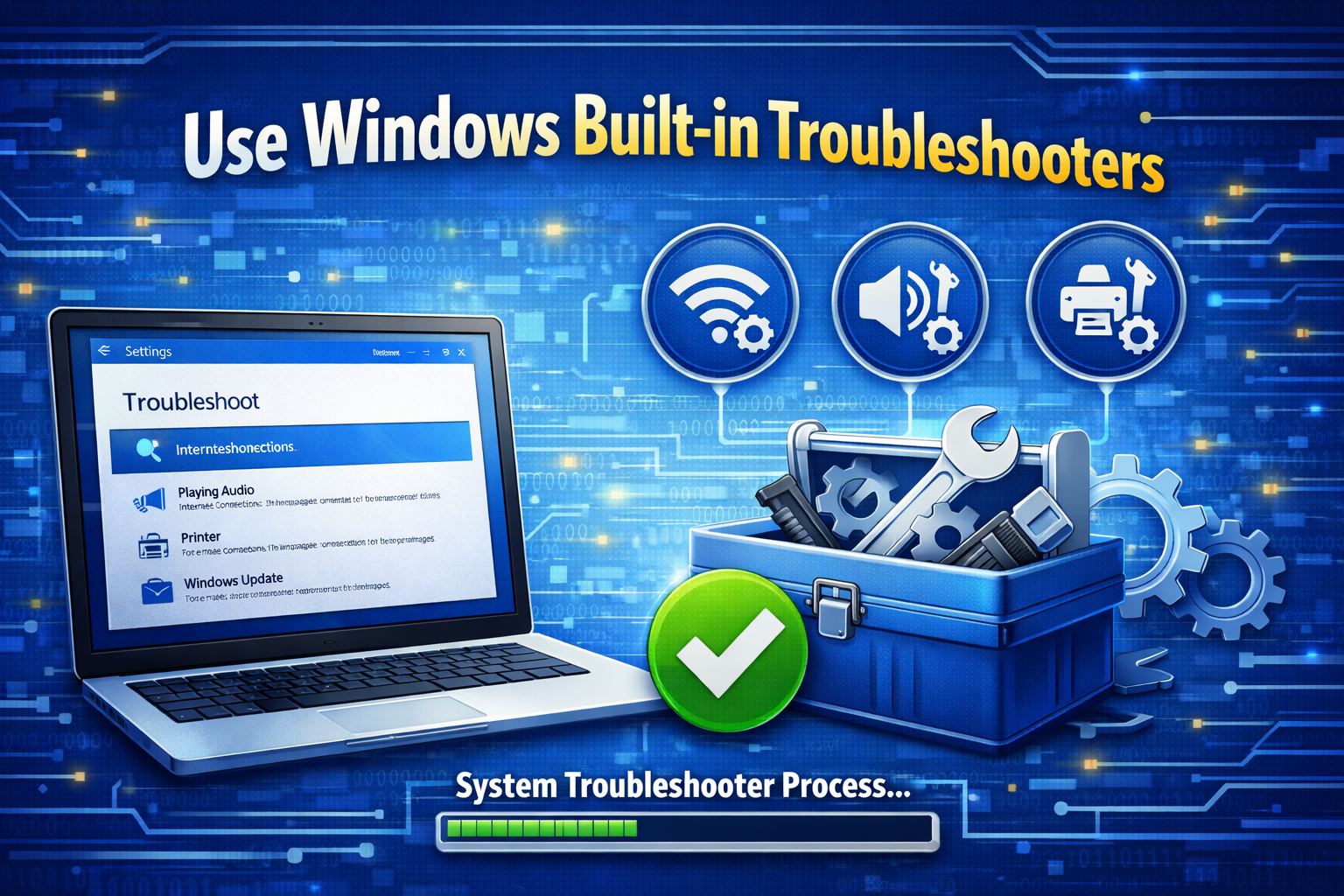
Windows includes built-in troubleshooting tools designed to detect and fix common problems automatically.
How to Access Troubleshooters:
- Open Settings
- Go to System → Troubleshoot
- Select Other troubleshooters
- Choose the relevant troubleshooter (Windows Update, Internet Connections, Audio, Printer, etc.)
These tools are especially helpful for fixing network issues, update errors, and hardware-related problems without manual intervention.
4. Run System File Checker (SFC)
Corrupted or missing system files are a common cause of Windows errors. The System File Checker (SFC) tool scans and repairs these files.
Steps to Run SFC:
- Open Command Prompt as Administrator
- Type:
sfc /scannow - Press Enter and wait for the scan to complete
If corrupted files are found, Windows will automatically replace them with correct versions. This method often fixes startup problems, crashes, and unexpected behavior.
5. Use DISM to Repair Windows Image
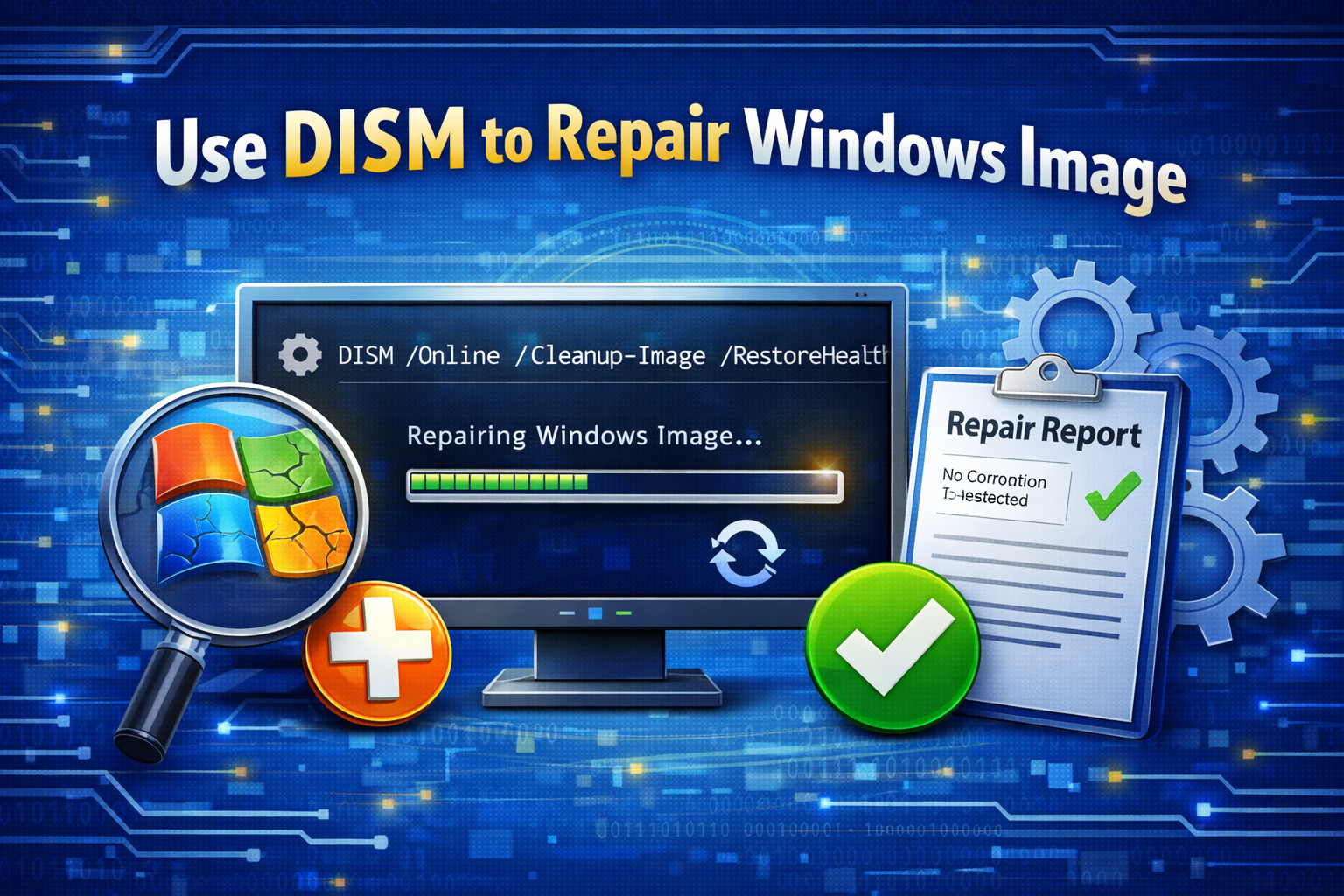
If SFC cannot fix the problem, the Deployment Image Servicing and Management (DISM) tool can repair the Windows system image.
Steps to Run DISM:
- Open Command Prompt as Administrator
- Type:
DISM /Online /Cleanup-Image /RestoreHealth - Press Enter
DISM checks the integrity of the Windows image and downloads replacement files if necessary. After running DISM, it is recommended to run SFC again for best results.
6. Check Disk Errors with CHKDSK
Hard drive errors can lead to file corruption, slow performance, and system crashes. The Check Disk (CHKDSK) tool scans and fixes file system errors.
Steps:
- Open Command Prompt as Administrator
- Type:
chkdsk /f /r - Press Enter
- Restart your computer if prompted
This tool is especially useful if your system freezes, files disappear, or Windows fails to boot properly.
7. Update or Roll Back Device Drivers
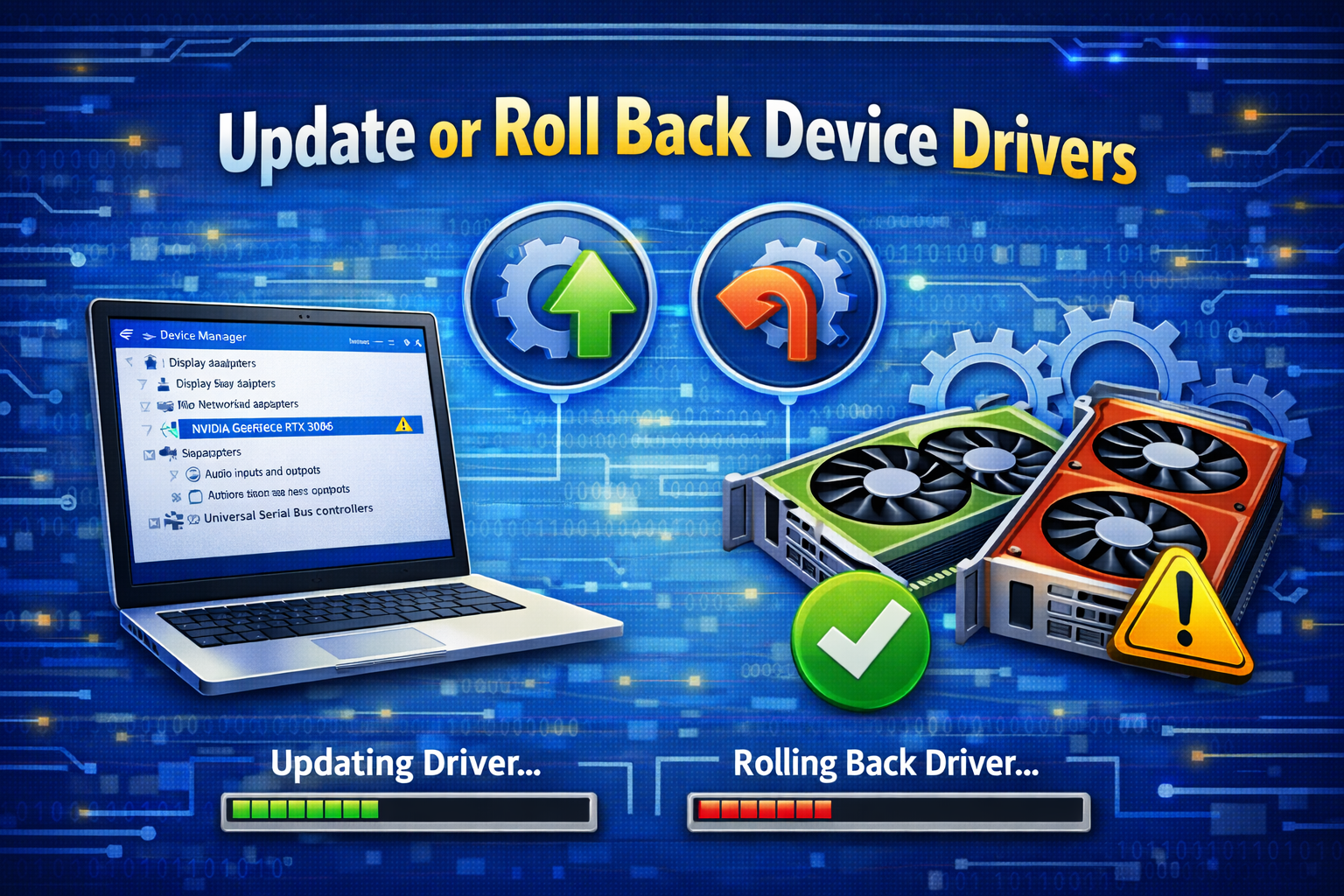
Faulty or outdated drivers are one of the most common causes of Windows errors, including blue screen errors (BSOD).
Update Drivers:
- Right-click Start → Device Manager
- Expand the device category
- Right-click the device → Update driver
Roll Back Drivers:
If the error started after a recent update:
- Go to Device Manager
- Right-click the device → Properties
- Select Roll Back Driver
This method can quickly resolve compatibility issues without reinstalling Windows.
8. Uninstall Problematic Software
Some third-party applications can conflict with Windows system files or services.
What to Do:
- Uninstall recently installed programs
- Remove unnecessary startup applications
- Avoid unofficial or cracked software
To uninstall software:
- Open Settings
- Go to Apps → Installed apps
- Select the app → Uninstall
This step is often effective when Windows errors appear after installing new software.
9. Perform a Clean Boot
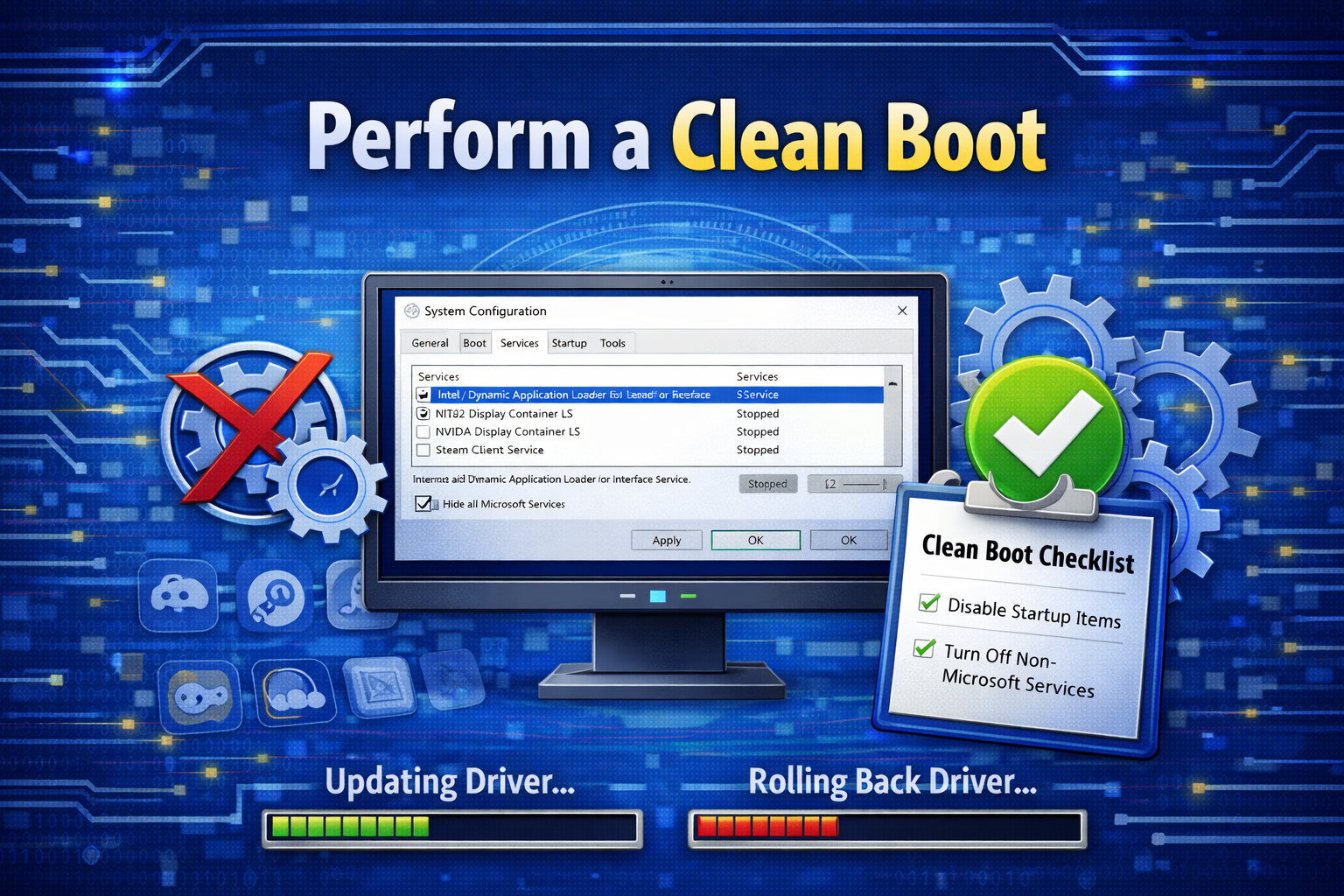
A clean boot starts Windows with minimal drivers and startup programs, helping you identify software conflicts.
Steps:
- Press Windows + R, type
msconfig - Go to the Services tab
- Check Hide all Microsoft services
- Click Disable all
- Restart your computer
If the error disappears, you can re-enable services one by one to find the cause.
10. Scan for Malware and Viruses
Malware can damage system files, slow down performance, and cause frequent errors.
Recommended Actions:
- Use Windows Security (Defender) for a full scan
- Run offline scans if malware is persistent
- Remove suspicious programs and browser extensions
Keeping your system malware-free significantly reduces Windows errors.
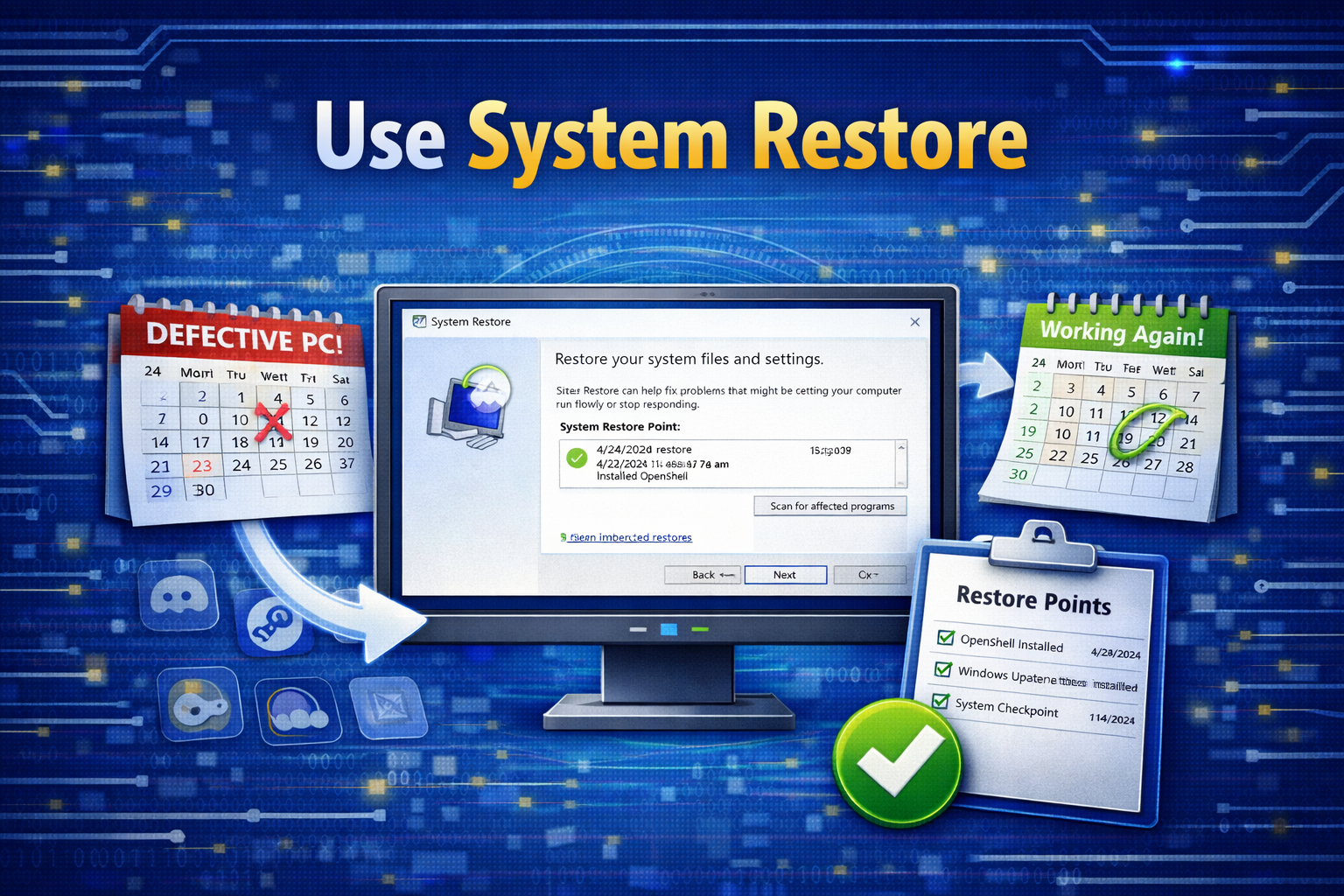
11. Use System Restore
System Restore allows you to revert Windows to a previous working state without affecting personal files.
Steps:
- Search for System Restore
- Select Restore system files and settings
- Choose a restore point before the error occurred
- Follow the on-screen instructions
This is an excellent option if the error appeared after updates, driver changes, or software installation.
12. Fix Windows Update Errors
Windows Update errors are common but usually fixable.
Solutions:
- Run Windows Update Troubleshooter
- Restart Windows Update services
- Delete temporary update files
- Ensure enough disk space
Fixing update issues often resolves performance and security-related errors.
13. Reset Windows Components (Without Reinstalling)
Windows allows you to reset system settings while keeping your files.
Reset This PC:
- Open Settings
- Go to System → Recovery
- Click Reset this PC
- Choose Keep my files
This option reinstalls core Windows components without deleting personal data or requiring a full reinstall.
14. Keep Windows and Software Updated
Regular updates help prevent errors by fixing bugs and improving compatibility.
- Enable automatic Windows updates
- Update drivers from official sources
- Keep antivirus software updated
Prevention is often more effective than repair.
Conclusion
Reinstalling Windows should always be a last resort, not the first solution. As shown in this article, Windows provides powerful built-in tools such as SFC, DISM, CHKDSK, System Restore, and Troubleshooters that can resolve most system errors. By carefully diagnosing the issue and applying the appropriate method, you can fix Windows problems efficiently without losing data or reinstalling the operating system.
Understanding these techniques not only saves time but also helps you maintain a stable and healthy system in the long run. With patience and the right approach, most Windows errors are completely manageable—no reinstallation required.
