How to Fix App Crashing After iOS Update: A Complete Step-by-Step Guide
Updating your iPhone to the latest version of iOS is usually exciting. New features, better security, and performance improvements are often the main reasons users install updates as soon as they become available. However, many iPhone users experience a frustrating problem after updating: apps keep crashing, freezing, or refusing to open.
If you are facing app crashes after an iOS update, you are not alone. This issue can happen on any iPhone model and iOS version, including major updates and minor patches. The good news is that most app crashing issues can be fixed without resetting your iPhone or losing data.
In this guide, you will learn why apps crash after an iOS update and how to fix app crashing issues step by step, even if you are not tech-savvy.
Why Do Apps Crash After an iOS Update?
Before fixing the problem, it helps to understand why it happens. App crashes after an iOS update usually occur due to one or more of the following reasons:
1. App Compatibility Issues
Some apps are not immediately optimized for the latest iOS version. Developers may need time to release updates that support the new system.
2. Software Bugs in the New iOS Version
New iOS updates sometimes contain bugs that affect certain apps or system processes.
3. Corrupted App Data
During the update process, app cache or data may become corrupted, causing apps to crash repeatedly.
4. Insufficient Storage Space
Low storage can prevent apps from running properly, especially after system updates.
5. Background Process Conflicts
Apps running in the background may conflict with updated system processes.
Step 1: Force Close the Crashing App
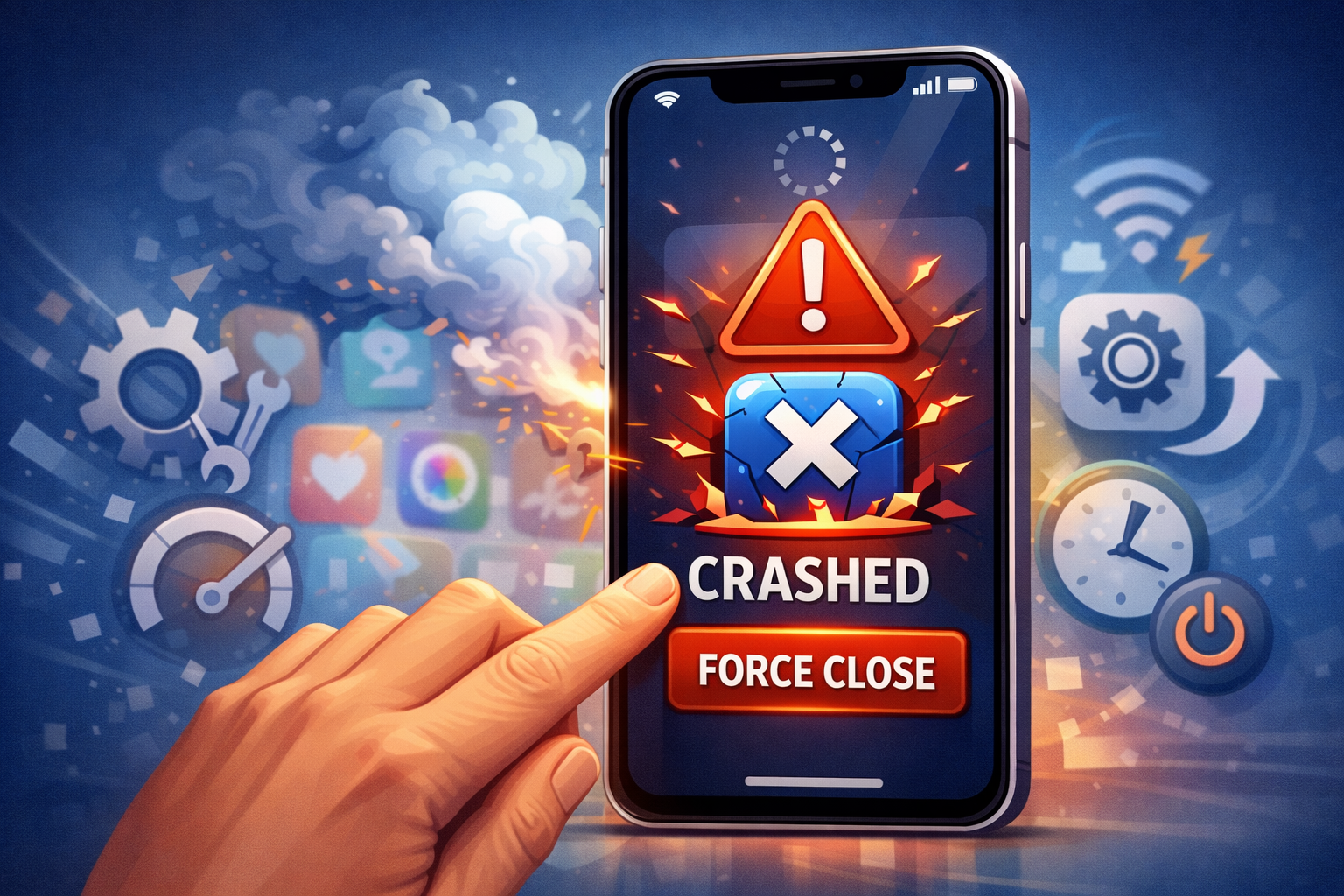
Sometimes the simplest solution works.
How to Force Close an App:
- Swipe up from the bottom of the screen and pause (or double-click the Home button on older iPhones).
- Find the app that is crashing.
- Swipe the app upward to close it.
- Reopen the app after a few seconds.
If the app continues to crash, move on to the next step.
Step 2: Restart Your iPhone
A simple restart can clear temporary glitches caused by an iOS update.
How to Restart iPhone:
- iPhone with Face ID:
Press and hold the Side button + Volume button → Slide to power off. - iPhone with Home Button:
Press and hold the Power button → Slide to power off.
Wait 30 seconds, then turn your iPhone back on and test the app again.
Step 3: Update the Crashing App
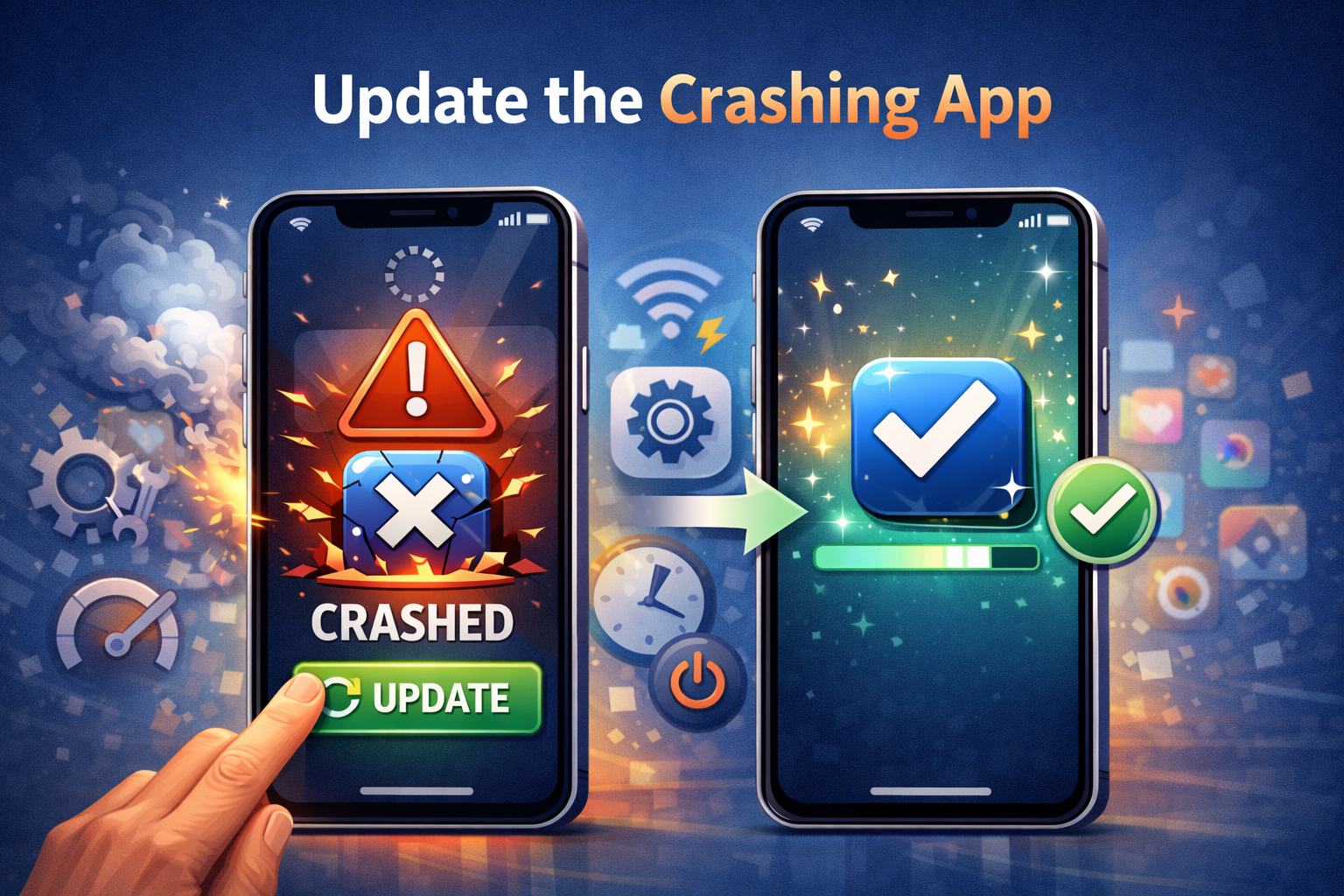
Many app crashes happen because the app is outdated and incompatible with the new iOS version.
How to Update Apps:
- Open the App Store
- Tap your profile icon in the top right corner
- Scroll down to Available Updates
- Update the crashing app (or tap Update All)
Developers often release quick updates after major iOS releases to fix crashing issues.
Step 4: Check for a New iOS Patch Update
Apple frequently releases small iOS updates to fix bugs from previous versions.
How to Check for iOS Updates:
- Go to Settings
- Tap General
- Select Software Update
- Download and install any available update
Installing the latest patch can resolve system-level issues causing apps to crash.
Step 5: Clear App Cache (Indirect Method)
iOS does not allow direct cache clearing like Android, but there are indirect ways to refresh app data.
Method 1: Offload the App
- Go to Settings
- Tap General → iPhone Storage
- Select the crashing app
- Tap Offload App
- Reinstall the app from the App Store
This removes app data while keeping documents and settings.
Method 2: Delete and Reinstall the App
Warning: This may delete app data if it is not cloud-synced.
- Long-press the app icon
- Tap Remove App → Delete App
- Reinstall the app from the App Store
Step 6: Check iPhone Storage Space
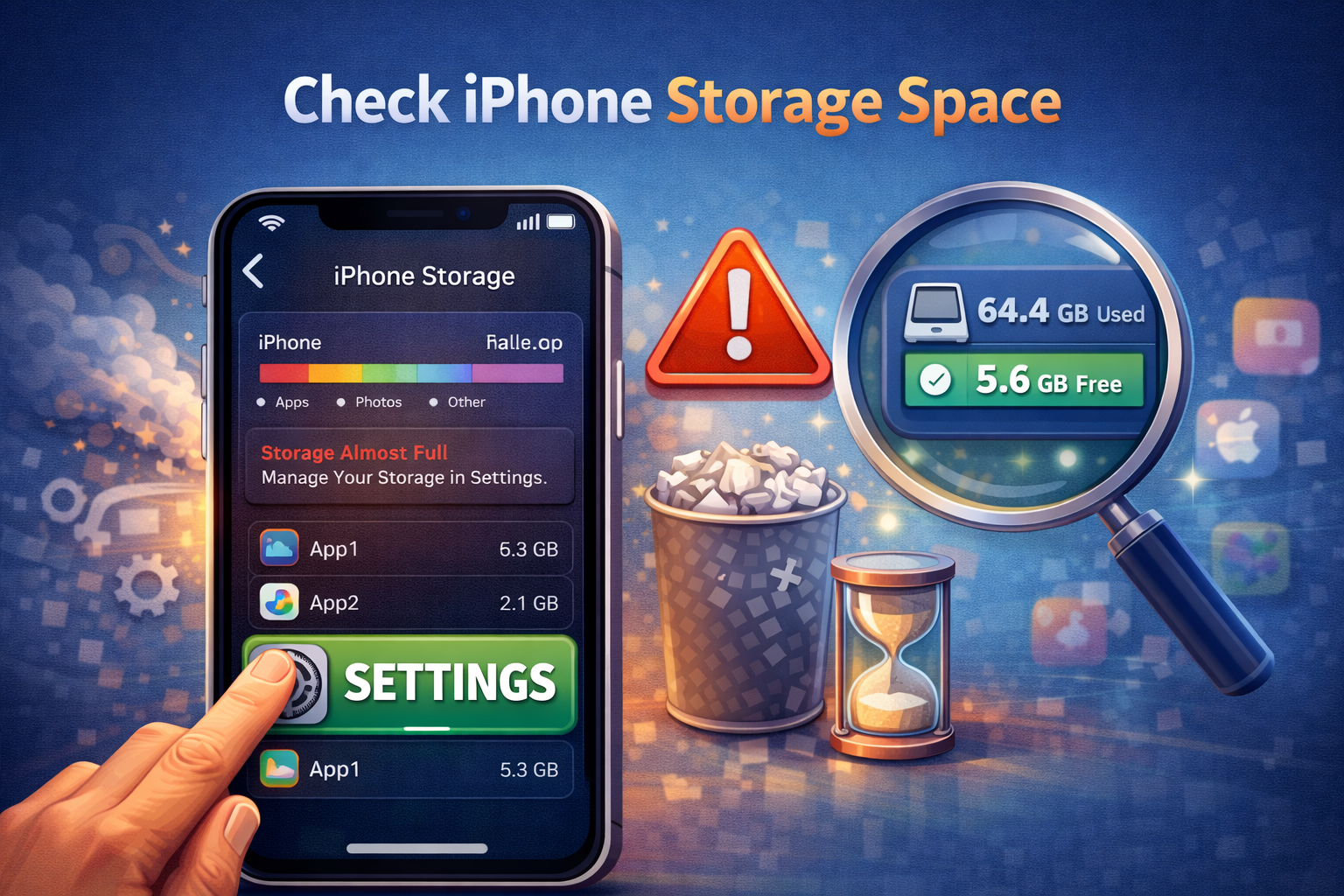
Low storage can cause apps to crash unexpectedly.
How to Check Storage:
- Go to Settings
- Tap General → iPhone Storage
If your storage is almost full:
- Delete unused apps
- Remove old photos and videos
- Clear Safari cache (Settings → Safari → Clear History and Website Data)
Aim to keep at least 5–10 GB of free space.
Step 7: Disable Background App Refresh
Background processes can conflict with newly updated apps.
How to Turn Off Background App Refresh:
- Go to Settings
- Tap General
- Select Background App Refresh
- Set it to Off or Wi-Fi only
Restart your iPhone and test the app again.
Step 8: Reset All Settings (Safe Option)
This does NOT delete your data, but resets system settings.
What Will Be Reset:
- Wi-Fi passwords
- Bluetooth connections
- Display and sound settings
How to Reset All Settings:
- Go to Settings
- Tap General → Transfer or Reset iPhone
- Choose Reset
- Tap Reset All Settings
This often fixes persistent app crashes after iOS updates.
Step 9: Check App Permissions
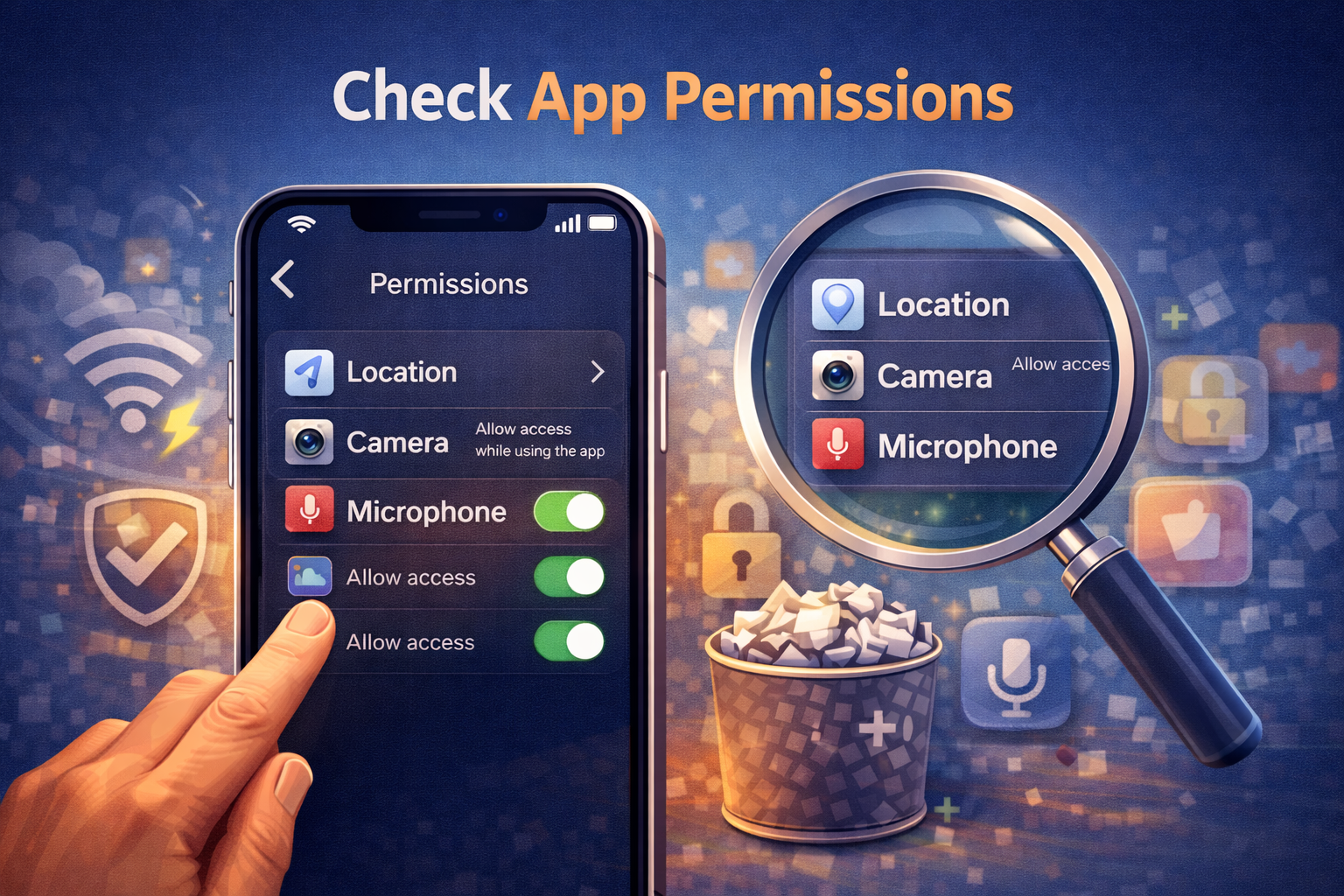
Some apps crash if permissions were reset or changed during an update.
How to Check Permissions:
- Go to Settings
- Scroll to the app name
- Enable required permissions (Camera, Photos, Microphone, etc.)
After adjusting permissions, reopen the app.
Step 10: Disable Low Power Mode
Low Power Mode can limit background activity and cause certain apps to malfunction.
How to Turn Off Low Power Mode:
- Go to Settings
- Tap Battery
- Turn off Low Power Mode
Step 11: Contact the App Developer
If only one specific app keeps crashing:
- Visit the app’s App Store page
- Scroll to Developer Website
- Report the issue via email or support form
Include:
- iPhone model
- iOS version
- Description of the crash
Step 12: Wait for an Official Fix
Sometimes the problem is not on your side. If:
- Many users report the same issue
- The app crashes immediately after opening
Then waiting for:
- An app update
- An iOS patch
is the best solution.
What NOT to Do When Apps Crash After iOS Update
Do not immediately factory reset your iPhone
Do not install unofficial system tools
Do not jailbreak your device
Do not trust “iOS crash fixer” apps from unknown sources
These actions can make the problem worse or cause data loss.
Frequently Asked Questions (FAQ)
Why do apps crash only after updating iOS?
Because the app may not yet be optimized for the new iOS version.
Will reinstalling the app delete my data?
It depends on whether the app syncs data to iCloud or its own server.
Should I downgrade iOS?
Apple does not officially support downgrading, and it is not recommended.
Final Thoughts
App crashing after an iOS update is frustrating, but it is usually fixable without extreme measures. In most cases, updating the app, restarting your iPhone, freeing storage, or resetting settings will solve the problem.
By following the steps in this guide, you can safely fix app crashes and keep your iPhone running smoothly after any iOS update.
