How to Fix Slow WiFi Internet at Home: A Complete Step-by-Step Guide
In today’s digital world, a fast and stable internet connection is essential. Whether you are working from home, attending online classes, streaming movies, gaming, or simply browsing social media, slow WiFi can be extremely frustrating. Many people immediately blame their Internet Service Provider (ISP), but in reality, slow WiFi problems often come from issues inside the home network.
The good news is that you don’t always need to upgrade your internet plan or replace expensive equipment. By understanding the causes of slow WiFi and applying the right fixes, you can significantly improve your internet speed and reliability.
This comprehensive guide will walk you through the most effective ways to fix slow WiFi internet at home, step by step.
Common Causes of Slow WiFi Internet at Home
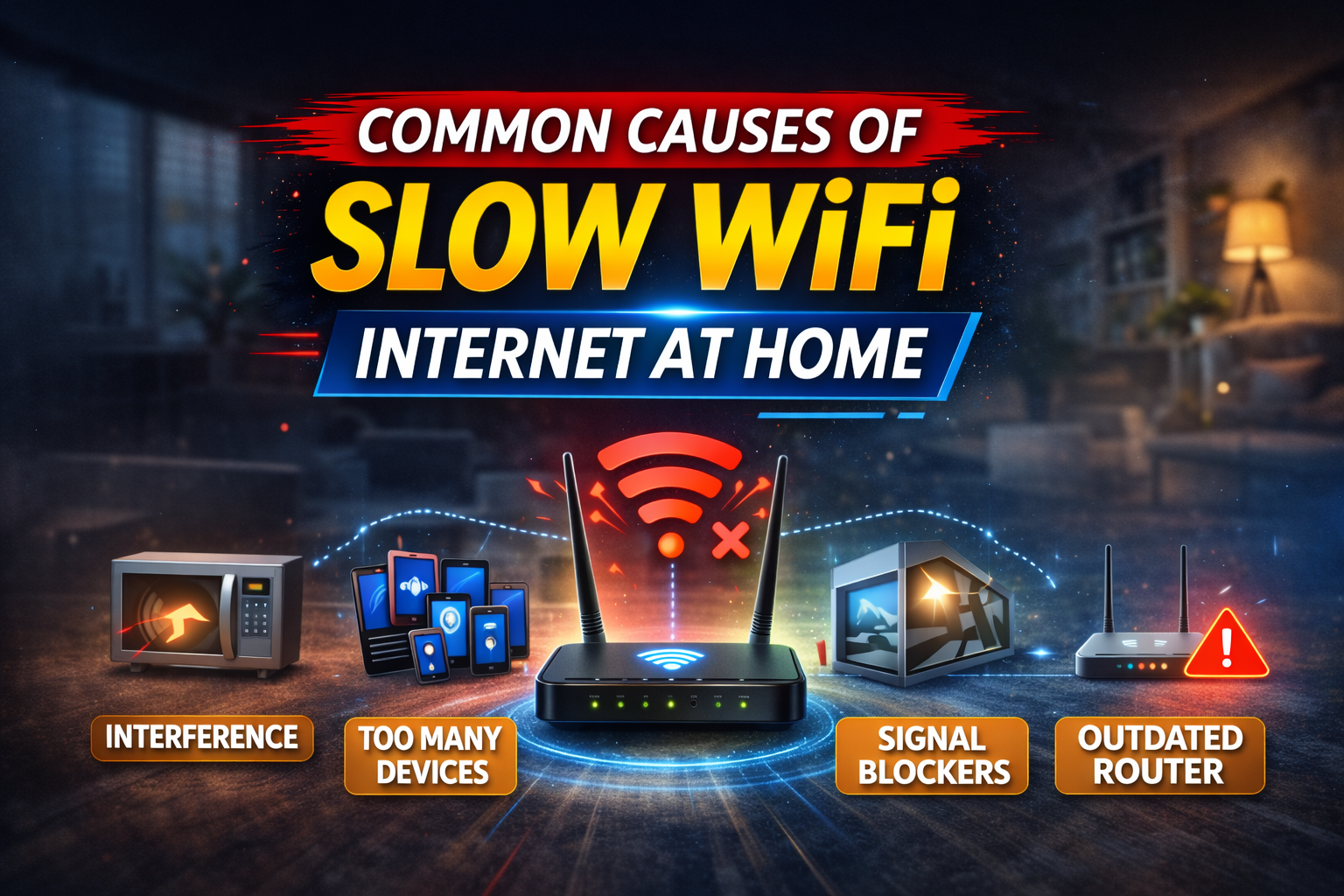
Before fixing the problem, it’s important to understand why your WiFi is slow. Some of the most common causes include:
- Poor router placement
- Too many connected devices
- Outdated router firmware
- Interference from other wireless networks
- Old or damaged router hardware
- Bandwidth-hungry applications
- Incorrect router settings
Identifying the root cause will help you choose the best solution.
1. Restart Your Modem and Router
One of the simplest yet most effective solutions is restarting your modem and router.
Why this works:
- Clears temporary memory (cache)
- Fixes minor software glitches
- Refreshes your internet connection
How to do it properly:
- Turn off your modem and router.
- Unplug them from the power source.
- Wait for 30–60 seconds.
- Plug the modem back in and wait until it fully reconnects.
- Turn on the router and wait for the WiFi signal to stabilize.
Restarting your router once a week can help maintain optimal performance.
2. Check Your Internet Speed

Testing your internet speed helps determine whether the issue is your WiFi or your internet connection itself.
What to do:
- Use online speed test tools (such as Speedtest or Fast).
- Test speed near the router and in other rooms.
- Compare the results with the speed promised by your ISP.
If your speed is slow even when standing next to the router, the problem may be with your ISP or modem.
3. Improve Router Placement
Router placement plays a huge role in WiFi performance.
Best placement tips:
- Place the router in a central location.
- Keep it elevated (on a shelf or table).
- Avoid placing it near walls, metal objects, or appliances.
- Keep it away from microwaves, cordless phones, and Bluetooth devices.
WiFi signals travel better in open spaces, so avoid hiding your router in cabinets or corners.
4. Reduce the Number of Connected Devices
Too many connected devices can slow down your WiFi.
Common devices using bandwidth:
- Smartphones
- Smart TVs
- Laptops and tablets
- Security cameras
- Smart home devices
What you can do:
- Disconnect devices that are not in use.
- Pause downloads and background updates.
- Limit WiFi access for guests.
- Use router settings to prioritize important devices.
5. Switch to the 5GHz WiFi Band
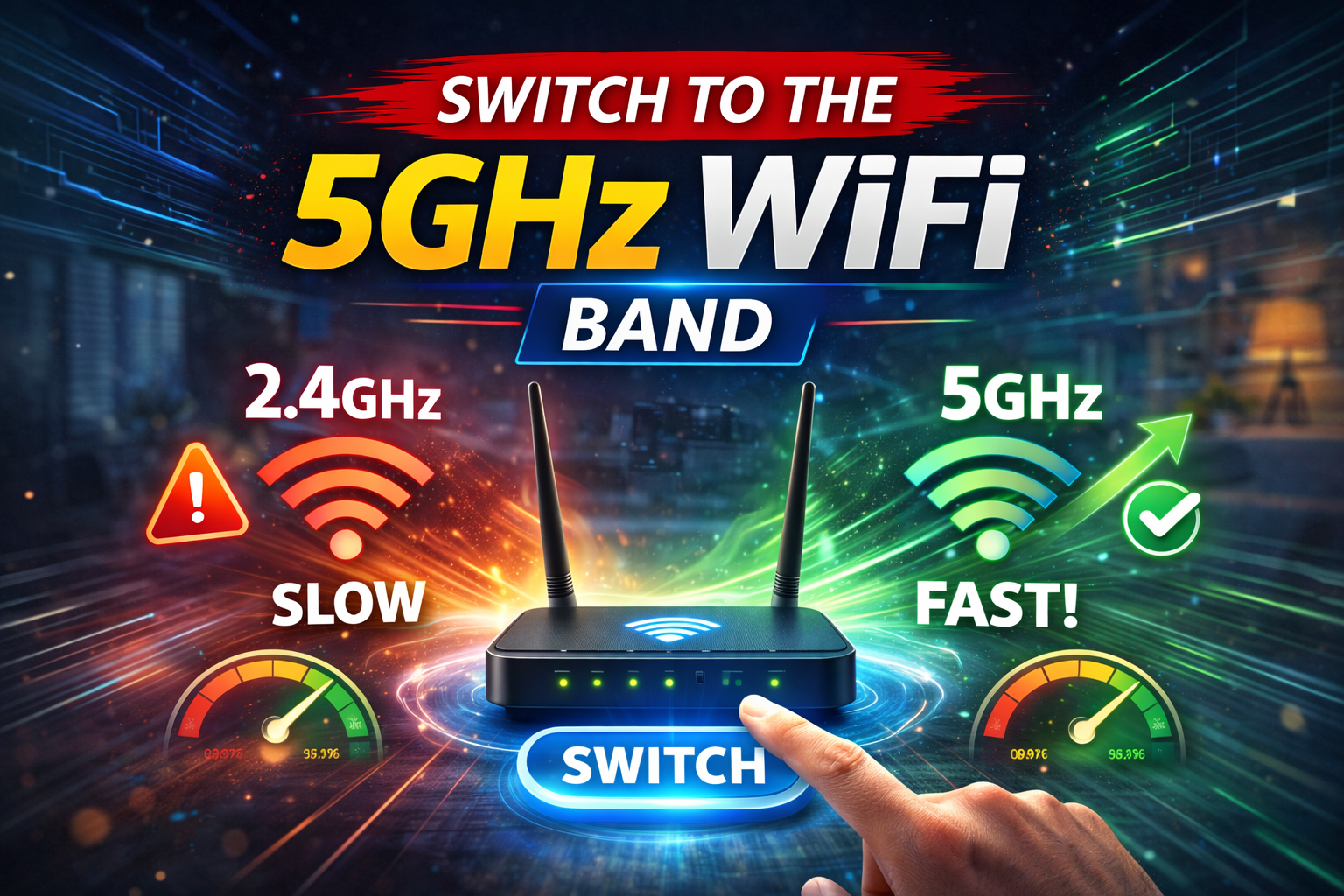
Many modern routers offer dual-band WiFi: 2.4GHz and 5GHz.
Differences:
- 2.4GHz: Longer range, slower speeds, more interference
- 5GHz: Shorter range, faster speeds, less interference
If your router supports 5GHz:
- Connect devices that are close to the router to the 5GHz band.
- Use 2.4GHz for devices farther away.
This simple change can significantly improve speed.
6. Update Router Firmware
Outdated firmware can cause slow speeds, security risks, and connection drops.
How to update firmware:
- Log in to your router’s admin panel.
- Check for firmware updates.
- Download and install the latest version.
- Restart the router after updating.
Keeping firmware up to date improves performance and stability.
7. Secure Your WiFi Network
An unsecured WiFi network allows others to use your bandwidth without permission.
Steps to secure your WiFi:
- Use WPA2 or WPA3 encryption.
- Create a strong WiFi password.
- Change the default router login credentials.
- Disable WPS if not needed.
A secure network ensures that only authorized users consume your internet speed.
8. Change the WiFi Channel
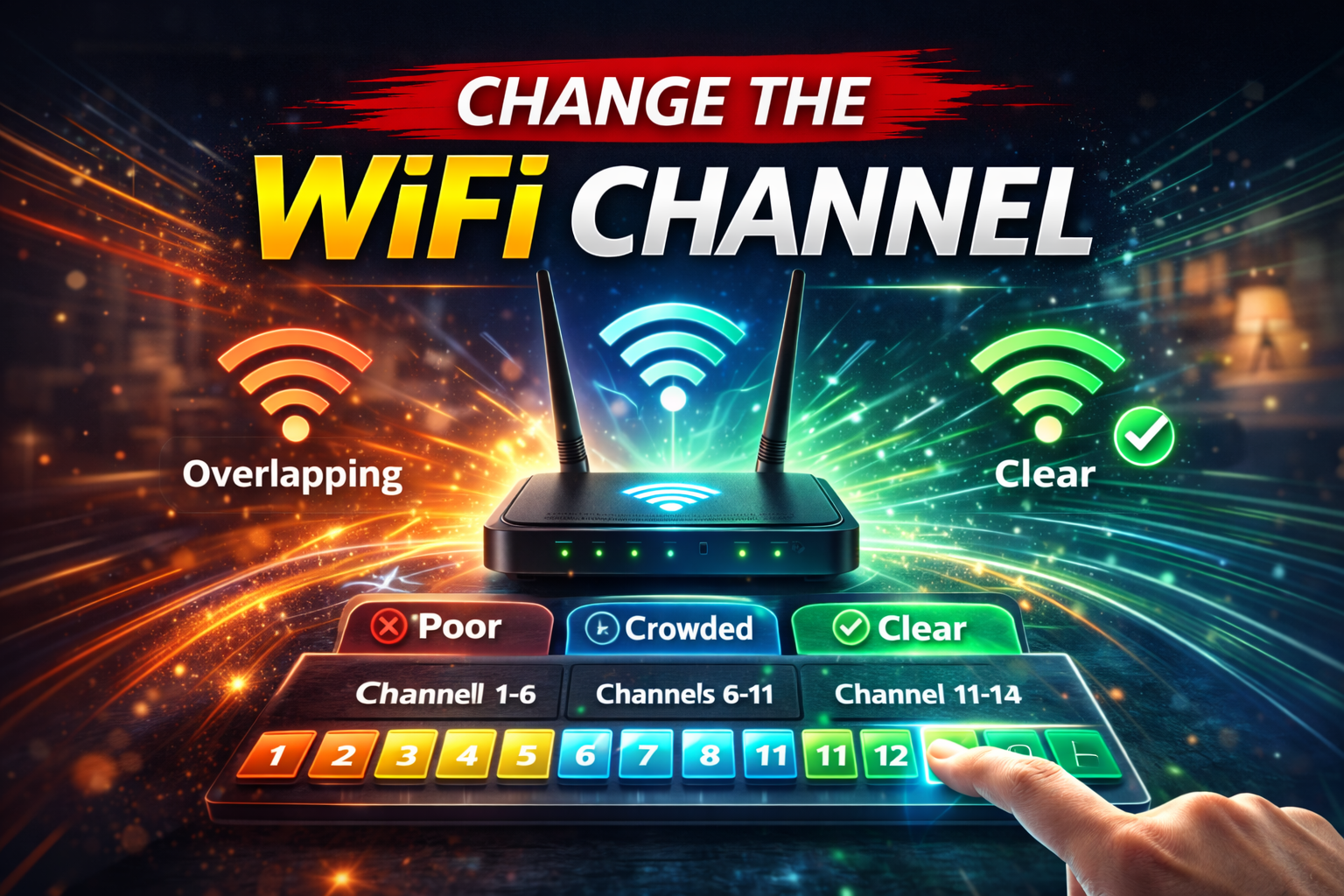
WiFi interference from neighboring networks can slow down your connection.
Why this happens:
- Many routers use the same default channels.
- Overcrowded channels cause interference.
Solution:
- Access your router settings.
- Switch to a less crowded WiFi channel.
- Use automatic channel selection if available.
This is especially useful in apartments or densely populated areas.
9. Use Quality of Service (QoS) Settings
Quality of Service (QoS) allows you to prioritize certain devices or applications.
Benefits:
- Better video streaming
- Reduced lag in online gaming
- Stable video calls
How to use it:
- Enable QoS in router settings.
- Assign priority to work devices, gaming consoles, or streaming apps.
QoS ensures critical tasks get the bandwidth they need.
10. Upgrade Your Router
If your router is more than 4–5 years old, it may not handle modern internet demands.
Signs you need a new router:
- Frequent disconnections
- Slow speeds despite good internet plan
- Limited coverage
- No support for 5GHz or WiFi 6
Upgrading to a modern router can dramatically improve speed and coverage.
11. Use WiFi Extenders or Mesh Systems
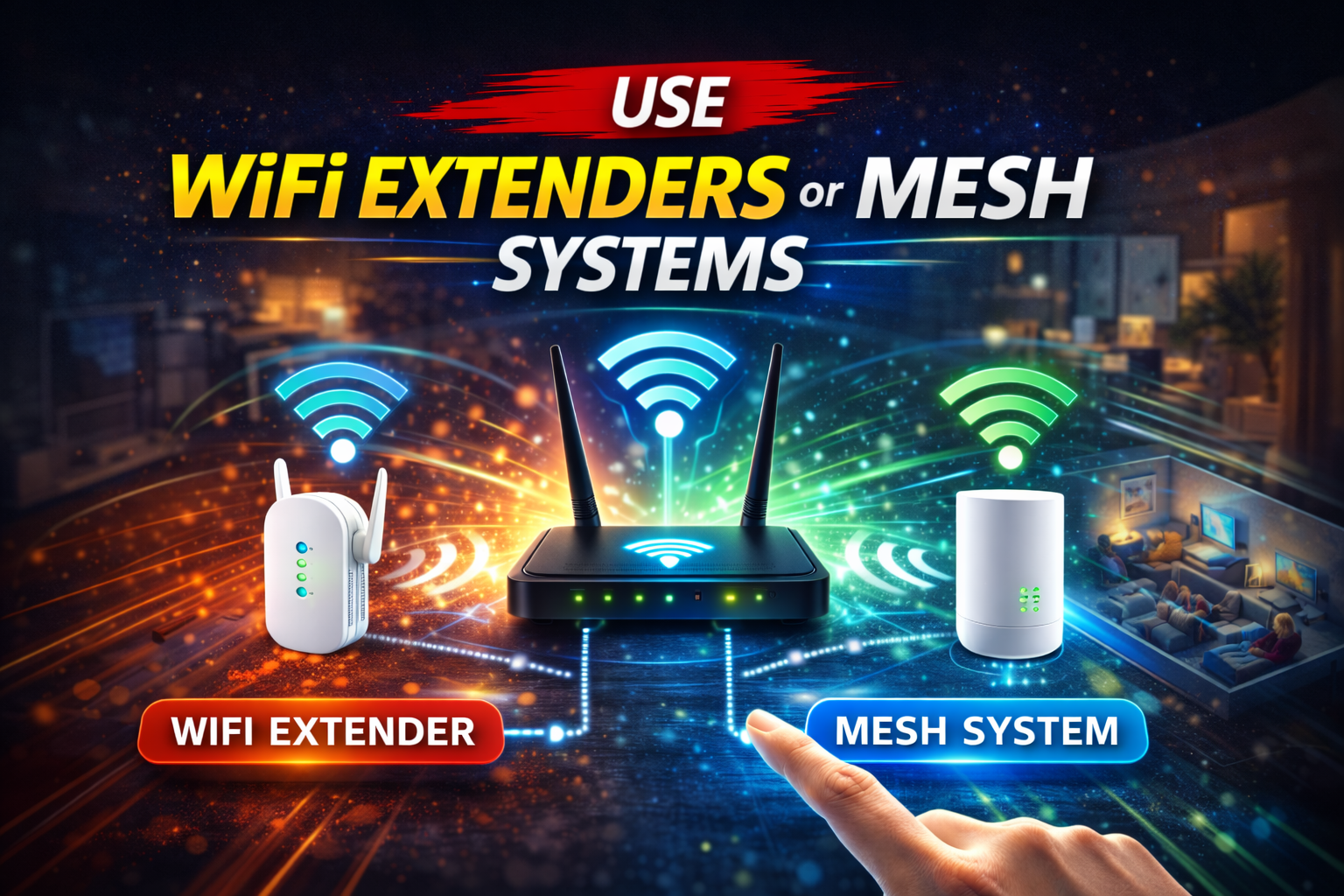
Large homes often suffer from weak WiFi signals in certain areas.
Solutions:
- WiFi Extenders: Boost signal to dead zones
- Mesh WiFi Systems: Provide seamless coverage across the entire home
Mesh systems are more expensive but offer better performance and reliability.
12. Limit Background Applications
Many devices run background apps that consume bandwidth.
Common bandwidth hogs:
- Cloud backups
- Automatic updates
- Streaming services
- Torrent downloads
Check device settings and disable or schedule these tasks during off-peak hours.
13. Replace Old or Damaged Cables
Faulty Ethernet or modem cables can reduce internet speed.
What to check:
- Replace old Ethernet cables with Cat5e or Cat6.
- Ensure cables are securely connected.
- Avoid bent or damaged cables.
Small hardware issues can have a big impact on performance.
14. Contact Your Internet Service Provider

If none of the above solutions work, the issue may be with your ISP.
When to contact your ISP:
- Speed tests are consistently below your plan
- Frequent connection drops
- No improvement after troubleshooting
Your ISP can:
- Check line issues
- Reset your connection remotely
- Upgrade your modem if needed
Conclusion
Slow WiFi internet at home can be caused by many factors, but most issues can be fixed without spending extra money. Simple steps like restarting your router, improving placement, updating firmware, and reducing interference can make a noticeable difference.
By following the tips in this guide, you can enjoy faster speeds, better stability, and a smoother online experience. Whether you’re working, streaming, or gaming, a well-optimized home WiFi network is essential in today’s connected world.
