How to Free Up Storage on iPhone Without Deleting Important Data
Running out of storage on your iPhone is a common problem, especially as apps, photos, videos, and system data continue to grow over time. Many users hesitate to free up space because they fear losing important photos, messages, or files. The good news is that you can reclaim a significant amount of storage on your iPhone without deleting any important data.
In this comprehensive guide, you’ll learn safe, effective, and practical ways to free up iPhone storage while keeping your essential information intact. These methods work on most modern iPhones and iOS versions and are ideal for users who want better performance without sacrificing data.
Why iPhone Storage Fills Up So Quickly
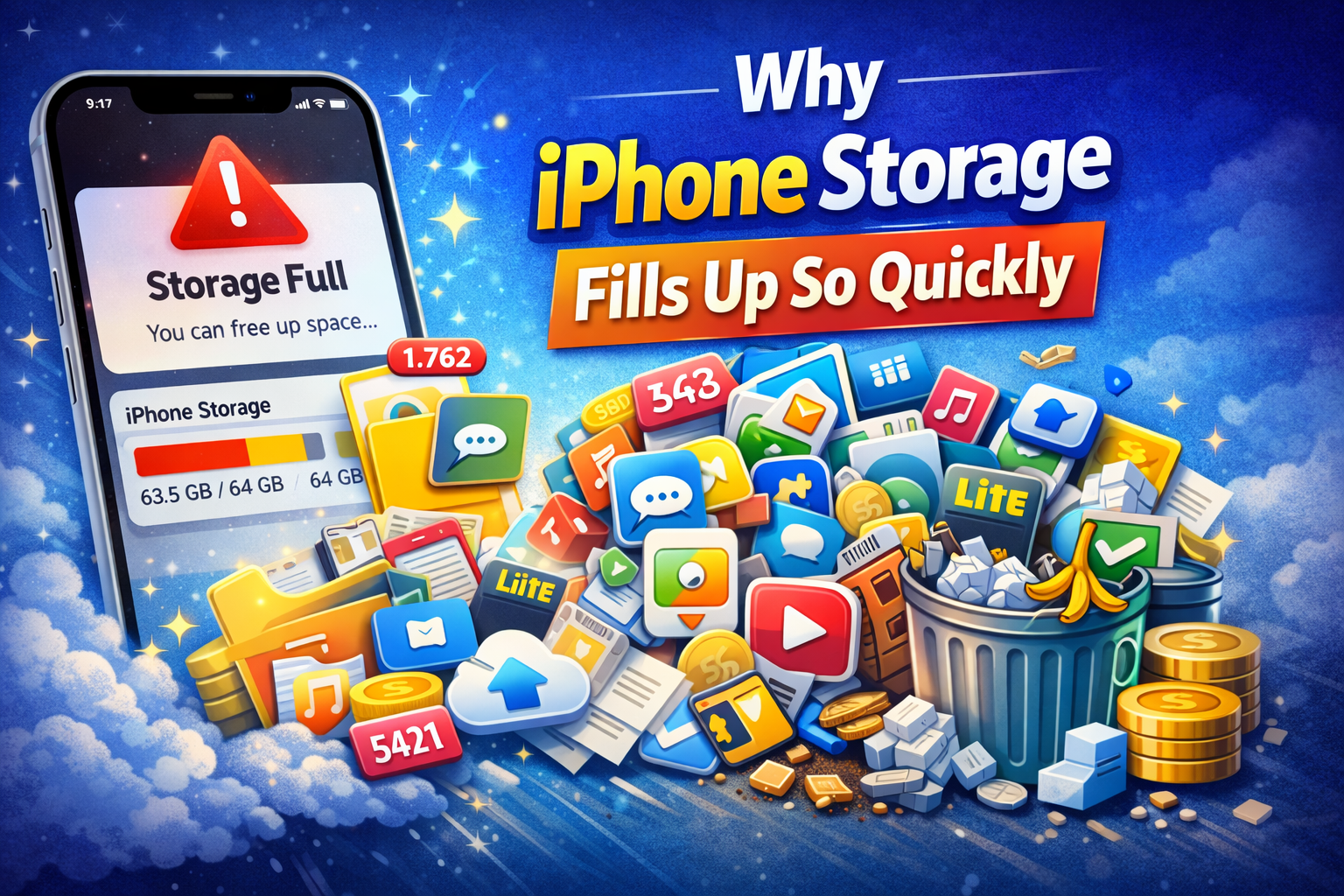
Before freeing up space, it’s important to understand what consumes storage on your iPhone:
- Photos and videos, especially 4K videos and Live Photos
- Apps that store large cache files
- Messages with media attachments
- Safari and app browsing data
- System data accumulated over time
- Offline downloads (music, videos, maps)
Knowing this helps you target the right areas without deleting anything valuable.
Check Your iPhone Storage Usage
The first step is to see exactly what’s using your storage.
How to check storage usage:
- Open Settings
- Tap General
- Tap iPhone Storage
Here, you’ll see a breakdown of storage usage by category and app. iOS also provides recommendations to optimize storage safely.
Enable iCloud Photos Optimization
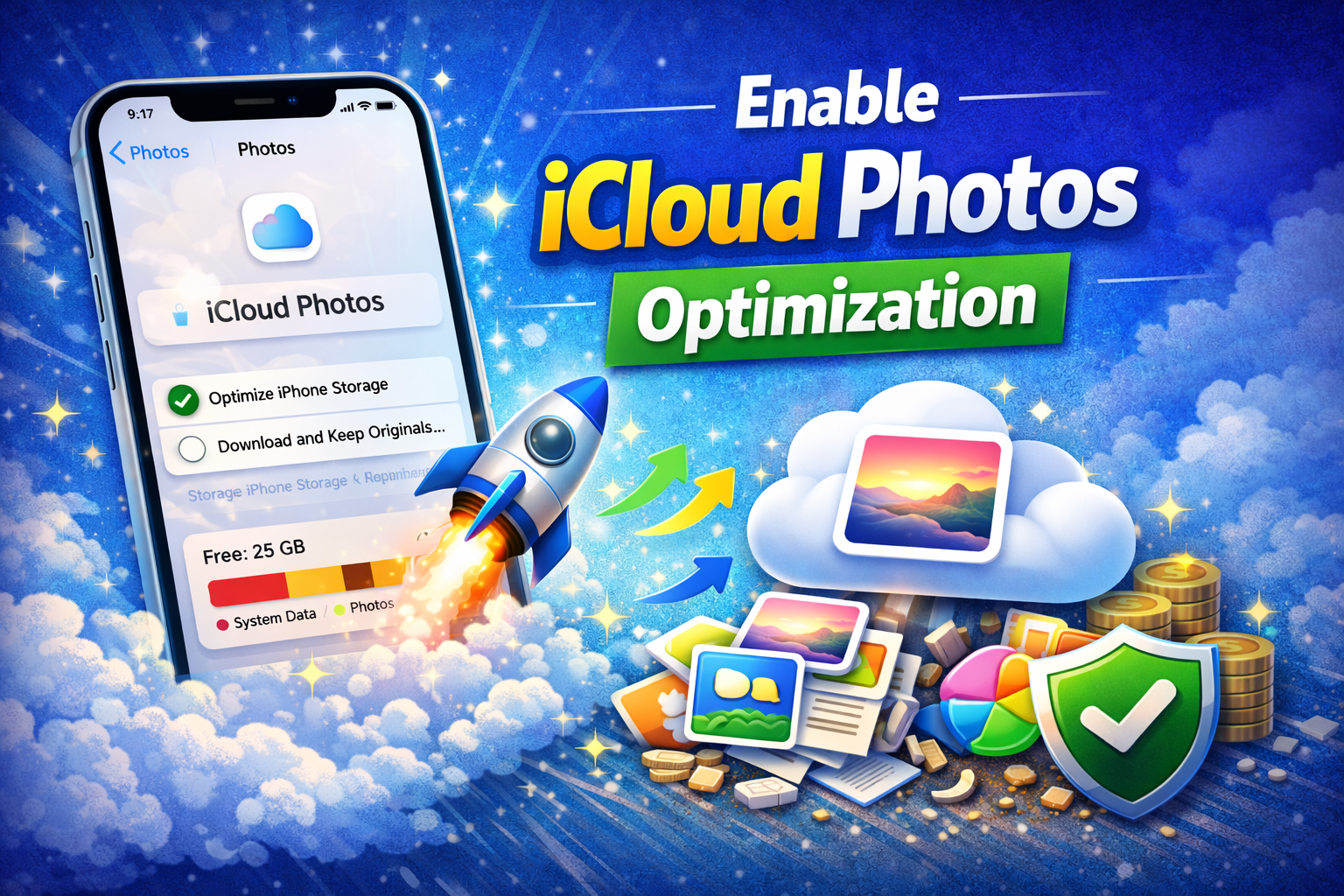
Photos and videos often take up the largest portion of storage. Instead of deleting them, you can store full-resolution versions in iCloud and keep smaller versions on your device.
How to enable Optimize iPhone Storage:
- Go to Settings
- Tap Photos
- Enable Optimize iPhone Storage
This keeps your original photos safely stored in iCloud while freeing up local storage. You can still download full versions anytime.
Offload Unused Apps Automatically
Apps can consume large amounts of space, even when you rarely use them. iOS offers a feature that removes unused apps while keeping their data intact.
How to enable Offload Unused Apps:
- Open Settings
- Tap App Store
- Enable Offload Unused Apps
When you reinstall the app, all your data and settings are restored automatically.
Clear Safari Cache and Website Data
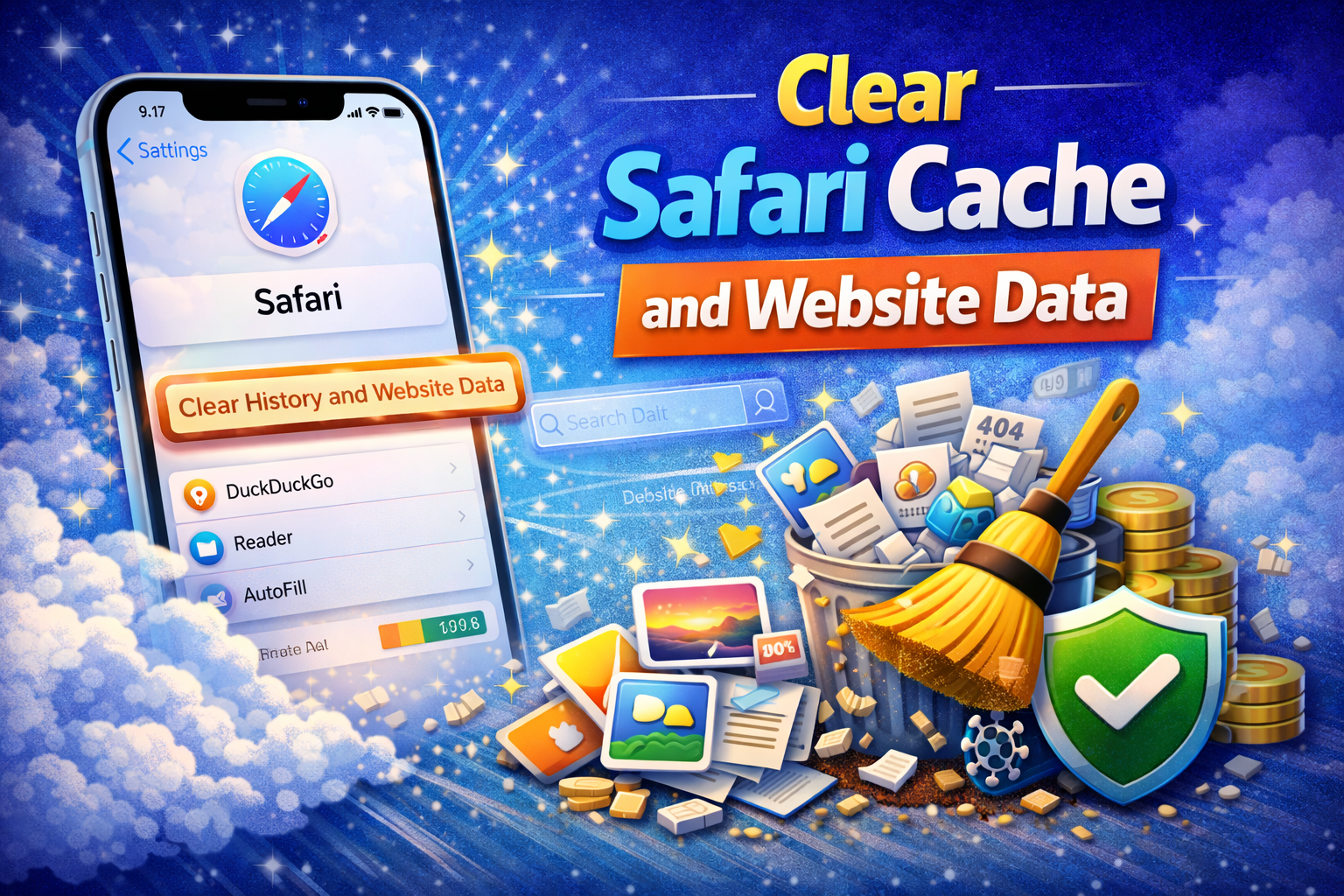
Safari accumulates browsing history, cookies, and cached files that can take up unnecessary space.
How to clear Safari data:
- Go to Settings
- Tap Safari
- Tap Clear History and Website Data
This won’t delete saved passwords or bookmarks if you’re using iCloud Keychain.
Remove App Cache Without Deleting Apps
Many apps store cache files that aren’t essential. While iOS doesn’t allow clearing cache for all apps at once, there are still safe ways to reduce it.
Social Media Apps
Apps like Instagram, TikTok, Facebook, and YouTube store large amounts of cached media.
What you can do:
- Open the app’s internal settings and clear cache (if available)
- Log out and log back in
- Update the app regularly to reduce storage issues
Streaming Apps
Offline downloads from Netflix, Spotify, or Apple Music can silently consume storage.
Tip: Review downloaded content and remove items you no longer need.
Delete Old Message Attachments Automatically
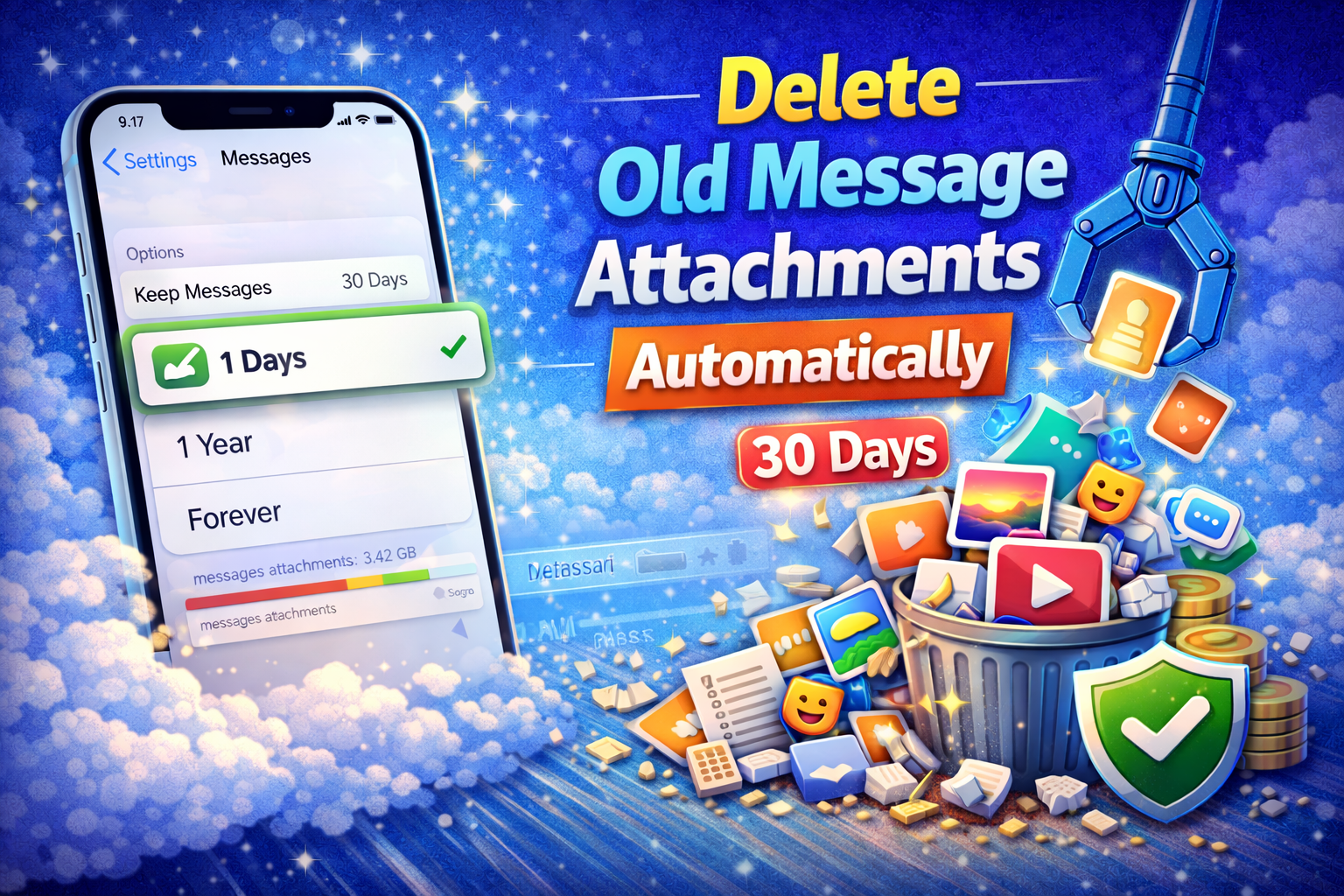
Messages themselves don’t take much space, but photos, videos, and voice notes inside conversations do.
Enable automatic message deletion:
- Open Settings
- Tap Messages
- Tap Keep Messages
- Select 30 Days or 1 Year
This removes old attachments while keeping recent conversations.
Manage WhatsApp and iMessage Storage
Messaging apps can store gigabytes of media files.
For WhatsApp:
- Open WhatsApp
- Go to Settings > Storage and Data
- Tap Manage Storage
- Review and delete large files selectively
This allows you to remove only unnecessary media without losing important chats.
Use iCloud Drive and Files App
Documents and files stored locally can be moved to iCloud Drive.
Benefits:
- Access files anytime
- Free up local storage
- Keep data secure
Use the Files app to move large files to iCloud or external storage providers.
Optimize Apple Music and Podcasts Storage
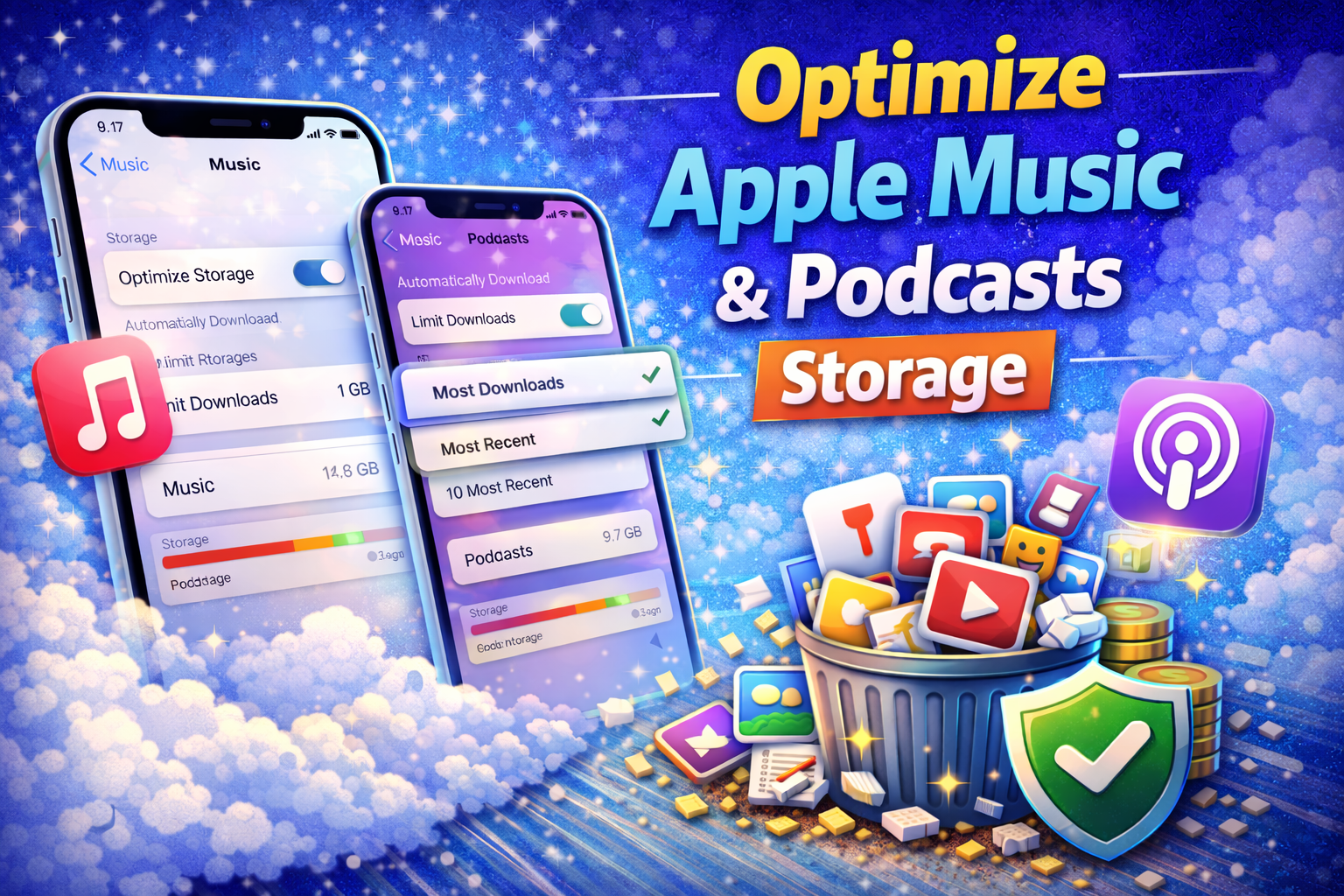
Music and podcasts downloaded for offline use can take up a lot of space.
How to optimize music storage:
- Go to Settings
- Tap Music
- Enable Optimize Storage
- Set a storage limit
For podcasts, enable automatic deletion of played episodes.
Restart Your iPhone Regularly
Restarting your iPhone can help clear temporary system cache and free up small amounts of storage.
Tip: Restart your device at least once a week for optimal performance.
Update iOS to the Latest Version
Apple often includes storage optimizations and bug fixes in iOS updates.
Why updating helps:
- Reduces system data size
- Improves storage management
- Fixes bugs causing excessive storage usage
Always ensure you have enough space before updating.
Use Third-Party Cloud Storage Safely
Services like Google Drive, OneDrive, and Dropbox allow you to upload photos, videos, and documents, then remove local copies without losing access.
Best practices:
- Enable automatic backups
- Verify files are uploaded before deleting local copies
- Use trusted cloud providers only
Clear System Data by Resetting Settings (Optional)
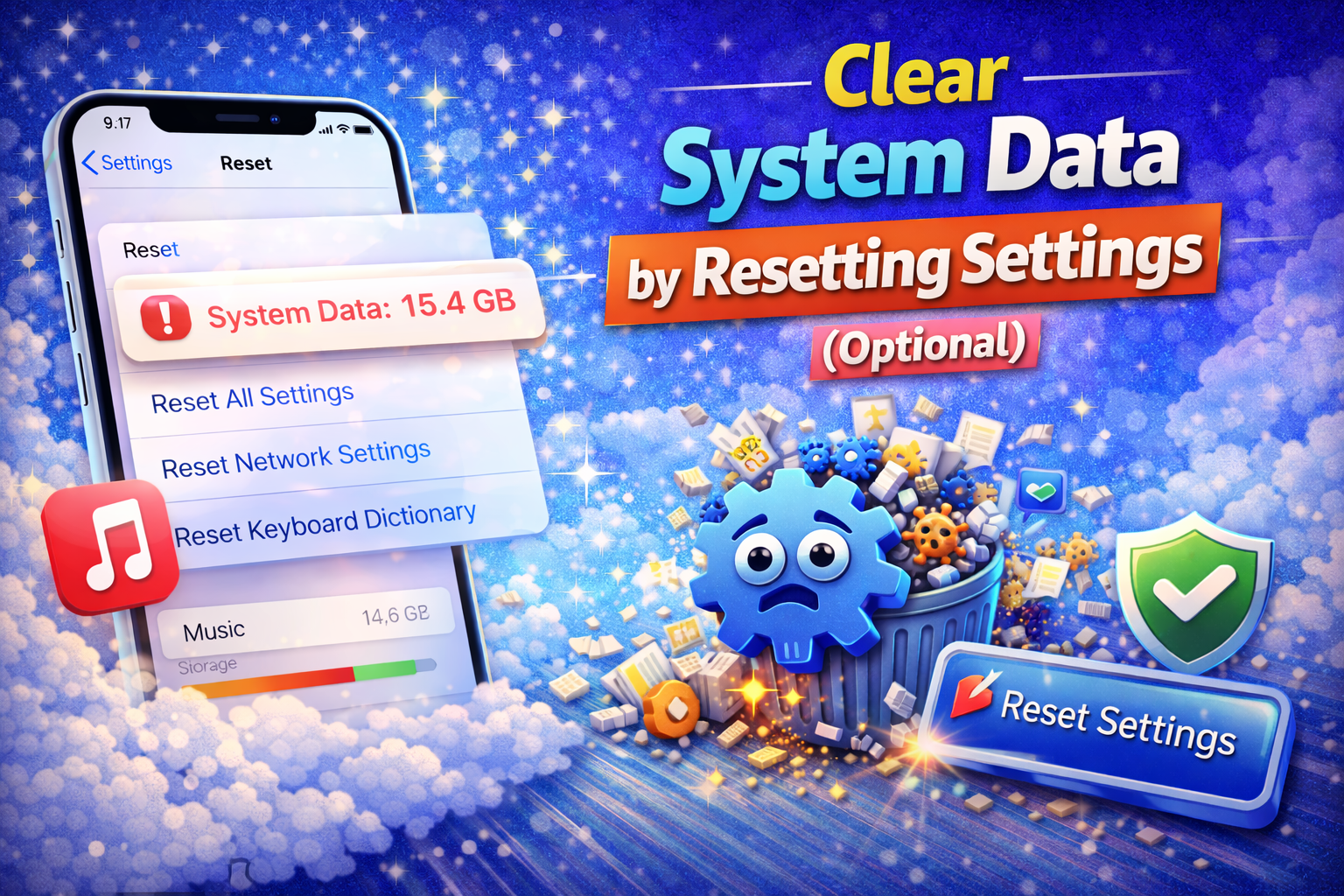
If system data is unusually large, resetting settings can help.
How to reset settings (safe method):
- Go to Settings
- Tap General
- Tap Transfer or Reset iPhone
- Choose Reset > Reset All Settings
This does not delete your data but resets preferences like Wi-Fi passwords and settings.
Tips to Prevent Storage Issues in the Future
- Enable automatic iCloud backups
- Avoid saving duplicate photos and videos
- Limit offline downloads
- Review storage usage monthly
- Use optimized photo settings
Preventive maintenance keeps your iPhone running smoothly long-term.
Conclusion
Freeing up storage on your iPhone doesn’t mean deleting important data. By using iCloud optimization, offloading unused apps, managing cache, and adjusting system settings, you can reclaim valuable space safely and efficiently.
These methods not only free up storage but also improve performance, battery life, and overall user experience. With regular maintenance and smart storage management, your iPhone can stay fast and clutter-free without sacrificing the data you care about.
