How to Improve WiFi Speed Without Changing ISP
In today’s digital world, a fast and stable WiFi connection is essential. Whether you are working from home, attending online classes, streaming movies, or gaming, slow WiFi can be extremely frustrating. Many people assume that upgrading their internet plan or changing their Internet Service Provider (ISP) is the only solution. However, this is not always necessary.
In reality, slow WiFi speeds are often caused by issues inside your home network rather than your ISP. The good news is that you can significantly improve your WiFi speed without changing your ISP. This article will guide you through practical, proven, and easy-to-follow methods to optimize your WiFi performance using your existing internet plan.
Understanding the Difference Between Internet Speed and WiFi Speed
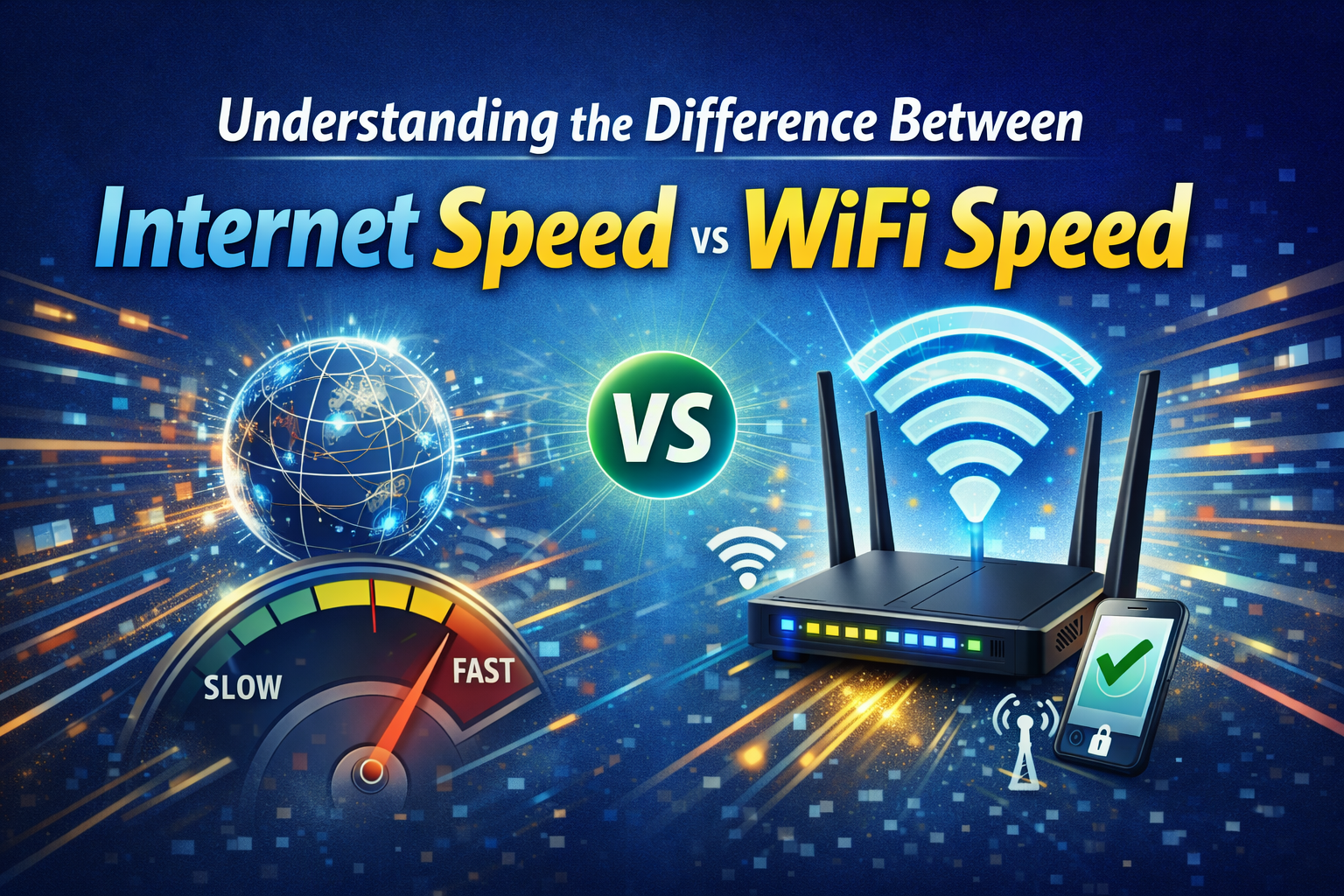
Before making any changes, it is important to understand that internet speed and WiFi speed are not the same.
- Internet speed is the speed provided by your ISP.
- WiFi speed is how fast that internet connection is delivered wirelessly to your devices.
Even if your ISP provides high-speed internet, poor WiFi setup, interference, or outdated equipment can slow down your connection. Improving WiFi speed focuses on optimizing how your network distributes the internet you already have.
1. Place Your Router in the Best Location
Router placement plays a crucial role in WiFi performance. Many users place their router in a corner, behind furniture, or inside cabinets, which weakens the signal.
Best practices for router placement:
- Place the router in a central location of your home.
- Keep it elevated, such as on a shelf or table.
- Avoid placing it near thick walls, metal objects, or large appliances.
- Keep it away from microwaves and cordless phones.
A well-positioned router can dramatically improve signal strength and speed across all rooms.
2. Restart Your Router Regularly
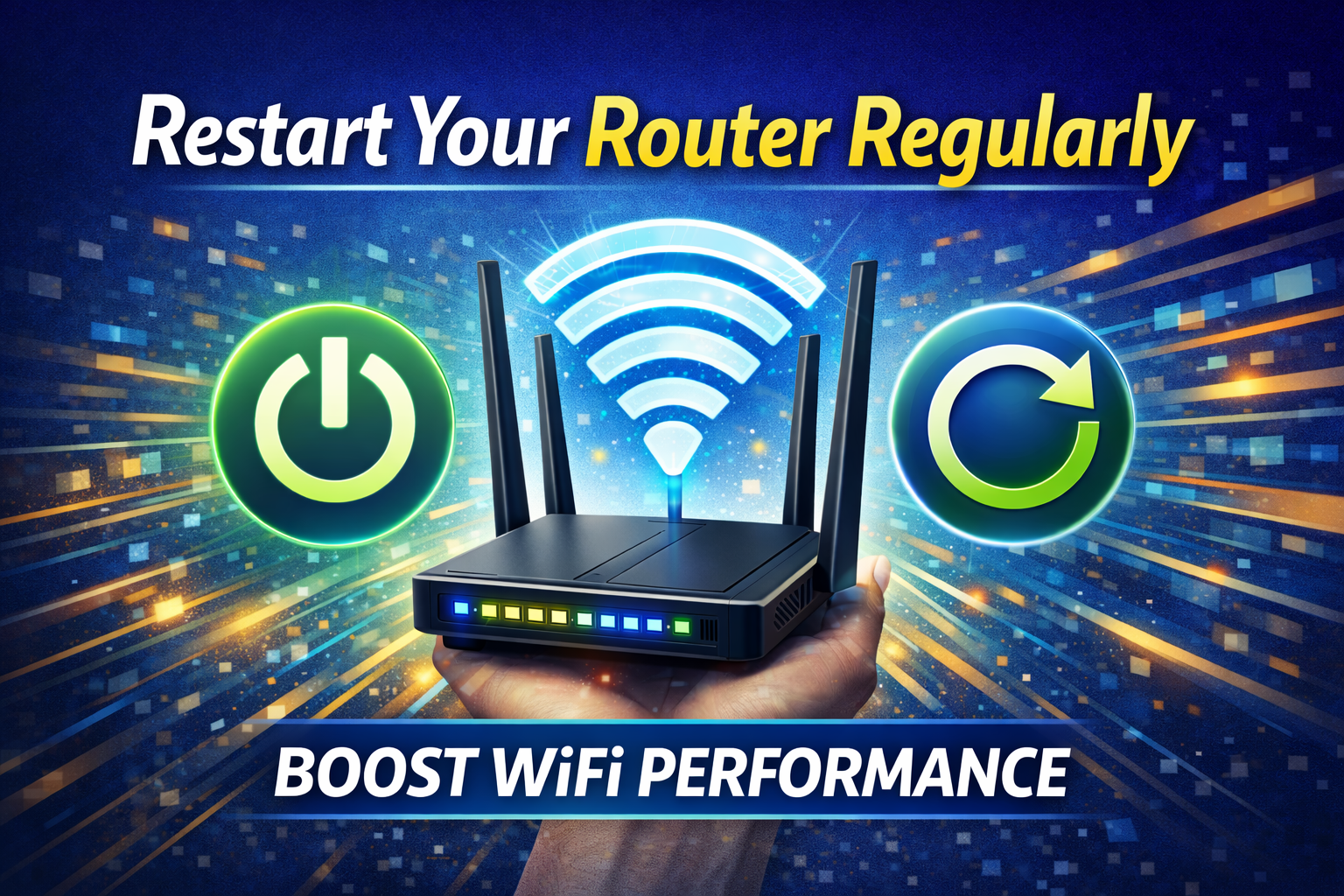
Restarting your router may sound simple, but it is one of the most effective ways to fix slow WiFi.
Why restarting helps:
- Clears temporary memory and cache
- Fixes minor software glitches
- Disconnects unauthorized or idle devices
Restart your router at least once a week or whenever you notice slow speeds. Simply unplug it, wait 30 seconds, and plug it back in.
3. Update Router Firmware
Router manufacturers regularly release firmware updates to improve performance, security, and stability. Using outdated firmware can result in slow speeds and connection issues.
How to update firmware:
- Log in to your router’s admin panel (usually via a browser).
- Check for firmware updates.
- Install the latest version if available.
Firmware updates can unlock better performance without any additional cost.
4. Change WiFi Channel to Reduce Interference
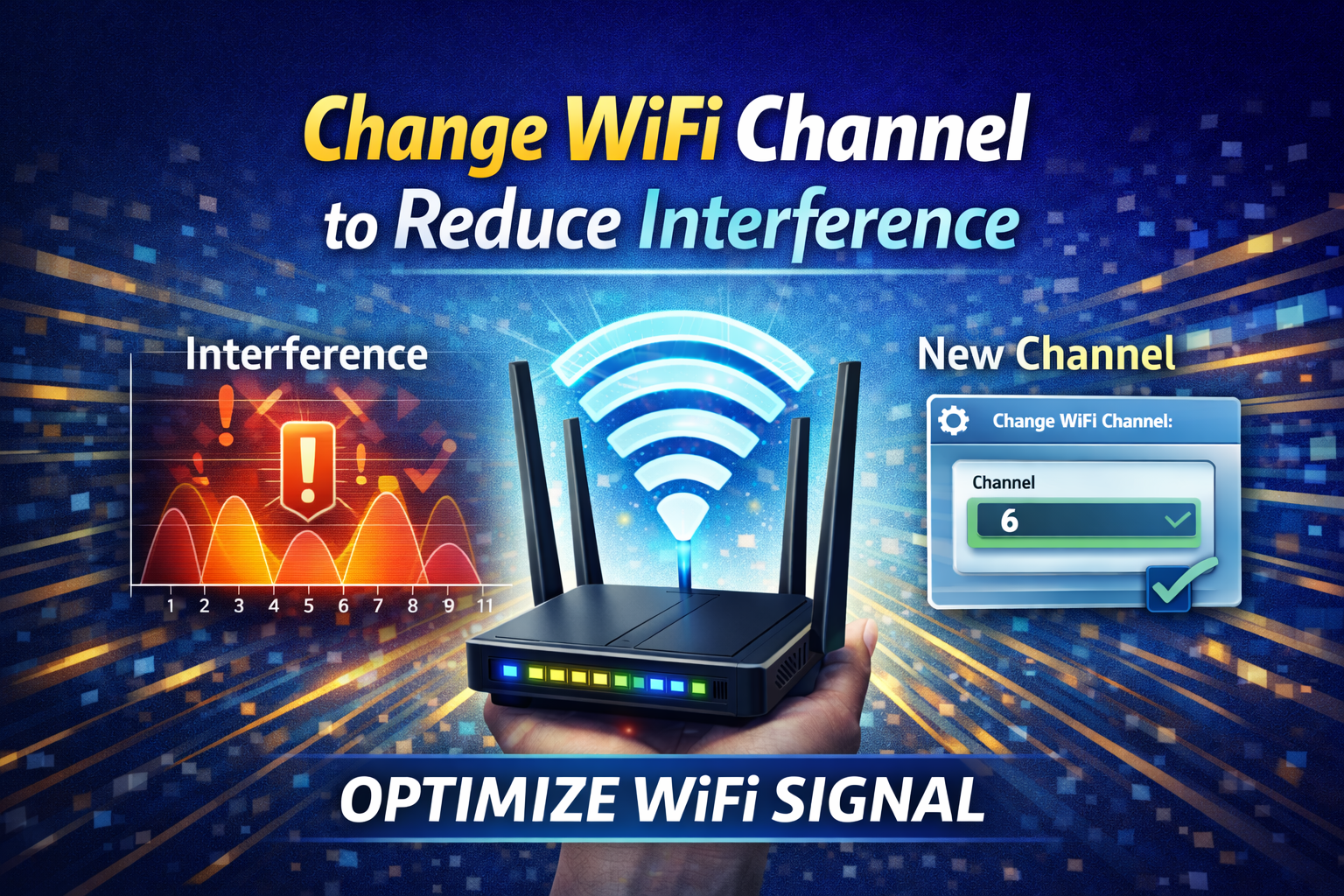
WiFi networks operate on shared channels. In crowded areas such as apartments or dormitories, multiple networks may use the same channel, causing congestion and slower speeds.
How to improve this:
- Access your router settings.
- Switch to a less crowded channel.
- Use channels 1, 6, or 11 for 2.4GHz networks.
Changing channels helps reduce interference from neighboring networks and improves speed and stability.
5. Switch to the 5GHz Band When Possible
Most modern routers support dual-band WiFi: 2.4GHz and 5GHz.
Differences:
- 2.4GHz: Longer range, slower speed, more interference
- 5GHz: Shorter range, faster speed, less interference
If your devices support 5GHz, connect them to that band for faster speeds, especially for streaming, video calls, and gaming.
6. Secure Your WiFi Network
An unsecured WiFi network allows neighbors or unauthorized users to consume your bandwidth, slowing down your connection.
Steps to secure your WiFi:
- Set a strong WiFi password
- Use WPA2 or WPA3 encryption
- Disable WPS if not needed
- Change default router login credentials
A secure network ensures that your internet speed is used only by trusted devices.
7. Limit Background Applications and Downloads
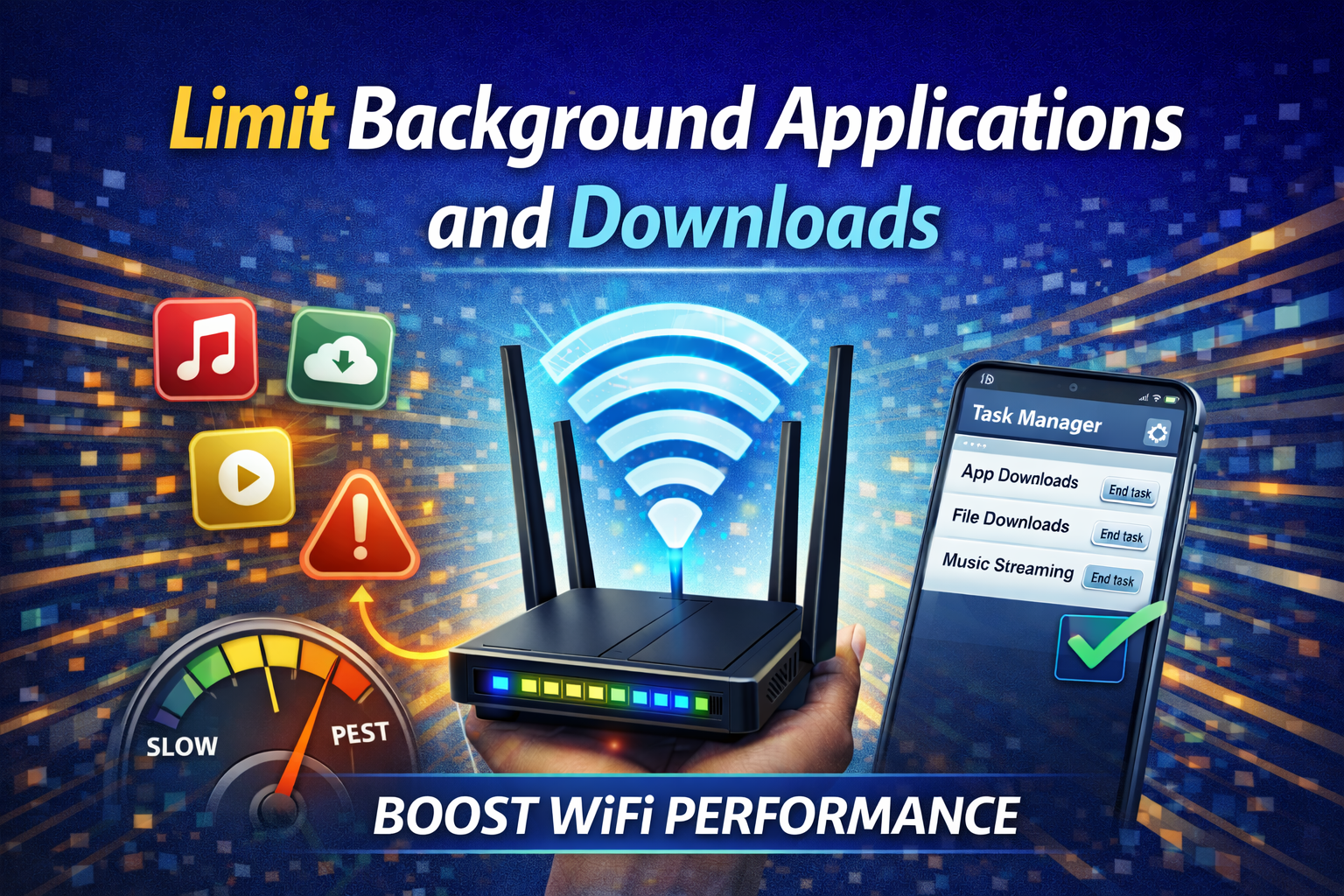
Devices connected to your WiFi may be using bandwidth in the background without your knowledge.
Common bandwidth hogs:
- Automatic software updates
- Cloud backups
- Streaming services running in the background
- Torrents and large downloads
Check your devices and pause unnecessary background activities to free up bandwidth.
8. Disconnect Unused Devices
The more devices connected to your WiFi, the more your bandwidth is shared. Even idle devices can slow down your network.
What to do:
- Disconnect devices not currently in use
- Remove old or unknown devices from your router
- Limit guest access when not needed
Reducing the number of connected devices improves overall performance.
9. Upgrade Your Router (Not Your ISP)
If your router is several years old, it may not support modern WiFi standards.
Benefits of a newer router:
- Faster speeds
- Better range
- Improved device handling
- Support for WiFi 5 or WiFi 6
Upgrading your router can significantly improve WiFi performance without changing your internet plan.
10. Use Ethernet for High-Priority Devices
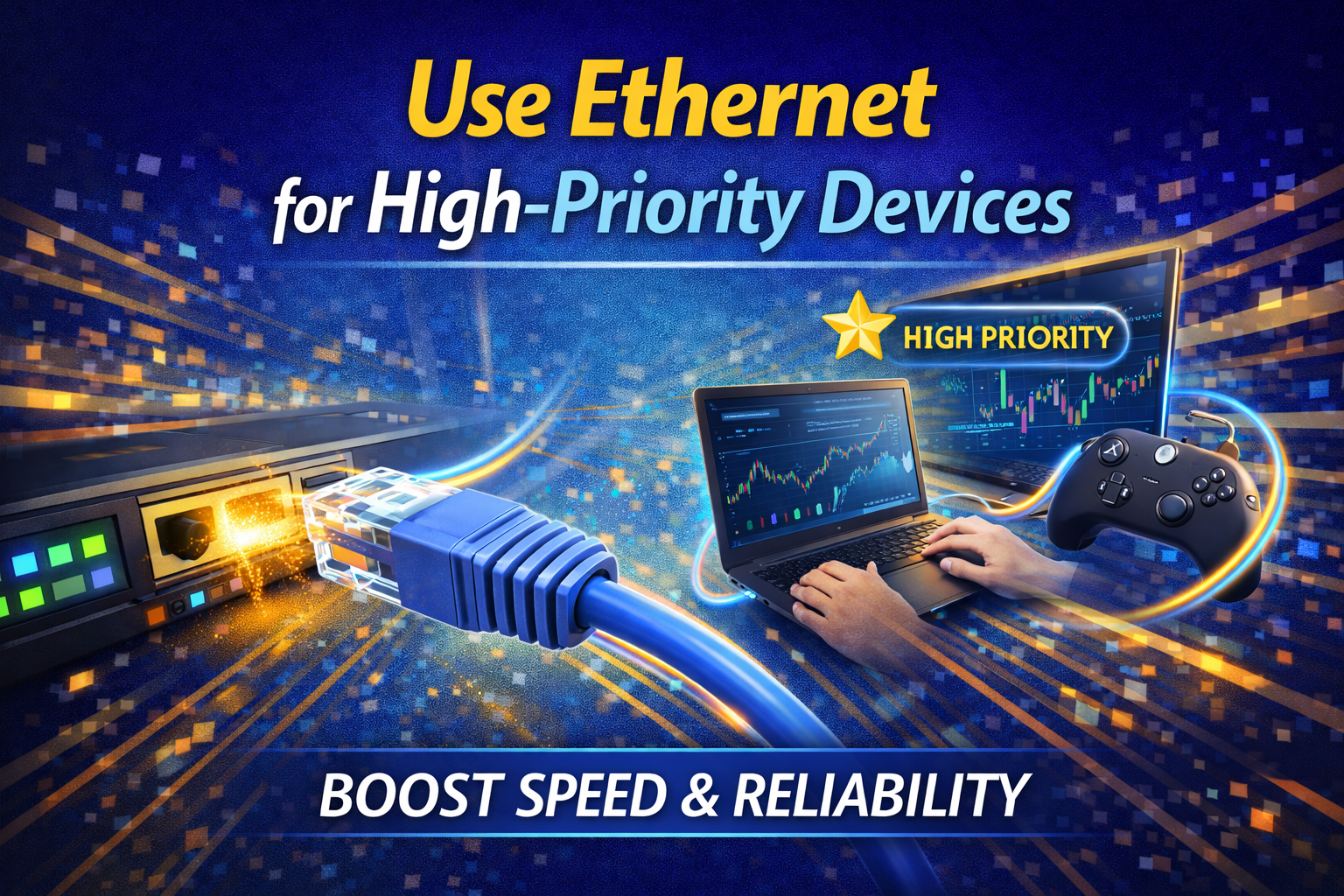
For devices that require stable and fast connections, such as desktop computers or gaming consoles, a wired connection is often better.
Advantages of Ethernet:
- Faster and more stable connection
- No interference
- Lower latency
Using Ethernet reduces WiFi congestion and improves overall network performance.
11. Adjust Quality of Service (QoS) Settings
Many routers offer Quality of Service (QoS) features that prioritize certain types of traffic.
How QoS helps:
- Prioritizes video calls and gaming
- Reduces lag during important tasks
- Prevents one device from dominating bandwidth
Configure QoS settings to match your usage needs.
12. Reduce Physical and Electronic Interference
WiFi signals can be weakened by physical obstacles and electronic devices.
Common sources of interference:
- Thick concrete walls
- Mirrors and metal surfaces
- Bluetooth devices
- Baby monitors
Reposition your router or reduce interference sources to improve signal quality.
13. Use WiFi Extenders or Mesh Systems
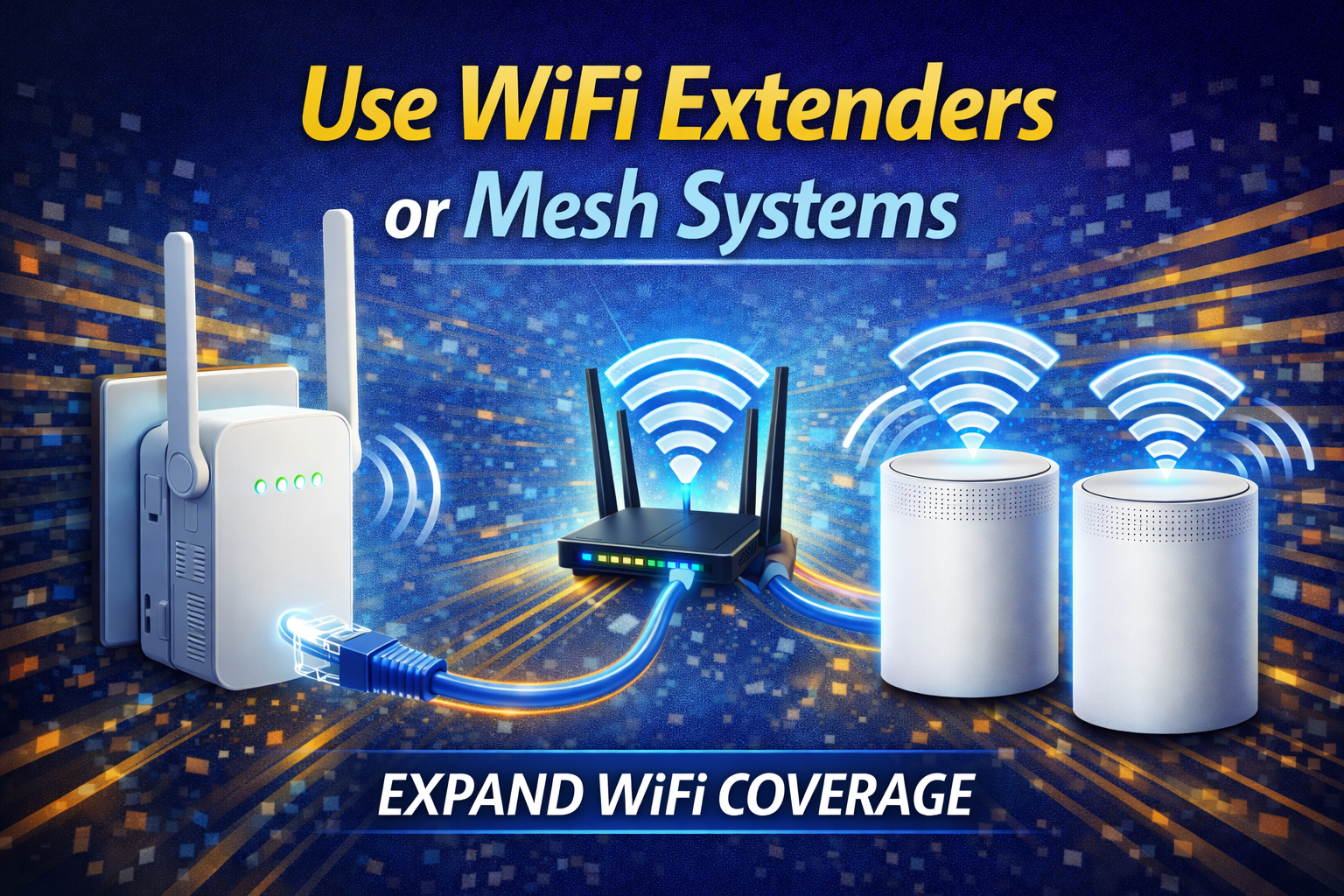
If your home is large or has multiple floors, a single router may not provide adequate coverage.
Options:
- WiFi extenders for specific weak areas
- Mesh WiFi systems for whole-home coverage
These solutions improve signal strength and consistency without upgrading your ISP plan.
14. Monitor Network Usage
Understanding how your network is being used helps identify problems.
What to monitor:
- Devices consuming the most bandwidth
- Peak usage times
- Unauthorized connections
Most routers provide built-in monitoring tools to help manage network performance.
Conclusion
Improving WiFi speed does not always require changing your ISP or paying for a more expensive internet plan. In many cases, simple adjustments such as optimizing router placement, securing your network, updating firmware, and managing connected devices can lead to noticeable improvements.
By applying the tips outlined in this guide, you can maximize the performance of your existing internet connection and enjoy faster, more reliable WiFi throughout your home. With the right setup and maintenance, your WiFi can perform at its best—without switching providers or increasing monthly costs.
