How to Connect Android Phone to WiFi: A Complete Step-by-Step Guide
In today’s digital world, a stable internet connection is essential for everyday activities such as browsing the web, using social media, watching videos, online learning, and staying connected with friends and family. For Android users, WiFi is often the preferred way to access the internet because it is faster, more stable, and more affordable than mobile data.
Although connecting an Android phone to WiFi may seem simple, many users—especially beginners—still face confusion, connection errors, or security concerns. This comprehensive guide will walk you through everything you need to know about connecting your Android phone to WiFi safely and efficiently.
Why Connecting Your Android Phone to WiFi Is Important
Before diving into the steps, it’s helpful to understand why WiFi is so important for Android users.
1. Faster Internet Speed
WiFi networks usually offer faster speeds than mobile data, especially when streaming videos, downloading apps, or making video calls.
2. Save Mobile Data
Using WiFi helps reduce mobile data usage, which can save money and prevent data overage charges.
3. Better App Performance
Many apps perform better on WiFi, including cloud backups, software updates, and file synchronization.
4. Stable Connection
WiFi connections are generally more stable indoors compared to mobile networks, especially in areas with weak cellular signals.
What You Need Before Connecting to WiFi
Before connecting your Android phone to a WiFi network, make sure you have the following:
- A working WiFi router or access point
- The WiFi network name (SSID)
- The correct WiFi password
- An Android phone with WiFi capability (almost all Android devices support WiFi)
Step-by-Step Guide: How to Connect Android Phone to WiFi
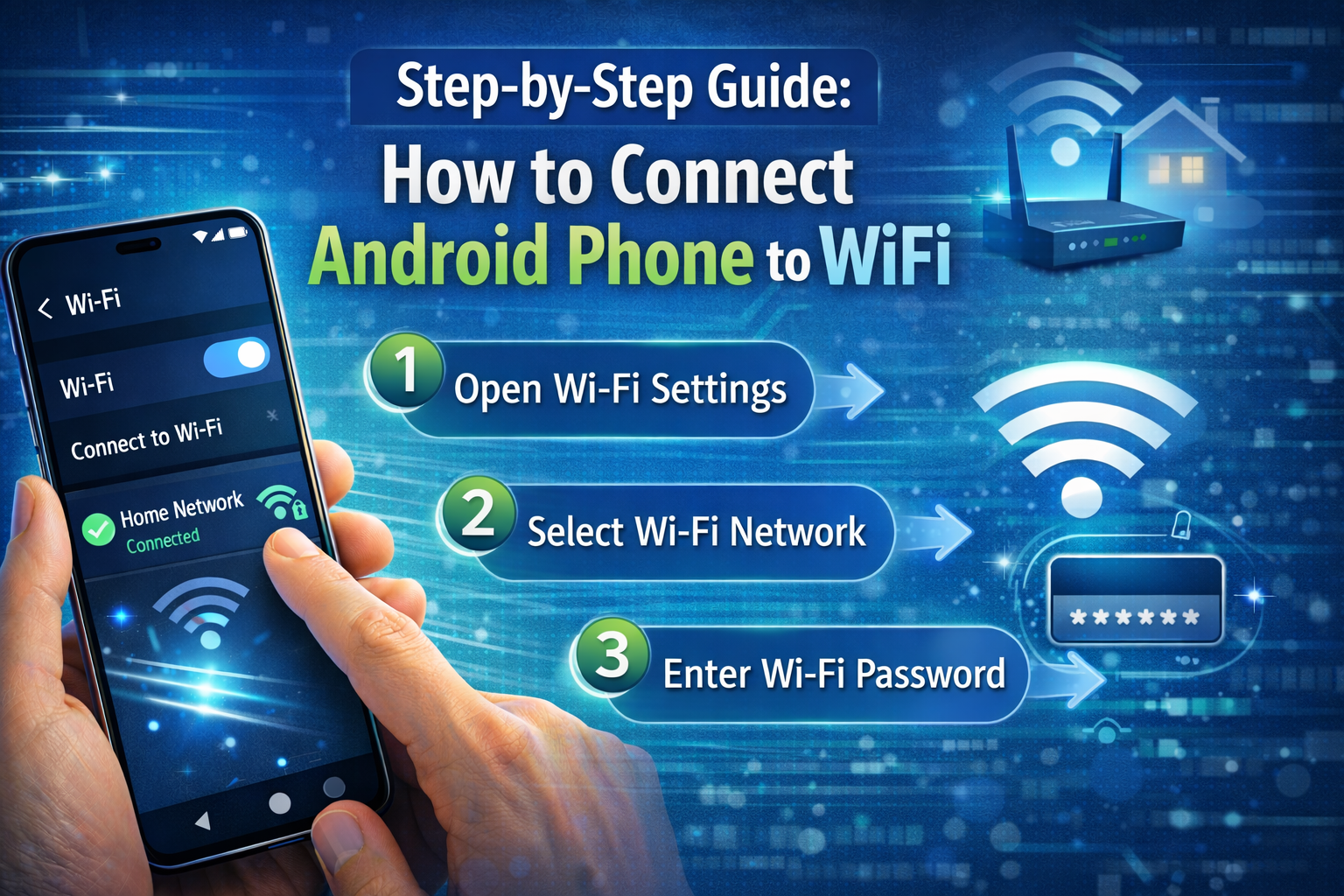
Step 1: Open Settings on Your Android Phone
Unlock your Android phone and locate the Settings app. It is usually represented by a gear icon and can be found on the home screen or app drawer.
Tap Settings to open the main configuration menu.
Step 2: Go to Network & Internet or Connections
Depending on your Android version and phone manufacturer, the menu name may vary. Look for one of the following options:
- Network & Internet
- Connections
- Wireless & Networks
Tap on it to access network settings.
Step 3: Turn On WiFi
Inside the network settings menu, find the WiFi option.
- Toggle the WiFi switch ON
- Your phone will automatically start searching for nearby WiFi networks
Once WiFi is enabled, a list of available networks will appear.
Step 4: Select a WiFi Network
From the list of available networks, find the WiFi network you want to connect to.
- Tap on the network name (SSID)
- Make sure you select the correct network, especially if there are multiple similar names
Step 5: Enter the WiFi Password
If the WiFi network is secured, you will be prompted to enter a password.
- Carefully type the WiFi password
- Passwords are case-sensitive
- You can tap the “Show password” option to avoid typing mistakes
After entering the password, tap Connect.
Step 6: Confirm Connection

If the password is correct, your Android phone will connect to the WiFi network within a few seconds.
You will see:
- The word Connected under the network name
- A WiFi icon in the status bar at the top of your screen
Congratulations! Your Android phone is now connected to WiFi.
How to Connect to a Hidden WiFi Network
Some WiFi networks do not broadcast their name (SSID). To connect to a hidden network:
- Go to Settings > WiFi
- Scroll down and tap Add network or Add WiFi
- Enter the network name (SSID)
- Select the security type (WPA/WPA2/WPA3)
- Enter the password
- Tap Save or Connect
How to Automatically Connect to Known WiFi Networks
Android devices can automatically connect to previously used WiFi networks.
To enable this feature:
- Go to Settings > WiFi
- Tap on WiFi preferences
- Enable Auto-connect or Connect automatically
This helps your phone reconnect without manual intervention.
Common Problems When Connecting Android Phone to WiFi
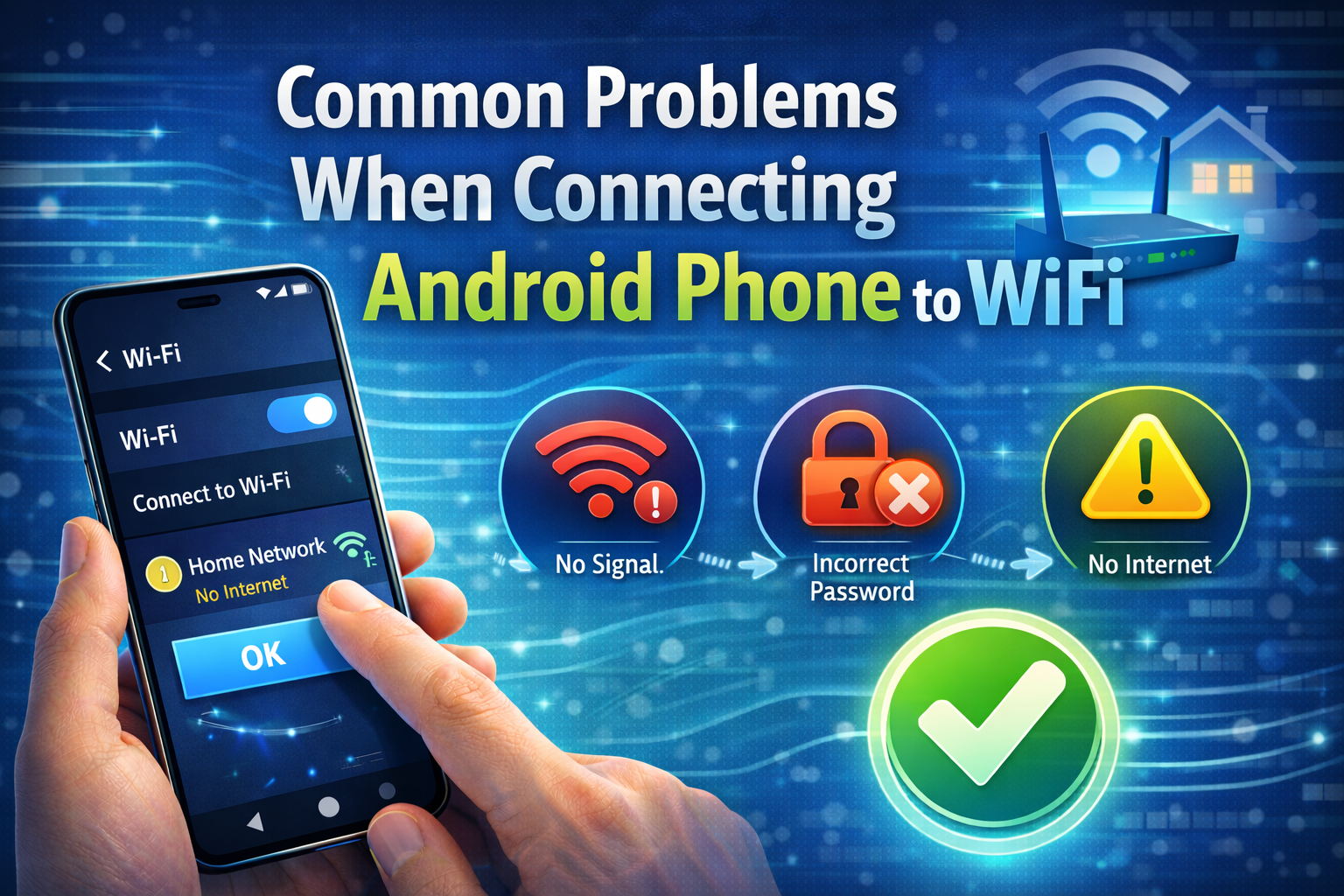
Even with simple steps, users may encounter issues. Below are common problems and solutions.
1. Incorrect WiFi Password
Problem: WiFi shows “Authentication error”
Solution:
- Re-enter the password carefully
- Check for uppercase letters and special characters
- Ask the network owner to confirm the password
2. WiFi Connected but No Internet
Problem: WiFi is connected but internet does not work
Solution:
- Restart your router
- Turn WiFi off and on again
- Restart your Android phone
- Check if other devices can access the internet
3. WiFi Network Not Showing
Problem: WiFi network does not appear
Solution:
- Move closer to the router
- Restart the router
- Check if the network is hidden
- Reset network settings on your phone
4. Slow WiFi Speed on Android Phone
Problem: Internet is connected but slow
Solution:
- Disconnect unused devices from WiFi
- Restart your router
- Change WiFi frequency (2.4GHz or 5GHz)
- Update your Android system
How to Reset Network Settings on Android
If WiFi problems persist, resetting network settings can help.
Steps:
- Go to Settings
- Tap System
- Select Reset options
- Tap Reset WiFi, mobile & Bluetooth
- Confirm the reset
Note: This will erase saved WiFi passwords and Bluetooth connections.
How to Connect Android Phone to Public WiFi
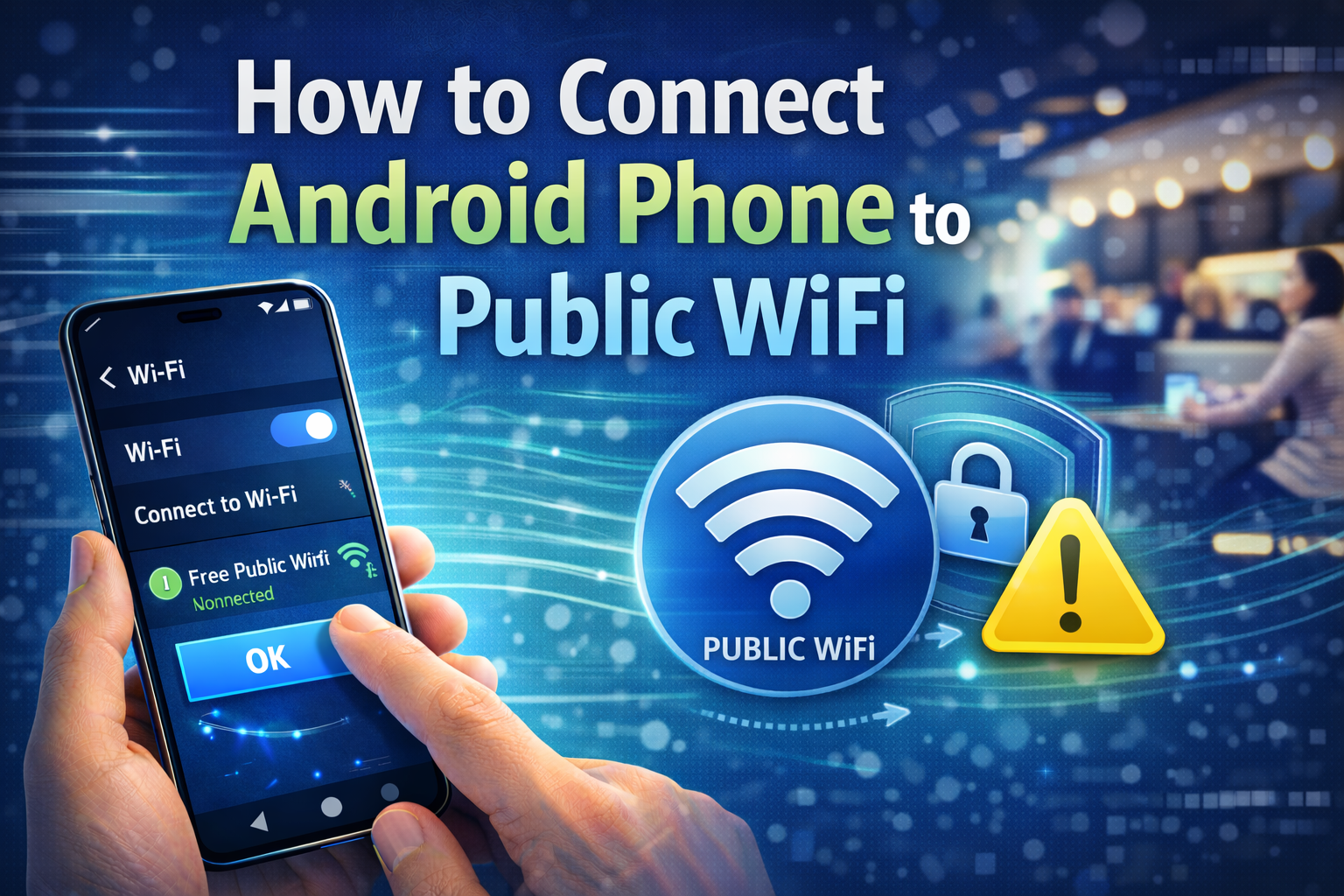
Public WiFi is available in places like cafes, airports, hotels, and malls.
Steps:
- Enable WiFi
- Select the public network
- Open a browser if prompted
- Accept terms and conditions
- Log in if required
Safety Tips for Public WiFi:
- Avoid online banking
- Do not enter sensitive passwords
- Use a VPN for better security
How to Share WiFi from Android Phone (Hotspot)
If you want to share your internet with others:
- Go to Settings
- Tap Hotspot & Tethering
- Enable WiFi Hotspot
- Set a strong password
- Share the hotspot name and password
Best Practices for Secure WiFi Connection on Android
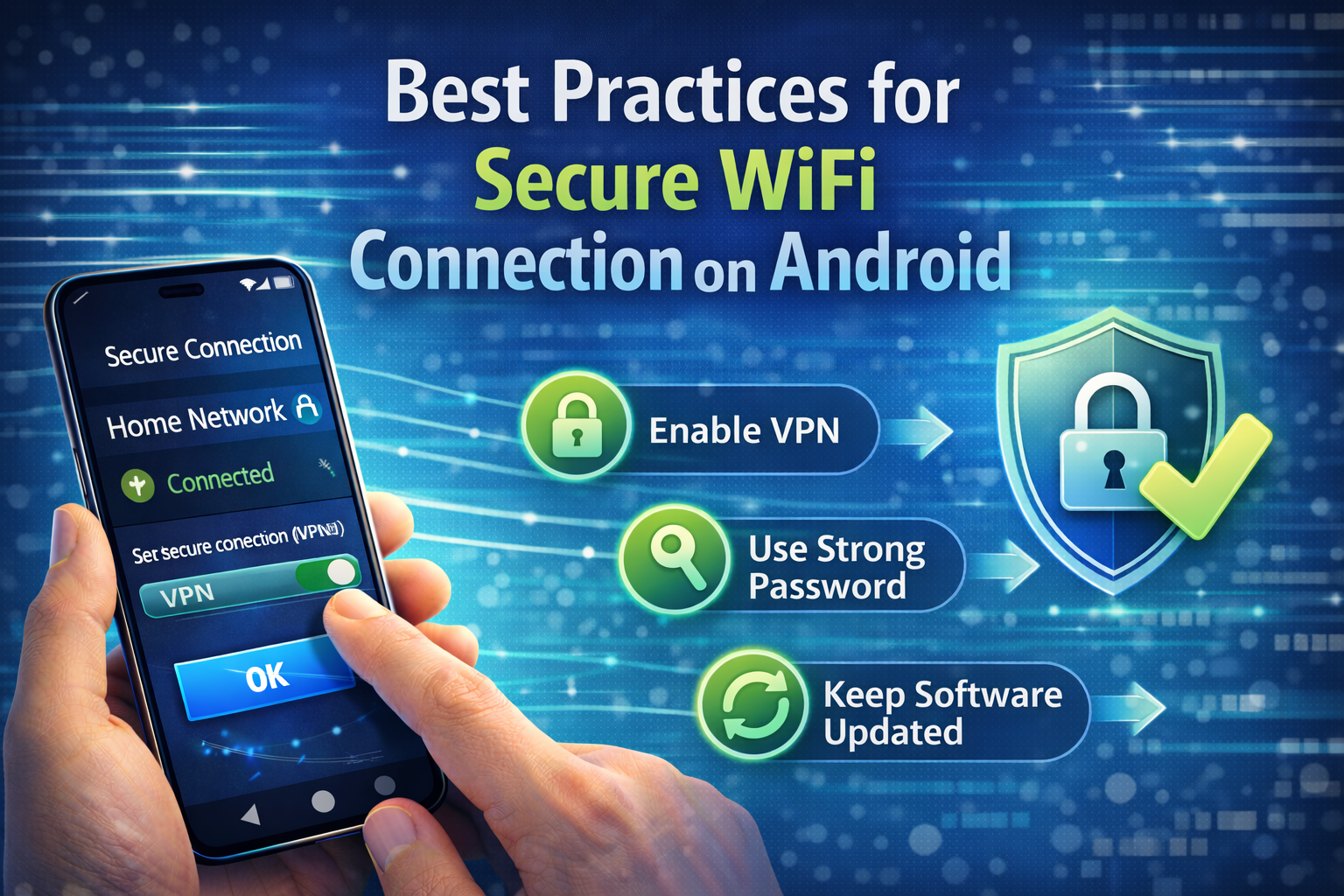
- Always use password-protected WiFi
- Avoid connecting to unknown networks
- Use WPA2 or WPA3 security
- Keep your Android system updated
- Turn off WiFi when not in use
Frequently Asked Questions (FAQ)
Q1: Can all Android phones connect to WiFi?
Yes, almost all Android devices support WiFi connectivity.
Q2: Why does my Android phone disconnect from WiFi?
This may be due to weak signal, power-saving mode, or router issues.
Q3: Is WiFi safer than mobile data?
Home WiFi is generally safe, but public WiFi requires caution.
Conclusion
Connecting an Android phone to WiFi is a basic yet essential skill for modern smartphone users. Whether you are at home, at work, or using public WiFi, understanding how to connect, troubleshoot issues, and stay secure will greatly improve your internet experience.
By following the step-by-step instructions in this guide, you can easily connect your Android phone to WiFi, fix common problems, and enjoy fast, reliable internet access anytime, anywhere.
If you want to improve your Android usage, mastering WiFi connectivity is a great place to start.
