How to Free Up Storage on Android Without Deleting Important Data
Running out of storage space is one of the most common problems Android users face. You may see frequent notifications saying “Storage Almost Full,” experience slow performance, or find yourself unable to install updates and new apps. While deleting photos, videos, and important files might seem like the quickest solution, it’s not always the best or safest option.
The good news is that Android offers many ways to free up storage without deleting important data. By using built-in tools, managing apps wisely, and leveraging cloud services, you can reclaim valuable space while keeping your essential files safe.
This guide will walk you through practical, safe, and effective methods to free up storage on Android without sacrificing your important data.
1. Understand What’s Using Your Storage
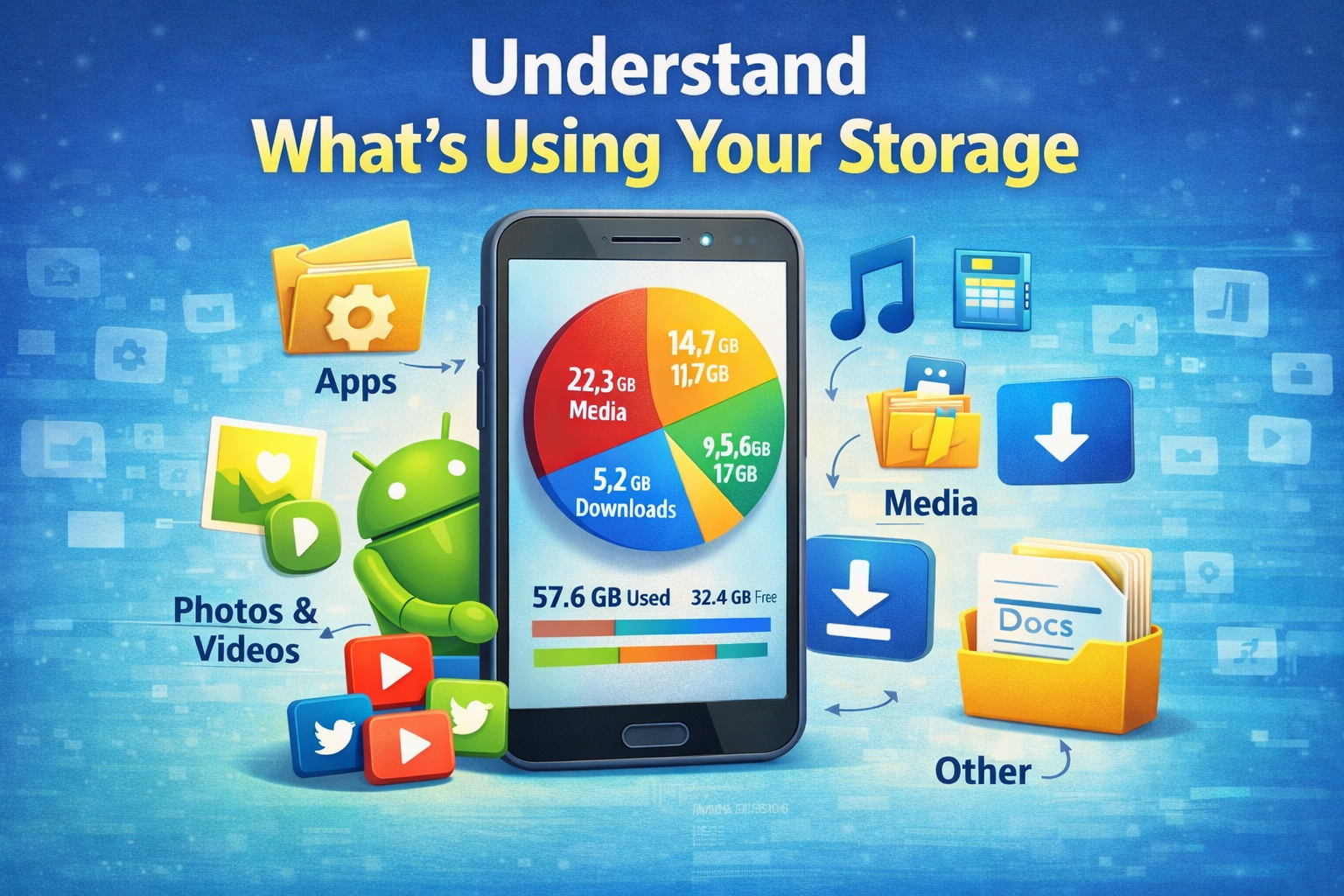
Before freeing up space, it’s important to know exactly what’s consuming your storage.
How to Check Storage Usage
- Open Settings
- Tap Storage (or Battery & Device Care > Storage on some devices)
- Review categories such as:
- Apps
- Images
- Videos
- Audio
- Cached data
- System files
This overview helps you identify which areas need attention. Often, apps and cached data take up far more space than users realize.
2. Clear App Cache (Not App Data)
Cached data helps apps load faster, but over time it can grow excessively large and waste storage.
How to Clear Cache for Individual Apps
- Go to Settings > Apps
- Select an app
- Tap Storage
- Choose Clear Cache
Important:
Do not tap Clear Data unless you’re sure. Clearing data may log you out or delete app settings.
Clearing cache is safe and can instantly free hundreds of megabytes, especially for apps like browsers, social media platforms, and streaming apps.
3. Use Android’s Built-In Storage Cleaner
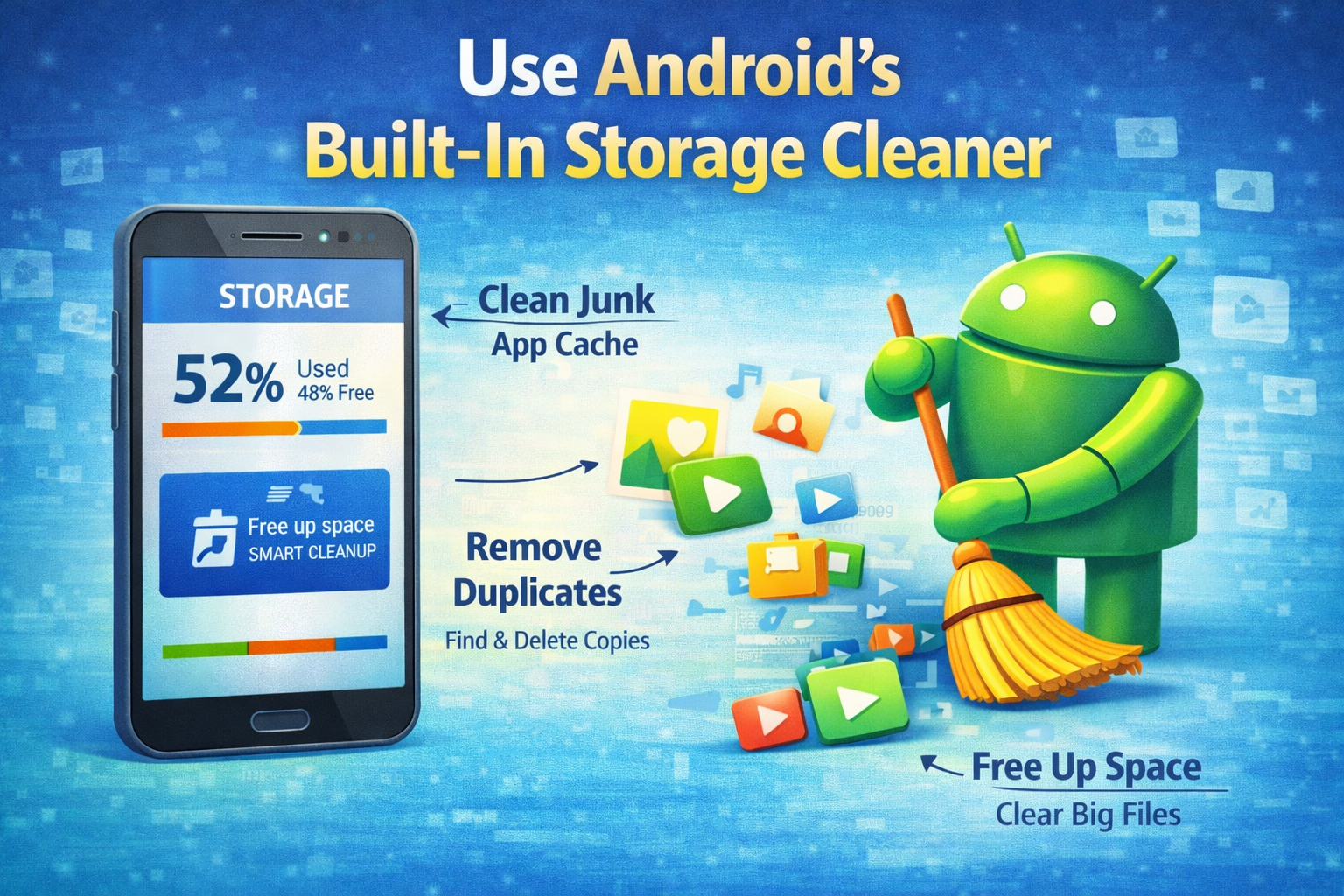
Most modern Android phones include a built-in storage optimization tool.
Using Storage Cleaner
- Open Settings > Storage
- Tap Free Up Space or Clean Now
- Review suggestions such as:
- Temporary files
- Junk files
- Old APKs
- Duplicate files
This tool is safe because it focuses on unnecessary files rather than personal data.
4. Remove Unused Apps (Without Losing Data)
Apps can silently consume gigabytes of storage, even if you rarely use them.
Identify Unused Apps
- Go to Settings > Apps
- Sort by Last Used
- Look for apps you haven’t opened in months
Use “Archive Apps” (If Available)
Some Android versions allow you to archive apps, which:
- Removes the app itself
- Keeps user data intact
- Allows easy restoration later
This is a great way to save space without losing app data.
5. Move Photos and Videos to the Cloud

Photos and videos are often the largest storage consumers. Instead of deleting them, move them to cloud storage.
Recommended Cloud Options
- Google Photos
- Google Drive
- OneDrive
- Dropbox
Google Photos Storage Saver
- Open Google Photos
- Go to Settings > Backup
- Enable Storage Saver
After backup, use the Free Up Space option to remove local copies while keeping everything accessible online.
6. Delete Downloaded Files You No Longer Need
Many users forget about downloaded files such as PDFs, ZIP files, images, or videos.
How to Clean Downloads Folder
- Open Files by Google or My Files
- Go to Downloads
- Delete:
- Old documents
- Installation files (APKs)
- Media files already backed up
These files are usually safe to remove and can free significant space.
7. Manage WhatsApp, Telegram, and Messaging App Storage
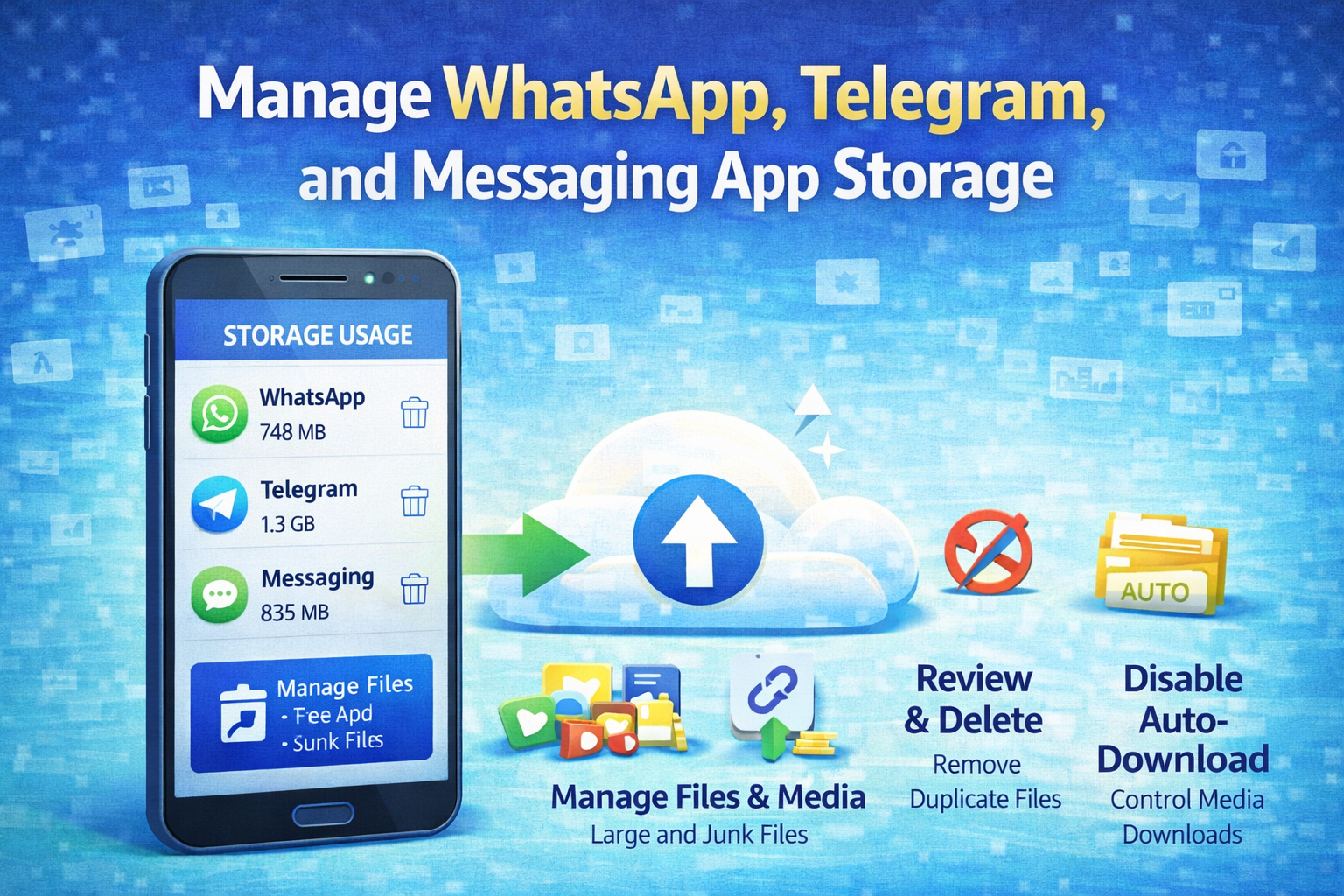
Messaging apps often store media automatically, consuming large amounts of storage.
WhatsApp Storage Cleanup
- Open WhatsApp
- Go to Settings > Storage and Data > Manage Storage
- Review large files and forwarded media
Disable Auto-Download
- Turn off automatic media downloads for groups
- Choose to download media manually
This prevents unnecessary files from piling up in the future.
8. Use Lite Versions of Apps
Many popular apps offer “Lite” versions designed to use less storage and data.
Examples
- Facebook Lite
- Messenger Lite
- Google Go
- YouTube Lite (in some regions)
Lite apps retain core features while significantly reducing storage usage.
9. Move Files to SD Card (If Supported)
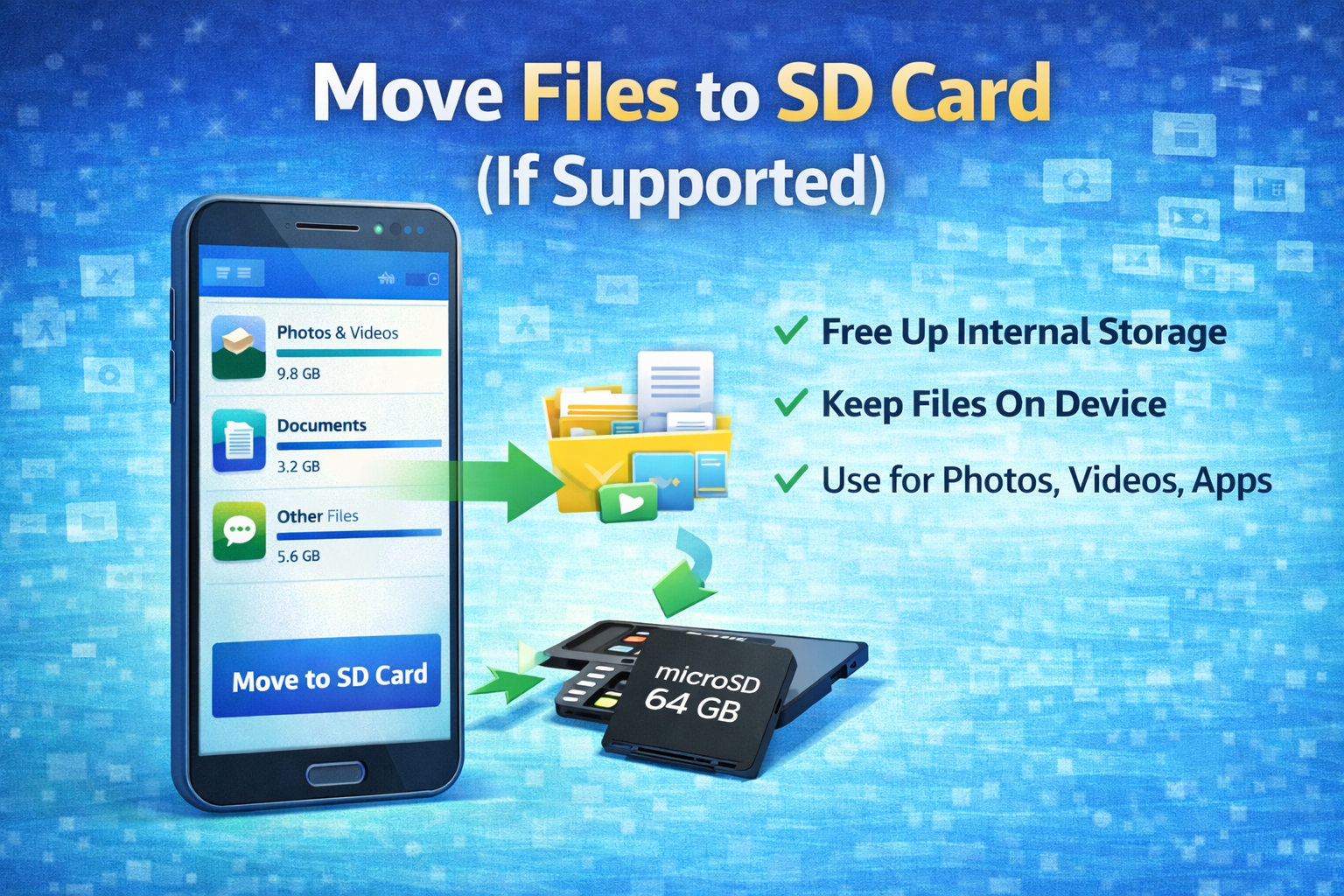
If your phone supports external storage, using an SD card can free up internal space.
What to Move
- Photos
- Videos
- Music
- Documents
How to Move Files
- Open File Manager
- Select files
- Choose Move to SD Card
Some apps also allow partial installation on external storage.
10. Delete Duplicate Files Safely
Duplicate images, videos, and documents often accumulate over time.
Use Trusted File Managers
- Files by Google
- Built-in phone file manager
These tools identify duplicates and let you review them before deletion, ensuring important files are not removed.
11. Reduce Offline Content
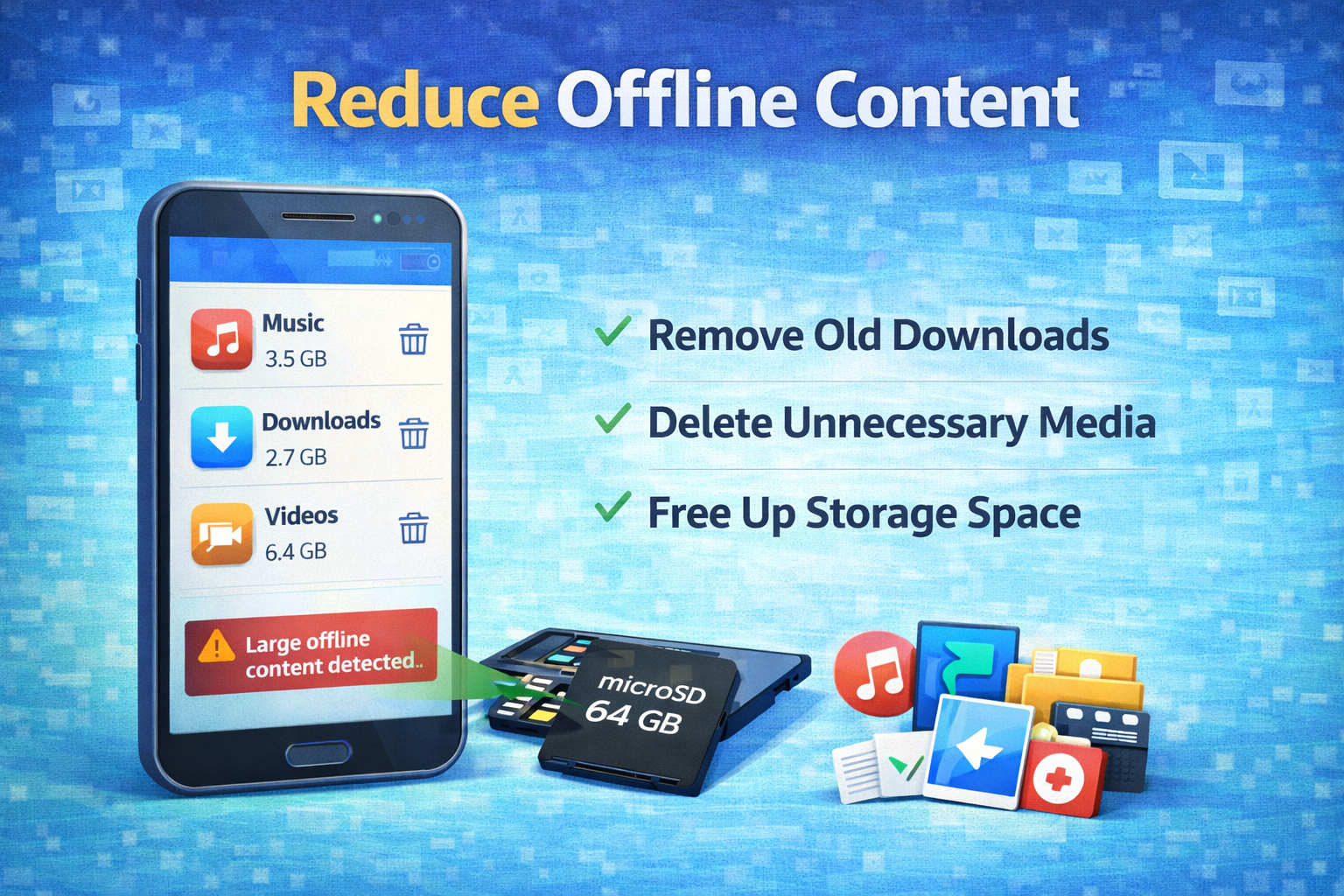
Offline content from apps like YouTube, Spotify, Netflix, and Google Maps can take up a lot of space.
Check Offline Downloads
- Open each app
- Review downloaded content
- Remove items you no longer need
You can always re-download content later when needed.
12. Clean Browser Data
Browsers store cached pages, images, and cookies.
Clear Browser Cache
- Open your browser
- Go to Settings > Privacy
- Clear Cached Images and Files
Avoid clearing saved passwords unless you have them backed up.
13. Use Smart Storage Management Habits
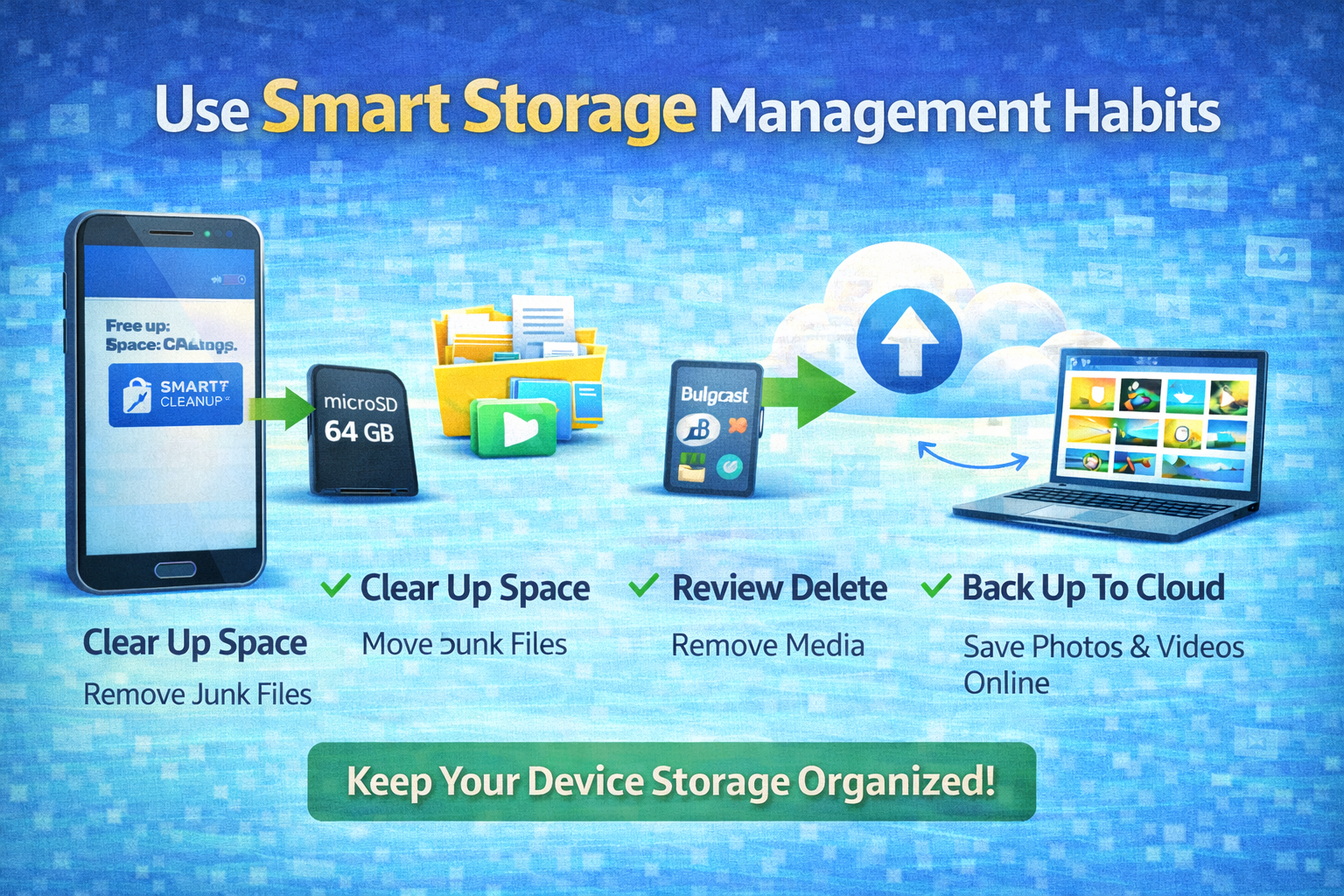
Prevention is just as important as cleanup.
Best Practices
- Regularly review storage usage
- Disable auto-downloads where possible
- Backup data to cloud services
- Clean cache monthly
- Uninstall unused apps periodically
These habits help maintain optimal storage over time.
14. Restart Your Phone After Cleanup
Restarting your phone helps:
- Clear temporary system cache
- Improve performance
- Ensure storage changes apply correctly
This simple step is often overlooked but very effective.
Conclusion
Running out of storage on Android doesn’t mean you have to delete your important photos, videos, or files. By understanding what uses space, clearing cached data, managing apps wisely, and leveraging cloud storage, you can free up significant space safely and efficiently.
Android provides powerful built-in tools to help users optimize storage without risking data loss. With the methods outlined in this guide, you can keep your device fast, organized, and ready for future updates—without sacrificing the data that matters most.
