How to Fix Windows Update Problems: A Complete Step-by-Step Guide
Windows Update is one of the most important components of the Windows operating system. It keeps your computer secure, stable, and up to date by delivering security patches, bug fixes, driver updates, and new features. However, Windows Update does not always work as expected. Many users experience issues such as updates failing to install, getting stuck at a certain percentage, showing error codes, or endlessly restarting.
If you are facing Windows Update problems, don’t worry. In most cases, these issues can be fixed without reinstalling Windows or losing your data. This guide will walk you through common Windows Update problems, their causes, and step-by-step solutions—from simple fixes to advanced troubleshooting methods.
Common Windows Update Problems
Before fixing Windows Update, it’s helpful to understand the most common problems users face:
- Windows Update is stuck at 0%, 20%, or 99%
- Updates fail to install with error codes (such as 0x80070002, 0x800f081f, or 0x8024a105)
- Windows Update keeps retrying the same update
- The update process freezes or crashes
- PC restarts repeatedly after an update
- “We couldn’t complete the updates” error message
These issues can occur on Windows 10 or Windows 11 and are usually caused by corrupted system files, network issues, outdated drivers, or problems with Windows Update services.
Step 1: Restart Your Computer (Simple but Effective)

It may sound basic, but restarting your computer can solve many Windows Update problems.
Why this works:
- Clears temporary files
- Restarts Windows Update services
- Fixes minor system glitches
What to do:
- Save your work
- Restart your PC
- Go to Settings > Windows Update
- Click Check for updates
If the problem persists, move on to the next steps.
Step 2: Check Your Internet Connection
Windows Update requires a stable internet connection. Slow or unstable connections can cause updates to fail or get stuck.
Tips:
- Switch to a wired Ethernet connection if possible
- Restart your router
- Avoid using VPNs during updates
- Disable metered connections
How to check metered connection:
- Go to Settings > Network & Internet
- Select your network
- Turn off Metered connection
Once done, try updating again.
Step 3: Use the Windows Update Troubleshooter
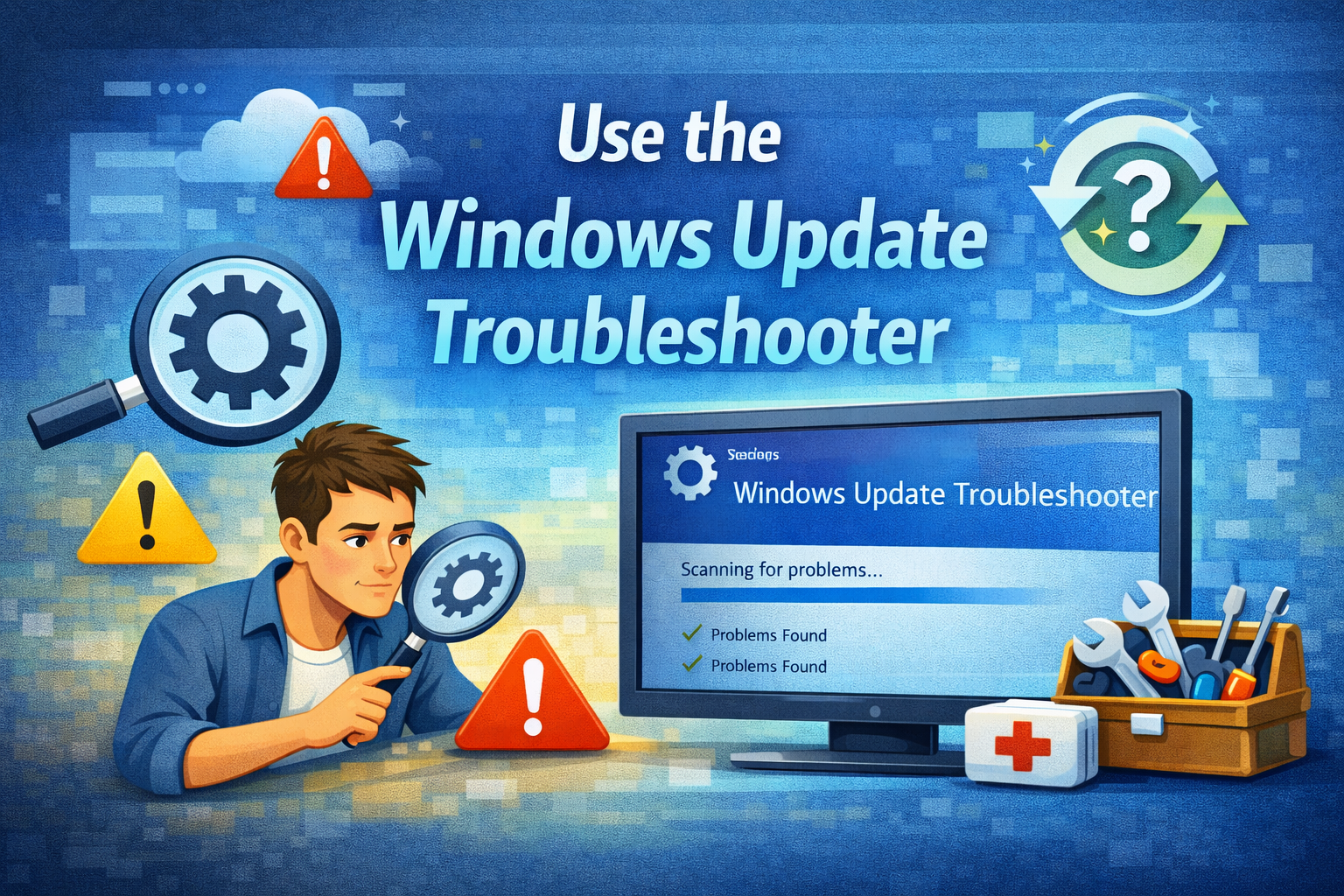
Microsoft provides a built-in tool designed specifically to fix update-related problems.
Steps:
- Go to Settings
- Select System > Troubleshoot
- Click Other troubleshooters
- Find Windows Update
- Click Run
The troubleshooter will automatically detect and fix common issues. After it finishes, restart your computer and check for updates again.
Step 4: Free Up Disk Space
Insufficient disk space is a common reason Windows Update fails.
How much space is needed?
- Windows 10/11 updates may require 10–20 GB of free space.
How to free up space:
- Go to Settings > System > Storage
- Click Temporary files
- Select unnecessary files
- Click Remove files
You can also uninstall unused apps or move large files to an external drive.
Step 5: Pause and Resume Windows Updates
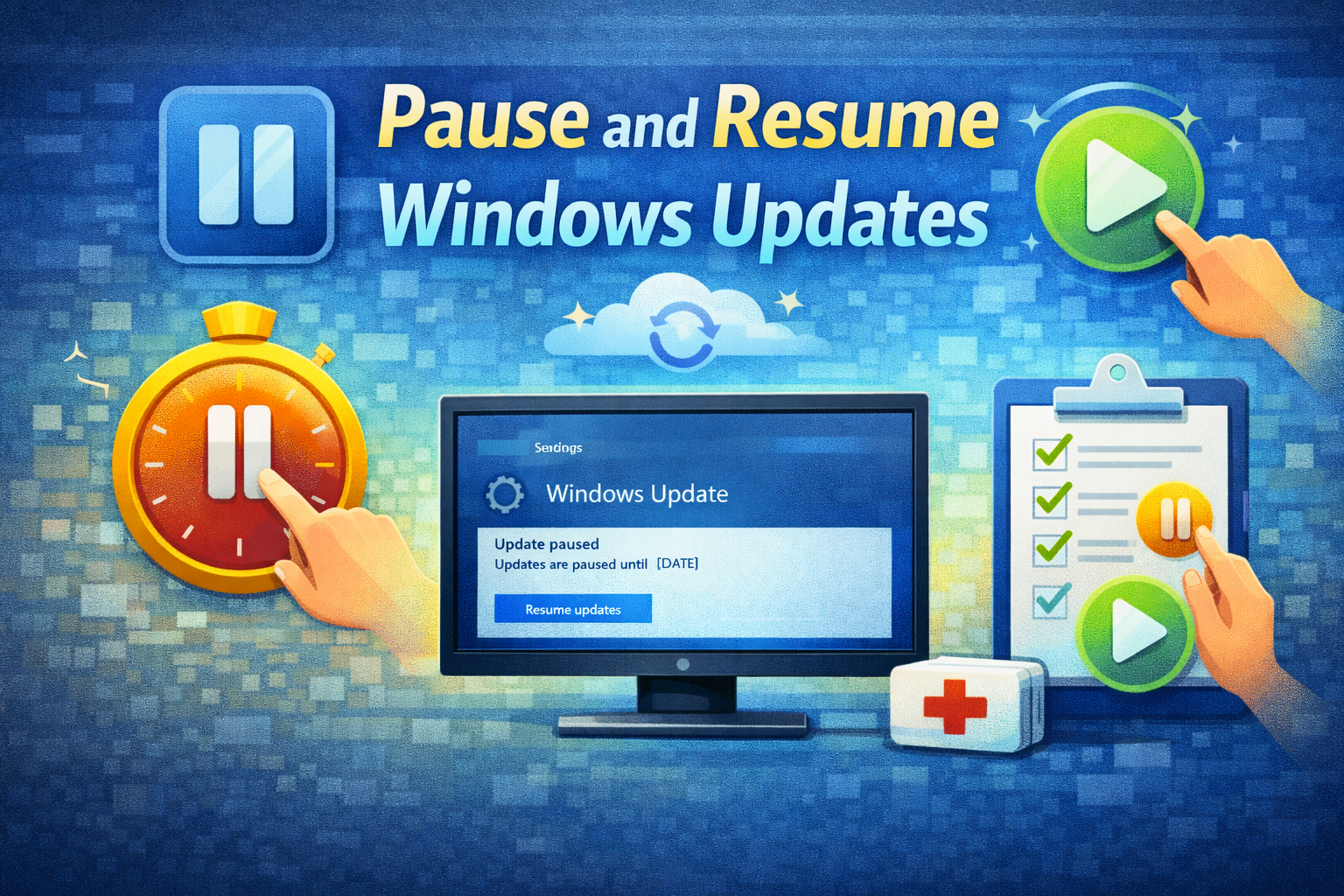
Sometimes Windows Update just needs a reset.
Steps:
- Go to Settings > Windows Update
- Click Pause updates for 1 week
- Restart your PC
- Go back and click Resume updates
- Click Check for updates
This simple action can refresh the update process and resolve stuck updates.
Step 6: Restart Windows Update Services
Windows Update relies on several background services. If these services are not running correctly, updates may fail.
Steps:
- Press Win + R, type
services.msc, and press Enter - Locate the following services:
- Windows Update
- Background Intelligent Transfer Service (BITS)
- Cryptographic Services
- Right-click each service and select Restart
After restarting the services, try running Windows Update again.
Step 7: Clear the Windows Update Cache
Corrupted update files can prevent Windows from installing updates. Clearing the update cache often fixes this problem.
Steps:
- Open Command Prompt as Administrator
- Type the following commands one by one and press Enter after each:
net stop wuauserv
net stop bits
- Open File Explorer and go to:
C:\Windows\SoftwareDistribution
- Delete all files and folders inside
- Go back to Command Prompt and type:
net start wuauserv
net start bits
Restart your computer and check for updates.
Step 8: Run System File Checker (SFC)
Corrupted system files can interfere with Windows Update.
Steps:
- Open Command Prompt as Administrator
- Type:
sfc /scannow
- Press Enter and wait for the scan to complete
If corrupted files are found, Windows will automatically repair them. Restart your PC after the scan finishes.
Step 9: Use DISM to Repair Windows Image
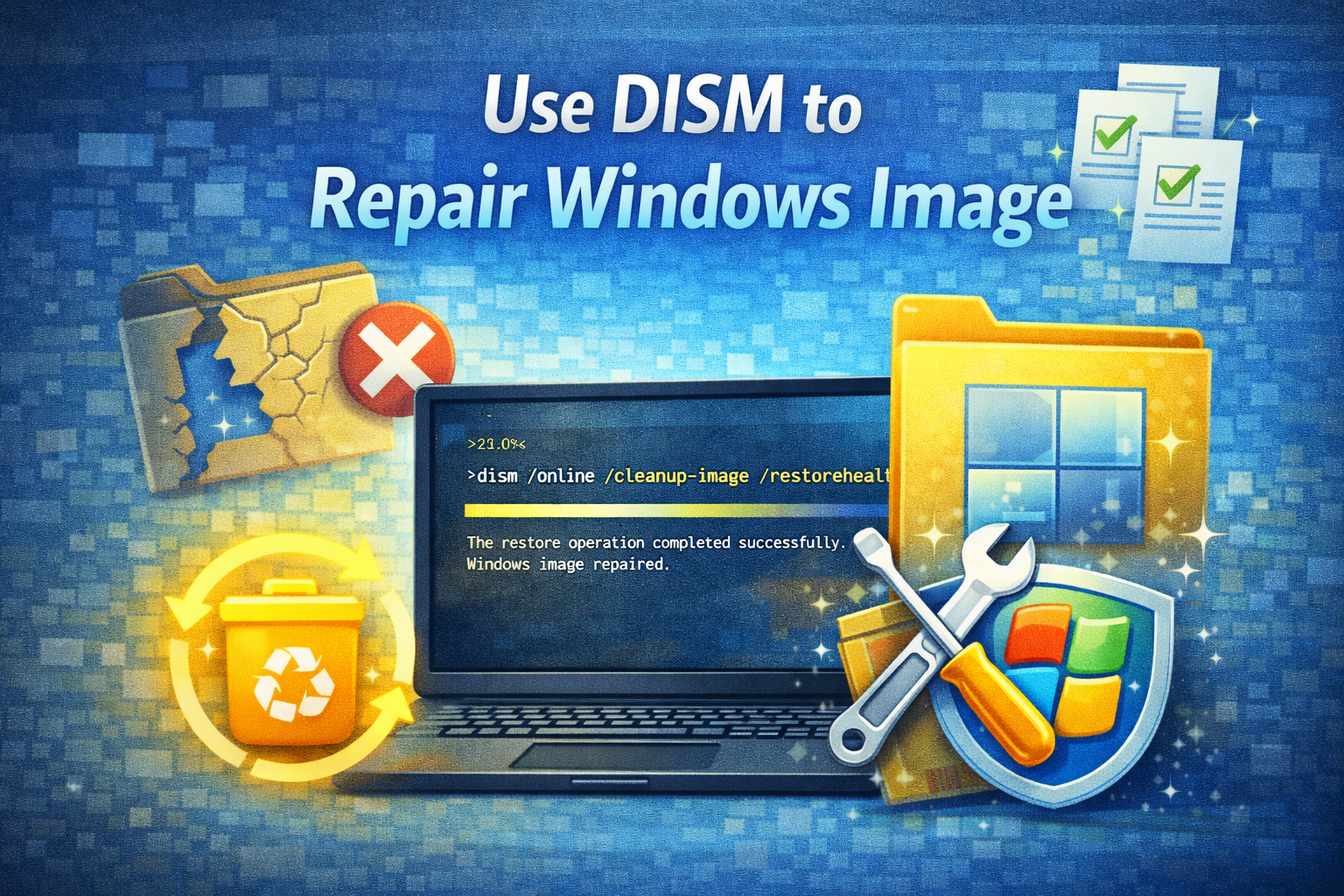
If SFC doesn’t fully fix the problem, use DISM (Deployment Image Servicing and Management).
Steps:
- Open Command Prompt as Administrator
- Type the following commands one by one:
DISM /Online /Cleanup-Image /CheckHealth
DISM /Online /Cleanup-Image /ScanHealth
DISM /Online /Cleanup-Image /RestoreHealth
- Restart your computer once finished
DISM repairs the Windows system image, which is critical for successful updates.
Step 10: Update Device Drivers
Outdated or incompatible drivers can cause Windows Update to fail.
How to update drivers:
- Right-click Start
- Select Device Manager
- Expand each category
- Right-click devices and choose Update driver
Focus on:
- Network drivers
- Storage controllers
- Display adapters
You can also download drivers directly from the manufacturer’s website.
Step 11: Install Updates Manually
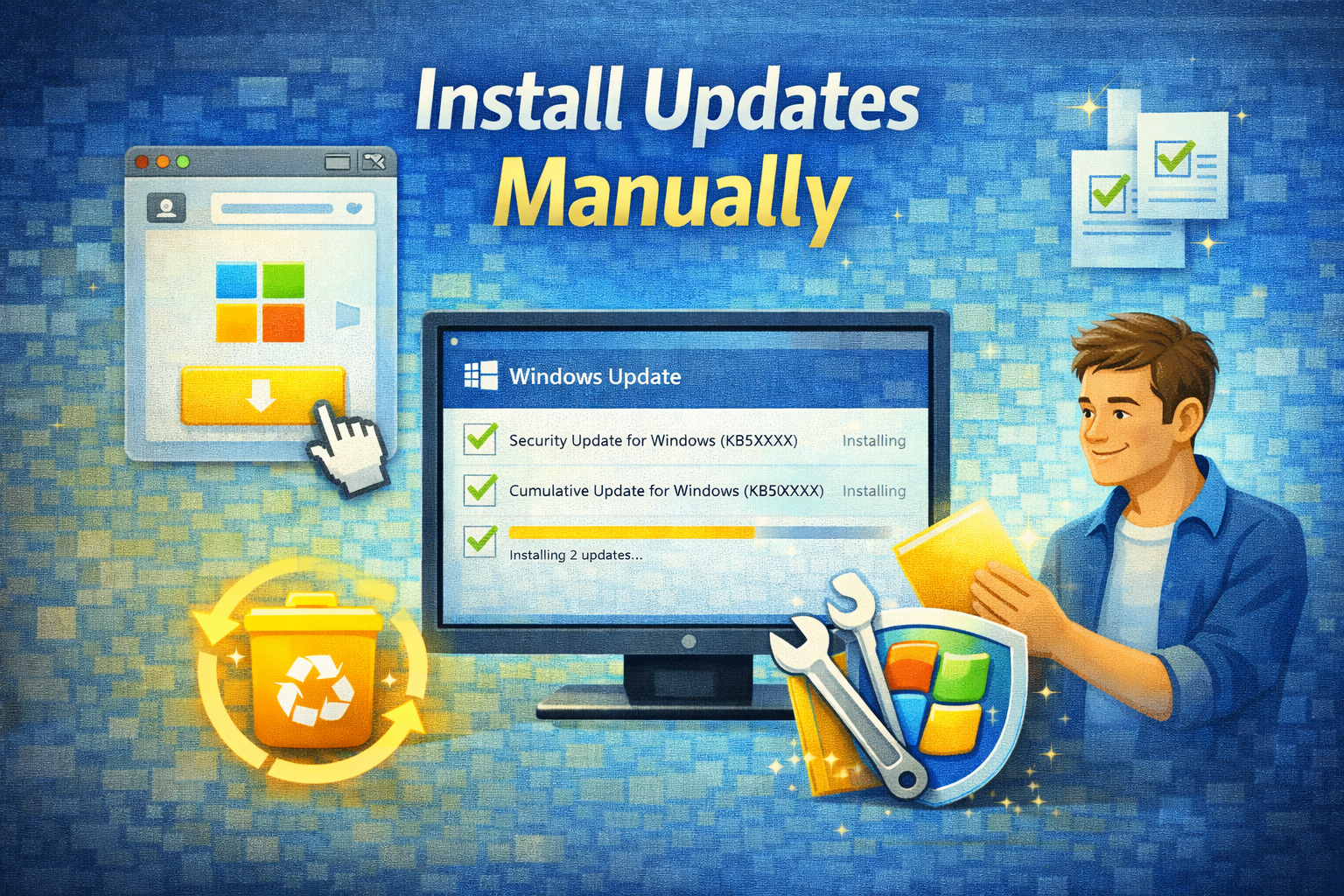
If automatic updates fail, you can install them manually.
Steps:
- Go to Settings > Windows Update
- Note the update KB number (e.g., KB5030211)
- Visit the Microsoft Update Catalog
- Search for the KB number
- Download and install the correct version for your system
This method is very effective for stubborn updates.
Step 12: Temporarily Disable Antivirus Software
Third-party antivirus programs can sometimes block Windows Update.
What to do:
- Temporarily disable real-time protection
- Try running Windows Update
- Re-enable antivirus after updating
Important: Only disable antivirus temporarily and avoid browsing unsafe websites during this time.
Step 13: Perform a Clean Boot
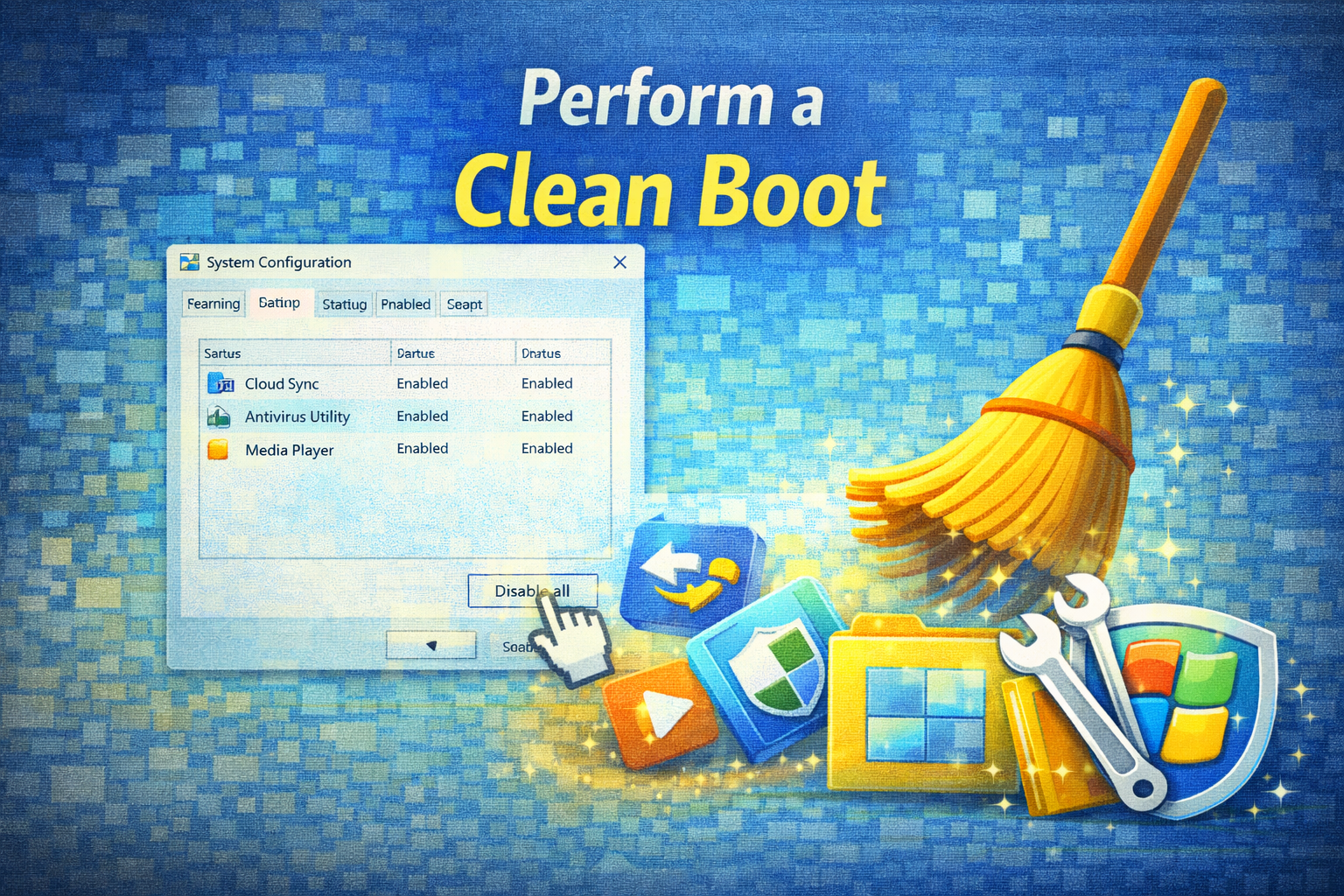
A clean boot starts Windows with minimal services and can identify software conflicts.
Steps:
- Press Win + R, type
msconfig - Go to the Services tab
- Check Hide all Microsoft services
- Click Disable all
- Restart your PC
After updating, re-enable services normally.
Step 14: Reset Windows Update Components (Advanced)
If nothing else works, resetting Windows Update components can fix deeply rooted problems.
This involves stopping services, renaming system folders, and restarting services. While advanced, it is often successful and does not delete personal data.
When Should You Consider Reinstalling Windows?
Reinstalling Windows should be the last resort. Consider it only if:
- Updates fail repeatedly despite all fixes
- System files are severely corrupted
- Windows behaves unstably beyond update issues
In most cases, the steps above will resolve Windows Update problems without reinstalling.
Conclusion
Windows Update problems can be frustrating, but they are usually fixable with the right approach. From simple restarts and troubleshooters to advanced tools like SFC and DISM, Windows provides multiple ways to repair update issues safely.
By following this step-by-step guide, you can:
- Fix failed or stuck updates
- Resolve error codes
- Keep your system secure and up to date
- Avoid reinstalling Windows or losing data
Regular maintenance, sufficient disk space, updated drivers, and a stable internet connection will help prevent Windows Update problems in the future.
