How to Remove Malware from Windows Without Losing Data
Malware — malicious software — can strike any Windows PC, from budget laptops to powerful gaming rigs. It can corrupt files, steal personal information, slow down performance, and even lock you out of your own system. The thought of losing important data during a clean-up can be stressful. Fortunately, removing malware without losing data is possible with careful steps and the right tools. This guide will walk you through the process methodically, safely removing threats while preserving your files.
1. Understanding Malware and Its Risks
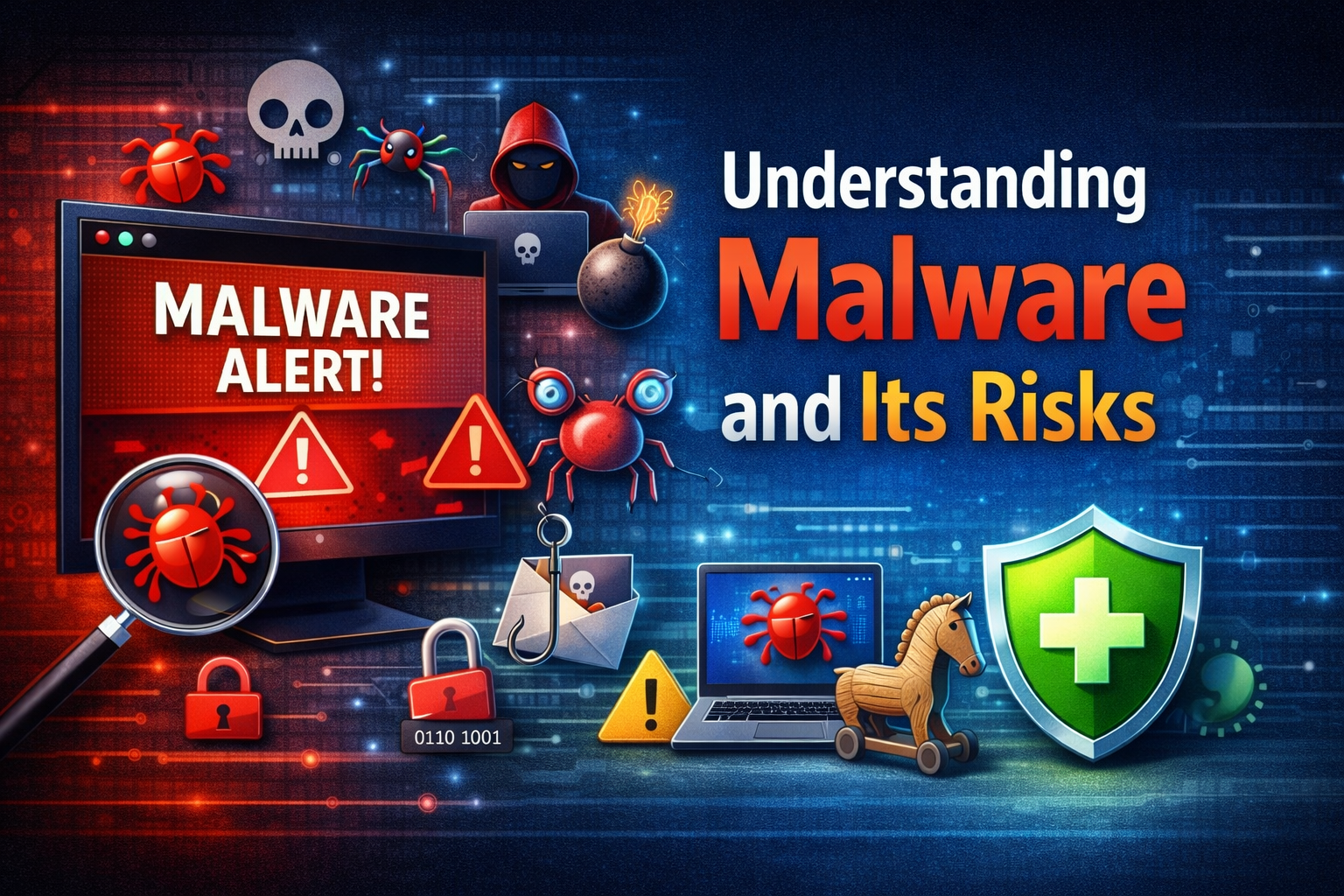
Malware is software designed with harmful intent. It includes viruses, worms, trojans, ransomware, spyware, adware, and rootkits. Once on your system, malware can:
- Alter or delete files
- Log keystrokes (stealing passwords)
- Display unwanted ads
- Redirect web searches
- Steal personal or financial information
- Encrypt data for ransom
Knowing the type of infection is important because different malware behaves differently. However, the general removal strategy focuses on containment and safe cleanup.
2. First Steps: Stay Calm and Don’t Panic
When you suspect malware, do not immediately reinstall Windows. A fresh install often means wiping data unless you back everything up first. Instead, follow measured steps to isolate and clean the system.
3. Isolate the Infected Computer
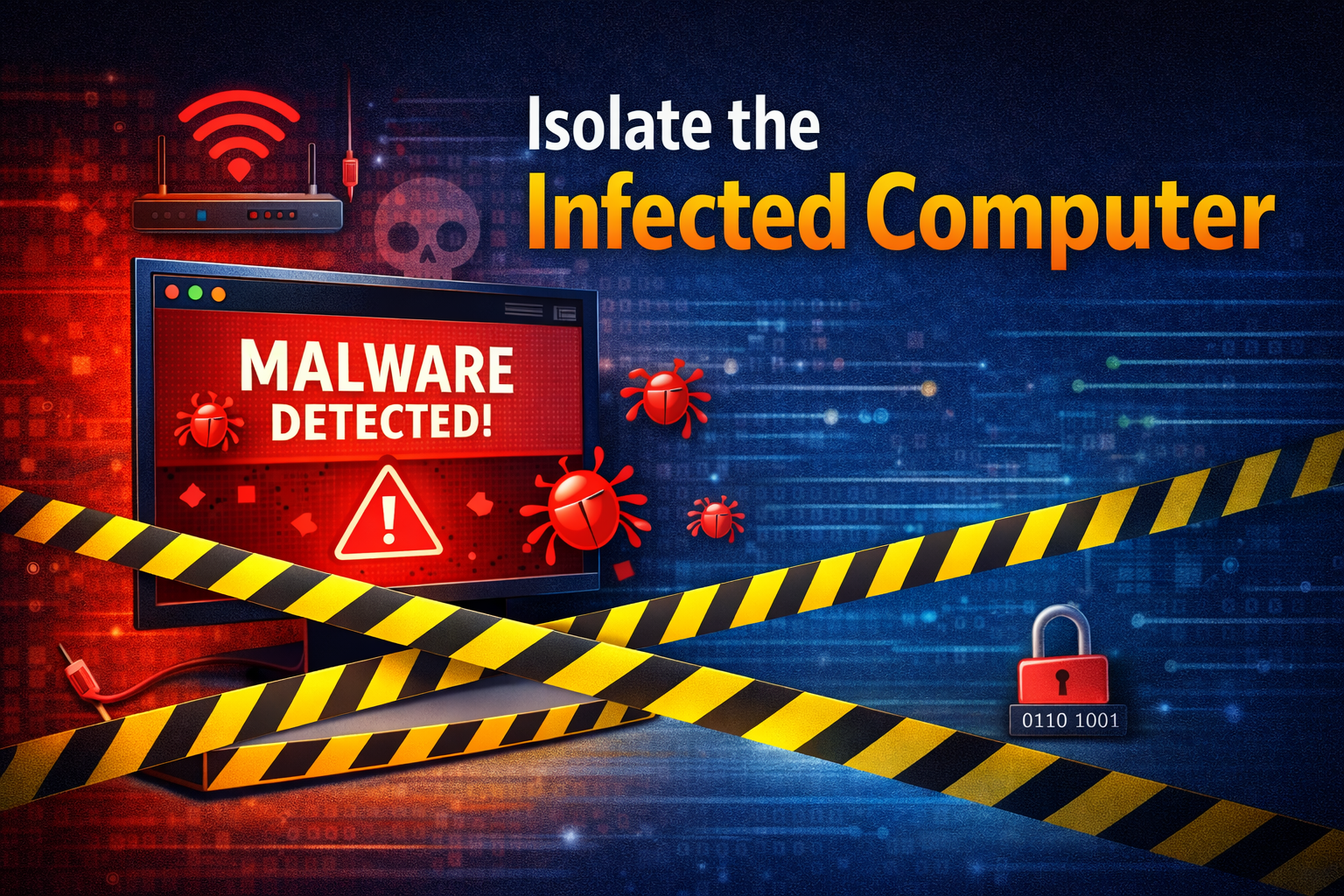
If the infected PC is connected to a network:
- Disconnect from the Internet.
- Unplug Ethernet cables.
- Turn off Wi-Fi.
This prevents malware from communicating with external servers, spreading to other devices, or exfiltrating your data.
- Disconnect External Storage and Devices.
- Remove USB drives, external hard drives, printers — anything connected.
- Malware can silently spread to external media.
4. Back Up Important Files Safely
Before scanning or attempting repairs, create a backup of your important files — without copying programs or system files.
What to Back Up
- Documents, photos, videos
- Work files
- Email archives
- Browser bookmarks
- Personal data (but not system or program files initially)
How to Back Up Safely
Use a clean external drive that is rarely connected to other PCs or previous infected media.
- Boot into Safe Mode (explained later).
- Copy files manually to the external drive.
- Avoid copying executable files (.exe, .scr) or unknown file types — malware often hides in these.
- If possible, use a trusted computer or a Linux live USB to copy files — this can reduce the risk of malware running during backup.
5. Boot into Safe Mode
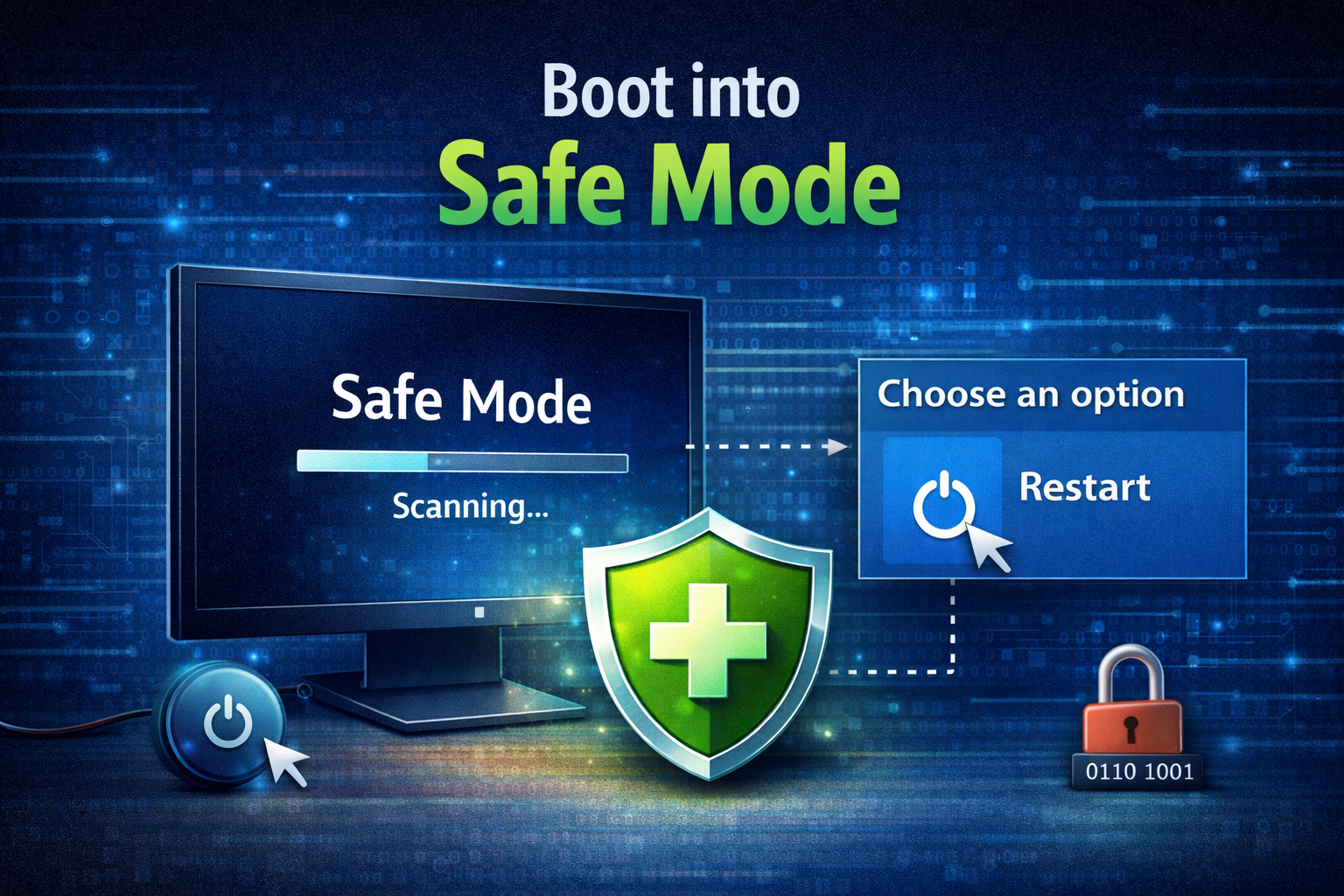
Safe Mode starts Windows with minimal drivers and services, preventing many malware programs from loading.
How to Enter Safe Mode
- Press Windows + R, type:
msconfig - Go to Boot tab
- Check Safe boot and select Network (optional, for internet access)
- Restart the computer
Alternatively:
- Hold Shift while clicking Restart
- Go to Troubleshoot → Advanced options → Startup Settings → Restart
- Choose Safe Mode (4 or 5)
In Safe Mode, malware is less active, making it easier for tools to detect and remove infections.
6. Use Built-in and Third-Party Scanning Tools
A. Windows Security (Free and Built-in)
Windows comes with a strong antivirus/antimalware tool.
- Open Windows Security
- Go to Virus & threat protection
- Choose Scan options
- Run a Full Scan
- After the first scan, run Microsoft Defender Offline Scan — it restarts your PC and scans before Windows loads malware
B. Trusted Third-Party Tools
Sometimes one scanner misses threats that others detect. Recommended tools include:
- Malwarebytes
- AdwCleaner
- HitmanPro
- ESET Online Scanner
Steps:
- Install from a trusted source before infection if possible.
- Run a full system scan.
- Follow prompts to remove threats.
Note: Use these tools one at a time. Running multiple scanners simultaneously can cause conflicts.
7. Clean Up Remaining Malware
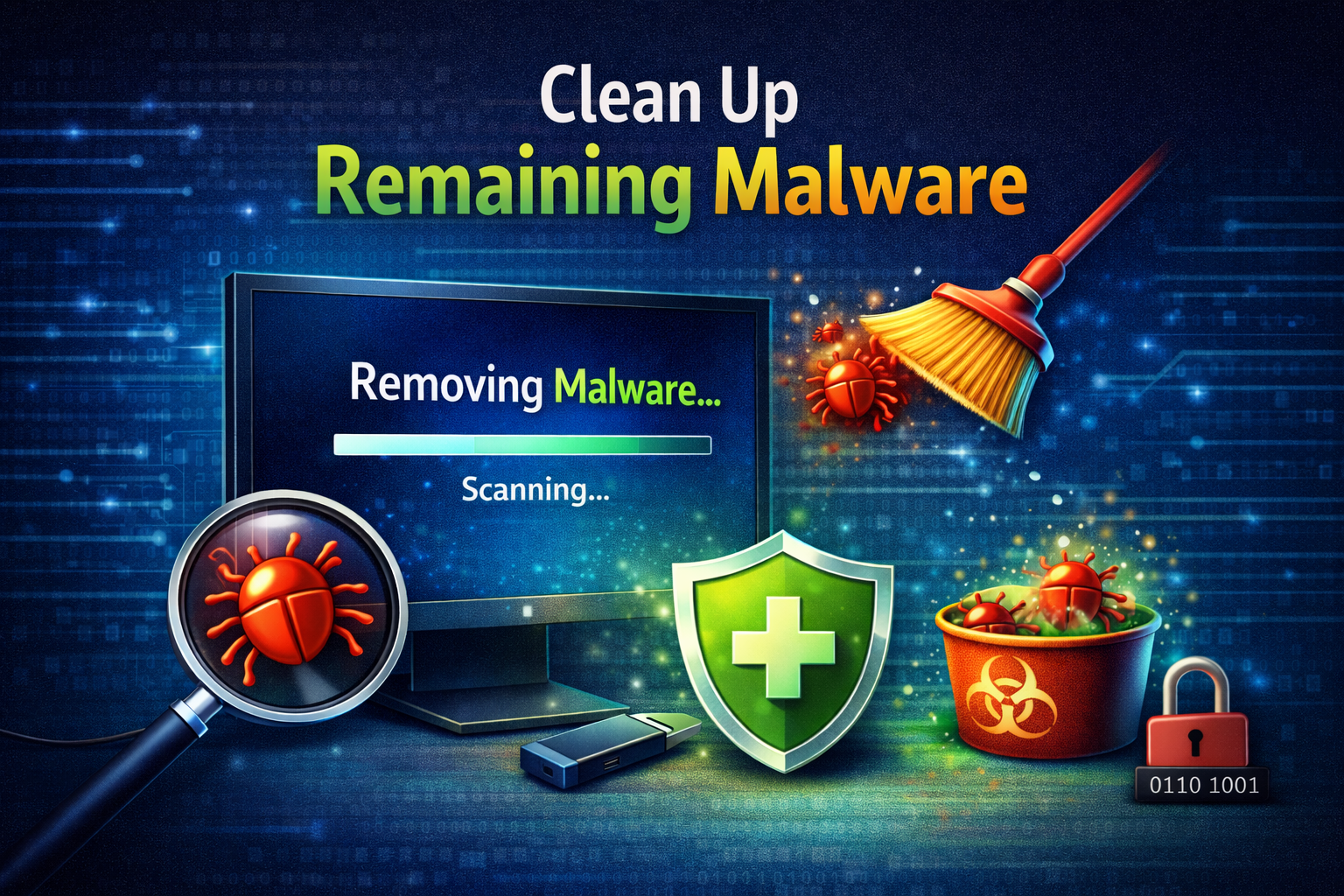
Even after scans, malware can leave behind junk files, browser hijacks, or startup scripts.
A. Remove Suspicious Programs
- Go to Settings → Apps → Installed apps
- Look for unexpected or unknown programs
- Uninstall them
B. Check Startup Items
- Press Ctrl + Shift + Esc to open Task Manager
- Go to Startup tab
- Disable items you don’t recognize
C. Browser Cleanup
Malware often hijacks browsers:
- Remove unwanted extensions
- Reset homepage and default search engines
- Clear cache and cookies
8. Use System Restore Carefully
System Restore can revert your PC to an earlier clean state without deleting personal files.
How System Restore Helps
- It restores system files, settings, registry keys
- It does not affect documents or pictures
How to Use It
- Open Control Panel
- Go to Recovery → Open System Restore
- Choose a restore point from before the infection date
- Follow on-screen instructions
Caution: If malware infected the system before the selected restore point, this won’t help.
9. Fix Persistent or Advanced Infections
A. Use Command-Line Tools
Some malware resists normal removal. Command tools like sfc /scannow and DISM can help:
- Open Command Prompt as Admin
- Run:
sfc /scannow - Then:
DISM /Online /Cleanup-Image /RestoreHealth
These tools repair corrupted system files that malware may have altered.
B. Investigate with Autoruns
Microsoft’s Autoruns utility shows everything that runs at startup. You can find hidden malware entries and disable them manually.
Warning: Only experienced users should use this — disabling the wrong entry can break the system.
10. When Data is at Risk — Use Advanced Rescue Tools
If malware has encrypted files, antivirus removal alone won’t restore them. In such cases:
A. Try Decryption Tools
Some ransomware has publicly available decryption tools from antivirus vendors.
B. Recover Previous Versions
Windows keeps shadow copies:
- Right-click a file → Properties → Previous Versions
- Restore older versions if available
C. Professional Help
When data is too valuable or infection is deep, consider professional malware removal services before wiping the system.
11. Final Cleanup and Safety Checks
After removing the malware:
- Reboot normally (not Safe Mode)
- Run another full antivirus scan
- Update Windows and all software
- Change passwords (especially if you suspect credential theft)
- Reconnect external devices
12. Prevent Future Infections
Prevention is always easier than cleanup. Here’s how to stay safe:
A. Keep Software Up-to-Date
- Windows Updates
- Browser updates
- Security patches
B. Use Antivirus + Anti-Malware
Real-time protection helps catch threats early.
C. Be Careful with Email and Downloads
Never open attachments or click links from unknown senders.
D. Use Strong Passwords
Avoid reusing the same password on many accounts.
E. Regular Backups
Keep backups on a separate drive or cloud storage.
Conclusion
Removing malware from a Windows PC without losing data is absolutely possible — but it requires patience and a step-by-step approach:
- Disconnect and isolate
- Backup data safely
- Boot into Safe Mode
- Run multiple trusted scanners
- Clean up remnants
- Use system tools and restore options
- Apply security best practices going forward
With the right tools and precautions, you can reclaim your system without sacrificing important data. Malware cleanup is not always instant, but it’s manageable — and your data can remain intact.
