How to Fix iPhone Battery Drain After iOS Update
Updating to a new version of iOS often brings exciting features, improved security, and performance enhancements. However, many iPhone users notice an unexpected issue shortly after updating: rapid battery drain. If your iPhone battery seems to die faster after an iOS update, you’re not alone—and the good news is that this problem is usually temporary and fixable.
In this guide, we’ll explain why iPhone battery drain happens after an iOS update and provide step-by-step solutions to help restore your battery life without needing to replace your device or downgrade iOS.
Before jumping into fixes, it’s important to understand why battery drain occurs after updating iOS.
1. Background Processes and Re-indexing
After an update, iOS performs background tasks such as:
- Re-indexing photos, messages, and files
- Syncing data with iCloud
- Optimizing system performance
These tasks can last from a few hours to a couple of days and temporarily consume more battery.
2. App Compatibility Issues
Some apps may not be fully optimized for the new iOS version. Poorly updated apps can:
- Run excessively in the background
- Use more CPU power
- Cause abnormal battery usage
3. New Features Enabled by Default
New iOS updates often enable features such as:
- Background App Refresh
- Location-based services
- Visual effects
These features may increase battery consumption if left unchecked.
How Long Should You Wait After an iOS Update?
In many cases, battery life improves naturally within 24–72 hours after updating. If battery drain continues beyond this period, it’s time to take action.
1. Restart Your iPhone
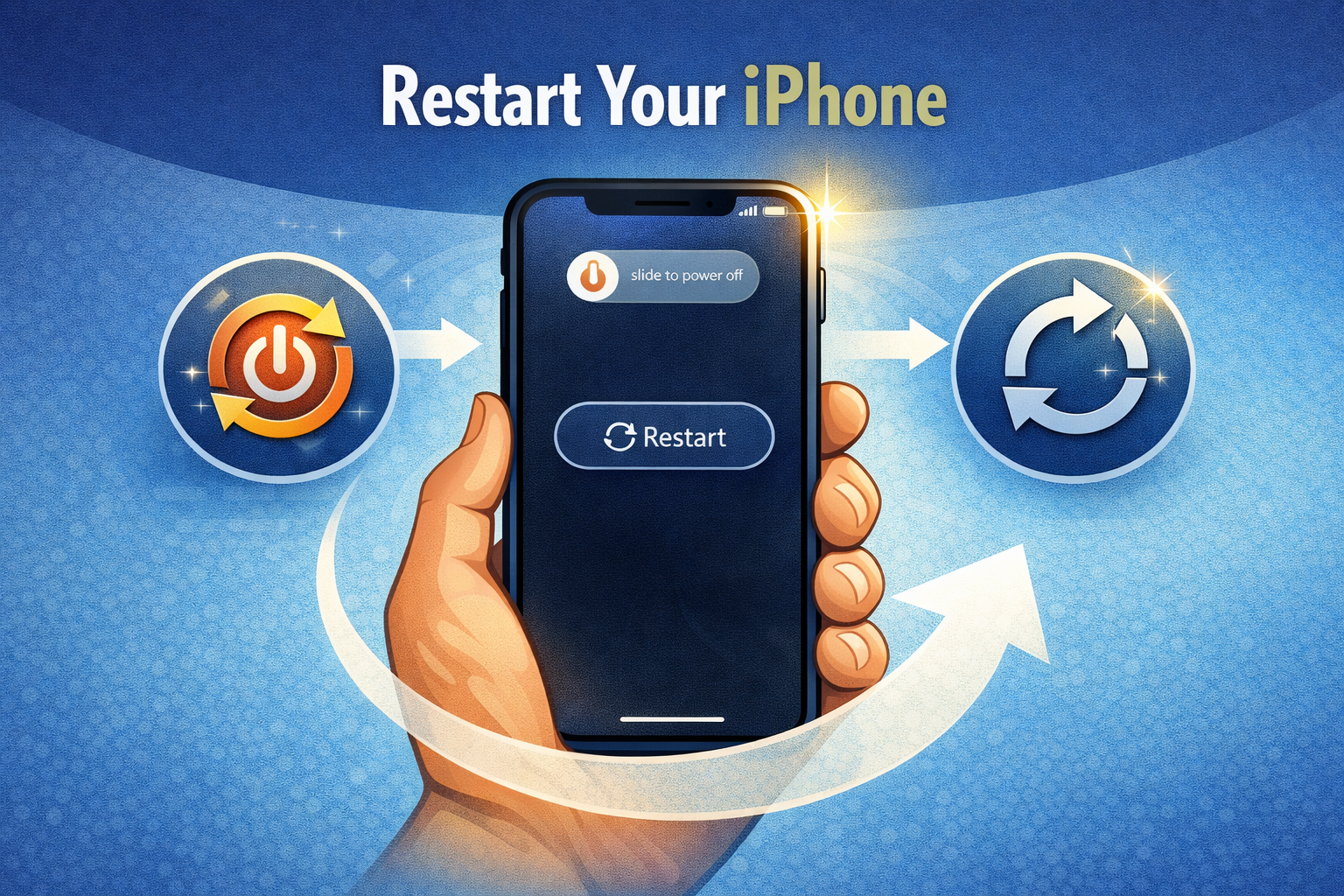
A simple restart can fix many post-update issues.
How to Restart:
- iPhone X or later: Press and hold the Side button + Volume button → Slide to power off
- iPhone 8 or earlier: Press and hold the Power button → Slide to power off
Restarting clears temporary system glitches that may cause battery drain.
2. Update All Apps
Outdated apps are a major cause of battery problems after iOS updates.
Steps:
- Open the App Store
- Tap your profile icon
- Tap Update All
App developers frequently release updates to improve compatibility with new iOS versions.
3. Check Battery Usage by App
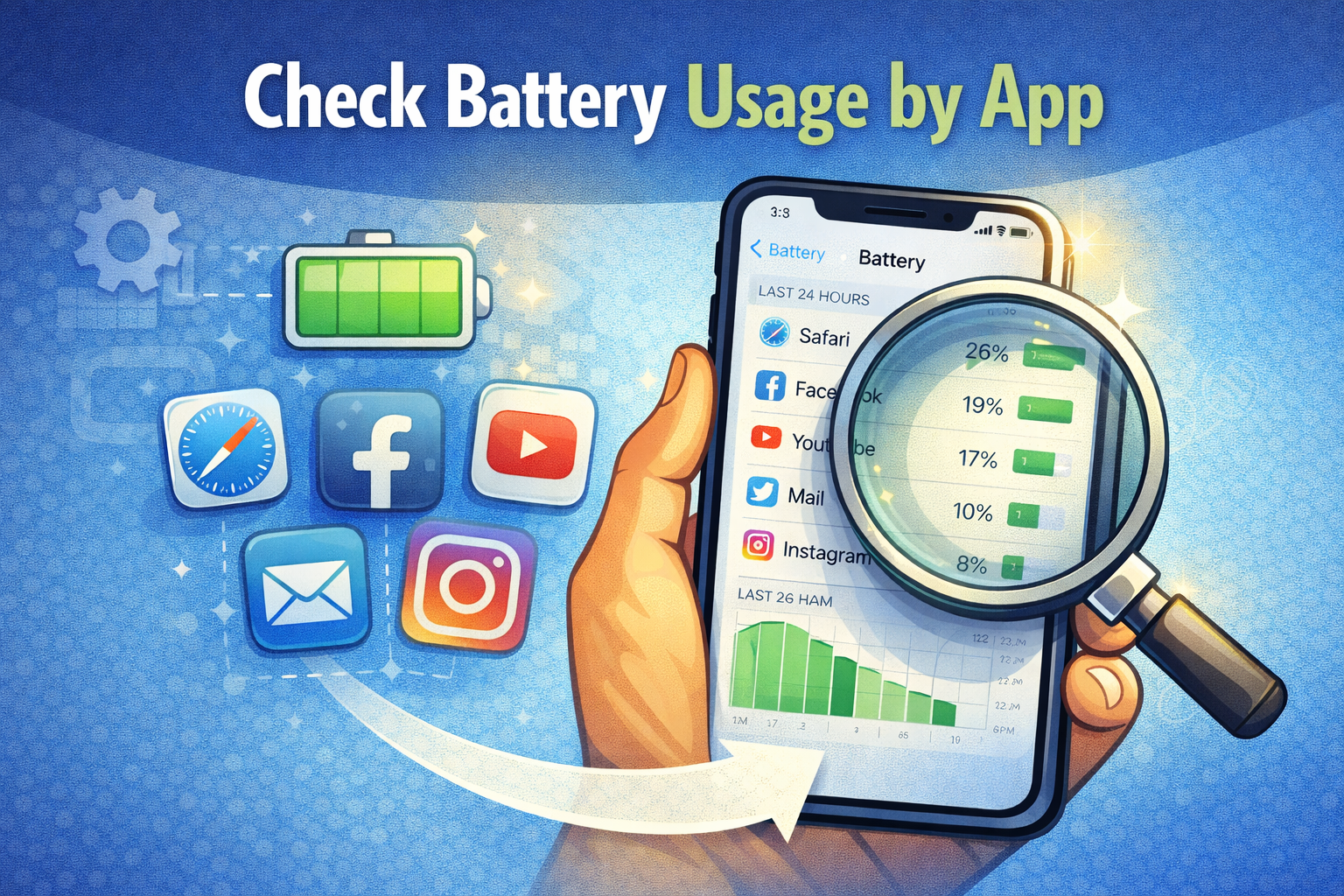
iOS provides detailed battery usage information so you can identify problem apps.
Steps:
- Go to Settings
- Tap Battery
- Review battery usage for the last 24 hours or 10 days
Look for apps using excessive battery, especially those you rarely use.
Tip: If an app uses too much power, consider:
- Updating it
- Limiting background activity
- Uninstalling it
4. Disable Background App Refresh
Background App Refresh allows apps to update content even when you’re not using them.
How to Turn It Off:
- Go to Settings
- Tap General
- Select Background App Refresh
- Choose Off or Wi-Fi only
Disabling this feature can significantly reduce battery drain.
5. Adjust Location Services
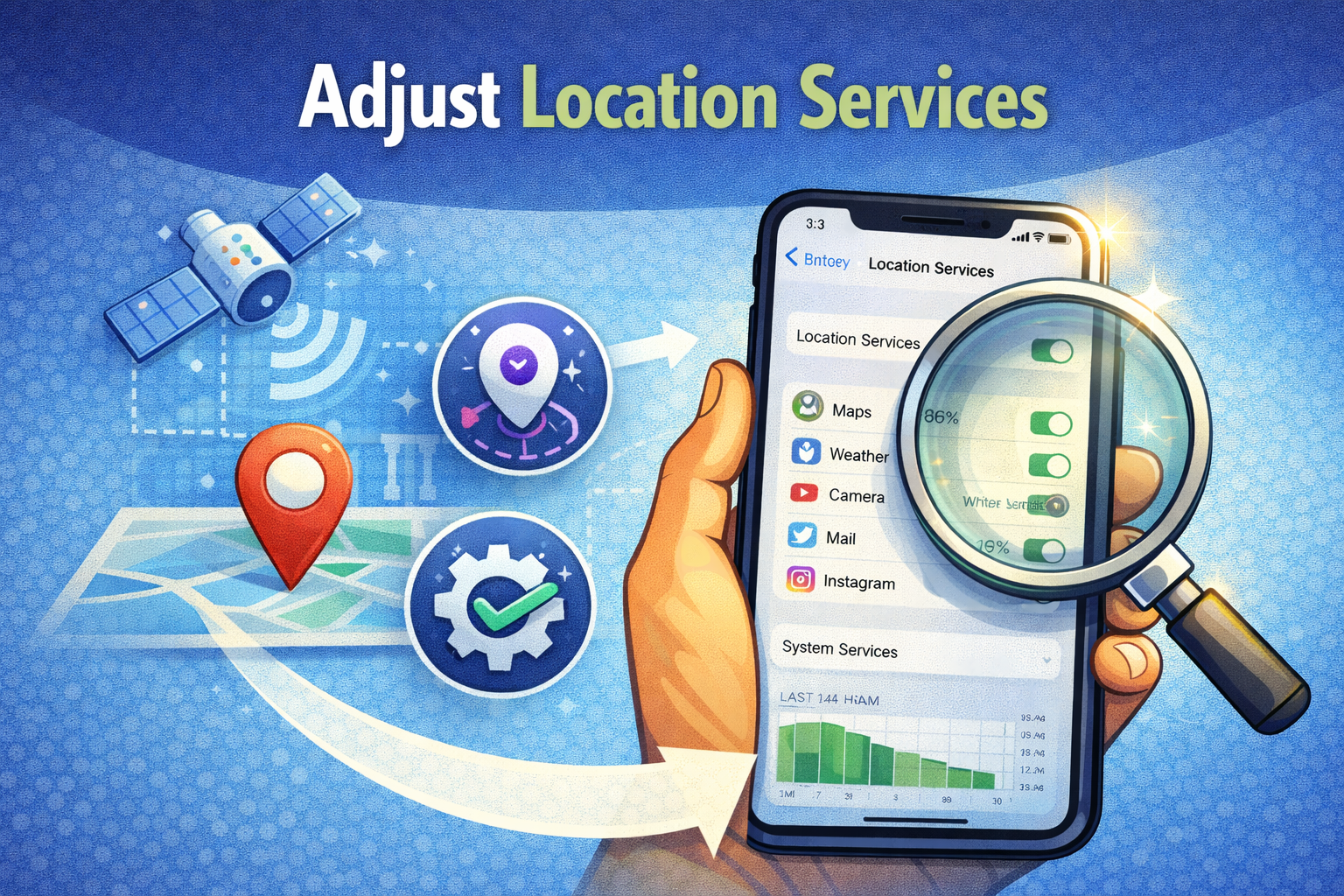
Location services can drain battery if many apps track your location constantly.
Steps:
- Go to Settings
- Tap Privacy & Security
- Select Location Services
- Review app permissions
Change location access to:
- “While Using the App”
- Or “Never” for unnecessary apps
Also, scroll down and disable System Location Services you don’t need.
6. Reduce Screen Brightness and Display Effects
The display is one of the biggest battery consumers.
Recommended Settings:
- Enable Auto-Brightness
- Reduce brightness manually
- Enable Dark Mode (especially on OLED iPhones)
Steps:
- Go to Settings
- Tap Display & Brightness
- Enable Dark Mode
- Turn on Auto-Brightness (Accessibility → Display & Text Size)
7. Turn Off Unnecessary Notifications
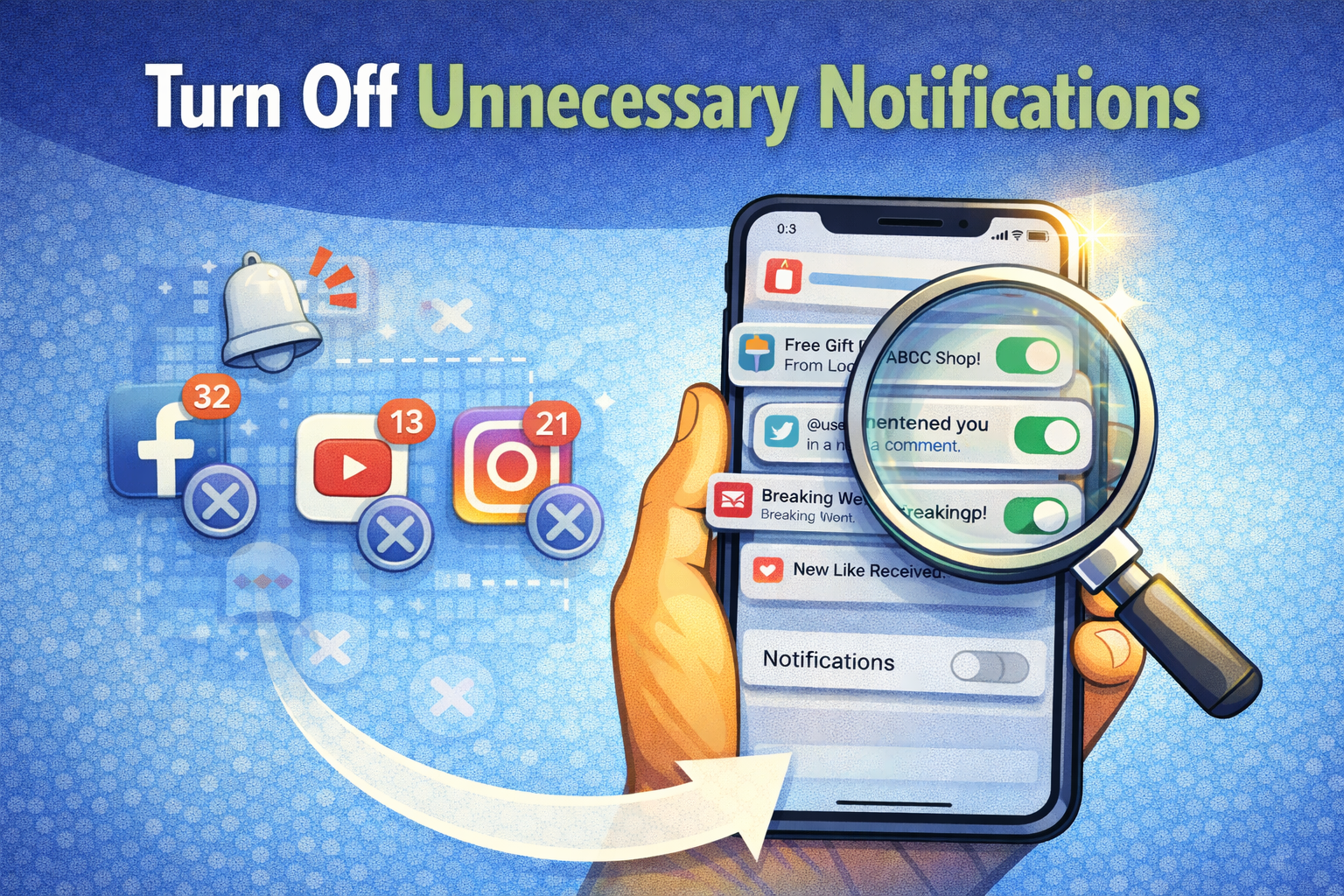
Frequent notifications wake your screen and drain battery.
Steps:
- Go to Settings
- Tap Notifications
- Select apps you don’t need alerts from
- Turn off Allow Notifications
Limiting notifications improves both battery life and focus.
8. Enable Low Power Mode
Low Power Mode temporarily reduces background activity and system performance.
How to Enable:
- Go to Settings → Battery
- Toggle Low Power Mode
This is especially useful during the first few days after an iOS update.
9. Reset All Settings (Without Deleting Data)
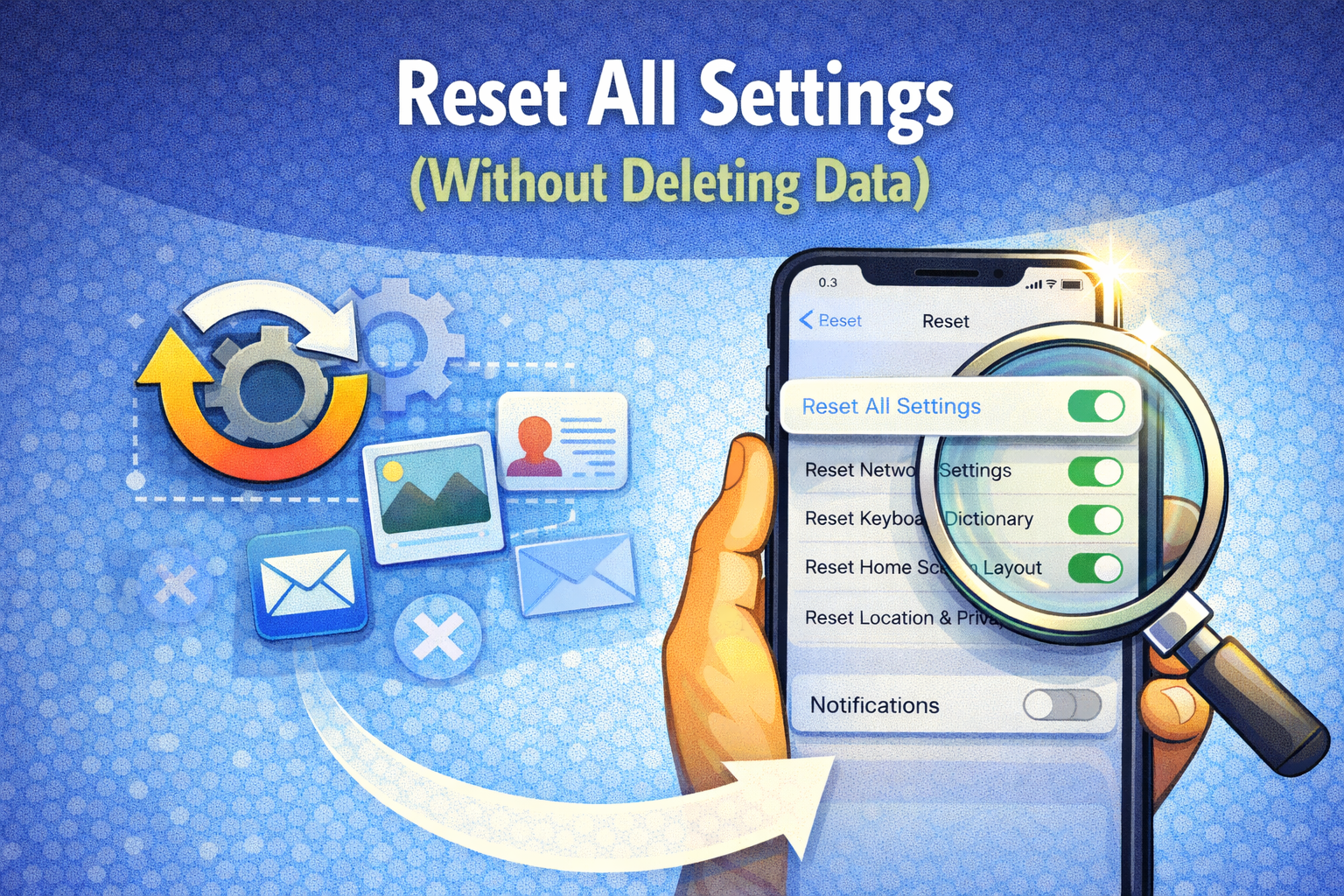
If battery drain persists, resetting system settings can help.
What This Does:
- Resets Wi-Fi, Bluetooth, display, and system preferences
- Does NOT delete apps or data
Steps:
- Go to Settings
- Tap General
- Select Transfer or Reset iPhone
- Tap Reset
- Choose Reset All Settings
This often fixes hidden configuration issues caused by updates.
10. Check Battery Health
Older batteries may struggle after new iOS updates.
Steps:
- Go to Settings
- Tap Battery
- Select Battery Health & Charging
If Maximum Capacity is below 80%, battery drain may be hardware-related.
Tip: Consider battery replacement if your iPhone is several years old.
11. Disable Automatic Downloads and Updates
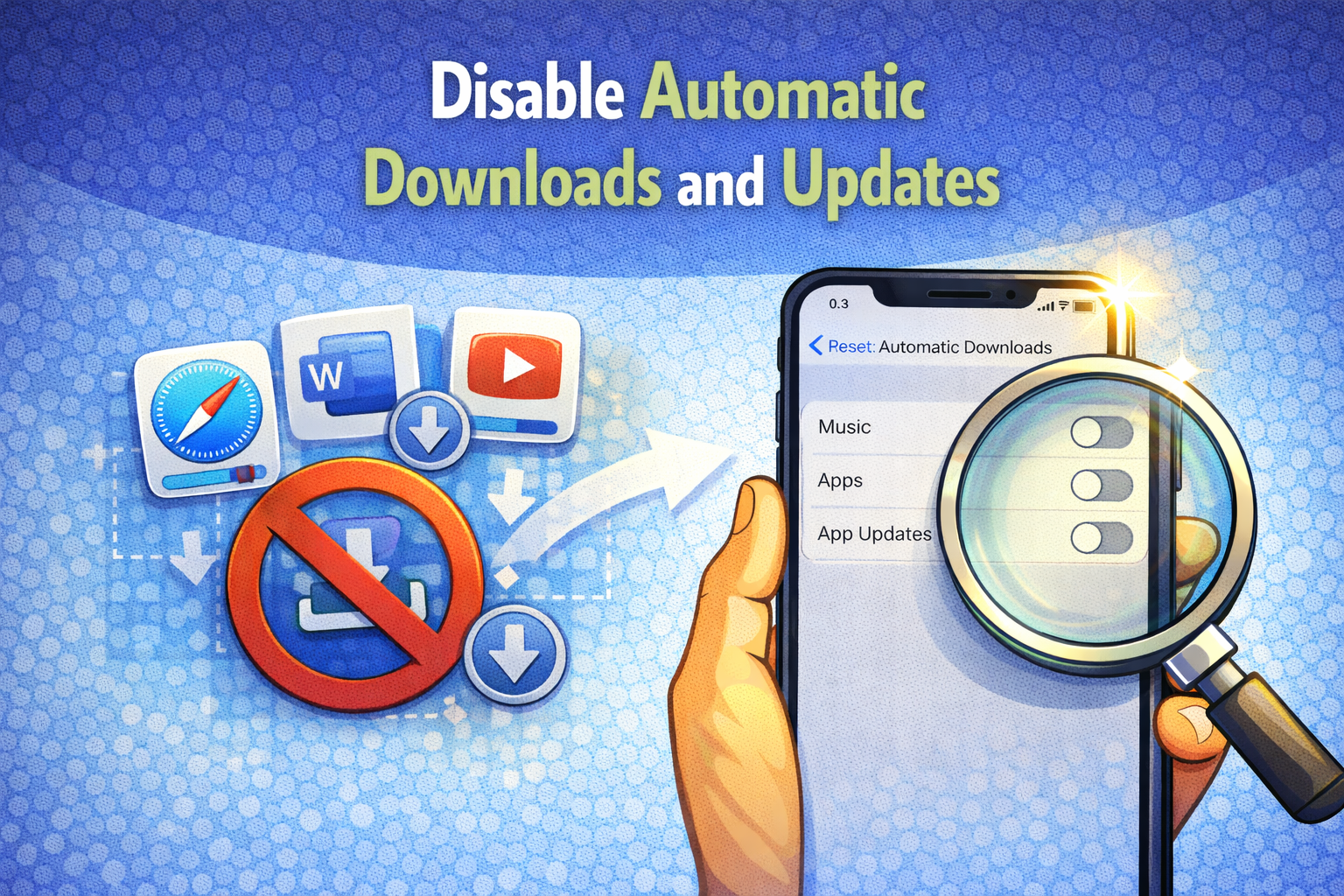
Automatic downloads can consume battery silently.
Steps:
- Go to Settings
- Tap App Store
- Turn off Automatic Downloads
- Disable App Updates if necessary
12. Avoid Extreme Temperatures
iPhones are sensitive to heat and cold, which affects battery performance.
- Avoid leaving your phone in direct sunlight
- Remove thick cases if the phone overheats
- Keep your device between 0°C and 35°C (32°F–95°F)
13. Update to the Latest iOS Patch
Apple often releases minor updates to fix battery-related bugs.
Steps:
- Go to Settings
- Tap General
- Select Software Update
- Install the latest version available
When to Contact Apple Support
If you’ve tried all the solutions and your iPhone battery still drains rapidly, it may be time to:
- Contact Apple Support
- Visit an Apple Authorized Service Provider
- Check for battery replacement options
Conclusion
Battery drain after an iOS update is a common but manageable issue. In most cases, it’s caused by background system processes, app compatibility issues, or new features enabled by default. By following the steps in this guide—such as updating apps, managing background activity, adjusting settings, and checking battery health—you can significantly improve your iPhone’s battery life.
With a little patience and proper optimization, your iPhone should return to normal battery performance within days. If not, professional support may be the best next step.
