How to Reset iPhone Settings Without Deleting Data
Resetting an iPhone can sound scary to many users. The word “reset” often brings fear of losing photos, messages, apps, and other important data. Fortunately, Apple provides several reset options that allow you to fix software issues without deleting your personal data.
If your iPhone is experiencing problems such as Wi-Fi issues, Bluetooth not working, network errors, battery drain, or system glitches, resetting specific settings can often solve the problem without performing a full factory reset.
In this guide, you’ll learn how to reset iPhone settings safely without deleting data, what each reset option does, when to use them, and important tips to avoid data loss.
Understanding iPhone Reset Options
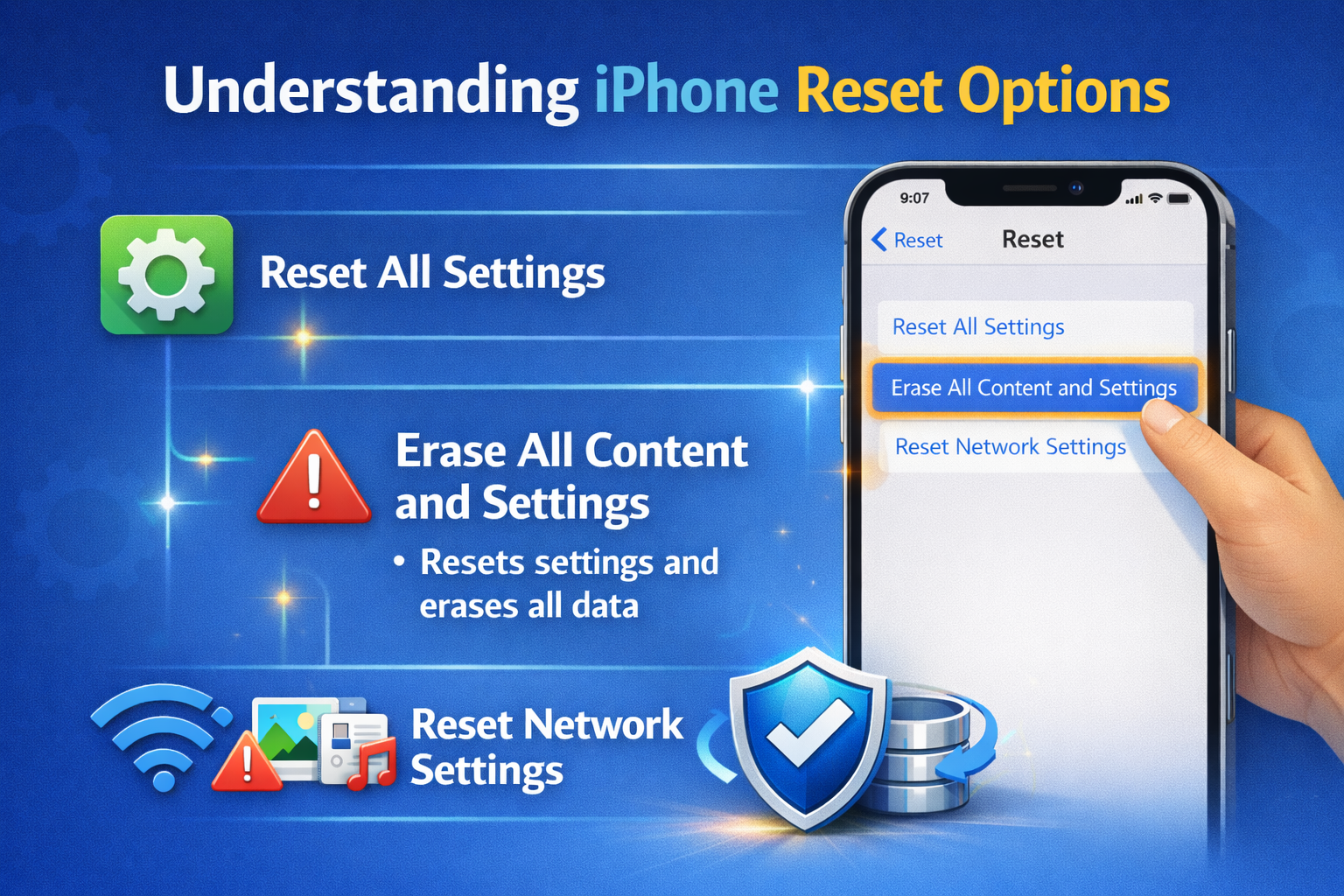
Before resetting anything, it’s important to understand that not all resets are the same. Apple separates reset functions into different categories, allowing you to fix issues without erasing content.
Here are the main reset options available on iPhone:
- Reset All Settings
- Reset Network Settings
- Reset Keyboard Dictionary
- Reset Home Screen Layout
- Reset Location & Privacy
- Factory Reset (Erase All Content and Settings)
Important: Only the last option (Factory Reset) deletes your data. The others are safe when used correctly.
When Should You Reset iPhone Settings?
Resetting settings is recommended if your iPhone has problems such as:
- Wi-Fi not connecting or dropping frequently
- Cellular data not working properly
- Bluetooth devices failing to pair
- iPhone overheating or lagging
- Battery draining faster than usual
- GPS or location services not working
- Apps crashing due to system conflicts
- Incorrect system behavior after an iOS update
If restarting the iPhone doesn’t fix the issue, resetting settings is the next safest step.
How to Reset All iPhone Settings Without Deleting Data
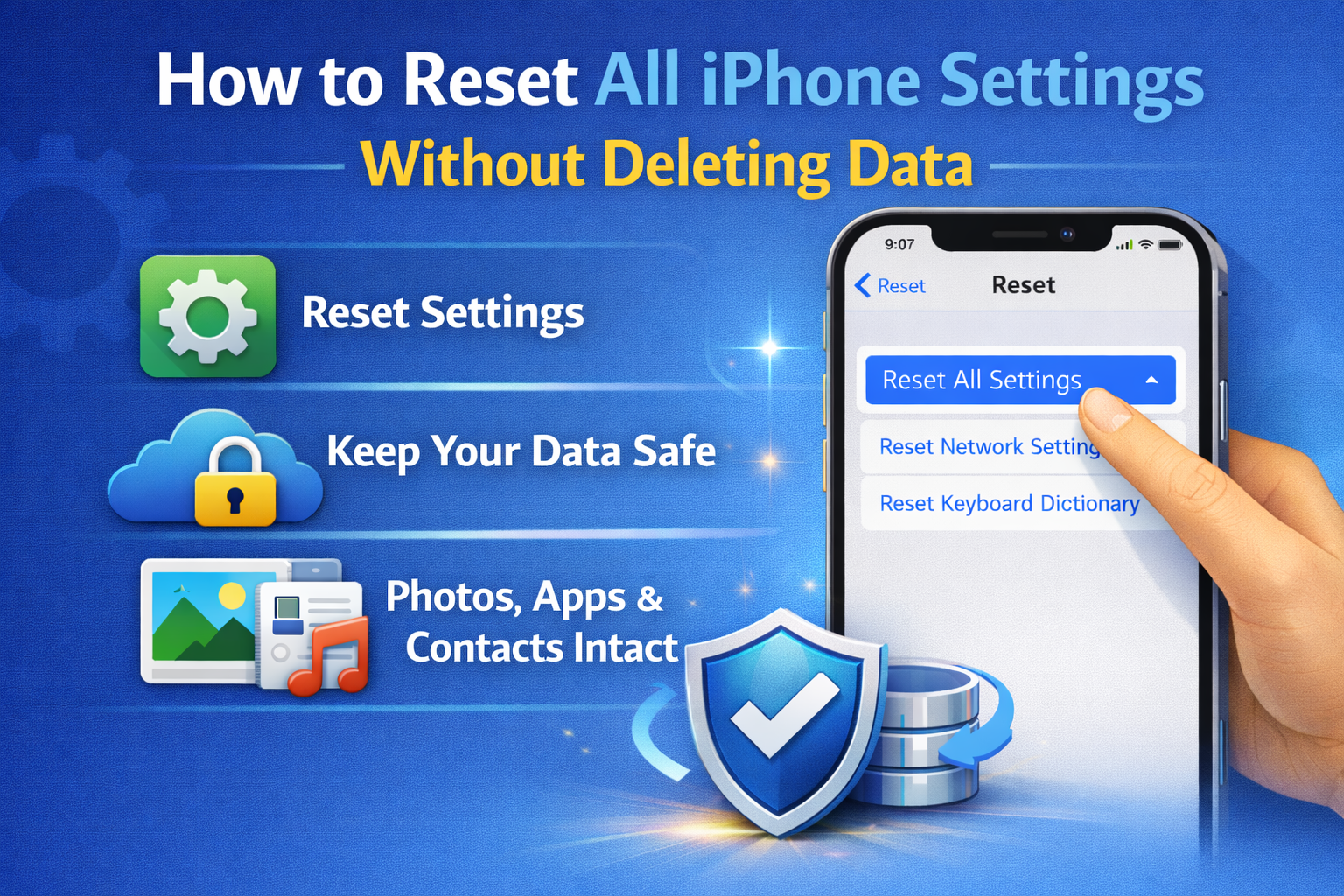
What Does “Reset All Settings” Do?
This option resets system settings back to default without deleting your data. It removes:
- Wi-Fi passwords
- Bluetooth connections
- VPN and APN settings
- Display & brightness settings
- Sounds & notification preferences
- Privacy permissions
It does NOT delete:
- Photos
- Videos
- Apps
- Messages
- Contacts
- Apple ID data
Steps to Reset All Settings
- Open Settings
- Go to General
- Scroll down and tap Transfer or Reset iPhone
- Tap Reset
- Choose Reset All Settings
- Enter your passcode
- Confirm the reset
Your iPhone will restart automatically.
How to Reset Network Settings (Safe for Data)
When Should You Use This?
Use this option if you experience:
- Wi-Fi connection problems
- Cellular network issues
- VPN not working
- Bluetooth pairing errors
What Gets Reset?
- Wi-Fi networks & passwords
- Cellular settings
- Bluetooth connections
- VPN profiles
Personal data remains untouched.
Steps to Reset Network Settings
- Open Settings
- Go to General
- Tap Transfer or Reset iPhone
- Tap Reset
- Select Reset Network Settings
- Enter your passcode
- Confirm
After reset, reconnect to Wi-Fi and Bluetooth devices.
How to Reset Keyboard Dictionary
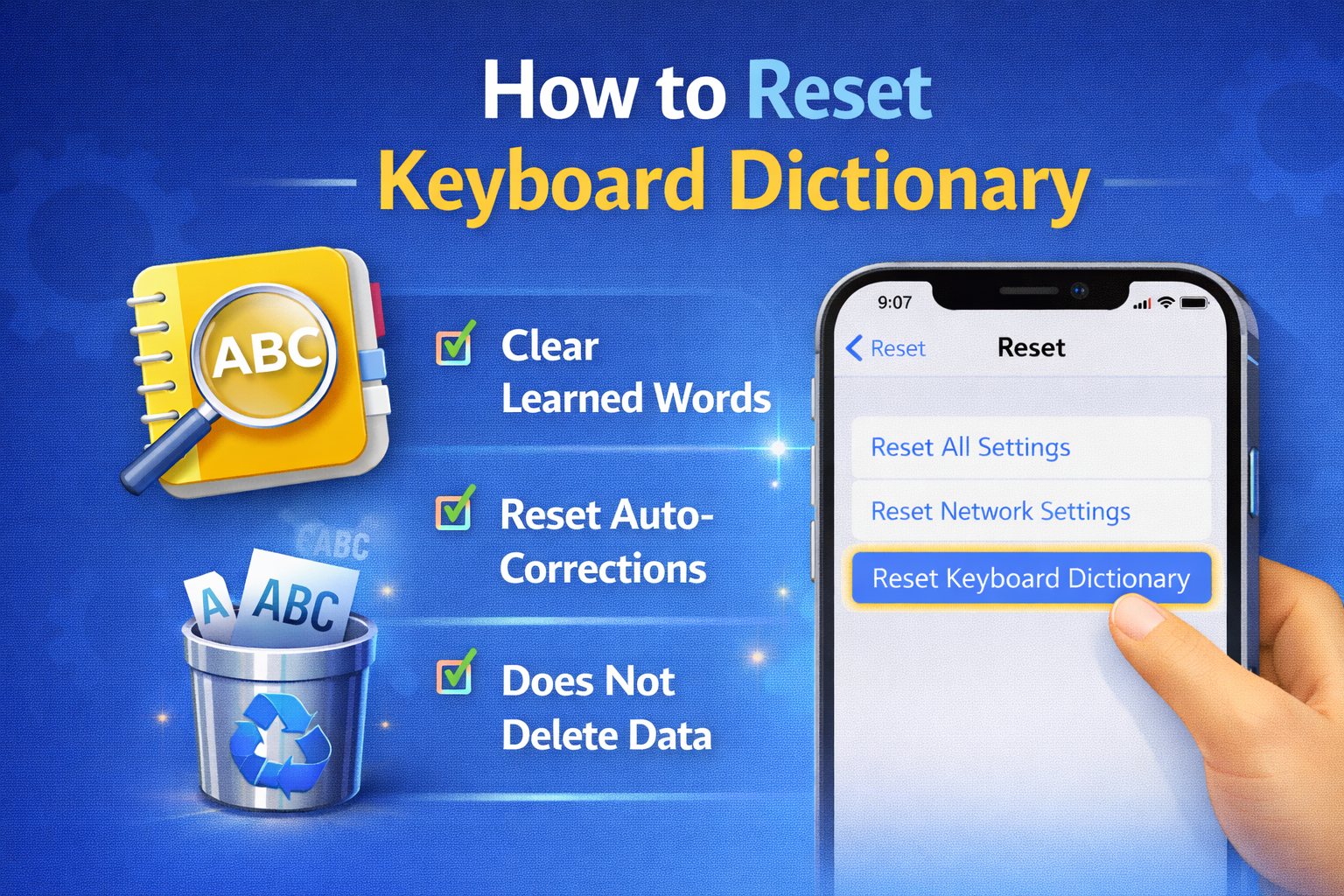
If your iPhone keeps suggesting wrong words or autocorrect behaves strangely, resetting the keyboard dictionary can help.
What It Does
- Deletes learned words
- Resets keyboard predictions
- Keeps all personal data intact
Steps
- Open Settings
- Go to General
- Tap Transfer or Reset iPhone
- Tap Reset
- Choose Reset Keyboard Dictionary
- Enter passcode
- Confirm
How to Reset Home Screen Layout
If your Home Screen looks messy or apps are misplaced, this reset helps restore the default layout.
What It Resets
- App layout and folders
- Home Screen arrangement
What It Does NOT Delete
- Apps
- App data
- Photos or messages
Steps
- Open Settings
- Go to General
- Tap Transfer or Reset iPhone
- Tap Reset
- Select Reset Home Screen Layout
- Confirm
How to Reset Location & Privacy Settings
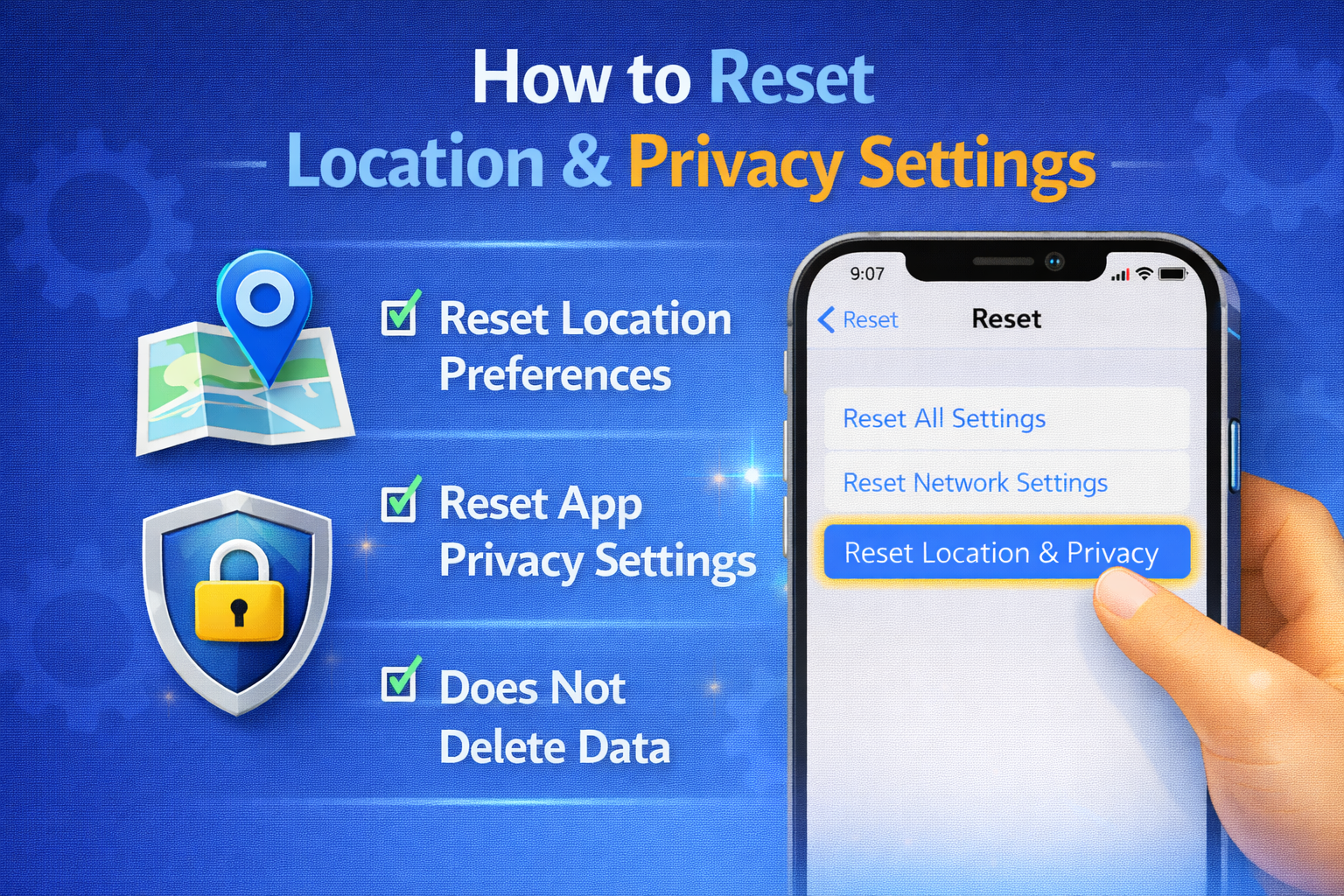
If apps can’t access location, camera, microphone, or contacts correctly, this reset can fix permission conflicts.
What Gets Reset?
- Location Services permissions
- App privacy permissions
- System privacy settings
Apps will ask for permission again when needed.
Steps
- Open Settings
- Go to General
- Tap Transfer or Reset iPhone
- Tap Reset
- Choose Reset Location & Privacy
- Enter passcode
- Confirm
Will Resetting Settings Delete iCloud or Apple ID Data?
No. Resetting settings:
- Does NOT sign you out of Apple ID
- Does NOT remove iCloud data
- Does NOT delete backups
- Does NOT affect Find My iPhone
Your iCloud content stays safe.
Important Tips Before Resetting iPhone Settings
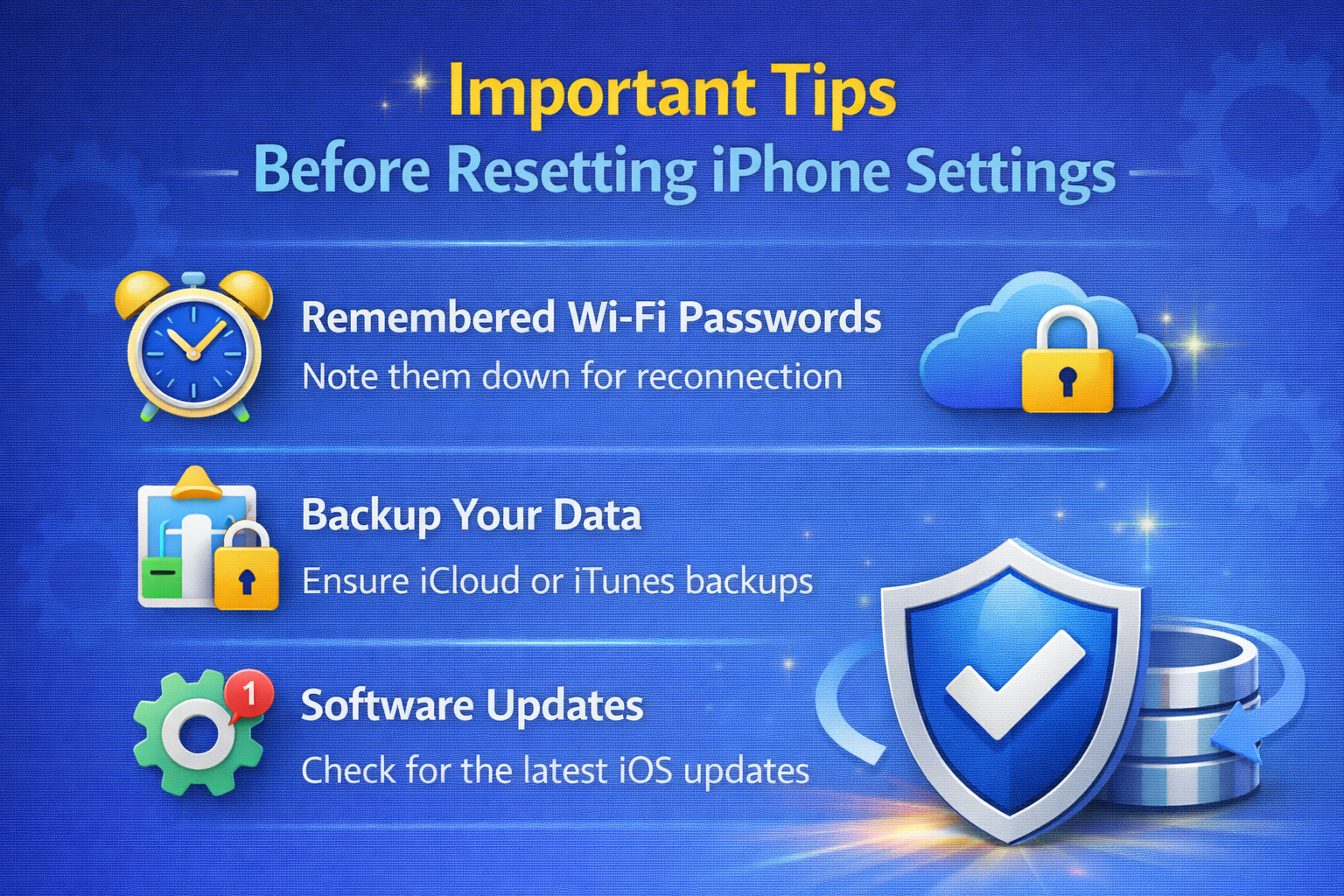
Although these resets don’t delete data, it’s always smart to take precautions.
1. Backup Your iPhone (Recommended)
Use iCloud or a computer to back up your data before making changes.
- iCloud: Settings → Apple ID → iCloud → iCloud Backup
- Computer: Use Finder (Mac) or iTunes (Windows)
2. Charge Your Battery
Make sure your iPhone has at least 30–40% battery or keep it plugged in during reset.
3. Remember Wi-Fi Passwords
Resetting settings will erase saved Wi-Fi passwords.
Common Mistakes to Avoid
Selecting Erase All Content and Settings by mistake
Resetting settings repeatedly without identifying the problem
Skipping backup before troubleshooting
Resetting network settings without knowing Wi-Fi credentials
Difference Between Reset Settings and Factory Reset
| Feature | Reset Settings | Factory Reset |
|---|---|---|
| Deletes Photos | ❌ No | ✅ Yes |
| Deletes Apps | ❌ No | ✅ Yes |
| Deletes Messages | ❌ No | ✅ Yes |
| Fixes System Issues | ✅ Yes | ✅ Yes |
| Removes Apple ID | ❌ No | ✅ Yes |
What If Resetting Settings Doesn’t Fix the Problem?
If issues persist after resetting settings:
- Update iOS to the latest version
- Force restart your iPhone
- Check for app updates
- Reset specific settings instead of all
- Contact Apple Support
Avoid factory reset unless absolutely necessary.
Final Thoughts
Resetting iPhone settings is a powerful yet safe way to fix common system issues without deleting your data. Apple’s reset options are designed to give users flexibility, allowing them to troubleshoot problems while keeping photos, messages, apps, and personal files intact.
If your iPhone behaves strangely, don’t rush into a factory reset. Start with Reset All Settings or a specific reset option. In most cases, this simple step can restore your iPhone’s performance without any data loss.
