Fix Apps Not Recording Sound on iPhone (Easy Guide)
Introduction
You’re not alone many iPhone users face the frustrating issue where apps stop recording sound. Whether you’re using voice notes, Instagram, WhatsApp, or a screen recorder, missing audio can ruin important recordings.
If you’re searching for how to fix apps not recording sound on iPhone, you’re in the right place. This guide walks you through simple, effective solutions to get your microphone working again—fast.
Table of Contents
- What is the Problem?
- Why Does This Problem Happen?
- How to Fix Apps Not Recording Sound on iPhone (Step-by-Step)
- Advanced Fixes (Optional)
- Prevent This Problem in the Future
- Common FAQs
- Conclusion
What is the Problem?
The issue occurs when apps on your iPhone fail to capture audio while recording. This can affect:
- Voice recording apps (Voice Memos, WhatsApp)
- Social media apps (Instagram, TikTok, Facebook)
- Video recording apps
- Screen recording with sound
Common Symptoms
- No sound in recorded videos
- Voice messages are silent
- Microphone not detected
- Audio recordings are very low or distorted
- Screen recordings have no audio
This problem can be temporary or persistent depending on the cause.
Why Does This Problem Happen?
There are several reasons why apps are not recording sound on your iPhone:
1. Microphone Permission Disabled
Apps need permission to access your microphone. If disabled, they cannot record sound.
2. iOS Software Bugs
Sometimes, system glitches or outdated iOS versions can interfere with audio recording.
3. App-Specific Issues
The app itself may have bugs or outdated software causing the issue.
4. Microphone Blocked or Dirty
Dust, dirt, or a phone case can block the microphone physically.
5. Bluetooth Interference
Connected Bluetooth devices (like AirPods) may take over the microphone.
6. Screen Recording Settings
Screen recording might not have microphone audio enabled.
7. Hardware Problems
In rare cases, the iPhone’s microphone could be damaged.
How to Fix Apps Not Recording Sound on iPhone (Step-by-Step)
Here’s what works—follow these Quick Fix steps:
1. Check Microphone Permissions
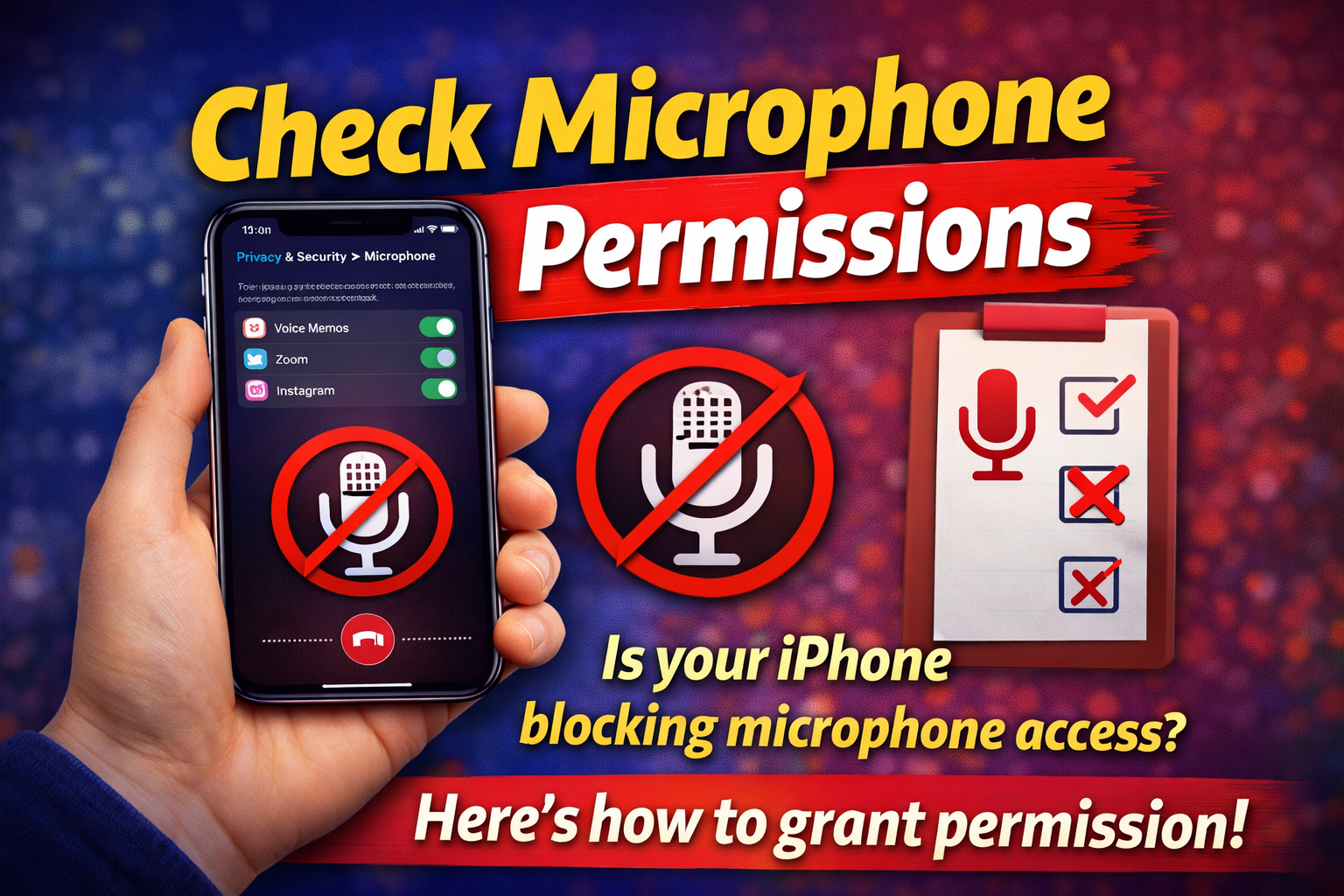
This is the most common fix.
Steps:
- Go to Settings
- Tap Privacy & Security
- Select Microphone
- Enable access for the affected app
👉 Pro Tip: If the app isn’t listed, reinstall it.
2. Restart Your iPhone
A simple restart can fix temporary glitches.
Steps:
- Press and hold the power button
- Slide to power off
- Turn it back on after 10 seconds
3. Test the Microphone
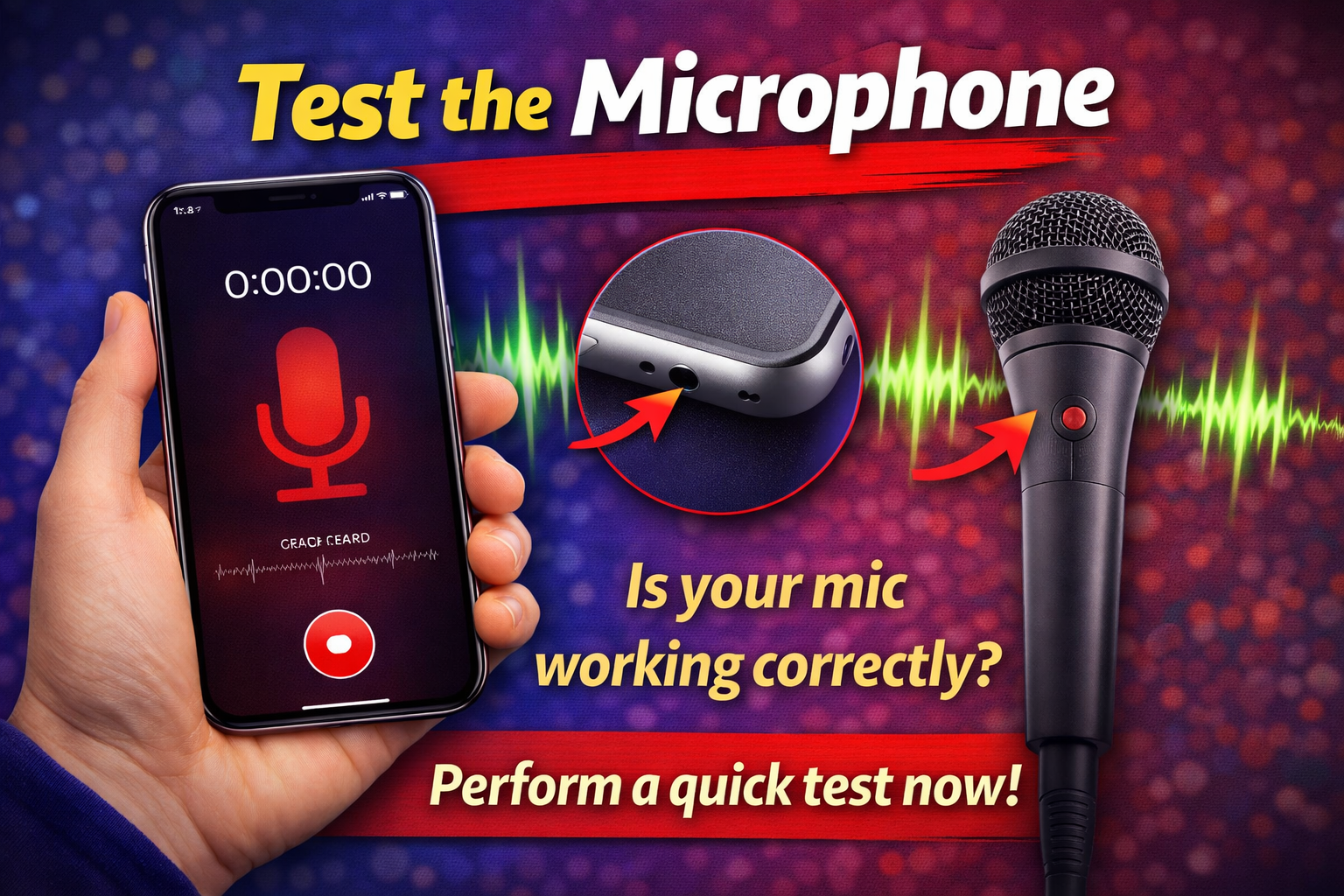
Make sure your microphone is working.
Steps:
- Open Voice Memos
- Record a short clip
- Play it back
If there’s no sound, the issue may be hardware-related.
4. Turn Off Bluetooth
Bluetooth devices can hijack your microphone.
Steps:
- Go to Settings
- Tap Bluetooth
- Turn it off
Then try recording again.
5. Enable Microphone for Screen Recording
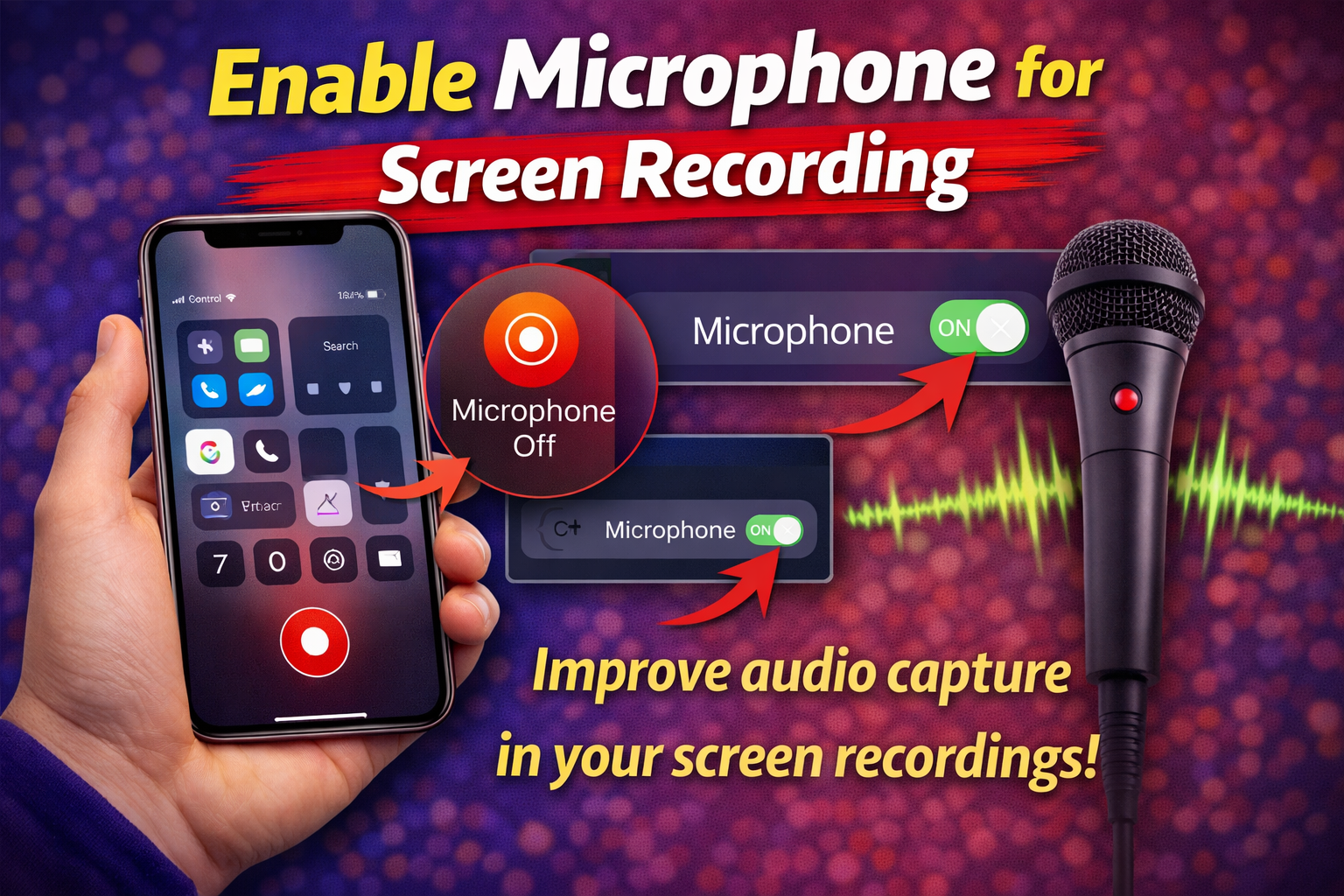
If screen recordings have no sound:
Steps:
- Open Control Center
- Press and hold Screen Recording
- Tap Microphone Audio ON
- Start recording
6. Update iOS
Outdated software can cause bugs.
Steps:
- Go to Settings
- Tap General
- Select Software Update
- Install the latest version
7. Update or Reinstall the App
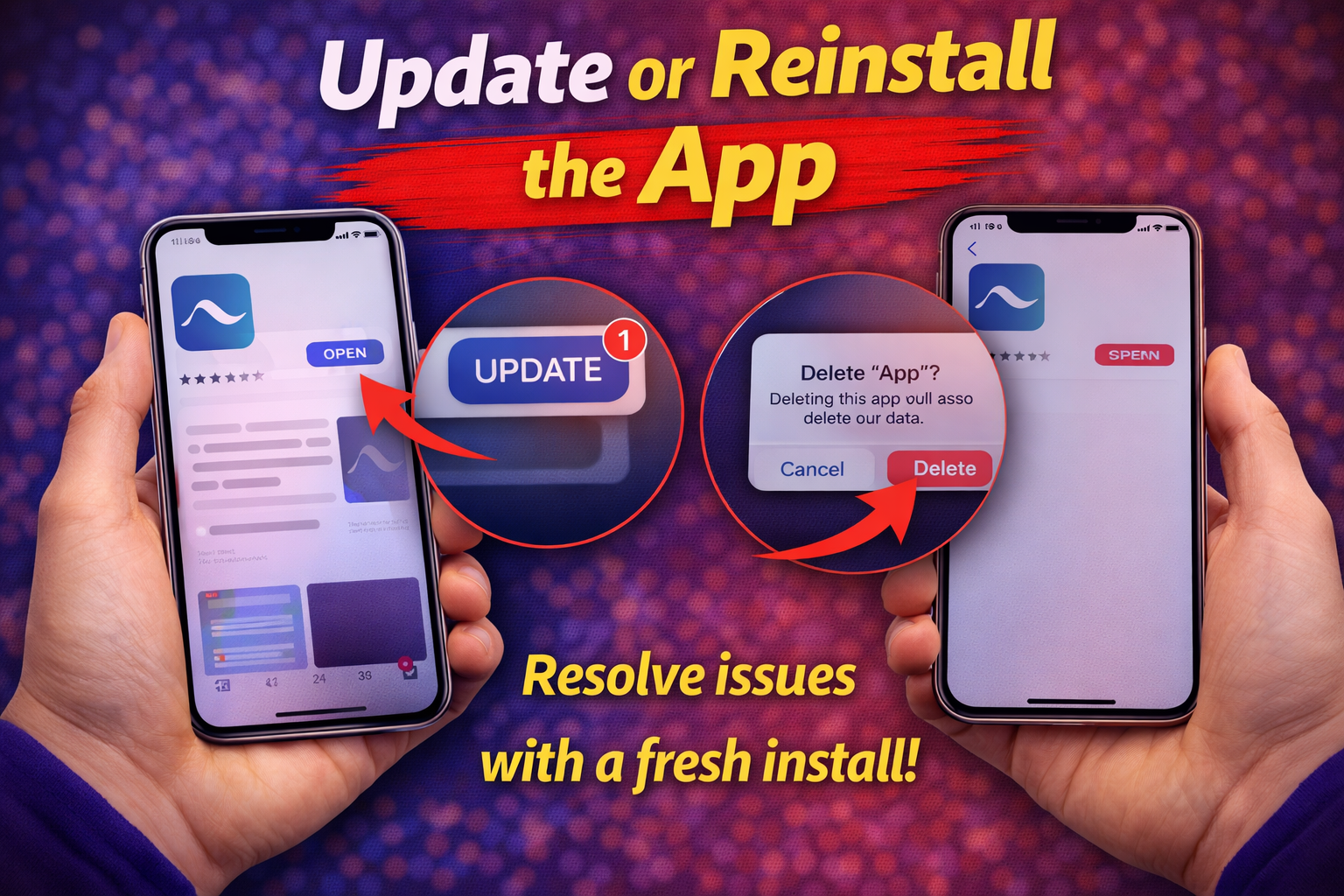
Apps may have bugs that affect recording.
Steps:
- Go to App Store
- Update the app
OR - Delete and reinstall the app
8. Clean the Microphone
Dust can block sound input.
Quick Fix:
- Use a soft brush or toothpick
- Gently clean microphone holes
⚠️ Warning: Avoid using liquids.
Advanced Fixes (Optional)
If the basic solutions didn’t work, try these:
1. Reset All Settings
This won’t delete your data but resets system settings.
Steps:
- Go to Settings
- Tap General
- Select Transfer or Reset iPhone
- Tap Reset → Reset All Settings
2. Check for Third-Party Conflicts
Some apps may interfere with microphone usage.
- Close all apps running in the background
- Test recording again
3. Use External Microphone
If internal mic fails, try:
- Wired headphones with mic
- Lightning microphone
4. Contact Apple Support
If nothing works, it could be a hardware issue.
Prevent This Problem in the Future
Here’s how to avoid facing this issue again:
- Always allow microphone permissions when installing apps
- Keep your iPhone updated to the latest iOS
- Avoid installing untrusted apps
- Regularly clean your device
- Disconnect unused Bluetooth devices
- Test recording after major updates
👉 Pro Insight: After iOS updates, always recheck app permissions.
Common FAQs
1. Why is my iPhone recording video without sound?
This usually happens due to disabled microphone permissions or blocked microphone.
2. How do I enable microphone on iPhone apps?
Go to Settings → Privacy & Security → Microphone, then toggle on the app.
3. Why does screen recording have no sound?
Microphone audio is likely turned off. Enable it in the Control Center before recording.
4. Can a damaged microphone be fixed?
Yes, but it usually requires professional repair or Apple support.
5. Do iOS updates fix audio recording issues?
Yes, updates often fix bugs affecting microphone and app performance.
Conclusion
Dealing with apps not recording sound can be frustrating, but the good news is—most fixes are quick and simple.
From checking microphone permissions to updating iOS and cleaning your device, these steps cover everything you need to solve the problem.
👉 Here’s what works: Start with permissions and restart your iPhone these fix most cases instantly.
If this guide helped you, consider sharing it or exploring more troubleshooting tips. Got questions? Drop them in the comments we’re here to help!
