How to Fix Apps Not Working After Password Change (Easy Guide)
Introduction
You just updated your password to keep your account secure—great move. But now suddenly, your apps stop working, won’t sync, or keep logging you out. Frustrating, right?
You’re not alone. Many users face this exact issue after changing their passwords. The good news? It’s usually easy to fix.
In this guide, you’ll learn how to fix apps not working after password change using simple, practical steps. Whether it’s email apps, social media, or banking apps, here’s what works.
Table of Contents
- What is the Problem?
- Why Does This Problem Happen?
- How to Fix Apps Not Working After Password Change
- Advanced Fixes (Optional)
- Prevent This Problem in the Future
- Common FAQs
- Conclusion
What is the Problem?
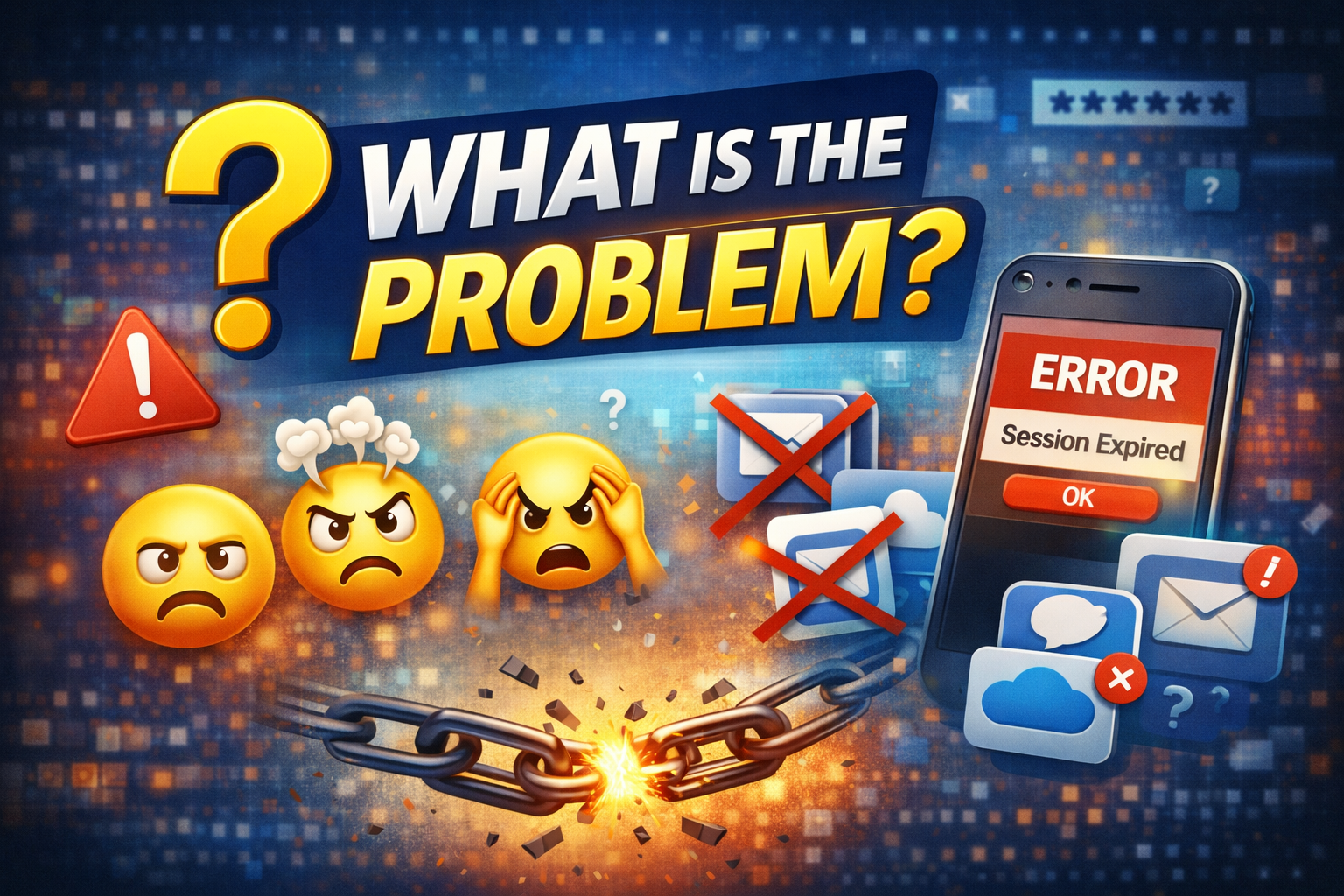
After changing your password, some apps may stop functioning properly. This happens because the app still uses your old login credentials in the background.
Common Symptoms
- App keeps logging you out
- “Authentication error” or “Session expired” messages
- App not syncing (emails, messages, data)
- Login loops (keeps asking for password)
- Features not loading properly
This issue affects many apps like Gmail, Facebook, Instagram, banking apps, and more.
Why Does This Problem Happen?
Understanding the cause helps you fix it faster.
1. Stored Credentials Are Outdated
Apps store login details locally. After a password change, they can’t authenticate anymore.
2. Session Expiration
Changing your password often logs you out of all devices for security reasons.
3. Sync Errors
Apps that sync data (like email or cloud apps) fail because authentication tokens are invalid.
4. Cache or App Data Issues
Old cached data can conflict with new login credentials.
5. Security Features Triggered
Two-factor authentication (2FA) or account protection systems may block access.
6. Device or App Bugs
Sometimes, it’s just a glitch or outdated app version causing the problem.
How to Fix Apps Not Working After Password Change
Here are quick fixes and step-by-step solutions you can try right now.
1. Log Out and Log Back In (Quick Fix)
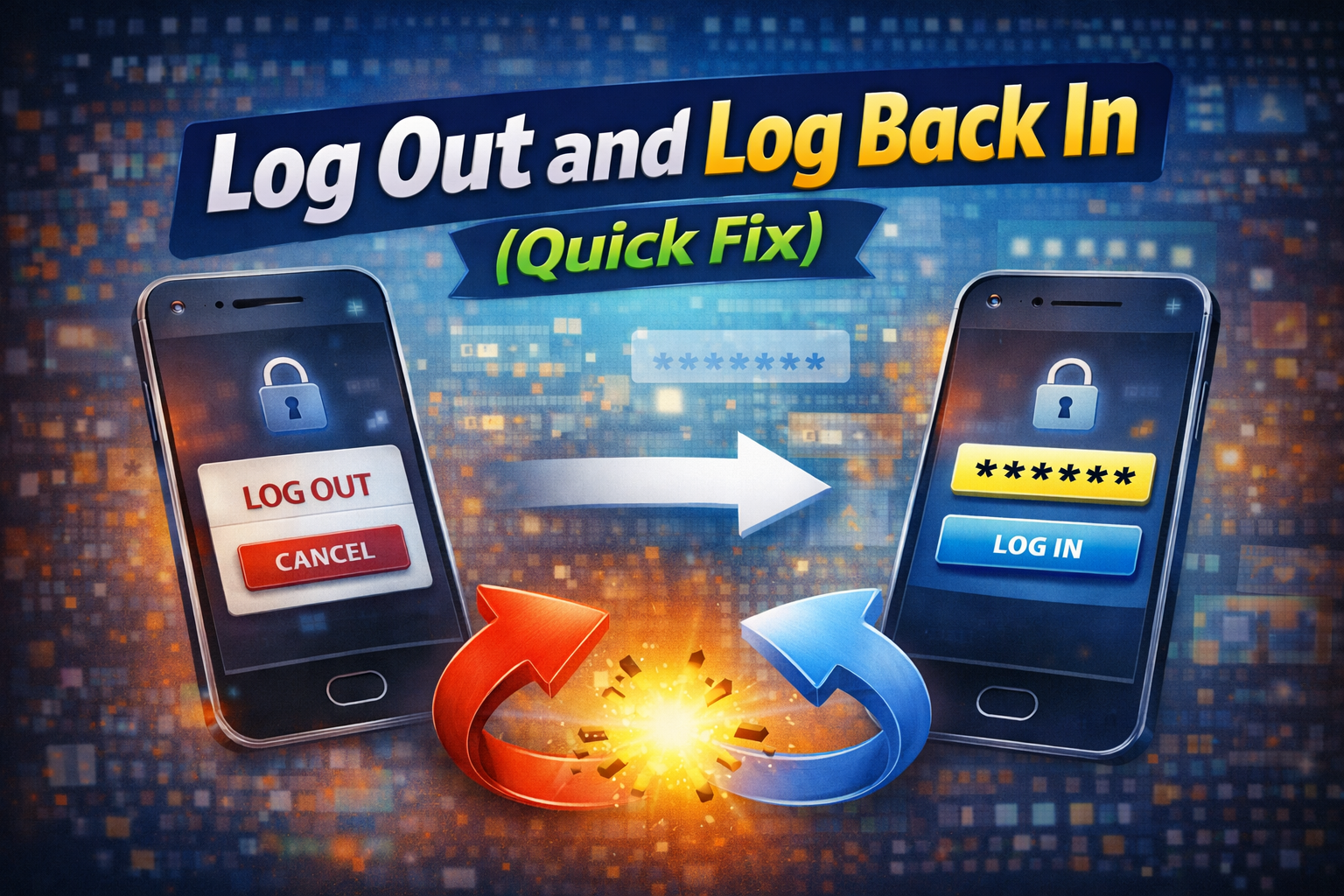
This is the fastest solution and works most of the time.
Steps:
- Open the app
- Log out of your account
- Close the app completely
- Reopen it
- Log in with your new password
👉 Pro Tip: This refreshes authentication tokens and resolves most issues instantly.
2. Restart Your Device
Sometimes, apps just need a fresh start.
Steps:
- Turn off your phone
- Wait 10–20 seconds
- Turn it back on
- Open the app again
This clears temporary system glitches.
3. Clear App Cache (Android)

Cached data can conflict with your new password.
Steps (Android):
- Go to Settings
- Tap Apps
- Select the problematic app
- Tap Storage
- Tap Clear Cache
⚠️ Warning: Avoid “Clear Data” unless necessary—it may remove saved settings.
4. Update the App
An outdated app may not handle new authentication properly.
Steps:
- Open Google Play Store or App Store
- Search for the app
- Tap Update
👉 Here’s what works: Developers often fix login bugs in updates.
5. Reinstall the App
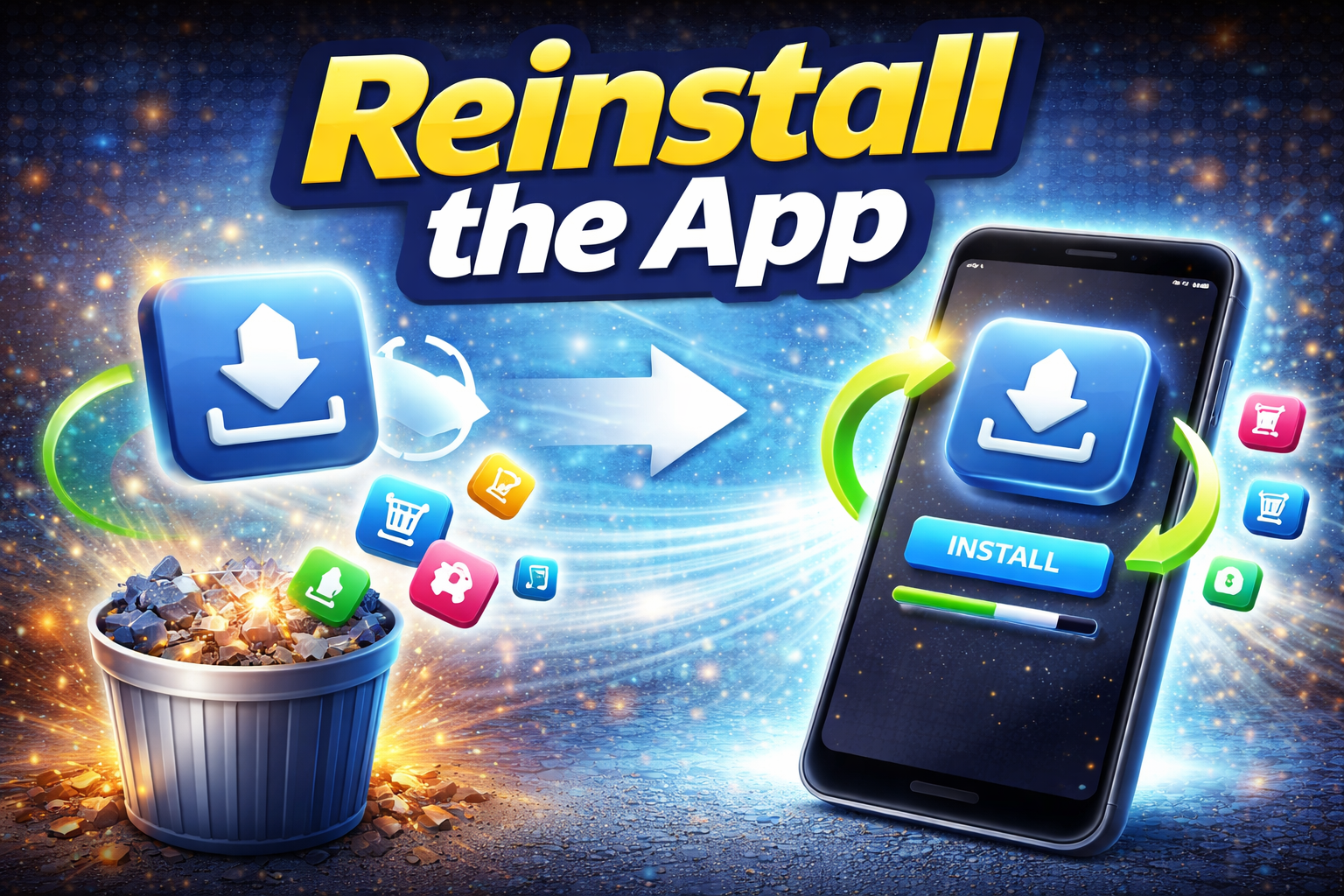
If nothing works, reinstalling can fix deeper issues.
Steps:
- Uninstall the app
- Restart your device
- Reinstall from the store
- Log in again
This removes corrupted files and resets everything.
6. Check Account Settings
Some apps require manual updates after a password change.
For Email Apps:
- Update password in account settings
- Re-sync your account
For Social Media:
- Verify login activity
- Confirm device access
7. Verify Two-Factor Authentication (2FA)
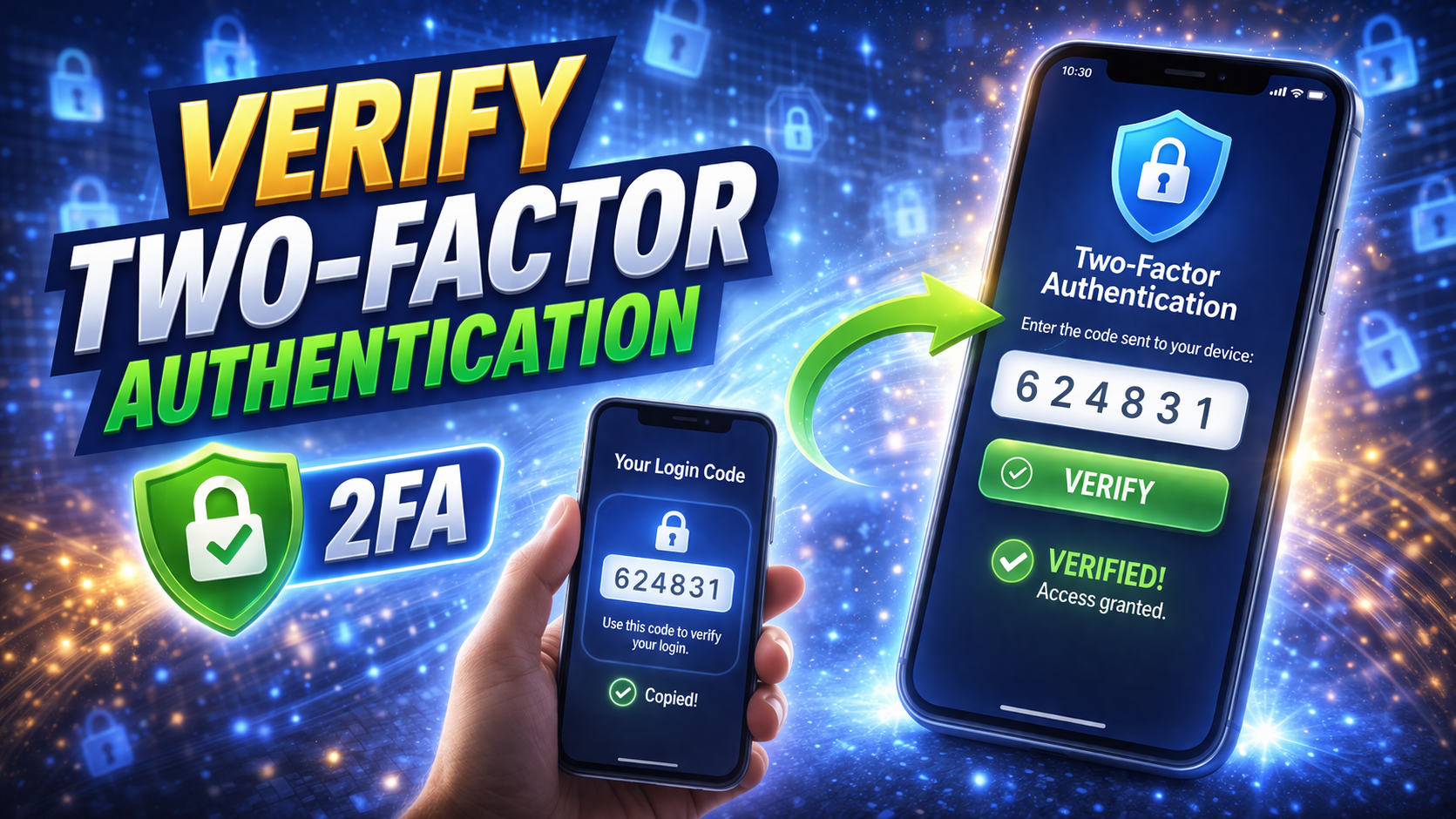
If you use 2FA, you may need to reauthorize your device.
Steps:
- Enter your new password
- Complete verification (SMS, app code, email)
- Trust your device if prompted
8. Check Internet Connection
Sometimes, it’s not the password—it’s your network.
Try this:
- Switch between Wi-Fi and mobile data
- Restart your router
- Turn airplane mode on/off
Advanced Fixes (Optional)
If the basic steps don’t solve the problem, try these advanced solutions.
1. Remove and Re-Add Account (Android/iPhone)
Steps:
- Go to Settings > Accounts
- Select your account
- Tap Remove Account
- Restart your device
- Add the account again
2. Reset Network Settings
This helps if connectivity issues are causing login failures.
Steps:
- Go to Settings > General > Reset > Network Settings
⚠️ This will remove saved Wi-Fi passwords.
3. Check Server Status
Sometimes the app itself is down.
- Visit the app’s official website or status page
- Check social media for outage reports
👉 You’re not alone if others are experiencing the same issue.
Prevent This Problem in the Future
Here’s how to avoid this issue next time you change your password.
1. Log Out Before Changing Password
This helps apps reset sessions properly.
2. Update Apps Regularly
Always use the latest version for better compatibility.
3. Use Password Managers
They update credentials across apps easily.
4. Enable Backup Login Options
Add recovery email or phone number.
5. Avoid Frequent Password Changes
Unless necessary, frequent changes can cause sync issues.
Common FAQs
1. Why do apps stop working after a password change?
Because they still use your old login credentials, which are no longer valid.
2. Do I need to reinstall apps after changing my password?
Not always. Try logging out and back in first—it usually fixes the issue.
3. Why does my app keep asking for a password repeatedly?
This is often caused by sync errors or outdated session data.
4. Will changing my password log me out of all devices?
Yes, many services log you out for security reasons.
5. Is it safe to clear app cache?
Yes, clearing cache is safe and often helps fix login issues.
Conclusion
Dealing with apps that stop working after a password change can be annoying—but it’s usually easy to fix.
To recap, here’s what works:
- Log out and log back in
- Clear cache or reinstall the app
- Update credentials and verify security settings
Start with the Quick Fix, and move to advanced steps if needed.
👉 If this guide helped you, feel free to share it or explore more App Problems solutions to keep your apps running smoothly!
