How to Fix Apps Not Keeping You Logged In (Easy Guide)
Introduction
You’re not alone—few things are more frustrating than opening your favorite app only to find you’ve been logged out again. Whether it’s your social media, banking app, or email, constantly re-entering your credentials wastes time and can even interrupt important tasks.
If you’re wondering how to fix apps not keeping you logged in, you’re in the right place. This guide will walk you through the real causes of this issue and provide simple, proven solutions that work on both Android and iPhone.
Let’s fix it—fast.
Table of Contents
- What is the Problem?
- Why Does This Problem Happen?
- How to Fix Apps Not Keeping You Logged In
- Advanced Fixes
- Prevent This Problem in the Future
- Common FAQs
- Conclusion
What is the Problem?
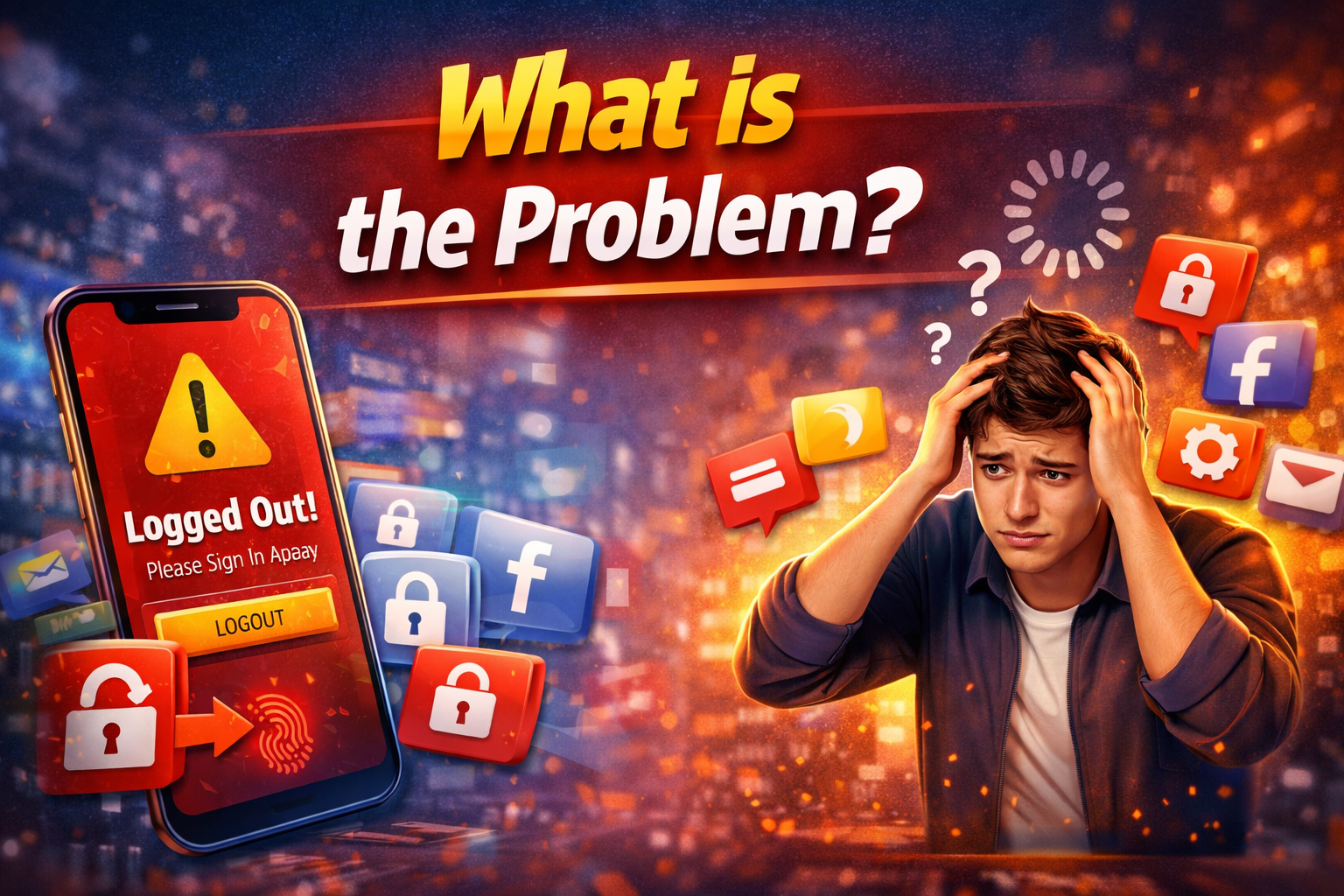
When apps fail to keep you logged in, it means your session is not being saved properly. Instead of staying signed in, the app logs you out every time you close it—or even while you’re using it.
Common Symptoms
- You must log in every time you open the app
- The app logs you out randomly
- “Session expired” messages appear frequently
- Login details are not remembered
- Two-factor authentication is triggered repeatedly
This issue affects many apps, including Facebook, Instagram, banking apps, and email services.
Why Does This Problem Happen?
Understanding the root cause is key to fixing it. Here are the most common reasons:
1. App Cache or Data Issues
Corrupted cache files can prevent apps from storing login sessions properly.
2. Security Settings
Some apps log you out intentionally for security reasons, especially after updates or inactivity.
3. Background Restrictions
Battery optimization or background app limits can kill sessions.
4. Outdated App Version
Older versions may have bugs that affect login persistence.
5. Device Storage Problems
Low storage can stop apps from saving data like login tokens.
6. Network or Server Issues
Unstable internet can interrupt session syncing.
7. Account or Device Sync Errors
Incorrect date/time settings or sync issues can invalidate sessions.
How to Fix Apps Not Keeping You Logged In (Step-by-Step)
Here’s what works. Follow these steps in order for the best results.
1. Clear App Cache (Quick Fix)

This is often the fastest solution.
On Android:
- Go to Settings > Apps
- Select the app
- Tap Storage
- Tap Clear Cache
On iPhone:
- You may need to reinstall the app (no direct cache clear)
👉 Why it works: Removes corrupted temporary files.
2. Update the App
Outdated apps often cause login problems.
Steps:
- Open Google Play Store or App Store
- Search for the app
- Tap Update
👉 Pro Tip: Turn on auto-updates to avoid future issues.
3. Check Internet Connection
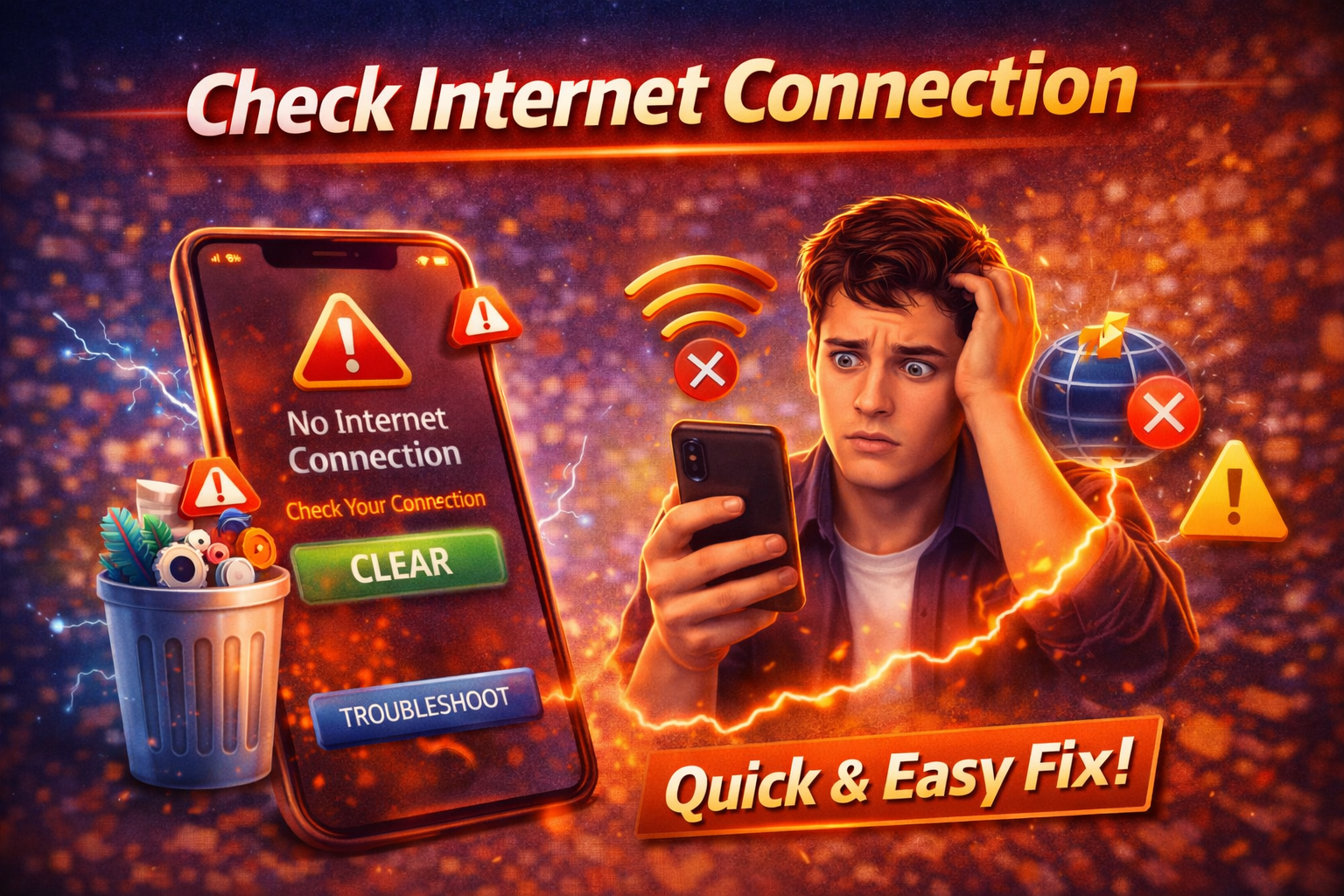
Unstable connections can break sessions.
Try this:
- Switch between Wi-Fi and mobile data
- Restart your router
- Enable airplane mode for 30 seconds
👉 Here’s what works: A stable connection ensures proper session syncing.
4. Disable Battery Optimization
Some devices restrict apps in the background.
On Android:
- Go to Settings > Battery > Battery Optimization
- Find the app
- Set it to Not Optimized
On iPhone:
- Disable Low Power Mode
👉 Warning: Battery savers can force apps to log out.
5. Check Date and Time Settings
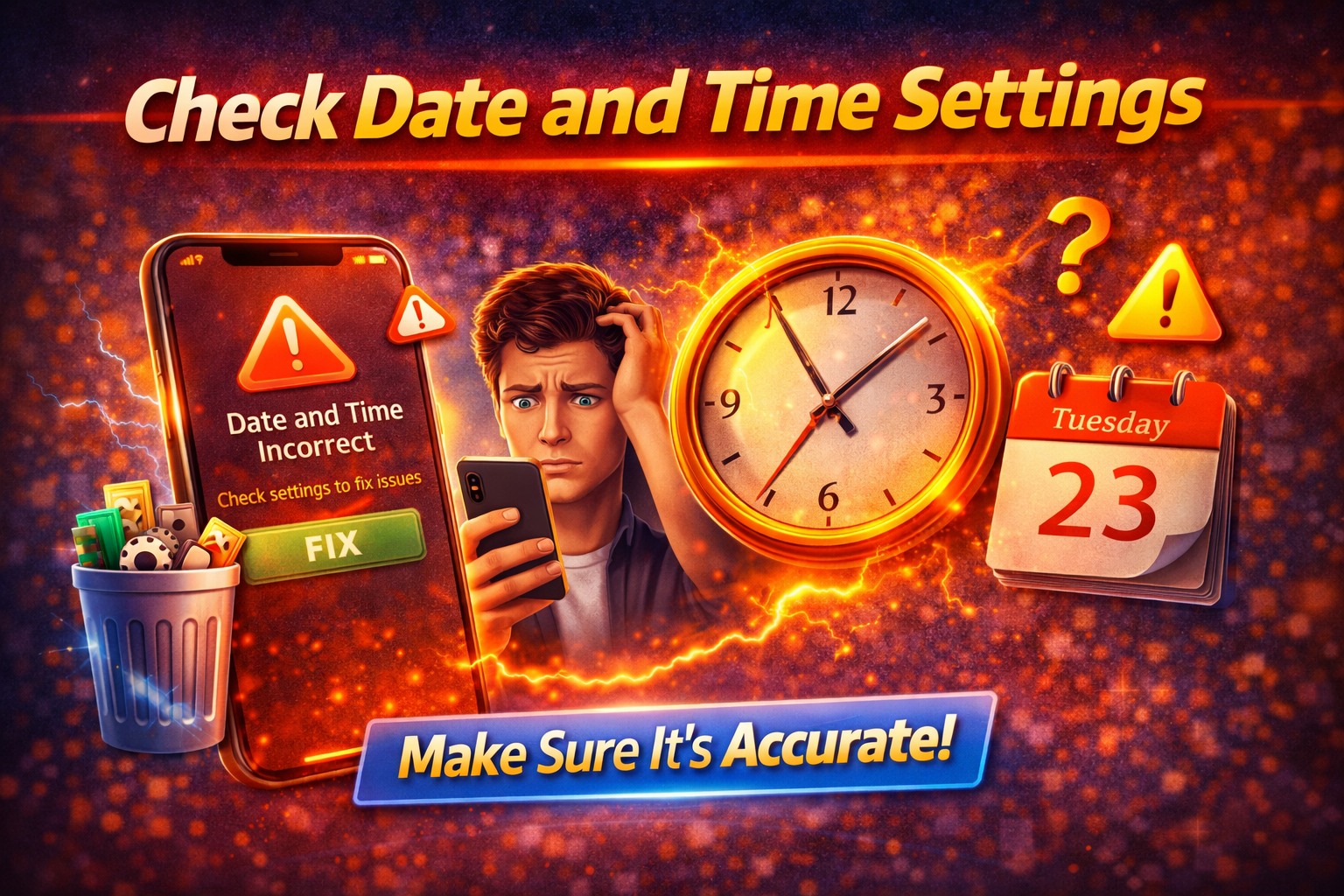
Incorrect time can cause authentication errors.
Fix it:
- Go to Settings > Date & Time
- Enable Automatic Date & Time
👉 Why it matters: Servers rely on accurate timestamps.
6. Reinstall the App
If nothing else works, reinstalling is powerful.
Steps:
- Uninstall the app
- Restart your device
- Install it again
👉 Quick Fix: This resets all app data and clears bugs.
7. Enable “Keep Me Logged In” Option
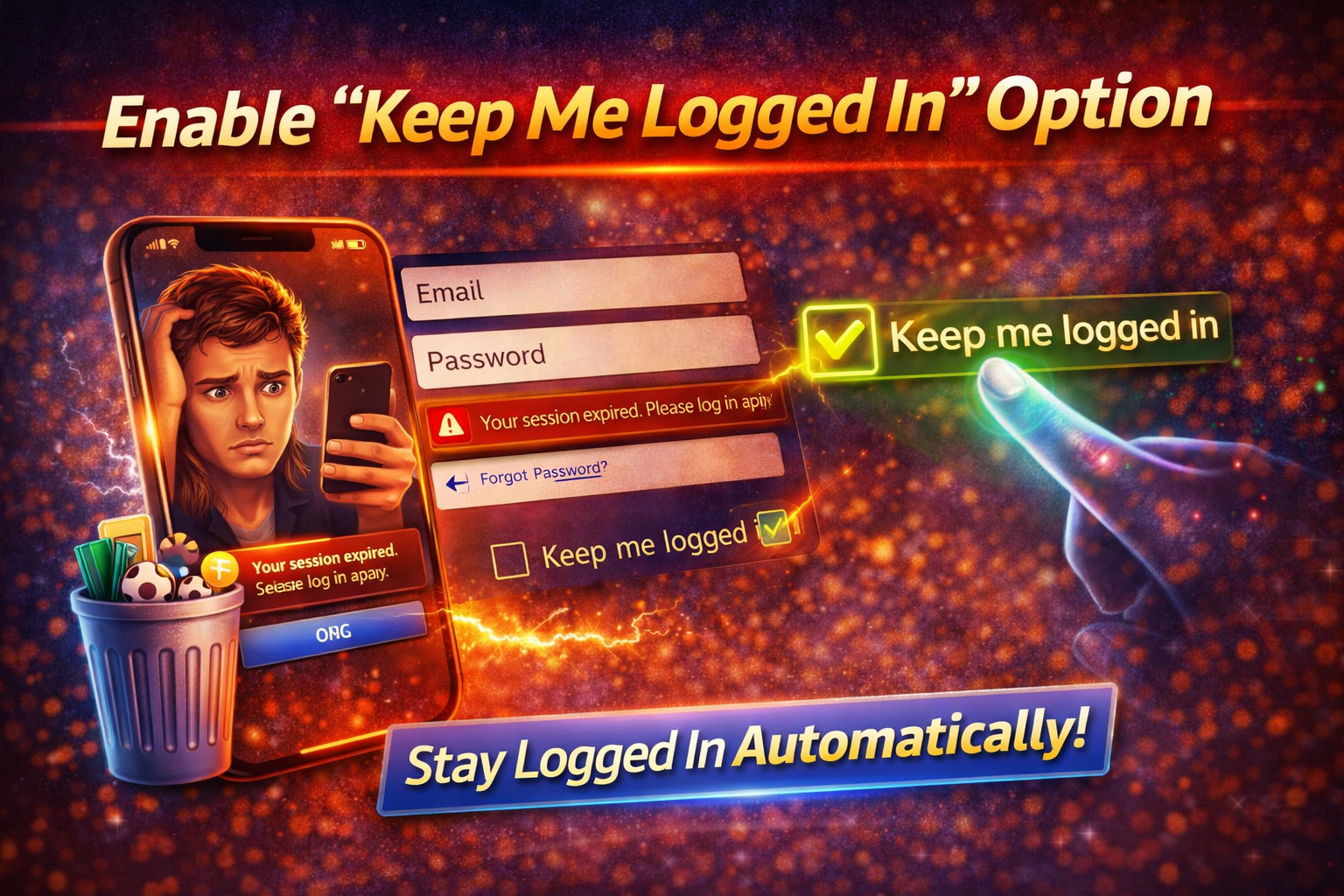
Some apps require manual selection.
Check:
- Login screen for “Remember Me” or “Stay Signed In”
- Account settings inside the app
👉 Tip: Always tick this option if available.
8. Free Up Storage Space
Apps need storage to save login sessions.
Do this:
- Delete unused apps
- Clear media files
- Keep at least 1–2 GB free
👉 Pro Insight: Low storage = unstable app behavior.
Advanced Fixes (For Technical Users)
If basic fixes don’t solve the issue, try these:
1. Reset App Preferences (Android)
- Go to Settings > Apps
- Tap Reset App Preferences
This restores default permissions and settings.
2. Check VPN or Proxy Settings
Using a VPN can cause session resets.
Try:
- Disable VPN
- Switch to a different server
3. Update Your Operating System
- Go to Settings > System Update
- Install any pending updates
👉 Why it works: Fixes system-level bugs affecting apps.
4. Check Account Security Settings
Some services log you out if they detect:
- New device login
- Suspicious activity
- Password changes
👉 Review your account security dashboard.
Prevent This Problem in the Future
Here’s how to avoid dealing with this again:
✅ Keep Apps Updated
Always install the latest version.
✅ Avoid Aggressive Battery Saver Modes
They often interfere with app sessions.
✅ Maintain Enough Storage
Don’t let your phone run out of space.
✅ Use Trusted Networks
Avoid unstable or public Wi-Fi when logging in.
✅ Don’t Force Close Apps Frequently
This can interrupt session persistence.
Common FAQs
1. Why do apps log me out automatically?
Apps may log you out due to security settings, cache issues, or background restrictions.
2. Is this a security issue?
Not always. Sometimes it’s just a bug or device setting—but repeated logouts can also be a security measure.
3. Does clearing cache delete my account?
No. It only removes temporary files, not your account or personal data.
4. Can a VPN cause login issues?
Yes. Some apps detect VPN usage and reset sessions for security reasons.
5. Why does it happen after an update?
App updates can reset sessions or introduce temporary bugs.
Conclusion
Dealing with apps that constantly log you out can be incredibly annoying—but the good news is, it’s usually easy to fix.
By following this guide on how to fix apps not keeping you logged in, you can quickly restore normal behavior. Start with simple solutions like clearing cache and updating the app, then move to advanced fixes if needed.
💡 Remember: You’re not alone, and this issue is more common than you think.
If this guide helped you, consider sharing it with others or exploring more app problem fixes to keep your device running smoothly!
