How to Fix Apps Not Opening After Region Change (Easy Guide)
Introduction
You just changed your app store region or moved to another country… and suddenly your apps won’t open. Frustrating, right?
You’re not alone—this is a common issue many users face after switching regions on Android or iPhone. Apps may crash, refuse to launch, or show error messages due to region restrictions.
In this guide, you’ll learn how to fix apps not opening after region change with simple, practical steps that actually work. Whether you’re dealing with Play Store or App Store issues, we’ve got you covered.
Table of Contents
- What is the Problem?
- Why Does This Problem Happen?
- How to Fix Apps Not Opening After Region Change (Step-by-Step)
- Advanced Fixes
- Prevent This Problem in the Future
- Common FAQs
- Conclusion
What is the Problem?
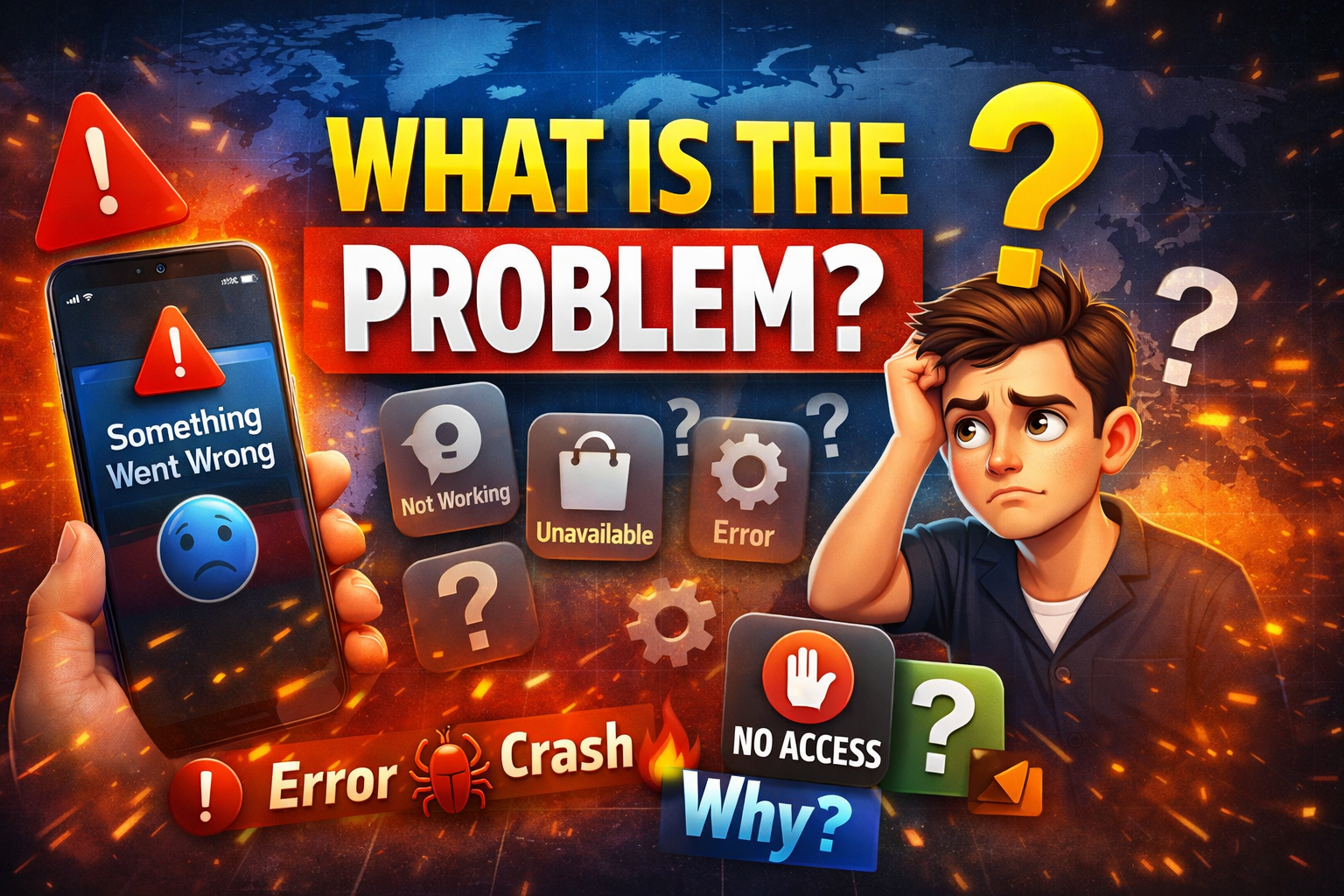
When you change your device or app store region, some apps may stop working properly.
Common Symptoms
- Apps won’t open at all
- App crashes immediately after launch
- “App not available in your country” error
- Login issues or blank screens
- Features missing or restricted
This usually happens after:
- Changing Google Play country
- Switching Apple ID region
- Using VPN to access another region
Why Does This Problem Happen?
Understanding the cause helps you fix it faster. Here’s what’s going on behind the scenes:
1. Region-Based Restrictions
Some apps are only available in specific countries. After a region change, access may be blocked.
2. App Version Mismatch
Apps downloaded in one region may not be compatible with another region’s version.
3. Account Sync Issues
Your Google or Apple account may still be linked to the old region.
4. Cached Data Conflicts
Old app data may conflict with new regional settings.
5. Licensing & Policy Differences
Streaming apps, banking apps, and games often enforce strict regional rules.
How to Fix Apps Not Opening After Region Change (Step-by-Step)
Here’s what works—follow these steps one by one:
1. Restart Your Device (Quick Fix)
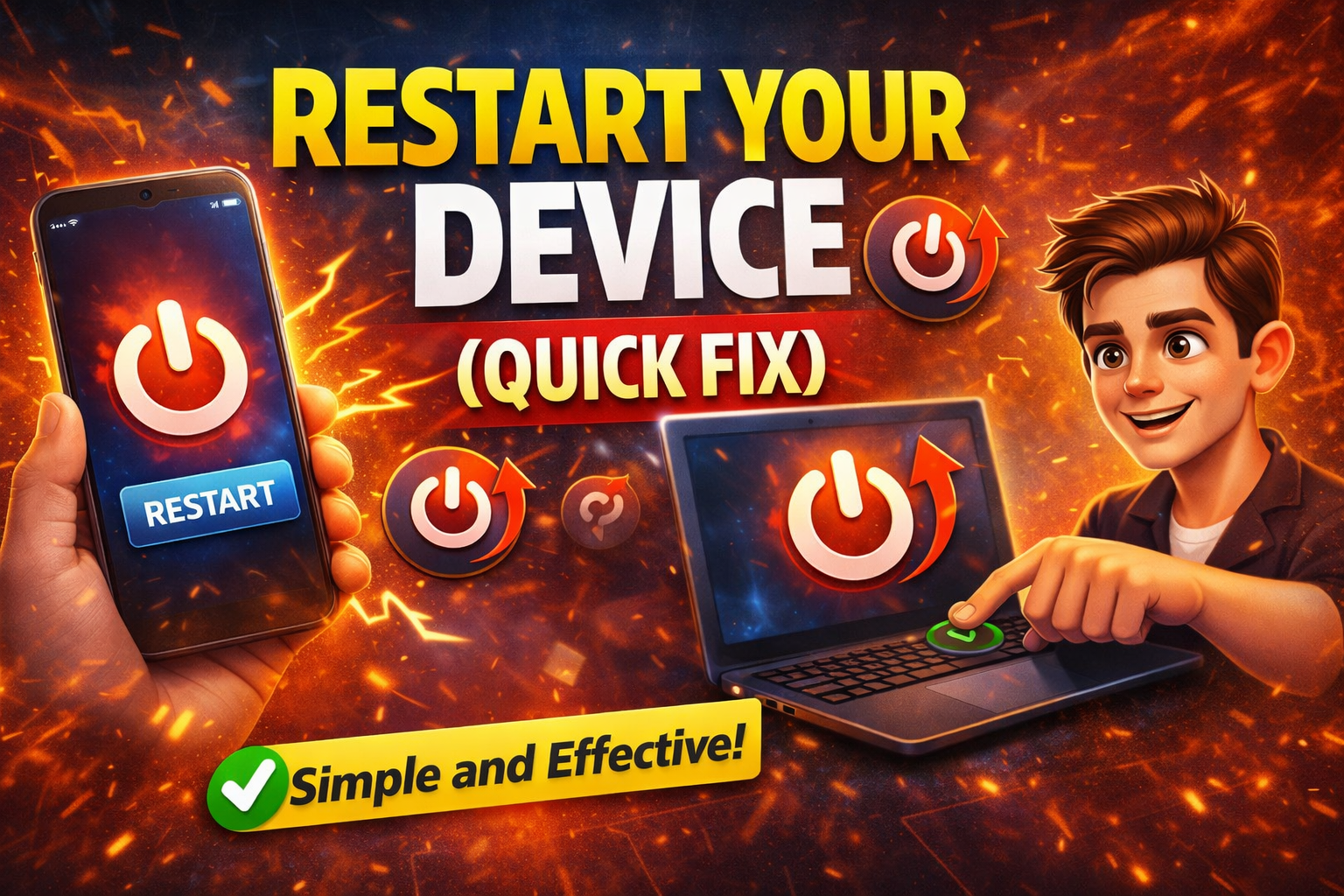
Sometimes the simplest fix works best.
- Turn off your phone
- Wait 10–20 seconds
- Turn it back on
👉 This refreshes system settings and applies region changes properly.
2. Clear App Cache and Data
Old data can cause conflicts after a region change.
On Android:
- Go to Settings > Apps
- Select the app
- Tap Storage
- Click Clear Cache and Clear Data
On iPhone:
- Delete and reinstall the app (no direct cache clear option)
3. Update the App
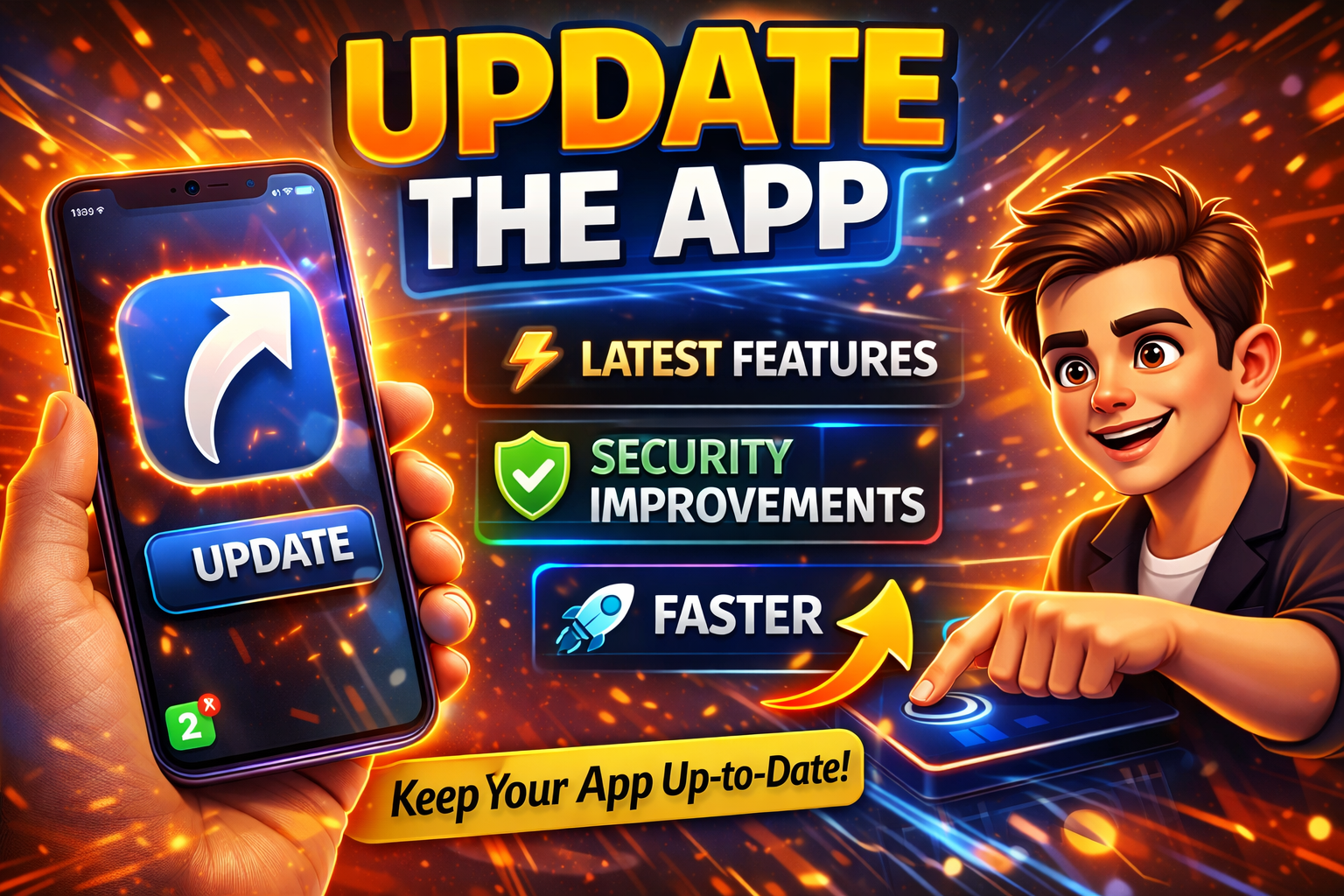
Outdated apps may not support your new region.
- Open Google Play Store / App Store
- Search for the app
- Tap Update
💡 Pro Tip: Always keep apps updated to avoid compatibility issues.
4. Reinstall the App
This is one of the most effective solutions.
- Uninstall the app
- Restart your device
- Reinstall it from the store
👉 This ensures you get the correct version for your new region.
5. Check Your Account Region Settings
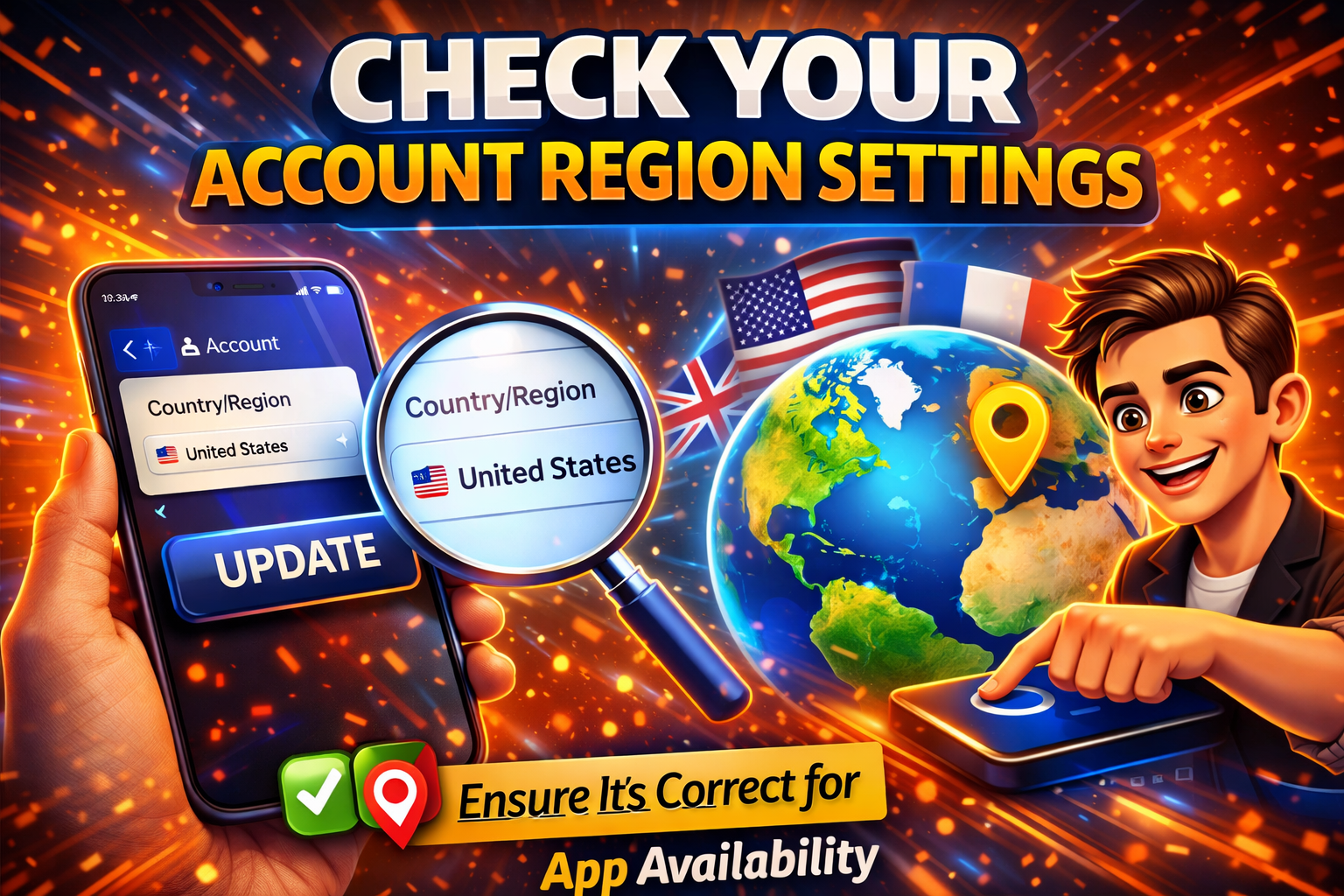
Your store region must match your actual location.
Google Play:
- Go to Payments & Subscriptions > Settings
- Check country profile
Apple ID:
- Go to Settings > Apple ID > Media & Purchases > View Account
- Update country/region
⚠️ Note: Some changes take 24–48 hours to fully apply.
6. Disable VPN (If Enabled)
Using a VPN can confuse app servers.
- Turn off VPN
- Restart the app
👉 Apps may block access if they detect mismatched regions.
7. Check App Availability in Your Country
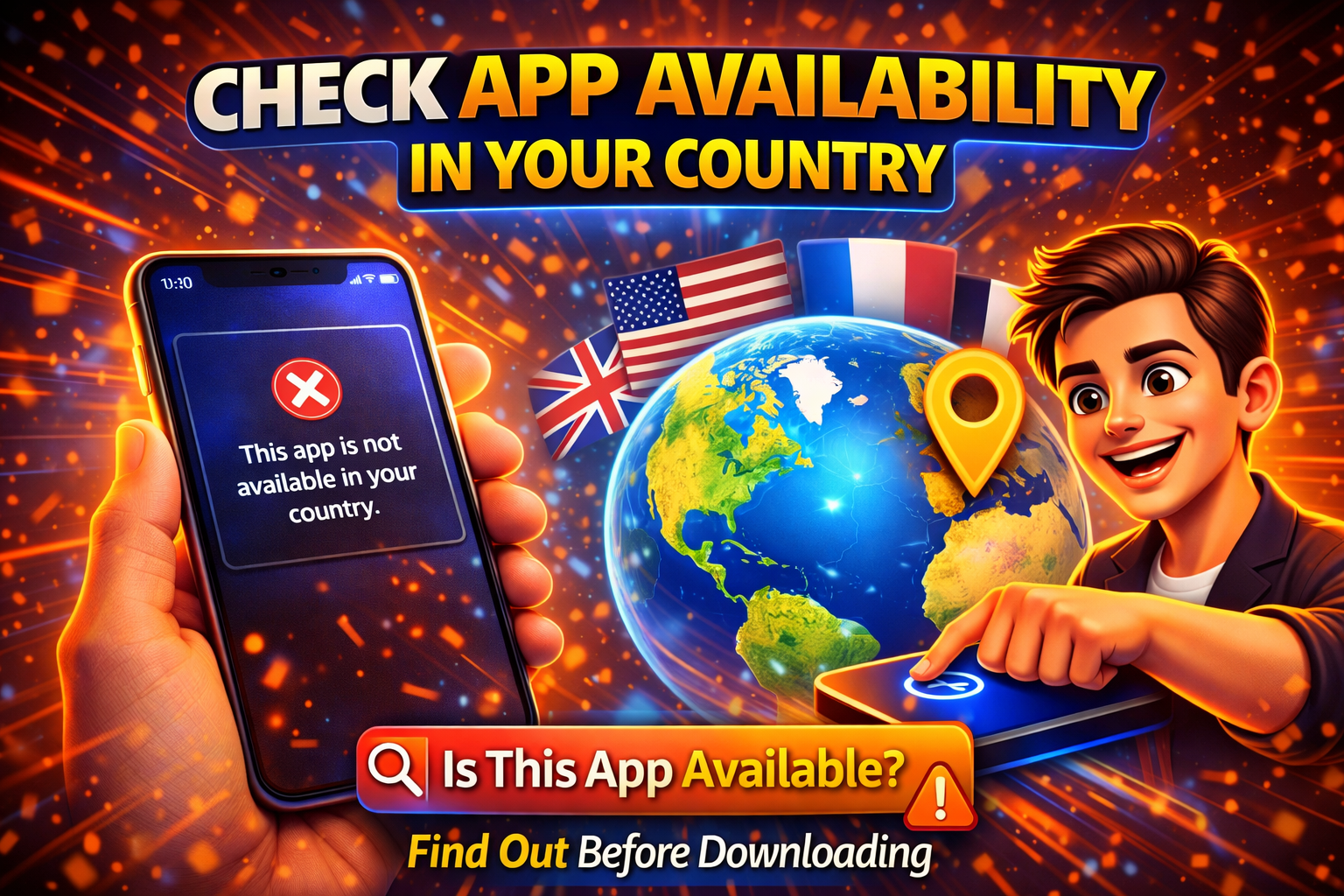
Some apps simply don’t work in certain regions.
- Search the app in the store
- If it says “Not available,” that’s the issue
💡 Here’s what works: Use alternatives or official regional versions.
8. Reset Network Settings
Network conflicts can affect app access.
- Go to Settings > General Management
- Tap Reset > Reset Network Settings
👉 This can fix hidden connectivity issues.
Advanced Fixes (For Technical Users)
If basic steps didn’t solve the issue, try these:
1. Create a New Store Account
- Create a new Google/Apple account for your current region
- Download apps using the new account
2. Manually Install APK (Android Only)
- Download APK from trusted sources (like APKMirror)
- Install the correct region version
⚠️ Warning: Avoid unknown sources to prevent malware.
3. Contact App Support
Some apps require manual region updates.
- Visit the app’s support page
- Request region migration
Prevent This Problem in the Future
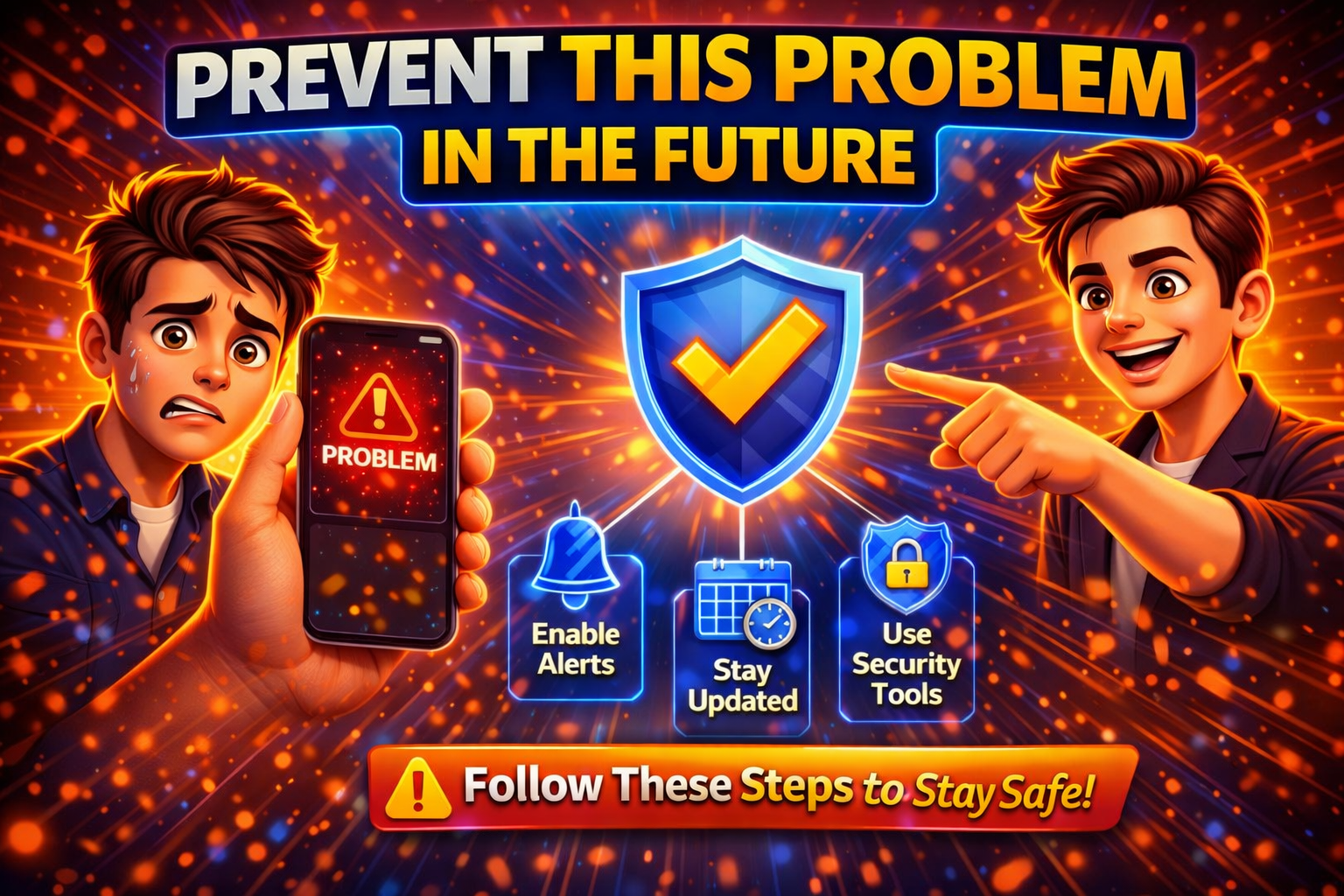
Avoid this issue next time with these tips:
- ✅ Change region only when necessary
- ✅ Backup important app data before switching
- ✅ Avoid frequent region changes
- ✅ Keep apps updated regularly
- ✅ Use official app versions for your region
💡 Pro Insight: Many apps track your region history—frequent changes can trigger restrictions.
Common FAQs
1. Why are my apps not opening after changing region?
Because apps may be restricted, incompatible, or tied to your old region settings.
2. How long does it take for region changes to apply?
Usually within 24–48 hours, but some services may take longer.
3. Can I use apps from another country?
Yes, but only if the app supports your region or you use a compatible account.
4. Will reinstalling apps fix the issue?
Yes, in most cases it installs the correct regional version.
5. Is VPN a good solution?
Not always. Some apps block VPN usage and may stop working entirely.
Conclusion
Dealing with apps that won’t open after a region change can be annoying—but the good news is, it’s fixable.
From simple steps like restarting your device to reinstalling apps and checking account settings, these solutions cover almost every scenario.
👉 Quick recap:
- Clear cache and update apps
- Reinstall for correct region version
- Check account and store settings
- Disable VPN if needed
Now that you know how to fix apps not opening after region change, try these steps and get your apps working again.
💬 If this guide helped you, share it with others or explore more “App Problems” solutions to keep your device running smoothly!
