How to Fix Apps Not Working on Public WiFi Networks (Easy Guide)
Introduction
You’re sitting in a café, airport, or hotel, connected to public WiFi… but your apps just won’t work. Messages won’t send, videos won’t load, and some apps won’t even open properly.
Sound familiar? You’re not alone.
This guide will show you how to fix apps not working on public WiFi networks using simple, effective solutions. Whether it’s a restriction issue, network limitation, or app glitch—here’s what works.
Table of Contents
- What is the Problem?
- Why Does This Problem Happen?
- How to Fix Apps Not Working on Public WiFi Networks
- Advanced Fixes
- Prevent This Problem in the Future
- Common FAQs
- Conclusion
What is the Problem?
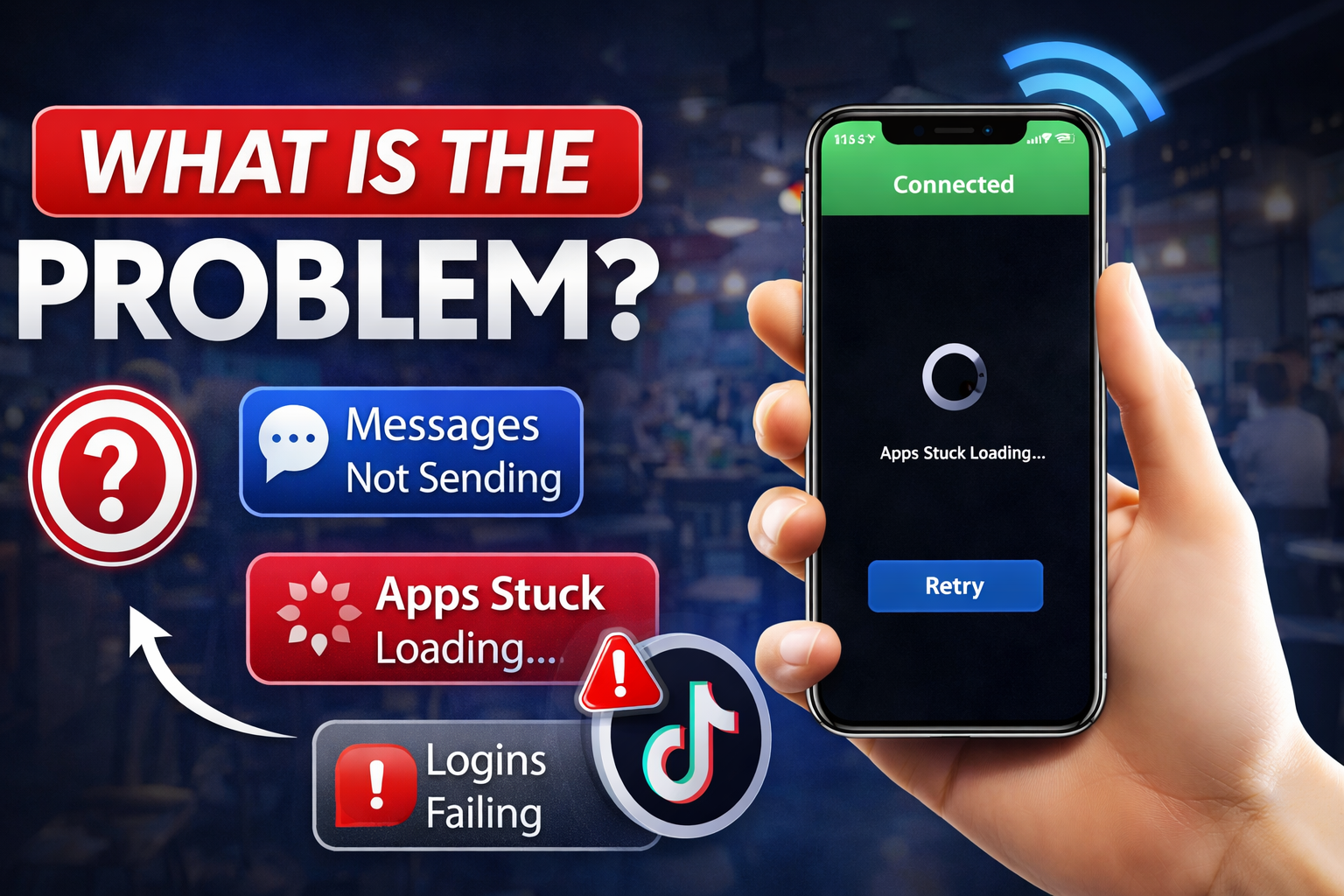
When apps don’t work on public WiFi networks, users typically experience:
- Apps stuck on loading screens
- Messages not sending (WhatsApp, Messenger, etc.)
- Streaming apps buffering endlessly
- Login failures or timeouts
- Certain apps working while others don’t
This issue often happens in places like:
- Coffee shops ☕
- Airports ✈️
- Hotels 🏨
- Libraries 📚
Even though your device shows “Connected,” apps may still fail to function properly.
Why Does This Problem Happen?
There are several reasons why apps stop working on public WiFi networks:
1. Network Restrictions
Public networks often block certain apps or services (like streaming or messaging apps) to save bandwidth.
2. Captive Portal Issues
Some WiFi networks require login through a browser page. If not completed, apps won’t connect.
3. Weak or Unstable Signal
Even if connected, poor signal strength can prevent apps from working.
4. DNS or Firewall Blocking
Public WiFi networks may use restrictive DNS or firewall settings that block app servers.
5. VPN or Security Conflicts
Your VPN or firewall app might interfere with the network connection.
6. App or Device Glitches
Sometimes the issue is simply a bug in the app or your device.
How to Fix Apps Not Working on Public WiFi Networks (Step-by-Step)
Here are quick fixes you can try immediately:
1. Complete the WiFi Login Page (Captive Portal)
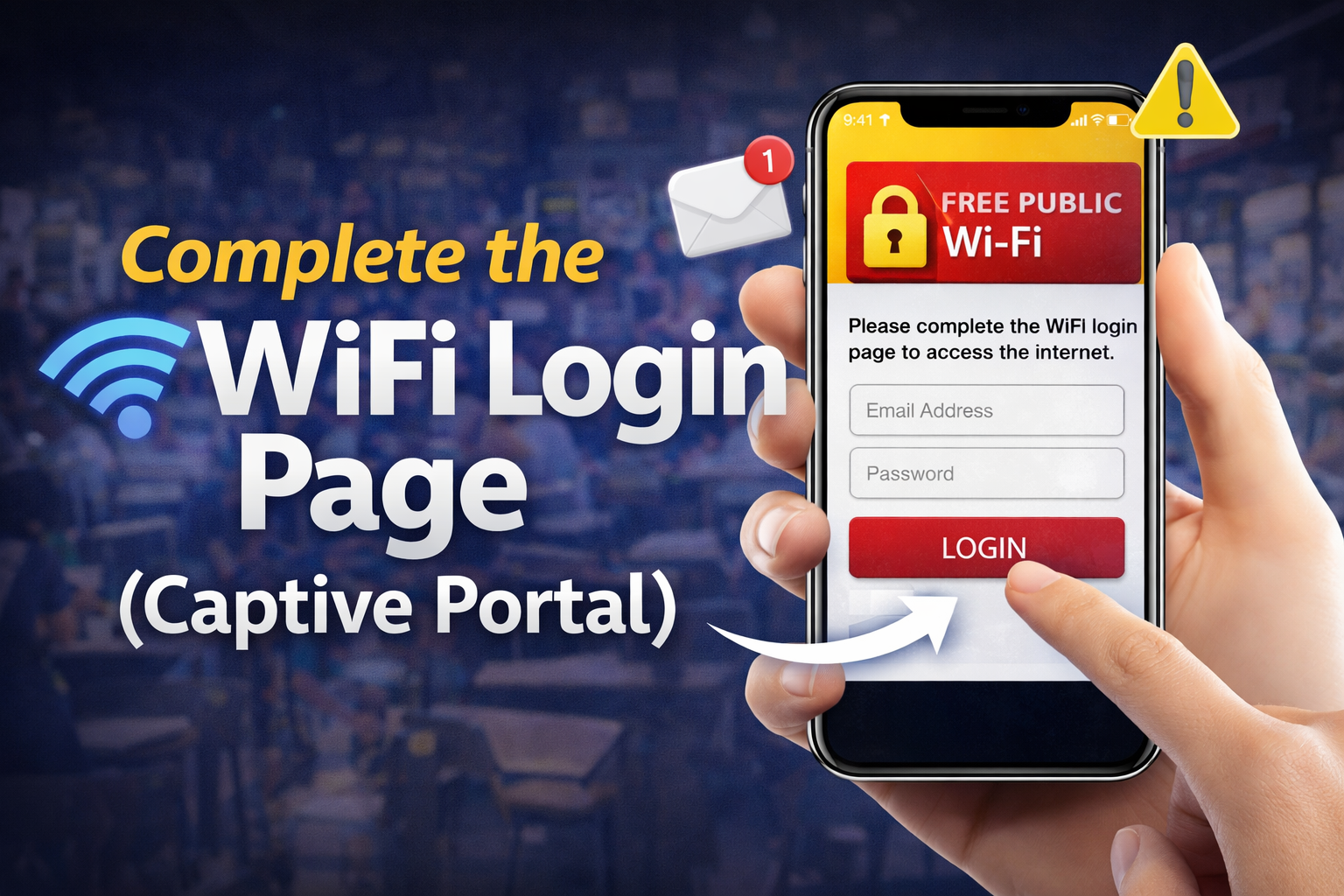
Quick Fix:
Open your browser and try visiting any website (e.g., google.com).
- If a login page appears → complete it
- Accept terms and conditions
👉 This is one of the most common fixes.
2. Turn WiFi Off and On Again
Sometimes the connection just needs a reset.
Steps:
- Turn off WiFi
- Wait 10–15 seconds
- Turn it back on
- Reconnect to the network
3. Forget and Reconnect to the Network
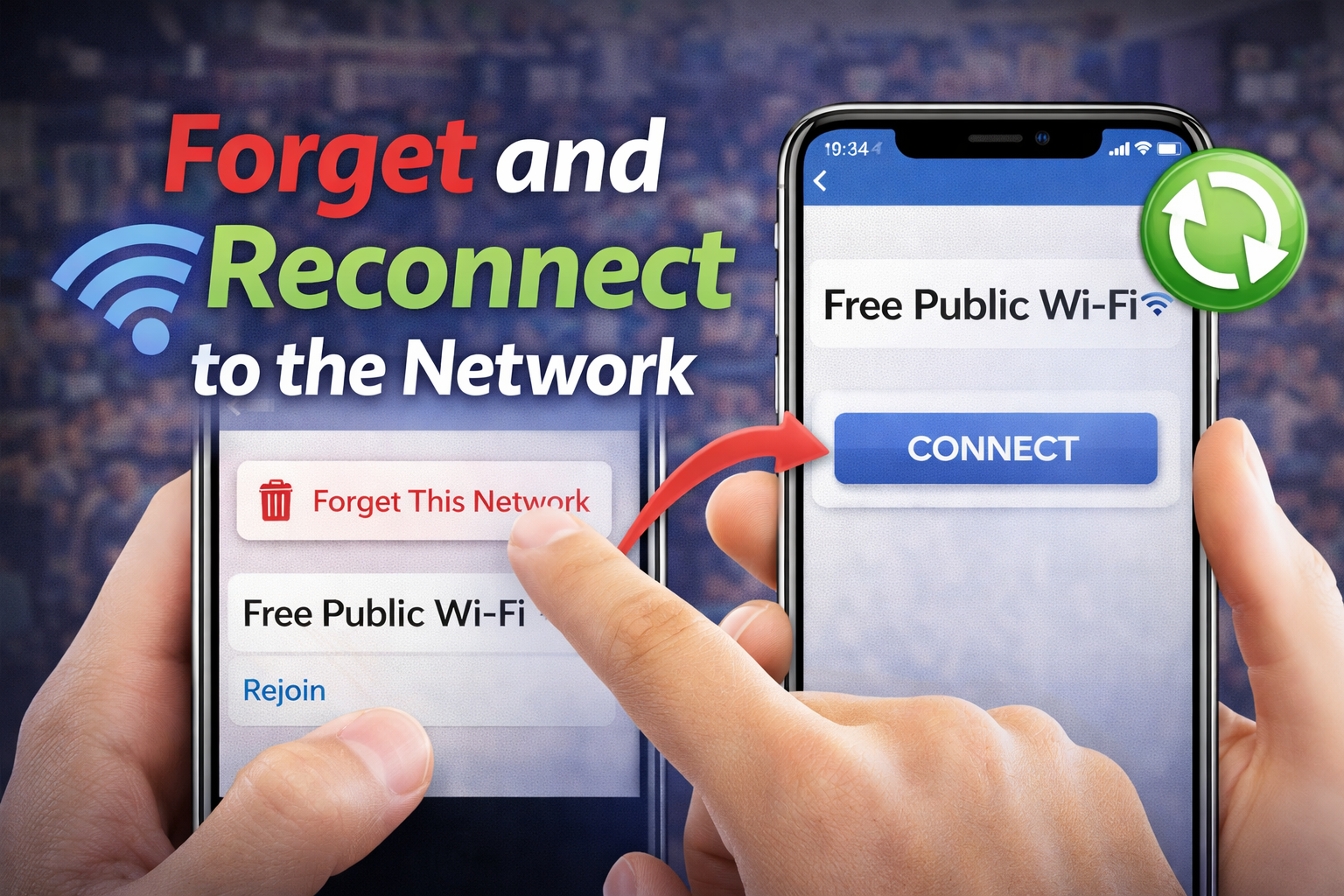
This clears network glitches.
Steps:
- Go to WiFi settings
- Tap the network
- Select Forget Network
- Reconnect and enter password again
4. Disable VPN or Proxy
Public WiFi + VPN can cause conflicts.
What to do:
- Turn off VPN temporarily
- Disable proxy settings if enabled
👉 Many apps fail to load because of VPN restrictions.
5. Switch to Mobile Data (Test)
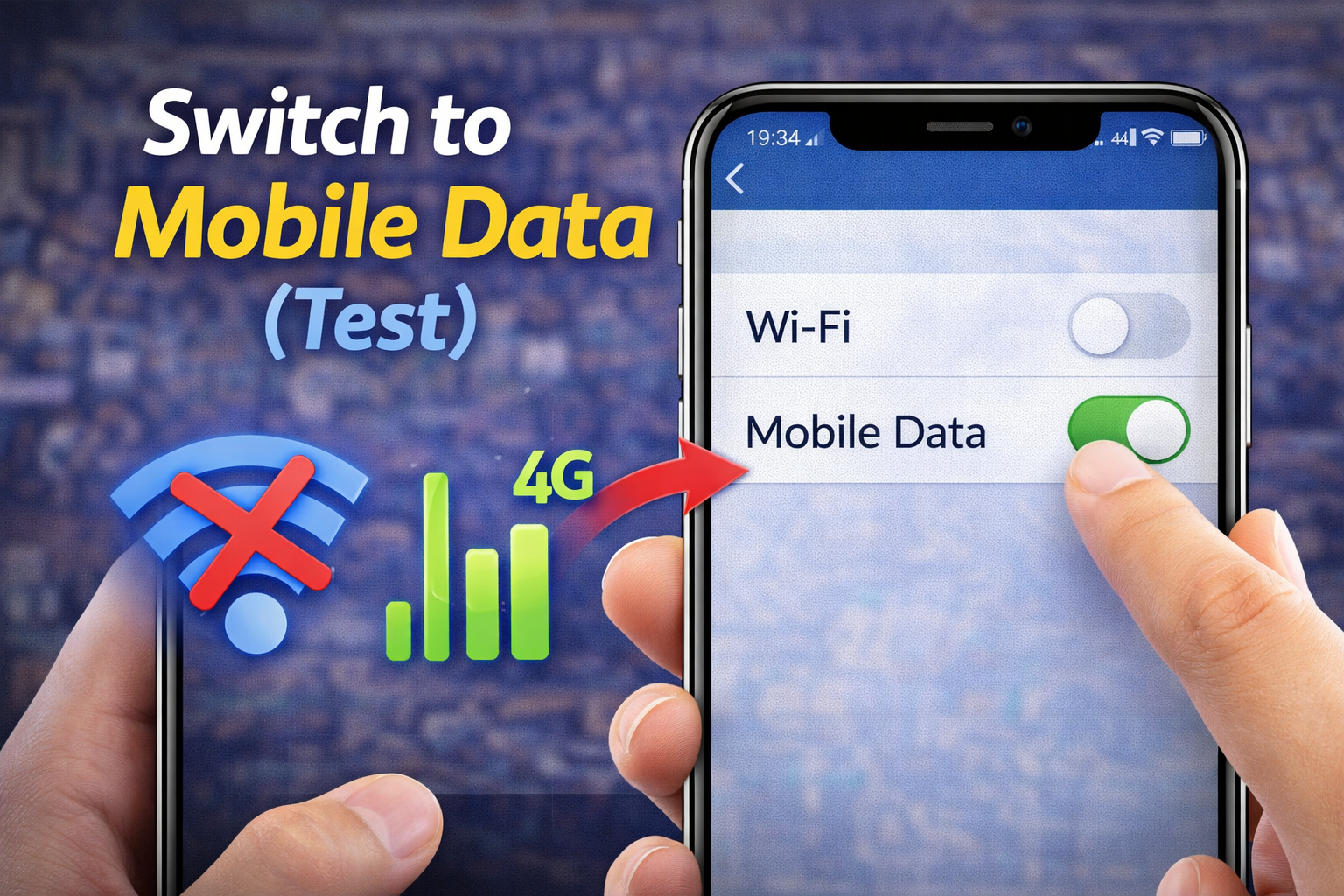
This helps identify the issue.
- Turn off WiFi
- Use mobile data
- Check if apps work
If apps work on mobile data → the problem is with the WiFi network.
6. Change DNS Settings
Some networks block app access via DNS.
Quick Fix:
Use Google DNS or Cloudflare DNS:
- Google DNS: 8.8.8.8 / 8.8.4.4
- Cloudflare DNS: 1.1.1.1
You can also install apps like:
- 1.1.1.1 (Cloudflare app)
7. Update or Restart the App
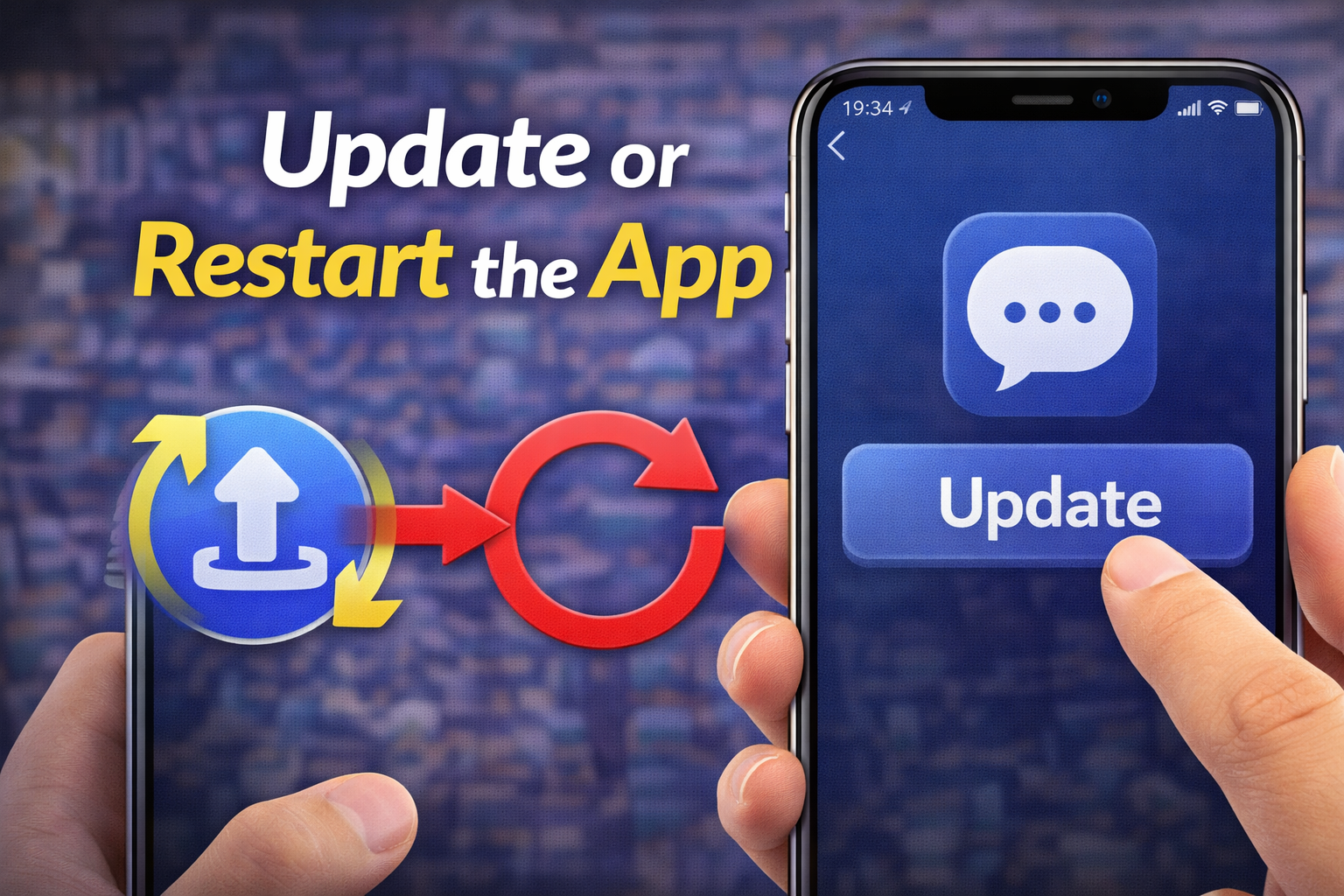
Sometimes the issue is app-related.
Steps:
- Close the app completely
- Reopen it
- Check for updates in App Store / Play Store
8. Restart Your Device
It sounds simple—but it works.
- Restart your phone or laptop
- Reconnect to WiFi
- Test the app again
Advanced Fixes (For Technical Users)
If basic fixes don’t work, try these:
1. Reset Network Settings
This clears all network-related configurations.
- Go to Settings > Reset > Network Settings
- Reconnect to WiFi
⚠️ Note: This removes saved WiFi passwords.
2. Use a VPN (Opposite Scenario)
If the network blocks apps, a VPN can bypass restrictions.
👉 Try:
- NordVPN
- ExpressVPN
- ProtonVPN
3. Check Firewall or Security Apps
Some apps block internet access.
- Disable security apps temporarily
- Check app permissions
4. Test with Another Device
- Connect a different phone or laptop
- If the issue persists → network problem
- If not → device-specific issue
Prevent This Problem in the Future
Here’s how to avoid dealing with apps not working on public WiFi networks again:
✔ Always Complete Login Pages
Don’t ignore captive portals.
✔ Use Trusted VPNs
Protect your data and avoid restrictions.
✔ Avoid Sensitive Tasks
Public WiFi isn’t secure—avoid banking or private logins.
✔ Keep Apps Updated
Outdated apps may fail to connect properly.
✔ Use Backup Mobile Data
When WiFi fails, switch quickly.
Pro Tips & Warnings
⚠️ Warning: Public WiFi networks can be insecure.
Avoid entering passwords or personal data without protection.
💡 Pro Insight:
If only certain apps don’t work (like TikTok or WhatsApp), the network is likely blocking them intentionally.
🚀 Quick Fix Reminder:
The fastest solution is often:
- Open browser → complete login
- Restart WiFi
- Disable VPN
Common FAQs
1. Why do some apps work but others don’t on public WiFi?
Because the network may block specific apps or services using firewalls or bandwidth controls.
2. How do I trigger the WiFi login page?
Open a browser and visit any website like “example.com” or “google.com.”
3. Can public WiFi block social media apps?
Yes. Many networks restrict apps like Facebook, Instagram, or TikTok.
4. Does VPN fix apps not working on public WiFi networks?
Yes, in many cases. A VPN can bypass restrictions and restore access.
5. Is it safe to use public WiFi?
Not always. Use a VPN and avoid sensitive activities for better security.
Conclusion
Dealing with apps not working on public WiFi networks can be frustrating—but it’s usually easy to fix.
Here’s what works:
- Complete the login page
- Restart your connection
- Disable VPN or switch DNS
- Try mobile data to confirm the issue
These quick steps solve most problems in minutes.
If this guide helped you, feel free to share it, leave a comment, or explore more app troubleshooting guides. 🚀
