How to Fix Apps Not Opening After Cache Clear (Easy Guide)
Introduction
You’re not alone—many users clear their app cache to fix performance issues, only to find that the app won’t open afterward. It’s frustrating, confusing, and often unexpected.
If you’re dealing with this issue, don’t worry. This guide on how to fix apps not opening after cache clear will walk you through simple, proven solutions to get your apps working again quickly.
Whether you’re using Android or iPhone, here’s what works.
Table of Contents
- What is the Problem?
- Why Does This Problem Happen?
- How to Fix Apps Not Opening After Cache Clear (Step-by-Step)
- Advanced Fixes (Optional)
- Prevent This Problem in the Future
- Common FAQs
- Conclusion
What is the Problem?
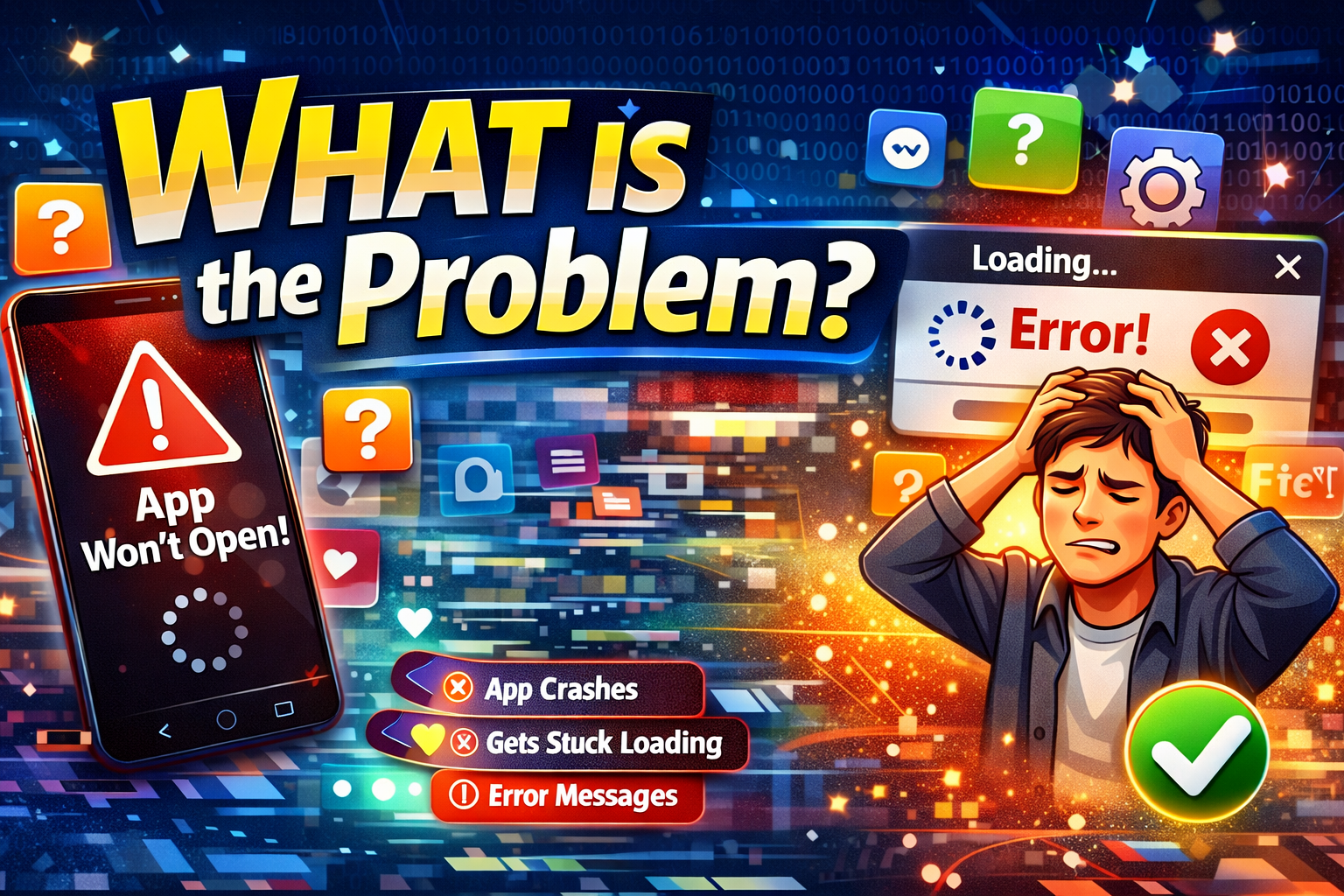
When you clear an app’s cache, it removes temporary files meant to improve performance. However, sometimes this action can cause unexpected issues—like the app refusing to open.
Common Symptoms:
- App crashes immediately after launch
- App stuck on loading screen
- Blank screen when opening the app
- Error messages like “App not responding”
- App closes automatically after tapping
This problem often occurs right after clearing cache, making it easy to identify the cause.
Why Does This Problem Happen?
Understanding the cause helps you fix it faster. Here are the most common reasons:
1. Corrupted Temporary Data
Cache files help apps run smoothly. Removing them can sometimes break dependencies.
2. App Bugs or Glitches
Some apps don’t handle cache clearing properly due to poor optimization.
3. Outdated App Version
Old versions may not rebuild cache correctly after deletion.
4. Missing Permissions
Clearing cache may reset certain permissions, causing the app to fail.
5. System Conflicts
Your device OS might conflict with the app after cache reset.
6. Storage or Memory Issues
Low storage or RAM can prevent apps from restarting properly.
How to Fix Apps Not Opening After Cache Clear (Step-by-Step)
Here’s what works. Follow these Quick Fix steps one by one:
1. Restart Your Device
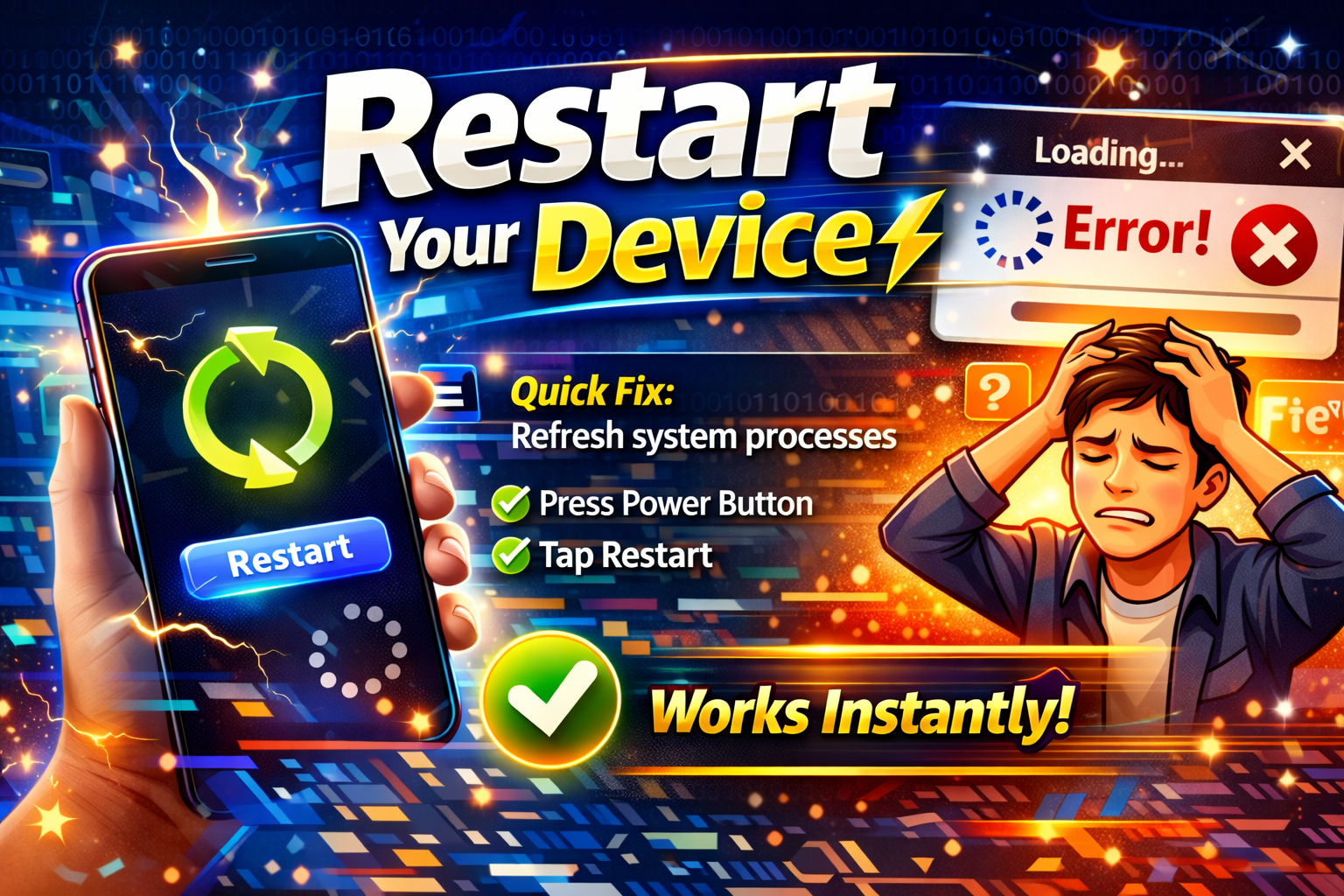
Quick Fix: This solves many temporary glitches.
- Press and hold the power button
- Tap “Restart”
- Try opening the app again
👉 This refreshes system processes and often fixes the issue instantly.
2. Update the App
Outdated apps often fail after cache clearing.
- Go to Google Play Store / App Store
- Search for the app
- Tap Update (if available)
✔ Updated apps rebuild cache properly.
3. Force Stop and Reopen the App

Sometimes apps get stuck in the background.
- Go to Settings > Apps
- Select the app
- Tap Force Stop
- Open the app again
👉 This clears stuck processes.
4. Check App Permissions
Cache clearing may reset permissions.
- Go to Settings > Apps > [App Name] > Permissions
- Enable required permissions (Storage, Location, etc.)
⚠️ Missing permissions can stop apps from launching.
5. Clear App Data (Not Just Cache)
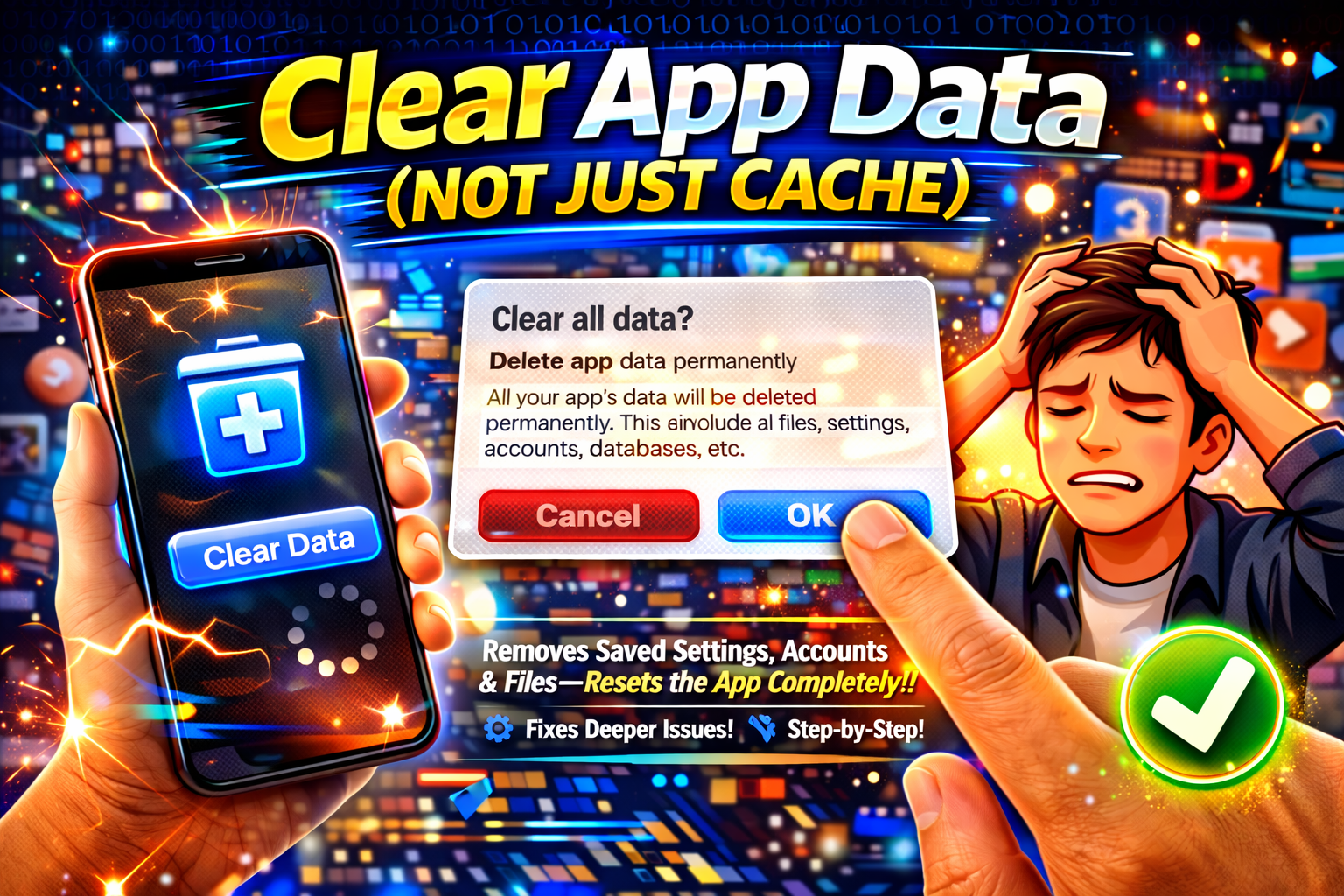
If cache clearing caused issues, try a full reset.
- Go to Settings > Apps > [App Name]
- Tap Storage
- Select Clear Data
⚠️ Warning: This will reset the app completely (login required again).
6. Reinstall the App
If nothing works, reinstalling is a reliable solution.
- Uninstall the app
- Restart your device
- Reinstall from the app store
👉 This installs fresh files and fixes corrupted data.
7. Check Device Storage
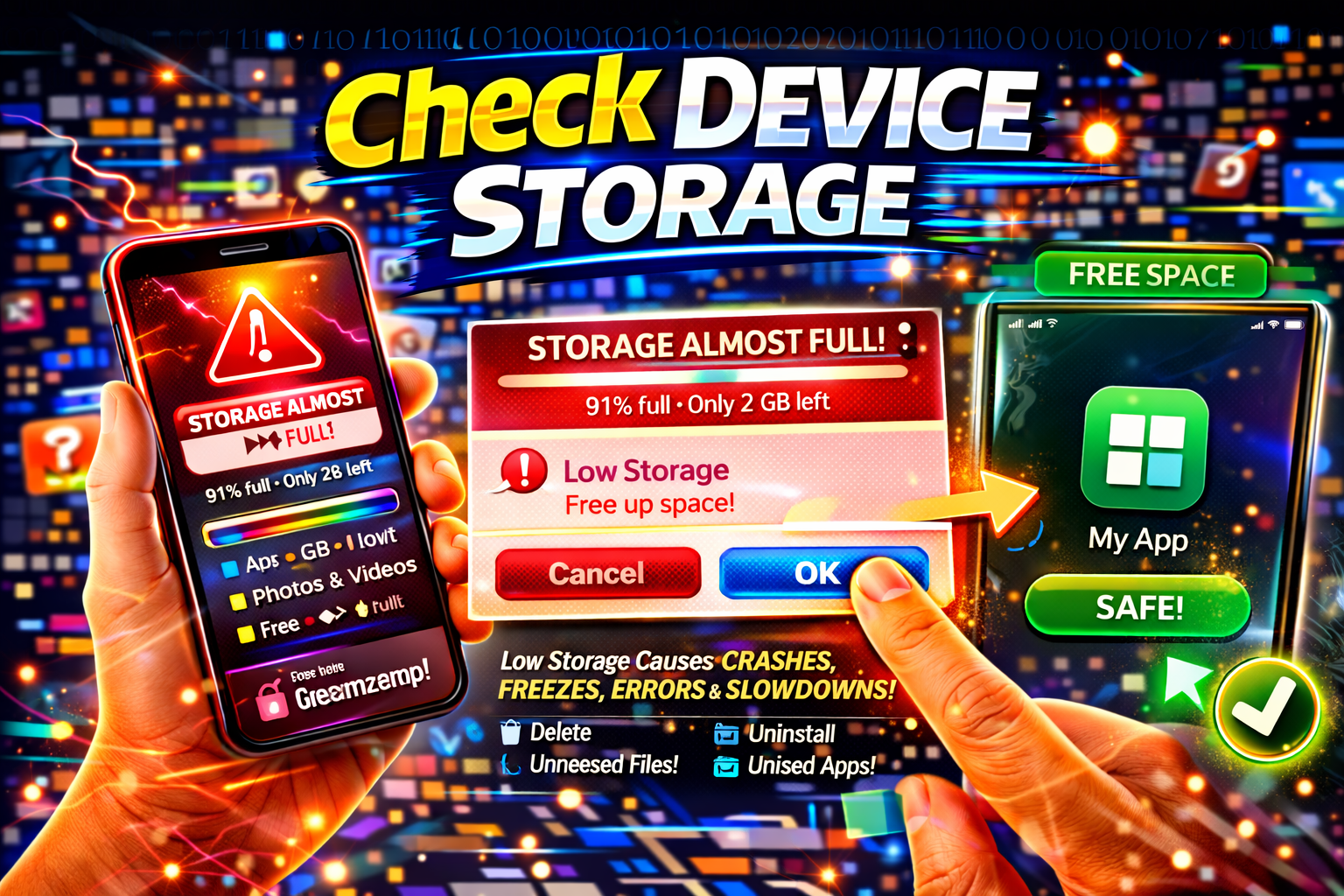
Low storage can prevent apps from opening.
- Go to Settings > Storage
- Free up space (delete unused apps/files)
✔ Apps need space to rebuild cache.
8. Update Your Device OS
System bugs can cause app issues.
- Go to Settings > Software Update
- Install updates if available
👉 Compatibility issues are often fixed in updates.
Advanced Fixes (Optional)
For more technical users, try these:
1. Boot into Safe Mode (Android)
This disables third-party apps.
- Press and hold power button
- Tap and hold Power Off → Safe Mode
- Test the app
👉 If it works, another app is causing conflict.
2. Reset App Preferences (Android)
- Go to Settings > Apps
- Tap Reset App Preferences
✔ This restores default settings without deleting data.
3. Check for System WebView Issues (Android)
- Update Android System WebView
- Update Google Chrome
👉 Many apps depend on these components.
Prevent This Problem in the Future
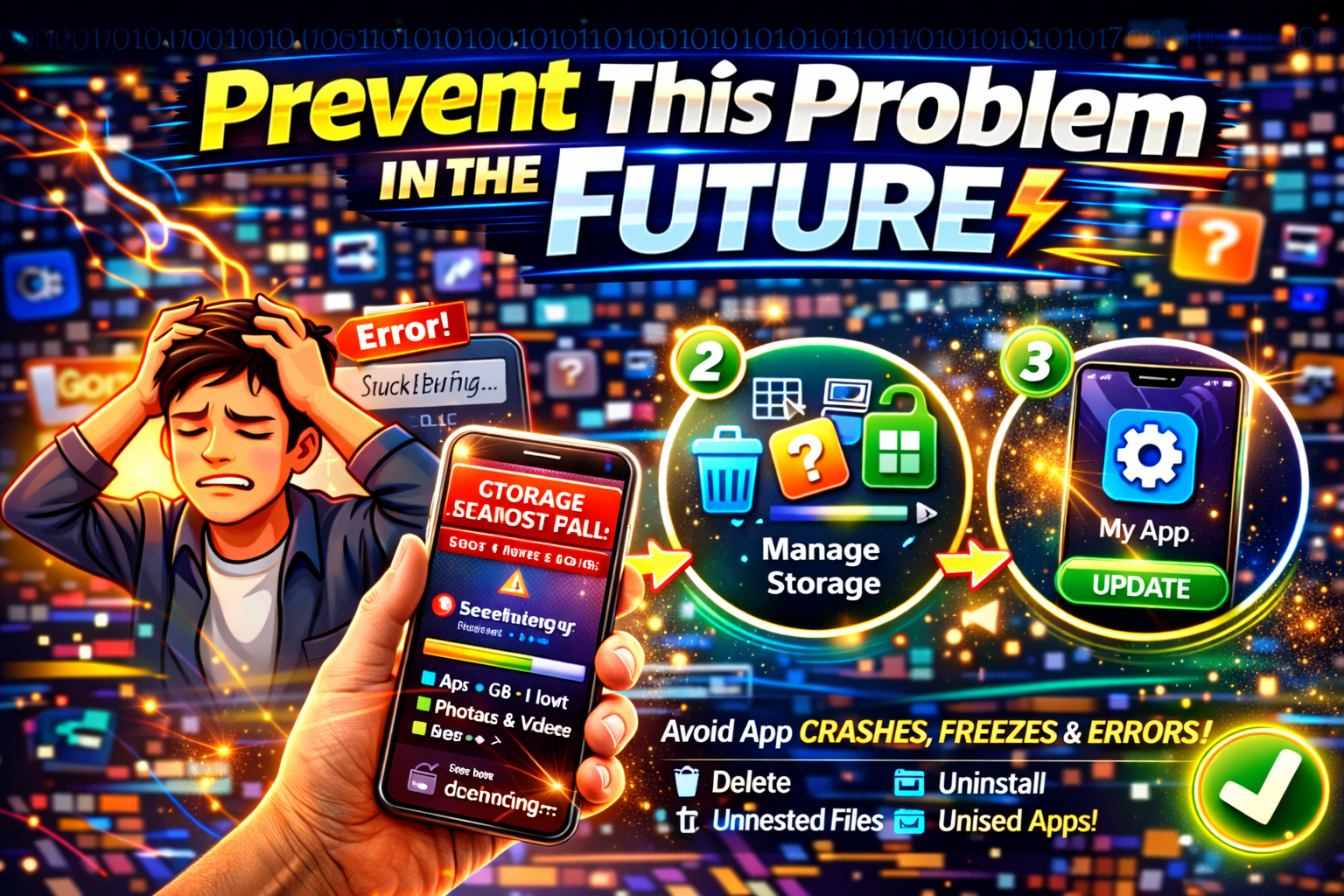
Here’s how to avoid dealing with apps not opening after cache clear again:
Pro Tips:
- ✅ Avoid clearing cache frequently unless needed
- ✅ Keep apps updated regularly
- ✅ Maintain enough storage space
- ✅ Don’t force-stop apps unnecessarily
- ✅ Use trusted apps only
Bonus Tip:
Clear cache only when:
- App is slow
- App crashes frequently
- Storage is full
👉 Otherwise, leave it alone.
Common FAQs
1. Why won’t my app open after clearing cache?
Clearing cache can remove essential temporary files, causing the app to malfunction or fail to start.
2. Is clearing cache safe?
Yes, but it can sometimes cause minor issues like this. It doesn’t delete personal data.
3. Should I clear data instead of cache?
Only if necessary. Clearing data resets the app completely, including login info.
4. Will reinstalling fix the problem?
Yes. Reinstalling often fixes corrupted files and restores proper functionality.
5. Does this happen on iPhone too?
Less often, but similar issues can happen due to app bugs or system glitches.
Conclusion
Dealing with apps not opening after cache clear can be frustrating—but it’s usually easy to fix.
By following this guide on how to fix apps not opening after cache clear, you can quickly restore your apps and avoid future issues.
Here’s what works:
- Restart your device
- Update or reinstall the app
- Check permissions and storage
- Apply advanced fixes if needed
👉 Try these solutions step by step, and your app should be back to normal in no time.
If this guide helped you, share it with others or explore more app troubleshooting tips on our site!
