How to Fix Apps Not Sending Messages Android (Quick Fix Guide)
Introduction
You’re not alone—many Android users face the frustrating issue where apps suddenly stop sending messages. Whether it’s WhatsApp, Messenger, Telegram, or even SMS apps, this problem can disrupt communication at the worst times.
If you’ve been wondering how to fix apps not sending messages Android, you’re in the right place. This guide will walk you through simple, effective solutions that actually work—no technical expertise required.
Let’s fix it fast.
Table of Contents
- What is the Problem?
- Why Does This Problem Happen?
- How to Fix Apps Not Sending Messages Android
- Advanced Fixes (Optional)
- Prevent This Problem in the Future
- Common FAQs
- Conclusion
What is the Problem?
The issue occurs when messaging apps fail to send messages, even though everything seems normal. You might type and hit “send,” but nothing happens—or the message stays stuck.
Common Symptoms
- Messages stuck on “Sending…”
- Failed message notifications
- Delayed message delivery
- Messages only sending on Wi-Fi or mobile data
- App freezes when sending messages
This problem can affect:
- Facebook Messenger
- Telegram
- SMS/MMS apps
- Instagram DMs
Why Does This Problem Happen?
There isn’t just one cause—several factors can trigger this issue.
1. Poor Internet Connection
Messaging apps rely heavily on stable internet. Weak or unstable connections can block message delivery.
2. App Permissions Issues
If the app lacks required permissions (like network access or SMS), it may fail to send messages.
3. Outdated App or Android Version
Older versions often contain bugs that interfere with messaging features.
4. Background Restrictions
Battery optimization or data-saving modes may limit app functionality.
5. Server Issues
Sometimes, the problem isn’t on your end—the app servers might be down.
6. Corrupted App Cache
Temporary files can become corrupted and prevent apps from working properly.
How to Fix Apps Not Sending Messages Android
Here’s what works—follow these step-by-step solutions.
1. Check Your Internet Connection (Quick Fix)
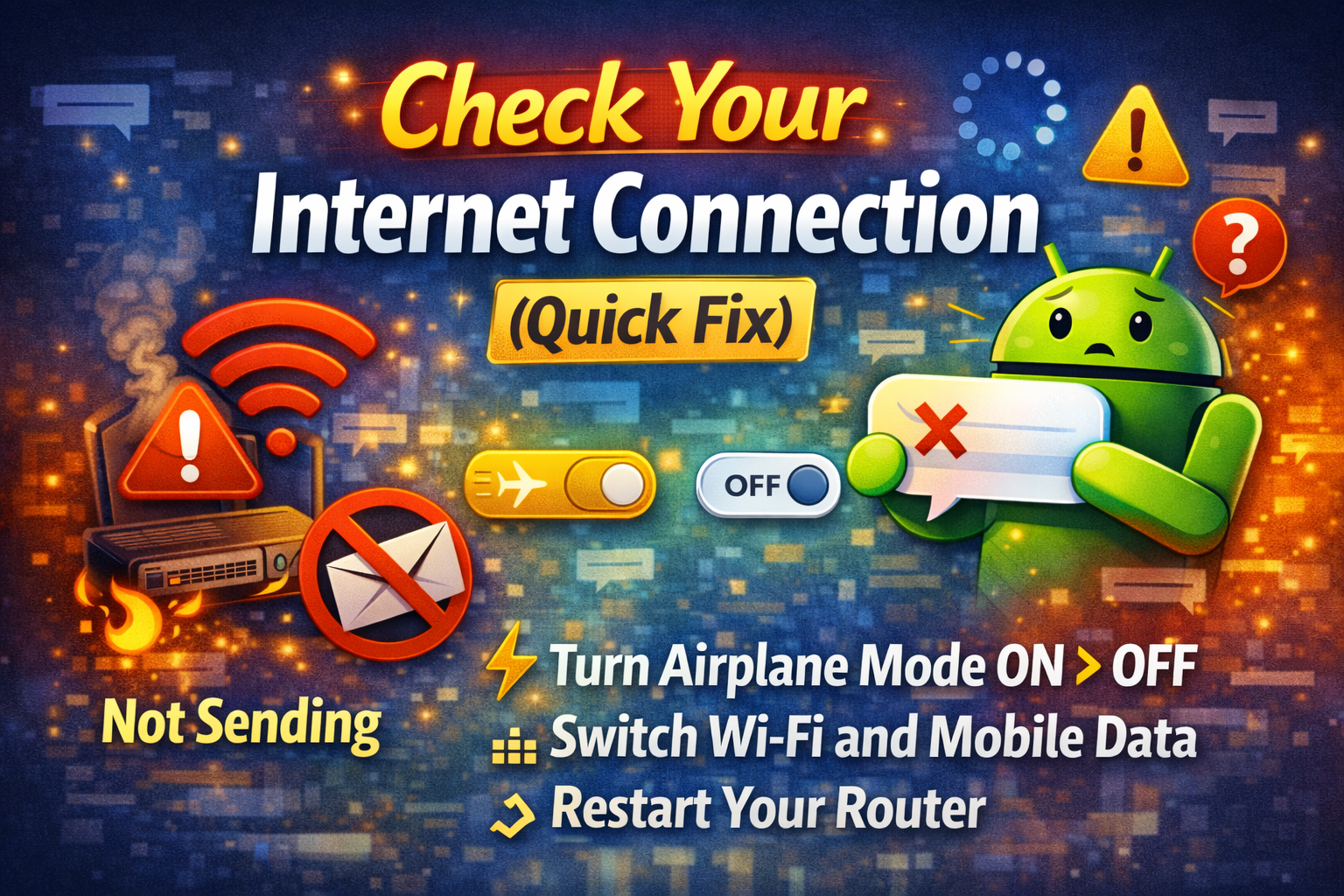
Before anything else, ensure your connection is stable.
Steps:
- Turn Airplane Mode ON, wait 10 seconds, then OFF
- Switch between Wi-Fi and mobile data
- Restart your router if needed
👉 Pro Tip: Try opening a website or YouTube video to confirm your internet is working.
2. Restart Your Device
This simple step can resolve many hidden glitches.
Steps:
- Press and hold the Power button
- Tap Restart
- Wait for your phone to reboot
3. Clear App Cache and Data

Corrupted cache is a common cause of messaging issues.
Steps:
- Go to Settings > Apps
- Select the messaging app
- Tap Storage
- Tap Clear Cache
- (Optional) Tap Clear Data
⚠️ Warning: Clearing data may log you out of the app.
4. Check App Permissions
Apps need proper permissions to function.
Steps:
- Go to Settings > Apps > [App Name]
- Tap Permissions
- Enable necessary permissions (SMS, Network, Contacts)
5. Update the App
Outdated apps often have bugs.
Steps:
- Open Google Play Store
- Search for the app
- Tap Update
👉 Here’s what works: Keeping apps updated fixes most issues quickly.
6. Disable Battery Optimization
Android may restrict apps in the background.
Steps:
- Go to Settings > Battery
- Tap Battery Optimization
- Find the app
- Select Don’t Optimize
7. Check Background Data Settings
Apps need background data to send messages.
Steps:
- Go to Settings > Apps > [App Name]
- Tap Mobile Data & Wi-Fi
- Enable Background Data
8. Reinstall the App
If nothing works, reinstalling can fix deep issues.
Steps:
- Uninstall the app
- Restart your phone
- Reinstall from Play Store
Advanced Fixes (Optional)
If the problem persists, try these more technical solutions.
1. Reset Network Settings
This resets Wi-Fi, mobile data, and Bluetooth.
Steps:
- Go to Settings > System > Reset Options
- Tap Reset Network Settings
2. Check for Android Updates
System bugs can affect messaging apps.
Steps:
- Go to Settings > Software Update
- Install any available updates
3. Check App Server Status
Sometimes the issue is external.
- Search: “Is WhatsApp down?”
- Check outage websites like Downdetector
Prevent This Problem in the Future

Avoid dealing with this issue again by following these tips:
✔ Keep Apps Updated
Always install updates from the Play Store.
✔ Maintain Stable Internet
Use reliable Wi-Fi or strong mobile data.
✔ Avoid Aggressive Battery Savers
They can block messaging apps.
✔ Clear Cache Regularly
Do this every few weeks for smooth performance.
✔ Don’t Install Untrusted Apps
Some apps interfere with system processes.
Common FAQs
1. Why are my messages not sending on Android but receiving works?
This usually happens due to network issues, app permissions, or server problems.
2. How do I fix WhatsApp not sending messages on Android?
Check your internet, update the app, clear cache, and disable battery optimization.
3. Can SIM card issues cause messaging problems?
Yes, especially for SMS/MMS. Try reinserting your SIM or contacting your carrier.
4. Why do messages only send on Wi-Fi?
Your mobile data may be disabled, restricted, or weak.
5. Will resetting network settings delete my data?
No, but it will remove saved Wi-Fi passwords and Bluetooth connections.
Conclusion
Dealing with messaging apps that won’t send messages can be incredibly frustrating—but the good news is, most fixes are simple.
From checking your internet connection to clearing app cache and updating your apps, these solutions cover everything you need to know about how to fix apps not sending messages Android.
👉 Quick Recap:
- Start with basic fixes (internet, restart)
- Check permissions and settings
- Update or reinstall apps if needed
Now it’s your turn—try these fixes and get your messages working again.
💬 If this guide helped you, consider sharing it or leaving a comment. And don’t forget to explore more “App Problems” solutions to keep your device running smoothly!
