How to Fix Apps Not Working After VPN Connection (Easy Guide)
Introduction
You’re not alone—many users face issues where apps suddenly stop working after connecting to a VPN. One moment everything runs smoothly, and the next, apps refuse to load, crash, or show connection errors.
If you’re struggling with this frustrating problem, this guide will walk you through how to fix apps not working after VPN connection using simple and effective solutions.
Here’s what works 👇
Table of Contents
- What is the Problem?
- Why Does This Problem Happen?
- How to Fix Apps Not Working After VPN Connection
- Advanced Fixes (Optional)
- Prevent This Problem in the Future
- Common FAQs
- Conclusion
What is the Problem?
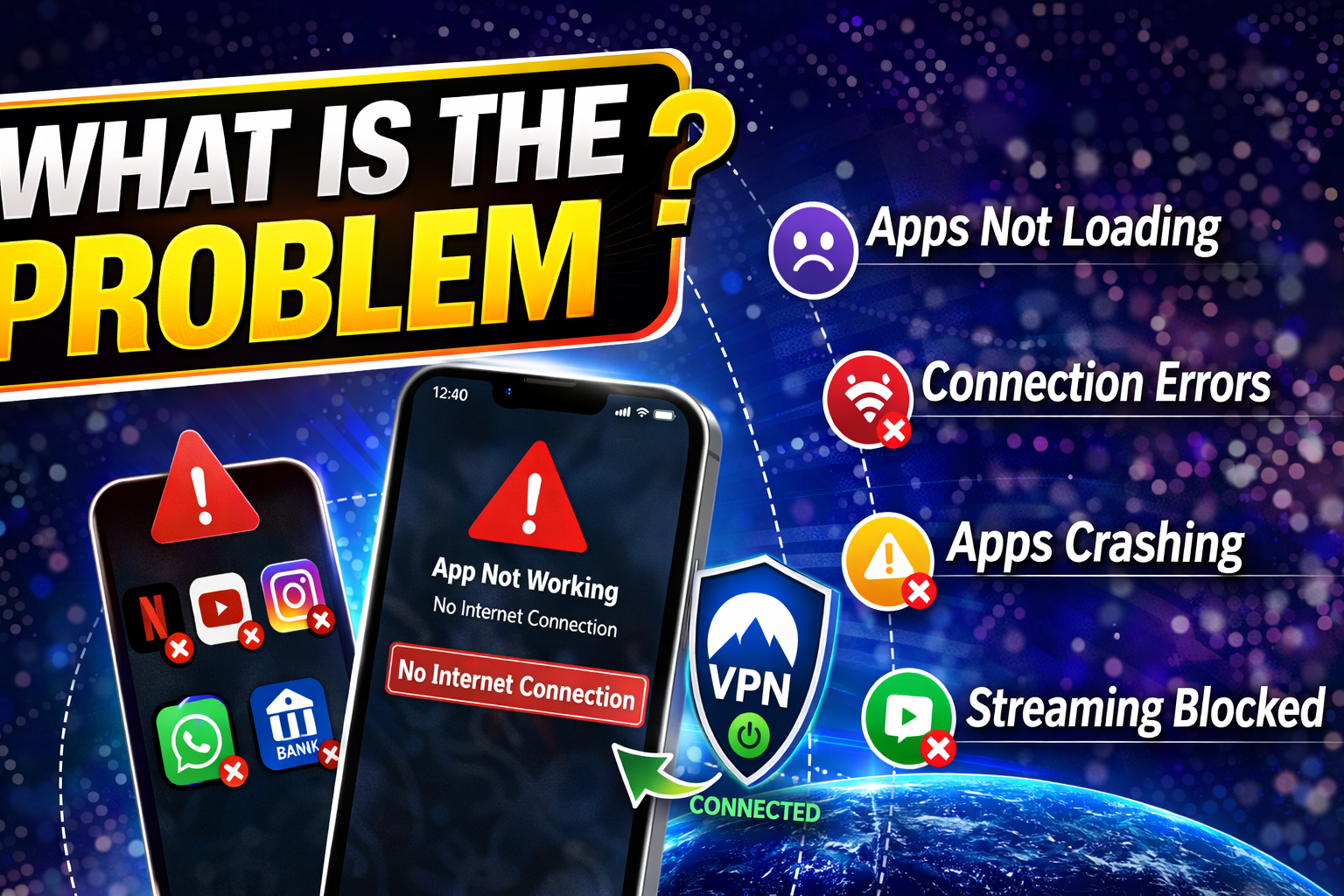
When using a VPN, some apps may stop functioning properly. This issue can affect both Android and iPhone users.
Common Symptoms
- Apps not loading content
- “No internet connection” error
- Apps crashing after opening
- Streaming apps blocked
- Banking or payment apps not working
This usually happens because the VPN changes your IP address and network routing, which some apps don’t handle well.
Why Does This Problem Happen?
There are several reasons why apps fail after connecting to a VPN.
1. App Restrictions
Some apps (like banking or streaming apps) block VPN usage for security or licensing reasons.
2. Server Issues
The VPN server you’re connected to may be slow, overloaded, or blocked.
3. DNS Conflicts
VPNs use different DNS settings, which can interfere with app connectivity.
4. Location Mismatch
Apps may detect a mismatch between your GPS location and VPN location.
5. Firewall or Security Settings
Certain apps or devices may block VPN traffic.
6. Outdated App or OS
Older versions may not support VPN configurations properly.
How to Fix Apps Not Working After VPN Connection
Here’s a step-by-step guide to solve the issue quickly.
✅ 1. Switch VPN Server (Quick Fix)
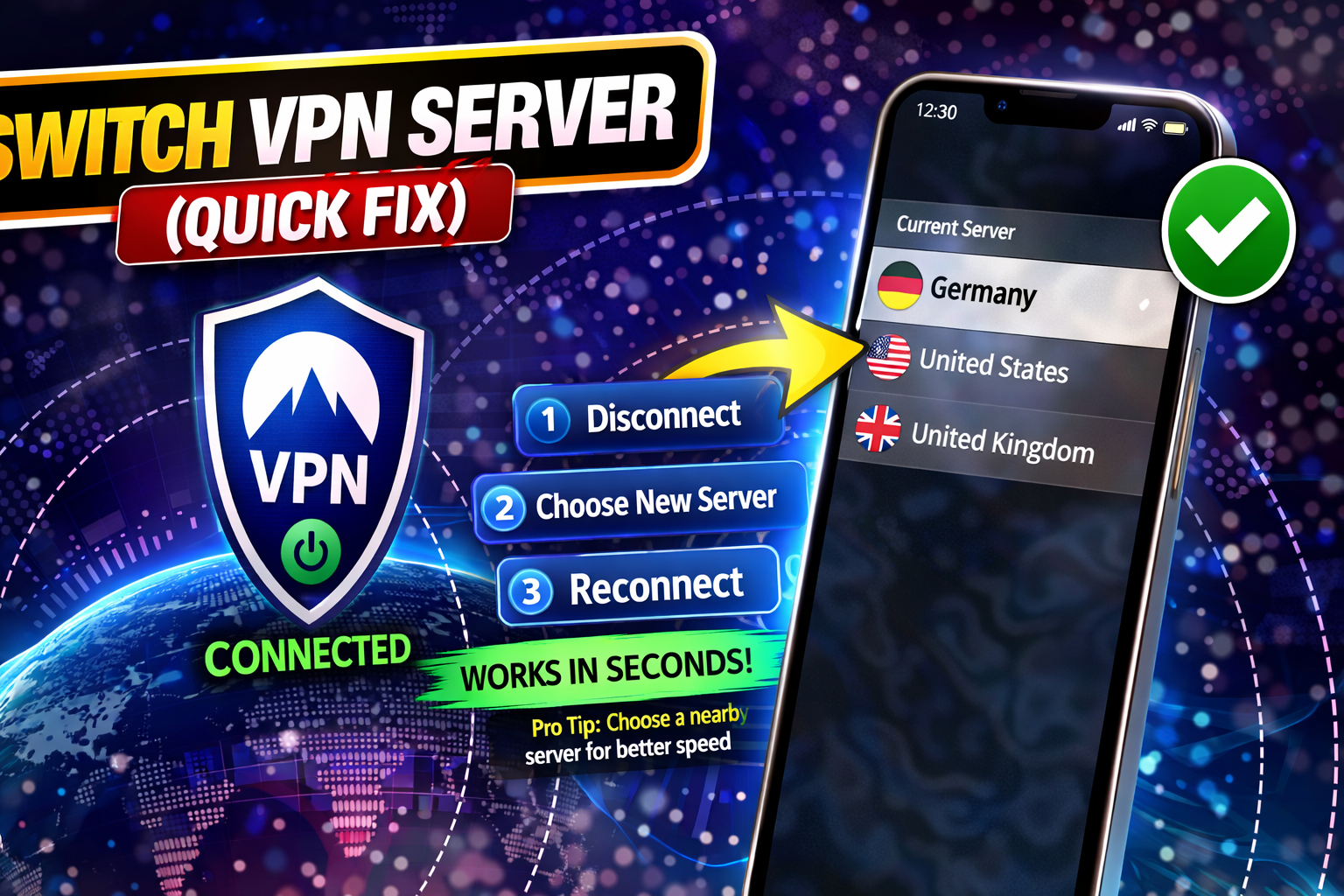
Sometimes the issue is just the server.
Steps:
- Open your VPN app
- Disconnect from current server
- Connect to a different location
👉 Pro Tip: Choose a nearby server for better speed.
✅ 2. Turn Off VPN for Specific Apps (Split Tunneling)
Some apps work better without VPN.
Steps:
- Open VPN settings
- Find Split Tunneling or App Exclusion
- Add the problematic app
- Restart the app
💡 This is one of the most effective fixes.
✅ 3. Restart Your Device
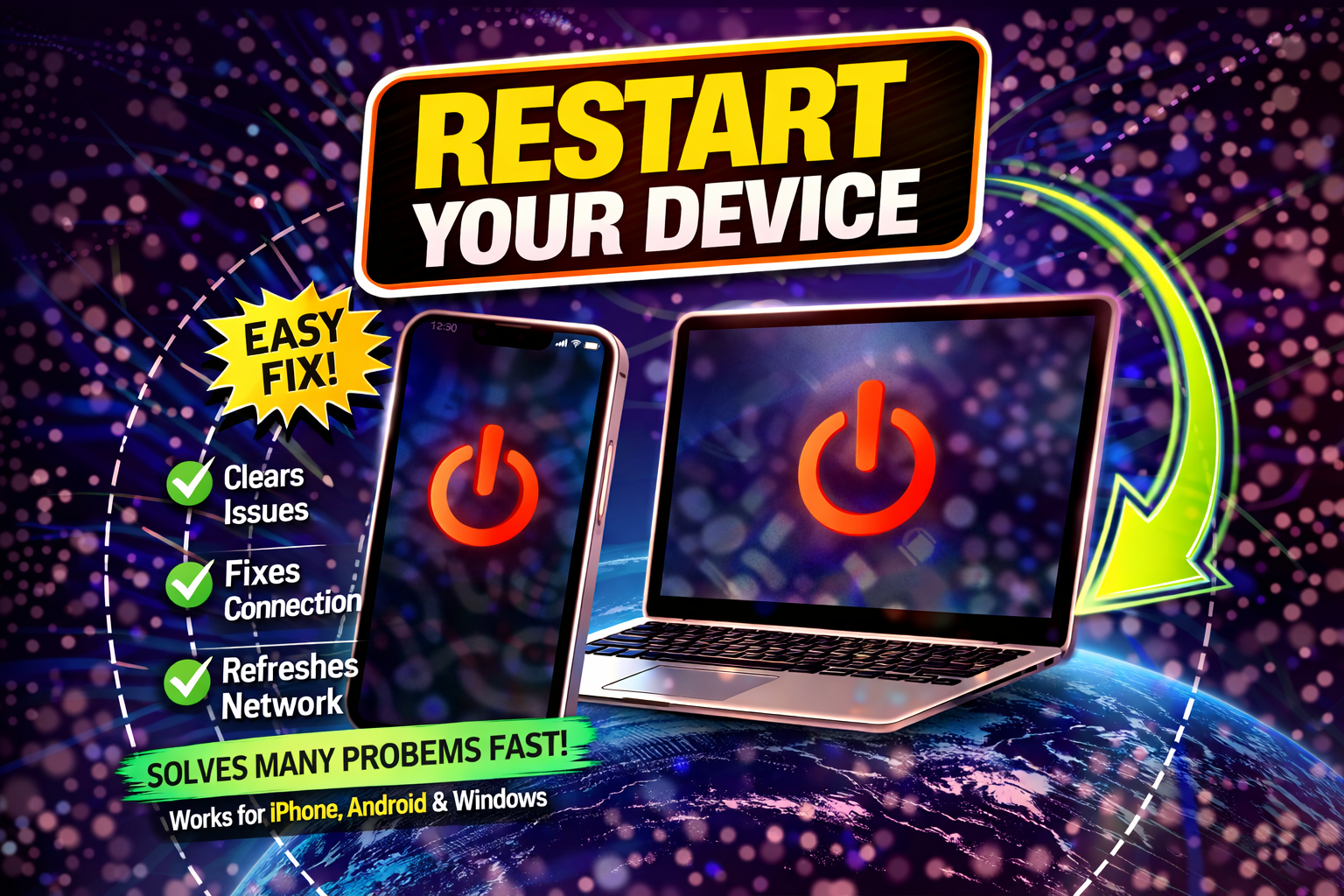
A simple restart can fix network conflicts.
Steps:
- Turn off your phone
- Wait 30 seconds
- Turn it back on
✅ 4. Clear App Cache (Android Only)
Corrupted cache can cause app issues.
Steps:
- Go to Settings > Apps
- Select the app
- Tap Storage
- Click Clear Cache
✅ 5. Disable VPN Temporarily
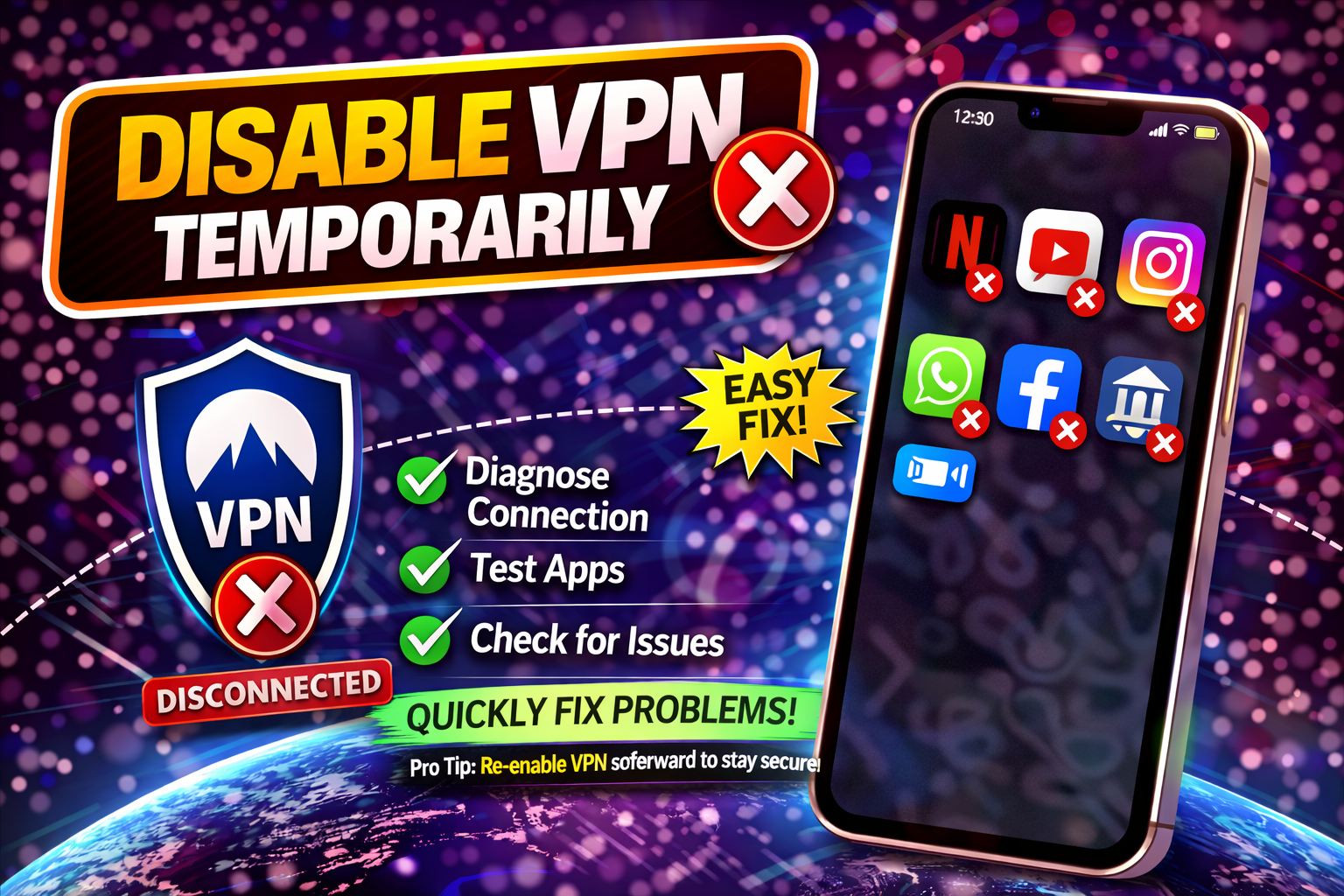
Check if VPN is the real cause.
Steps:
- Turn off VPN
- Open the app again
👉 If it works, the VPN is causing the issue.
✅ 6. Update the App and OS
Outdated versions can break compatibility.
Steps:
- Update apps from Play Store or App Store
- Update your phone’s system software
✅ 7. Change VPN Protocol
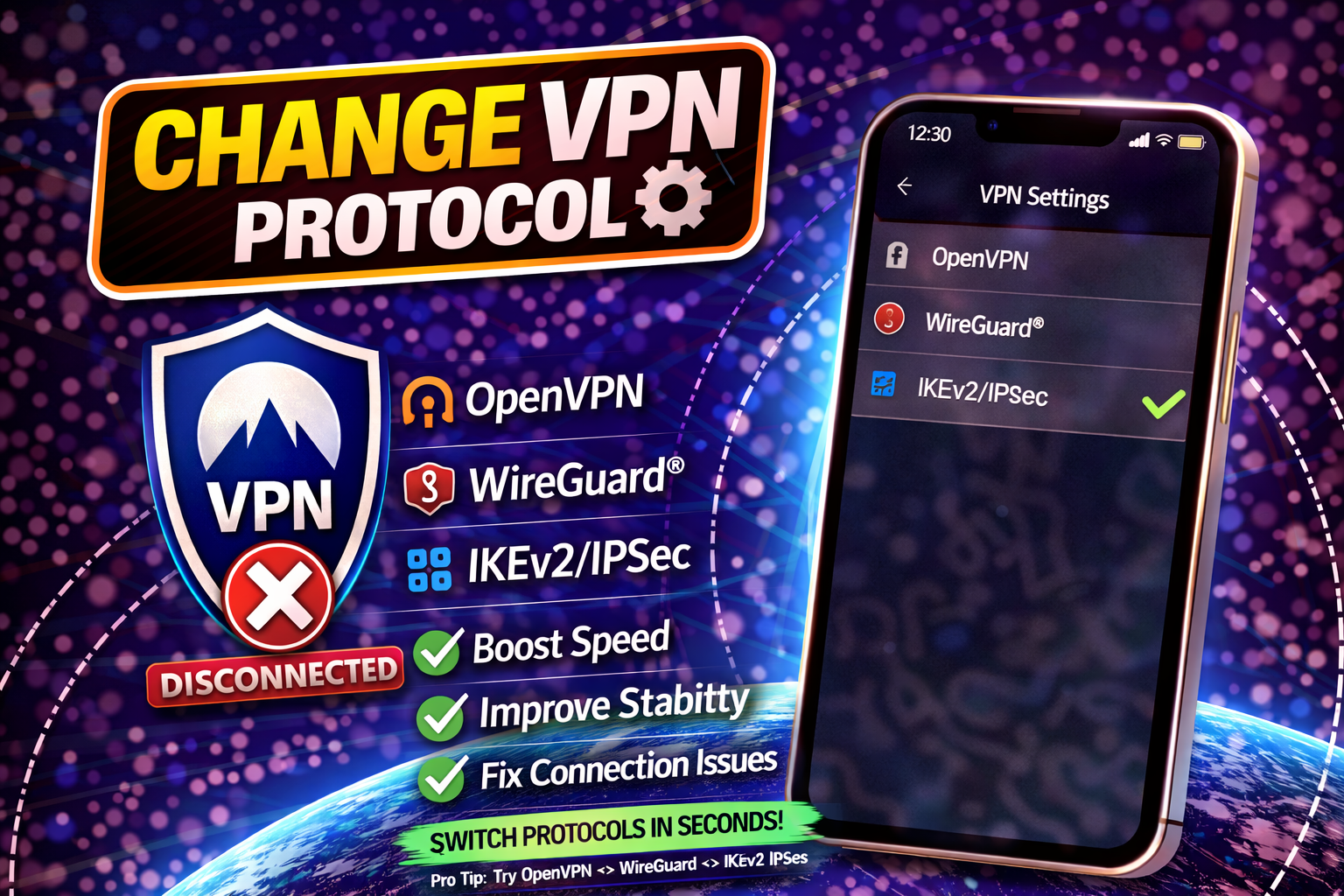
Different protocols can affect connectivity.
Steps:
- Open VPN settings
- Switch protocol (e.g., OpenVPN, WireGuard, IKEv2)
- Reconnect
✅ 8. Check Internet Connection
Make sure your base internet is stable.
- Try switching between Wi-Fi and mobile data
- Run a speed test
Advanced Fixes (Optional)
For more technical users:
🔧 1. Reset Network Settings
This clears all network-related issues.
- Android: Settings > System > Reset > Network Settings
- iPhone: Settings > General > Transfer or Reset > Reset Network Settings
🔧 2. Change DNS Settings
Use public DNS like:
- Google DNS:
8.8.8.8 - Cloudflare DNS:
1.1.1.1
🔧 3. Reinstall VPN App
Sometimes the VPN itself is the problem.
Steps:
- Uninstall VPN
- Restart device
- Install latest version
Prevent This Problem in the Future
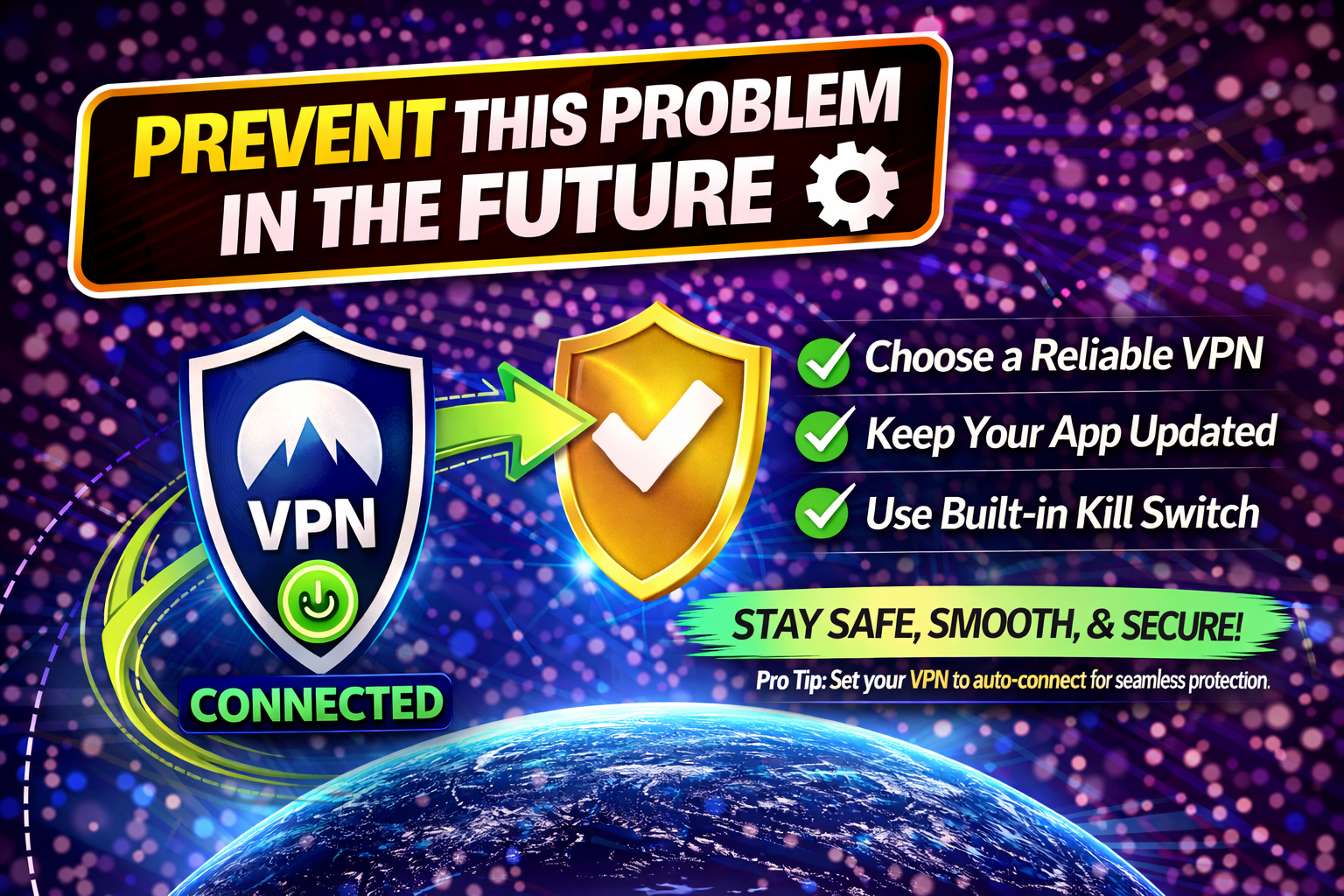
Avoid this issue with these simple tips:
- ✅ Use a reliable VPN provider
- ✅ Keep apps and OS updated
- ✅ Avoid free VPNs (they often cause issues)
- ✅ Use split tunneling for sensitive apps
- ✅ Choose servers based on your needs (speed vs location)
⚠️ Warning: Some apps will never work with VPN due to strict policies (e.g., banking apps).
Common FAQs
1. Why do apps stop working when I use a VPN?
Because VPN changes your IP and location, which some apps block for security reasons.
2. Which apps are most affected by VPN?
- Banking apps
- Streaming services (Netflix, Disney+)
- Payment apps
3. Is it safe to disable VPN for some apps?
Yes, using split tunneling is safe and commonly recommended.
4. Can a free VPN cause this problem?
Yes, free VPNs often have limited servers and poor compatibility.
5. Does VPN slow down apps?
Yes, it can reduce speed depending on the server and distance.
Conclusion
Dealing with apps that stop working after a VPN connection can be frustrating—but the good news is, it’s usually easy to fix.
From switching servers to enabling split tunneling, these solutions can quickly restore your apps. Start with the Quick Fix methods, then move to advanced solutions if needed.
👉 Now it’s your turn—try these fixes and get your apps working again!
If this guide helped you, consider sharing it or exploring more helpful “App Problems” solutions.
