How to Change Router Admin Password: A Complete Step-by-Step Guide
In today’s connected world, your home or office network is only as secure as your router. While many people focus on setting a strong WiFi password, they often overlook an equally important security feature: the router admin password. This password controls access to your router’s settings, and if left unchanged, it can expose your entire network to serious security risks.
In this comprehensive guide, you will learn what a router admin password is, why it matters, and how to change it safely on any router. Whether you are a beginner or an experienced user, this article will help you protect your network from unauthorized access.
What Is a Router Admin Password?
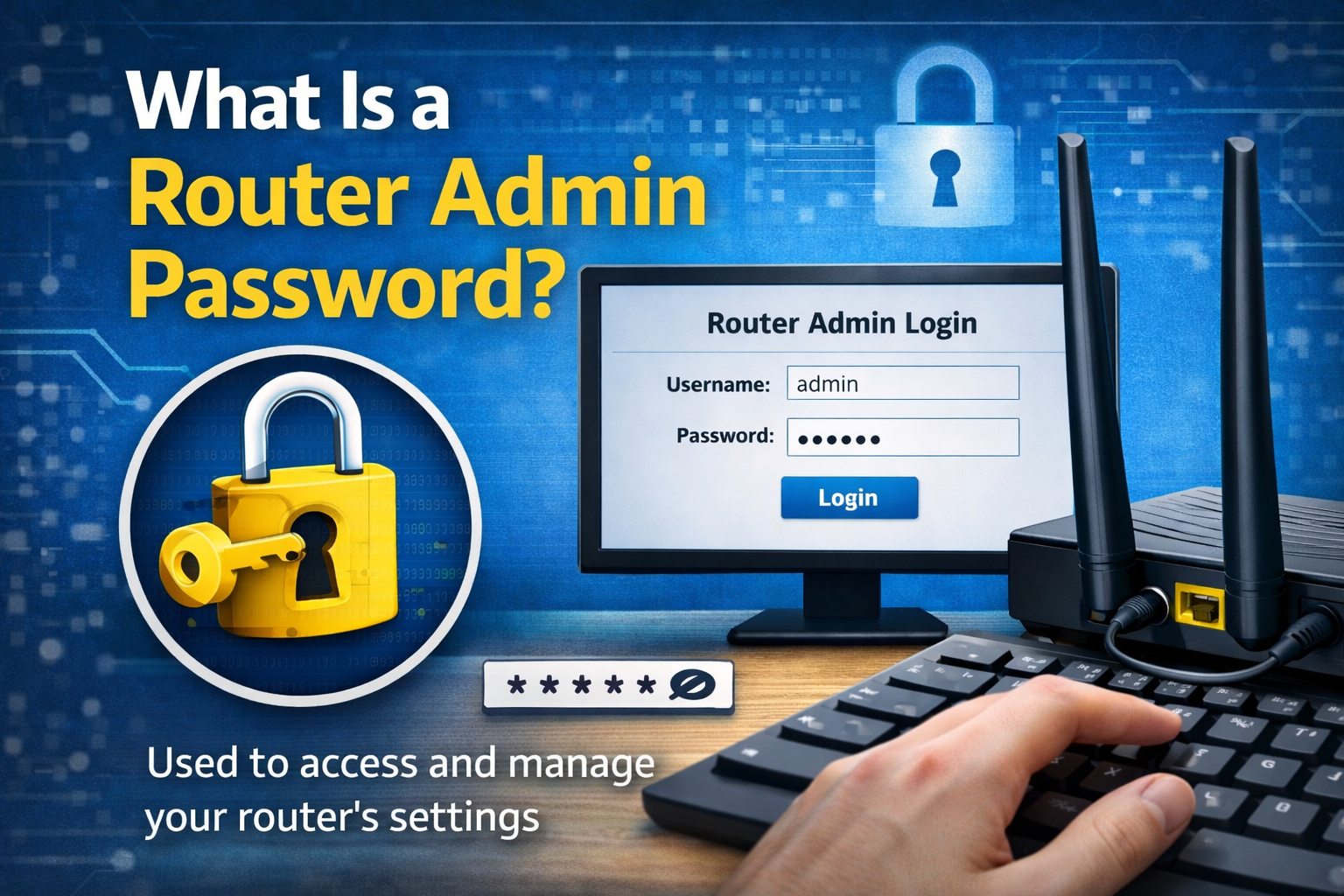
The router admin password is the login credential used to access your router’s control panel (also called the admin interface or router dashboard). This panel allows you to:
- Change WiFi name (SSID)
- Change WiFi password
- Configure security settings
- Set parental controls
- Update firmware
- Monitor connected devices
Unlike the WiFi password (used by devices to connect to the internet), the admin password gives full control over the router itself.
Default Router Admin Credentials
Most routers come with default login details such as:
- Username:
admin - Password:
adminorpassword
These default credentials are widely known and publicly available online, making them extremely insecure if not changed.
Why You Should Change Your Router Admin Password
Changing your router admin password is one of the most important steps in securing your network. Here’s why it matters:
1. Prevent Unauthorized Access
If someone gains access to your router’s admin panel, they can:
- Change your WiFi password
- Block your devices
- Spy on network traffic
- Redirect you to malicious websites
2. Protect Personal and Financial Data

Hackers can intercept sensitive information such as login credentials, emails, or online banking details if your router is compromised.
3. Stop Malware and Botnet Attacks
Routers with weak admin passwords are often targeted by malware and botnets, which can use your network for illegal activities without your knowledge.
4. Improve Overall Network Security
A strong admin password adds an essential layer of protection, making it much harder for attackers to take control of your router.
What You Need Before Changing the Router Admin Password
Before you begin, make sure you have the following:
- A device connected to the router (PC, laptop, phone, or tablet)
- The router’s IP address (commonly
192.168.1.1or192.168.0.1) - Current admin username and password
- A web browser (Chrome, Edge, Safari, Firefox)
If you don’t know your router’s login details, check the label on the back of the router or the user manual.
How to Find Your Router’s IP Address
On Windows
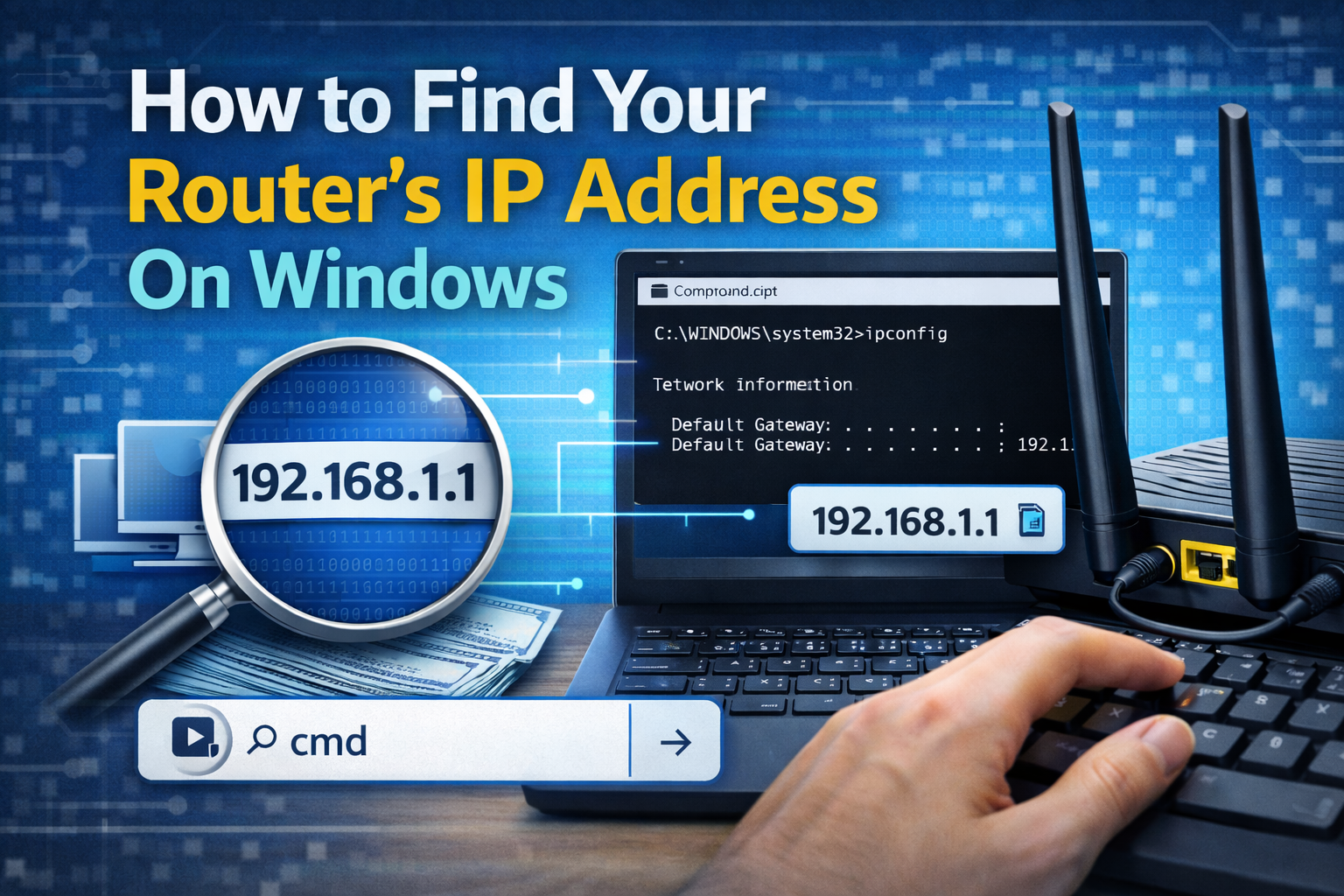
- Press Windows + R
- Type
cmdand press Enter - Type
ipconfigand press Enter - Look for Default Gateway
On macOS
- Open System Settings
- Go to Network
- Select your connection
- Click Details
- Find Router
On Android or iPhone
- Open WiFi settings
- Tap your connected network
- Look for Gateway or Router IP
Step-by-Step Guide: How to Change Router Admin Password
Step 1: Open Router Login Page
- Open a web browser
- Enter your router’s IP address in the address bar
- Press Enter
You should see the router login page.
Step 2: Log In to the Admin Panel
- Enter the current admin username and password
- Click Login or Sign In
If you cannot log in, make sure you typed the details correctly. If you forgot the password, you may need to reset the router.
Step 3: Locate Admin or Security Settings
Once logged in, look for sections such as:
- Administration
- System
- Management
- Security
- Advanced Settings
The exact menu name depends on the router brand.
Step 4: Change the Admin Password
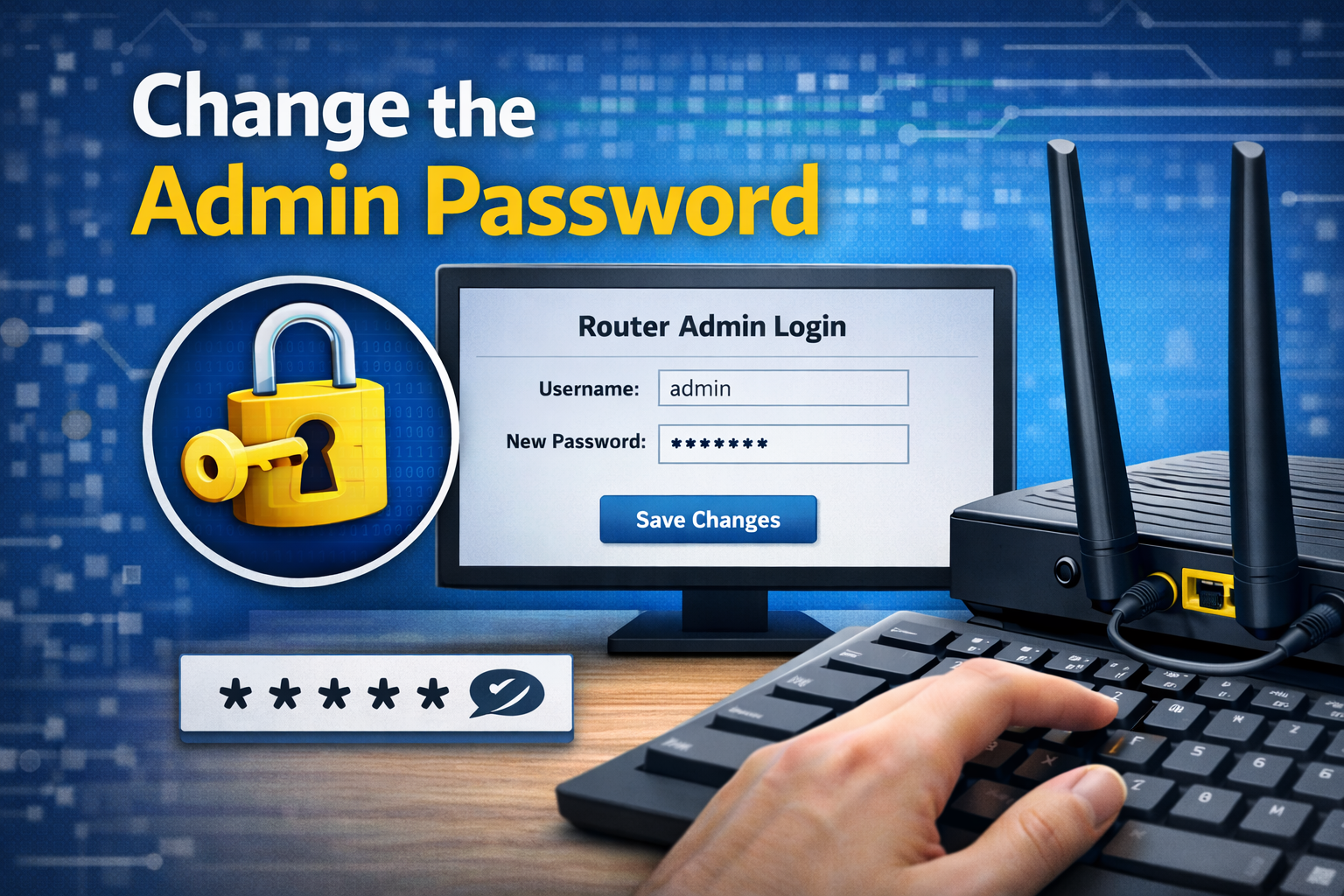
- Find the option labeled Change Password, Admin Password, or Router Password
- Enter your current password
- Create a new strong password
- Confirm the new password
- Click Save or Apply
Step 5: Log In Again to Confirm
After saving, the router may ask you to log in again using the new password. This confirms the change was successful.
How to Create a Strong Router Admin Password
A strong password is essential for maximum security. Follow these tips:
- Use at least 12–16 characters
- Combine uppercase and lowercase letters
- Include numbers and symbols
- Avoid personal information
- Do not reuse old passwords
Example of a Strong Password
R0ut3r!Admin#2025
How to Change Admin Password on Popular Router Brands
TP-Link
- Go to System Tools → Administration
- Enter old and new passwords
- Save changes
ASUS
- Go to Administration → System
- Change router login password
- Apply settings
Netgear
- Go to Advanced → Administration → Set Password
- Update admin password
D-Link
- Go to Management → Admin
- Change administrator password
What If You Forgot Your Router Admin Password?
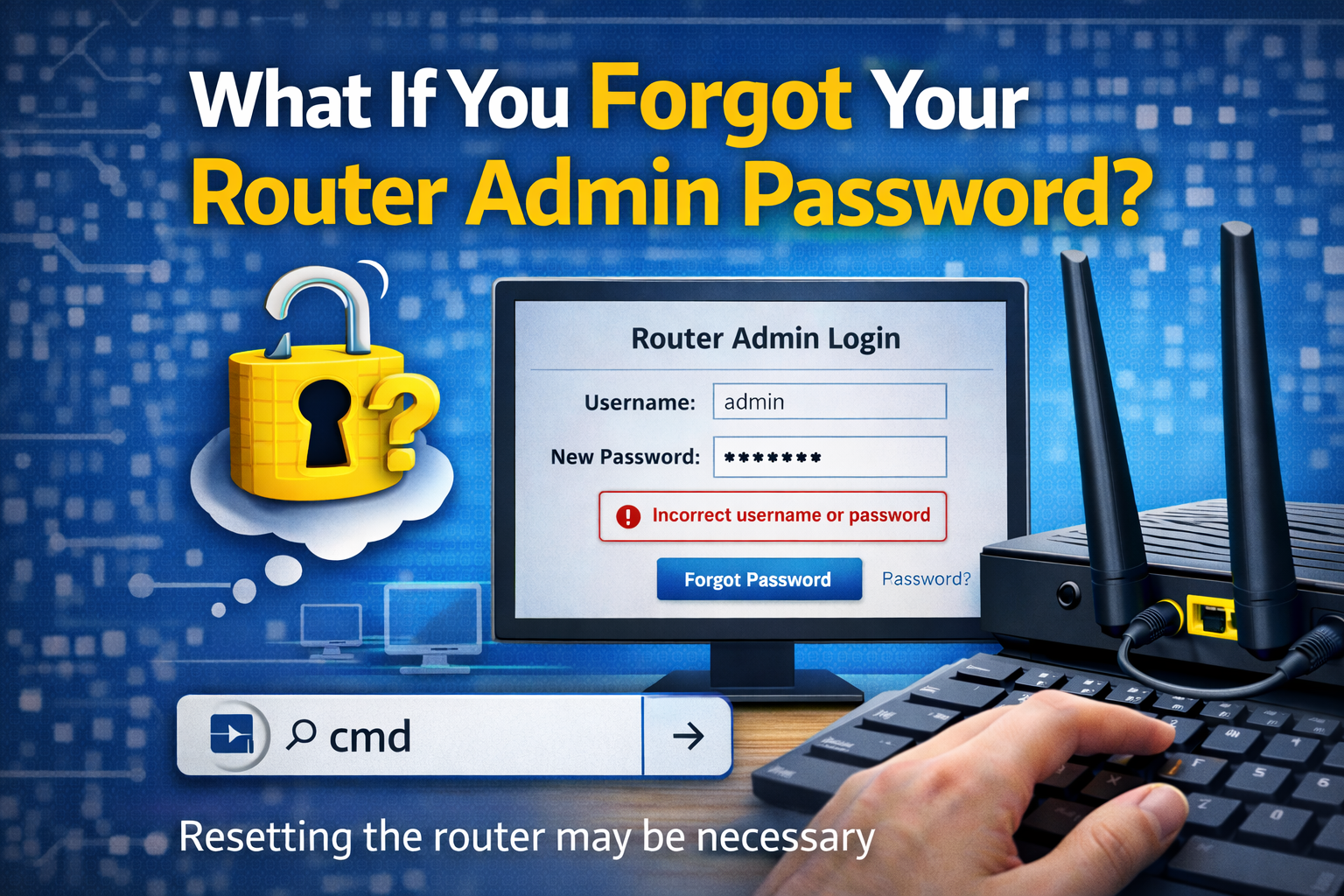
If you cannot log in, you may need to reset the router.
How to Reset Router
- Locate the Reset button
- Press and hold for 10–15 seconds
- Release when lights blink
- Router will restore factory settings
Warning: Resetting erases all custom settings, including WiFi name and password.
Additional Security Tips for Router Protection
Changing the admin password is just the beginning. Consider these extra steps:
1. Change Default Username
If your router allows it, change the admin username as well.
2. Enable Automatic Firmware Updates
Firmware updates fix security vulnerabilities.
3. Disable Remote Management
Turn off remote access unless absolutely necessary.
4. Use HTTPS for Router Login
Enable secure (HTTPS) access to the admin panel.
5. Monitor Connected Devices
Regularly check for unknown devices on your network.
Common Mistakes to Avoid
- Leaving the default admin password unchanged
- Using weak or short passwords
- Writing the password on the router
- Sharing admin credentials with others
- Forgetting to save changes
How Often Should You Change Router Admin Password?
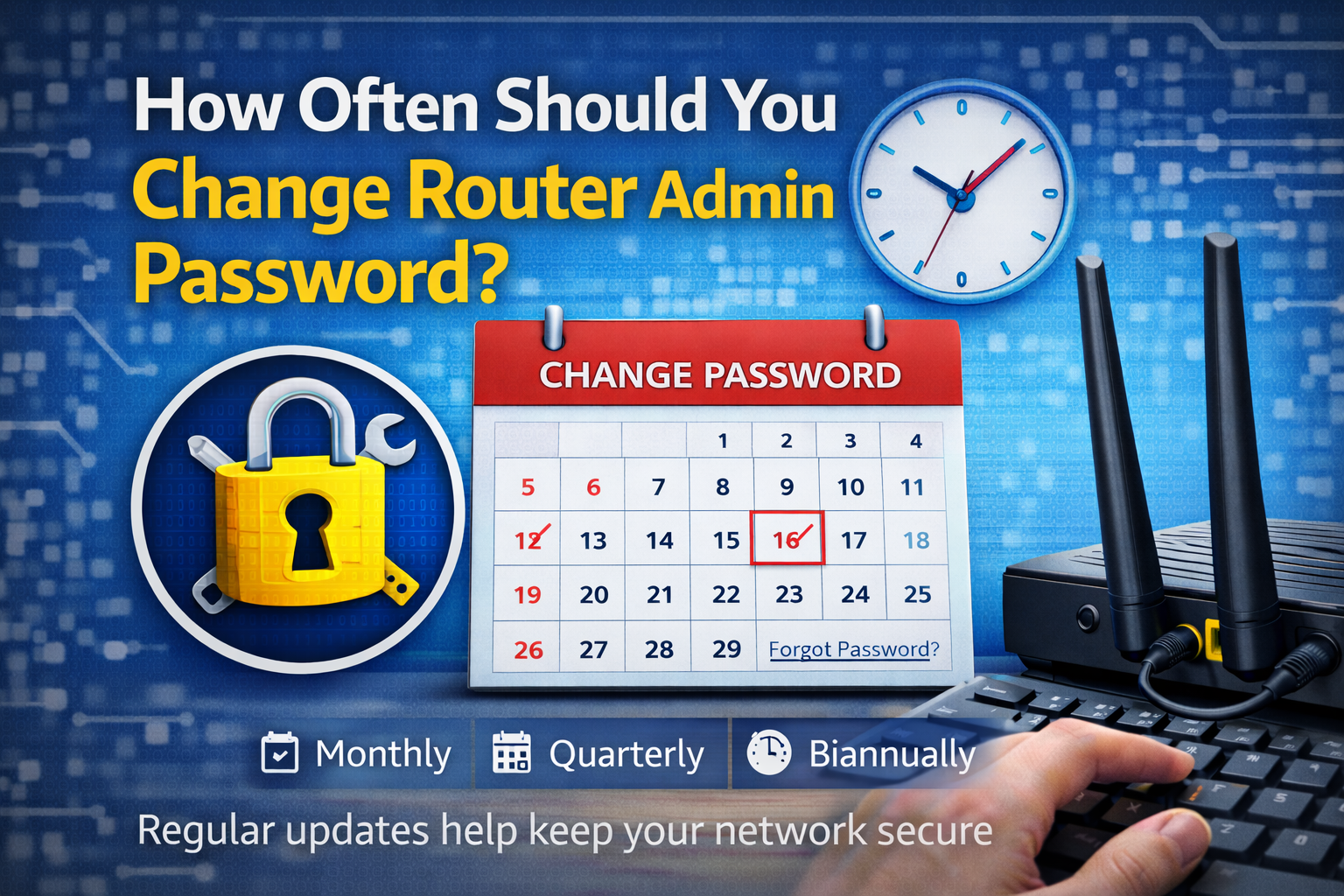
It’s recommended to change your router admin password:
- When setting up a new router
- Every 6–12 months
- After a security breach
- If someone else had access to your router
Frequently Asked Questions (FAQ)
Is router admin password the same as WiFi password?
No. The admin password controls router settings, while the WiFi password connects devices to the network.
Can hackers access my router remotely?
Yes, if remote management is enabled and the password is weak.
Will changing admin password disconnect devices?
No, it only affects access to router settings.
Conclusion
Changing your router admin password is one of the simplest yet most powerful ways to secure your network. Many cyberattacks succeed simply because users leave default credentials unchanged. By following the steps in this guide, you can take full control of your router, protect your personal data, and ensure a safer internet experience for everyone connected to your network.
Make it a habit to review your router security settings regularly. A few minutes of effort can prevent serious problems in the future.
