How to Change WiFi Password on Any Router: A Complete Step-by-Step Guide
In today’s digital world, WiFi has become an essential part of our daily lives. From working remotely and attending online classes to streaming entertainment and controlling smart home devices, almost everything depends on a secure wireless internet connection. However, many users overlook one critical aspect of WiFi security: changing the WiFi password.
If you are still using the default password that came with your router or haven’t updated it in a long time, your network may be vulnerable to unauthorized access, slow speeds, or even cyberattacks. The good news is that changing your WiFi password is not difficult, and it does not require advanced technical knowledge.
This comprehensive guide will walk you through how to change the WiFi password on any router, regardless of brand or model. Whether you are using TP-Link, D-Link, Netgear, ASUS, Linksys, or your internet service provider’s router, the basic steps remain mostly the same.
Why You Should Change Your WiFi Password
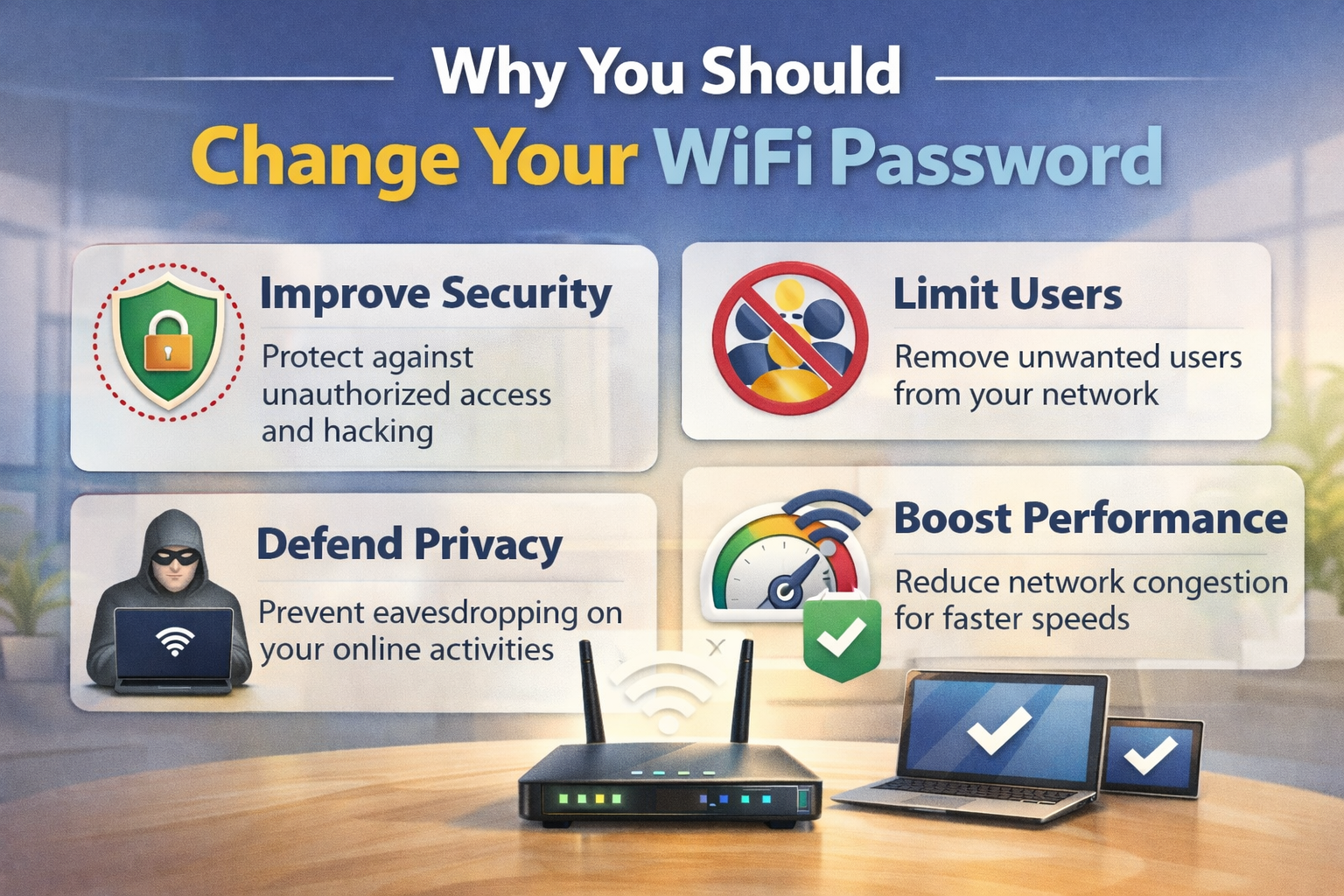
Before diving into the steps, it’s important to understand why changing your WiFi password matters.
1. Improve Network Security
Default or weak passwords are easy targets for hackers. Changing your password helps prevent unauthorized users from accessing your network and personal data.
2. Remove Unknown or Unwanted Users
If your internet feels slower than usual, someone else might be using your WiFi. Changing the password immediately disconnects all connected devices.
3. Protect Personal Information
Many devices connected to your network store sensitive information. A secure WiFi password reduces the risk of data theft.
4. Maintain Better Internet Speed
Too many connected devices can reduce bandwidth. By limiting access, you ensure optimal performance.
Things You Need Before Changing Your WiFi Password
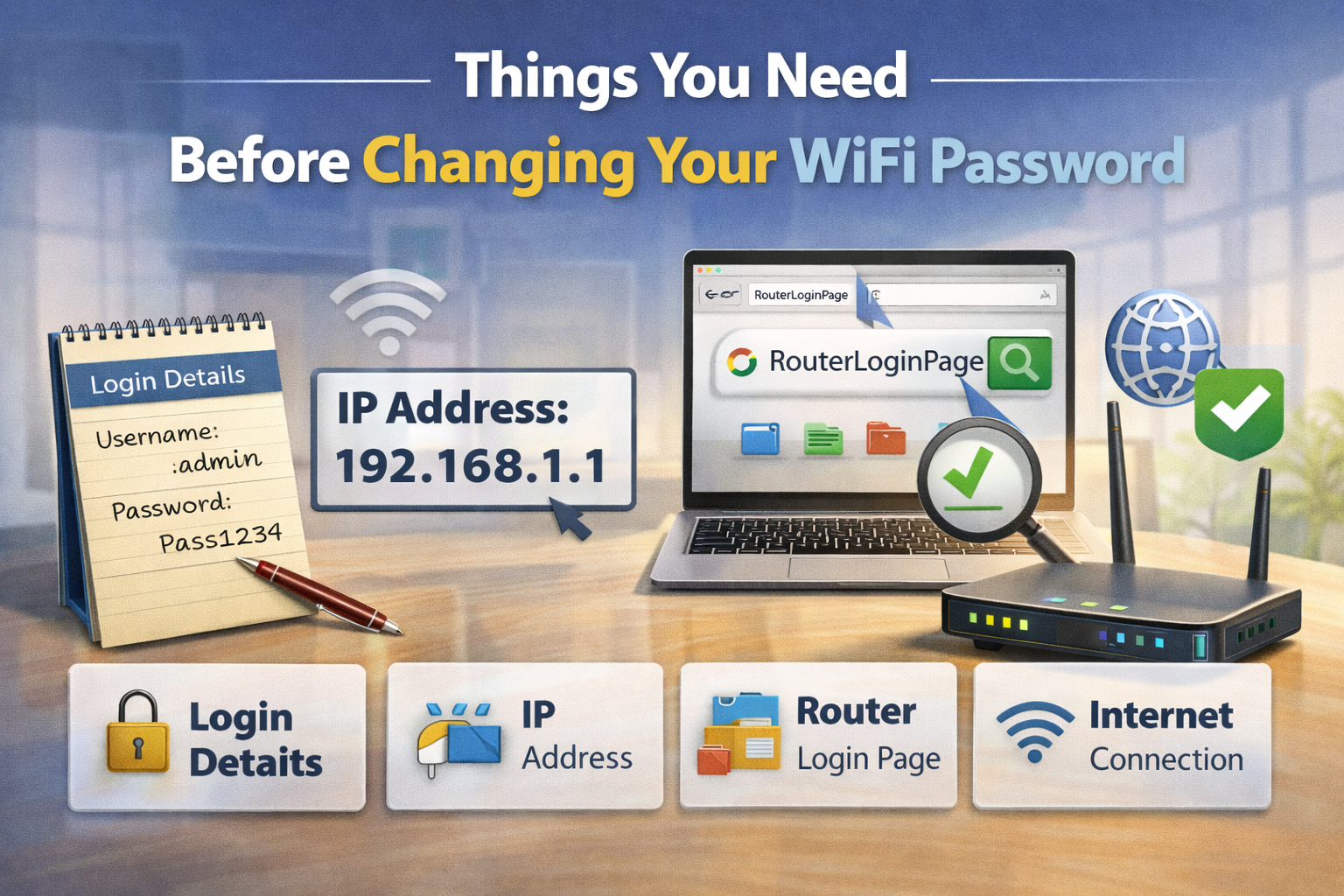
Before starting, make sure you have the following:
- A device connected to the router (computer, laptop, or smartphone)
- Router login credentials (username and password)
- Router IP address (commonly printed on the router label)
- A web browser (Chrome, Edge, Firefox, Safari)
If you have never changed your router login details, the default username and password are often something like admin / admin or admin / password.
Step 1: Connect to Your Router
First, connect your device to the router:
- Use WiFi (if you know the current password), or
- Use an Ethernet cable for a more stable connection
A wired connection is recommended to avoid being disconnected while making changes.
Step 2: Find Your Router’s IP Address
To access the router settings, you need its IP address. Common router IP addresses include:
- 192.168.0.1
- 192.168.1.1
- 192.168.1.254
- 10.0.0.1
You can find the correct IP address by:
- Checking the sticker on the back or bottom of the router
- Looking at the router manual
- Using your device’s network settings
Step 3: Log In to the Router Admin Panel
- Open a web browser.
- Type the router’s IP address into the address bar.
- Press Enter.
- A login page will appear.
- Enter the router’s admin username and password.
If you forgot the login credentials, you may need to reset the router to factory settings (this should be a last resort).
Step 4: Navigate to Wireless or WiFi Settings
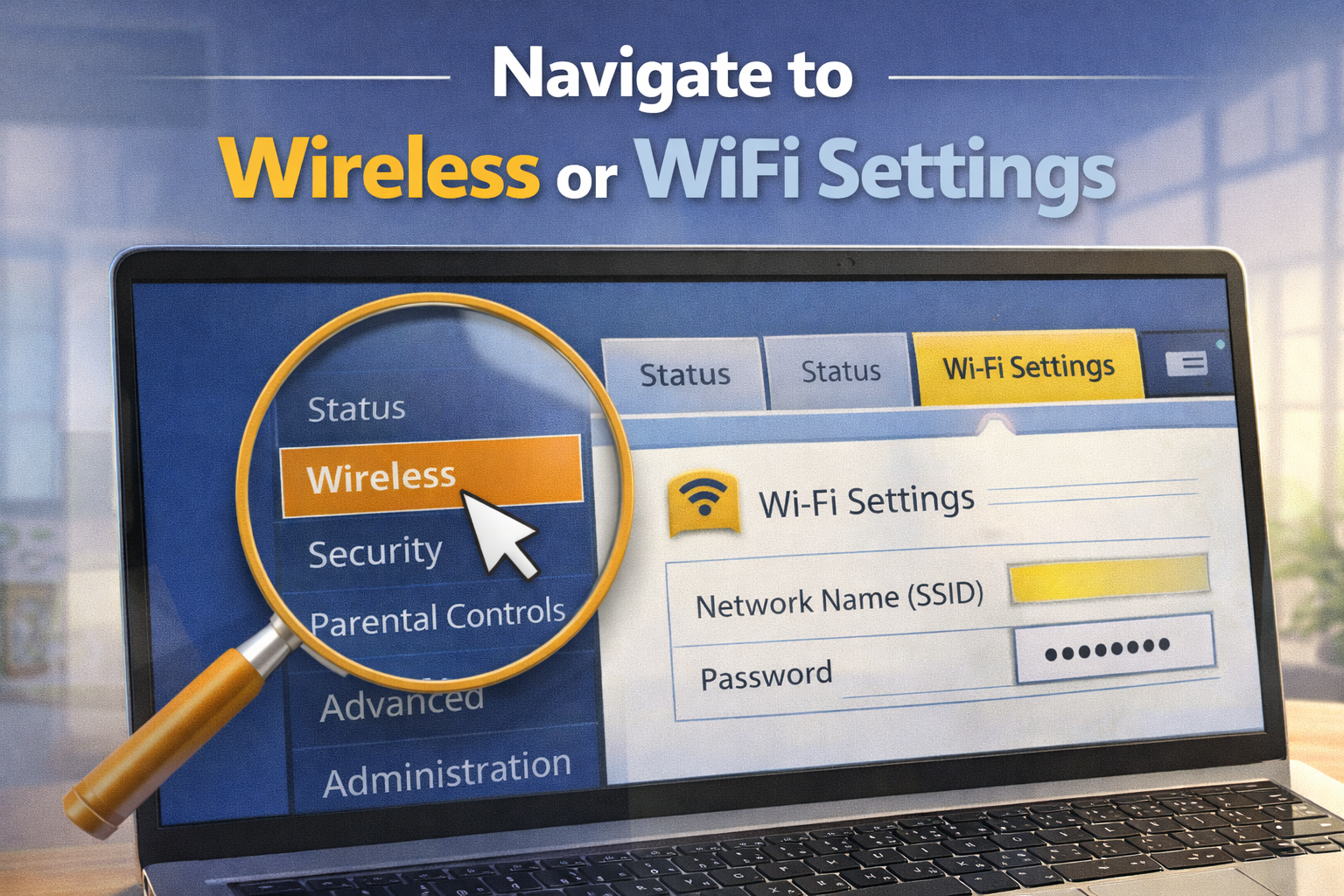
Once logged in, look for a section called:
- Wireless
- Wireless Settings
- WiFi Settings
- Network Settings
The exact name may vary depending on the router brand, but it is usually easy to find.
Step 5: Locate the WiFi Password Field
Inside the Wireless Settings menu, find:
- SSID (your WiFi network name)
- Wireless Password, WiFi Password, or Pre-Shared Key
- Security Key
This is the current password used to connect to your WiFi network.
Step 6: Change the WiFi Password
- Delete the existing password.
- Enter a new strong password.
- Make sure your password:
- Is at least 12 characters long
- Includes uppercase and lowercase letters
- Contains numbers and special characters
- Is not easy to guess
Example of a strong password:
MyWiFi@2025Secure!
Avoid using personal information such as names, birthdays, or phone numbers.
Step 7: Choose the Right Security Type
Ensure your WiFi security mode is set to:
- WPA2-PSK
- WPA3 (if supported)
Avoid outdated options like WEP, which are insecure and easily hacked.
Step 8: Save and Apply Changes
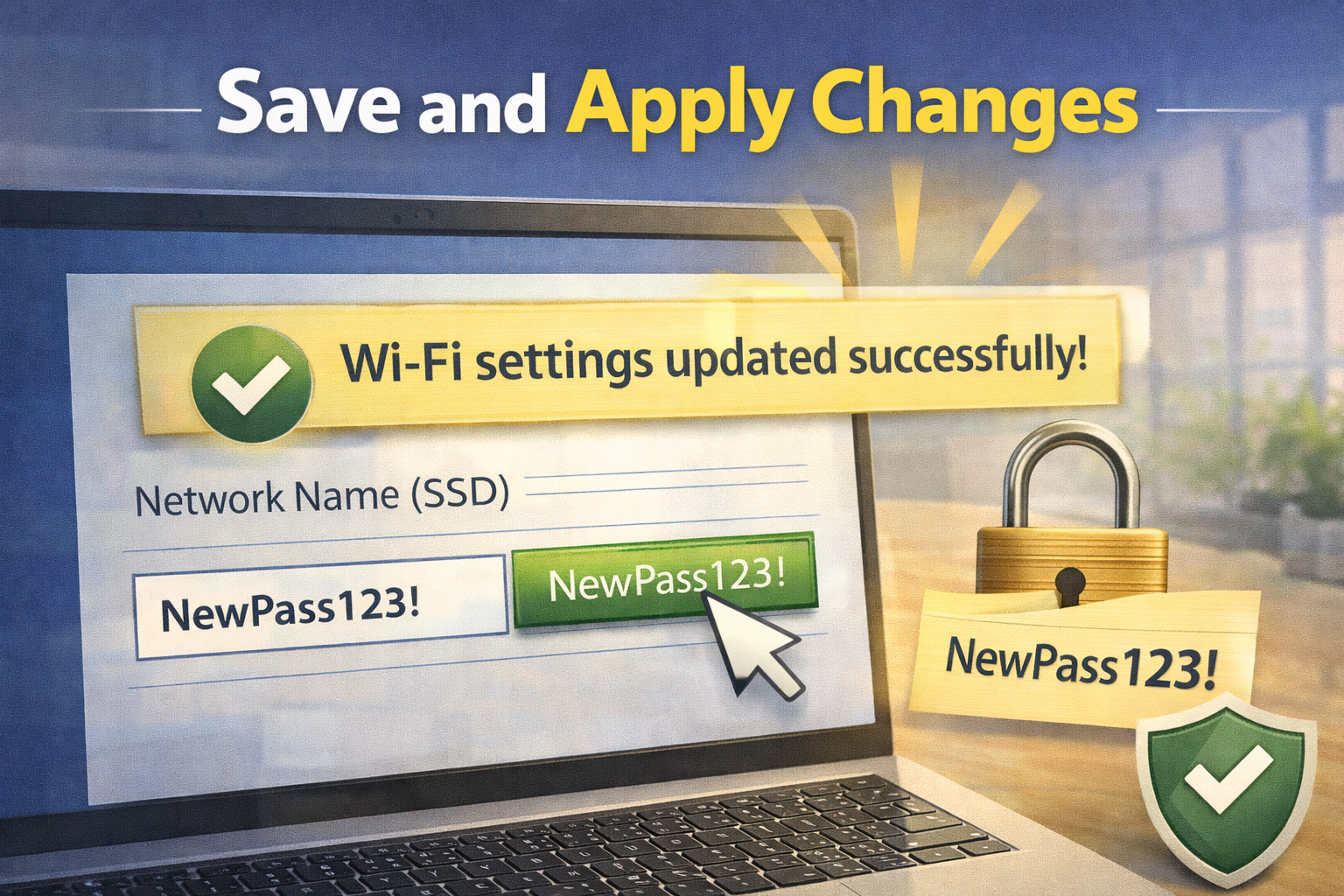
After entering the new password:
- Click Save, Apply, or Update.
- The router may restart automatically.
- Your WiFi network will disconnect temporarily.
This is normal behavior.
Step 9: Reconnect Your Devices
Once the router finishes restarting:
- Reconnect all devices using the new WiFi password
- This includes smartphones, laptops, smart TVs, printers, and IoT devices
Any device that does not have the updated password will no longer connect.
How to Change WiFi Password Using a Mobile App
Many modern routers offer official mobile apps that make changing WiFi settings easier.
Popular Router Apps:
- TP-Link Tether
- ASUS Router App
- Netgear Nighthawk
- Google Home (for Google Nest routers)
Steps:
- Download the router app from the App Store or Google Play.
- Log in using your router account.
- Go to WiFi or Wireless Settings.
- Change the password.
- Save changes.
This method is especially useful for beginners.
Changing WiFi Password on Dual-Band Routers
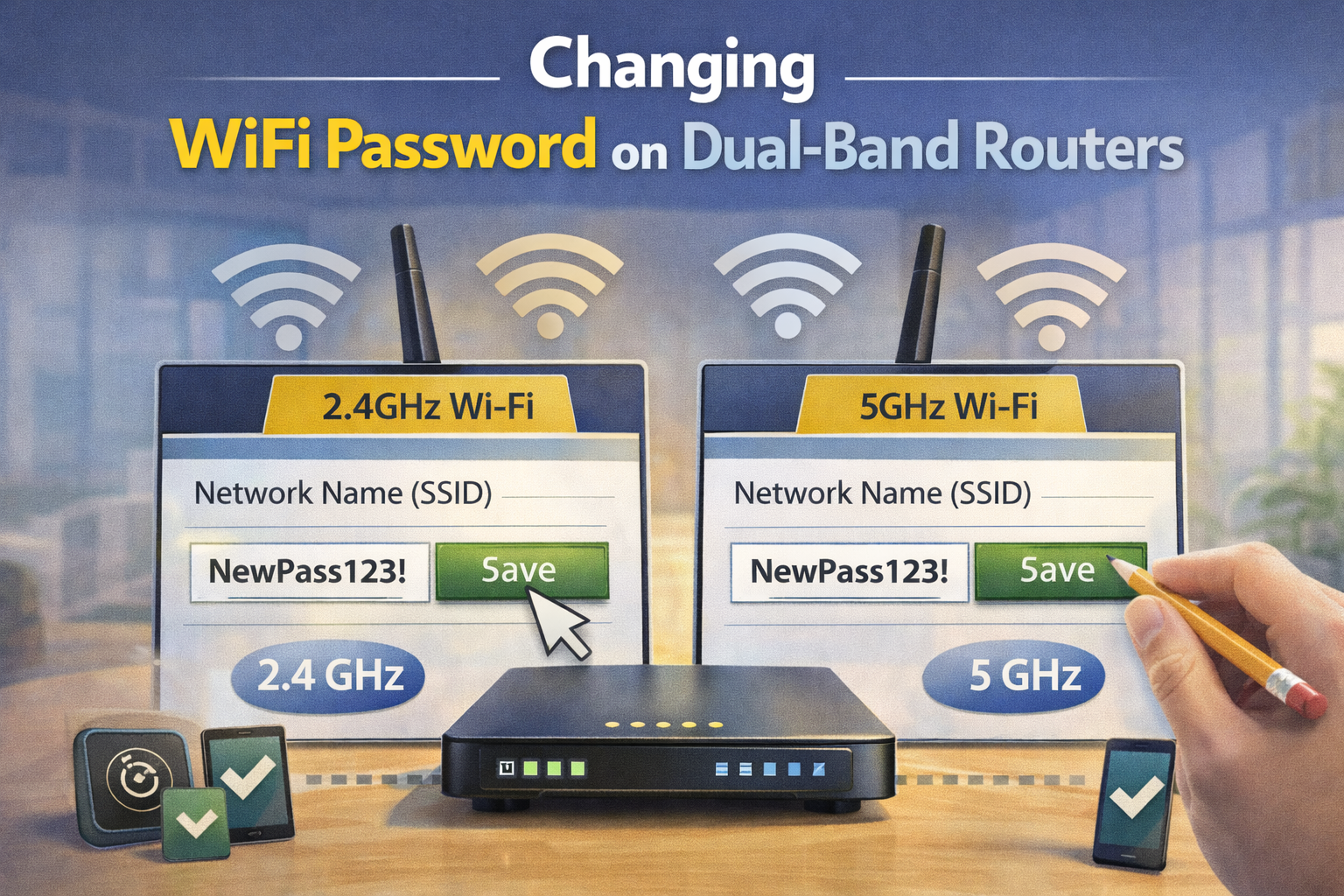
If your router supports 2.4GHz and 5GHz networks, you may see two separate WiFi names.
You can:
- Set the same password for both bands, or
- Use different passwords for better control
Make sure to update the password for both if needed.
Common Problems and Solutions
1. Forgot Router Login Password
- Try default credentials
- Reset the router (press and hold reset button for 10–15 seconds)
2. Cannot Access Router Page
- Ensure you are connected to the router
- Double-check the IP address
- Disable VPN temporarily
3. Devices Cannot Connect After Password Change
- Restart the device
- Forget the network and reconnect
- Check for typing errors
How Often Should You Change Your WiFi Password?
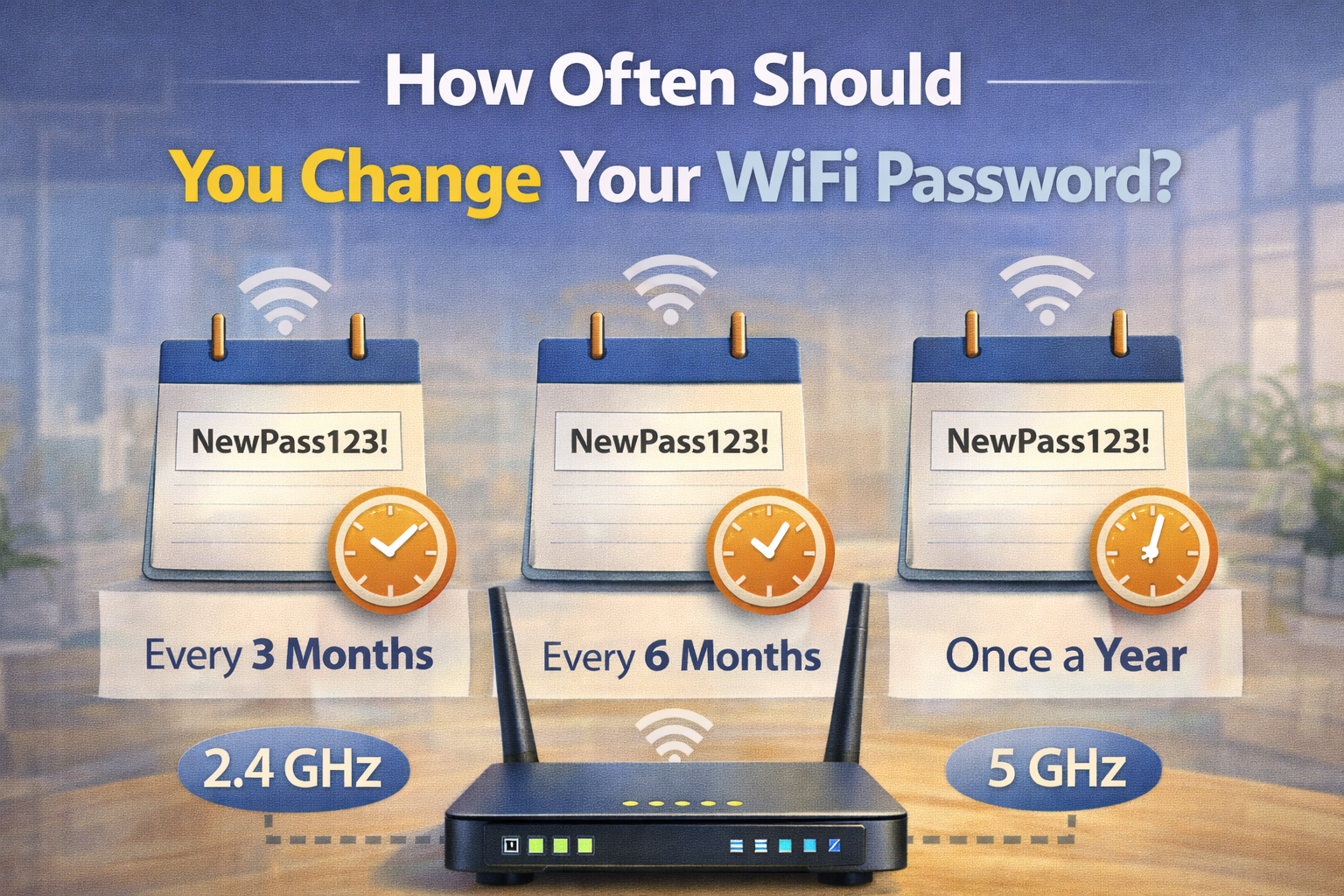
Security experts recommend changing your WiFi password:
- Every 3–6 months
- After sharing it with guests
- If you suspect unauthorized access
- When upgrading your router
Regular updates improve overall network safety.
Best Practices for WiFi Security
In addition to changing your password, consider these tips:
- Change the router admin password
- Disable WPS (WiFi Protected Setup)
- Hide your SSID (optional)
- Enable firewall features
- Keep router firmware updated
Conclusion
Changing your WiFi password is one of the simplest yet most effective ways to protect your internet connection and personal data. Regardless of the router brand or model, the process follows similar steps and takes only a few minutes to complete.
By using a strong password, selecting the right security protocol, and updating your network regularly, you can enjoy faster speeds, better privacy, and peace of mind. Whether you are a beginner or an experienced user, taking control of your WiFi security is always a smart decision.
If you haven’t changed your WiFi password in a long time, now is the perfect time to do it.
