How to Fix Apps Not Opening on iPhone (Complete Step-by-Step Guide)
Apps not opening on an iPhone is a common and frustrating problem faced by many users. You tap an app icon, but nothing happens, or the app opens briefly and then closes immediately. This issue can occur on any iPhone model and across different iOS versions, including the latest updates.
The good news is that most app-opening problems can be fixed without professional repair or data loss. In this guide, you’ll learn why apps won’t open on iPhone and how to fix the issue step by step, even if you are not tech-savvy.
Why Apps Won’t Open on iPhone
Before applying fixes, it helps to understand the possible reasons behind the issue. Apps may fail to open due to:
- iOS software bugs
- Incompatible app versions
- Insufficient storage space
- Corrupted app data
- Network connection problems
- Background system glitches
- iOS update issues
- App permission conflicts
Now, let’s walk through the most effective solutions, starting with the simplest ones.
1. Force Close and Reopen the App
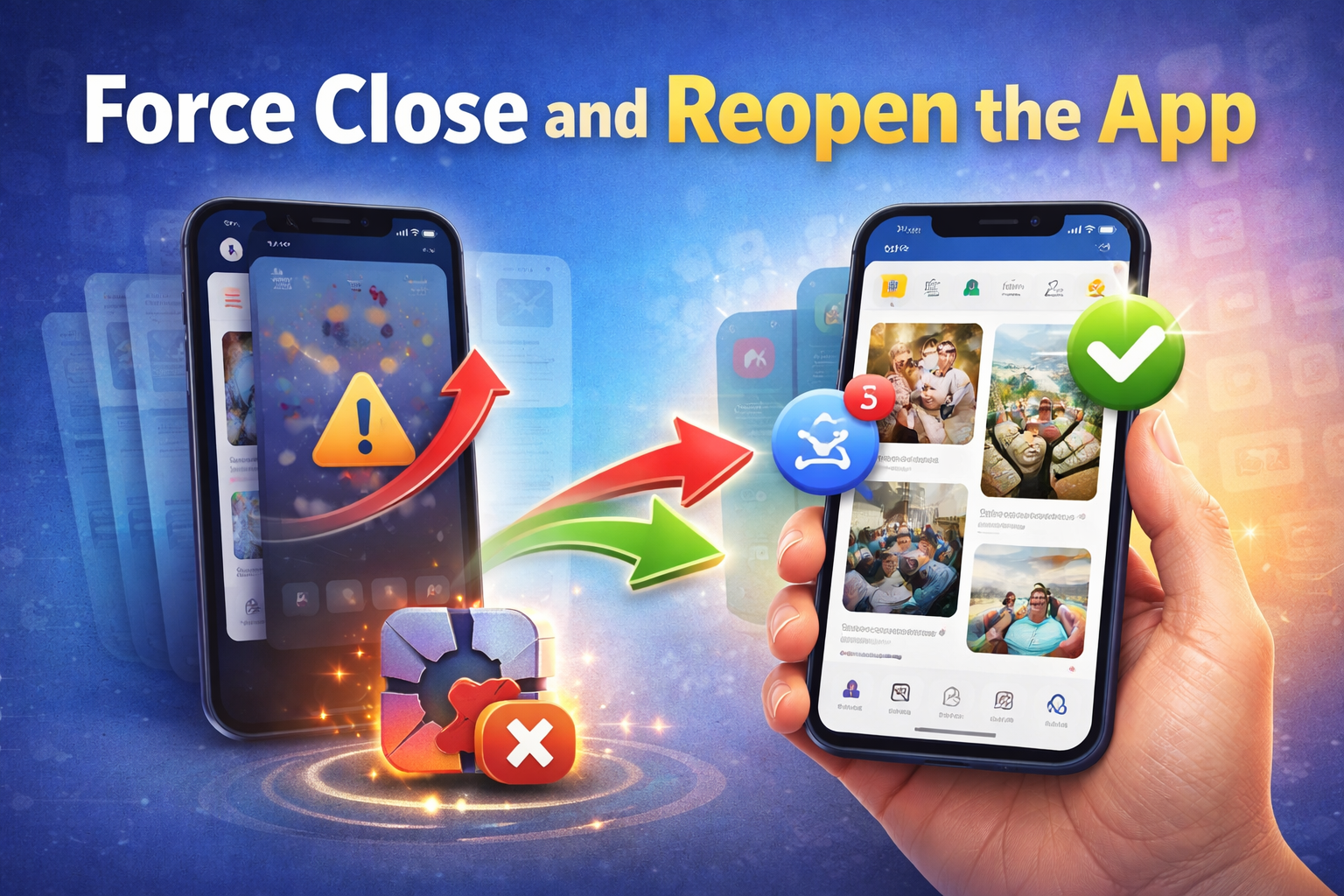
Sometimes, the app is stuck in the background and fails to load properly.
How to Force Close an App:
- Swipe up from the bottom of the screen and pause (or double-click the Home button on older iPhones).
- Find the app that won’t open.
- Swipe the app card upward to close it.
- Reopen the app from the Home Screen.
This simple step often fixes minor glitches instantly.
2. Restart Your iPhone
Restarting your iPhone refreshes the system and clears temporary memory issues that may prevent apps from opening.
How to Restart iPhone:
- iPhone X or later: Press and hold the Side button + Volume button → Slide to power off.
- iPhone 8 or earlier: Press and hold the Power button → Slide to power off.
Wait about 30 seconds, then turn your iPhone back on and test the app again.
3. Check for App Updates
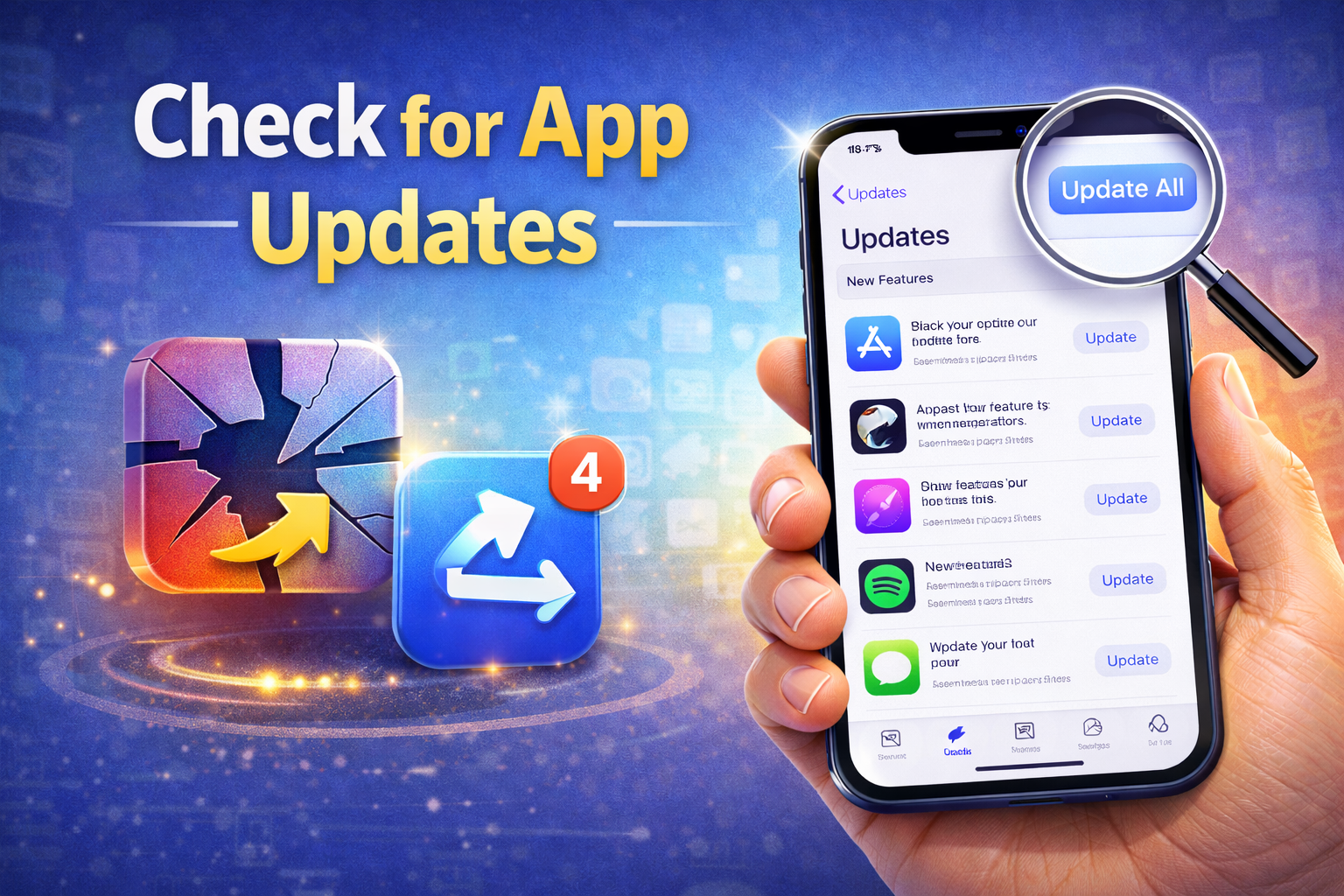
An outdated app may not be compatible with your current iOS version.
Steps to Update Apps:
- Open the App Store
- Tap your profile icon
- Scroll down to see pending updates
- Tap Update next to the problematic app (or Update All)
Developers frequently release bug fixes to resolve app crashes and opening issues.
4. Check for iOS Software Updates
If many apps are not opening, your iOS version might be the problem.
How to Update iOS:
- Go to Settings
- Tap General
- Select Software Update
- Download and install the latest version
iOS updates often fix system bugs that affect app performance.
5. Check Internet Connection
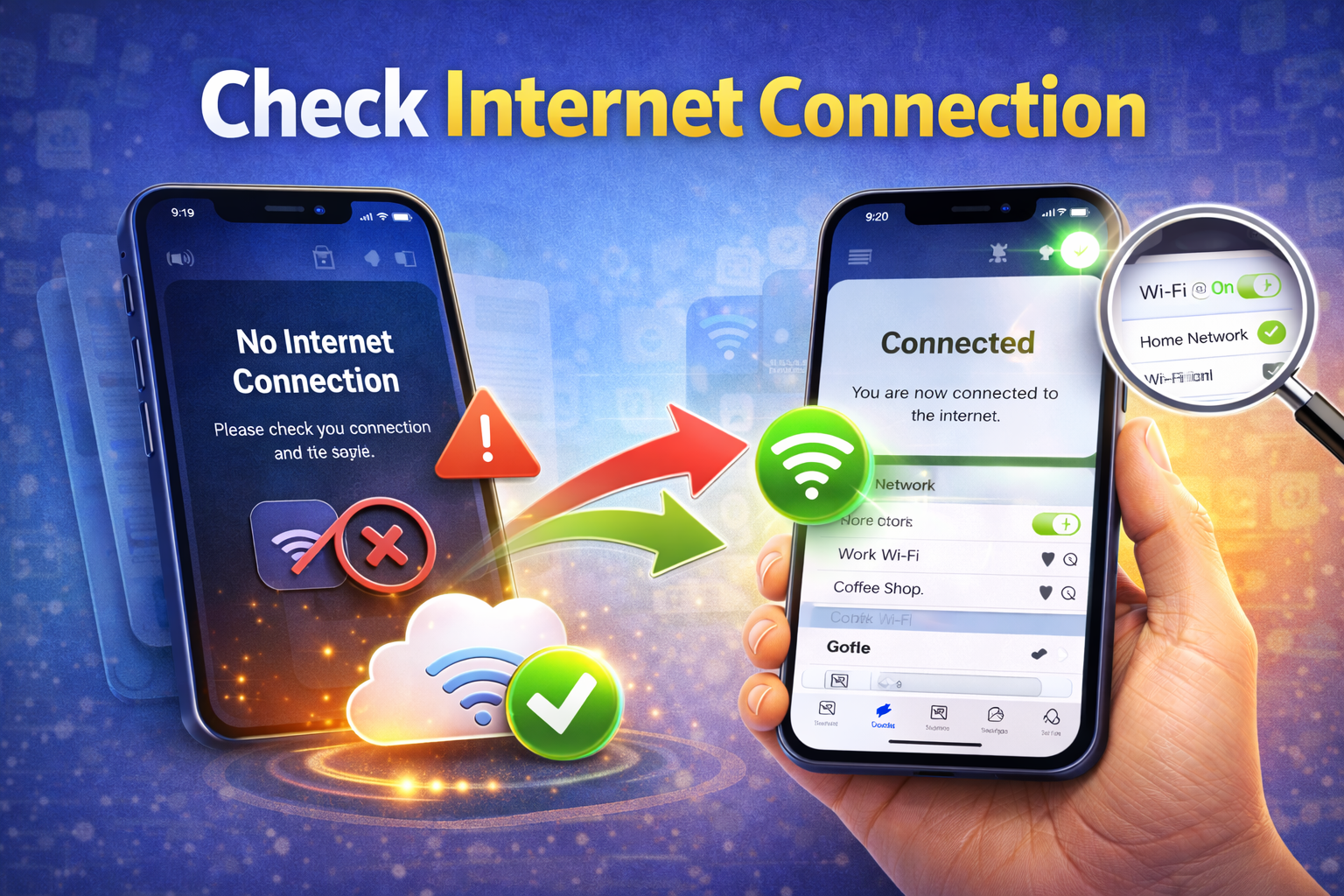
Some apps require a stable internet connection to open properly, especially social media, banking, and streaming apps.
What to Do:
- Switch between Wi-Fi and Mobile Data
- Turn Airplane Mode ON, wait 10 seconds, then turn it OFF
- Restart your router if using Wi-Fi
If an app opens only when connected to the internet, poor connectivity may be the cause.
6. Free Up Storage Space
Low storage can prevent apps from opening or functioning correctly.
How to Check Storage:
- Go to Settings
- Tap General
- Select iPhone Storage
If storage is nearly full:
- Delete unused apps
- Remove large videos or photos
- Clear Safari cache
- Offload unused apps
Aim to keep at least 3–5 GB of free space.
7. Delete and Reinstall the App
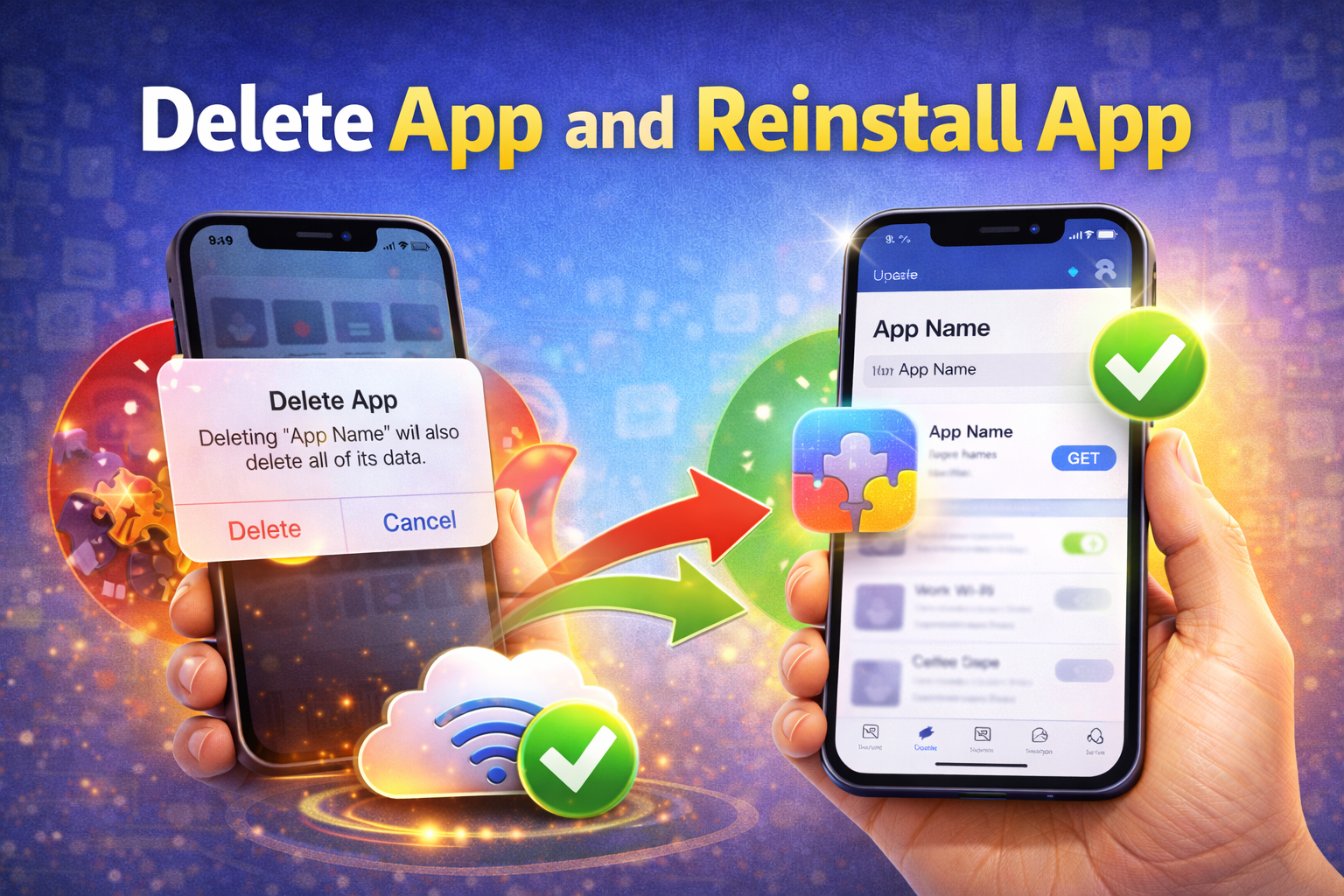
Corrupted app files can stop an app from opening.
Steps:
- Long-press the app icon
- Tap Remove App
- Choose Delete App
- Restart your iPhone
- Reinstall the app from the App Store
Note: Some apps may delete local data when uninstalled. Ensure you’re logged into your account before deleting.
8. Check App Permissions
Apps may fail to open if required permissions are disabled.
How to Check Permissions:
- Open Settings
- Scroll down and tap the app name
- Enable required permissions such as:
- Camera
- Microphone
- Location
- Cellular Data
Some apps won’t launch properly without specific permissions.
9. Disable Screen Time Restrictions
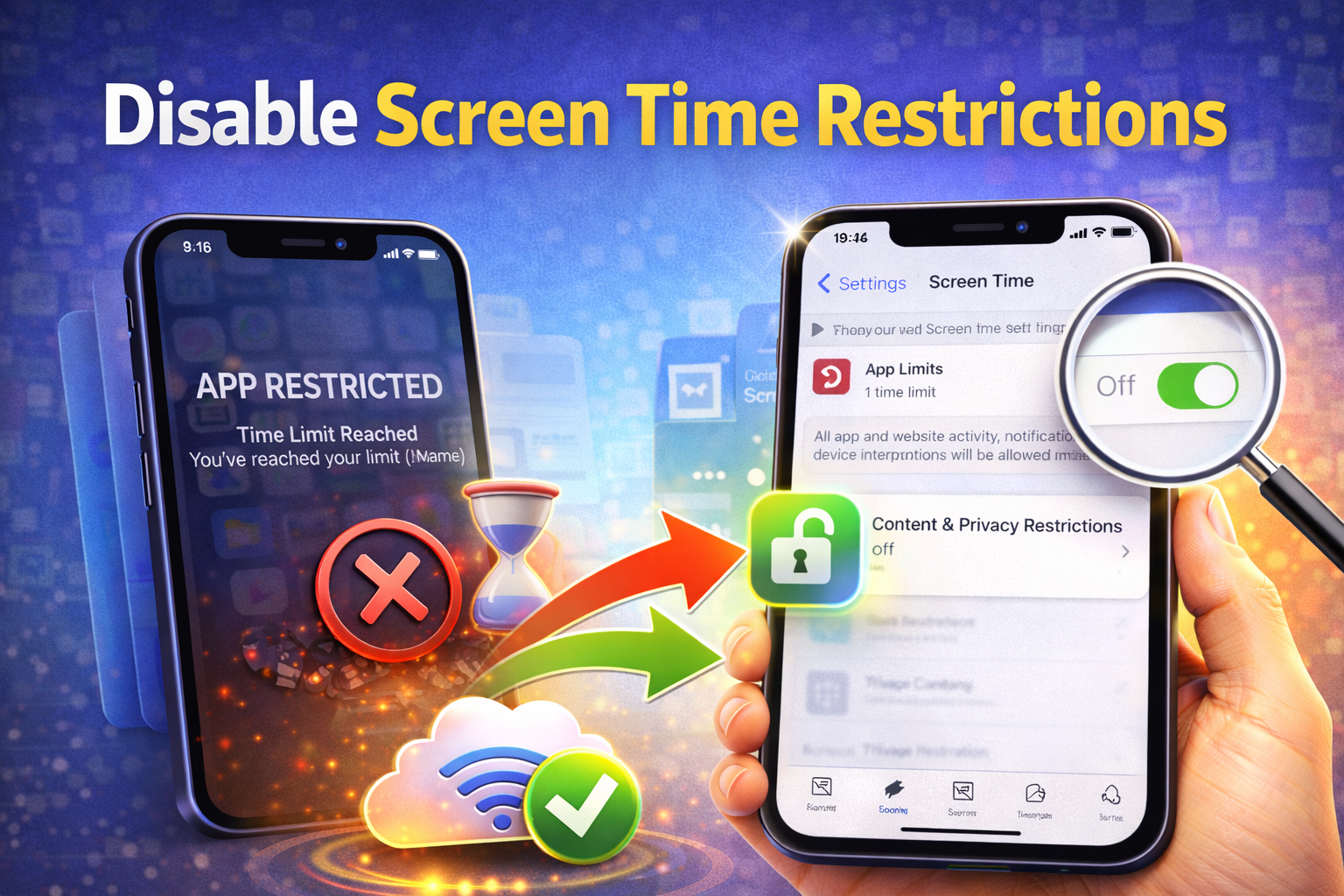
Screen Time restrictions can block apps from opening without obvious warning.
Steps:
- Go to Settings
- Tap Screen Time
- Select App Limits and Content & Privacy Restrictions
- Disable restrictions or allow the affected app
This is especially common on shared or child-restricted iPhones.
10. Reset All Settings (No Data Loss)
If multiple apps refuse to open, system settings may be corrupted.
How to Reset Settings:
- Go to Settings
- Tap General
- Select Transfer or Reset iPhone
- Tap Reset
- Choose Reset All Settings
✅ This will not delete photos, apps, or data
❌ Wi-Fi passwords and preferences will be reset
11. Check App Compatibility
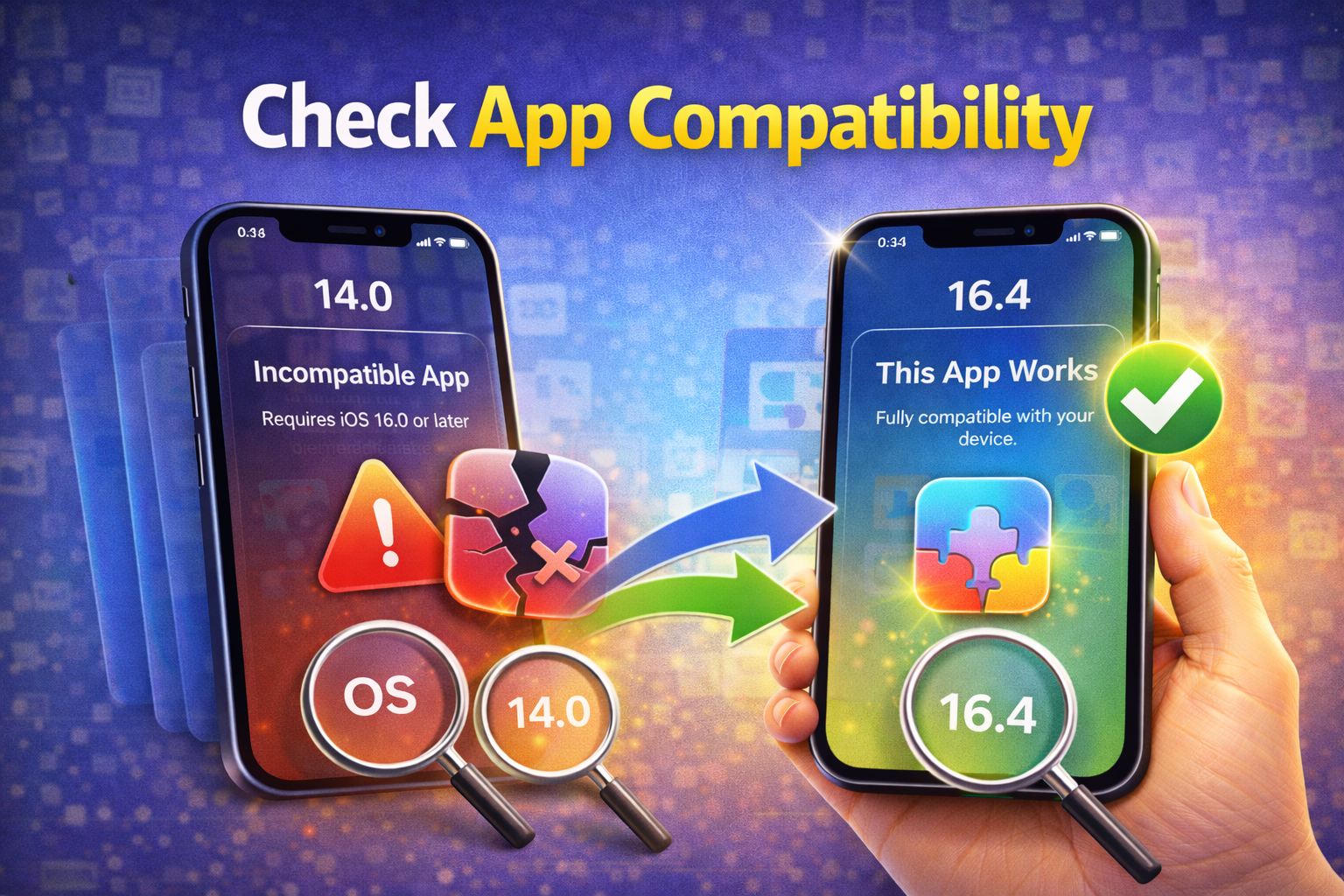
Some older apps are no longer supported on newer iOS versions.
What to Do:
- Check the app’s page on the App Store
- Read recent reviews
- Contact the app developer
- Look for alternative apps
If an app hasn’t been updated in years, it may no longer work properly.
12. Sign Out and Back Into Apple ID (Optional)
Apple ID sync issues can sometimes affect app behavior.
Steps:
- Go to Settings
- Tap your Apple ID name
- Scroll down and tap Sign Out
- Restart iPhone
- Sign back in
Make sure you know your Apple ID password before signing out.
13. Restore iPhone (Last Resort)
If nothing works and apps still won’t open, restoring iPhone may be necessary.
Important:
- Back up your data to iCloud or iTunes
- Use Restore from Backup to avoid data loss
This step should only be used when all other fixes fail.
When to Contact Apple Support
Contact Apple Support if:
- Apps never open even after restore
- iPhone overheats constantly
- System apps (Settings, Phone, App Store) won’t open
- Hardware issues are suspected
Tips to Prevent Apps Not Opening in the Future
- Keep iOS and apps updated
- Avoid installing apps from unknown developers
- Maintain sufficient storage space
- Restart iPhone occasionally
- Avoid beta iOS on main devices
Conclusion
Apps not opening on iPhone can be annoying, but in most cases, the problem is software-related and easy to fix. From force-closing apps and updating iOS to reinstalling problematic apps, these solutions cover nearly every scenario.
By following this guide step by step, you can restore normal app functionality without losing data or visiting a repair shop. If the problem persists, Apple Support is always there to help.
