Fix Apps Not Playing Audio on Android (Easy Guide)
Introduction
You’re watching a video, playing a game, or using your favorite app—and suddenly there’s no sound at all. Frustrating, right? You’re not alone. Many Android users face this issue where apps stop playing audio without any clear reason.
In this guide, we’ll show you how to fix apps not playing audio on Android using simple, proven methods. Whether it’s a minor setting issue or a deeper system glitch, here’s what works to bring your sound back.
Table of Contents
- What is the Problem?
- Why Does This Problem Happen?
- How to Fix Apps Not Playing Audio on Android
- Advanced Fixes
- Prevent This Problem in the Future
- Common FAQs
- Conclusion
What is the Problem?
The issue “apps not playing audio on Android” occurs when certain apps—or all apps—fail to produce sound, even though your device seems fine otherwise.
Common Symptoms
- No sound in apps like YouTube, Instagram, or games
- Audio works with headphones but not speakers
- Media volume is up, but still no sound
- Sound works in some apps but not others
- Sudden audio loss after an update
This can happen randomly and affect both system apps and third-party apps.
Why Does This Problem Happen?
Understanding the cause helps you fix it faster. Here are the most common reasons:
1. Muted or Low Volume Settings
- Media volume might be turned down
- Silent or Do Not Disturb mode may be active
2. App-Specific Issues
- The app may have internal audio settings
- Bugs or outdated versions can break sound
3. Bluetooth or Headphone Conflicts
- Audio may be routed to a connected device
- Stuck headphone detection can mute speakers
4. Software Glitches
- Temporary system bugs
- Conflicts after updates
5. Cache or Data Corruption
- Corrupted app cache can cause audio issues
6. Hardware Problems
- Speaker damage or dirt
- Faulty audio components
How to Fix Apps Not Playing Audio on Android (Step-by-Step)
Here’s what works. Follow these solutions in order.
1. Check Volume Settings (Quick Fix)
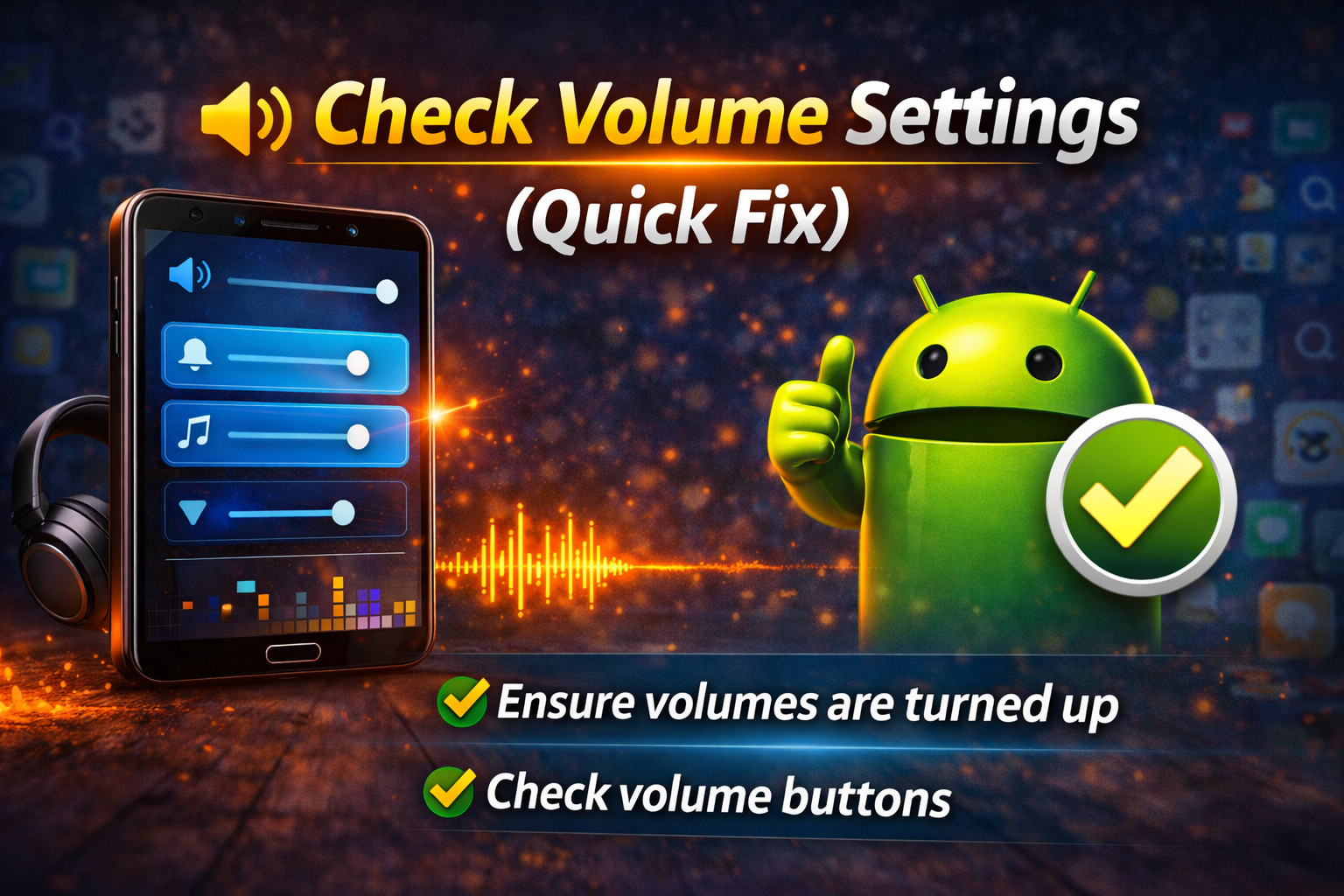
This might sound obvious, but it’s the most common cause.
Steps:
- Press the volume up button
- Tap the settings icon on the volume slider
- Ensure Media Volume is turned up
- Disable Do Not Disturb mode
💡 Pro Tip: Make sure your phone isn’t connected to Bluetooth devices.
2. Restart Your Device
A simple restart can fix temporary glitches.
Steps:
- Press and hold the power button
- Tap Restart
- Wait for your phone to reboot
👉 This clears background bugs affecting audio.
3. Check App-Specific Sound Settings
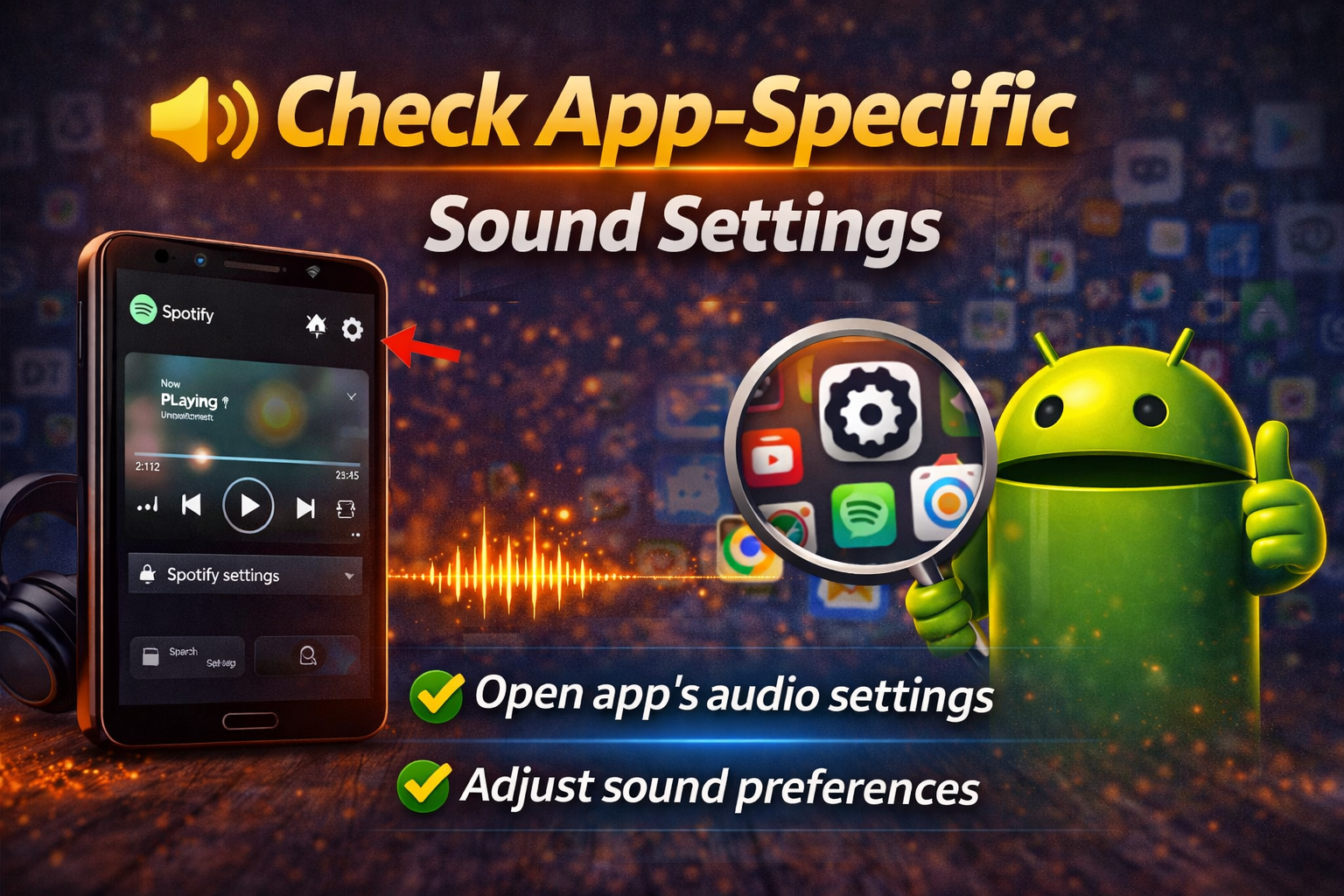
Some apps have their own audio controls.
Steps:
- Open the affected app
- Go to Settings (inside the app)
- Check if sound is muted or disabled
Example: Games often have in-game sound toggles.
4. Disconnect Bluetooth Devices
Sometimes audio is redirected without you realizing it.
Steps:
- Go to Settings > Bluetooth
- Turn Bluetooth OFF
- Test audio again
🔊 If sound returns, the issue was Bluetooth routing.
5. Clear App Cache
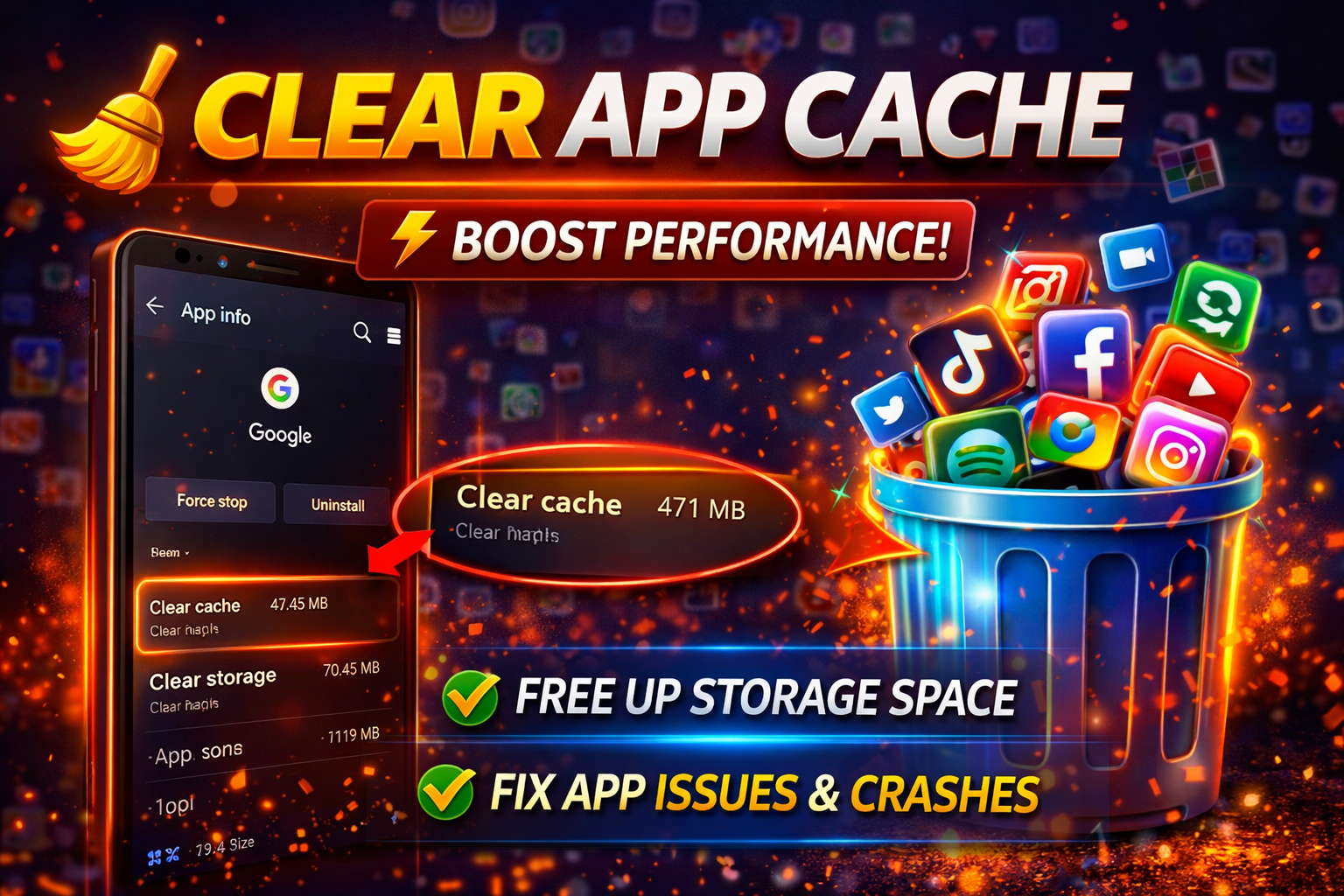
Corrupted cache can cause apps not playing audio on Android.
Steps:
- Go to Settings > Apps
- Select the affected app
- Tap Storage & Cache
- Tap Clear Cache
⚠️ Avoid “Clear Data” unless necessary—it removes login info.
6. Update the App
Outdated apps often cause audio bugs.
Steps:
- Open Google Play Store
- Search for the app
- Tap Update if available
👉 Developers frequently fix sound issues in updates.
7. Check for System Updates
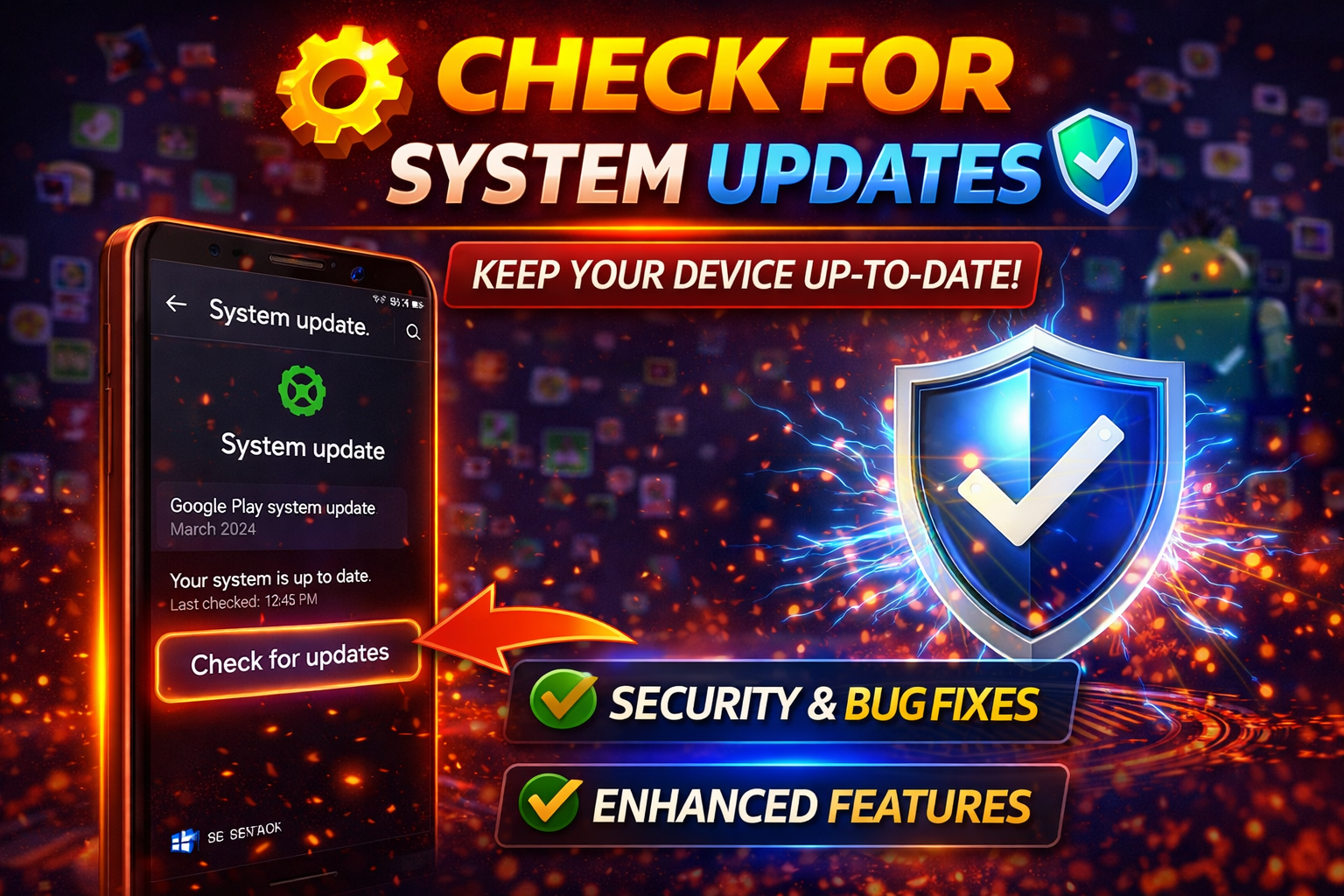
Android updates can fix audio-related bugs.
Steps:
- Go to Settings > System > Software Update
- Tap Check for updates
- Install any available updates
8. Test with Headphones or Speakers
This helps identify if it’s a hardware issue.
Steps:
- Plug in headphones
- Play audio
✔️ If sound works with headphones but not speakers, it may be a hardware issue.
Advanced Fixes (Optional)
If the basic steps don’t work, try these:
1. Reset App Preferences
This restores default settings for all apps.
Steps:
- Go to Settings > Apps
- Tap the three-dot menu
- Select Reset App Preferences
👉 This won’t delete your data but resets permissions.
2. Boot into Safe Mode
This checks if a third-party app is causing the issue.
Steps:
- Press and hold the power button
- Tap and hold Power Off
- Select Safe Mode
✔️ If audio works in Safe Mode, a third-party app is the problem.
3. Factory Reset (Last Resort)
Only do this if nothing else works.
⚠️ Warning: This will erase all data.
Steps:
- Go to Settings > System > Reset Options
- Tap Erase All Data (Factory Reset)
Prevent This Problem in the Future

Here’s how to avoid apps not playing audio on Android:
- Keep your apps updated
- Avoid installing unknown or buggy apps
- Restart your phone regularly
- Clean headphone jack and speakers
- Don’t ignore system updates
💡 Pro Insight: Many audio issues come from app conflicts—limit unnecessary apps.
Common FAQs
1. Why do some apps have sound while others don’t?
This usually happens due to app-specific settings or bugs. Check the app’s sound settings and update it.
2. Why is my phone silent even when volume is high?
Your phone may be in Do Not Disturb mode or connected to a Bluetooth device.
3. How do I fix Android sound not working without resetting?
Try clearing cache, restarting your phone, and checking volume settings first.
4. Can a software update fix audio issues?
Yes, many Android updates include bug fixes that restore sound functionality.
5. Is this a hardware problem?
Only if sound doesn’t work with speakers but works with headphones—or vice versa.
Conclusion
Dealing with apps not playing audio on Android can be frustrating, but the good news is—it’s usually easy to fix. From simple volume checks to clearing cache and updating apps, these solutions cover all the common causes.
Start with the Quick Fixes, then move to advanced steps if needed. In most cases, you’ll have your sound back in minutes.
👉 Here’s what works: Check volume, restart your phone, and clear app cache first.
If this guide helped you, feel free to share it or explore more Android troubleshooting tips. Got questions? Drop them in the comments—we’re here to help!
