How to Fix Apps Not Sending Verification Code (Easy Guide)
Meta Description
Introduction
You’re trying to log in, reset your password, or verify your account—but the verification code never arrives. Frustrating, right? You’re not alone.
Many users face this exact issue where apps fail to send verification codes (OTP), leaving them locked out of their accounts. The good news? There are simple and effective ways to fix it.
In this guide, you’ll learn how to fix apps not sending verification code quickly and easily using proven solutions that actually work.
Table of Contents
- What is the Problem?
- Why Does This Problem Happen?
- How to Fix Apps Not Sending Verification Code
- Advanced Fixes (Optional)
- Prevent This Problem in the Future
- Common FAQs
- Conclusion
What is the Problem?
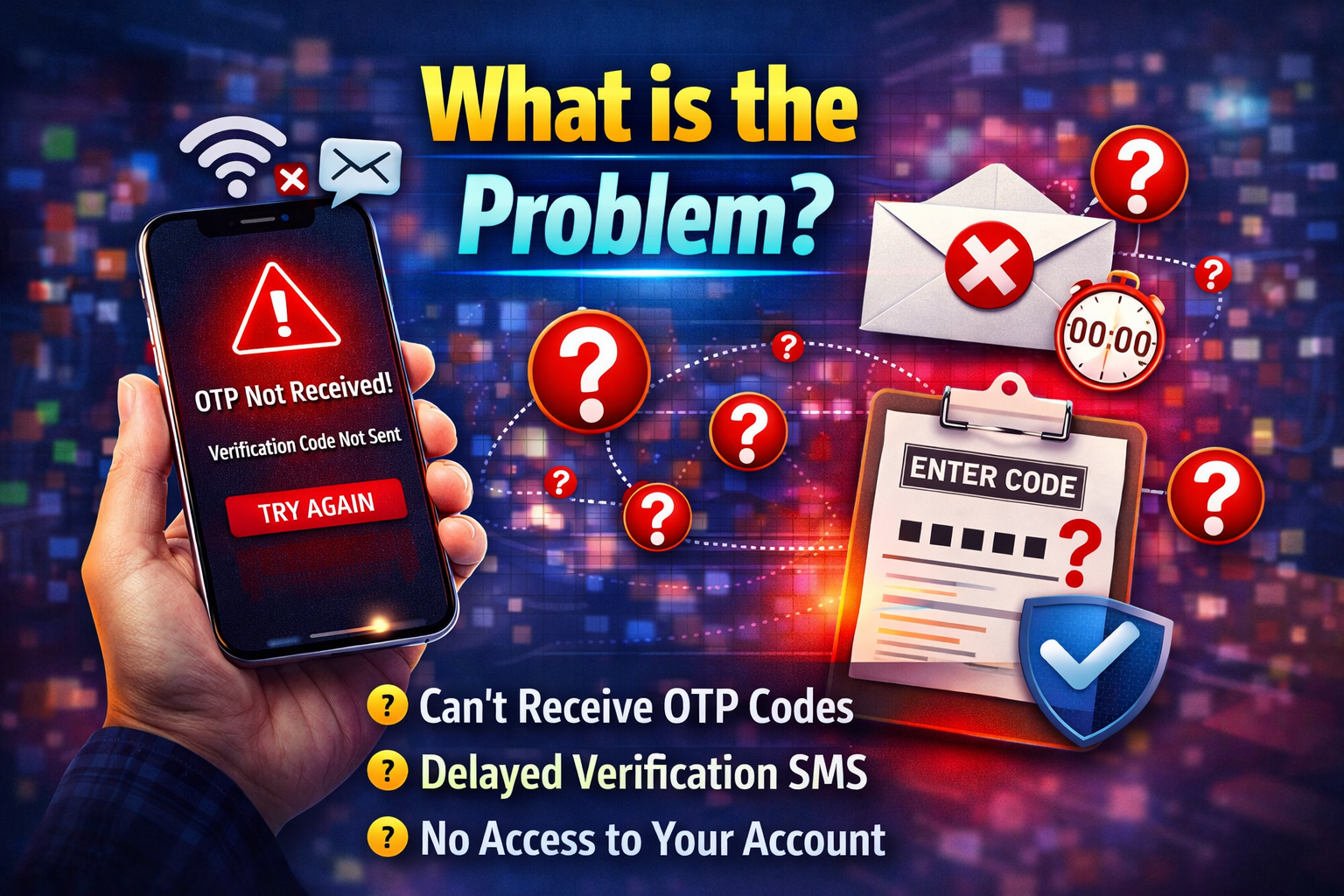
The issue occurs when an app fails to send a verification code (OTP) to your phone number or email during login, signup, or security verification.
Common Symptoms:
- No SMS verification code received
- OTP delayed for several minutes
- “Code not sent” or “Try again later” message
- Verification code sent but never arrives
- Unable to log in or verify account
This problem can affect apps like WhatsApp, Facebook, Instagram, banking apps, and more.
Why Does This Problem Happen?
There are several reasons why apps may not send verification codes. These can be technical or user-related.
1. Poor Network Connection
- Weak signal or unstable internet
- SMS services may fail to deliver
2. Incorrect Phone Number
- Wrong country code
- Typing errors in the number
3. Carrier or SMS Restrictions
- Blocked shortcodes
- Carrier filtering OTP messages
4. App or Server Issues
- Temporary server downtime
- App bugs or outdated version
5. Phone Settings Problems
- Do Not Disturb mode enabled
- Blocked unknown senders
6. Too Many Requests
- Requesting OTP multiple times quickly
- Triggering temporary security blocks
How to Fix Apps Not Sending Verification Code
Here’s what works—follow these step-by-step solutions:
1. Check Your Internet or Mobile Network (Quick Fix)
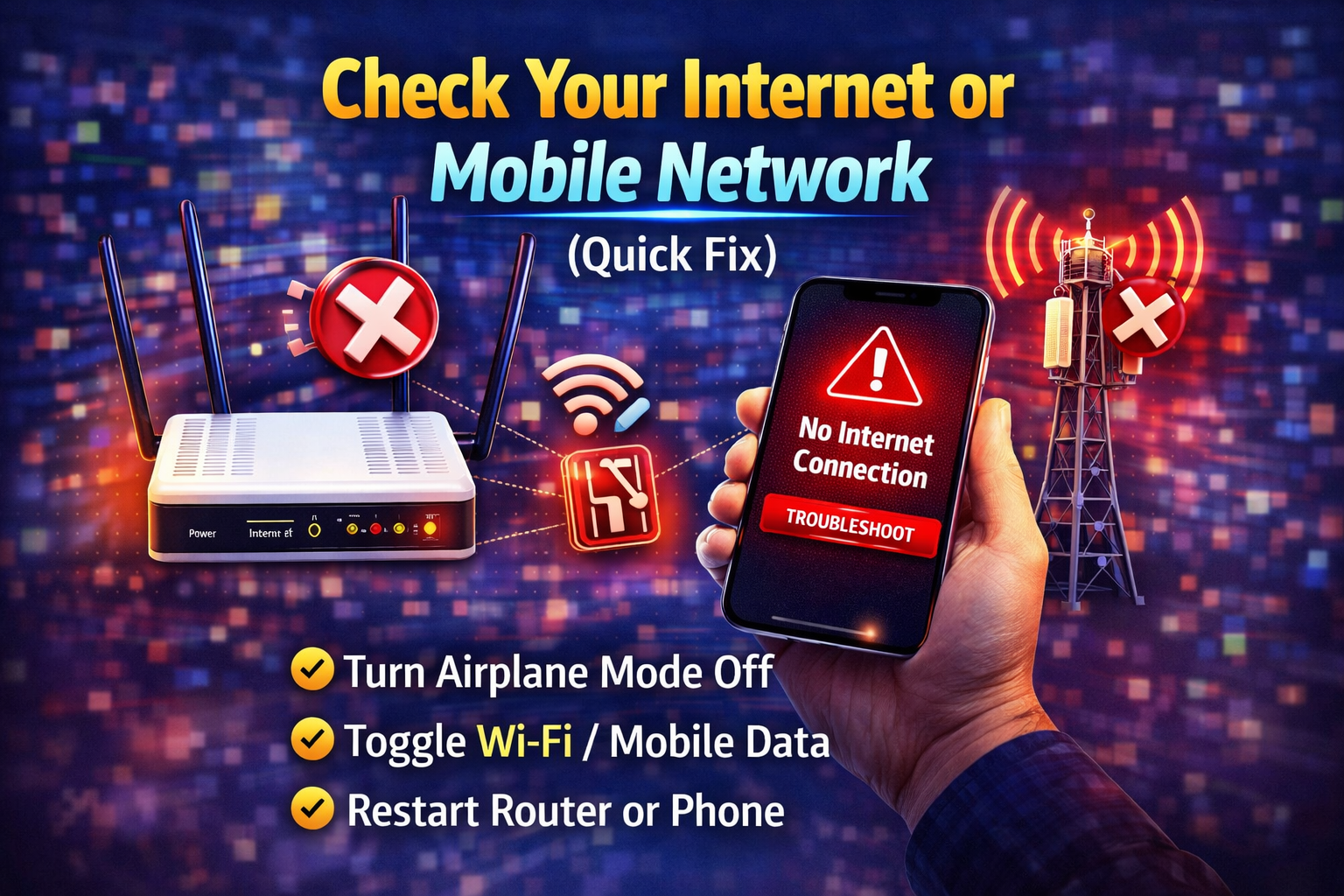
A weak connection can prevent OTP delivery.
What to do:
- Switch between Wi-Fi and mobile data
- Turn Airplane Mode ON for 10 seconds, then OFF
- Move to an area with better signal
👉 Pro Tip: Restart your device to refresh network settings.
2. Verify Your Phone Number
Even a small mistake can block the OTP.
Steps:
- Double-check your number
- Ensure correct country code (+855, +1, etc.)
- Remove extra spaces or symbols
👉 Here’s what works: Re-enter your number carefully before requesting again.
3. Wait Before Requesting Another Code
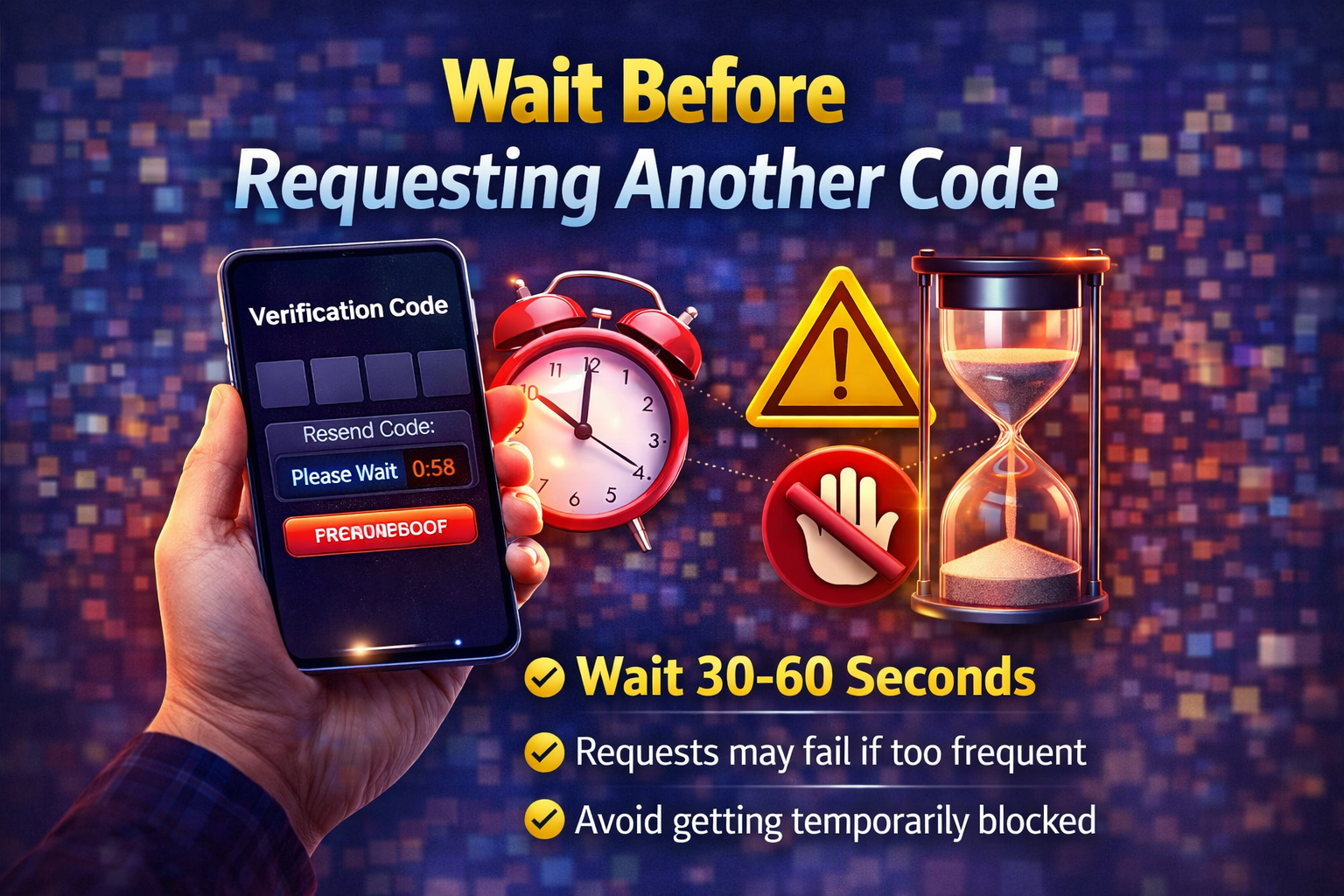
Requesting multiple codes quickly can trigger security limits.
Solution:
- Wait 30–60 seconds before retrying
- Avoid spamming the “Resend Code” button
⚠️ Warning: Too many attempts may temporarily block your number.
4. Check SMS Settings and Blocked Messages
Your phone may be blocking OTP messages.
Fix it by:
- Checking blocked contacts
- Disabling spam filters
- Turning off “Do Not Disturb” mode
👉 On Android:
- Go to Messages > Settings > Spam Protection
👉 On iPhone:
- Settings > Messages > Filter Unknown Senders (turn OFF)
5. Restart Your Device
Simple but powerful.
Restarting can fix temporary glitches affecting SMS or app performance.
Steps:
- Power off your phone
- Wait 30 seconds
- Turn it back on
6. Update or Reinstall the App
Outdated apps may fail to send verification codes.
What to do:
- Update the app via Play Store or App Store
- If the issue persists, uninstall and reinstall
👉 Pro Insight: This clears bugs and resets app permissions.
7. Check Carrier Restrictions
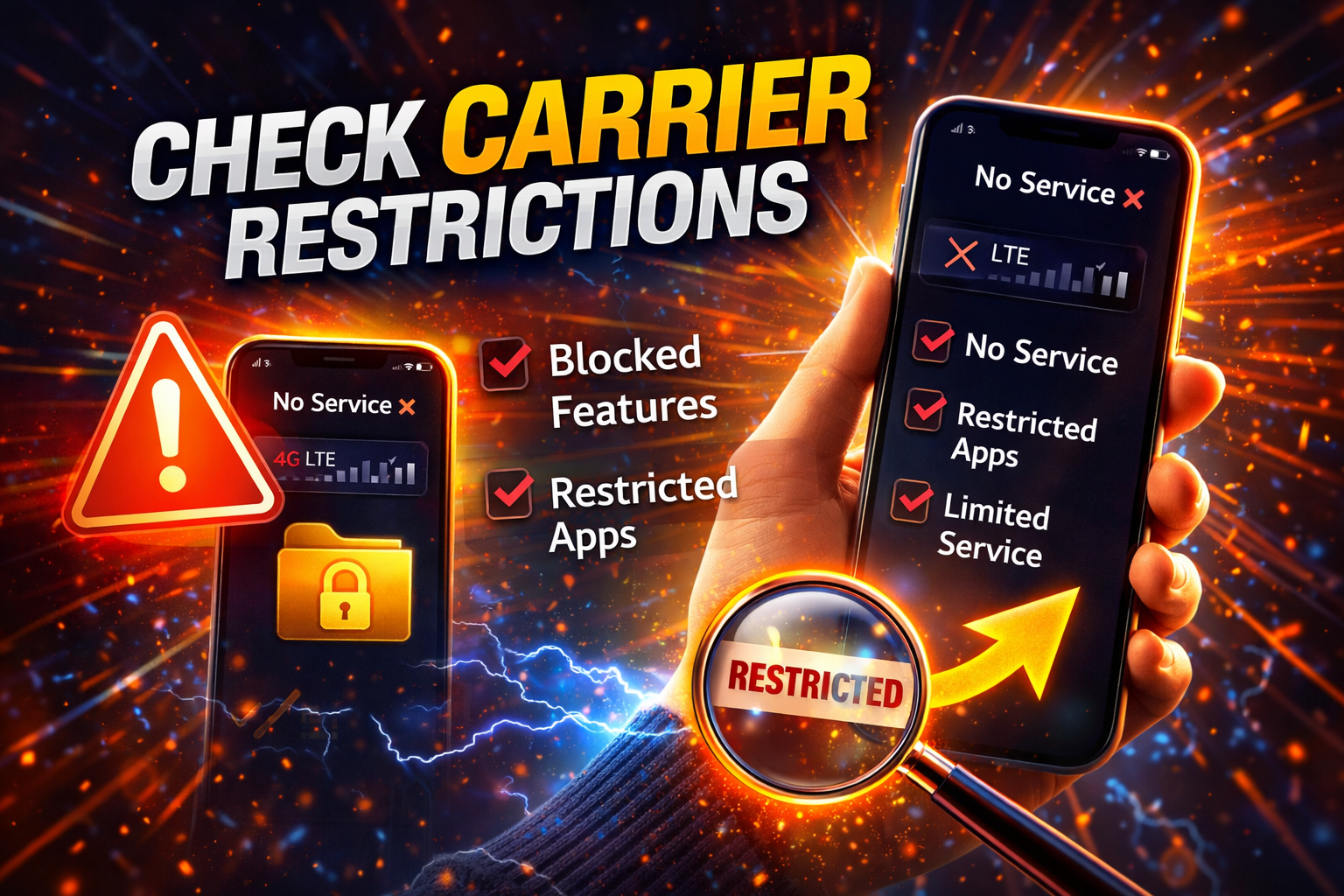
Sometimes your mobile carrier blocks OTP messages.
Fix:
- Contact your network provider
- Ask if SMS shortcodes are blocked
- Request them to enable OTP messages
8. Try Alternative Verification Methods
Many apps offer backup options.
Options include:
- Email verification
- Voice call OTP
- Authenticator apps (Google Authenticator, etc.)
👉 Quick Fix: Use “Call me instead” if available.
Advanced Fixes (Optional)
If the problem continues, try these more technical solutions:
1. Reset Network Settings
- Fixes deeper connectivity issues
- Clears Wi-Fi, mobile data, and Bluetooth settings
👉 Android: Settings > System > Reset > Network Settings
👉 iPhone: Settings > General > Transfer or Reset > Reset Network
2. Clear App Cache (Android Only)
Corrupted cache can cause OTP issues.
Steps:
- Settings > Apps > [App Name]
- Tap Storage
- Select “Clear Cache”
3. Disable VPN or Proxy
VPNs can block OTP delivery.
Solution:
- Turn off VPN
- Try again using your normal network
Prevent This Problem in the Future
Avoid dealing with this issue again by following these tips:
- Always keep your apps updated
- Maintain a stable internet connection
- Save correct phone number with country code
- Avoid requesting OTP multiple times
- Keep SMS permissions enabled for apps
- Regularly restart your device
👉 Pro Tip: Use authenticator apps for faster and more reliable verification.
Common FAQs
1. Why am I not receiving verification codes on my phone?
This usually happens بسبب poor network, incorrect number, or SMS restrictions. Check your settings and connection first.
2. How long should I wait for an OTP?
Most OTPs arrive within seconds, but delays of up to 2–5 minutes can happen depending on network conditions.
3. Can my carrier block verification codes?
Yes. Some carriers block shortcodes or international SMS. Contact your provider to fix it.
4. Does using a VPN affect OTP delivery?
Yes. VPNs can interfere with SMS or app servers. Turn it off before requesting a code.
5. What should I do if none of the fixes work?
Contact the app’s support team. They can manually verify your account or provide alternative solutions.
Conclusion
Dealing with apps not sending verification codes can be frustrating, especially when you need quick access. But as you’ve seen, there are simple fixes that work.
From checking your network to adjusting phone settings and contacting your carrier—these solutions can solve the issue fast.
👉 Try these steps now and regain access to your account in minutes.
If this guide helped you, consider sharing it or exploring more troubleshooting tips to keep your apps running smoothly!
