How to Fix Apps Not Updating Due to Region Restriction (Easy Guide)
Introduction
You’re trying to update your favorite app, but suddenly—it won’t update. You might see messages like “This app is not available in your region” or the update button simply doesn’t appear.
You’re not alone. This is a common issue many users face, especially when apps are restricted by location.
In this guide, we’ll show you how to fix apps not updating due to region restriction using simple, practical steps that work on both Android and iPhone. Whether it’s a game, social app, or tool—you’ll learn exactly what to do.
Table of Contents
- What is the Problem?
- Why Does This Problem Happen?
- How to Fix Apps Not Updating Due to Region Restriction
- Advanced Fixes (For Power Users)
- Prevent This Problem in the Future
- Common FAQs
- Conclusion
What is the Problem?
The issue occurs when an app cannot be updated because it is restricted in your region. Even if the app is already installed, updates may be blocked.
Common Symptoms
- Update button missing in Play Store or App Store
- Error message: “Not available in your country”
- App stuck on an older version
- Unable to download updates despite internet connection
- App works but features are outdated
This can be frustrating, especially when updates include bug fixes or new features.
Why Does This Problem Happen?
Understanding the cause helps you fix it faster.
1. App Region Restrictions
Some apps are only available in specific countries due to licensing or regulations.
2. App Store Country Settings
Your Google Play Store or Apple ID may be set to a different region.
3. Developer Limitations
App developers may roll out updates only in selected regions first.
4. IP Address Location
Your current IP address may not match the required country.
5. Account Mismatch
Using a foreign account can cause update conflicts.
How to Fix Apps Not Updating Due to Region Restriction
Here’s what works. Follow these step-by-step solutions:
1. Use a VPN (Quick Fix)
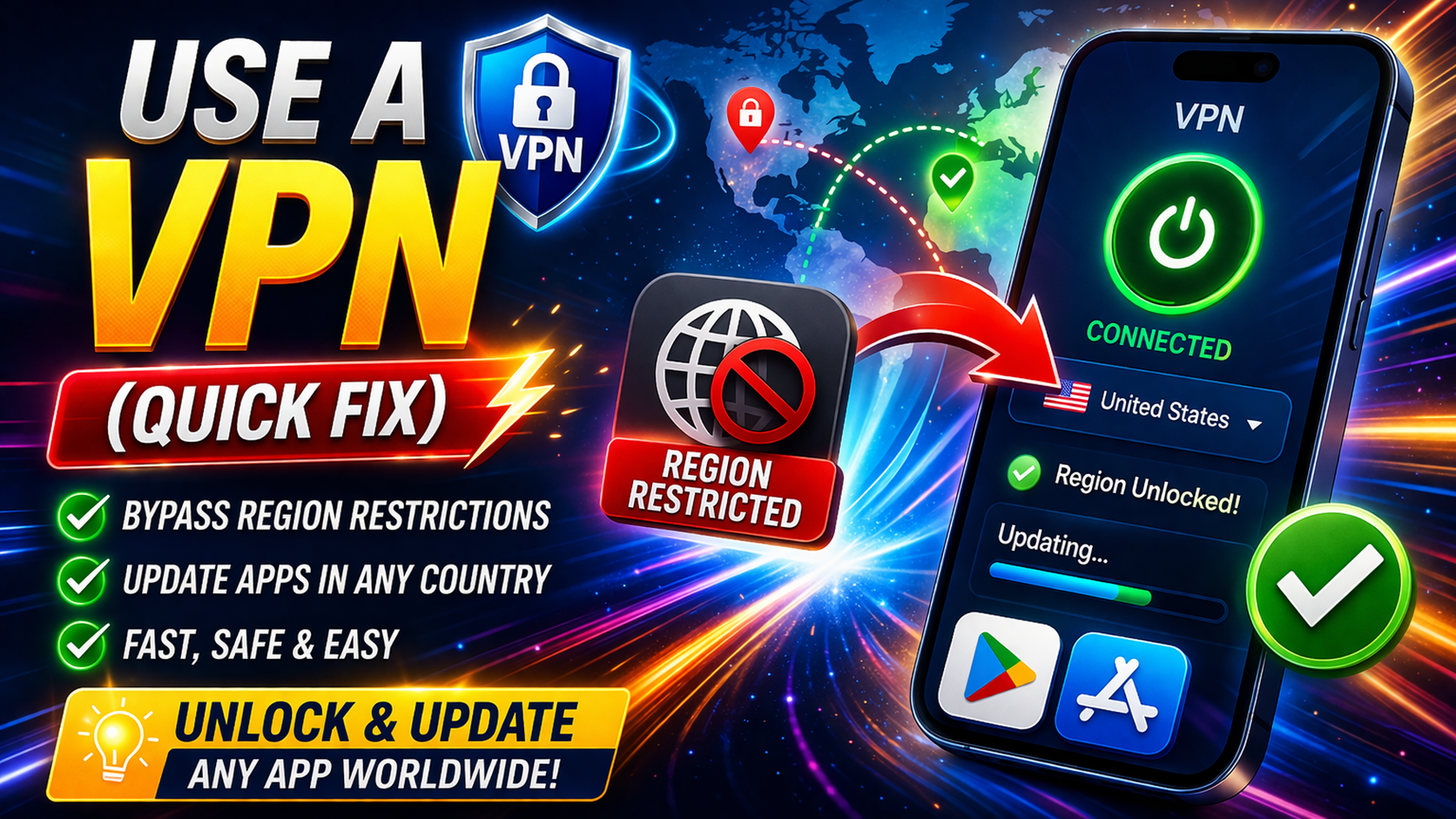
A VPN can change your virtual location.
Steps:
- Install a trusted VPN (e.g., NordVPN, ProtonVPN)
- Connect to a country where the app is available
- Open Play Store/App Store
- Try updating the app again
💡 Pro Tip: Clear the app store cache after connecting to VPN for better results.
2. Clear App Store Cache (Android)
Sometimes the issue is just cached data.
Steps:
- Go to Settings > Apps > Google Play Store
- Tap Storage
- Select Clear Cache and Clear Data
- Restart your phone
Now reopen the store and check for updates.
3. Change App Store Region
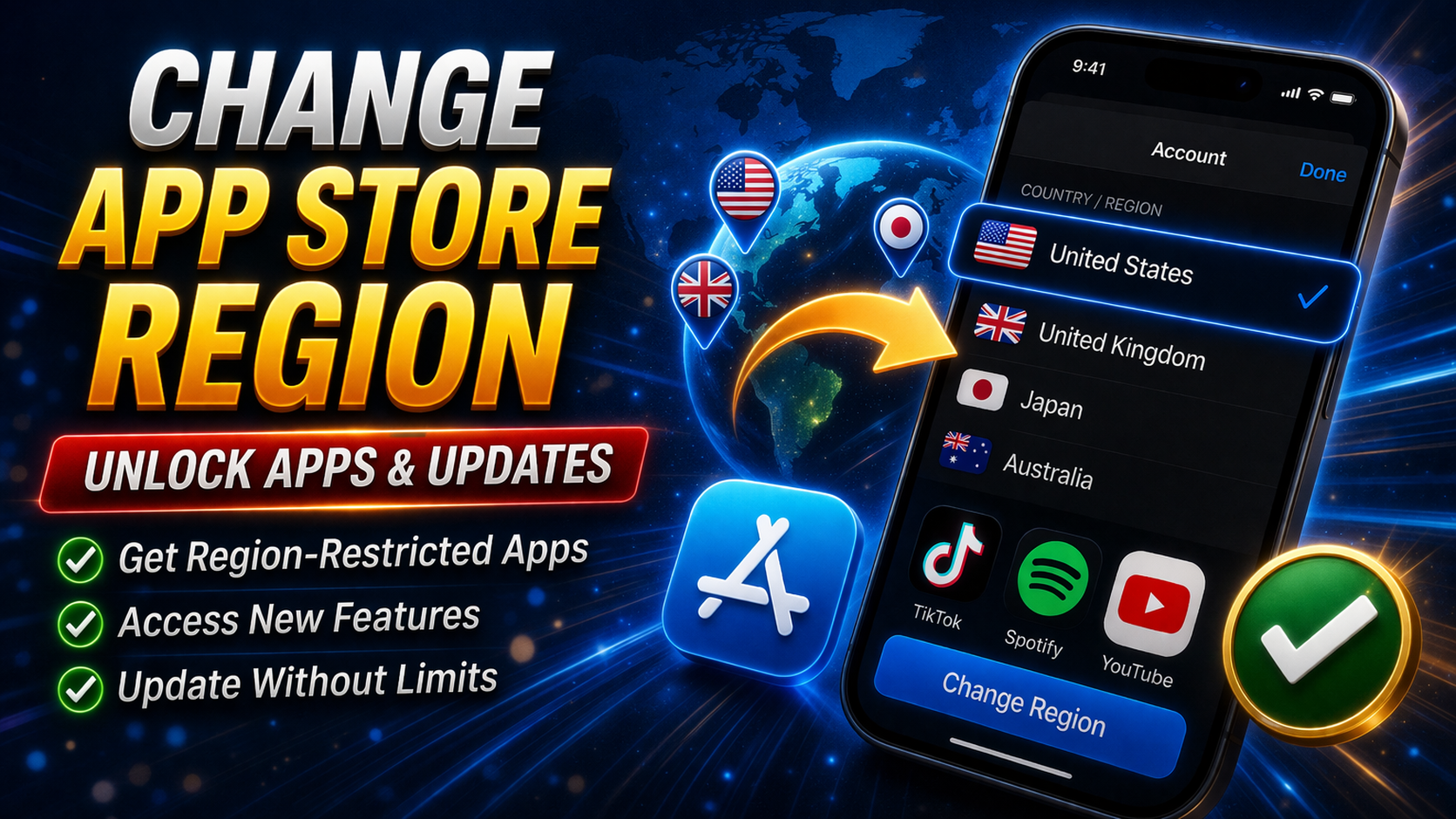
If your account region is incorrect, updates may be blocked.
On Android (Google Play Store):
- Open Play Store
- Go to Settings > General > Account Preferences
- Change country (if available)
On iPhone (App Store):
- Go to Settings > Apple ID > Media & Purchases
- Tap View Account > Country/Region
- Select a supported country
⚠️ Warning: You may need a valid payment method for that region.
4. Create a New Account (Region-Specific)
If changing region doesn’t work, create a new account.
Steps:
- Sign out of your current account
- Create a new Google/Apple ID with the target country
- Log in using the new account
- Update the app
This is one of the most reliable fixes.
5. Download APK (Android Only)
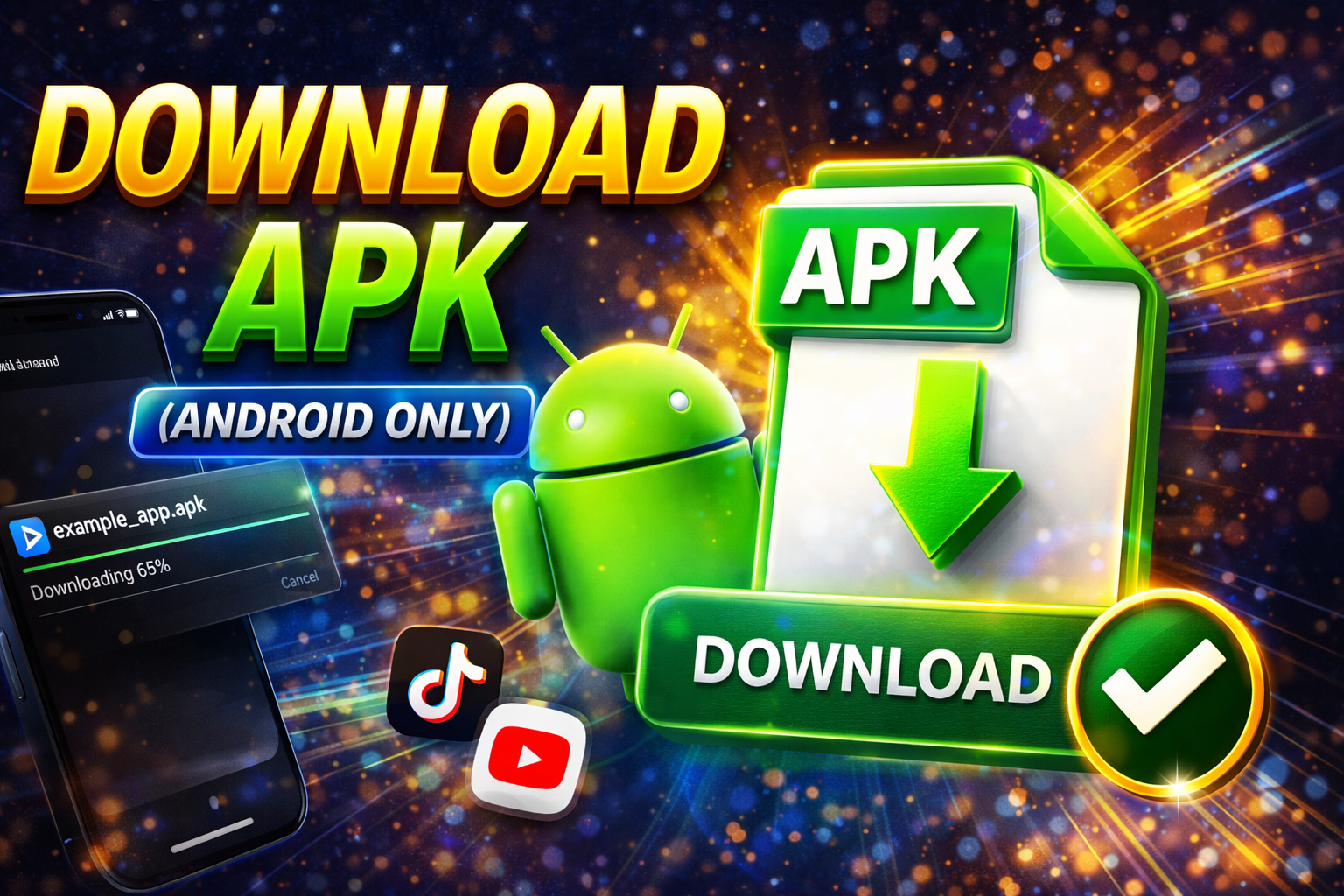
If updates are blocked, install manually.
Steps:
- Visit trusted sites like APKMirror or APKPure
- Search for the latest version
- Download and install the APK file
⚠️ Important: Only use trusted sources to avoid malware.
6. Reinstall the App
Sometimes reinstalling bypasses region issues.
Steps:
- Uninstall the app
- Connect to VPN
- Reinstall the app from the store
This often forces the latest version to install.
7. Check for App Updates via Browser
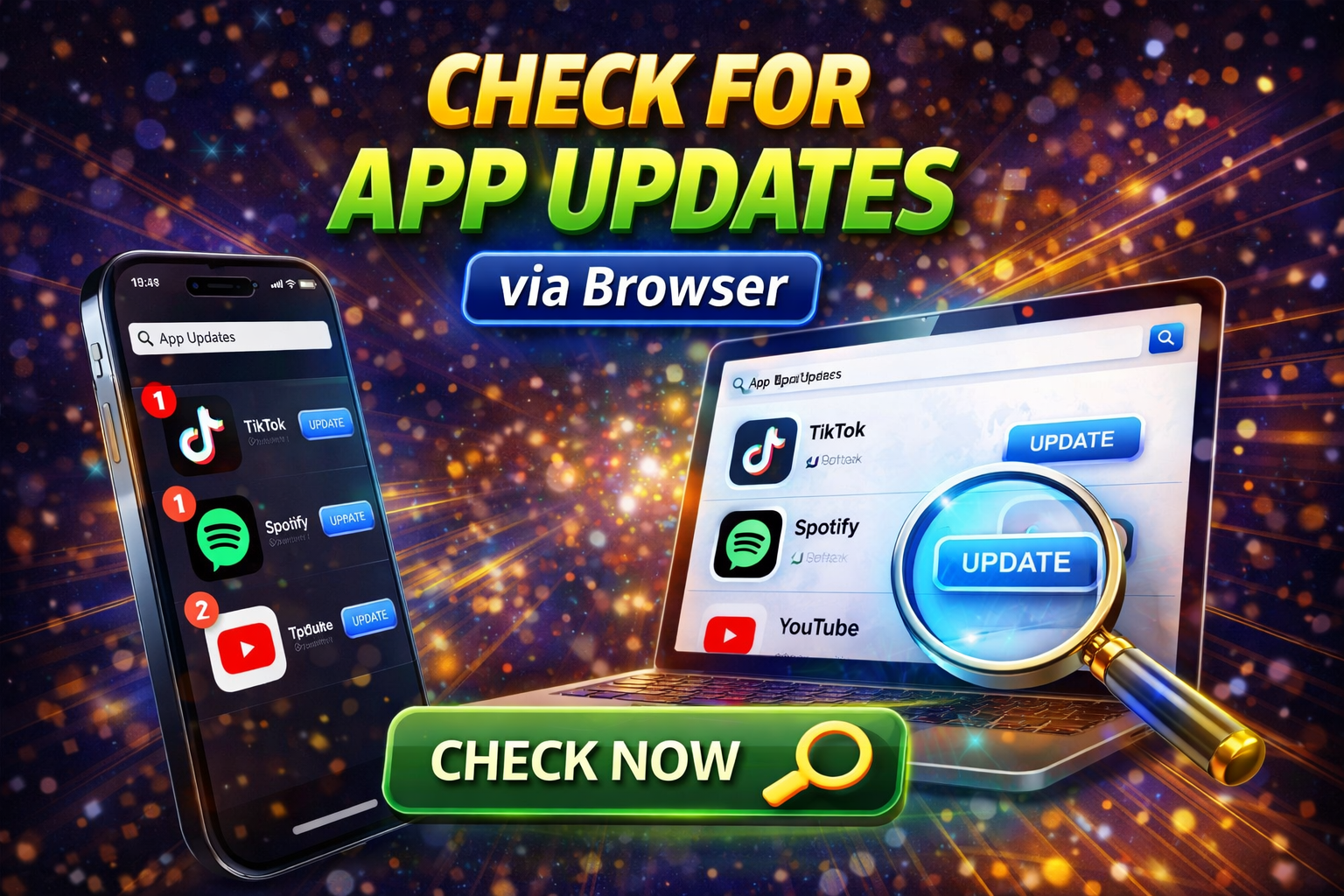
Sometimes updates are available but hidden.
Steps:
- Open Play Store/App Store in a browser
- Search for the app
- Click update (if available)
8. Wait for Global Release
If nothing works, the update may not be available in your region yet.
💡 You’re not alone—many apps roll out updates gradually.
Advanced Fixes (Optional)
For more technical users:
1. Change Device Region Settings
- Go to Settings > Language & Region
- Set your region to a supported country
2. Use Split APK Installer (SAI)
- Install advanced APK bundles manually
- Useful for apps with region-specific builds
3. Root/Jailbreak (Not Recommended)
- Allows deeper control but risks security
- Only for advanced users
Prevent This Problem in the Future
Here’s how to avoid dealing with this again:
✅ Use a consistent region account
✅ Avoid switching countries frequently
✅ Keep apps updated regularly
✅ Use globally available apps when possible
✅ Monitor app release notes
💡 Pro Insight: Developers often expand availability over time—patience sometimes pays off.
Common FAQs
1. Why are my apps not updating due to region restriction?
Because the app or update is not available in your country or your account region doesn’t match.
2. Is using a VPN safe for updating apps?
Yes, if you use a trusted VPN. Avoid free or unknown providers.
3. Can I change my App Store region anytime?
Yes, but some restrictions apply, like payment methods and subscriptions.
4. Will I lose data if I reinstall the app?
Possibly. Always back up your data before reinstalling.
5. Is downloading APK files legal?
Yes, but only if you download from trusted and legal sources.
Conclusion
Fixing apps not updating due to region restriction may seem tricky, but with the right steps, it’s completely manageable.
Here’s what works:
- Use a VPN (Quick Fix)
- Change your app store region
- Create a new account
- Install APK manually (Android)
Try these solutions one by one—you’ll likely find a fix quickly.
👉 If this guide helped you, consider sharing it or exploring more App Problems solutions to keep your apps running smoothly!
