How to Fix Apps Not Working Due to Firewall
Introduction
You open your favorite app… and nothing works. It won’t connect, load, or update. Frustrating, right?
If you’re dealing with apps not working due to firewall or security settings, you’re definitely not alone. This is a common issue across Windows, Android, iOS, and even macOS devices.
The good news? Most of these problems are easy to fix.
In this guide, you’ll learn exactly why this happens and how to fix apps not working due to firewall or security settings step-by-step—even if you’re not tech-savvy.
Table of Contents
- What is the Problem?
- Why Does This Problem Happen?
- How to Fix Apps Not Working Due to Firewall or Security Settings
- Advanced Fixes
- Prevent This Problem in the Future
- Common FAQs
- Conclusion
What is the Problem?
When apps are blocked by firewall or security settings, they can’t communicate with the internet or system resources properly.
Common Symptoms
- App won’t open or crashes immediately
- “Connection blocked” or “Network error” messages
- App stuck on loading screen
- Features not working (login, sync, updates)
- Notifications not coming through
👉 Quick Insight: Firewalls and security tools are designed to protect your device—but sometimes they become too strict.
Why Does This Problem Happen?
Understanding the cause helps you fix it faster.
1. Firewall Blocking the App
Your system firewall may block unknown or untrusted apps.
2. Antivirus or Security Software
Third-party security tools often restrict app access automatically.
3. Incorrect Permissions
Apps may not have the permissions they need (network, storage, etc.).
4. Network Restrictions
Public or restricted networks (like office or school Wi-Fi) can block apps.
5. Outdated App or OS
Older versions may conflict with newer security rules.
6. Misconfigured Settings
Manual changes in firewall or VPN settings can cause issues.
How to Fix Apps Not Working Due to Firewall or Security Settings
Here’s what works 👇
1. Allow the App Through Firewall (Quick Fix)
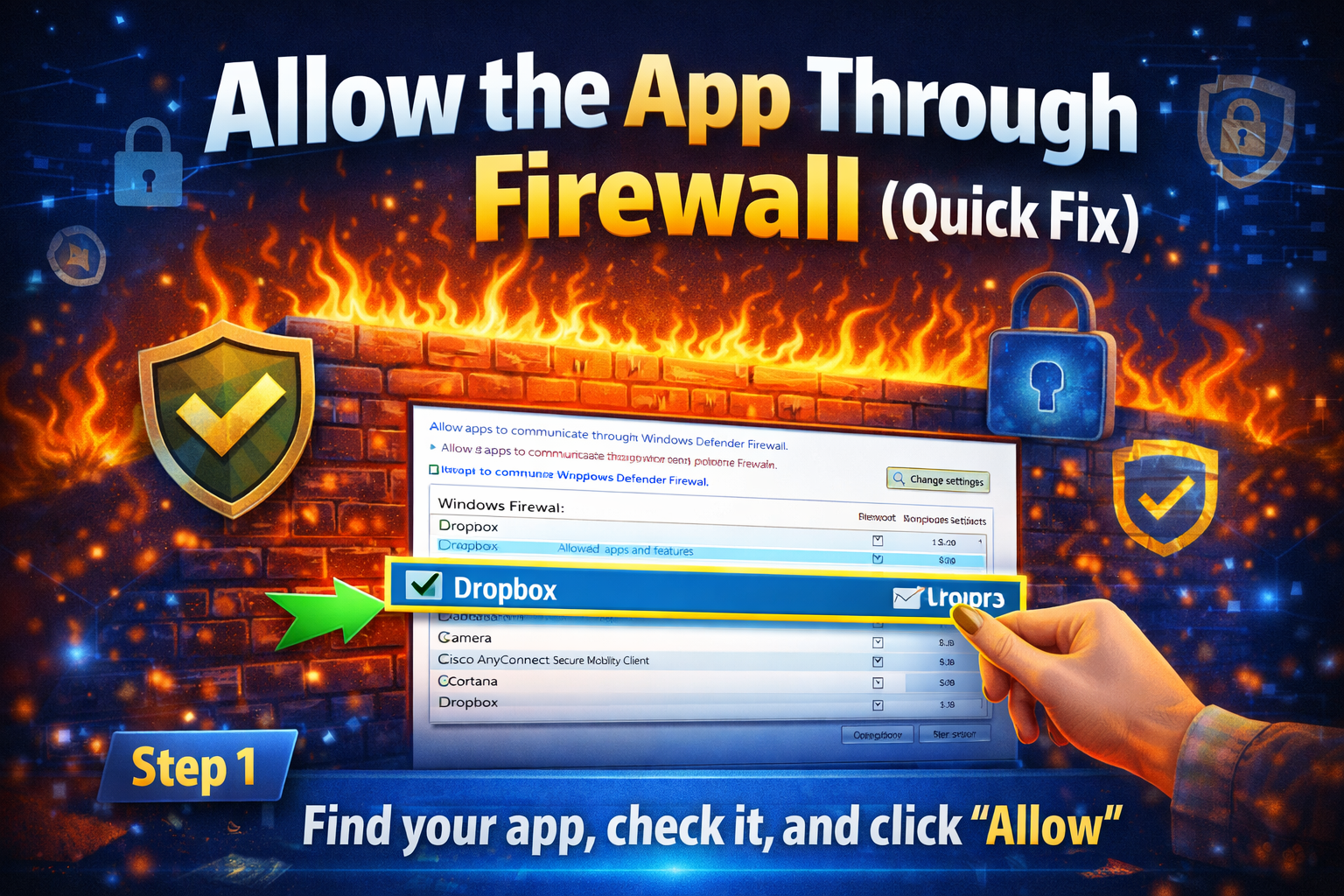
This is the most effective solution.
On Windows:
- Go to Control Panel
- Click Windows Defender Firewall
- Select Allow an app through firewall
- Find your app and check both Private and Public
- Click OK
On macOS:
- Go to System Settings
- Open Security & Privacy
- Click Firewall
- Select Firewall Options
- Add your app and allow connections
👉 Pro Tip: If the app isn’t listed, manually add it.
2. Temporarily Disable Firewall (Test Only)
If you’re unsure whether the firewall is the problem:
- Turn off your firewall temporarily
- Open the app
- Check if it works
✔ If it works → Firewall is the issue
❌ If not → Try other fixes
⚠️ Warning: Turn the firewall back on after testing.
3. Check Antivirus or Security Software

Many antivirus programs block apps silently.
What to do:
- Open your antivirus dashboard
- Look for Blocked Apps / Quarantine / Exceptions
- Add your app to the Allow List (Whitelist)
👉 Here’s what works: Popular antivirus tools like Avast, Norton, or Bitdefender often need manual exceptions.
4. Disable VPN or Proxy
VPNs and proxies can interfere with app connections.
Steps:
- Turn off VPN temporarily
- Disable proxy in network settings
- Restart the app
✔ If the app works → VPN was blocking it
5. Grant Required Permissions
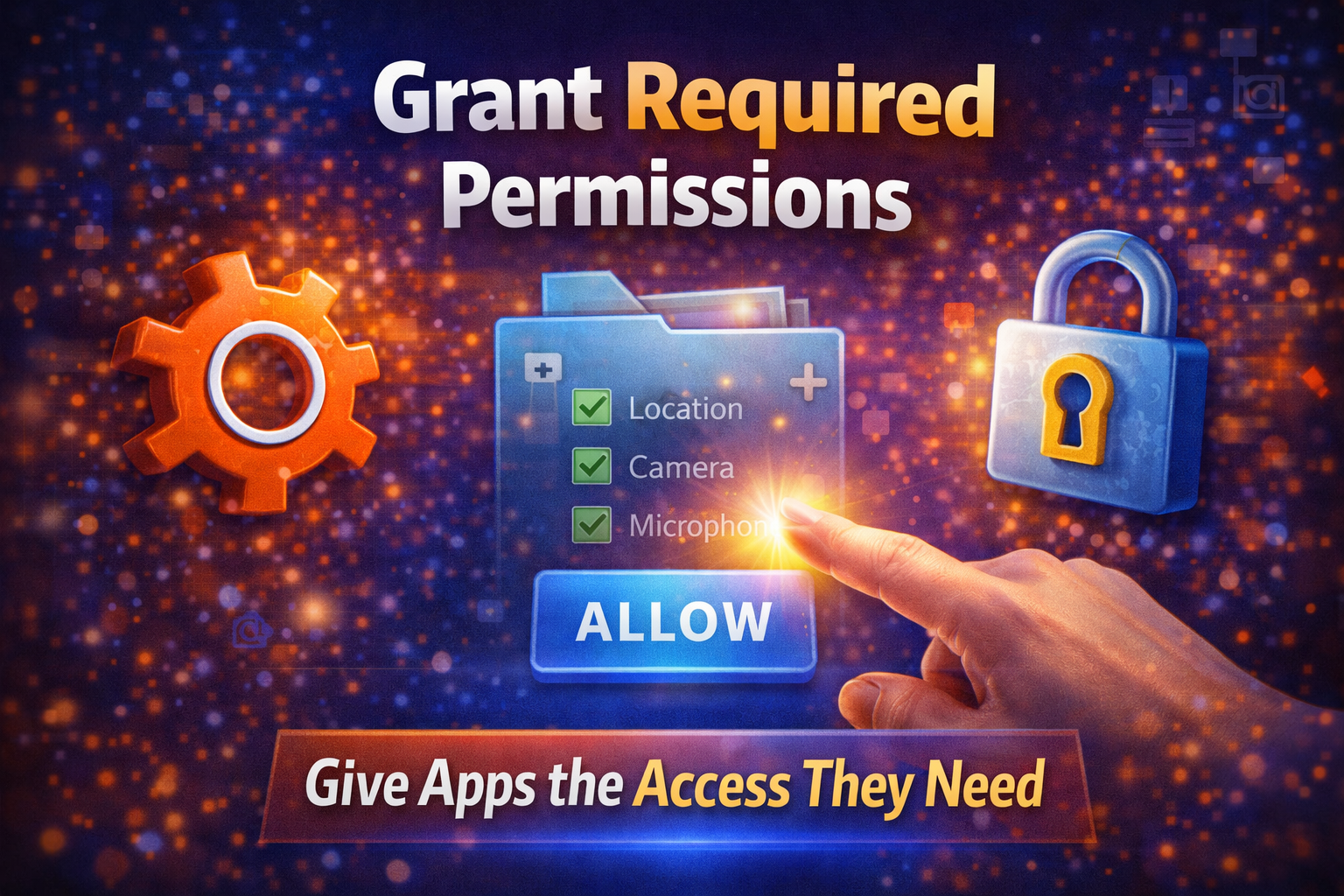
Apps need proper permissions to function.
On Android:
- Go to Settings > Apps > [App Name] > Permissions
- Enable:
- Network / Internet
- Storage
- Background data
On iPhone:
- Go to Settings > [App Name]
- Enable necessary permissions
6. Update the App and System
Outdated software can trigger security blocks.
Steps:
- Update the app via Play Store / App Store
- Update your operating system
- Restart your device
👉 Quick Fix: Updates often resolve compatibility issues instantly.
7. Reset Network Settings
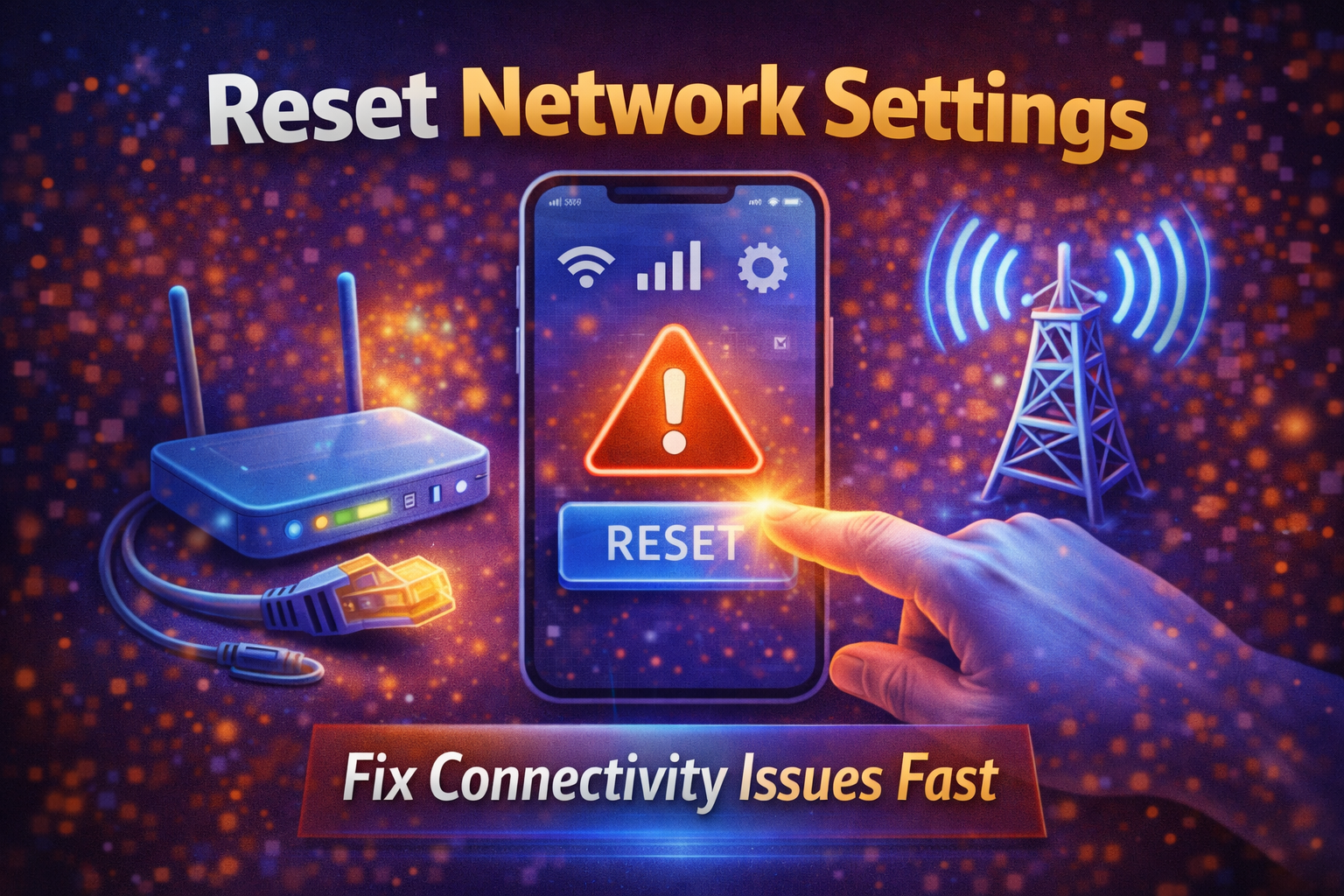
If nothing works, try this:
On Android:
- Settings → System → Reset → Reset Network Settings
On iPhone:
- Settings → General → Transfer or Reset → Reset Network Settings
⚠️ This will remove saved Wi-Fi passwords.
8. Reinstall the App
Sometimes the installation itself is corrupted.
Steps:
- Uninstall the app
- Restart your device
- Reinstall from official store
✔ This refreshes all permissions and settings
Advanced Fixes (For Technical Users)
If basic solutions didn’t work, try these:
1. Check Firewall Rules Manually
- Open advanced firewall settings
- Look for blocked inbound/outbound rules
- Remove or modify restrictions
2. Use Command Line (Windows)
Run as admin:
netsh advfirewall reset
👉 This resets firewall settings to default.
3. Inspect Router-Level Firewall
Some routers block apps or ports.
- Log into your router (e.g., 192.168.1.1)
- Check firewall or parental control settings
- Disable restrictions or open ports
Prevent This Problem in the Future
Avoid dealing with this again 👇
1. Only Install Trusted Apps
Unverified apps are more likely to be blocked.
2. Keep Everything Updated
- Apps
- OS
- Security software
3. Don’t Over-Restrict Firewall
Avoid aggressive security rules unless necessary.
4. Regularly Check Security Logs
See what’s being blocked before problems occur.
5. Use Balanced Antivirus Settings
Don’t set everything to “maximum protection” unless needed.
Common FAQs
1. Why are my apps not working on Wi-Fi but working on mobile data?
Your Wi-Fi firewall or router may be blocking the app. Check network restrictions.
2. Is it safe to disable firewall to fix apps?
Only temporarily for testing. Always turn it back on after identifying the issue.
3. How do I know if my firewall is blocking an app?
Look for:
- Connection errors
- App working after disabling firewall
- Logs in firewall settings
4. Can antivirus block apps from working?
Yes. Many antivirus tools block apps automatically without notifying you.
5. Why does this problem keep happening?
Usually due to:
- Frequent updates
- Strict security settings
- Conflicts with VPN or antivirus
Conclusion
Dealing with apps not working due to firewall or security settings can feel overwhelming but most fixes are simple once you know where to look.
Key Takeaways:
- Start with allowing the app through firewall
- Check antivirus and VPN settings
- Update everything regularly
- Use advanced fixes only if needed
👉 You’re not alone this is a very common issue, and now you know exactly how to solve it.
