How to Fix Driver Issues in Windows
Driver issues are one of the most common causes of problems in Windows computers. From hardware not working properly to random crashes, blue screen errors, or poor performance, faulty or outdated drivers can disrupt your entire system. Fortunately, most driver-related issues can be fixed without reinstalling Windows or upgrading hardware.
In this guide, you will learn what Windows drivers are, common signs of driver problems, and step-by-step methods to fix driver issues safely and effectively on Windows 10 and Windows 11.
What Are Drivers in Windows?
A driver is a small piece of software that allows Windows to communicate with hardware components such as graphics cards, printers, sound devices, network adapters, keyboards, and more. Without the correct driver, hardware may not function properly or may not work at all.
Each hardware component requires a compatible driver designed for your specific version of Windows. When drivers become outdated, corrupted, or incompatible, problems occur.
Common Signs of Driver Issues in Windows
Before fixing driver problems, it helps to recognize the symptoms. Common signs include:
- Hardware not detected (Wi-Fi, sound, USB devices)
- Blue Screen of Death (BSOD) errors
- Device Manager showing warning icons
- Screen flickering or low resolution
- Audio not working
- Slow system performance
- Random crashes or freezes
- Error messages after Windows updates
If you experience any of these issues, driver problems may be the cause.
Method 1: Restart Your Computer (Simple but Effective)
Sometimes, driver issues occur due to temporary glitches. Restarting Windows can reload drivers correctly.
Steps:
- Save your work
- Restart your computer
- Check if the issue is resolved
This may seem basic, but it often fixes minor driver conflicts.
Method 2: Check Device Manager for Driver Errors
Device Manager is the primary tool for identifying driver problems.
How to Use Device Manager:
- Press Windows + X
- Click Device Manager
- Look for devices with:
- Yellow warning triangle
- Red X icon
- Expand each category to find problematic devices
If you see warning icons, it indicates missing, corrupted, or incompatible drivers.
Method 3: Update Drivers Using Windows Update
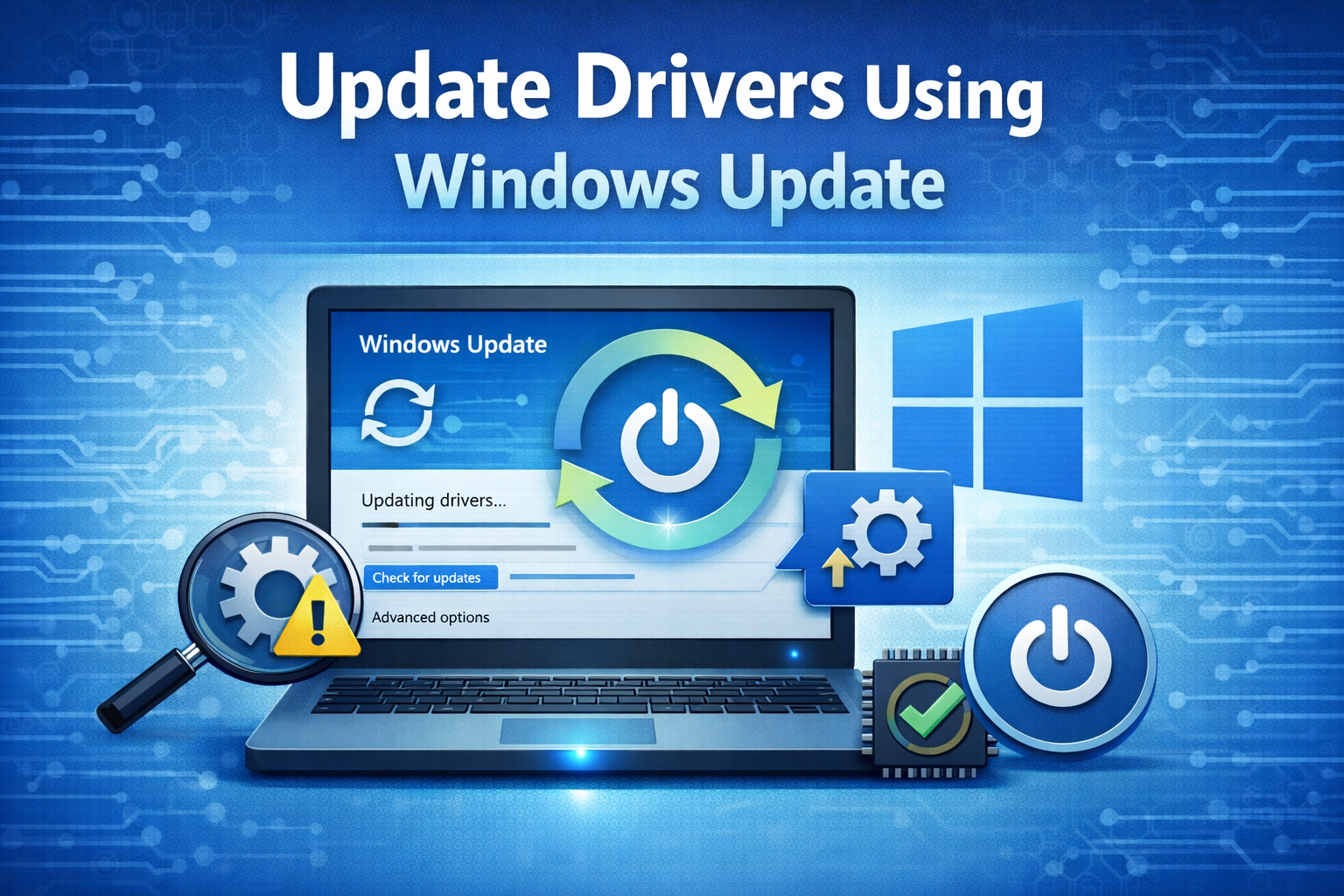
Windows Update can automatically install compatible drivers.
Steps:
- Press Windows + I to open Settings
- Go to Windows Update
- Click Check for updates
- Install any available driver updates
- Restart your computer
For many users, this is the safest and easiest way to update drivers.
Method 4: Update Drivers Manually via Device Manager
If Windows Update does not fix the issue, update the driver manually.
Steps:
- Open Device Manager
- Right-click the problematic device
- Select Update driver
- Choose Search automatically for drivers
- Follow on-screen instructions
If Windows finds a newer driver, it will install it automatically.
Method 5: Download Drivers from Manufacturer’s Website
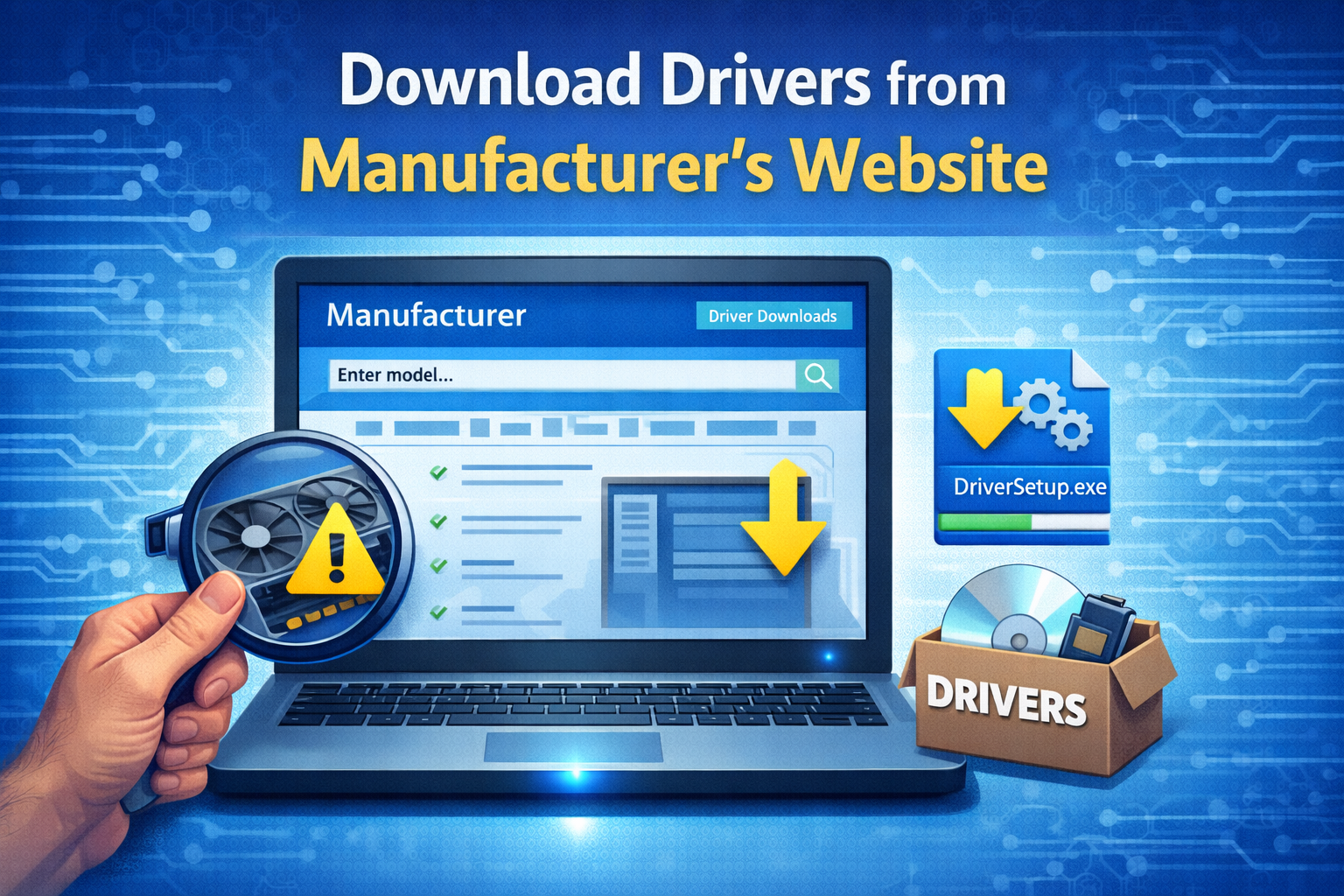
For graphics cards, network adapters, printers, and laptops, manufacturer drivers are often more reliable.
How to Do It Safely:
- Identify your hardware model:
- Press Windows + R
- Type
msinfo32and press Enter
- Visit the manufacturer’s official website (Intel, AMD, NVIDIA, Realtek, Dell, HP, Lenovo, etc.)
- Select your Windows version
- Download the latest driver
- Install and restart
Avoid third-party driver websites, as they may contain malware or incorrect drivers.
Method 6: Roll Back a Driver (After a Problematic Update)
Sometimes, a new driver causes issues. Rolling back restores the previous version.
Steps:
- Open Device Manager
- Right-click the device
- Select Properties
- Go to the Driver tab
- Click Roll Back Driver
- Restart your PC
This is especially useful after Windows updates or graphics driver updates.
Method 7: Reinstall the Driver Completely
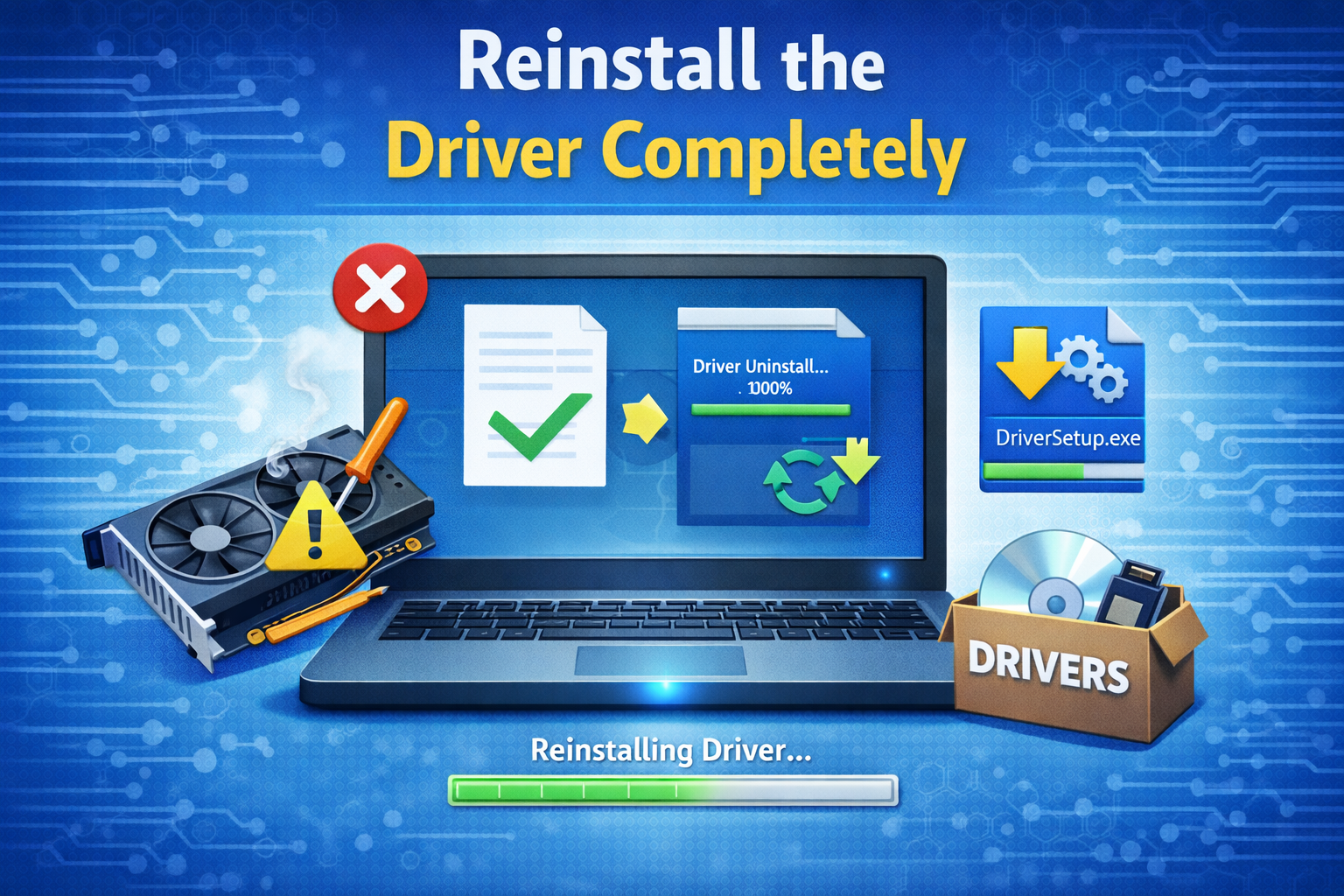
If a driver is corrupted, reinstalling it can fix the problem.
Steps:
- Open Device Manager
- Right-click the faulty device
- Click Uninstall device
- Check Delete the driver software for this device (if available)
- Restart your computer
- Windows will reinstall the driver automatically
If Windows does not reinstall it, download the driver from the manufacturer.
Method 8: Use Built-in Windows Troubleshooters
Windows includes troubleshooters that can detect and fix driver-related issues.
Steps:
- Open Settings
- Go to System > Troubleshoot
- Click Other troubleshooters
- Run relevant troubleshooters such as:
- Hardware and Devices
- Audio
- Network Adapter
- Printer
While not perfect, these tools can resolve simple driver problems.
Method 9: Fix Corrupted System Files (SFC & DISM)
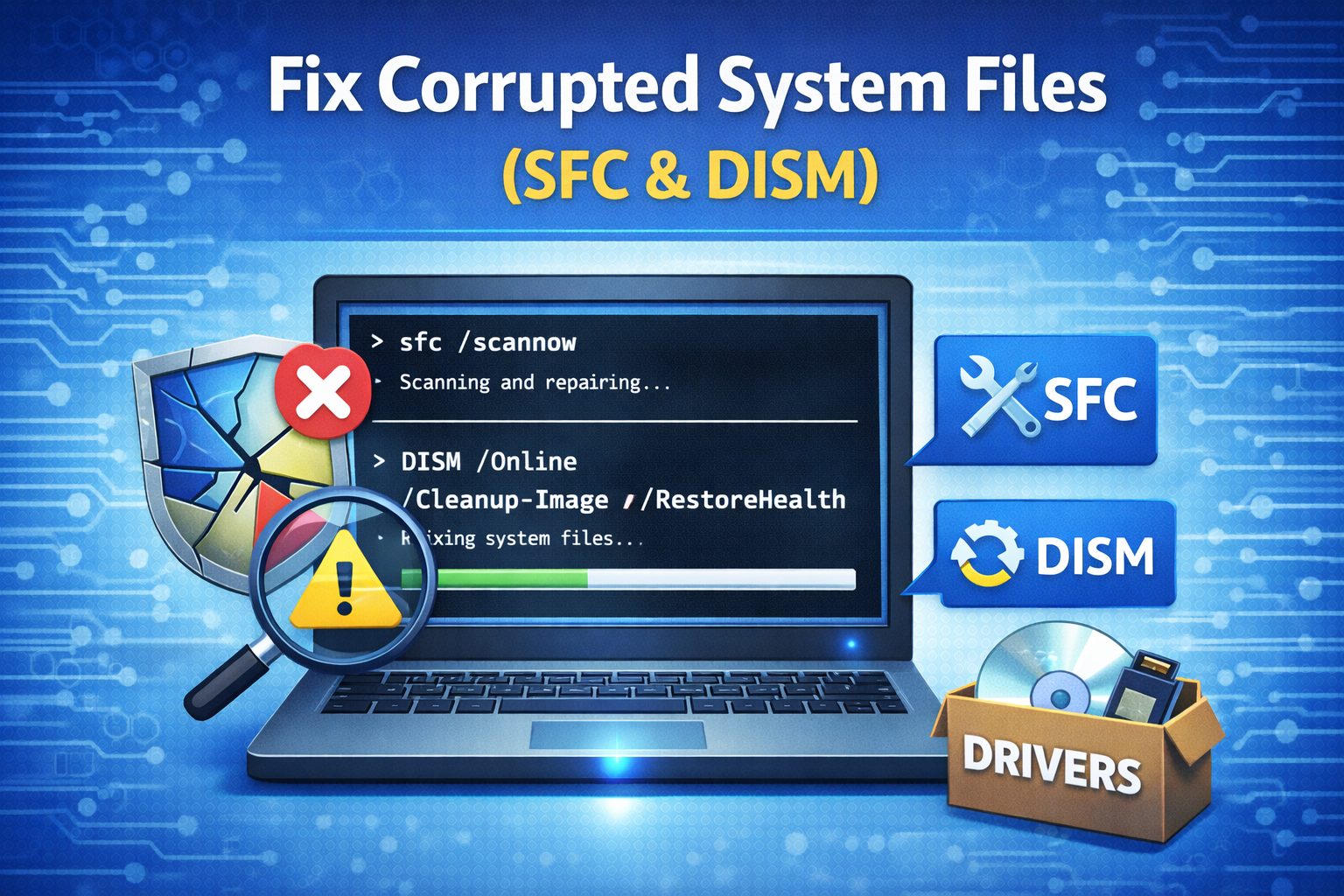
Corrupted system files can affect drivers.
Run System File Checker (SFC):
- Press Windows + X
- Click Command Prompt (Admin) or Terminal (Admin)
- Type:
sfc /scannow - Press Enter and wait for completion
Run DISM:
DISM /Online /Cleanup-Image /RestoreHealth
Restart your computer after both scans.
Method 10: Boot into Safe Mode to Fix Driver Conflicts
Safe Mode loads Windows with minimal drivers.
Steps:
- Open Settings
- Go to System > Recovery
- Click Restart now under Advanced startup
- Choose Troubleshoot > Advanced options > Startup Settings
- Press 4 for Safe Mode
In Safe Mode, you can uninstall or roll back problematic drivers safely.
Method 11: Fix Driver Issues After Windows Update
Windows updates sometimes cause driver conflicts.
What You Can Do:
- Roll back drivers
- Uninstall recent Windows updates
- Download updated drivers from manufacturers
- Pause Windows updates temporarily
This helps stabilize your system while waiting for fixes.
Method 12: Avoid Driver Issues in the Future
Prevention is better than fixing problems repeatedly.
Best Practices:
- Create a System Restore Point before driver updates
- Keep Windows updated
- Install drivers only from official sources
- Avoid unnecessary driver update tools
- Back up important data regularly
When Should You Seek Professional Help?
If driver issues persist even after trying all methods, consider:
- Hardware failure
- Incompatible devices
- Clean Windows installation
- Professional technical support
Persistent BSOD errors or hardware not detected at all may indicate deeper issues.
Conclusion
Driver issues in Windows can be frustrating, but they are rarely permanent. With the right approach, you can fix most driver problems without reinstalling Windows or upgrading hardware. By using tools like Device Manager, Windows Update, manufacturer drivers, and system scans, you can restore stability and performance to your computer.
Understanding how drivers work and maintaining them properly will save you time, prevent crashes, and keep your Windows system running smoothly.
