How to Fix iPhone Apps Crashing or Closing Automatically
Introduction
Few things are more frustrating than opening an app on your iPhone only to see it crash or close automatically within seconds. Whether you’re using social media, messaging apps, games, or productivity tools, unexpected crashes can interrupt your workflow and ruin your experience.
If you’re wondering why iPhone apps keep crashing or how to fix apps closing automatically on iPhone, you’re not alone. Many iPhone users face this issue at some point, especially after software updates, low storage situations, or app bugs.
The good news is that in most cases, this problem can be fixed quickly without visiting a repair shop. In this guide, you’ll learn the common causes of iPhone apps crashing and simple step-by-step solutions that can help you fix the issue fast.
Causes of iPhone Apps Crashing or Closing Automatically
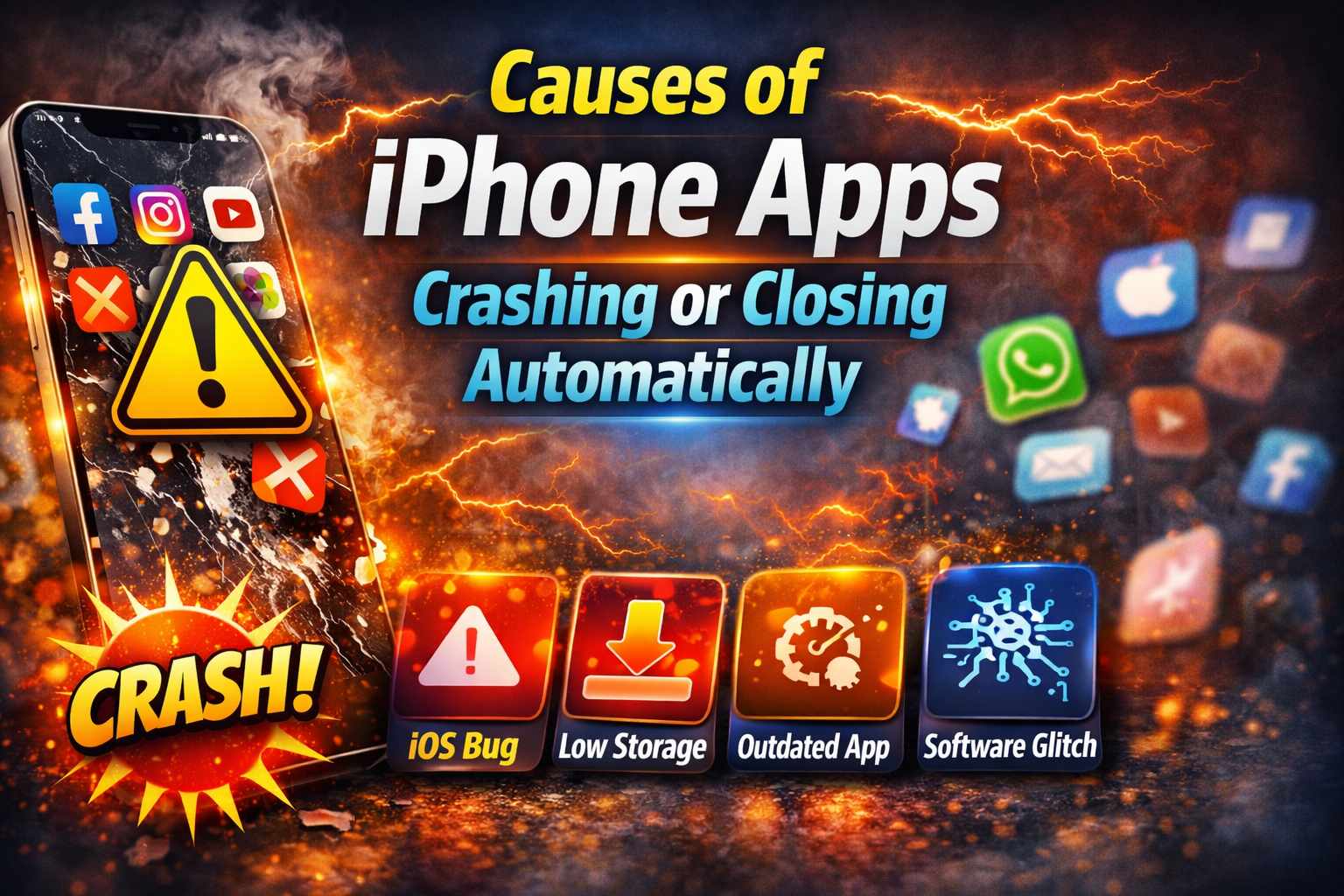
Understanding the cause can help you fix the problem more effectively. Below are the most common reasons why apps crash on iPhone.
1. Outdated App Versions
Developers frequently release updates to fix bugs and improve compatibility with the latest iOS version. If your app is outdated, it may crash unexpectedly.
2. iOS Software Bugs
Sometimes the issue isn’t the app itself but the iPhone’s operating system. Bugs in certain iOS versions can cause apps to crash.
3. Low iPhone Storage
When your iPhone storage is nearly full, apps may not have enough space to run properly, causing them to close automatically.
4. Corrupted App Data
App data can sometimes become corrupted after updates or installation errors.
5. Too Many Background Apps
Running multiple apps simultaneously can overload the system memory and cause crashes.
6. Poor Internet Connection
Some apps rely heavily on internet access. A weak or unstable connection may cause them to stop working.
7. Device Overheating
If your iPhone becomes too hot, the system may close apps to protect the hardware.
8. Compatibility Issues
Older iPhones may struggle to run newer apps designed for recent iOS versions.
Step-by-Step Solutions to Fix iPhone Apps Crashing
Here are the most effective ways to fix apps that keep crashing or closing automatically on iPhone.
1. Restart Your iPhone
Restarting your device clears temporary system glitches.
Steps:
- Press and hold the Power button and Volume button.
- Slide to power off.
- Wait 30 seconds.
- Turn the iPhone back on.
This simple step often fixes minor software issues.
2. Update the Problematic App
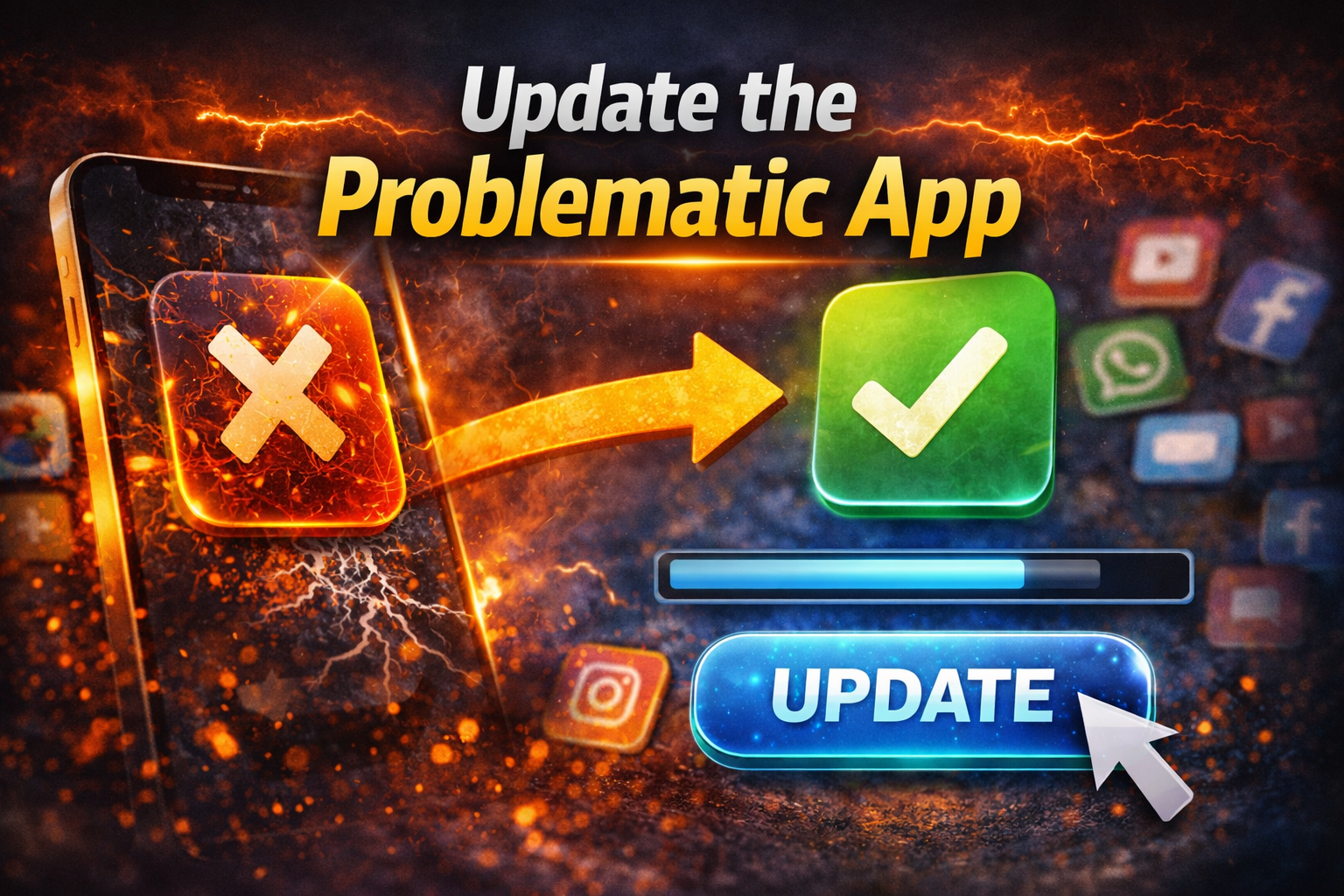
Updating the app can resolve compatibility bugs.
Steps:
- Open the App Store.
- Tap your profile icon.
- Scroll to Available Updates.
- Tap Update next to the app.
Updating apps ensures they work properly with your current iOS version.
3. Update iOS to the Latest Version
If multiple apps are crashing, your iOS may need an update.
Steps:
- Open Settings.
- Tap General.
- Select Software Update.
- Tap Download and Install.
New iOS updates often fix system bugs affecting apps.
4. Force Close the App
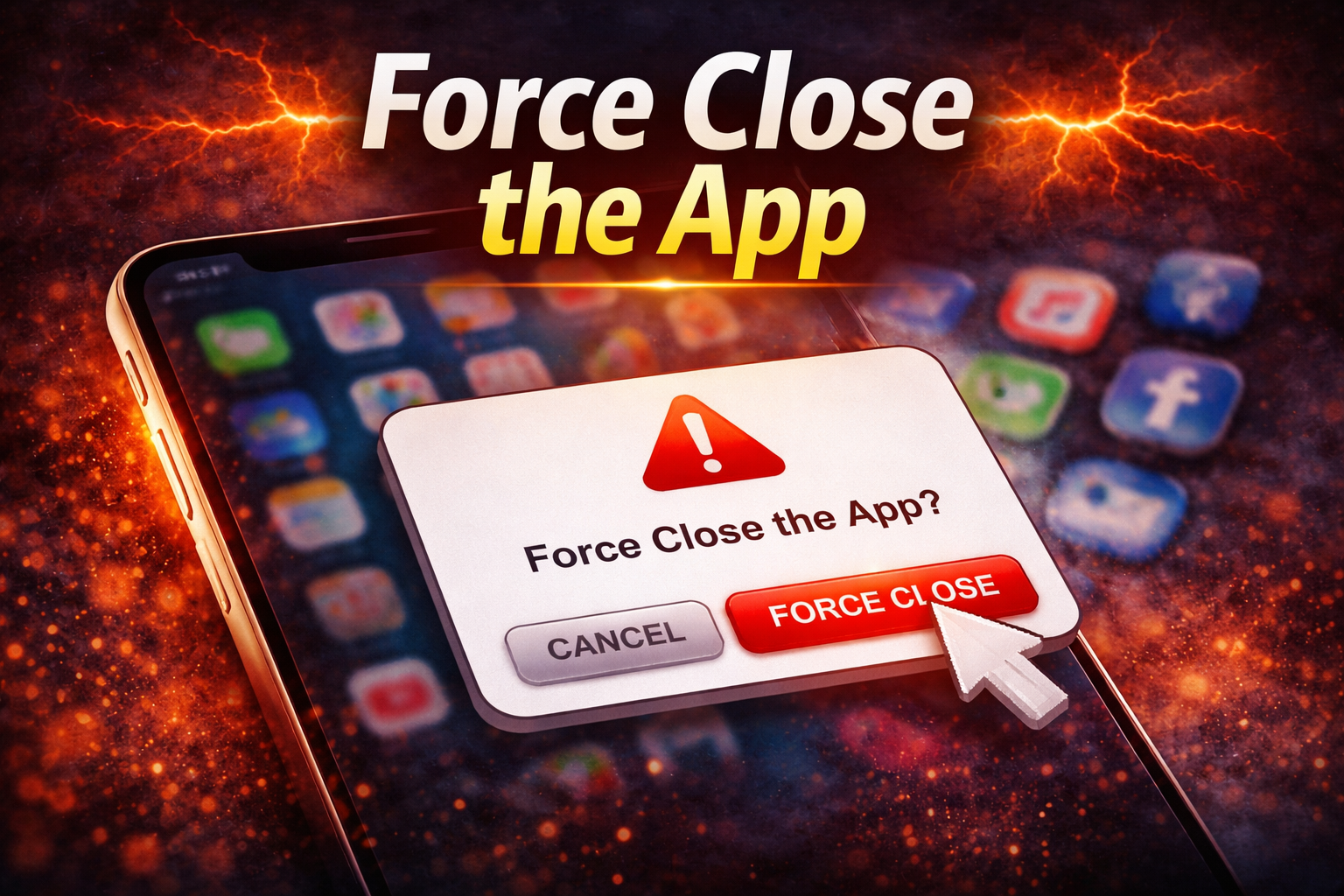
Sometimes apps crash because they are stuck in the background.
Steps:
- Swipe up from the bottom of the screen.
- Pause in the middle.
- Find the app.
- Swipe up to close it.
- Reopen the app.
This refreshes the app completely.
5. Reinstall the App
Deleting and reinstalling the app can remove corrupted files.
Steps:
- Tap and hold the app icon.
- Select Remove App.
- Tap Delete App.
- Open the App Store.
- Reinstall the app.
This installs a fresh version of the app.
6. Check iPhone Storage
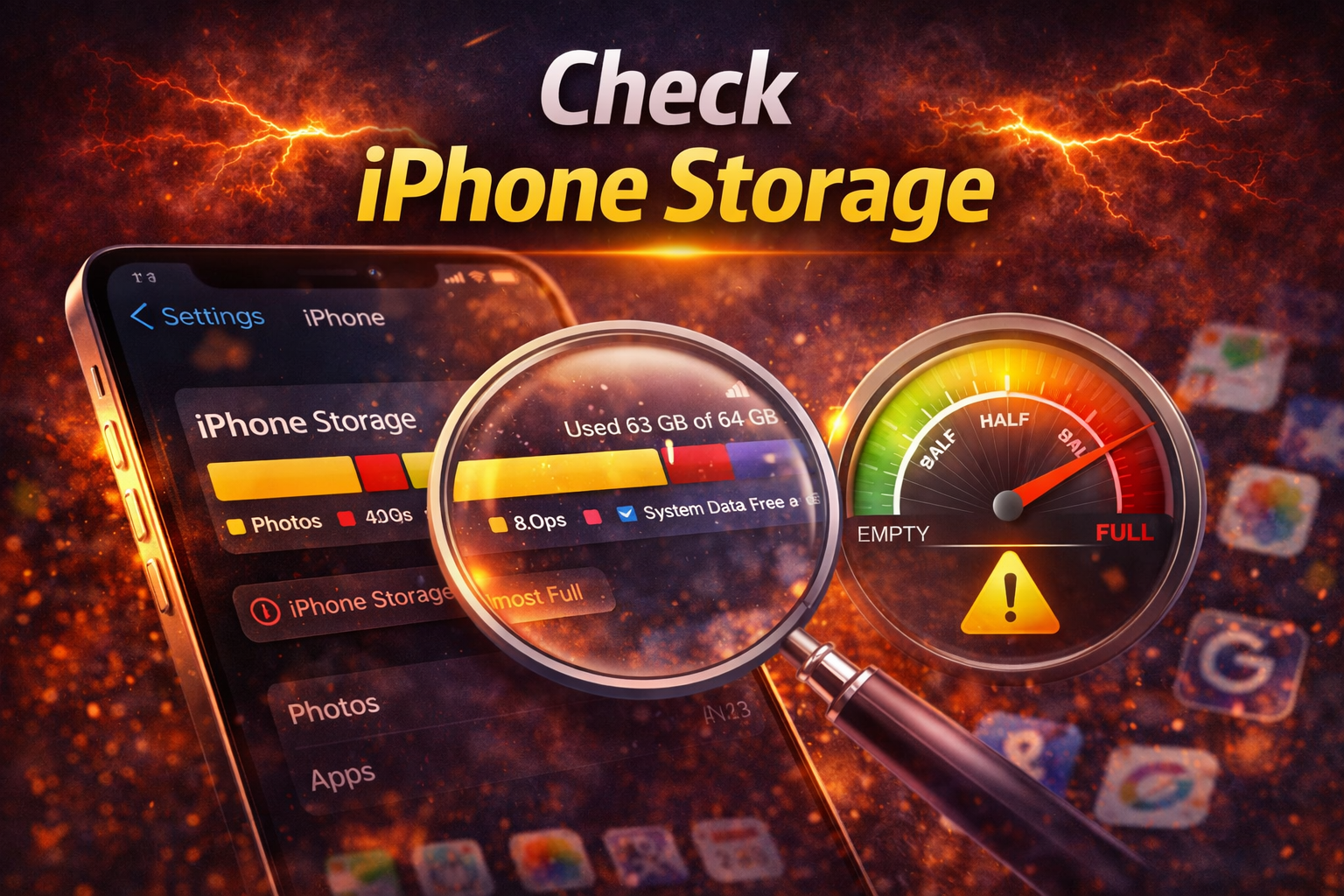
Low storage can cause many performance problems.
Steps:
- Open Settings.
- Tap General.
- Select iPhone Storage.
If storage is almost full, consider deleting unused apps, photos, or videos.
7. Check Internet Connection
Some apps crash if they cannot connect to servers.
Try these steps:
- Switch between Wi-Fi and Mobile Data
- Restart your Wi-Fi router
- Turn Airplane Mode on and off
8. Reset All Settings
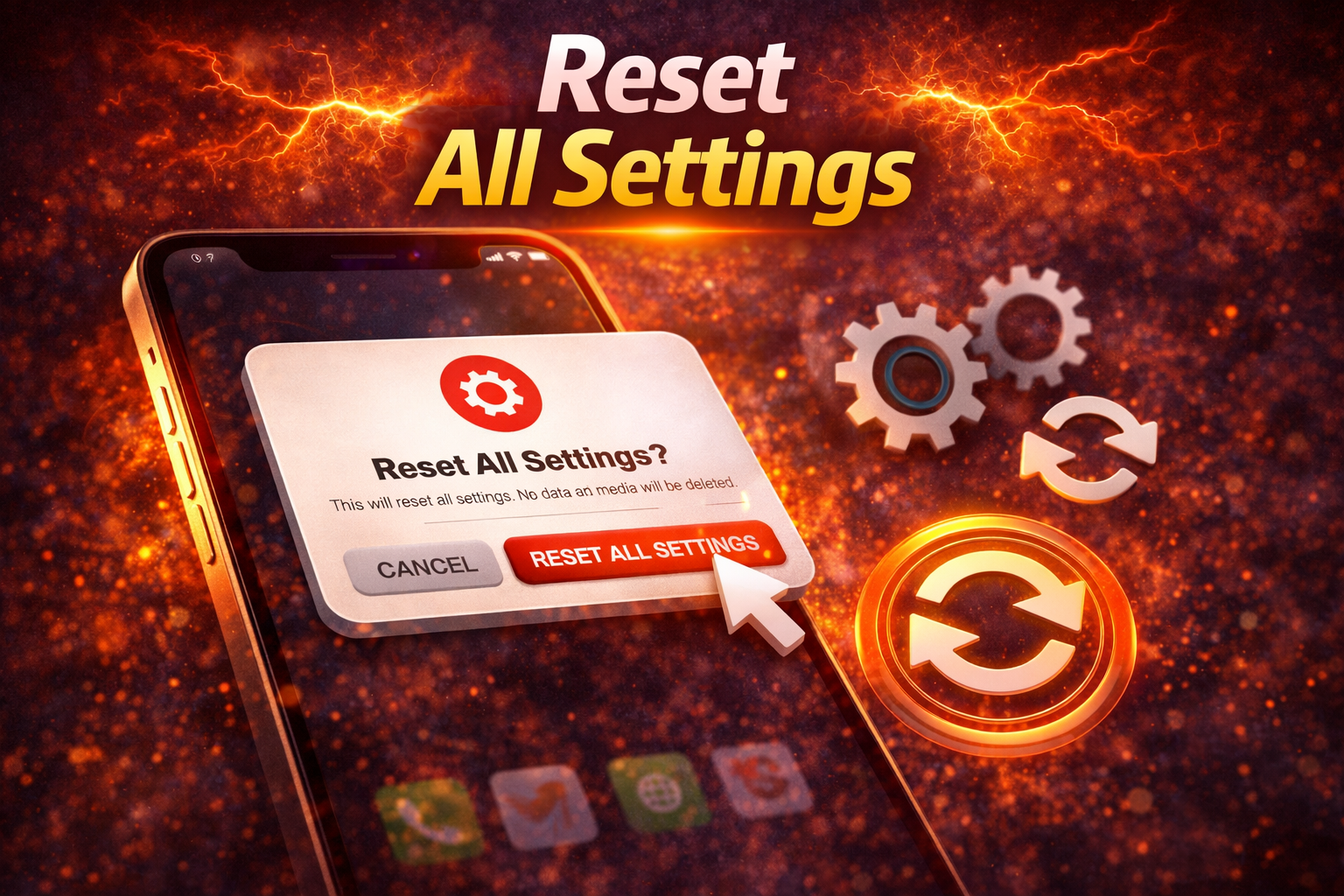
If system settings are causing the issue, resetting them may help.
Steps:
- Open Settings.
- Tap General.
- Scroll to Transfer or Reset iPhone.
- Tap Reset.
- Select Reset All Settings.
This will not delete your data but will reset Wi-Fi, Bluetooth, and system preferences.
9. Check for App Compatibility
Older iPhones may struggle with modern apps.
Check the App Store description to see if the app supports your iOS version.
10. Contact App Support
If the problem happens only with one app, the issue may be on the developer’s side.
You can:
- Check the App Store reviews
- Visit the developer’s website
- Report the bug
Developers usually release updates to fix crashes.
Tips to Prevent iPhone Apps From Crashing
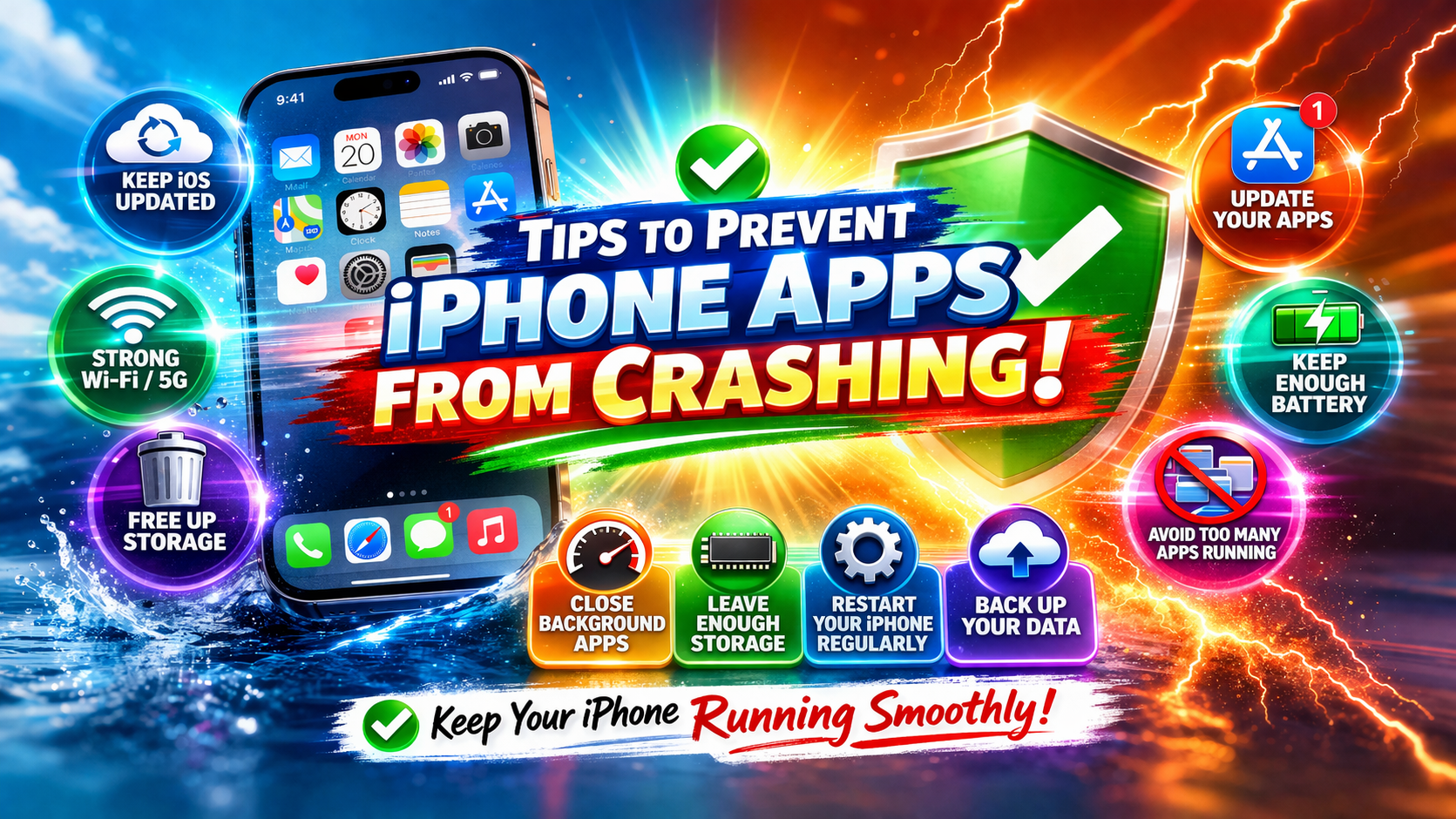
To reduce the chances of apps crashing in the future, follow these helpful tips.
Keep Apps Updated
Enable automatic app updates to ensure you’re always using the latest version.
Maintain Enough Storage
Keep at least 5–10 GB of free storage for smooth performance.
Restart Your iPhone Regularly
Restarting your phone once a week helps clear system memory.
Avoid Installing Too Many Apps
Too many apps running in the background can slow down your device.
Update iOS Regularly
Apple releases updates that improve stability and fix bugs.
Monitor Battery Health
Poor battery health can affect device performance.
FAQ Section
Why do my iPhone apps keep crashing?
Apps usually crash because of outdated software, low storage, corrupted app data, or compatibility issues with the iOS version.
Why does my iPhone close apps automatically?
Your iPhone may close apps automatically due to low memory, overheating, or software glitches.
Will reinstalling an app fix crashing problems?
Yes. Reinstalling an app removes corrupted files and installs a fresh version, which often fixes crashes.
Can low storage cause apps to crash?
Yes. When your iPhone storage is full, apps may not have enough resources to run properly.
Do iOS updates fix app crashing issues?
In many cases, yes. Apple frequently releases updates that fix bugs affecting apps.
Conclusion
If your iPhone apps are crashing or closing automatically, the issue is usually related to software bugs, outdated apps, low storage, or system glitches. Fortunately, most of these problems can be fixed quickly with simple troubleshooting steps.
Start with basic solutions like restarting your iPhone, updating apps, and clearing storage. If the issue continues, reinstalling the app or resetting settings can often resolve it.
Keeping your iPhone updated and maintaining enough storage will also help prevent crashes in the future. With these tips, you can keep your apps running smoothly and enjoy a better iPhone experience.
