How to Secure Your Home WiFi Network: A Complete Guide for Beginners and Advanced Users
In today’s digital world, a secure home WiFi network is more important than ever. From online banking and remote work to smart home devices and entertainment streaming, almost everything depends on a stable and safe internet connection. Unfortunately, unsecured WiFi networks are a prime target for hackers, cybercriminals, and even curious neighbors looking for free internet access.
If your home WiFi network is not properly secured, attackers can steal personal information, monitor your online activities, infect your devices with malware, or use your network for illegal purposes. The good news is that securing your home WiFi network does not require advanced technical skills. With the right knowledge and a few smart adjustments, you can significantly improve your network security.
This comprehensive guide will walk you through how to secure your home WiFi network step by step, covering both basic and advanced security practices that work for most routers and internet service providers.
Why Home WiFi Security Matters
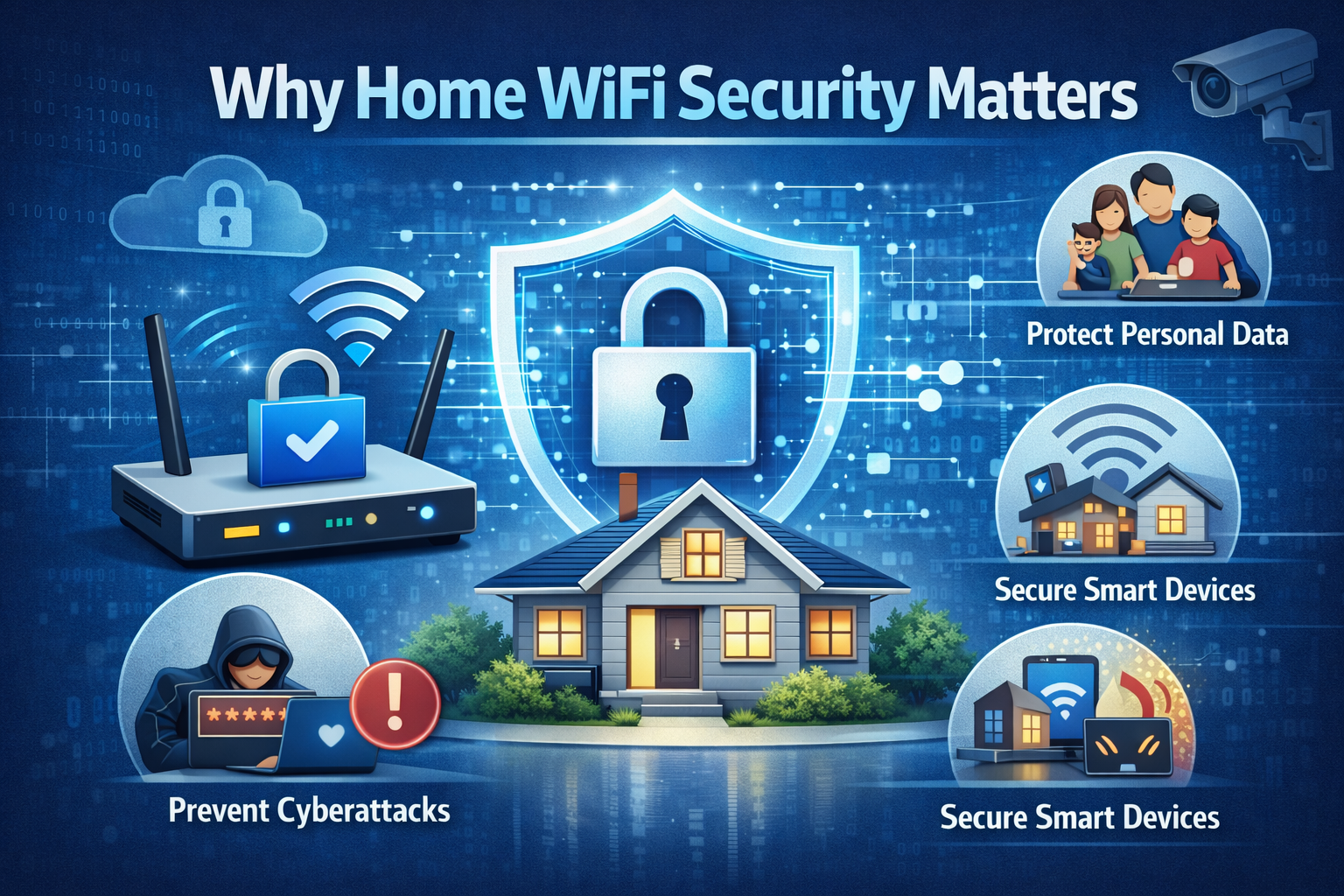
Many people assume that hackers only target businesses or large organizations. In reality, home networks are often easier targets because they are poorly configured and rarely updated. A single weak password or outdated router firmware can expose your entire network.
Here are some common risks of an unsecured WiFi network:
- Unauthorized access to your internet connection
- Theft of personal data such as passwords and banking details
- Malware infections across multiple devices
- Slower internet speeds due to network abuse
- Privacy invasion and monitoring of online activity
Securing your home WiFi network protects not only your data but also your family, your devices, and your digital identity.
Change the Default Router Username and Password
One of the most common mistakes people make is leaving the router’s default login credentials unchanged. Router manufacturers often use the same default usernames and passwords for thousands of devices, making them easy to guess.
How to Fix This:
- Log in to your router’s admin panel (usually via a web browser).
- Locate the admin settings or system settings.
- Change both the username and password to something unique and strong.
Tips for a Strong Admin Password:
- Use at least 12–16 characters
- Combine uppercase letters, lowercase letters, numbers, and symbols
- Avoid personal information like names or birthdays
This simple step prevents attackers from taking full control of your router.
Use Strong WiFi Encryption (WPA3 or WPA2)
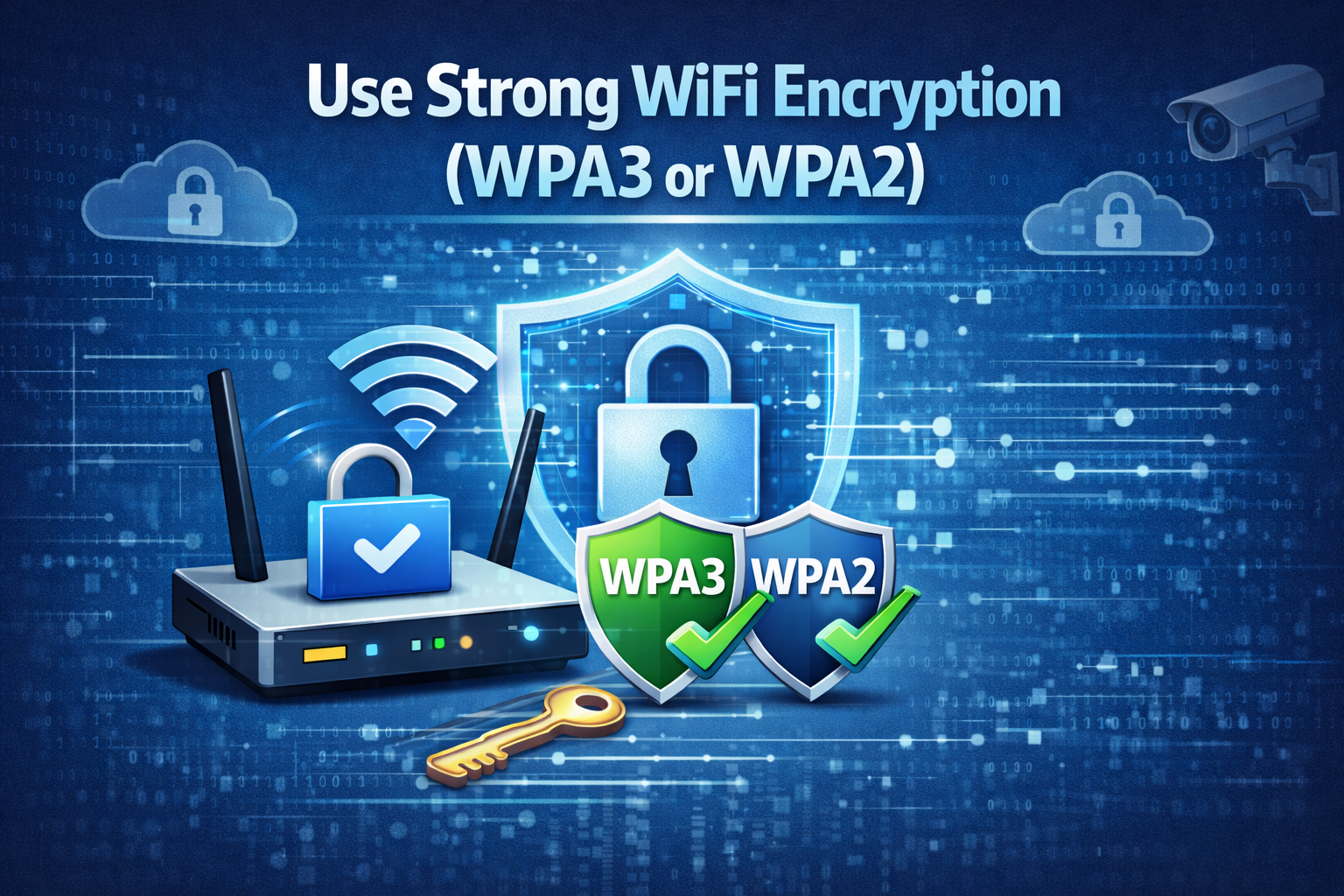
WiFi encryption protects data transmitted between your devices and your router. Older encryption standards such as WEP are no longer secure and should never be used.
Recommended Encryption Options:
- WPA3 (best and most secure)
- WPA2-PSK (AES) if WPA3 is not available
How to Enable Encryption:
- Access your router’s wireless settings.
- Select WPA3 or WPA2-AES.
- Avoid mixed or legacy modes if possible.
Strong encryption ensures that even if someone intercepts your WiFi signal, they cannot read your data.
Create a Strong and Unique WiFi Password
Your WiFi password is the first line of defense against unauthorized access. Weak passwords are easy to crack using automated tools.
Best Practices for WiFi Passwords:
- Use at least 12 characters
- Avoid common words or patterns
- Do not reuse passwords from other accounts
- Change the password periodically
A strong password reduces the risk of neighbors or attackers connecting to your network without permission.
Change the Default Network Name (SSID)
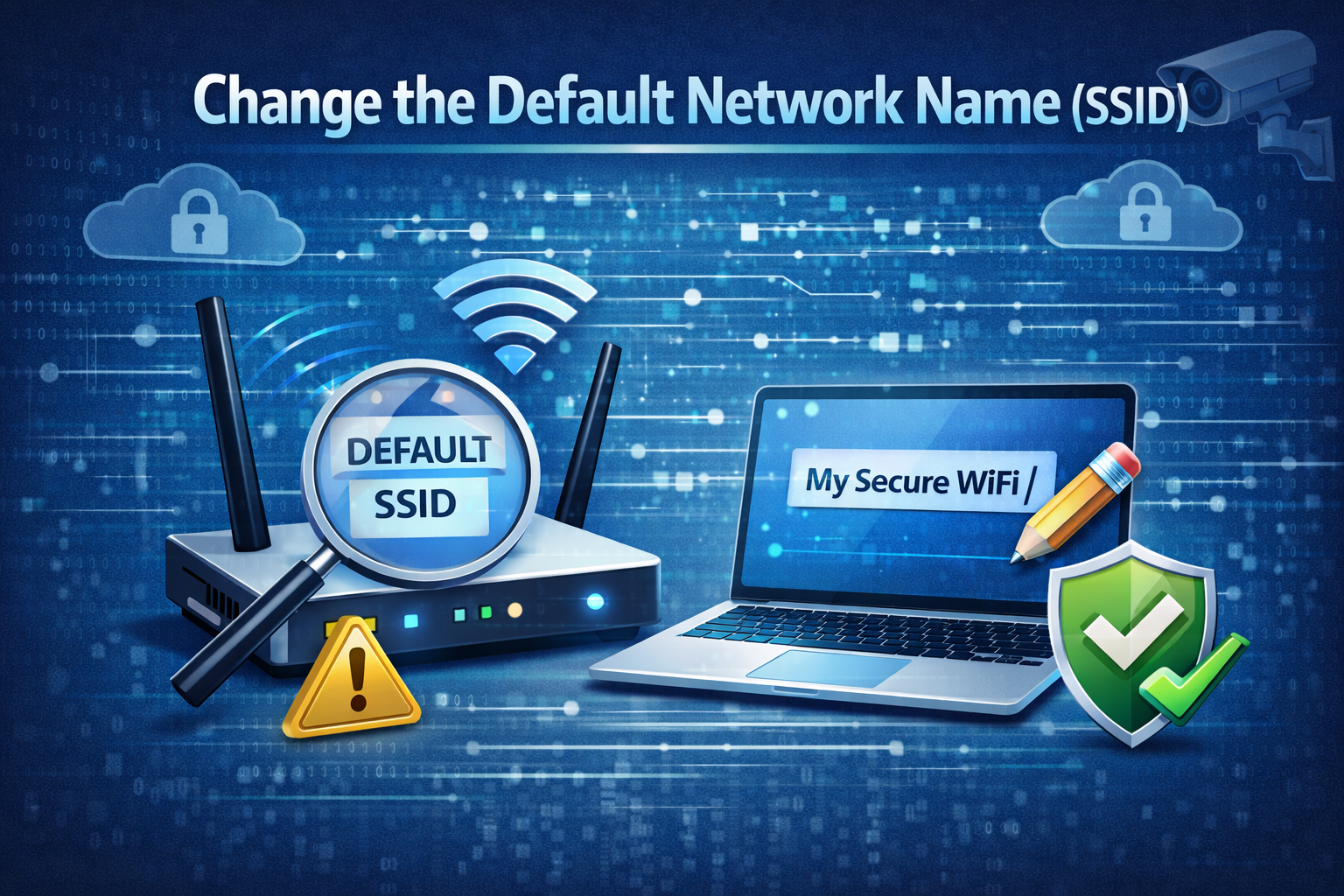
The SSID is your WiFi network’s name. Default SSIDs often reveal the router brand or model, which can help attackers identify known vulnerabilities.
Why You Should Change It:
- Hides router brand information
- Makes your network less noticeable
- Reduces targeted attacks
Choose a neutral name that does not include your name, address, or router model.
Disable WPS (WiFi Protected Setup)
WPS is designed to make connecting devices easier, but it has known security flaws. Attackers can exploit WPS PIN vulnerabilities to gain access to your network.
What to Do:
- Log in to your router settings
- Find WPS options
- Disable WPS completely
Disabling WPS slightly reduces convenience but greatly improves security.
Keep Your Router Firmware Updated
Router firmware updates fix security vulnerabilities, improve performance, and add new features. Many people never update their router, leaving it exposed to known exploits.
How to Stay Updated:
- Check your router’s admin panel for firmware updates
- Enable automatic updates if available
- Visit the manufacturer’s website periodically
Regular updates ensure your router is protected against newly discovered threats.
Enable Your Router’s Firewall
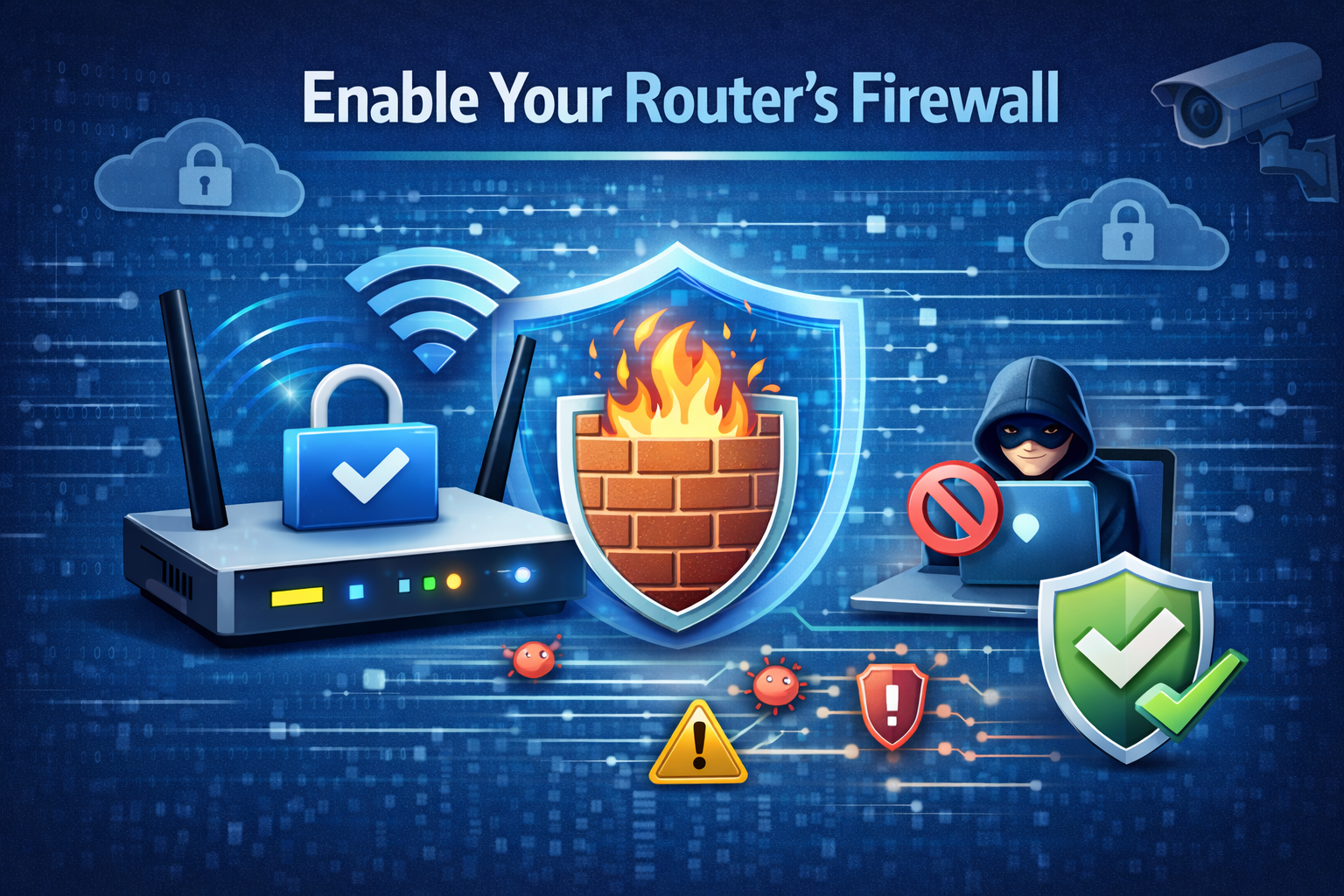
Most modern routers include a built-in firewall that blocks suspicious traffic from the internet.
Why It’s Important:
- Prevents unauthorized inbound connections
- Adds an extra layer of protection
- Helps defend against basic cyberattacks
Make sure the firewall is enabled and set to its recommended security level.
Use a Guest Network for Visitors
Allowing guests to use your main WiFi network can expose your personal devices to risks. A guest network keeps visitors isolated from your private network.
Benefits of a Guest Network:
- Protects personal files and devices
- Limits access to smart home systems
- Easy to disable when not needed
Always enable password protection on the guest network as well.
Secure All Connected Devices
Your WiFi network is only as secure as the devices connected to it. Outdated or infected devices can become entry points for attackers.
Key Device Security Tips:
- Keep operating systems updated
- Install apps only from trusted sources
- Use antivirus or security software
- Remove unknown or unused devices from the network
Regularly review your router’s connected device list to identify suspicious activity.
Disable Remote Router Management
Remote management allows you to access your router from outside your home network. While convenient, it can be dangerous if not properly secured.
Recommendation:
- Disable remote management unless absolutely necessary
- If enabled, use strong passwords and HTTPS
Limiting access reduces the chances of external attacks.
Monitor Network Activity
Monitoring your WiFi network helps you detect unusual behavior early.
What to Look For:
- Unknown devices connected to your network
- Sudden drops in internet speed
- Unusual router behavior or settings changes
Some routers provide activity logs or alerts that notify you of suspicious access attempts.
Use a VPN for Added Security
A Virtual Private Network (VPN) encrypts your internet traffic, adding another layer of privacy and security.
Benefits of Using a VPN:
- Protects data from ISP monitoring
- Enhances privacy on all devices
- Secures connections on public WiFi
Using a VPN is especially useful for remote work and online banking.
Consider Upgrading Your Router
Older routers may lack modern security features such as WPA3, automatic updates, or advanced firewalls.
Signs You Need a New Router:
- No longer receives firmware updates
- Only supports outdated encryption
- Frequent connection issues
Investing in a modern router improves both security and performance.
Final Thoughts
Securing your home WiFi network is not a one-time task—it is an ongoing process. As technology evolves, so do cyber threats. By following the steps outlined in this guide, you can significantly reduce the risk of unauthorized access, data theft, and privacy invasion.
From changing default passwords and enabling strong encryption to updating firmware and monitoring connected devices, each step plays an important role in keeping your network safe. Whether you are a beginner or an advanced user, taking WiFi security seriously protects your digital life and gives you peace of mind.
A secure home WiFi network means safer browsing, safer communication, and a safer home overall.
