How to Update Software Safely Without Losing Data
Updating software is essential for security, performance, and access to new features. However, many users delay updates because they fear losing important files, settings, or data. While software updates can occasionally cause issues, data loss is almost always preventable with the right preparation and best practices.
This comprehensive guide will walk you through how to update software safely without losing data, whether you are using Windows, macOS, Android, iOS, or third-party applications. By following these steps, you can update with confidence and protect your valuable information.
Why Software Updates Are Important
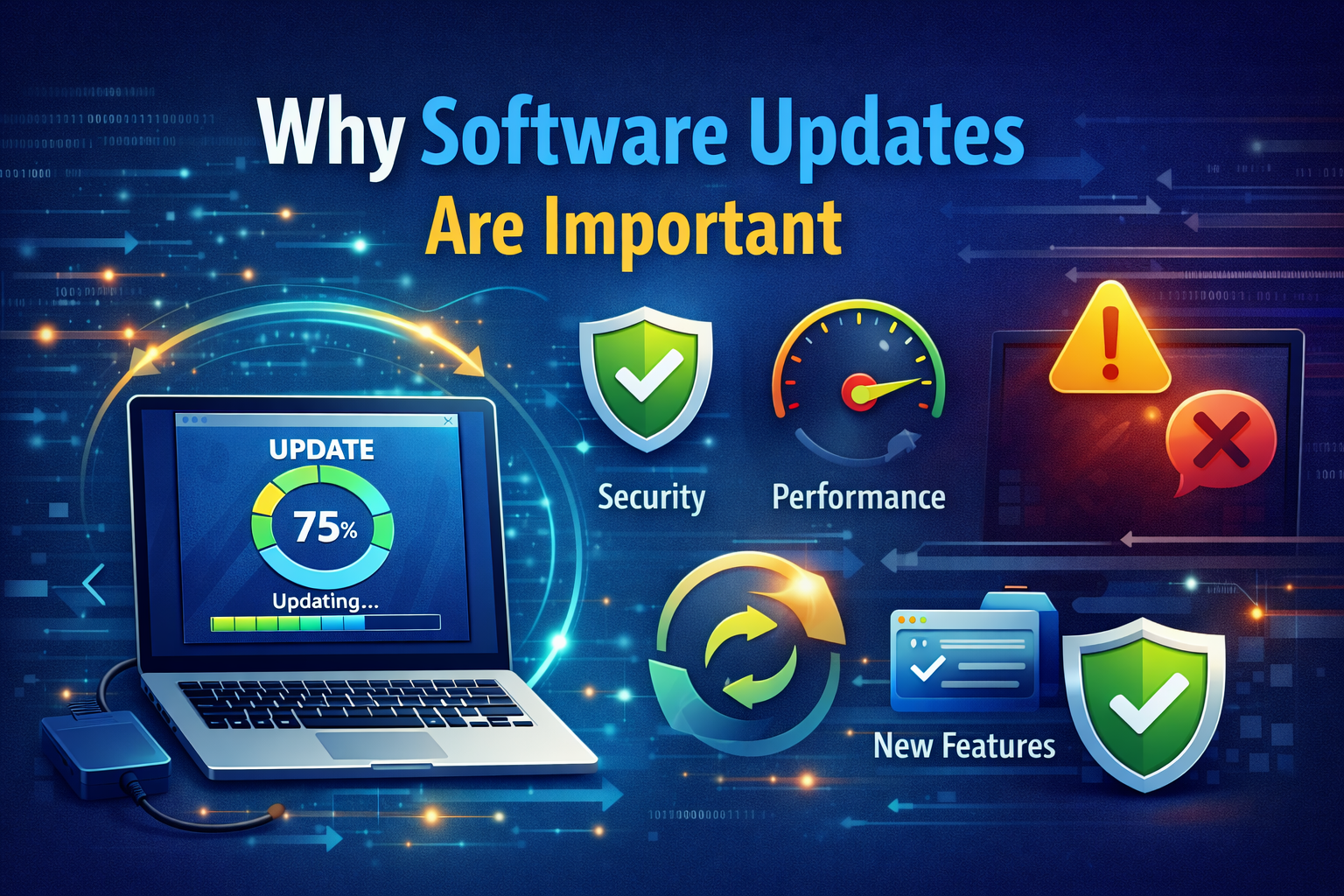
Before learning how to update safely, it’s important to understand why updates matter.
1. Security Protection
Software updates often include patches for newly discovered vulnerabilities. Skipping updates leaves your system exposed to malware, ransomware, and hackers.
2. Bug Fixes and Stability
Updates fix known bugs that may cause crashes, freezes, or errors. An updated system generally runs smoother and more reliably.
3. New Features and Improvements
Updates can bring performance enhancements, better compatibility, and new tools that improve productivity.
4. Compatibility with Other Software
Outdated software may stop working with newer apps, drivers, or online services.
Despite these benefits, updates can sometimes fail or cause issues—especially if done improperly. That’s why preparation is critical.
Common Reasons Data Loss Happens During Updates
Data loss during updates is rare but can happen due to:
- Power failure during installation
- Insufficient storage space
- Corrupted system files
- Incompatible software or drivers
- Malware or disk errors
- Interrupted update process
- Failed major system upgrades
Understanding these risks helps you avoid them.
Step 1: Back Up Your Data (Most Important Step)
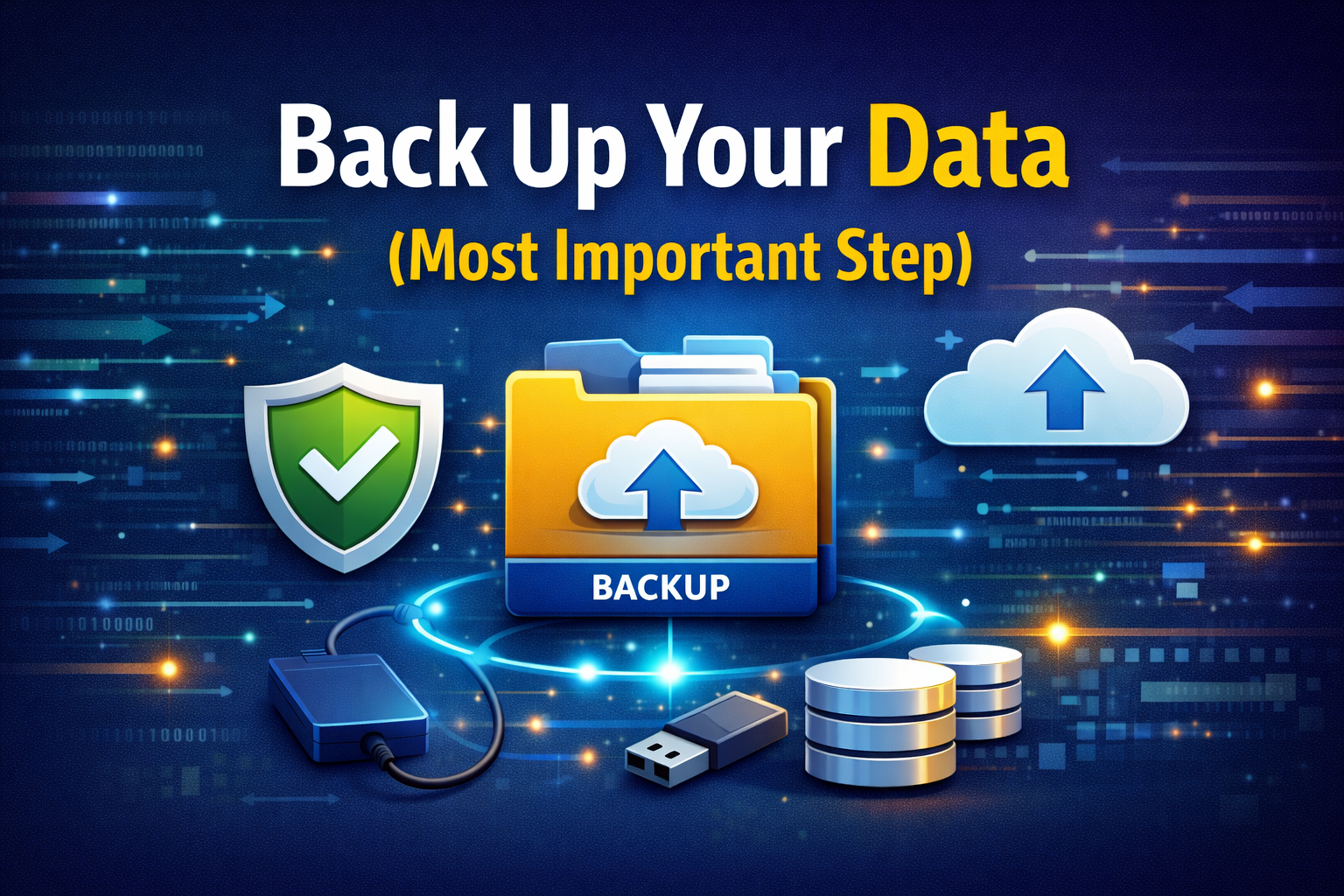
The single most important step before any update is creating a backup.
What Should You Back Up?
- Documents, photos, and videos
- Work files and projects
- Application data
- Emails and browser bookmarks
- Important system settings
Backup Methods You Can Use
1. Cloud Backup
Popular cloud services include:
- Google Drive
- OneDrive
- iCloud
- Dropbox
Pros:
- Automatic syncing
- Accessible from anywhere
Cons:
- Limited free storage
- Requires internet access
2. External Storage
Use:
- External hard drives
- USB flash drives
- SSDs
Pros:
- Fast and offline
- Full control
Cons:
- Can be lost or damaged
3. Full System Image (Advanced Users)
Creating a system image allows you to restore your entire system if something goes wrong.
- Windows: System Image Backup
- macOS: Time Machine
Best Practice: Use both cloud and external backups for maximum safety.
Step 2: Check System Requirements and Compatibility
Before updating, ensure your device meets the software’s requirements.
What to Check
- Minimum system requirements
- Available storage space
- Supported device models
- OS compatibility
Installing updates on unsupported systems increases the risk of failure or data loss.
Step 3: Ensure Sufficient Battery and Power

Never update software when your device is low on power.
Recommended Power Levels
- Laptops: At least 50% battery + plugged in
- Phones/Tablets: At least 60% battery
- Desktops: Use a stable power source
A sudden shutdown during an update can corrupt files and damage the operating system.
Step 4: Free Up Storage Space
Lack of storage space is a common reason updates fail.
How Much Space Do You Need?
- Minor updates: 2–5 GB
- Major OS upgrades: 15–30 GB
Ways to Free Storage
- Delete temporary files
- Uninstall unused apps
- Clear cache
- Move files to external storage
Always leave extra free space for temporary update files.
Step 5: Update Your System Before Apps
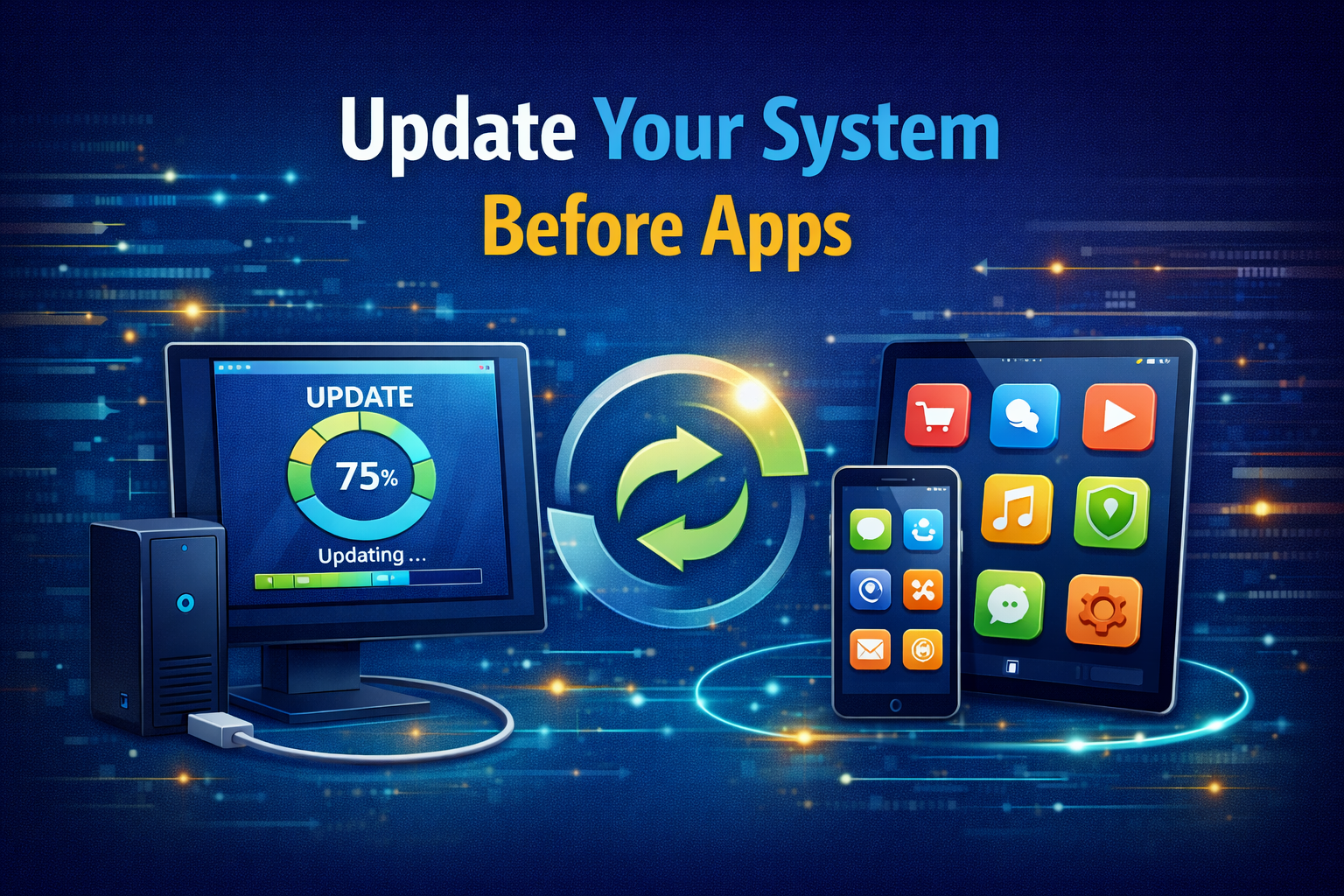
Updating the operating system first ensures compatibility with apps and drivers.
Recommended Order
- Operating system update
- Drivers and firmware
- System apps
- Third-party applications
Skipping OS updates while updating apps can cause crashes or data issues.
Step 6: Use Official Update Sources Only
Always update software from official sources.
Safe Sources Include
- Windows Update
- macOS Software Update
- Google Play Store
- Apple App Store
- Official developer websites
Avoid
- Third-party download sites
- Modified installers
- Cracked software
Unofficial updates often contain malware or unstable code that can damage your data.
Step 7: Temporarily Disable Antivirus (If Necessary)
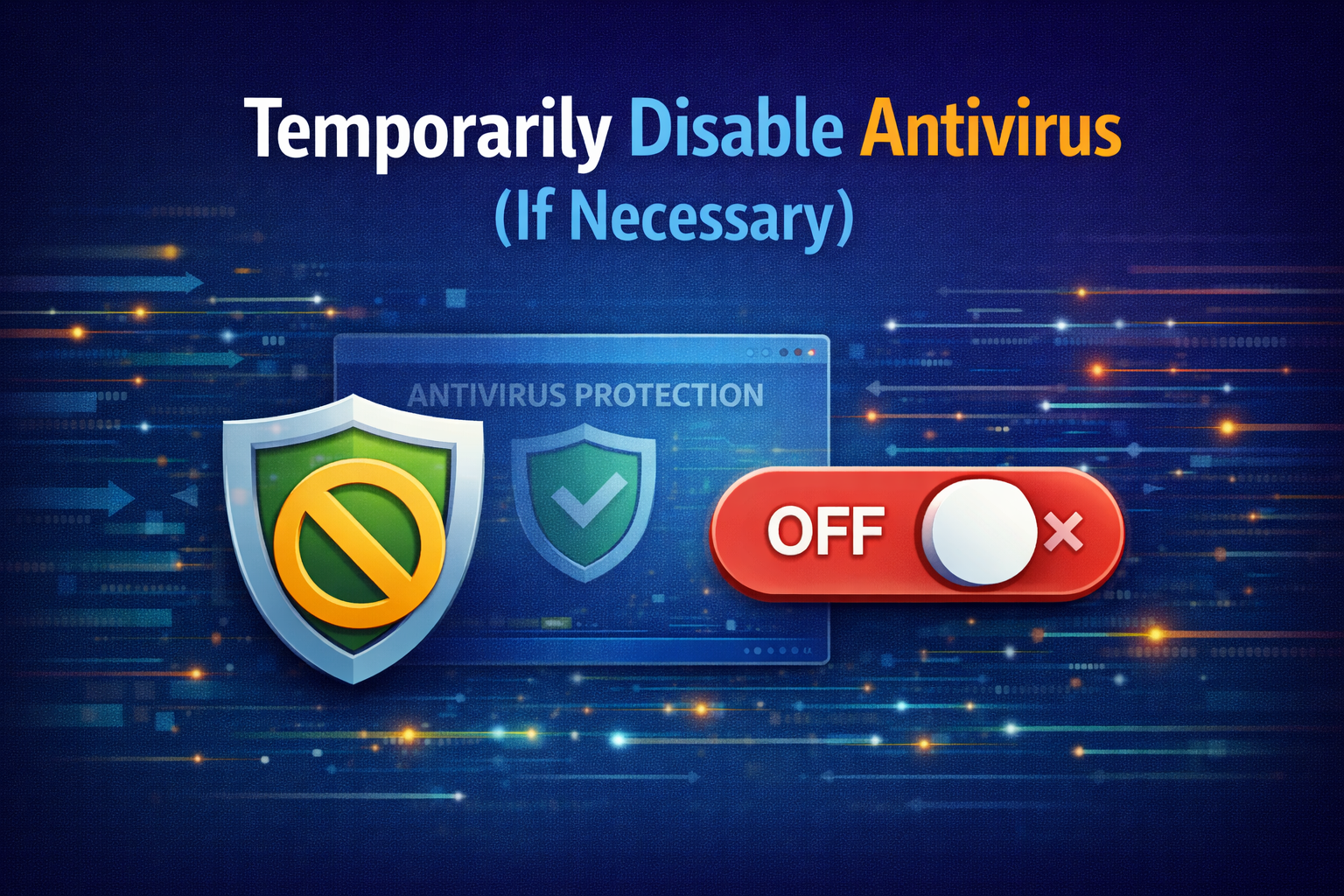
Some antivirus programs may interfere with updates.
When to Disable Antivirus
- If the update repeatedly fails
- If the installer conflicts with security software
Important:
- Disable only temporarily
- Re-enable immediately after the update
Never update while your system is infected with malware.
Step 8: Close All Running Applications
Close unnecessary apps before updating.
Why This Matters
- Prevents file conflicts
- Reduces system load
- Minimizes update errors
For major updates, a clean restart before installation is recommended.
Step 9: Perform the Update Slowly and Patiently

Never rush or interrupt an update.
What You Should NOT Do
- Restart during installation
- Force shutdown
- Close the update window
- Remove storage devices
Some updates may appear frozen, but they are still running in the background.
Step 10: Restart and Verify After the Update
Once the update is complete:
What to Check
- Files and folders are intact
- Apps open normally
- System performance is stable
- No error messages appear
If something seems wrong, stop using the system and restore from backup if needed.
How to Safely Update on Different Platforms
Windows
- Use Windows Update
- Create a restore point
- Back up user folders
- Update drivers after major upgrades
macOS
- Use Time Machine before updating
- Update through System Settings
- Avoid beta versions on primary devices
Android
- Back up to Google account
- Ensure enough storage
- Avoid unofficial ROMs
iOS
- Back up to iCloud or computer
- Update via Settings or iTunes/Finder
- Avoid interrupting the process
What to Do If Data Is Lost After an Update
If data loss occurs despite precautions:
- Stop using the device immediately
- Check backup sources
- Use built-in recovery options
- Try professional data recovery software
- Contact official support if necessary
The sooner you act, the better the chance of recovery.
Best Practices for Future Updates
- Enable automatic backups
- Keep software updated regularly
- Avoid skipping updates for long periods
- Use reliable hardware and storage
- Avoid beta software on main devices
Final Thoughts
Updating software does not have to be risky. Most data loss incidents happen due to poor preparation, interrupted installations, or ignoring basic safety steps. By backing up your data, using official sources, ensuring sufficient power and storage, and following proper update procedures, you can safely update your software without fear.
In today’s digital world, staying updated is not optional—it’s essential. With the right approach, you can enjoy improved performance, stronger security, and new features while keeping your data completely safe.
