How to Use SFC to Fix Corrupted Windows Files
Windows is one of the most widely used operating systems in the world. Whether for personal use, productivity, or gaming, it powers millions of computers every day. However, like any software, Windows isn’t immune to problems. Over time, system files can become corrupted due to software issues, malware infections, sudden shutdowns, hardware failures, or even improper updates. When this happens, your computer might behave strangely — programs crash, Windows features don’t work, or your system may fail to boot entirely.
Thankfully, Windows includes built-in tools to help identify and repair corrupted system files. One of the most powerful of these tools is the System File Checker (SFC) utility. In this article, we’ll explore what SFC is, why it’s useful, and how to use it effectively to repair corrupted Windows files.
What Is SFC?
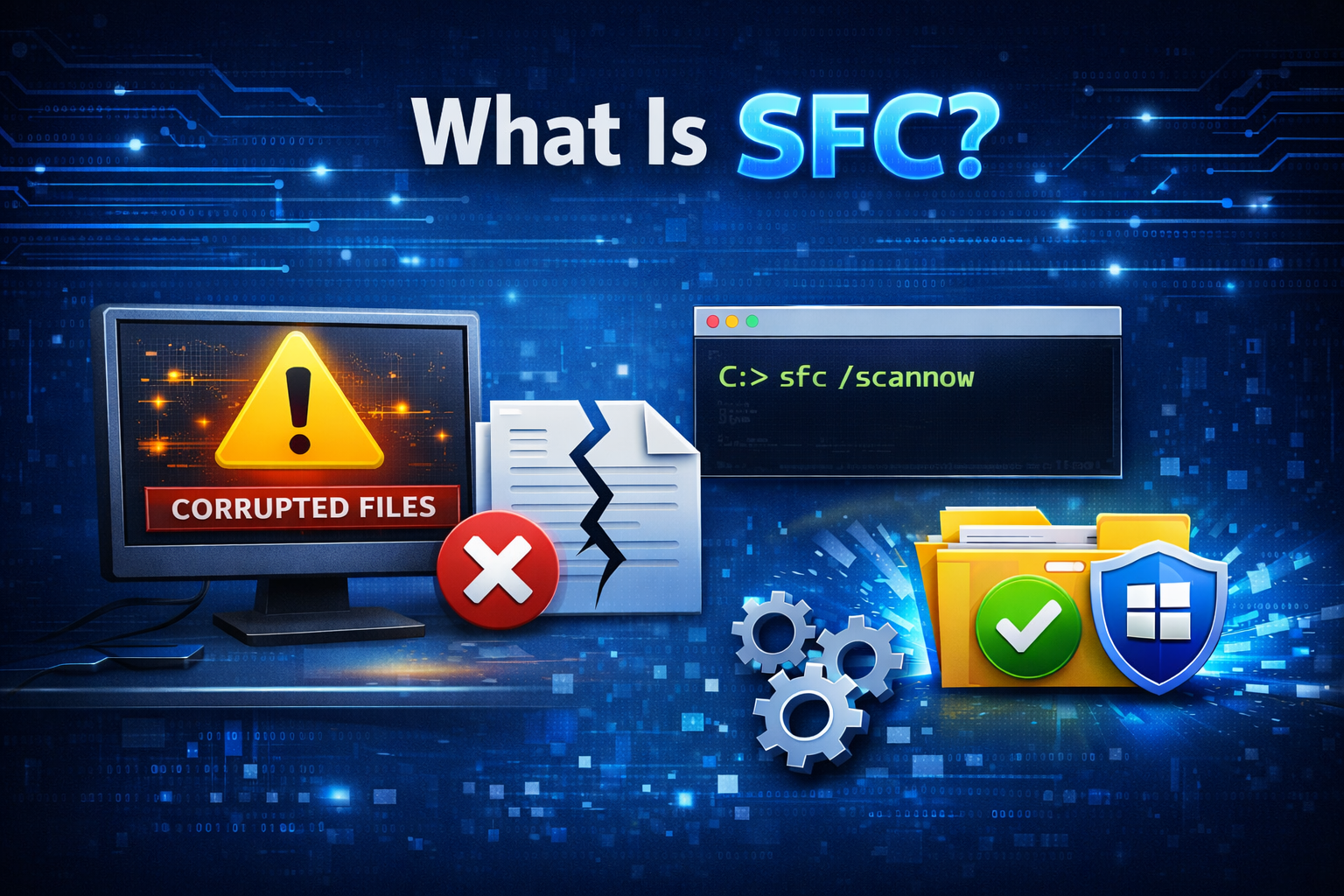
The System File Checker (SFC) is a command-line utility included with Windows that scans your system for corrupted or missing system files and restores them from a cached copy stored by Windows. It can fix a wide range of issues, from missing DLLs to broken system configurations that might be causing certain features or applications to fail. SFC is particularly useful because it doesn’t require third-party software and is built right into Windows.
When Should You Use SFC?
You should consider running SFC when you experience the following issues:
- Blue Screen of Death (BSOD) errors
- System instability or crashes
- Missing system features or Windows failure to start
- Applications failing unexpectedly
- Repeated errors related to system files
In many cases, SFC is the first step recommended by Microsoft support before trying more advanced troubleshooting.
How SFC Works
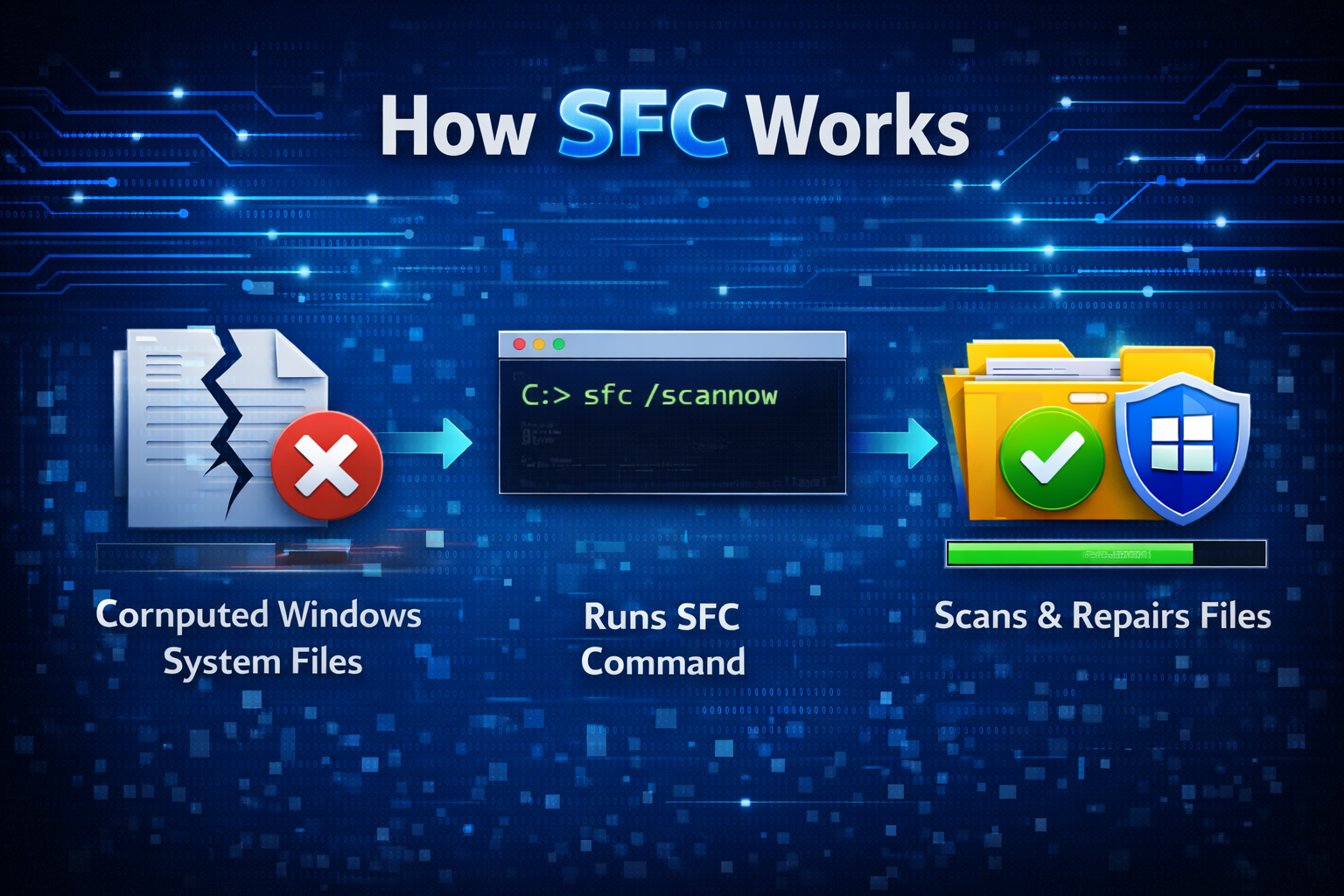
SFC works by scanning all protected system files on your computer and comparing them to a cached copy stored in the Windows Component Store (also known as the WinSxS folder). If it detects a discrepancy — meaning the file is corrupted, changed, or missing — it replaces it with the correct version from the cache.
This process runs within the Windows Recovery Environment (WinRE) or within regular Windows, depending on how it’s executed.
Step-by-Step: Running SFC in Windows
Here’s how to run the SFC tool to scan and repair corrupted files:
1. Open Command Prompt as Administrator
To run SFC, you need administrative rights.
- Press Windows Key + X (or right-click the Start button).
- Choose Windows Terminal (Admin) or Command Prompt (Admin).
- If prompted by User Account Control, click Yes.
On recent Windows versions, Windows Terminal is the default interface and can run Command Prompt commands.
2. Enter the SFC Command
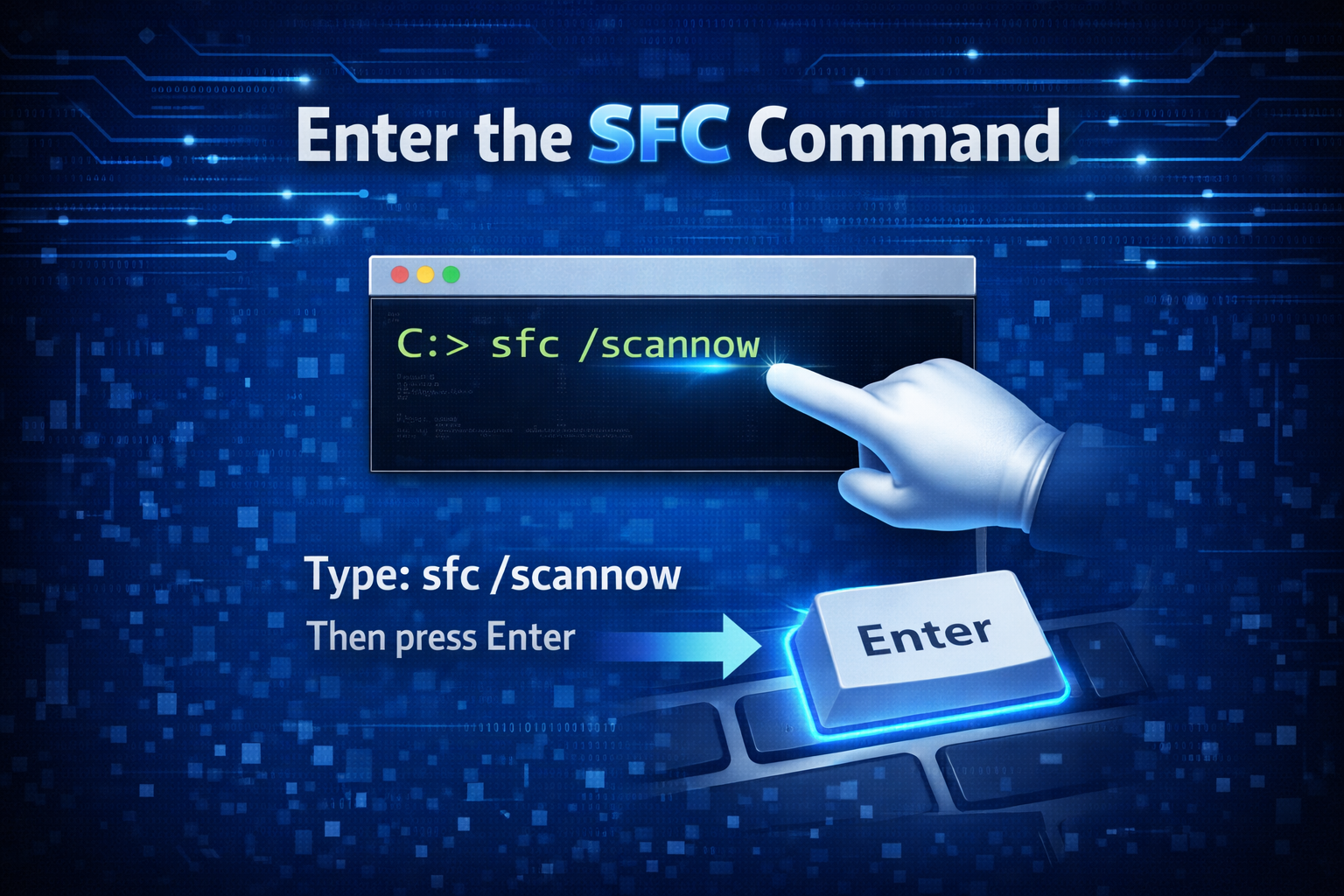
In the elevated Command Prompt window, type:
sfc /scannow
Then press Enter.
This command instructs SFC to scan all protected system files and automatically repair any problems it finds.
3. Wait for the Scan to Complete
The scan may take several minutes depending on your system, CPU speed, and disk performance. During this time, SFC will examine all protected Windows files and attempt to repair them.
You’ll see messages like:
- Beginning system scan.
- Verification in progress…
- Windows Resource Protection did not find any integrity violations.
- Windows Resource Protection found corrupt files and successfully repaired them.
- Windows Resource Protection found corrupt files but was unable to fix some of them.
4. Interpret the Results
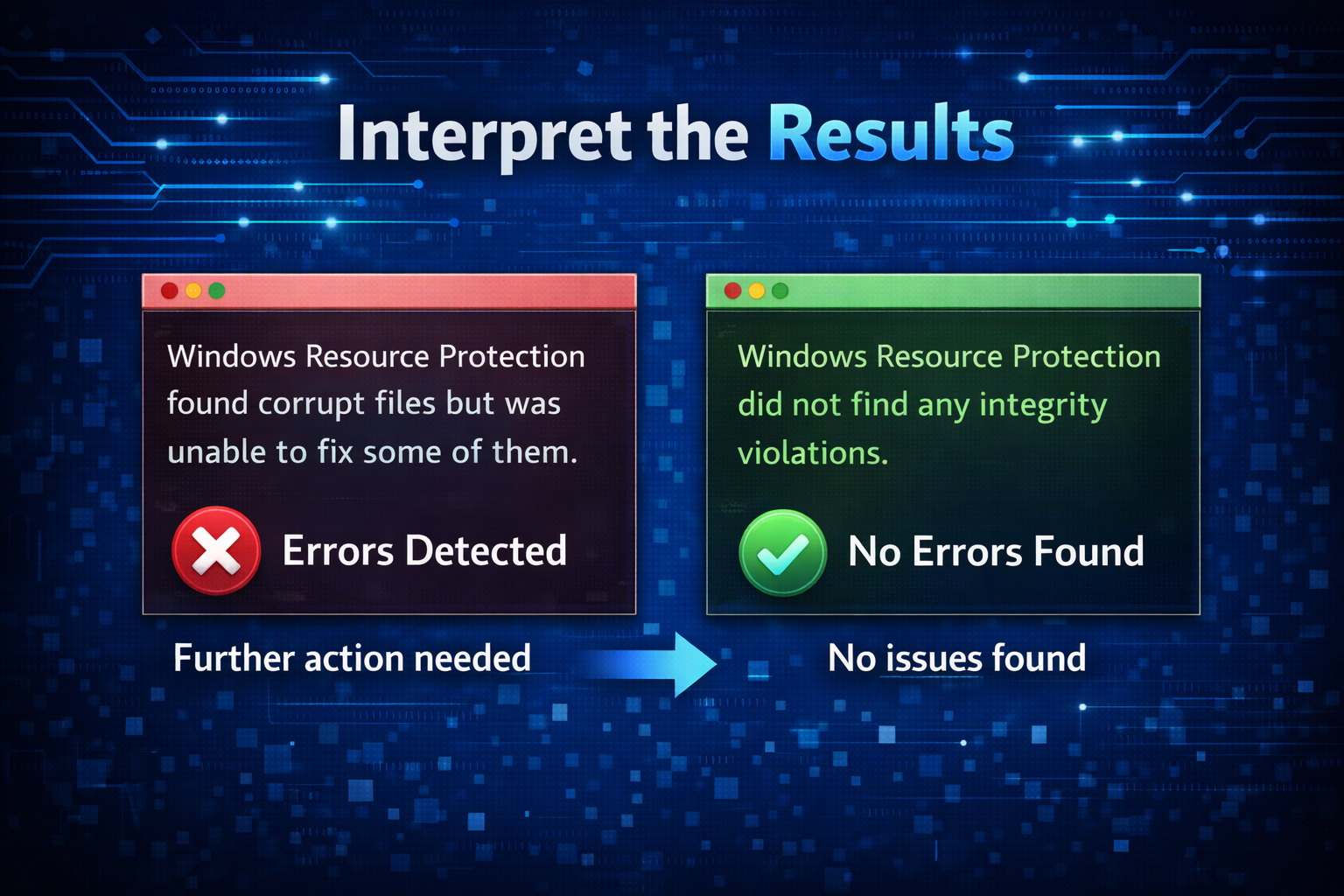
Here’s what each possible result means:
- No Integrity Violations:
Your system files are intact. - Corrupt Files Repaired:
SFC found and fixed issues. You may need to restart your PC for all repairs to take effect. - Corrupt Files Not Repairable:
SFC found problems but could not fix everything. In this case, you might need to use additional tools like DISM or manually replace files.
What If SFC Can’t Fix the Problems?
Sometimes, SFC may report that it found corrupt files but was unable to fix some of them. When this happens, you should use another built-in tool called DISM (Deployment Image Servicing and Management) before running SFC again. DISM can repair the underlying Windows image that SFC relies on.
Using DISM
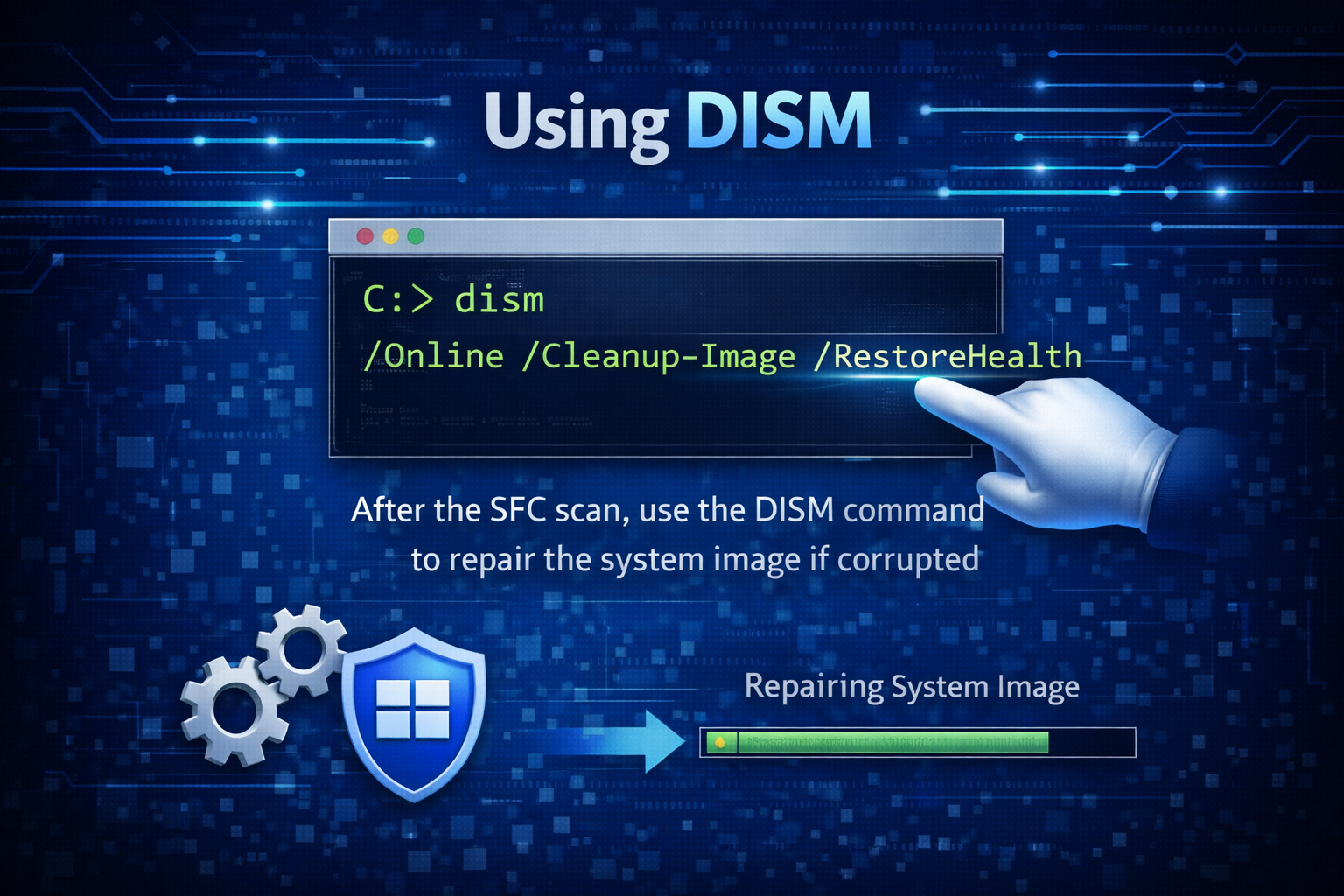
- Open Command Prompt as Administrator (just like before).
- Type the following command and press Enter:
DISM /Online /Cleanup-Image /RestoreHealth
This command checks the health of your Windows image and attempts to repair it using Windows Update or a specified source image.
The process can take 10–30 minutes, so be patient.
Run SFC Again
After DISM finishes, run:
sfc /scannow
again to repair any remaining corrupt files. Often, DISM repairs the image so that SFC can finish the job.
Advanced: Running SFC from Windows Recovery Environment
If your system cannot boot into Windows normally, you can still run SFC through the Windows Recovery Environment (WinRE):
- Restart your computer and press F8, Shift + F8, or interrupt the boot process three times to trigger automatic repair.
- Choose Troubleshoot → Advanced Options → Command Prompt.
- In the Command Prompt that opens, run:
sfc /scannow /offbootdir=C:\ /offwindir=C:\Windows
Replace
C:with the appropriate drive letter if Windows is installed on a different partition.
This tells SFC to repair the offline Windows installation.
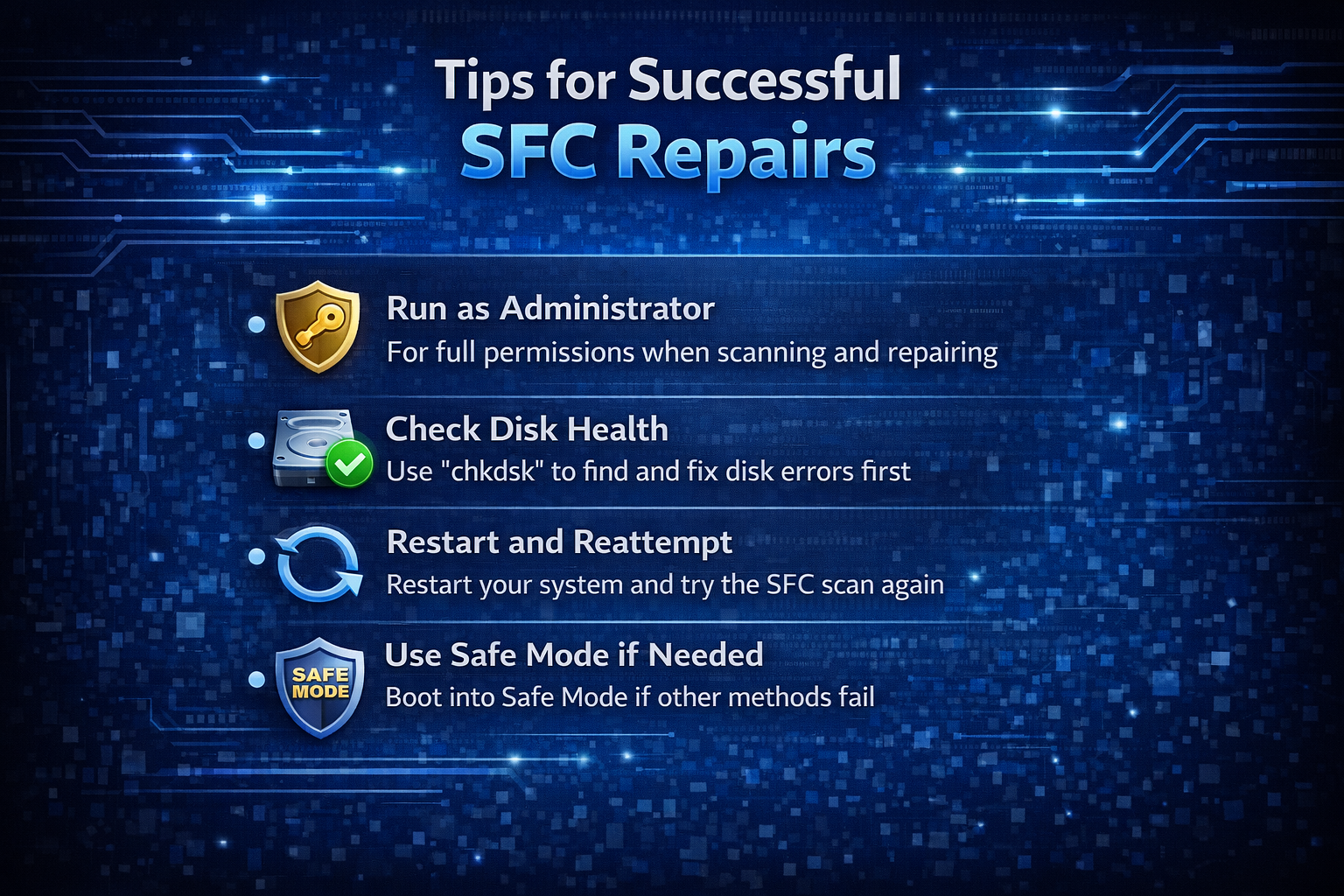
Tips for Successful SFC Repairs
1. Run SFC Regularly
It’s good practice to run SFC whenever your system behaves unexpectedly.
2. Combine with Antivirus Scans
System file corruption can sometimes be caused by malware. Running a full antivirus scan can eliminate hidden threats before running SFC.
3. Ensure System Updates Are Installed
Windows Updates often include important system file improvements. Make sure your system is up to date.
4. Back Up Your Data
Before making system repairs, it’s always wise to back up important documents and files.
Common SFC Problems and Solutions
“SFC Found Corrupt Files but Couldn’t Fix Some of Them”
As mentioned, use DISM first. If issues persist:
- Manually replace corrupted files using a known good copy.
- Repair Install Windows (also called an in-place upgrade).
“Windows Resource Protection Could Not Perform the Requested Operation”
This error often means your system cannot access the correct folders. Try:
- Running SFC in Safe Mode.
- Repairing through WinRE.
“Access Denied” Errors
If you see “Access Denied,” ensure you opened Command Prompt with administrative privileges.
Conclusion
The System File Checker (SFC) is a powerful and essential Windows utility for diagnosing and repairing corrupted system files. It’s built into every modern version of Windows and doesn’t require extra software. Whether you’re dealing with strange crashes, unresponsive system features, or unexplained errors, SFC is one of the first tools you should try. When paired with DISM, it becomes even more effective at restoring your system to a stable, functional state.
