How to Fix Apps Not Verifying Account Properly (Easy Guide)
Introduction
You’re trying to log into an app, but it just won’t verify your account. No matter how many times you enter the code or confirm your details, it keeps failing. Frustrating, right?
You’re not alone—many users face this issue daily. Whether it’s a social media app, banking app, or messaging platform, verification problems can block access completely.
In this guide, you’ll learn how to fix apps not verifying account properly with simple, proven solutions. From quick fixes to advanced troubleshooting, here’s what works.
Table of Contents
- What is the Problem?
- Why Does This Problem Happen?
- How to Fix Apps Not Verifying Account Properly
- Advanced Fixes
- Prevent This Problem in the Future
- Common FAQs
- Conclusion
What is the Problem?
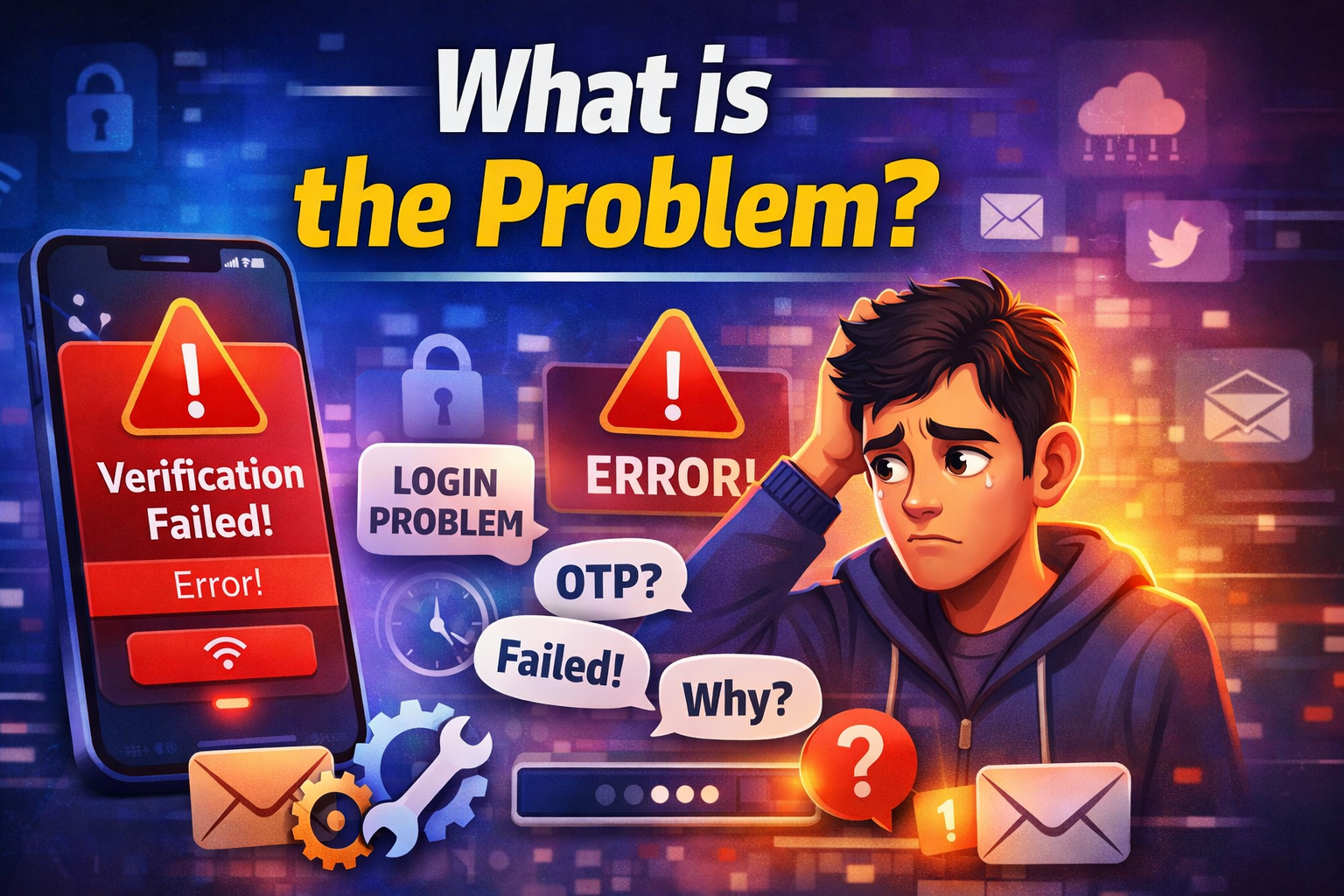
When apps fail to verify your account, it means the system cannot confirm your identity—even after entering correct details like:
- OTP (One-Time Password)
- Email verification link
- Phone number confirmation
- Login credentials
Common Symptoms
- Verification code not accepted
- “Verification failed” error message
- OTP not working or expired instantly
- App stuck on verification screen
- Unable to receive verification email or SMS
This issue can occur on both Android and iPhone and may affect apps like WhatsApp, Facebook, banking apps, and more.
Why Does This Problem Happen?
Understanding the cause helps you fix the issue faster. Here are the most common reasons:
1. Poor Internet Connection
A weak or unstable network can interrupt verification requests.
2. Incorrect Date & Time Settings
If your device time is wrong, verification servers may reject requests.
3. Delayed or Invalid OTP
OTP codes may expire quickly or arrive late.
4. Server Issues
Sometimes, the app’s server is down or overloaded.
5. App Bugs or Outdated Version
Older versions may have bugs affecting verification.
6. Blocked SMS or Email
Your device or carrier may block verification messages.
7. VPN or Proxy Interference
Using VPN can confuse location-based verification systems.
How to Fix Apps Not Verifying Account Properly
Here’s what works. Follow these step-by-step solutions:
1. Check Your Internet Connection (Quick Fix)
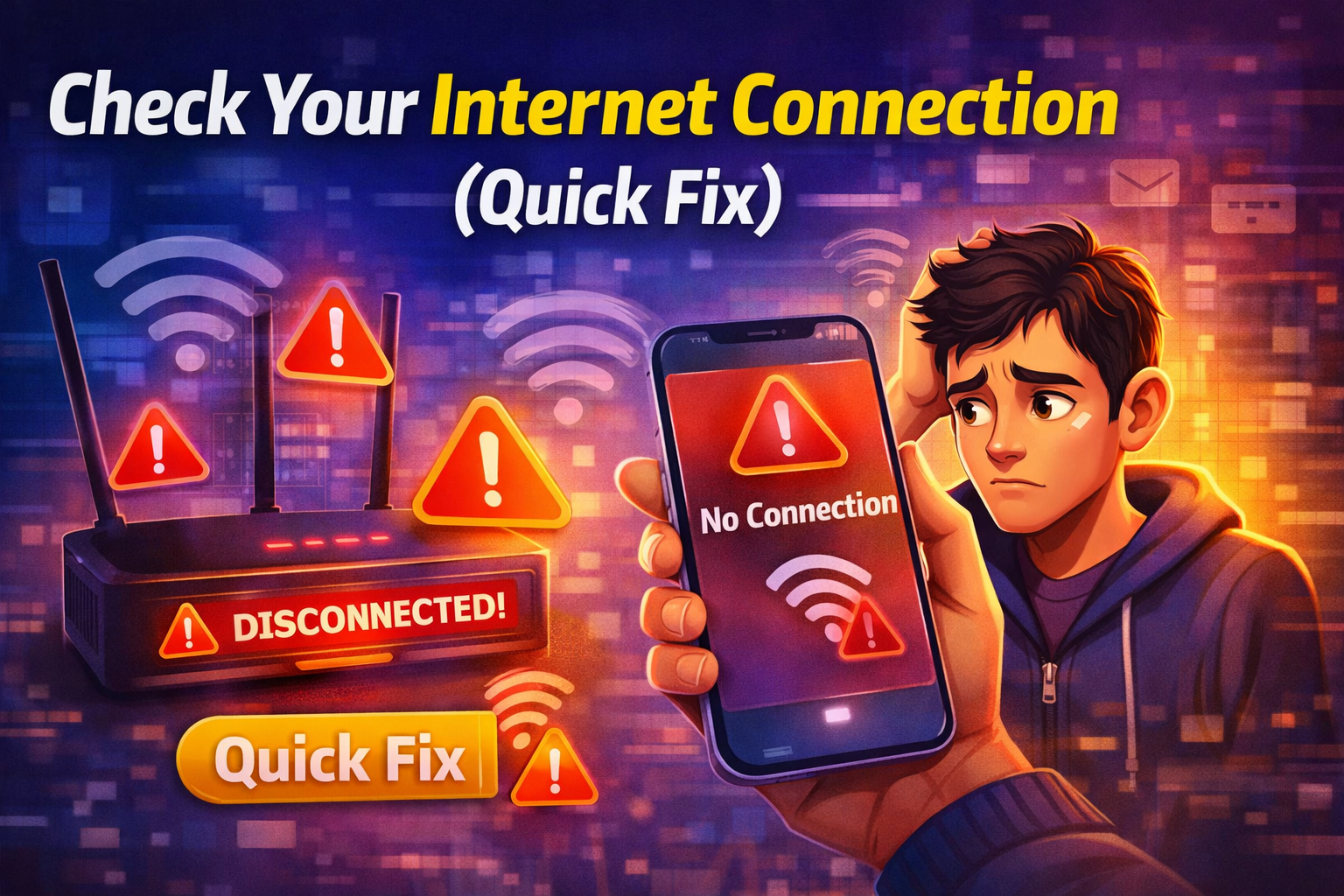
A stable connection is essential for verification.
What to do:
- Switch between Wi-Fi and mobile data
- Restart your router
- Turn airplane mode ON/OFF
👉 Pro Tip: Use mobile data if Wi-Fi is slow.
2. Verify Date and Time Settings
Incorrect time can break verification systems.
Steps:
- Go to Settings
- Tap Date & Time
- Enable Automatic Date & Time
👉 This ensures your device syncs with servers correctly.
3. Request a New Verification Code
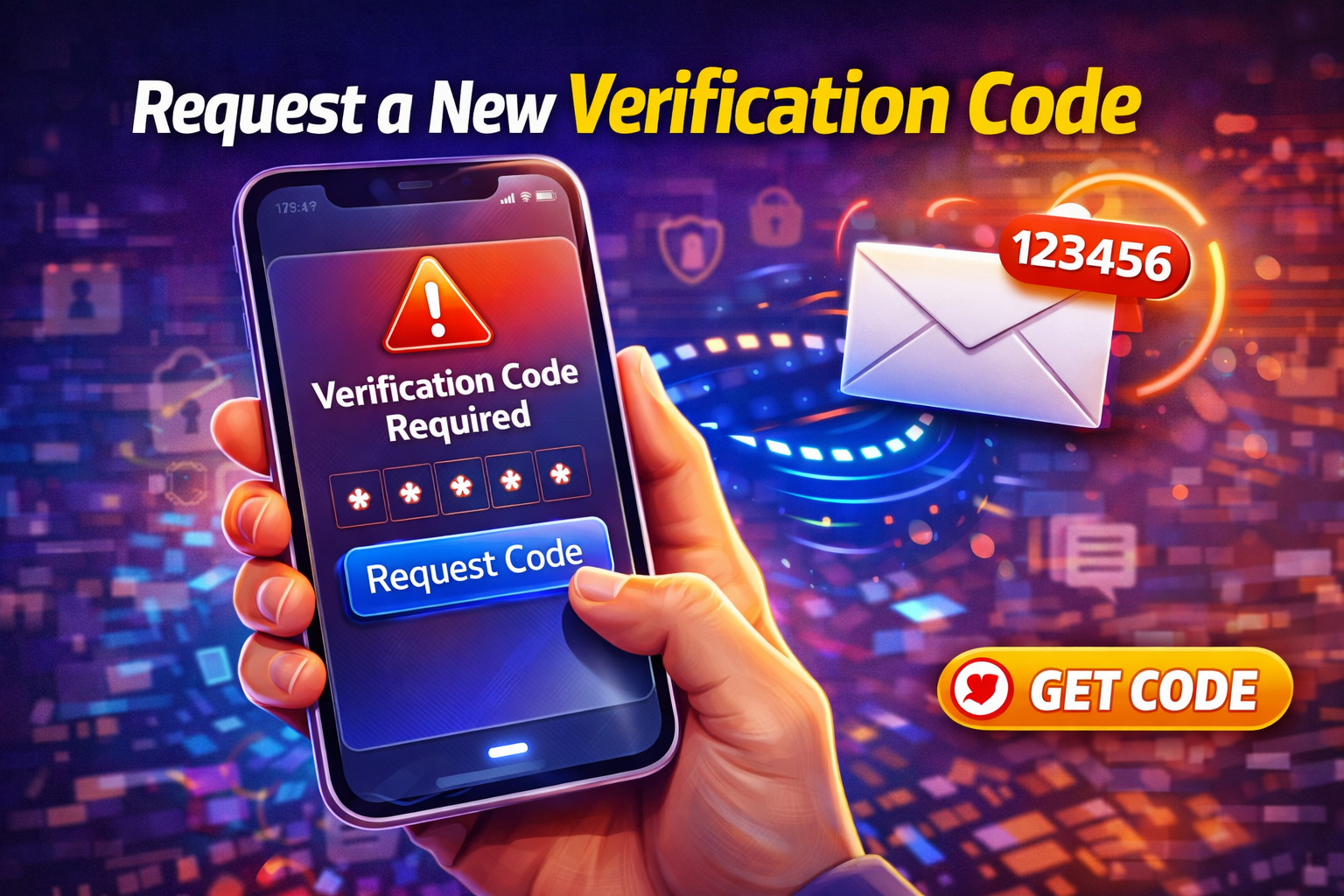
Sometimes the code you receive is expired.
Try this:
- Tap Resend Code
- Wait a few seconds before entering
- Avoid multiple rapid requests
⚠️ Warning: Too many attempts can temporarily block verification.
4. Update the App
Outdated apps often cause verification issues.
Steps:
- Open Google Play Store or App Store
- Search for the app
- Tap Update
👉 Here’s what works: Updates fix bugs and improve authentication.
5. Clear App Cache (Android)
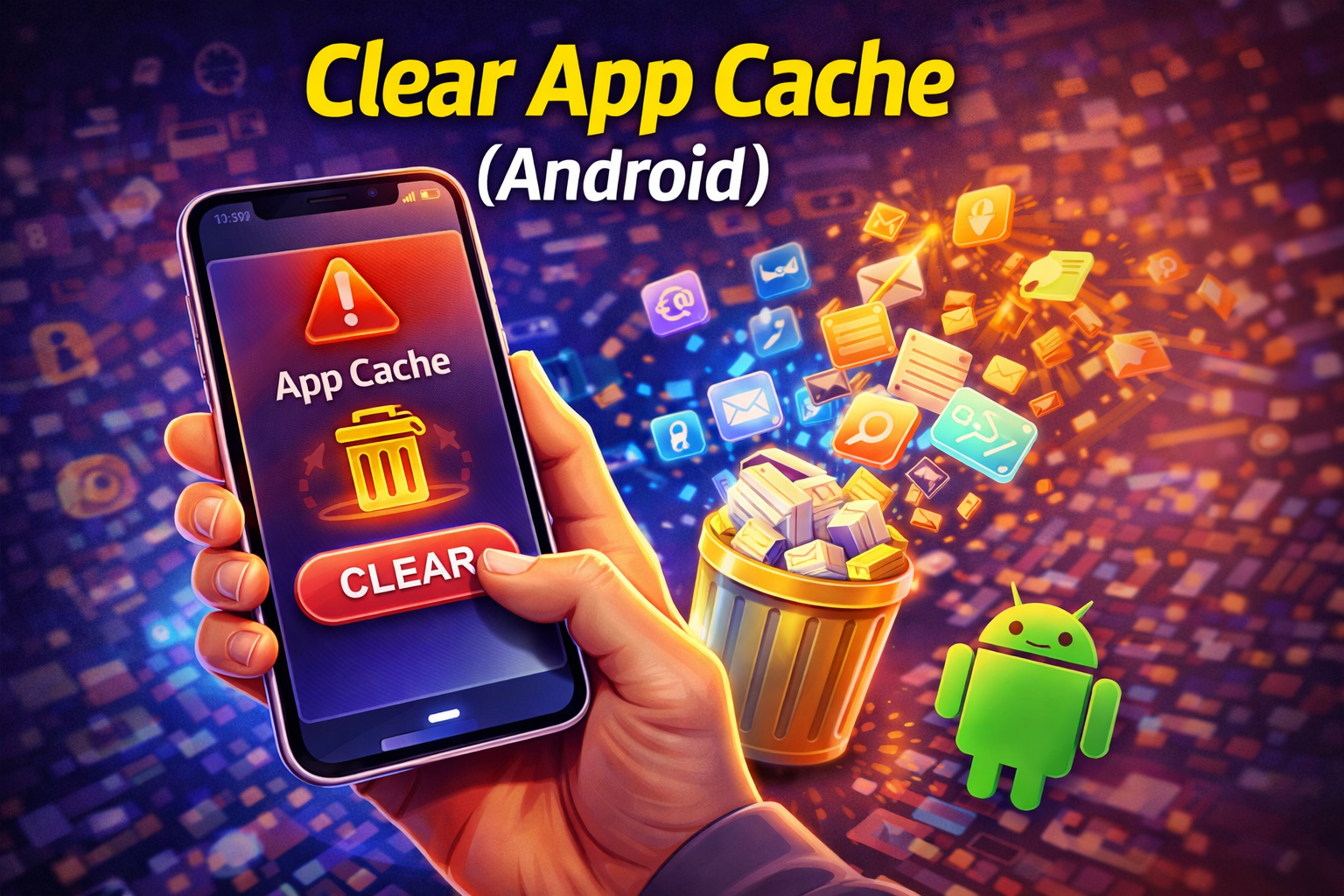
Cache files can become corrupted.
Steps:
- Go to Settings > Apps
- Select the app
- Tap Storage
- Choose Clear Cache
👉 This won’t delete your data but can fix many issues.
6. Disable VPN or Proxy
VPN can interfere with account verification.
What to do:
- Turn off VPN apps
- Disable proxy settings
👉 Many apps require your real location for security checks.
7. Check SMS and Email Permissions
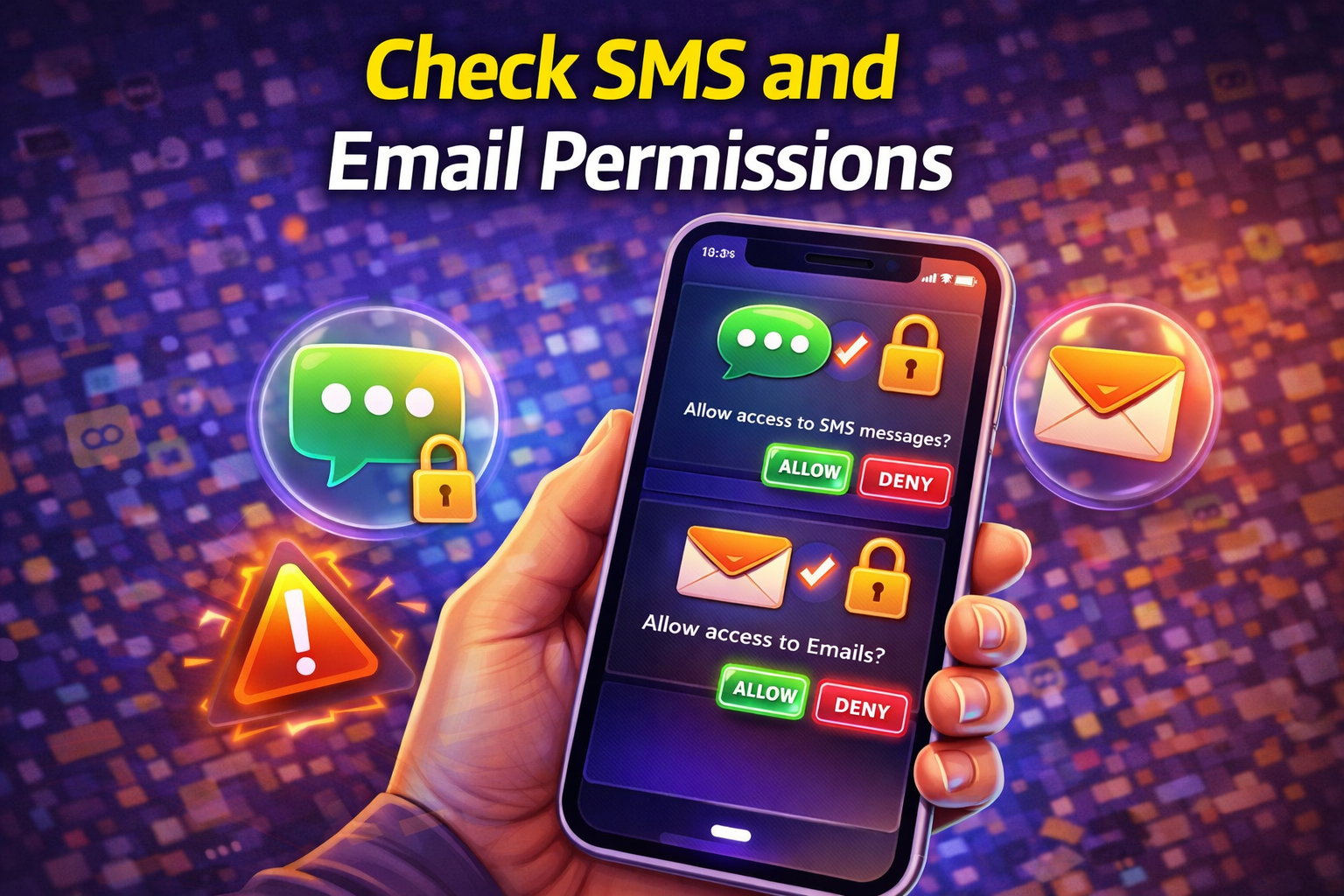
If you’re not receiving codes, permissions may be blocked.
Steps:
- Go to Settings > Apps
- Select the app
- Enable permissions like:
- SMS
- Phone
- Notifications
👉 Also check your spam folder for emails.
8. Restart Your Device
Simple but powerful.
Why it works:
- Clears temporary glitches
- Refreshes system processes
👉 This is often overlooked but very effective.
Advanced Fixes (For Technical Users)
If the basic steps don’t work, try these:
1. Reinstall the App
- Uninstall the app
- Restart your device
- Install it again
2. Reset Network Settings
This can fix deeper connectivity issues.
- Android: Settings > System > Reset > Network Settings
- iPhone: Settings > General > Transfer or Reset > Reset Network
⚠️ This will remove saved Wi-Fi passwords.
3. Try a Different Device
Log in from another phone or browser to check if the issue is device-specific.
4. Contact App Support
If nothing works, reach out to the app’s support team with:
- Screenshot of error
- Device model
- App version
Prevent This Problem in the Future
Avoid verification issues with these tips:
- ✅ Keep your apps updated
- ✅ Use a stable internet connection
- ✅ Avoid using VPN for important logins
- ✅ Keep your phone number and email active
- ✅ Enable automatic date & time
👉 Pro Insight: Always verify accounts immediately after receiving the code to avoid expiration.
Common FAQs
1. Why is my verification code not working?
It may be expired, incorrect, or delayed due to network issues.
2. Why am I not receiving OTP messages?
Possible reasons include:
- Weak signal
- Blocked SMS permissions
- Carrier issues
3. Can VPN cause verification failure?
Yes. VPN can trigger security checks and block verification.
4. How long does a verification code last?
Most OTPs expire within 30–120 seconds.
5. What should I do if verification keeps failing?
Try:
- Restarting your device
- Updating the app
- Contacting support
Conclusion
Dealing with apps that won’t verify your account can be frustrating—but the good news is, it’s usually fixable.
By following this guide on how to fix apps not verifying account properly, you can quickly identify the cause and apply the right solution. Start with simple fixes like checking your internet or updating the app, then move to advanced steps if needed.
👉 Here’s what works: Stay patient, follow the steps carefully, and most issues will be resolved in minutes.
If this guide helped you, feel free to share it or explore more troubleshooting tips to keep your apps running smoothly!
