How to Fix Apps Not Working After Network Change (Easy Guide)
Introduction
You switch from Wi-Fi to mobile data—or connect to a new network—and suddenly your apps stop working. Sound familiar? You’re not alone.
Many users face this frustrating issue where apps refuse to load, crash, or show connection errors after a network change. Whether you’re using Android or iPhone, this problem can disrupt your daily routine.
In this guide, we’ll show you how to fix apps not working after network change using simple, effective steps. From quick fixes to advanced solutions, here’s what actually works.
Table of Contents
- What is the Problem?
- Why Does This Problem Happen?
- How to Fix Apps Not Working After Network Change
- Advanced Fixes (Optional)
- Prevent This Problem in the Future
- Common FAQs
- Conclusion
What is the Problem?
When you change networks (e.g., Wi-Fi to mobile data or vice versa), some apps may stop functioning properly.
Common Symptoms:
- Apps not loading or stuck on a blank screen
- “No internet connection” error despite being connected
- Apps crashing after opening
- Slow loading or timeout errors
- Certain features (like videos or messages) not working
This issue can affect popular apps like WhatsApp, Facebook, YouTube, Instagram, and even banking apps.
Why Does This Problem Happen?
Understanding the cause helps you fix the issue faster. Here are the most common reasons:
1. Network Configuration Issues
- The new network may have DNS or routing problems
- Public Wi-Fi may block certain app services
2. Cached Data Conflict
- Apps store old network data that conflicts with the new connection
3. VPN or Proxy Interference
- VPNs may not switch networks smoothly
4. App Permissions
- Some apps may not have permission to use mobile data
5. Background Restrictions
- Battery saver or data saver modes may block apps
6. Temporary System Glitches
- Your device may not properly refresh network settings
7. Firewall or Security Settings
- Some networks block app traffic for security reasons
How to Fix Apps Not Working After Network Change
Here’s what works. Follow these step-by-step solutions:
1. Quick Fix: Turn Airplane Mode On and Off
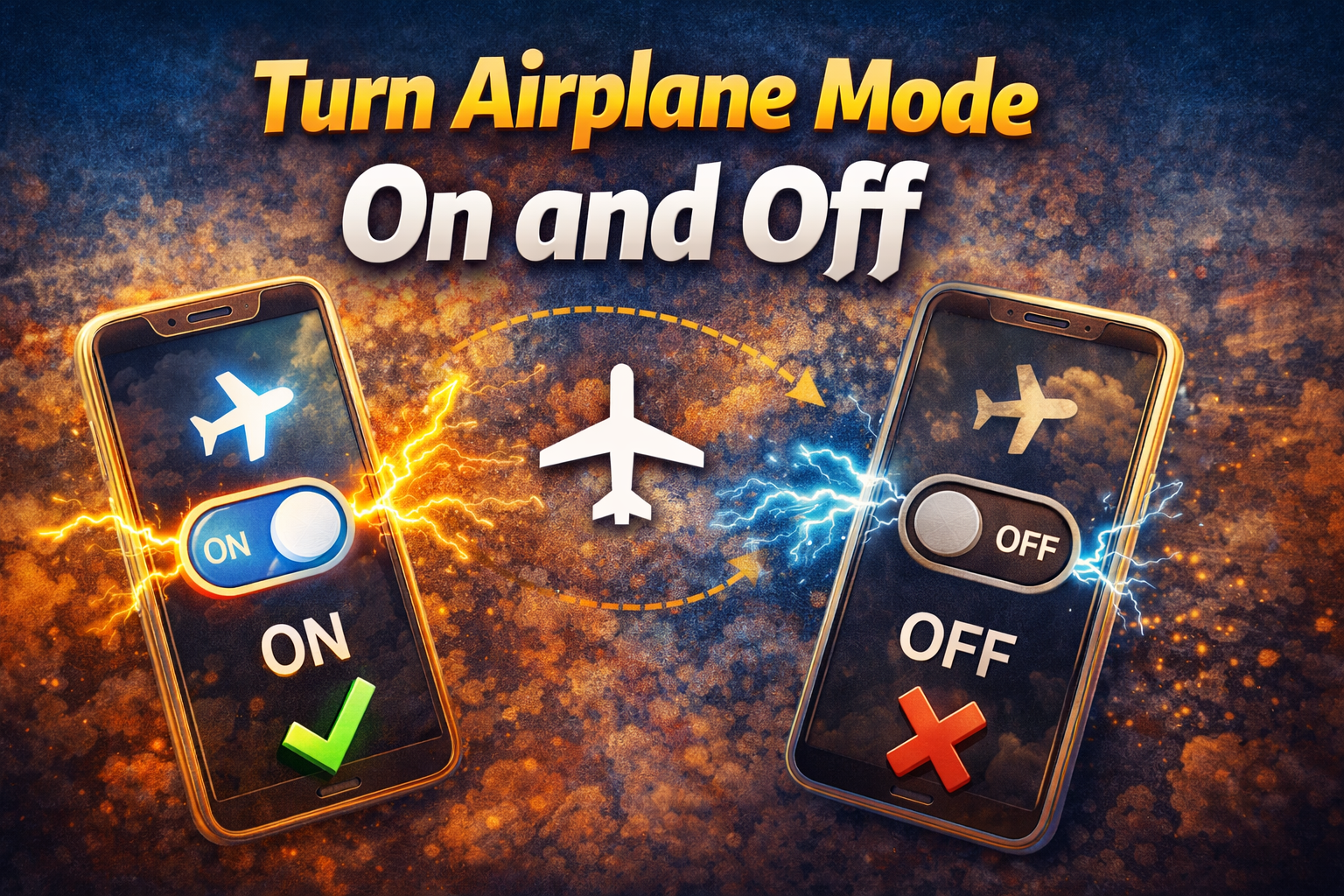
This is the fastest and most effective fix.
Steps:
- Turn on Airplane Mode
- Wait 10–15 seconds
- Turn it off
👉 This refreshes your network connection instantly.
2. Restart Your Device
Sometimes, a simple reboot solves everything.
Steps:
- Power off your phone
- Wait 20–30 seconds
- Turn it back on
✔️ This clears temporary glitches affecting apps.
3. Check Internet Connection
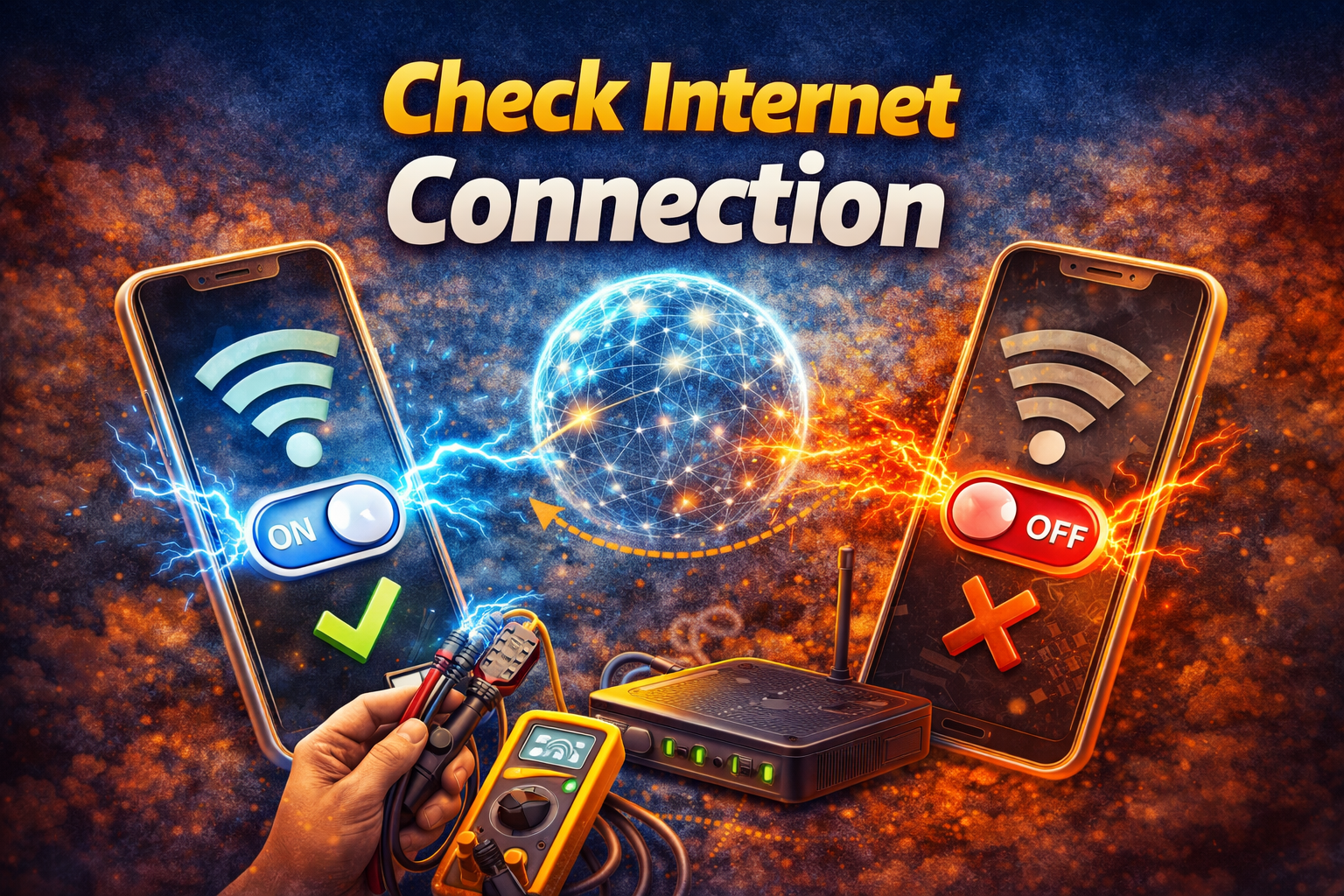
Make sure your new network is stable.
Try this:
- Open a browser and visit a website
- Switch between Wi-Fi and mobile data
- Move closer to the router
⚠️ Weak or unstable networks can cause apps to fail.
4. Disable VPN or Proxy
VPNs often cause issues after switching networks.
Steps:
- Open your VPN app
- Disconnect or turn it off
- Restart the affected app
👉 Many apps block or struggle with VPN connections.
5. Clear App Cache

Old cache data may conflict with new network settings.
On Android:
- Go to Settings → Apps
- Select the app
- Tap Storage → Clear Cache
On iPhone:
- Reinstall the app (since cache clearing isn’t direct)
✔️ This is one of the most reliable fixes.
6. Check App Data Usage Permissions
Ensure the app is allowed to use your current network.
Steps:
- Go to Settings → Apps → [App Name]
- Tap Mobile Data & Wi-Fi
- Enable both options
📌 Some apps are restricted to Wi-Fi only.
7. Disable Data Saver or Battery Saver
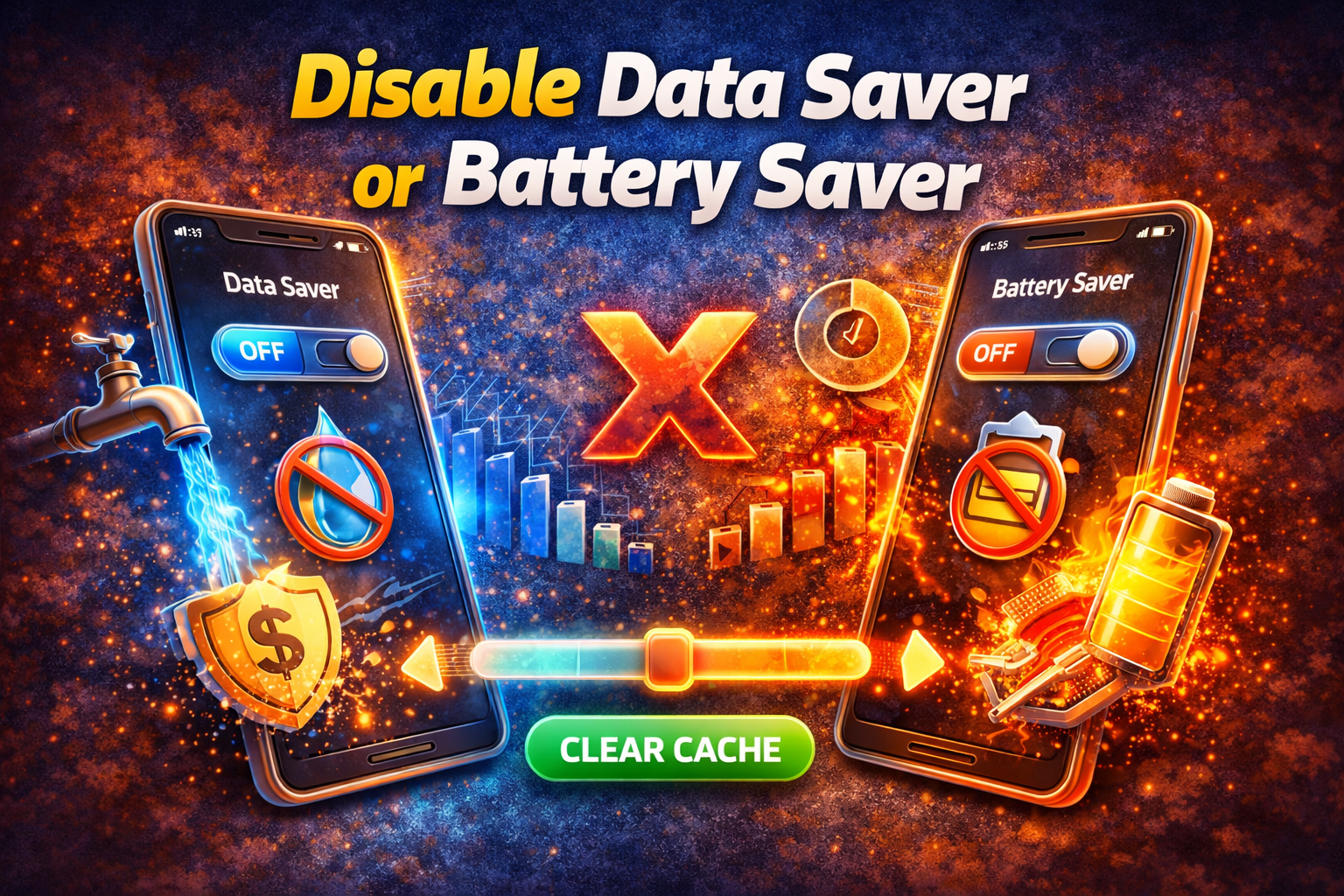
These modes can block background activity.
Steps:
- Go to Settings → Battery or Data Saver
- Turn off restrictions
👉 Apps need unrestricted access to function properly.
8. Update or Reinstall the App
Outdated apps may not handle network changes well.
Steps:
- Open Play Store / App Store
- Update the app
- If needed, uninstall and reinstall
✔️ This fixes compatibility issues.
Advanced Fixes (Optional)
If the problem persists, try these more technical solutions:
1. Reset Network Settings
This clears all network configurations.
Steps:
- Go to Settings → General Management
- Tap Reset → Reset Network Settings
⚠️ This will remove saved Wi-Fi passwords.
2. Change DNS Settings
Custom DNS can improve connectivity.
Example:
- Use Google DNS:
8.8.8.8and8.8.4.4
👉 Helpful if your network has DNS issues.
3. Check Firewall or Router Settings
If you’re on Wi-Fi:
- Disable router firewall temporarily
- Check if specific ports are blocked
📌 Some networks restrict app traffic.
4. Update System Software
Outdated OS versions can cause network bugs.
Steps:
- Go to Settings → Software Update
- Install the latest update
✔️ Keeps your device compatible with apps.
Prevent This Problem in the Future
Avoid facing this issue again with these tips:
✔️ Always Keep Apps Updated
- Updates fix bugs and improve network handling
✔️ Avoid Untrusted Public Wi-Fi
- These networks often block app functionality
✔️ Use Reliable VPN Services
- Low-quality VPNs cause more harm than good
✔️ Restart Your Phone Occasionally
- Helps maintain system performance
✔️ Monitor Data Saver Settings
- Ensure important apps aren’t restricted
Common FAQs
1. Why do apps stop working after switching from Wi-Fi to mobile data?
Because the app may still be using old network settings or lacks permission for mobile data.
2. Does clearing cache fix network-related app issues?
Yes. It removes outdated data that may conflict with new network connections.
3. Can VPN cause apps to stop working?
Absolutely. VPNs can block or slow down connections, especially after switching networks.
4. Why do apps work on Wi-Fi but not mobile data?
This usually happens due to data restrictions or poor mobile signal.
5. Is resetting network settings safe?
Yes, but it will remove saved Wi-Fi networks and passwords.
Conclusion
Dealing with apps that stop working after a network change can be frustrating—but the good news is, it’s usually easy to fix.
Start with quick solutions like Airplane Mode, restarting your device, or checking your connection. If needed, move on to clearing cache, disabling VPNs, or resetting network settings.
👉 Here’s what works: simple fixes often solve the problem in minutes.
If this guide helped you, consider sharing it with others facing the same issue—or explore more troubleshooting guides to keep your apps running smoothly.
