How to Fix Apps Not Syncing Across Multiple Devices (Easy Guide)
Introduction
You’re not alone—few things are more frustrating than opening an app on your phone, only to realize your data didn’t sync from your laptop or tablet. Whether it’s notes, messages, photos, or files, this issue can disrupt your workflow and cause confusion.
If you’re searching for how to fix apps not syncing across multiple devices, you’re in the right place. This guide will walk you through simple, proven solutions that actually work—no technical expertise required.
Table of Contents
- What is the Problem?
- Why Does This Problem Happen?
- How to Fix Apps Not Syncing Across Multiple Devices
- Advanced Fixes
- Prevent This Problem in the Future
- Common FAQs
- Conclusion
What is the Problem?
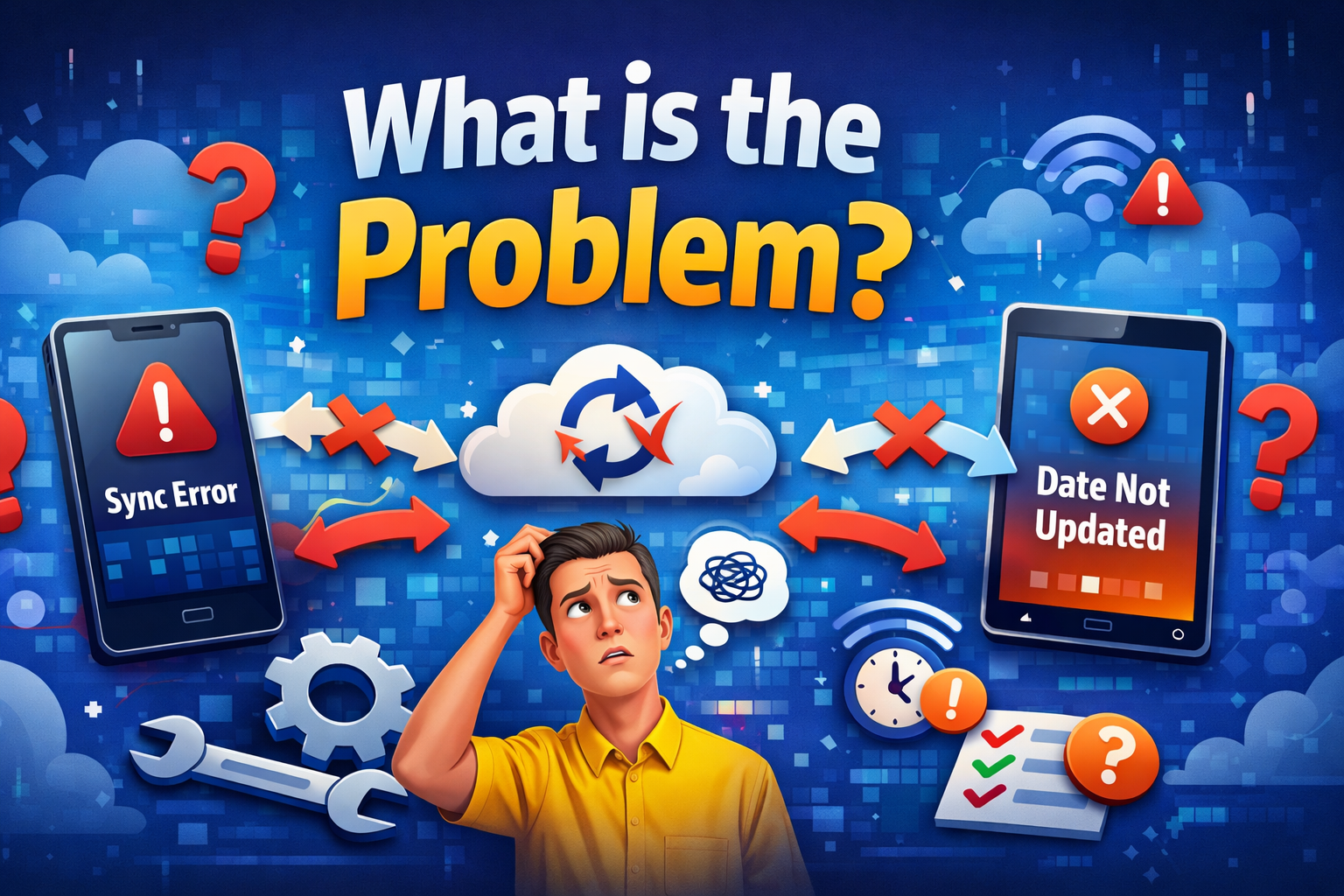
When apps fail to sync across multiple devices, it means your data isn’t updating consistently between platforms like your phone, tablet, or computer.
Common Symptoms
- Changes on one device don’t appear on another
- Missing files, notes, or messages
- Delayed updates or partial syncing
- Login sessions not matching across devices
- Cloud-based apps showing outdated data
This issue is common with apps like Google Drive, iCloud, WhatsApp, Dropbox, and note-taking apps.
Why Does This Problem Happen?
There are several reasons why apps stop syncing properly. Understanding the cause helps you fix it faster.
1. Poor Internet Connection
Syncing depends on a stable internet connection. Weak or unstable networks can interrupt the process.
2. Account Mismatch
Using different accounts on different devices prevents proper syncing.
3. Sync Settings Disabled
Sometimes syncing is turned off in app or device settings.
4. Outdated App Version
Older versions of apps may not sync correctly with updated servers.
5. Background Restrictions
Battery saver or data saver settings can block background syncing.
6. Server Issues
Sometimes the problem isn’t you—it’s the app’s servers.
7. Cache or Data Errors
Corrupted cache files can interfere with syncing.
How to Fix Apps Not Syncing Across Multiple Devices (Step-by-Step)
Here’s what works—follow these steps in order for the best results.
1. Check Your Internet Connection (Quick Fix)
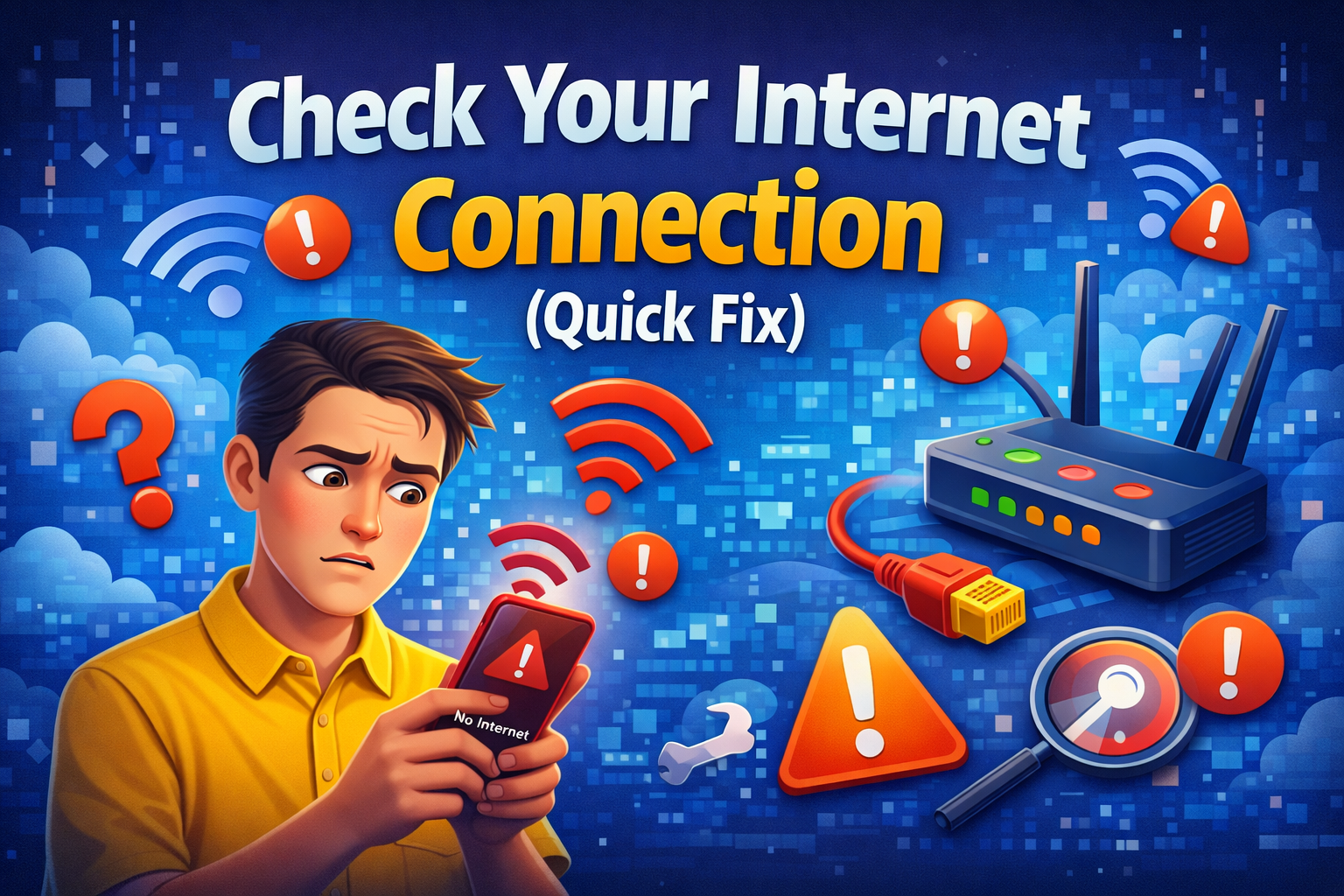
Make sure all devices are connected to a stable network.
Try this:
- Switch between Wi-Fi and mobile data
- Restart your router
- Test internet speed
👉 Pro Tip: Syncing works best on strong Wi-Fi.
2. Ensure You’re Using the Same Account
This is one of the most common causes.
What to do:
- Log out and log back in on all devices
- Double-check email or account ID
- Avoid using multiple accounts for the same app
3. Enable Sync Settings
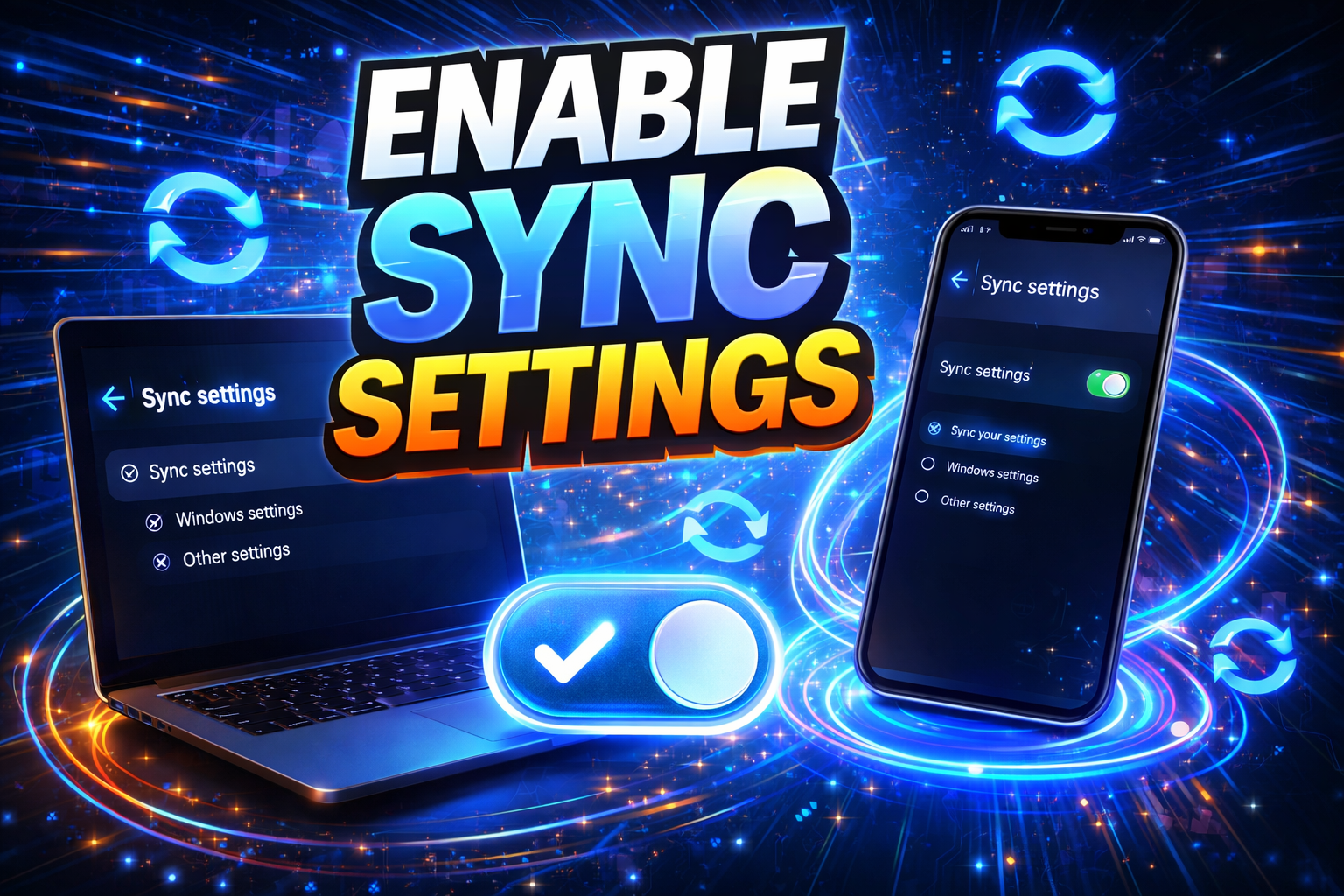
Sometimes syncing is simply turned off.
Steps:
- Go to app settings
- Find “Sync” or “Account” settings
- Turn on sync manually
On Android:
- Settings → Accounts → Sync
On iPhone:
- Settings → Apple ID → iCloud → Toggle apps
4. Update the App
Outdated apps often cause syncing issues.
Fix:
- Go to Google Play Store or App Store
- Update the app to the latest version
👉 Here’s what works: Always keep apps updated for smooth syncing.
5. Restart Your Devices
Simple but effective.
Why it works:
- Clears temporary bugs
- Refreshes system processes
Steps:
- Restart all devices involved
- Open the app again and check sync
6. Disable Battery/Data Saver
These modes can block background syncing.
Fix:
- Turn off Battery Saver
- Disable Data Saver
- Allow background app activity
7. Clear App Cache (Android)
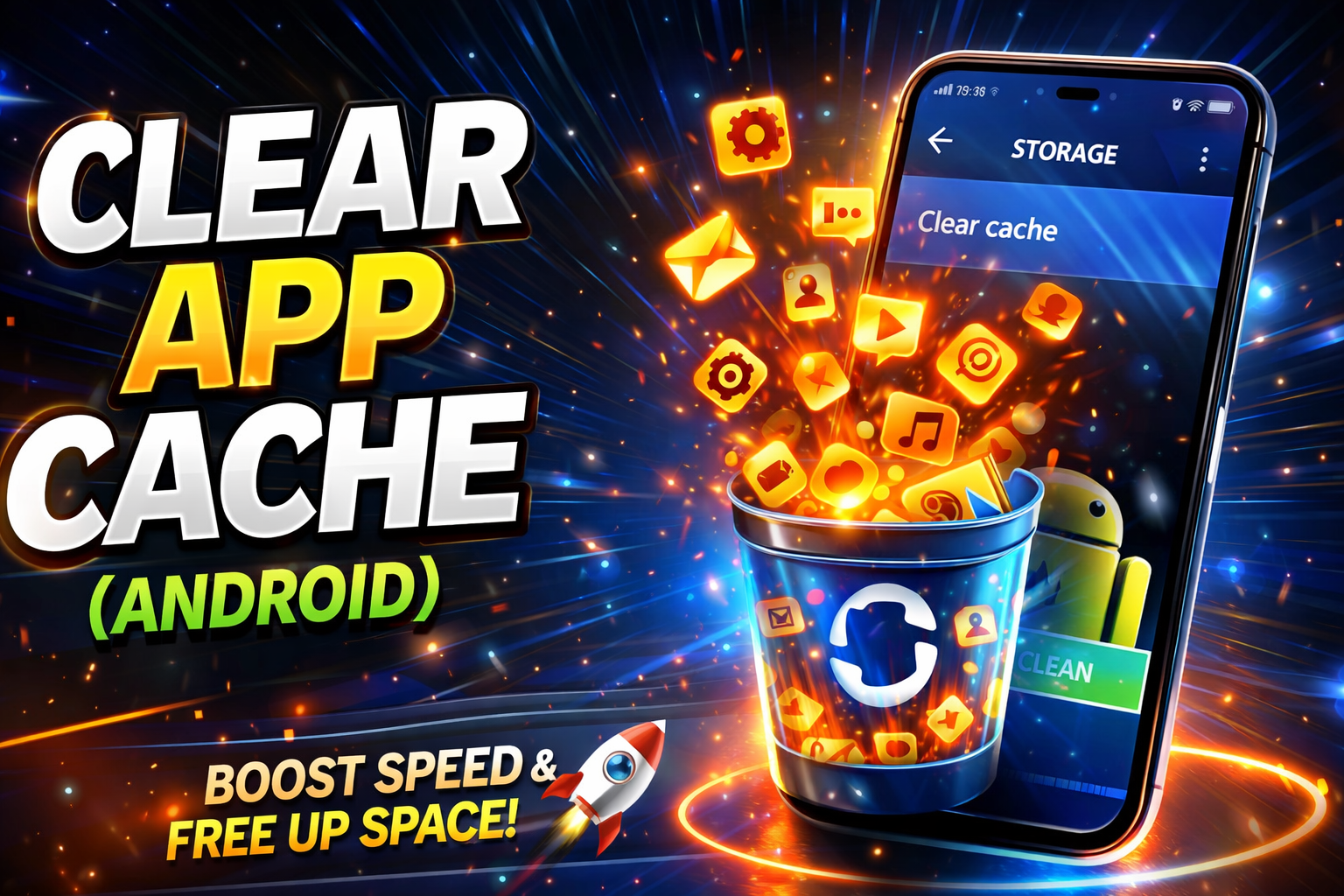
Corrupted cache can stop syncing.
Steps:
- Settings → Apps → Select app
- Tap “Storage”
- Clear Cache
⚠️ Warning: Don’t clear data unless necessary—it may log you out.
8. Reinstall the App
If nothing works, reinstalling can fix deeper issues.
Steps:
- Uninstall the app
- Restart your device
- Reinstall and log in again
Advanced Fixes (For Technical Users)
If the basic steps didn’t solve the issue, try these:
1. Check App Permissions
Ensure the app has permission for:
- Internet access
- Background activity
- Storage
2. Sync Manually
Some apps allow manual sync.
- Look for “Sync Now” option
- Force sync from settings
3. Check Server Status
Sometimes the issue is global.
- Visit the app’s official website
- Check platforms like DownDetector
4. Reset Network Settings
This can fix hidden connection issues.
On Android/iPhone:
- Reset Wi-Fi, mobile data, and Bluetooth settings
⚠️ This will remove saved Wi-Fi passwords.
Prevent This Problem in the Future
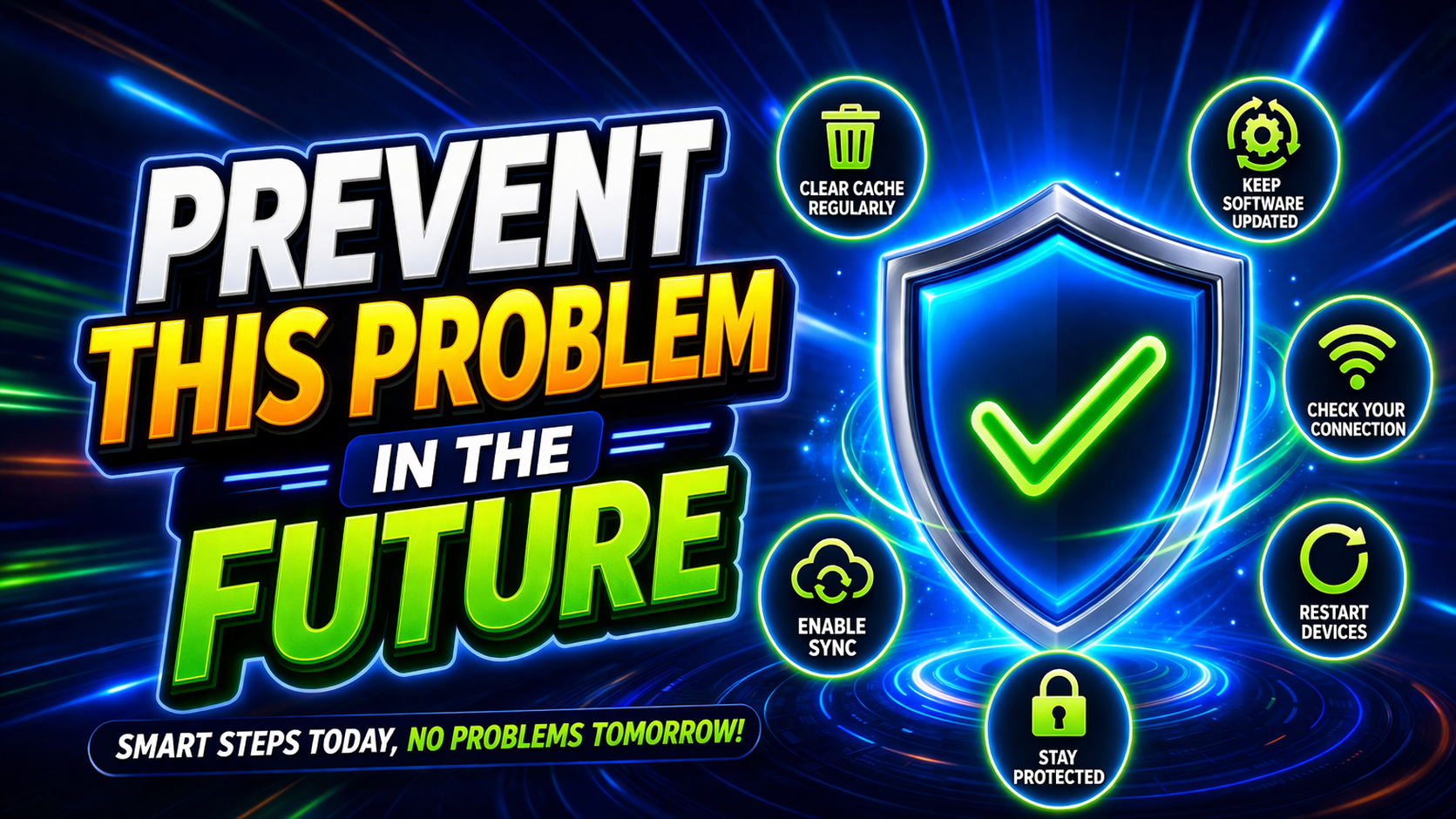
Want to avoid syncing issues altogether? Follow these tips:
✅ Keep Apps Updated
✅ Use a Stable Internet Connection
✅ Always Use the Same Account
✅ Enable Auto-Sync
✅ Avoid Aggressive Battery Saver Settings
✅ Regularly Restart Your Devices
👉 Pro Insight: Most sync problems happen due to small settings—not major bugs.
Common FAQs
1. Why are my apps not syncing in real-time?
This usually happens due to slow internet or background restrictions. Ensure sync is enabled and connection is stable.
2. Does reinstalling an app fix syncing issues?
Yes, in many cases. It removes corrupted data and resets app settings.
3. Can different devices cause syncing problems?
Not usually, but outdated software or incompatible versions can create issues.
4. Is cloud storage required for syncing?
Yes, most apps rely on cloud services to sync data across devices.
5. Why is only one app not syncing?
The issue may be app-specific—check its settings, permissions, and updates.
Conclusion
Fixing syncing issues doesn’t have to be complicated. Now you know how to fix apps not syncing across multiple devices using simple, effective steps.
Start with the quick fixes like checking your internet and account settings, then move to advanced solutions if needed. In most cases, the problem can be solved in minutes.
👉 Here’s what works: Consistency—same account, updated apps, and stable connection.
If this guide helped you, consider sharing it with others who might be facing the same issue. Have questions or another problem? Drop a comment or explore more of our “App Problems” guides for quick solutions!
