Fix Apps Not Asking for Permissions Android (Easy Guide)
Introduction
You open an app expecting it to ask for camera, storage, or location access—but nothing happens. The app either doesn’t work properly or silently fails. Sound familiar? You’re not alone.
This issue can be frustrating, especially when apps rely heavily on permissions to function. In this guide, we’ll show you how to fix apps not asking for permissions Android with simple, effective steps that actually work.
Whether it’s a system glitch or a settings issue, here’s what you need to know—and how to fix it quickly.
Table of Contents
- What is the Problem?
- Why Does This Problem Happen?
- How to Fix Apps Not Asking for Permissions Android
- Advanced Fixes
- Prevent This Problem in the Future
- Common FAQs
- Conclusion
What is the Problem?
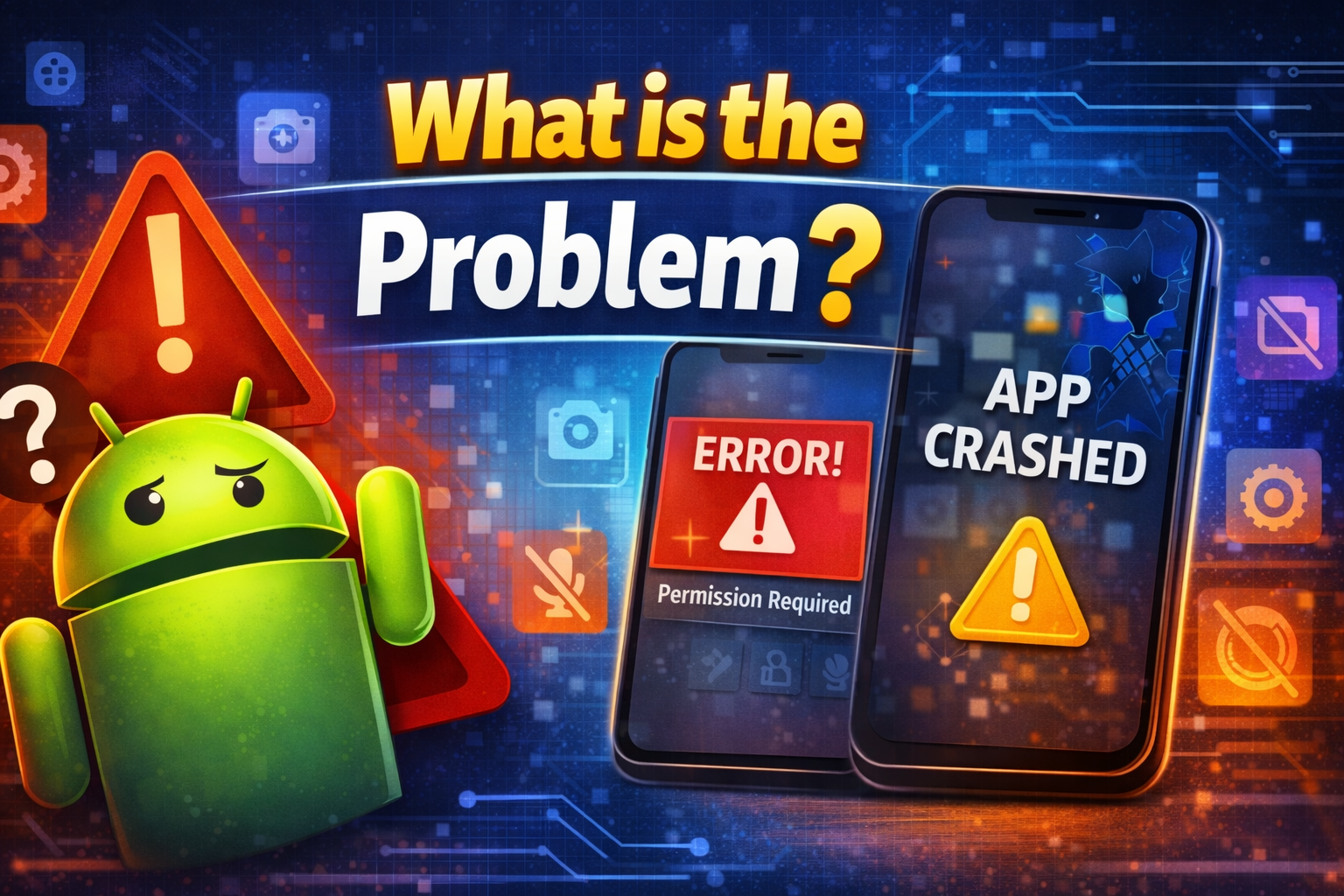
The issue occurs when an Android app fails to prompt permission requests (like camera, storage, microphone, or location) during use.
Common Symptoms
- App opens but features don’t work (e.g., camera won’t open)
- No permission popup appears
- App shows errors like “Permission Required”
- App crashes or behaves incorrectly
- Permissions remain “Not allowed” automatically
This usually means the system didn’t trigger the permission request properly.
Why Does This Problem Happen?
There are several reasons why apps don’t ask for permissions on Android:
1. Permissions Were Previously Denied
- If you tapped “Don’t allow,” Android may stop asking again
2. App Bugs or Glitches
- Poorly coded apps may fail to trigger permission dialogs
3. System Cache Issues
- Corrupted cache can block permission prompts
4. Battery Optimization Restrictions
- Some apps are restricted from running fully in the background
5. Outdated App or Android Version
- Compatibility issues can break permission requests
6. Disabled Permission Manager Settings
- System-level settings may prevent prompts
How to Fix Apps Not Asking for Permissions Android
Here’s what works. Follow these step-by-step solutions:
1. Manually Enable Permissions (Quick Fix)
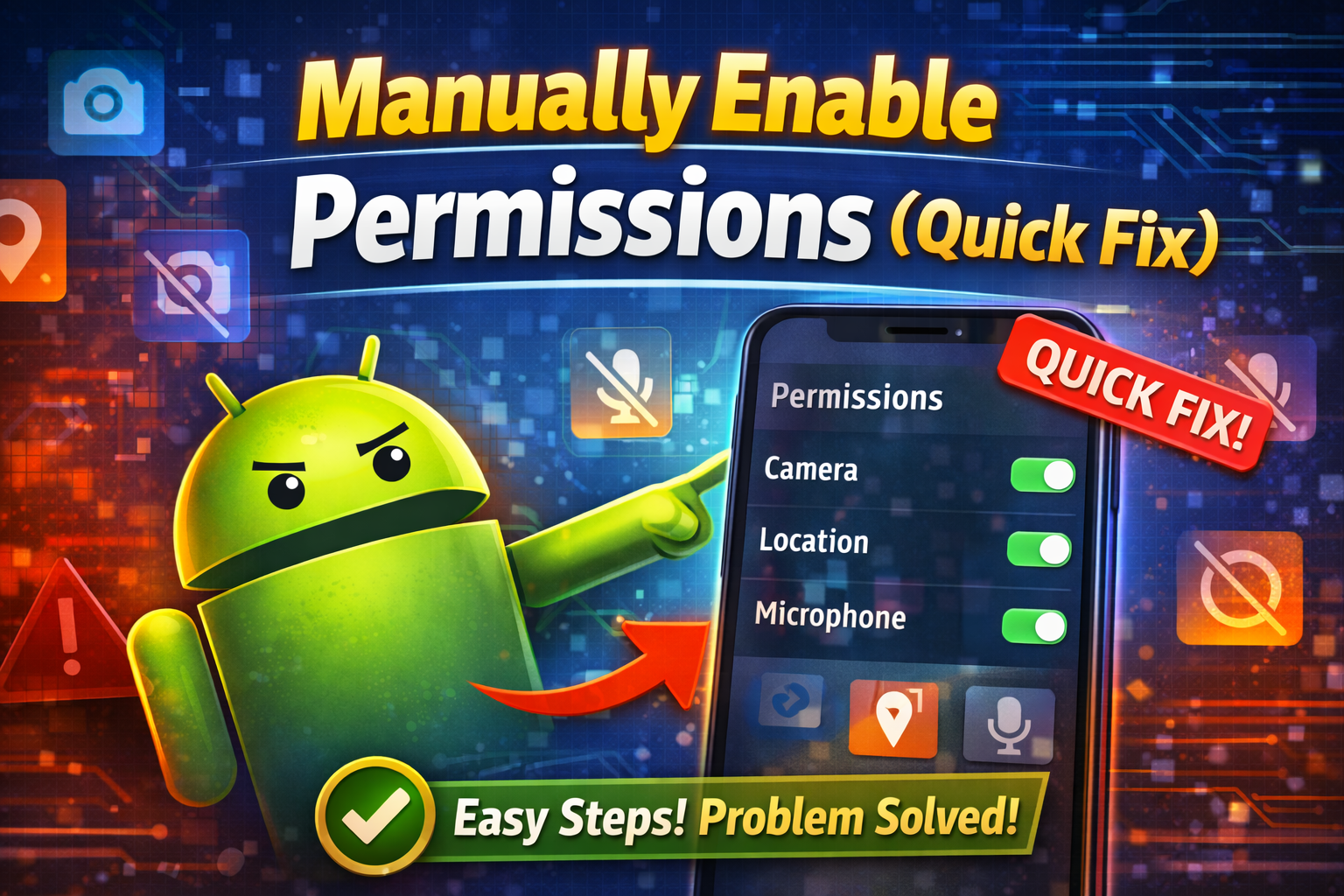
Sometimes the fastest solution is manual.
Steps:
- Go to Settings
- Tap Apps
- Select the problematic app
- Tap Permissions
- Enable required permissions (Camera, Storage, etc.)
👉 Pro Tip: This is the quickest fix if permission prompts are not appearing.
2. Reset App Preferences
This restores default settings without deleting data.
Steps:
- Open Settings
- Go to Apps
- Tap the three-dot menu
- Select Reset app preferences
- Confirm
This re-enables permission prompts for all apps.
3. Clear App Cache and Data

Corrupted cache can block permission requests.
Steps:
- Go to Settings > Apps
- Select the app
- Tap Storage
- Tap Clear Cache
- (Optional) Tap Clear Data
⚠️ Warning: Clearing data may log you out of the app.
4. Reinstall the App
If the app is buggy, reinstalling can fix it.
Steps:
- Uninstall the app
- Restart your device
- Reinstall from Google Play Store
- Open the app again
👉 This forces the app to request permissions again.
5. Check Permission Manager Settings
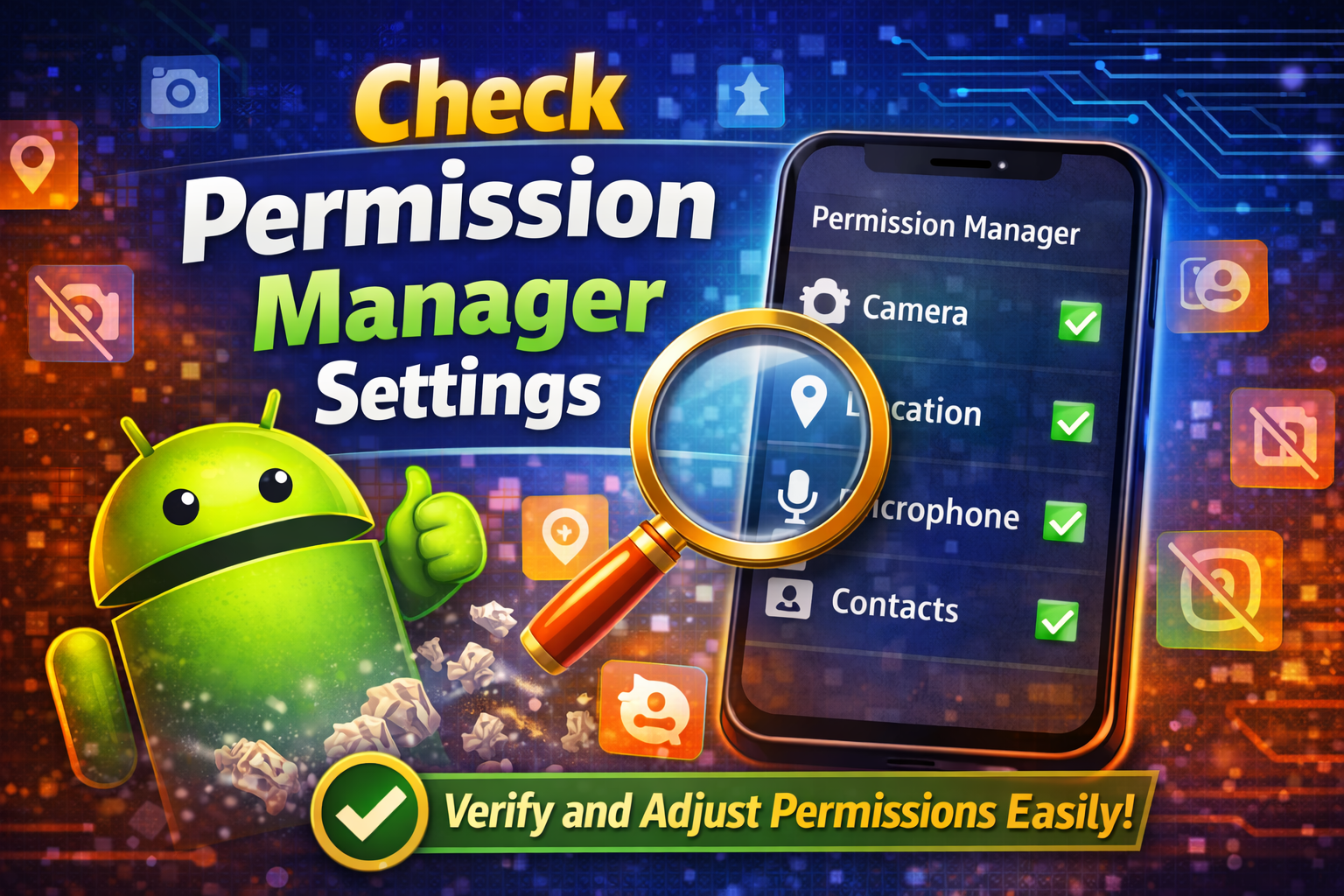
Android has a built-in permission control system.
Steps:
- Go to Settings
- Tap Privacy
- Select Permission Manager
- Check each category (Camera, Location, etc.)
- Ensure the app is not restricted
6. Disable Battery Optimization
Battery saver may block permission requests.
Steps:
- Go to Settings > Battery
- Tap Battery Optimization
- Find the app
- Set it to Not Optimized
7. Update App and Android System
Outdated software can cause permission issues.
Steps:
- Update app via Google Play Store
- Update system via Settings > Software Update
👉 Here’s what works: Keeping everything updated prevents bugs.
8. Restart Your Device
Simple but effective.
Steps:
- Press and hold the power button
- Tap Restart
This refreshes system processes and can restore permission prompts.
Advanced Fixes (Optional)
If basic solutions don’t work, try these:
1. Check Developer Options
- Ensure no restrictions on background processes
2. Reset System Settings
- Go to Settings > System > Reset
- Choose Reset all settings
3. Use Safe Mode
- Boot into Safe Mode to check if another app is interfering
4. Factory Reset (Last Resort)
- Backup your data first
- Reset device completely
⚠️ Only do this if nothing else works.
Prevent This Problem in the Future
Avoid facing this issue again with these tips:
- ✅ Always allow necessary permissions when prompted
- ✅ Avoid tapping “Don’t ask again” unless needed
- ✅ Keep apps and Android updated
- ✅ Regularly clear cache
- ✅ Download apps only from trusted sources
- ✅ Avoid aggressive battery saver settings
👉 Pro Insight: Most permission issues happen due to user denial or system restrictions—not hardware problems.
Common FAQs
1. Why is my app not asking for permissions on Android?
Because permissions were previously denied, or the app/system has a glitch preventing the prompt.
2. How do I force an app to ask for permissions again?
Manually enable permissions in Settings or reinstall the app to trigger prompts again.
3. What happens if I deny permissions permanently?
The app may stop asking and won’t function properly until you manually enable permissions.
4. Can battery saver stop permission requests?
Yes, aggressive battery optimization can limit app behavior and block permission prompts.
5. Is this problem caused by malware?
Rarely. Most cases are due to settings or software bugs, not malware.
Conclusion
Fixing the issue of apps not asking for permissions on Android doesn’t have to be complicated. In most cases, a quick fix like manually enabling permissions or reinstalling the app solves the problem instantly.
If that doesn’t work, deeper solutions like resetting app preferences or clearing cache can help restore normal functionality.
👉 You’re not alone—this is a common issue, and now you know exactly how to fix it.
If this guide helped you, feel free to share it, leave a comment, or explore more Android troubleshooting tips to keep your device running smoothly!
