How to Fix Apps Not Opening on Tablet Devices (Easy Guide)
Introduction
You’re not alone—many tablet users experience the frustrating issue where apps simply refuse to open. Whether you tap an app and nothing happens or it crashes instantly, it can disrupt your work, entertainment, or daily routine.
In this guide, we’ll show you how to fix apps not opening on tablet devices using simple, practical solutions that actually work. From quick fixes to advanced troubleshooting, you’ll learn exactly what to do to get your apps running smoothly again.
Table of Contents
- What is the Problem?
- Why Does This Problem Happen?
- How to Fix Apps Not Opening on Tablet Devices (Step-by-Step)
- Advanced Fixes
- Prevent This Problem in the Future
- Common FAQs
- Conclusion
What is the Problem?
When apps don’t open on your tablet, it means the application fails to launch properly or crashes immediately after opening.
Common Symptoms
- App won’t open when tapped
- App crashes instantly after launching
- Black or blank screen appears
- Tablet freezes when opening apps
- “App not responding” error message
This issue can happen on Android tablets, iPads, or any tablet device, and it can affect one app or multiple apps at once.
Why Does This Problem Happen?
There are several reasons why apps fail to open on tablets. Understanding the cause helps you apply the right fix.
1. Software Glitches
Temporary bugs in the operating system can prevent apps from launching.
2. Outdated App or OS
Old versions may not be compatible with your tablet’s current system.
3. Low Storage Space
Insufficient storage can stop apps from running properly.
4. Corrupted App Data
Cache or data files may become damaged over time.
5. Weak or No Internet Connection
Some apps require a stable connection to launch.
6. App Compatibility Issues
Certain apps may not support your tablet model or OS version.
7. Background Processes Overload
Too many apps running at once can slow down your device.
How to Fix Apps Not Opening on Tablet Devices (Step-by-Step)
Here’s what works. Follow these proven solutions one by one.
1. Restart Your Tablet (Quick Fix)
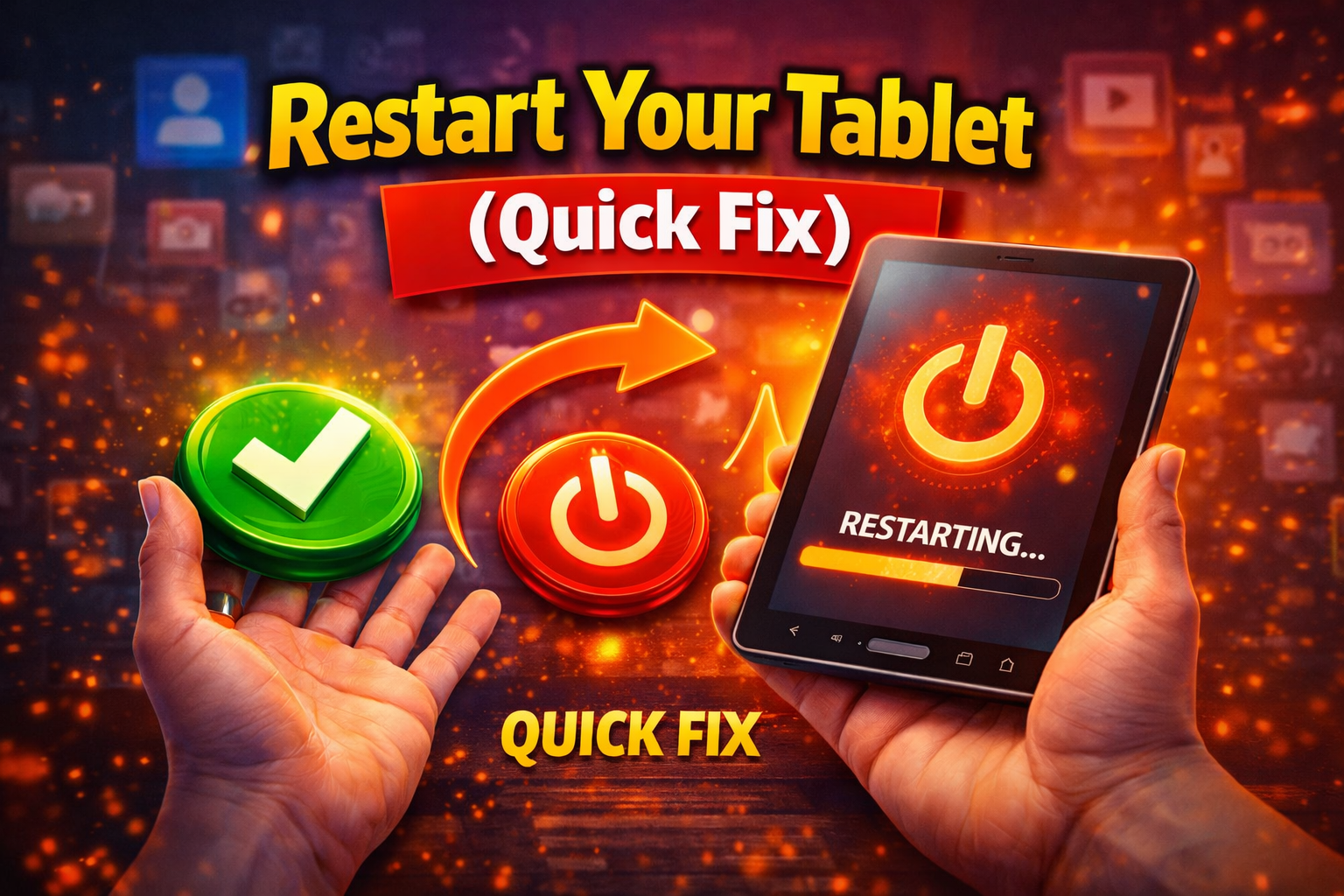
This is the easiest and often the most effective fix.
Steps:
- Press and hold the power button
- Tap Restart or Reboot
- Wait for your device to turn back on
👉 Quick Fix: This clears temporary bugs and refreshes system processes.
2. Check Internet Connection
Some apps won’t open without internet access.
What to do:
- Switch between Wi-Fi and mobile data
- Restart your router
- Turn Airplane Mode on and off
3. Clear App Cache (Android)
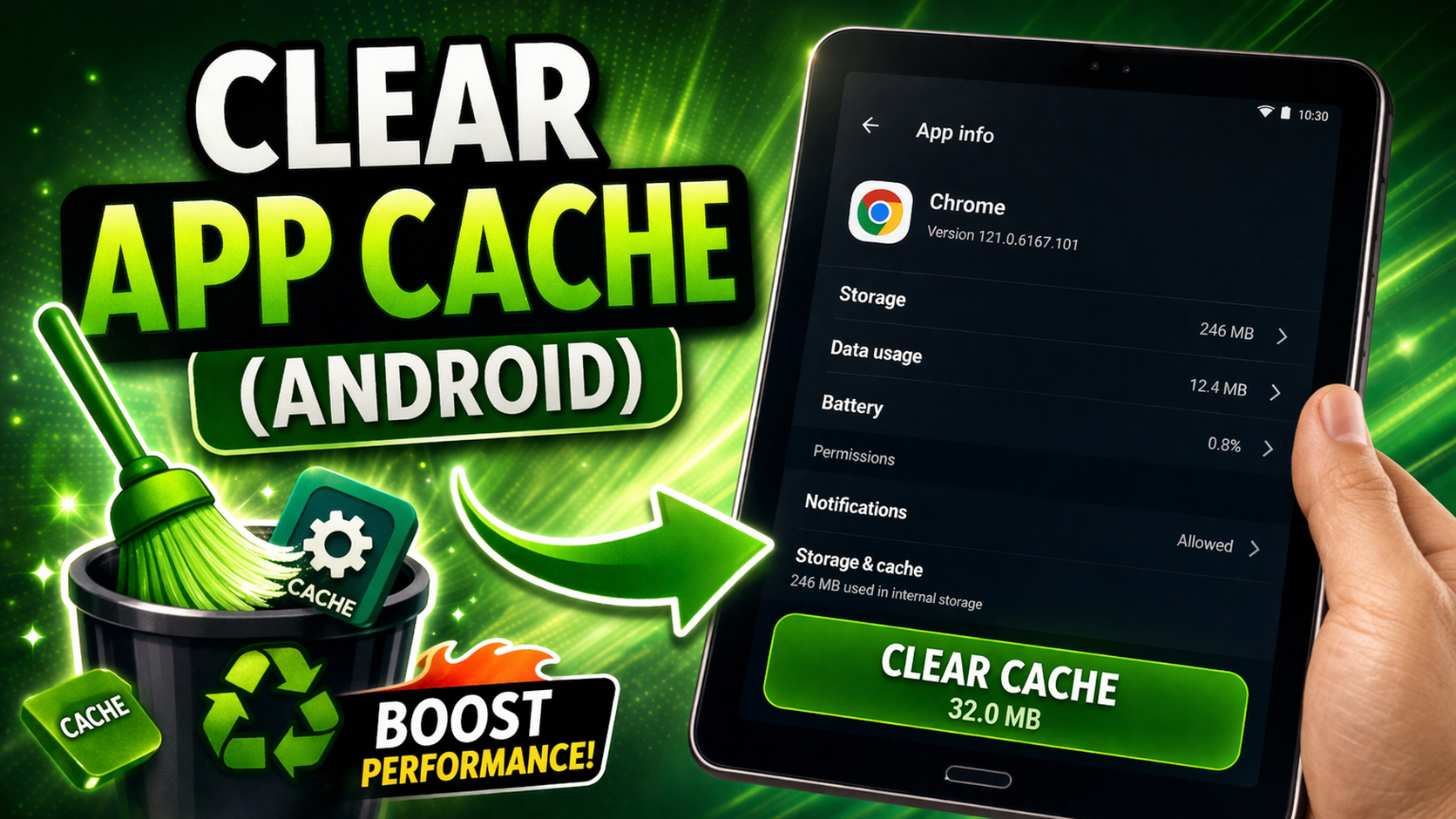
Corrupted cache files can stop apps from opening.
Steps:
- Go to Settings > Apps
- Select the problematic app
- Tap Storage
- Tap Clear Cache
⚠️ Tip: Avoid clearing data unless necessary, as it may log you out.
4. Update the App
Outdated apps often fail to work properly.
Steps:
- Open Google Play Store or App Store
- Search for the app
- Tap Update if available
5. Update Your Tablet’s Software
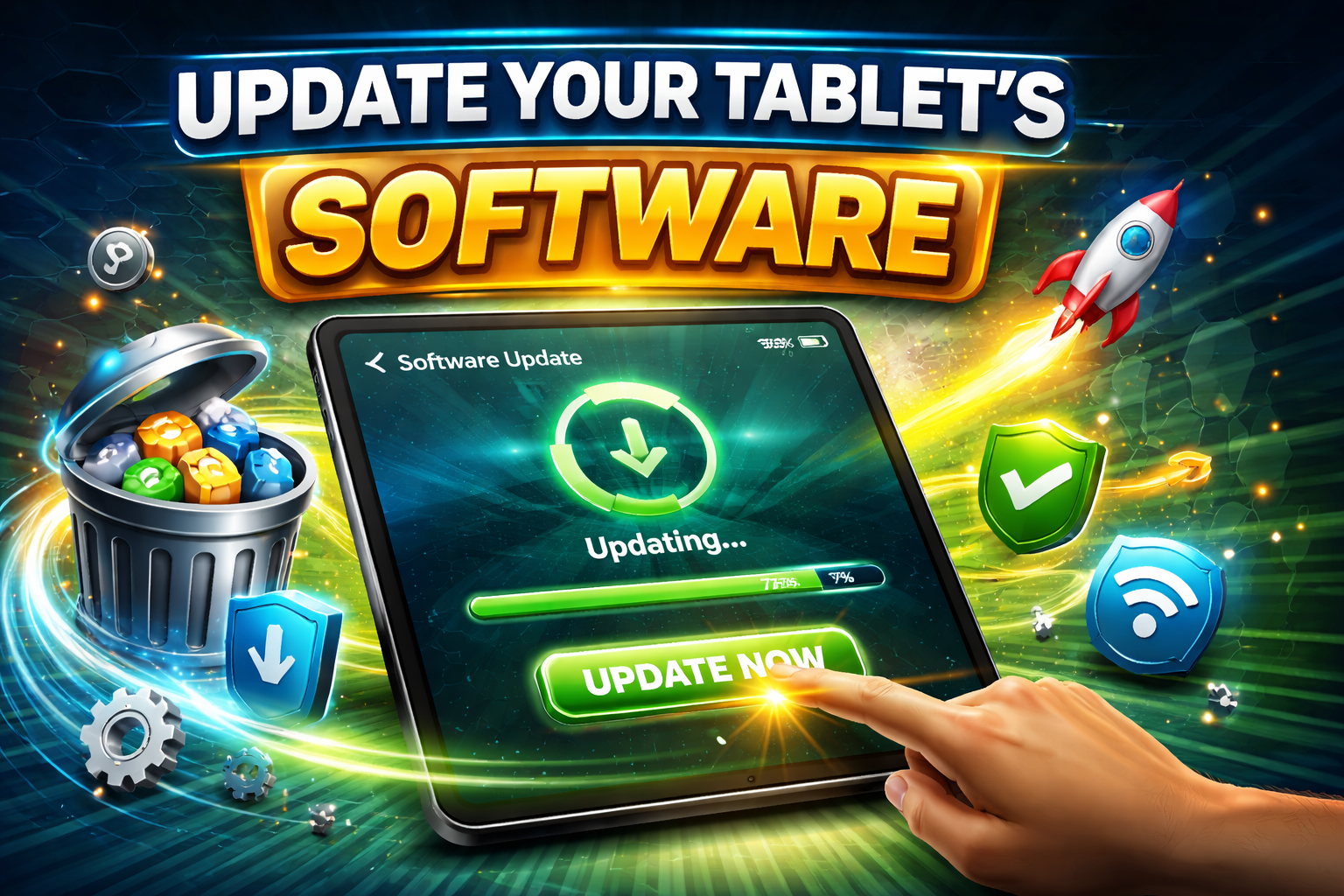
System updates fix bugs and improve compatibility.
Steps:
- Go to Settings > System > Software Update
- Check for updates
- Install if available
6. Free Up Storage Space
Low storage can prevent apps from launching.
What to do:
- Delete unused apps
- Clear photos or videos
- Use cloud storage
👉 Pro Tip: Keep at least 10–15% of storage free for smooth performance.
7. Force Stop the App
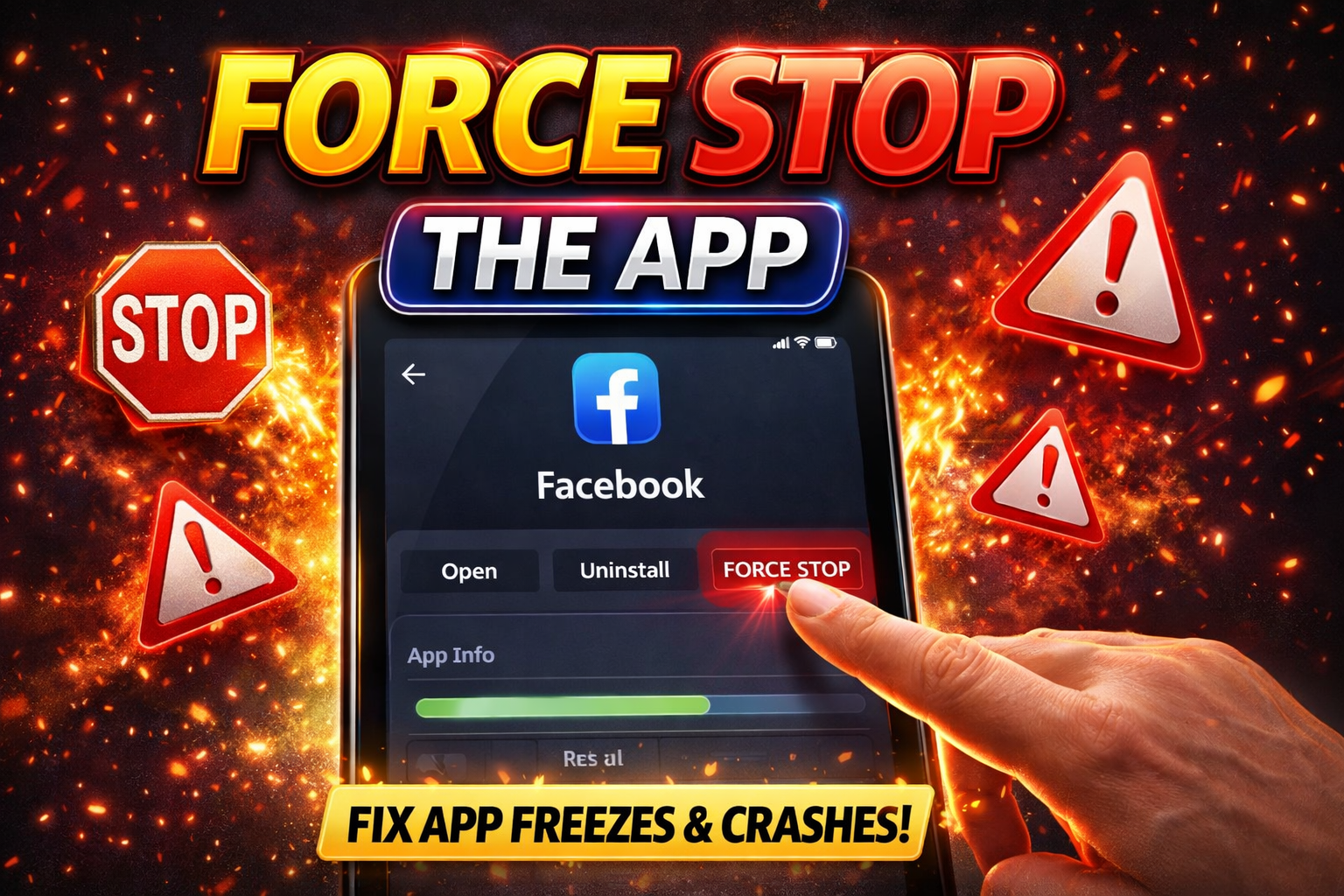
Sometimes apps get stuck in the background.
Steps:
- Go to Settings > Apps
- Select the app
- Tap Force Stop
- Reopen the app
8. Reinstall the App
If nothing works, reinstalling can fix corrupted files.
Steps:
- Uninstall the app
- Restart your tablet
- Reinstall from the app store
Advanced Fixes (Optional)
If basic solutions don’t work, try these advanced methods.
1. Reset App Preferences (Android)
This restores default settings without deleting data.
Steps:
- Go to Settings > Apps
- Tap Reset App Preferences
2. Check Date and Time Settings
Incorrect settings can break app functionality.
Fix:
- Enable Automatic Date & Time in settings
3. Factory Reset (Last Resort)
⚠️ Warning: This will erase all data.
Steps:
- Back up your data
- Go to Settings > System > Reset
- Select Factory Reset
Prevent This Problem in the Future
Here’s how to avoid facing this issue again:
Best Practices
- Keep apps and OS updated regularly
- Avoid installing apps from unknown sources
- Restart your tablet occasionally
- Monitor storage usage
- Use reliable internet connections
👉 Pro Insight: Regular maintenance can prevent 90% of app-related issues.
Common FAQs
1. Why won’t my apps open on my tablet suddenly?
This is usually caused by temporary bugs, outdated software, or low storage space.
2. How do I fix apps that keep crashing on my tablet?
Try clearing cache, updating the app, or reinstalling it. Restarting your device also helps.
3. Can low storage cause apps not to open?
Yes. If your tablet is low on storage, apps may fail to launch or crash frequently.
4. Do I need to reset my tablet to fix this issue?
No. A factory reset should only be used as a last resort after trying all other fixes.
5. Why do only some apps not open?
This could be due to app-specific bugs, compatibility issues, or corrupted data.
Conclusion
Dealing with apps that won’t open on your tablet can be frustrating—but the good news is that it’s usually easy to fix.
From simple steps like restarting your device to more advanced solutions like reinstalling apps or updating your system, you now know how to fix apps not opening on tablet devices effectively.
👉 Here’s what works: Start with quick fixes, then move to deeper troubleshooting if needed.
If this guide helped you, consider sharing it with others who might be facing the same issue—or explore more of our app problem solutions for fast and easy fixes!
