Fix Apps Not Working on iPad After Update (Easy Guide)
Introduction
Just updated your iPad, and now your favorite apps won’t open, keep crashing, or freeze constantly? You’re not alone. Many users face this frustrating issue after installing a new iPadOS update.
In this guide, we’ll show you how to fix apps not working on iPad after update using simple, proven methods. Whether it’s apps crashing, not loading, or behaving strangely — here’s what works.
Table of Contents
- What is the Problem?
- Why Does This Problem Happen?
- How to Fix Apps Not Working on iPad After Update
- Advanced Fixes (Optional)
- Prevent This Problem in the Future
- Common FAQs
- Conclusion
What is the Problem?
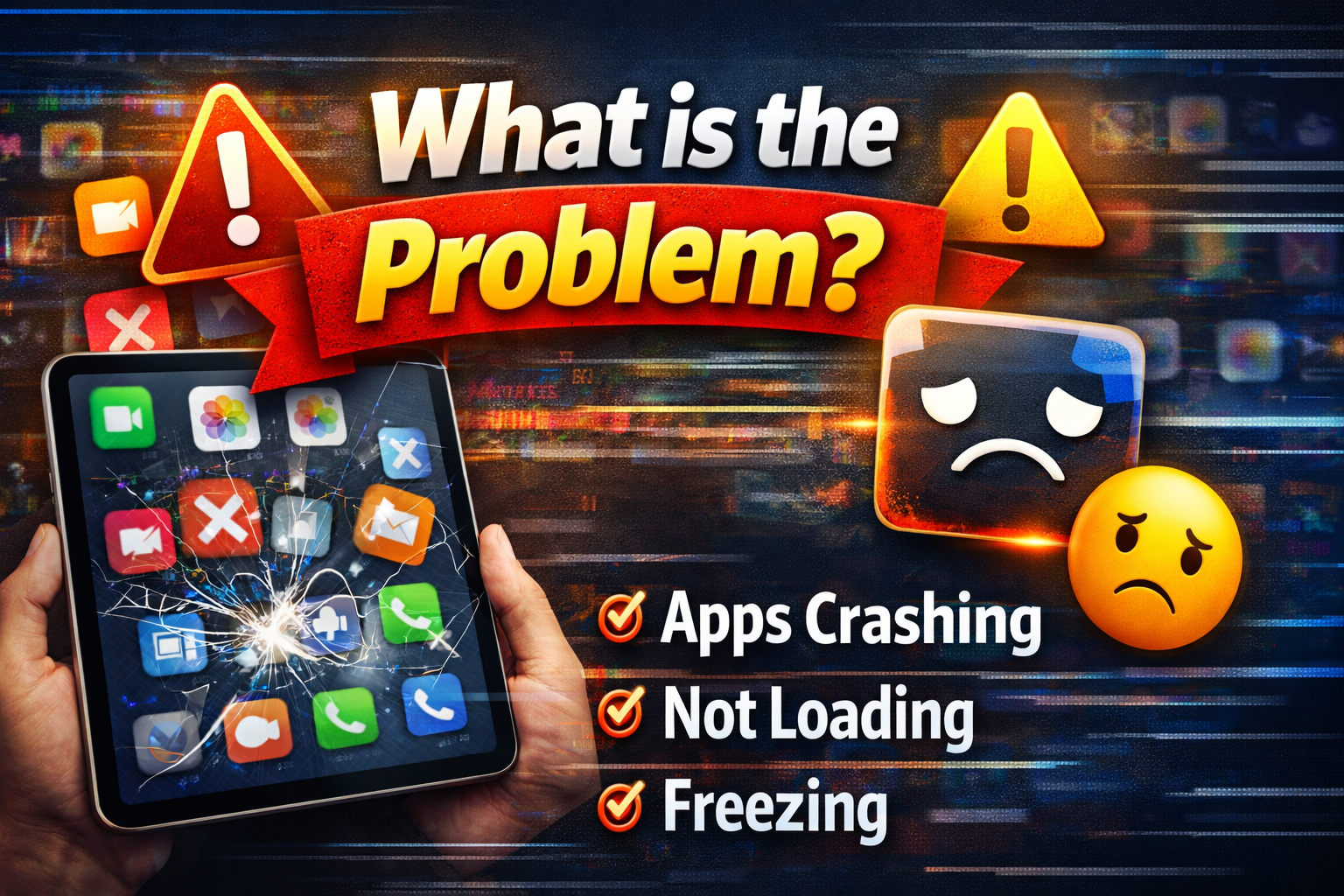
After updating your iPad, apps may stop functioning properly. This can happen with both built-in apps and third-party apps from the App Store.
Common Symptoms:
- Apps crash immediately after opening
- Apps freeze or become unresponsive
- Apps won’t load or stay stuck on the loading screen
- Blank or black screen inside apps
- Slow performance or lag
This issue can affect multiple apps or just a specific one.
Why Does This Problem Happen?
Understanding the cause can help you fix it faster. Here are the most common reasons:
1. Compatibility Issues
Some apps may not yet support the latest iPadOS update.
2. Outdated Apps
If your apps aren’t updated, they may conflict with the new system.
3. Software Bugs
New updates sometimes come with bugs that affect app performance.
4. Corrupted Cache or Data
Old app data may not work properly with the new update.
5. Low Storage Space
Your iPad may not have enough space to run apps smoothly.
6. Background Processes Overload
Too many apps running in the background can cause crashes.
How to Fix Apps Not Working on iPad After Update
Here are quick fixes and step-by-step solutions you can try right now:
1. Restart Your iPad (Quick Fix)
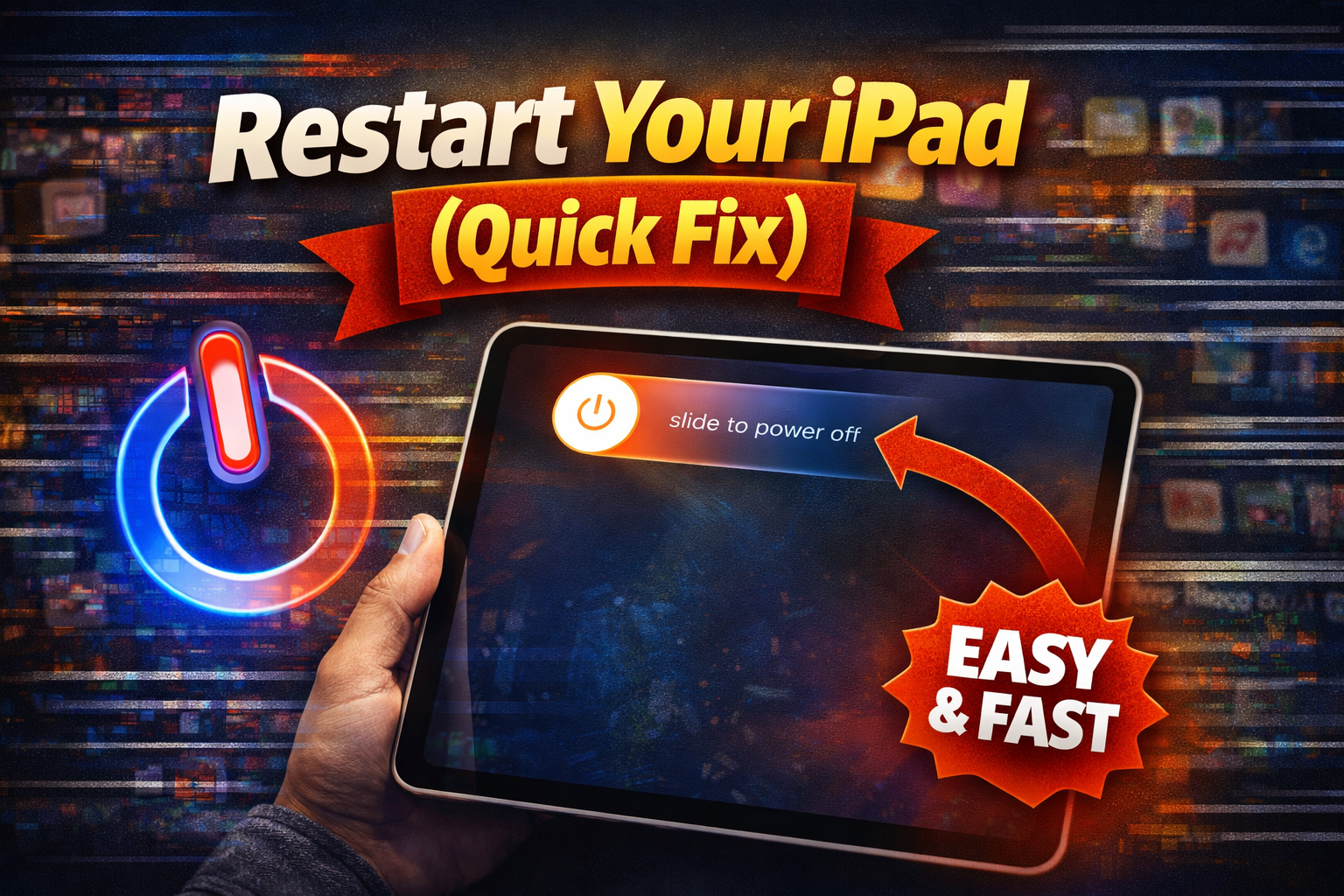
This is the easiest and most effective solution.
Steps:
- Press and hold the Power button
- Slide to power off
- Wait 10–15 seconds
- Turn your iPad back on
👉 This clears temporary glitches after the update.
2. Update All Apps
Outdated apps are one of the biggest causes.
Steps:
- Open the App Store
- Tap your profile icon
- Scroll and tap Update All
👉 Developers often release updates to fix compatibility issues.
3. Force Close and Reopen the App
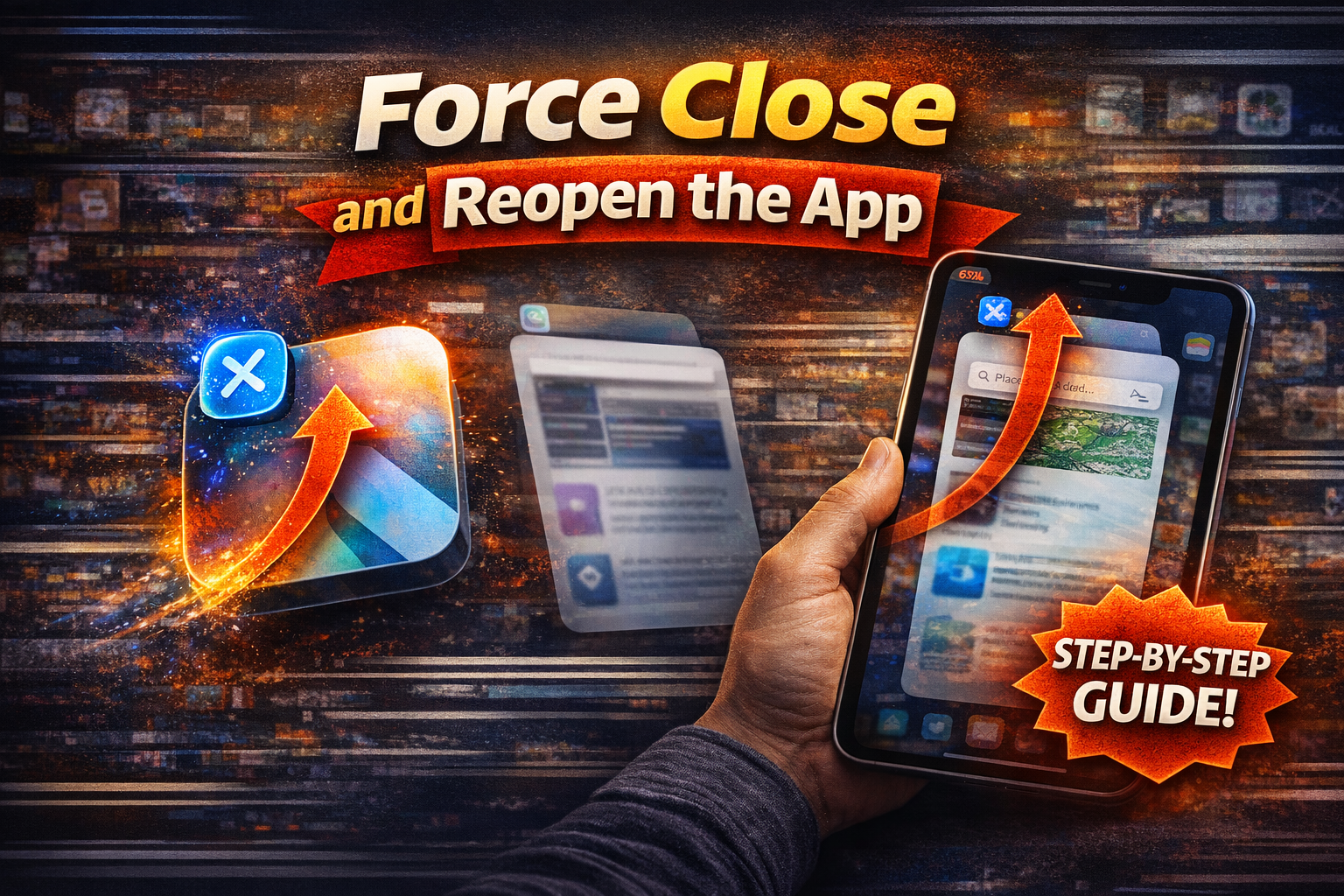
Sometimes apps just need a fresh restart.
Steps:
- Swipe up from the bottom of the screen
- Find the problematic app
- Swipe it up to close
- Reopen the app
4. Check Internet Connection
Some apps won’t work properly without a stable connection.
Try this:
- Switch between Wi-Fi and mobile data
- Restart your router
- Turn Airplane Mode ON and OFF
👉 Weak internet can cause apps to freeze or fail to load.
5. Free Up Storage Space

Low storage can break app performance.
Steps:
- Go to Settings > General > iPad Storage
- Delete unused apps, photos, or videos
👉 Keep at least 10–15% free space for smooth operation.
6. Reinstall the App
If an app keeps crashing, reinstalling often fixes it.
Steps:
- Press and hold the app icon
- Tap Remove App > Delete App
- Go to App Store and reinstall
⚠️ Warning: You may lose app data if it’s not synced.
7. Check Date and Time Settings
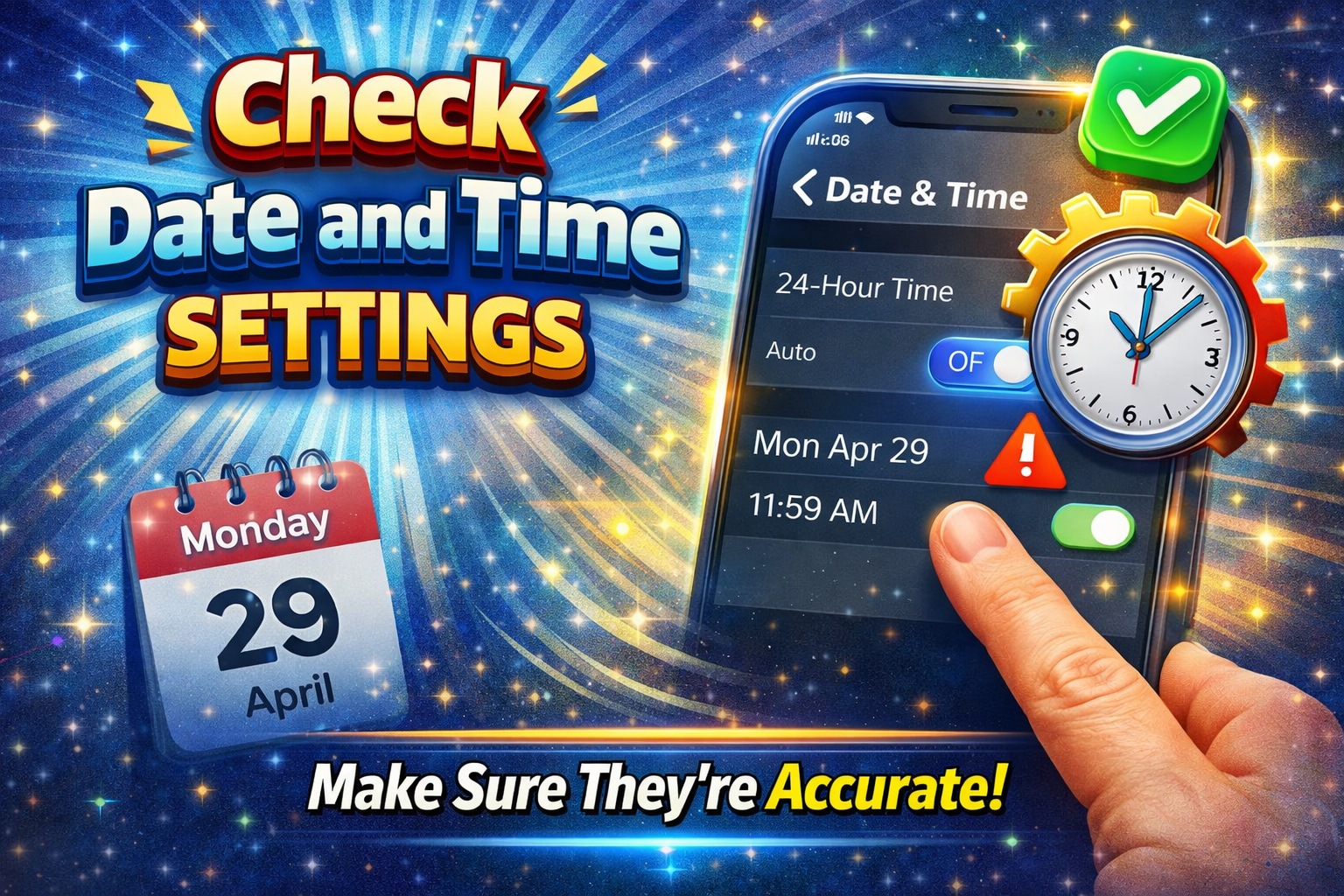
Incorrect settings can cause app errors.
Steps:
- Go to Settings > General > Date & Time
- Enable Set Automatically
8. Update iPadOS Again
Sometimes Apple releases quick patches after a major update.
Steps:
- Go to Settings > General > Software Update
- Install any available update
👉 This can fix bugs affecting apps.
Advanced Fixes (Optional)
If basic fixes don’t work, try these more technical solutions:
1. Reset All Settings
This won’t delete your data but resets system settings.
Steps:
- Go to Settings > General > Transfer or Reset iPad
- Tap Reset > Reset All Settings
2. Clear Safari/Data Cache (Indirect Fix)
Some apps rely on cached data.
Steps:
- Go to Settings > Safari
- Tap Clear History and Website Data
3. Factory Reset (Last Resort)
Only use this if nothing else works.
⚠️ Backup your data first.
Steps:
- Go to Settings > General > Transfer or Reset iPad
- Tap Erase All Content and Settings
Prevent This Problem in the Future
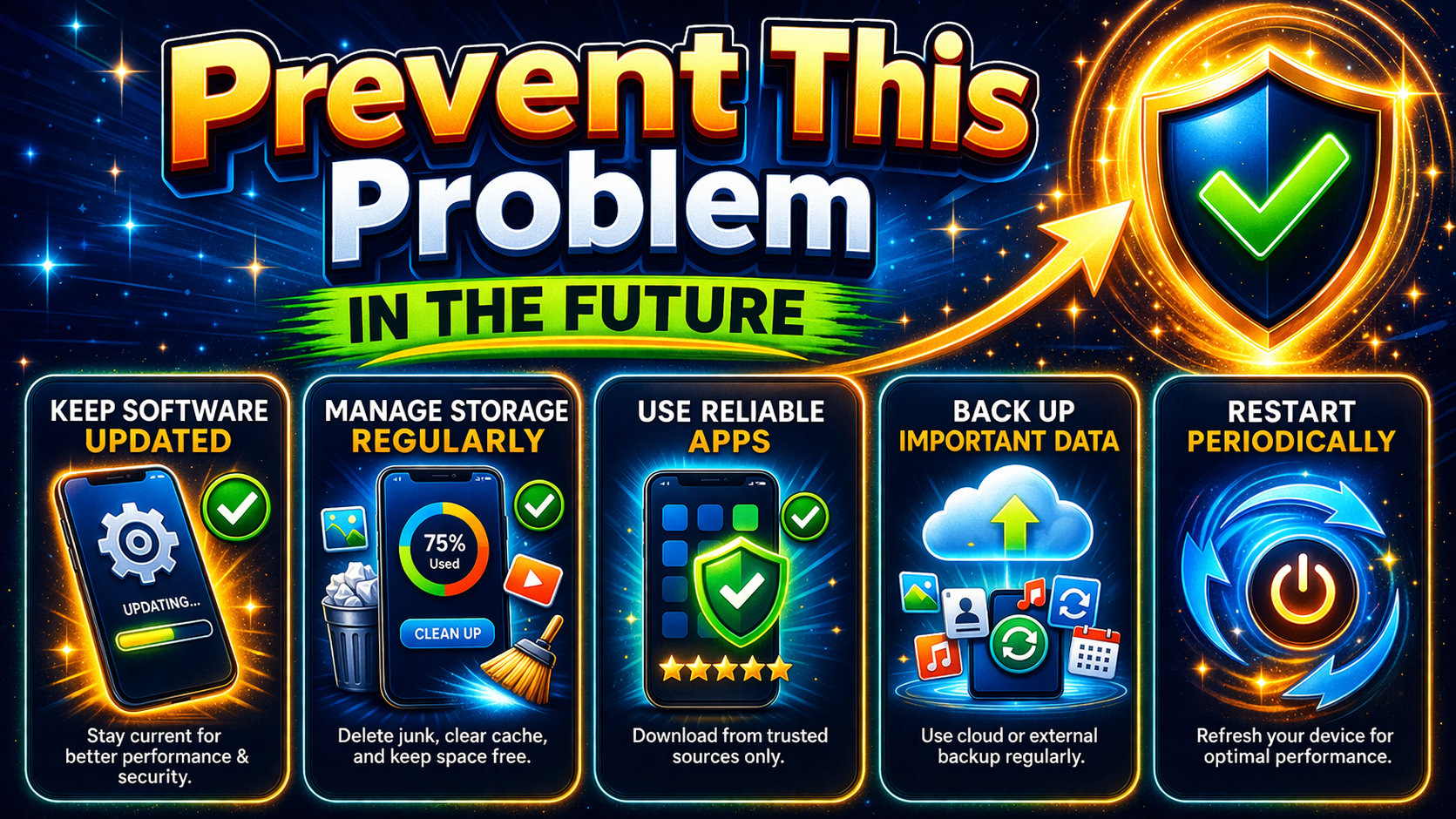
Here’s how to avoid this issue next time:
Pro Tips:
- ✅ Always update apps before updating iPadOS
- ✅ Avoid installing beta updates (they’re unstable)
- ✅ Keep at least 10GB of free storage
- ✅ Restart your device after updates
- ✅ Only download apps from trusted developers
👉 These simple habits can save you from future headaches.
Common FAQs
1. Why are my apps crashing after iPad update?
This usually happens compatibility issues, outdated apps, or bugs in the new iPadOS version.
2. How do I fix apps freezing on iPad?
Try restarting your device, updating apps, or reinstalling the problematic app.
3. Will deleting an app fix the problem?
Yes, reinstalling often removes corrupted data causing crashes.
4. Do I need to reset my iPad?
Not always. Only reset if basic fixes don’t work.
5. Can Apple fix this issue?
Yes, Apple often releases updates to fix bugs. Always check for new updates.
Conclusion
Dealing with apps not working after an iPad update can be frustrating—but the good news is, it’s usually easy to fix.
Start with simple steps like restarting your device, updating apps, and checking storage. If needed, move on to advanced fixes like resetting settings or reinstalling apps.
👉 Here’s what works: Most users fix the issue within minutes using these methods.
If this guide helped you, feel free to share it or explore more troubleshooting tips. And if you still have issues, drop a comment—we’re here to help!
