How to Fix Apps Not Loading Content Properly (Easy Guide)
Introduction
You open your favorite app… and nothing loads. Endless spinning, blank screens, or missing content it’s frustrating, right?
You’re not alone. Many users face the issue of apps not loading content properly, whether it’s social media, streaming apps, or even productivity tools.
The good news? Most of the time, it’s fixable in minutes.
In this guide, you’ll learn how to fix apps not loading content properly with simple, practical steps that actually work. Whether you’re on Android or iPhone, these solutions will help you get your apps back to normal quickly.
Table of Contents
- What is the Problem?
- Why Does This Problem Happen?
- How to Fix Apps Not Loading Content Properly
- Advanced Fixes
- Prevent This Problem in the Future
- Common FAQs
- Conclusion
What is the Problem?
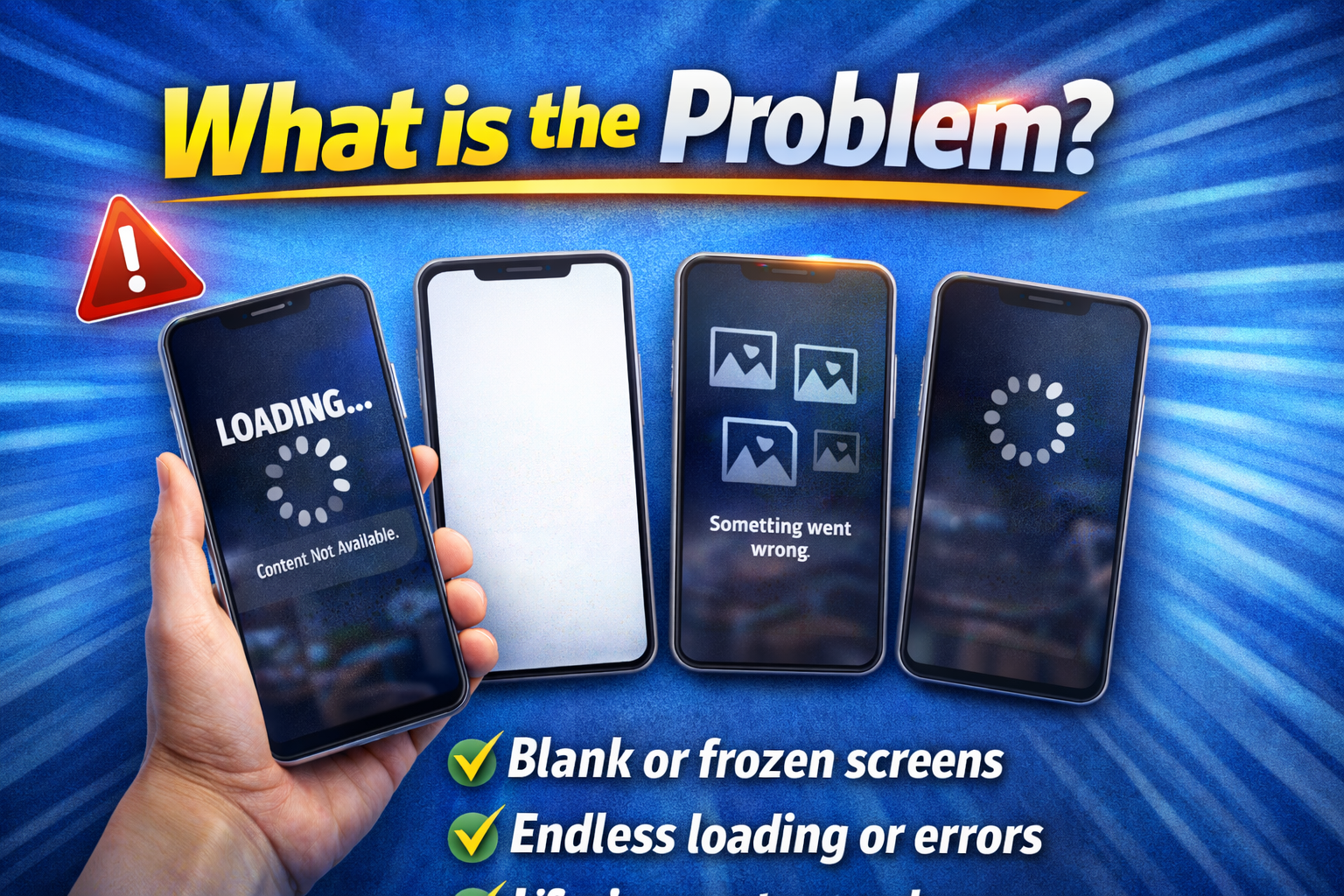
When apps fail to load content properly, they may open but don’t display data correctly.
Common Symptoms
- Blank or white screen after opening the app
- Endless loading or buffering
- Images, videos, or feeds not appearing
- “Something went wrong” or “Failed to load” errors
- App freezes while loading content
This issue can affect apps like:
- Facebook, Instagram, TikTok
- YouTube or Netflix
- Banking or shopping apps
👉 Quick Fix Insight: If the app opens but shows no content, the issue is usually related to internet, cache, or server problems.
Why Does This Problem Happen?
Understanding the cause helps you fix the issue faster.
1. Poor or Unstable Internet Connection
Apps rely heavily on internet access. Weak Wi-Fi or mobile data can prevent content from loading.
2. App Cache Corruption
Cached data can become outdated or corrupted, causing loading issues.
3. Outdated App Version
Old versions may not work properly with updated servers.
4. Server Issues
Sometimes, the problem isn’t on your side—the app’s servers might be down.
5. Device Storage or Performance Issues
Low storage or RAM can affect how apps load data.
6. Background Data Restrictions
If background data is disabled, apps may fail to fetch content.
7. Software Bugs or OS Issues
System glitches can interfere with app functionality.
How to Fix Apps Not Loading Content Properly (Step-by-Step)
Here’s what works—start from the top and move down.
1. Check Your Internet Connection
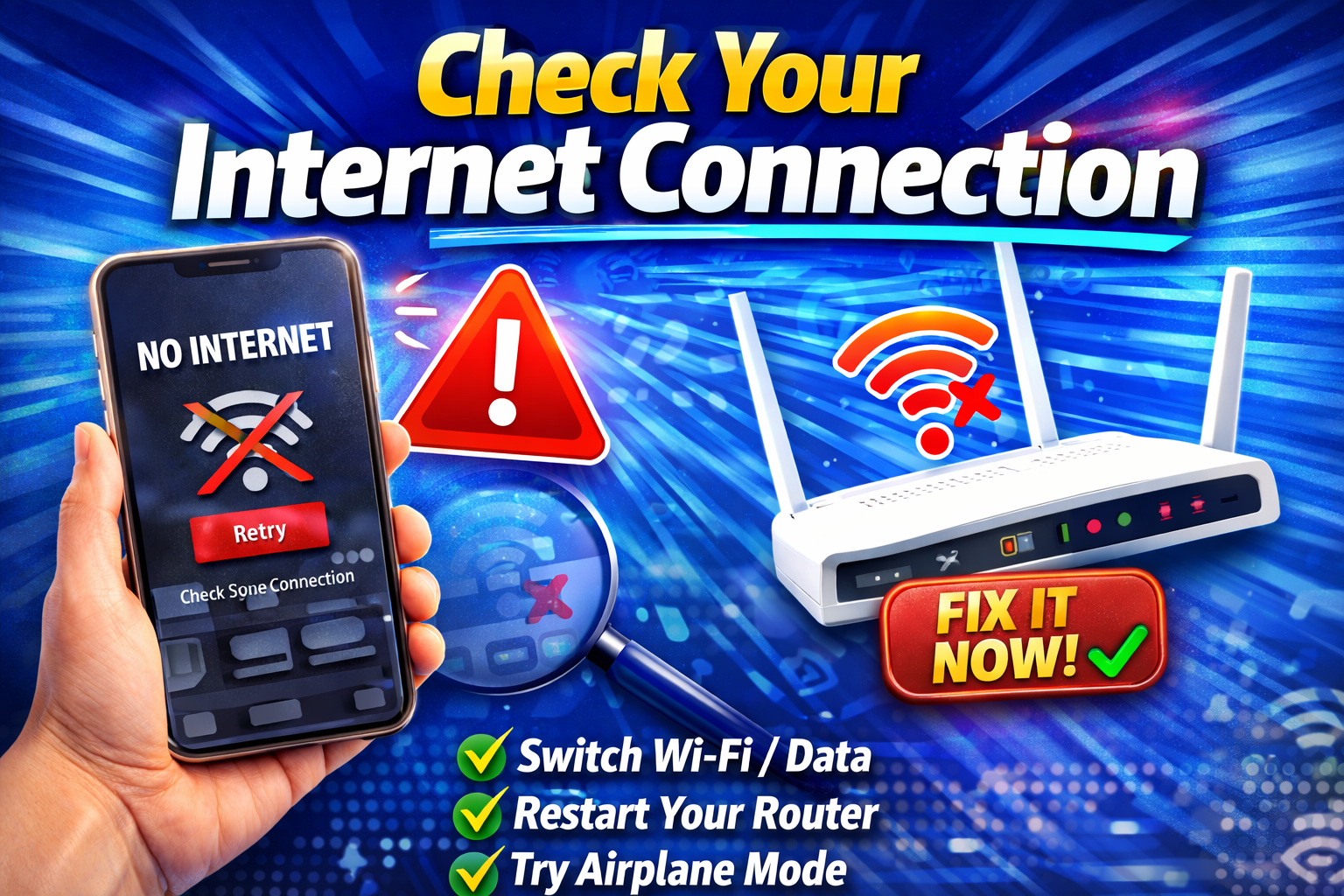
This is the most common cause.
What to do:
- Switch between Wi-Fi and mobile data
- Restart your router
- Turn Airplane mode ON and OFF
👉 Quick Fix: Try opening a website in your browser. If it doesn’t load, your internet is the problem.
2. Restart the App
Sometimes, apps just need a refresh.
Steps:
- Close the app completely
- Remove it from recent apps
- Reopen it
This clears temporary glitches.
3. Clear App Cache (Android)
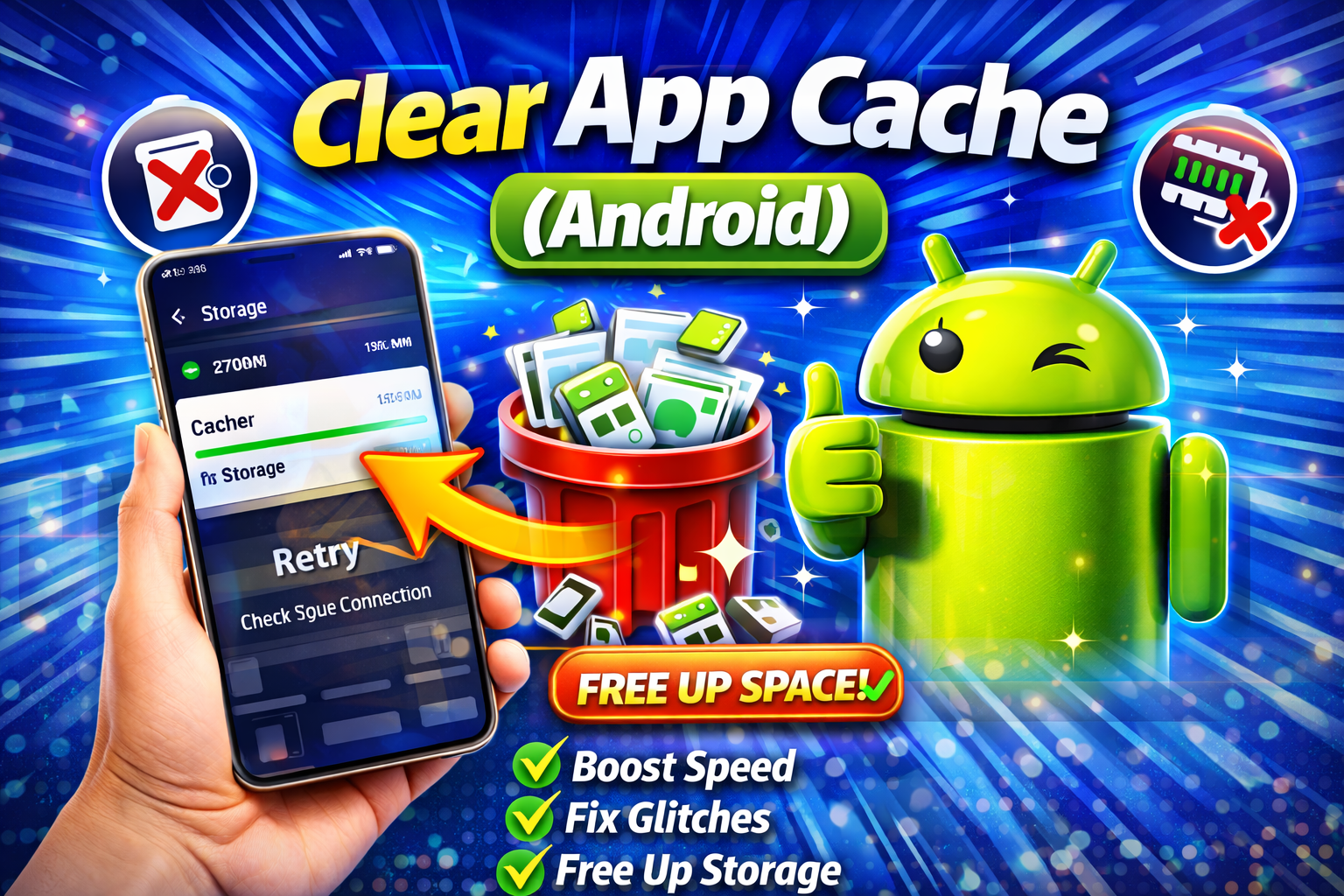
Corrupted cache is a major cause.
Steps:
- Go to Settings > Apps
- Select the app
- Tap Storage
- Tap Clear Cache
⚠️ Warning: Don’t press “Clear Data” unless necessary—it may log you out.
4. Update the App
Developers release updates to fix bugs.
Steps:
- Open Google Play Store / App Store
- Search for the app
- Tap Update
👉 Pro Tip: Enable auto-updates to avoid future issues.
5. Restart Your Device

A simple restart can solve many problems.
Why it works:
- Clears temporary memory
- Resets system processes
6. Check App Server Status
Sometimes, the app itself is down.
What to do:
- Search: “Is [app name] down?”
- Check sites like Downdetector
👉 If servers are down, you’ll need to wait.
7. Free Up Storage Space

Low storage can prevent apps from loading properly.
Steps:
- Delete unused apps
- Clear photos/videos
- Use storage cleaner tools
8. Reinstall the App
If nothing works, reinstalling often fixes deep issues.
Steps:
- Uninstall the app
- Restart your phone
- Reinstall from the store
Advanced Fixes (For Technical Users)
If basic fixes don’t work, try these:
1. Reset Network Settings
- Fixes connectivity issues
- Removes saved Wi-Fi passwords
Path:
- Android: Settings > System > Reset > Network settings
- iPhone: Settings > General > Transfer or Reset > Reset Network Settings
2. Disable VPN or Proxy
VPNs can interfere with app connections.
👉 Turn off VPN and try again.
3. Check Background Data Settings
- Go to Settings > Apps > Data Usage
- Enable background data
4. Update Your Device OS
Outdated systems can cause compatibility issues.
Prevent This Problem in the Future
Here’s how to avoid dealing with this again:
1. Keep Apps Updated
Regular updates fix bugs and improve performance.
2. Maintain Stable Internet
Use reliable Wi-Fi or strong mobile data.
3. Clear Cache Regularly
Especially for heavy apps like social media.
4. Avoid Overloading Your Device
Too many apps can slow performance.
5. Monitor Storage Space
Keep at least 15–20% free storage.
👉 Pro Insight: Apps perform best when your device isn’t cluttered.
Common FAQs
1. Why are my apps opening but not loading content?
This usually happens poor internet, corrupted cache, or server issues.
2. How do I fix apps not loading on Android?
Try clearing cache, updating the app, checking internet, and restarting your device.
3. Can low storage cause apps not to load?
Yes. Low storage affects app performance and prevents content from loading properly.
4. Should I clear app data or cache?
Start with cache. Only clear data if the problem persists.
5. Why does only one app not load content?
It could be a bug, outdated version, or app-specific server issue.
Conclusion
Dealing with apps not loading content properly can be frustrating—but most fixes are simple.
Let’s recap what works:
- Check your internet connection
- Restart the app or device
- Clear cache and update apps
- Reinstall if needed
👉 Here’s what works: Start with the quick fixes first they solve the problem in most cases.
If this guide helped you, consider sharing it with others who might be facing the same issue. And if you’re still stuck, drop a comment or explore more troubleshooting guides we’ve got you covered!
