How to Fix Apps Not Working on Dual SIM Phones (Easy Guide)
Introduction
You’re not alone—many smartphone users face frustrating issues where apps suddenly stop working on dual SIM phones. One moment everything runs smoothly, and the next, apps won’t load, connect, or function properly.
Whether it’s WhatsApp not sending messages, banking apps failing to connect, or social media apps stuck loading, this issue can seriously disrupt your day.
In this guide, we’ll show you how to fix apps not working on dual SIM phones with simple, practical solutions that actually work. From quick fixes to advanced troubleshooting, everything you need is here.
Table of Contents
- What is the Problem?
- Why Does This Problem Happen?
- How to Fix Apps Not Working on Dual SIM Phones
- Advanced Fixes
- Prevent This Problem in the Future
- Common FAQs
- Conclusion
What is the Problem?
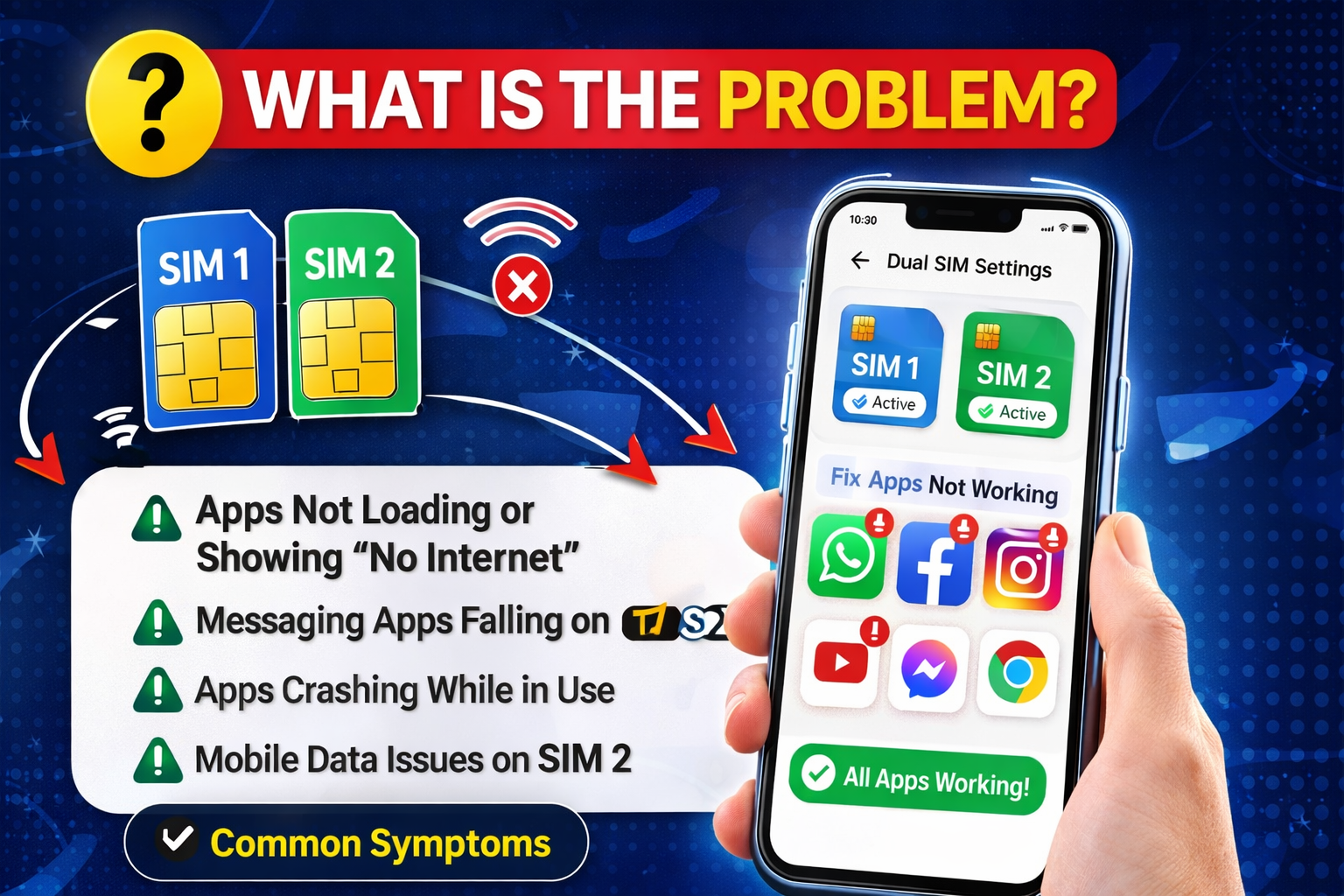
When apps are not working on dual SIM phones, it usually means certain apps fail to connect to the internet or behave inconsistently depending on which SIM is active.
Common Symptoms:
- Apps not loading or showing “No Internet”
- One SIM works, but apps fail on the other
- Messaging apps not sending/receiving messages
- Apps working only on Wi-Fi, not mobile data
- Frequent app crashes or login failures
This issue is especially common on Android devices but can also occur on some dual SIM iPhones.
Why Does This Problem Happen?
Understanding the cause helps you apply the right fix. Here are the most common reasons:
1. Incorrect Default Data SIM
Your phone may be using the wrong SIM for mobile data.
2. Network Configuration Issues
APN settings or carrier configurations might be incorrect.
3. App Restrictions
Some apps are restricted from using background or mobile data.
4. Software Bugs
System glitches or outdated OS versions can interfere with app connectivity.
5. SIM Conflict
Dual SIM phones sometimes struggle to manage two networks simultaneously.
6. Data Saver or Battery Saver
These features can block apps from accessing the internet.
How to Fix Apps Not Working on Dual SIM Phones
Here’s what works—follow these steps one by one:
1. Select the Correct SIM for Mobile Data (Quick Fix)
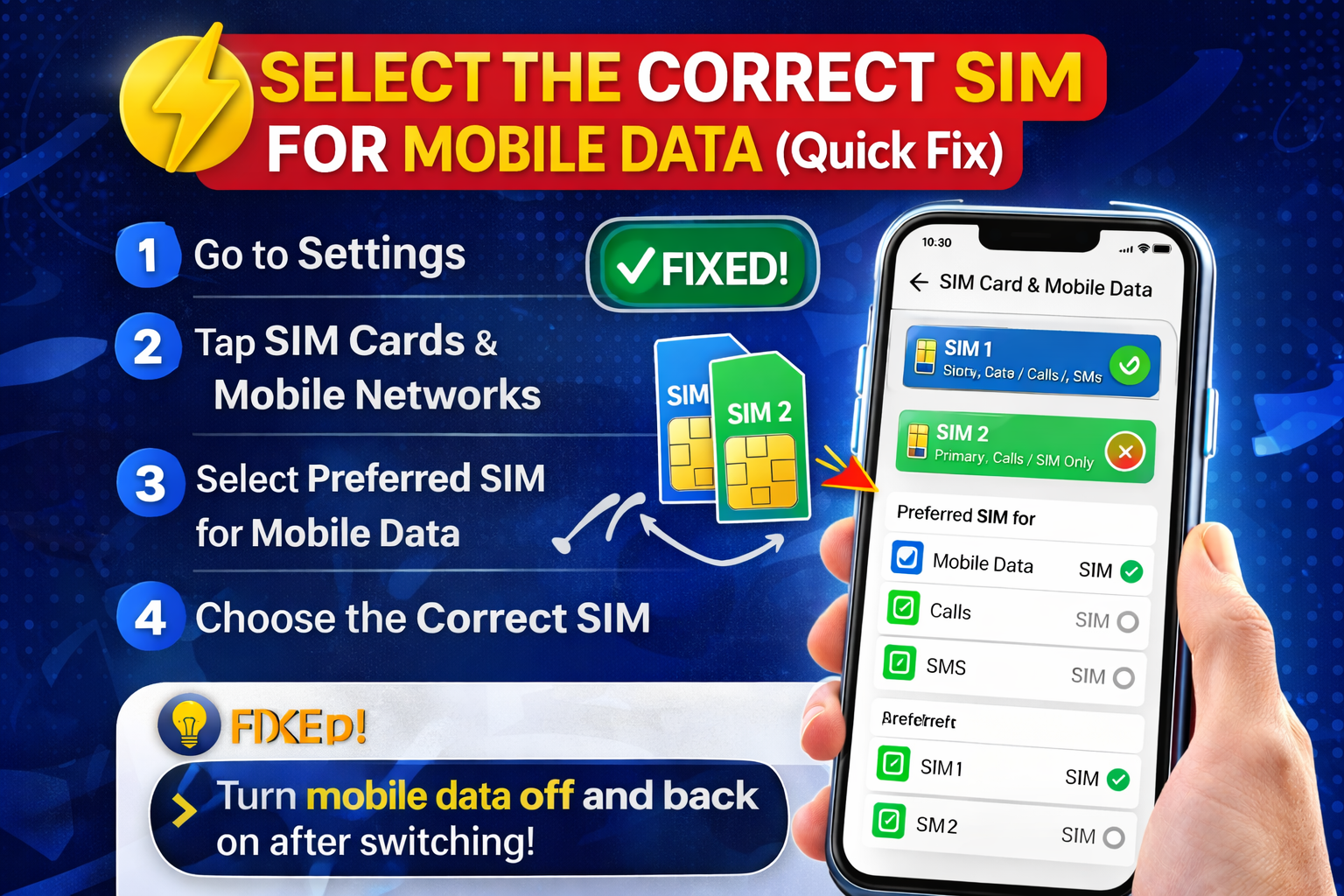
This is the most common issue.
Steps:
- Go to Settings
- Tap SIM Cards & Mobile Networks
- Select Preferred SIM for Mobile Data
- Choose the correct SIM
👉 Pro Tip: Turn off mobile data and turn it back on after switching.
2. Restart Your Phone
It sounds simple, but it works surprisingly well.
Why it helps:
- Clears temporary bugs
- Resets network connections
👉 Quick Fix: Hold the power button → Tap Restart
3. Check Mobile Data for Apps
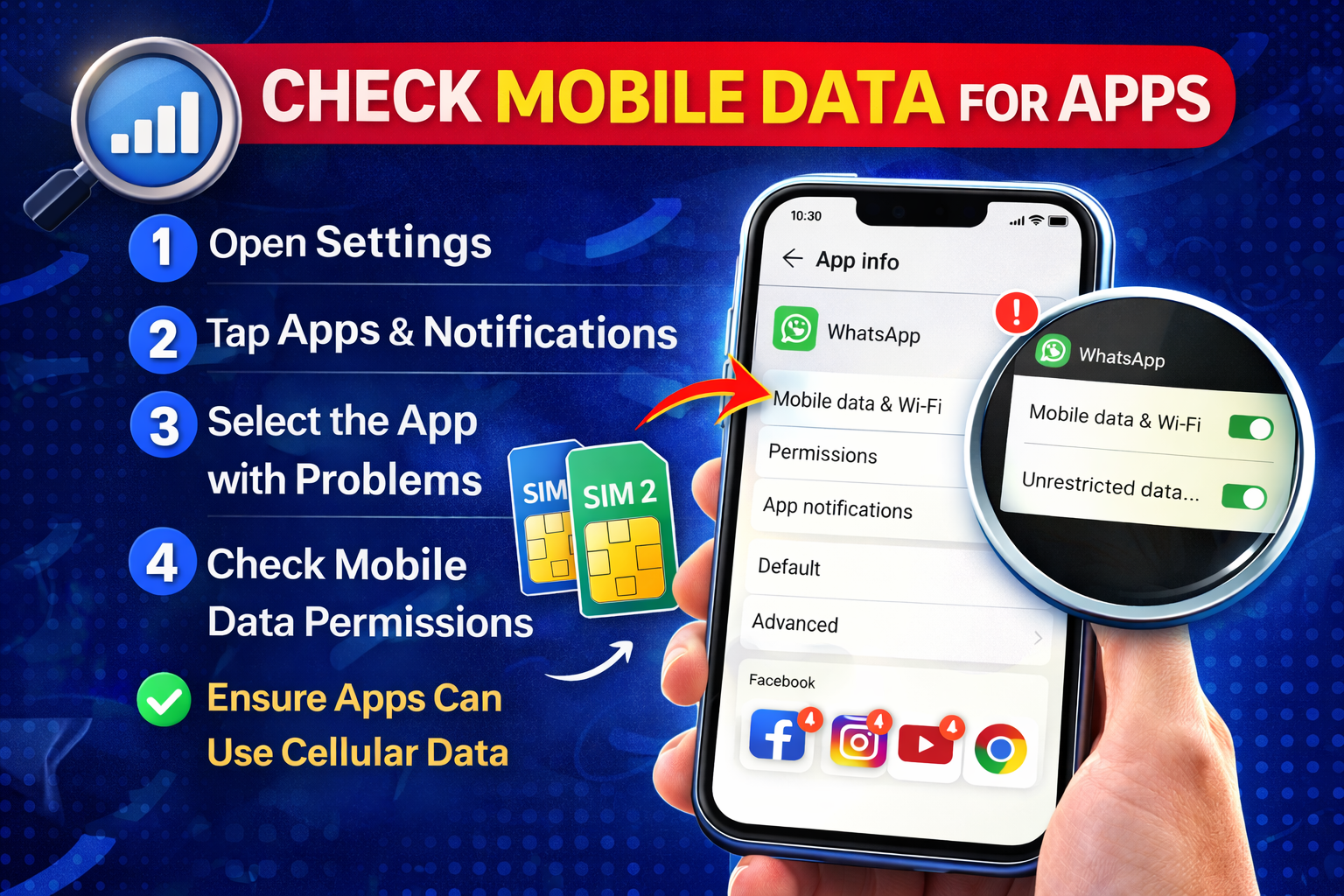
Some apps may be blocked from using data.
Steps:
- Go to Settings
- Tap Apps
- Select the affected app
- Tap Mobile Data & Wi-Fi
- Enable Allow Background Data
4. Turn Off Data Saver Mode
Data Saver can prevent apps from working properly.
Steps:
- Open Settings
- Tap Network & Internet
- Select Data Saver
- Turn it OFF
5. Reset Network Settings
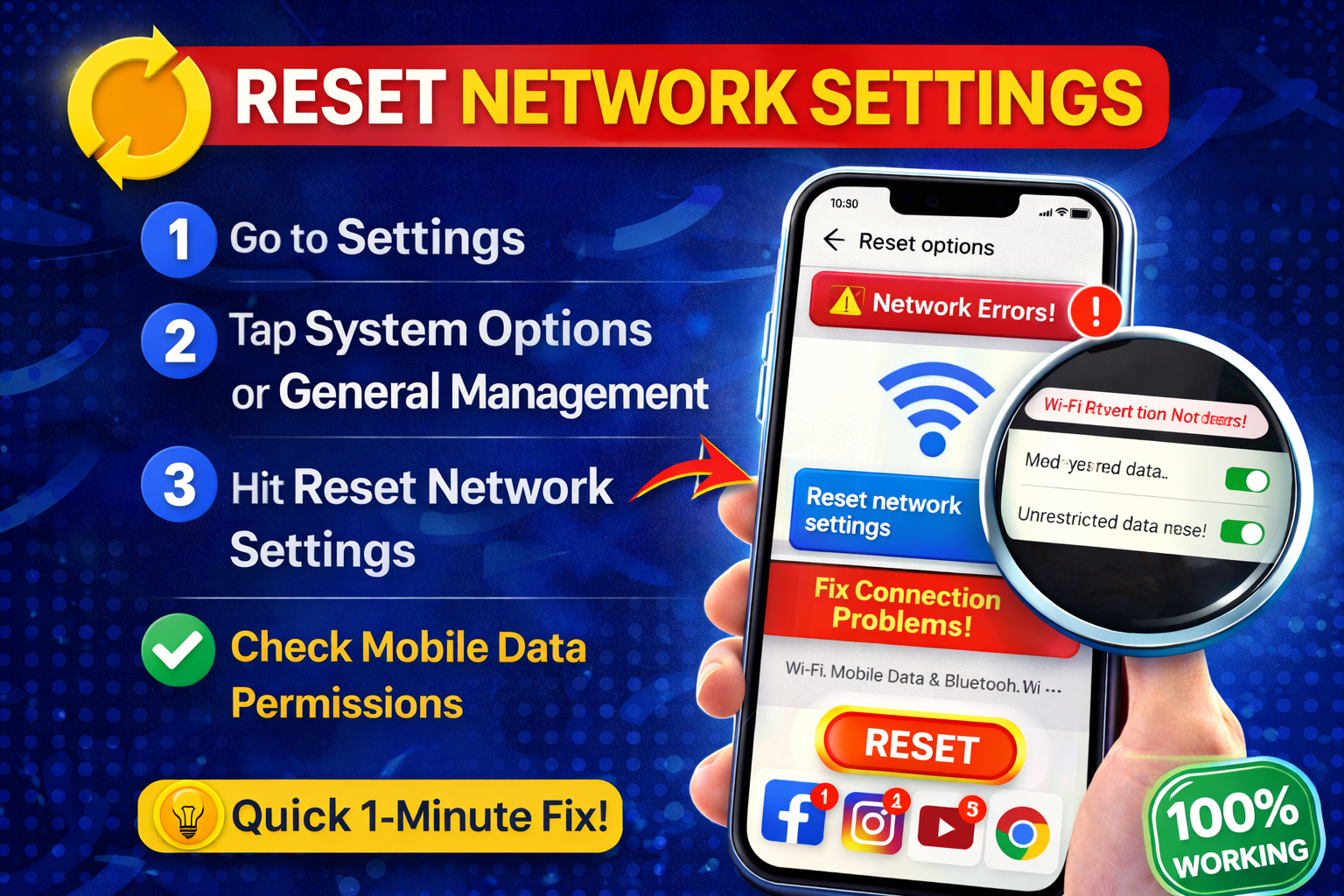
If the problem persists, this is a powerful fix.
Steps:
- Go to Settings
- Tap System
- Select Reset Options
- Tap Reset Wi-Fi, Mobile & Bluetooth
⚠️ Warning: This will remove saved Wi-Fi passwords.
6. Update Your Apps and System
Outdated apps can cause compatibility issues.
Steps:
- Open Google Play Store / App Store
- Update all apps
- Go to Settings → Software Update
👉 Here’s what works: Always keep your phone updated.
7. Check APN Settings
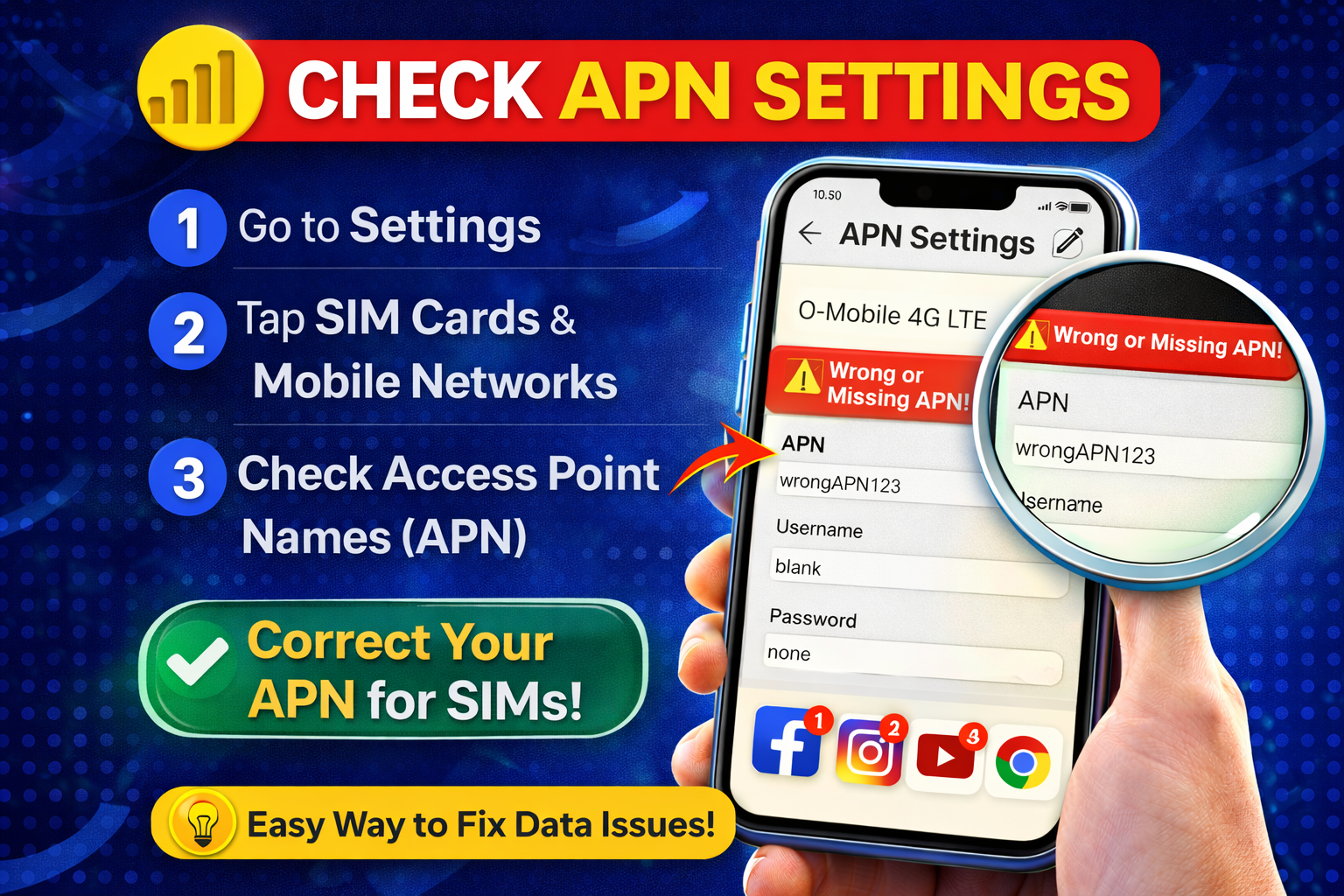
Incorrect APN settings can block internet access.
Steps:
- Go to Settings
- Tap Mobile Network
- Select your SIM
- Tap Access Point Names (APN)
- Reset to default or configure manually
8. Switch SIM Slots
Sometimes the issue is hardware-related.
👉 Try:
- Removing SIM cards
- Switching their positions
- Restarting your phone
Advanced Fixes (Optional)
If basic solutions don’t work, try these:
1. Clear App Cache & Data
- Go to Settings → Apps
- Select the app
- Tap Storage
- Clear cache (and data if needed)
2. Safe Mode Check
Boot your phone in Safe Mode to identify problematic apps.
3. Factory Reset (Last Resort)
- Backup your data first
- Reset your device completely
⚠️ Use this only if nothing else works.
Prevent This Problem in the Future
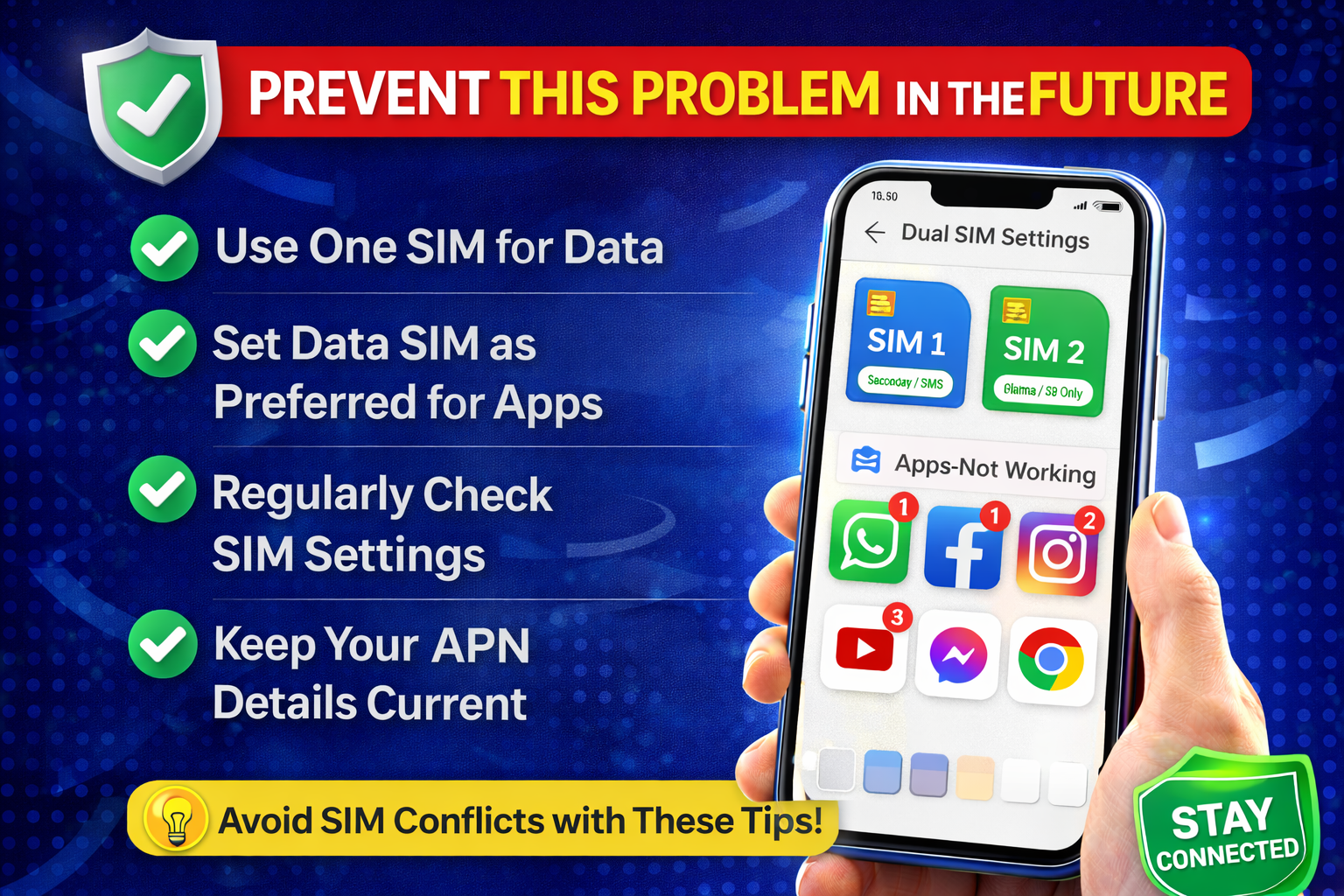
Avoid dealing with this issue again by following these tips:
- Always set the correct default data SIM
- Keep your phone updated
- Avoid installing untrusted apps
- Disable aggressive battery saver modes
- Regularly check app permissions
👉 Pro Insight: Dual SIM phones work best when one SIM is prioritized for data consistently.
Common FAQs
1. Why do apps only work on one SIM?
Because only one SIM is set as the default data SIM. Apps rely on that connection.
2. Can dual SIM affect app performance?
Yes, especially if both SIMs are competing for network resources or improperly configured.
3. Why do apps work on Wi-Fi but not mobile data?
This usually indicates incorrect mobile data settings or APN issues.
4. Does switching SIM cards fix the issue?
Sometimes, yes. It can resolve hardware or signal-related conflicts.
5. Is this problem common?
Yes—you’re not alone. Many users experience this on dual SIM devices.
Conclusion
Dealing with apps not working on dual SIM phones can be frustrating, but the good news is that it’s usually easy to fix.
Start with simple steps like selecting the correct data SIM and restarting your phone. If needed, move on to advanced fixes like resetting network settings or updating your system.
👉 Here’s what works: Most users solve this issue in minutes with just one or two of these fixes.
If this guide helped you, consider sharing it with others who might be facing the same problem or explore more of our app troubleshooting guides for quick solutions!
