How to Fix Apps Not Opening After Sleep Mode (Easy Guide)
Introduction
You unlock your phone after it wakes from sleep mode, tap your favorite app… and nothing happens. 😩 The app freezes, crashes, or simply refuses to open.
If this sounds familiar, you’re not alone.
Many users face the frustrating issue of apps not opening after sleep mode, especially on Android and iOS devices with aggressive battery optimization. The good news? This problem is usually easy to fix.
In this guide, you’ll learn how to fix apps not opening after sleep mode with simple, step-by-step solutions that actually work.
Table of Contents
- What is the Problem?
- Why Does This Problem Happen?
- How to Fix Apps Not Opening After Sleep Mode
- Advanced Fixes (Optional)
- Prevent This Problem in the Future
- Common FAQs
- Conclusion
What is the Problem?
The issue occurs when apps fail to launch or respond after your device wakes from sleep mode (screen off/standby).
Common Symptoms:
- Apps freeze or show a blank screen
- App crashes immediately after opening
- Tapping the app icon does nothing
- App reloads repeatedly
- Background apps stop working after sleep
This problem is especially common on devices with strict power-saving features.
Why Does This Problem Happen?
Understanding the cause helps you fix it faster. Here are the most common reasons:
1. Battery Optimization Restrictions
Your phone may limit app activity during sleep to save power.
2. Background App Limitations
Apps are forced to stop running in the background.
3. System Bugs or Glitches
Temporary software issues can break app behavior after sleep.
4. Outdated Apps or OS
Older versions may not handle sleep mode properly.
5. RAM Management Issues
Low memory can cause apps to crash when reopening.
6. App Permission Problems
Apps may lack permissions needed to resume properly.
How to Fix Apps Not Opening After Sleep Mode
Here’s what works 👇
1. Restart Your Device (Quick Fix)
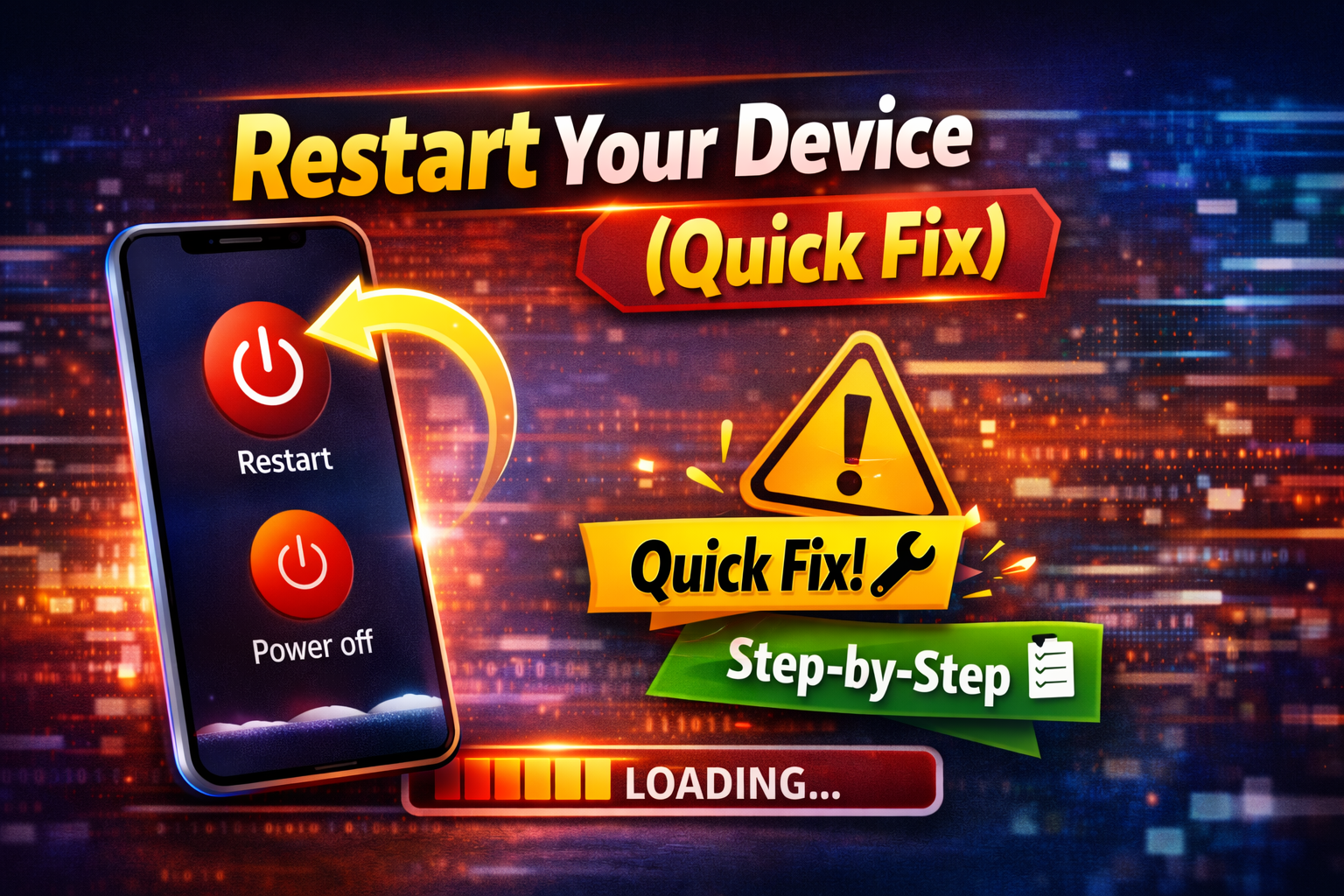
Sometimes, a simple restart solves everything.
Steps:
- Press and hold the power button
- Tap Restart
- Wait for the phone to reboot
👉 This clears temporary bugs and refreshes system processes.
2. Disable Battery Optimization for Affected Apps
This is one of the most effective fixes.
On Android:
- Go to Settings > Apps
- Select the problematic app
- Tap Battery
- Choose Unrestricted or Don’t optimize
On iPhone:
- Turn off Low Power Mode
- Go to Settings > Battery
👉 Here’s what works: Allow apps to run freely in the background.
3. Clear App Cache and Data

Corrupted cache can cause apps to stop working after sleep.
Steps (Android):
- Go to Settings > Apps
- Select the app
- Tap Storage
- Choose Clear Cache
- (Optional) Tap Clear Data
⚠️ Warning: Clearing data may log you out of the app.
4. Update the App and System
Outdated software is a common cause.
Steps:
- Open Google Play Store / App Store
- Update the app
- Go to Settings > System Update
- Install any available updates
👉 Updates fix bugs and improve compatibility.
5. Check Background App Permissions
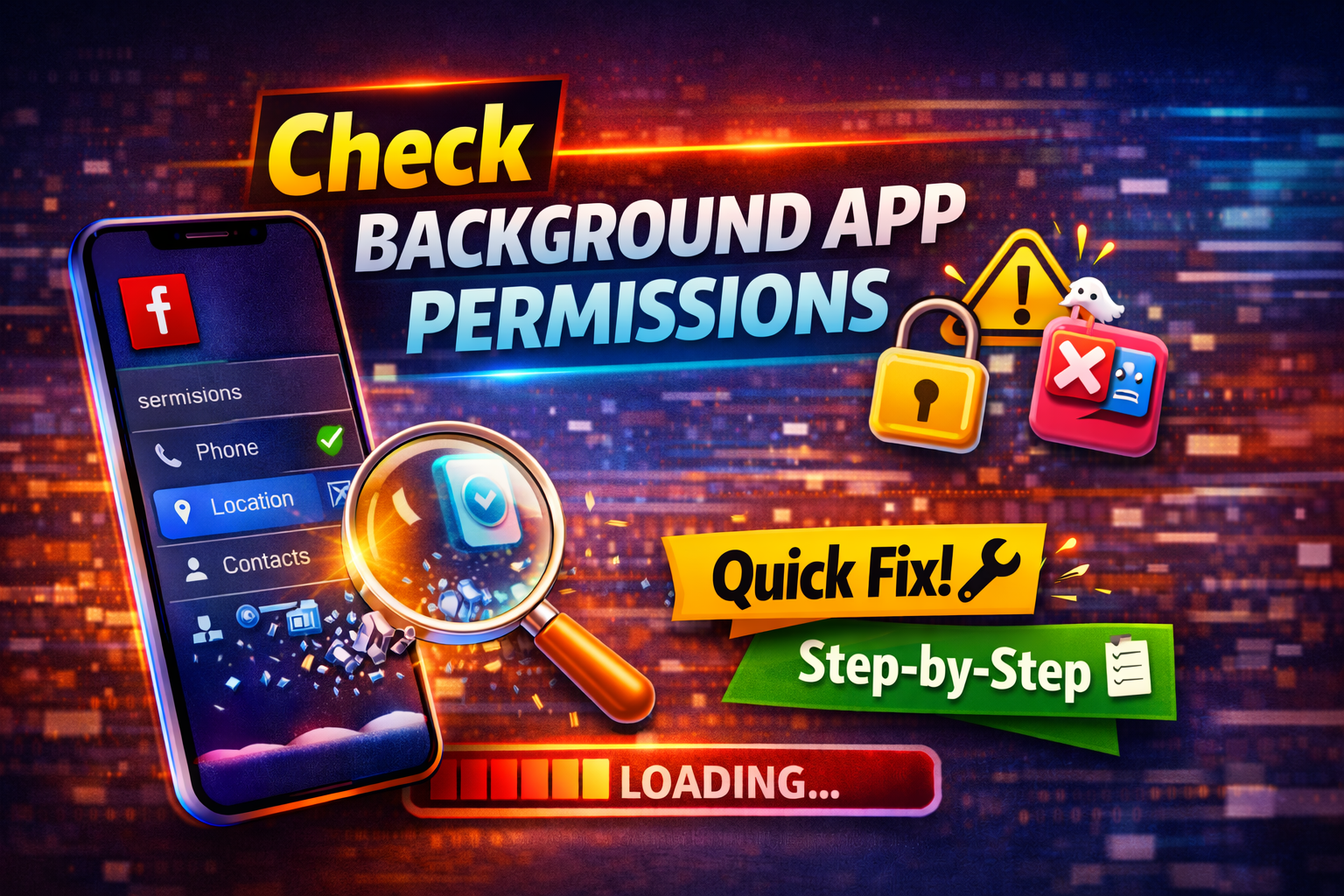
Apps need permission to run properly after sleep.
Steps:
- Go to Settings > Apps > Permissions
- Enable necessary permissions (e.g., storage, network)
- Allow background activity if available
6. Disable Power Saving Mode
Power saving mode can aggressively stop apps.
Steps:
- Go to Settings > Battery
- Turn off Power Saving Mode / Battery Saver
👉 You’re not alone—this is one of the top causes.
7. Reinstall the App
If nothing works, reinstalling can fix deeper issues.
Steps:
- Uninstall the app
- Restart your device
- Reinstall from the app store
8. Reset App Preferences (Android Only)
This restores default settings without deleting data.
Steps:
- Go to Settings > Apps
- Tap the three-dot menu
- Select Reset App Preferences
Advanced Fixes (Optional)
For more technical users:
1. Check Developer Options
- Disable aggressive background limits
- Enable Don’t keep activities (toggle carefully)
2. Factory Reset (Last Resort)
- Backup your data first
- Go to Settings > System > Reset
3. Check Third-Party Cleaner Apps
Apps like RAM cleaners can interfere with normal behavior.
👉 Pro Tip: Avoid using aggressive task killers.
Prevent This Problem in the Future
Here’s how to avoid this issue long-term:
- ✅ Keep your apps and OS updated
- ✅ Avoid extreme battery-saving settings
- ✅ Don’t install too many background-killing apps
- ✅ Regularly restart your device
- ✅ Use trusted apps only
- ✅ Maintain enough free storage and RAM
👉 Small habits can prevent big headaches.
Common FAQs
1. Why do apps stop working after sleep mode?
Because your phone restricts background activity to save battery, causing apps to fail when reopened.
2. Does battery saver affect apps opening?
Yes. Battery saver can limit app performance and prevent apps from launching properly.
3. Is this issue more common on Android or iPhone?
It’s more common on Android due to aggressive battery optimization features.
4. Will clearing cache fix the issue?
In many cases, yes. It removes corrupted temporary files that may cause crashes.
5. Should I disable battery optimization completely?
Not entirely—only for apps that need to run smoothly after sleep mode.
Conclusion
Dealing with apps that won’t open after sleep mode can be frustrating—but it’s usually easy to fix.
To recap, the best solutions include:
- Restarting your device (Quick Fix)
- Disabling battery optimization
- Clearing app cache
- Updating apps and system
- Adjusting permissions
👉 Here’s what works: focus on battery and background settings first.
Now that you know how to fix apps not opening after sleep mode, try these solutions and get your apps running smoothly again.
If this guide helped you, feel free to share it or explore more of our App Problems solutions for faster fixes! 🚀
