How to Fix Apps Not Working After Screen Lock (Easy Guide)
Introduction
You unlock your phone expecting your apps to work smoothly—but instead, they freeze, stop updating, or completely crash. Frustrating, right? You’re not alone. Many users face issues where apps stop working properly after the screen lock.
In this guide, we’ll show you how to fix apps not working after screen lock using simple, effective solutions. Whether you’re using Android or iPhone, these fixes are easy to follow and actually work.
Table of Contents
- What is the Problem?
- Why Does This Problem Happen?
- How to Fix Apps Not Working After Screen Lock
- Advanced Fixes
- Prevent This Problem in the Future
- Common FAQs
- Conclusion
What is the Problem?
When apps stop working after you lock and unlock your phone, it usually means they’re being paused or restricted in the background.
Common Symptoms:
- Apps freeze after unlocking the screen
- Background apps stop syncing or refreshing
- Music or video apps stop playing
- Messaging apps don’t receive notifications
- Apps restart every time you unlock your phone
This issue affects both Android and iOS devices, especially when battery-saving features or system restrictions are active.
Why Does This Problem Happen?
There are several reasons why apps stop working after screen lock:
1. Battery Optimization Settings
Your phone may restrict apps to save battery, stopping them when the screen is locked.
2. Background App Restrictions
Some apps are not allowed to run in the background.
3. Power Saving Mode
This mode limits performance and background activity.
4. App Permissions Issues
Missing permissions can prevent apps from functioning properly.
5. System Bugs or Software Glitches
Temporary bugs can cause apps to freeze or crash.
6. Outdated Apps or OS
Old versions may not work well with your device.
How to Fix Apps Not Working After Screen Lock
Here’s what works—follow these step-by-step solutions:
1. Disable Battery Optimization (Quick Fix)
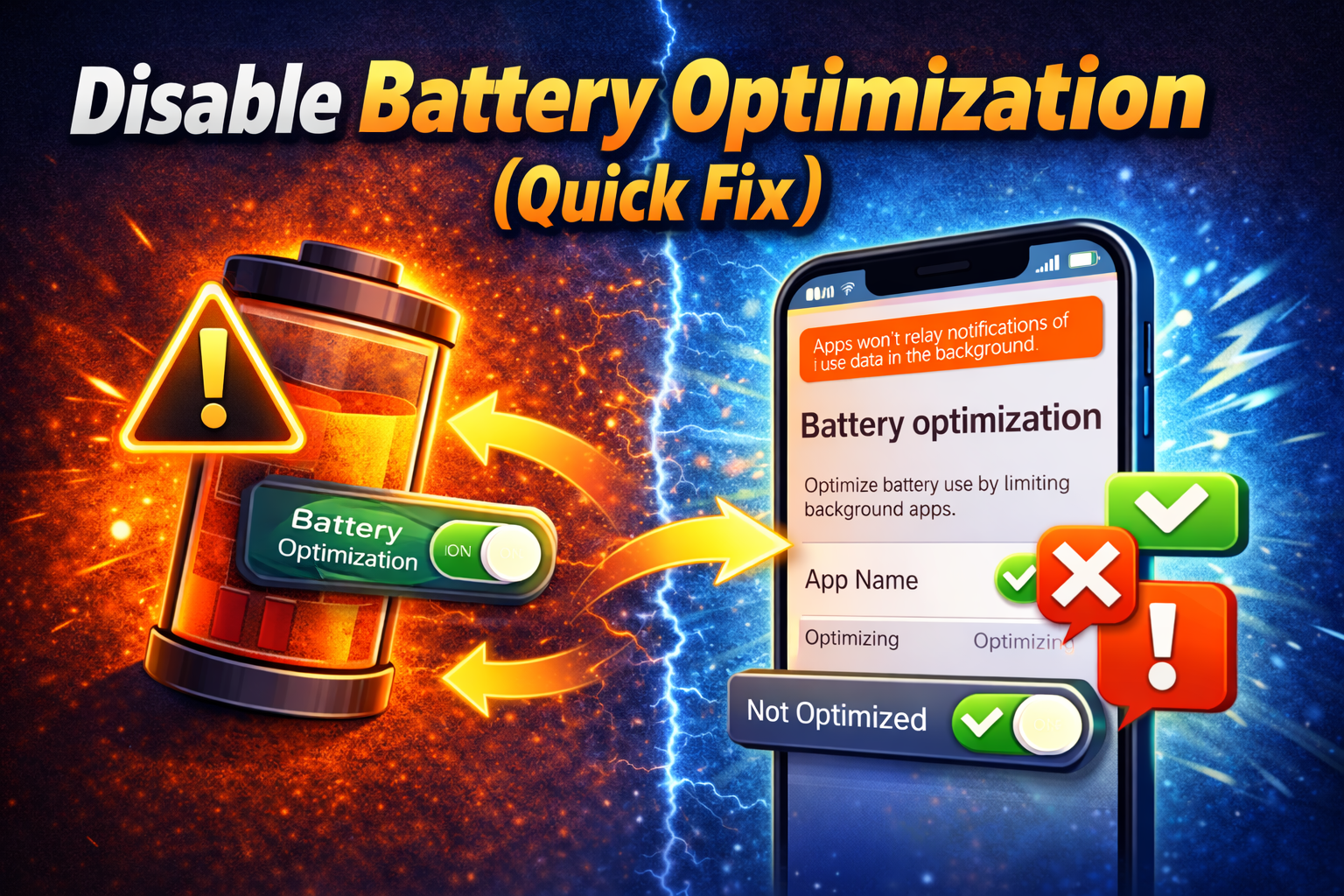
This is one of the most effective solutions.
On Android:
- Go to Settings
- Tap Battery
- Select Battery Optimization
- Choose the affected app
- Set it to Not Optimized
On iPhone:
- Turn off Low Power Mode in Settings > Battery
👉 Pro Tip: Apps like WhatsApp, Spotify, and Gmail often need unrestricted background access.
2. Allow Background Activity
Make sure apps can run even when your screen is locked.
Android:
- Settings > Apps > Select App > Battery > Allow Background Activity
iPhone:
- Settings > General > Background App Refresh → Enable it
3. Turn Off Power Saving Mode
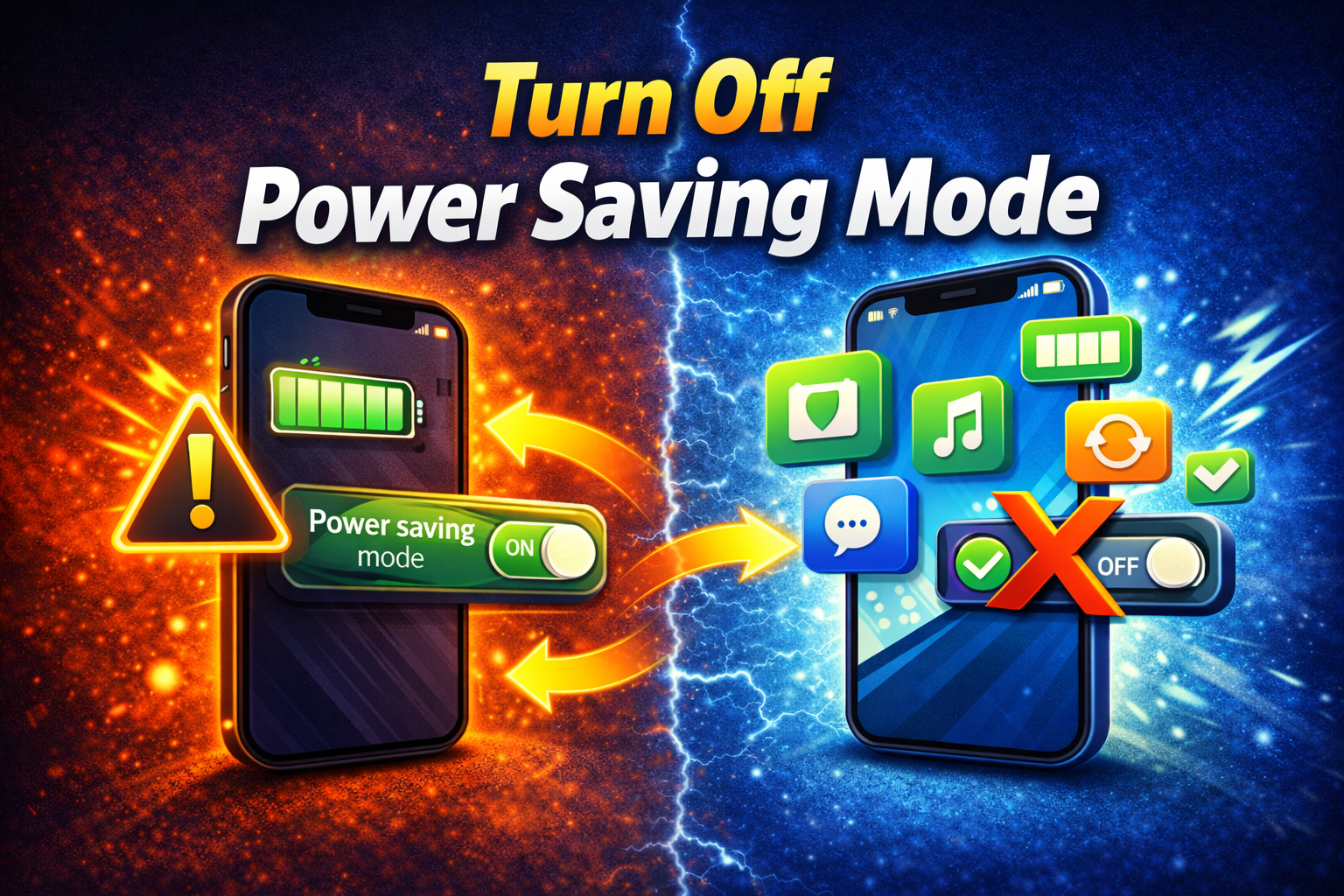
Power-saving features can kill apps when your phone locks.
- Go to Settings > Battery
- Disable Power Saving Mode
👉 Warning: This mode is useful, but it often causes apps to stop working properly.
4. Update the App
Outdated apps can cause compatibility issues.
- Open Google Play Store or App Store
- Search for the app
- Tap Update
👉 Quick Fix: Enable auto-updates to avoid this issue in the future.
5. Restart Your Device
Simple, but effective.
- Press and hold the power button
- Tap Restart
This clears temporary bugs that may affect app performance.
6. Check App Permissions
Apps need proper permissions to function.
Steps:
- Go to Settings > Apps
- Select the app
- Tap Permissions
- Enable necessary permissions (Location, Data, etc.)
7. Clear App Cache (Android Only)
Cache files can become corrupted.
Steps:
- Settings > Apps
- Select the app
- Tap Storage
- Choose Clear Cache
👉 Tip: Do not clear data unless necessary—it may log you out.
8. Reinstall the App
If nothing works, reinstalling can fix deep issues.
Steps:
- Uninstall the app
- Restart your phone
- Install it again from the store
Advanced Fixes (For Technical Users)
If basic solutions don’t work, try these:
1. Disable Adaptive Battery (Android)
- Settings > Battery > Adaptive Battery → Turn OFF
This feature limits rarely used apps.
2. Reset App Preferences
- Settings > Apps > Reset App Preferences
This resets all restrictions without deleting data.
3. Update System Software
- Settings > Software Update → Install latest version
👉 Pro Insight: Many bugs are fixed in system updates.
4. Factory Reset (Last Resort)
⚠️ Only do this if nothing else works.
- Backup your data first
- Settings > System > Reset > Factory Reset
Prevent This Problem in the Future
Here’s how to avoid facing this issue again:
- ✅ Keep apps updated regularly
- ✅ Avoid aggressive battery-saving apps
- ✅ Allow important apps to run in background
- ✅ Don’t restrict essential permissions
- ✅ Restart your device weekly
👉 Pro Tip: Always whitelist important apps like messaging, music, and email.
Common FAQs
1. Why do apps stop working when my screen locks?
Because your phone restricts background activity to save battery.
2. Does battery saver affect apps?
Yes. It can stop apps from running when the screen is off.
3. Is this problem common on Android?
Yes, especially on devices with aggressive battery optimization.
4. Will reinstalling the app fix the issue?
Yes, in many cases it resolves bugs and corrupted files.
5. How do I keep apps running in the background?
Disable battery optimization and enable background activity.
Conclusion
Apps not working after screen lock can be annoying, but the good news is—it’s fixable. From disabling battery optimization to updating your apps, these solutions are simple and effective.
Start with the Quick Fix, then move through the steps if needed. In most cases, you’ll have your apps running smoothly again in minutes.
👉 Now it’s your turn: Try these fixes and see what works best for you. If this guide helped, share it with others or explore more of our “App Problems” solutions!
