How to Fix Apps Not Playing Videos on Mobile (Easy Guide)
Introduction
You open your favorite app to watch a video… but nothing happens. The screen freezes, the video won’t load, or it just keeps buffering forever. Frustrating, right?
You’re not alone—many users face this issue daily across apps like YouTube, Facebook, Instagram, or even streaming services. The good news? Most of these problems are easy to fix.
In this guide, you’ll learn how to fix apps not playing videos on mobile with simple, practical steps that work on both Android and iPhone.
Table of Contents
- What is the Problem?
- Why Does This Problem Happen?
- How to Fix Apps Not Playing Videos on Mobile
- Advanced Fixes
- Prevent This Problem in the Future
- Common FAQs
- Conclusion
What is the Problem?
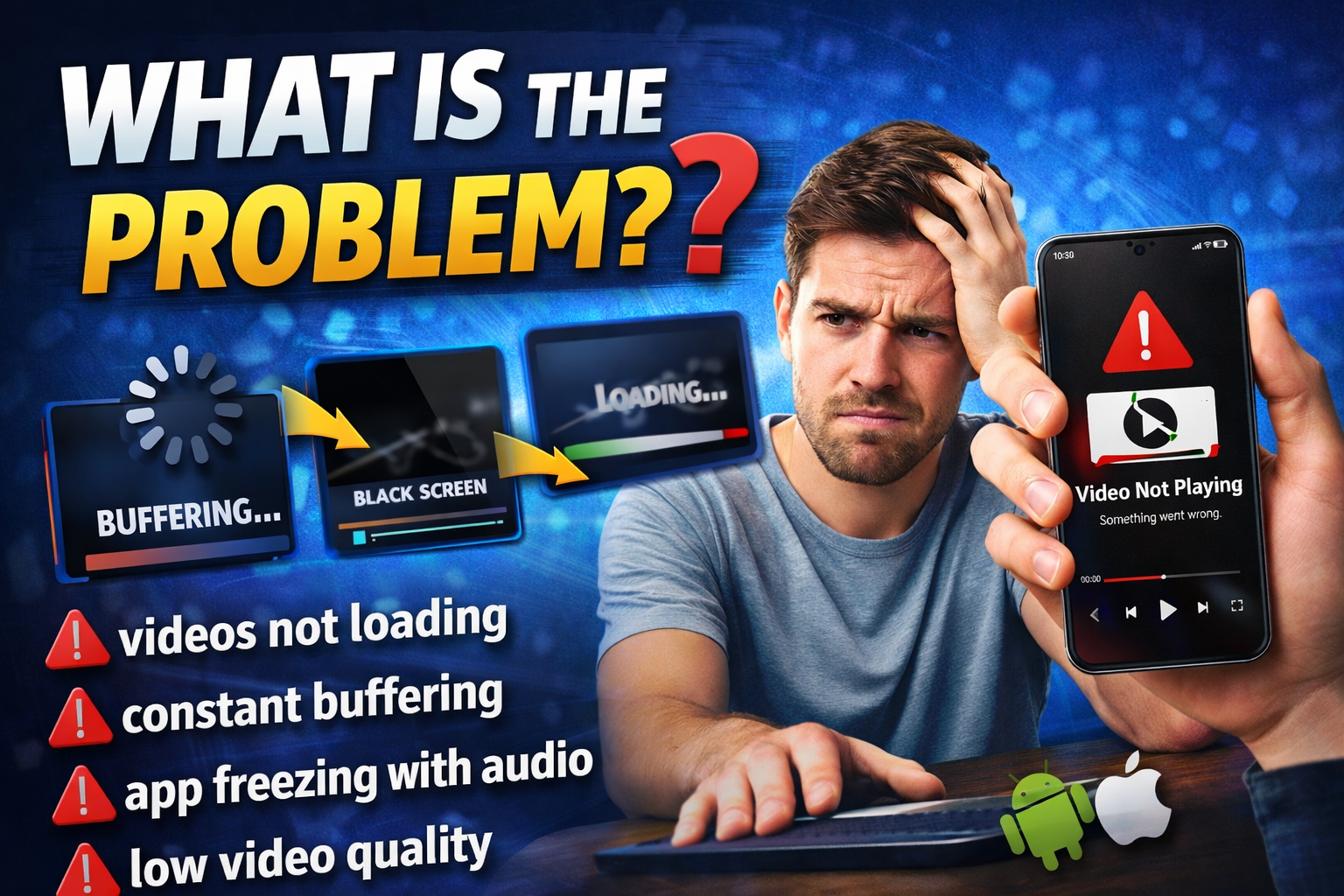
The issue occurs when apps fail to load or play videos properly on your mobile device.
Common Symptoms
- Videos stuck on loading or buffering
- Black screen while audio plays
- Video not starting at all
- App freezing when opening video
- Poor video quality or lagging playback
This problem can happen on any mobile device, regardless of whether you’re using Android or iOS.
Why Does This Problem Happen?
Understanding the cause helps you fix it faster. Here are the most common reasons:
1. Poor Internet Connection
- Slow or unstable Wi-Fi/mobile data
- Network interruptions
2. App Bugs or Glitches
- Outdated app versions
- Temporary software issues
3. Cache and Data Problems
- Corrupted app cache
- Overloaded storage
4. Device Software Issues
- Outdated OS
- Compatibility problems
5. Storage Limitations
- Not enough free space for video buffering
6. Background Apps Interference
- Too many apps running at once
7. Media Codec or Format Issues
- Unsupported video formats (rare but possible)
How to Fix Apps Not Playing Videos on Mobile
Here’s what works—follow these step-by-step solutions:
1. Check Your Internet Connection (Quick Fix)
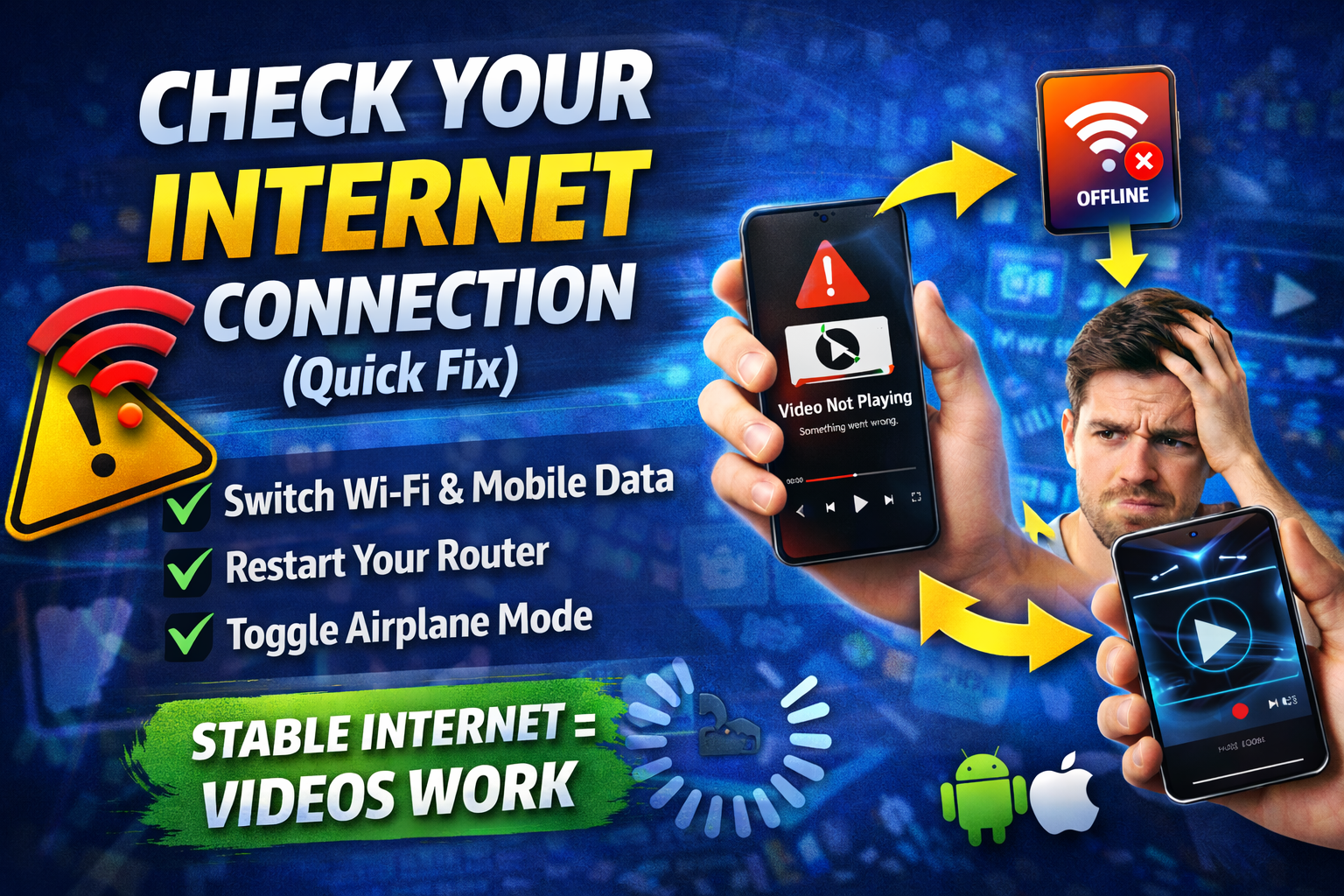
Before anything else, test your connection.
Steps:
- Switch between Wi-Fi and mobile data
- Restart your router
- Turn Airplane mode ON and OFF
👉 Pro Tip: Try opening a video in another app. If it works, the issue is app-specific.
2. Restart Your Phone
A simple restart can fix many hidden glitches.
Steps:
- Hold the power button
- Tap Restart
- Reopen the app and test video playback
3. Update the App

Outdated apps often cause video issues.
Steps:
- Open Google Play Store or App Store
- Search for the app
- Tap Update
👉 Here’s what works: Updates fix bugs and improve video compatibility.
4. Clear App Cache (Android)
Cache files can get corrupted and break video playback.
Steps:
- Go to Settings > Apps
- Select the app
- Tap Storage
- Tap Clear Cache
⚠️ Warning: Avoid clearing data unless necessary (it may log you out).
5. Free Up Storage Space
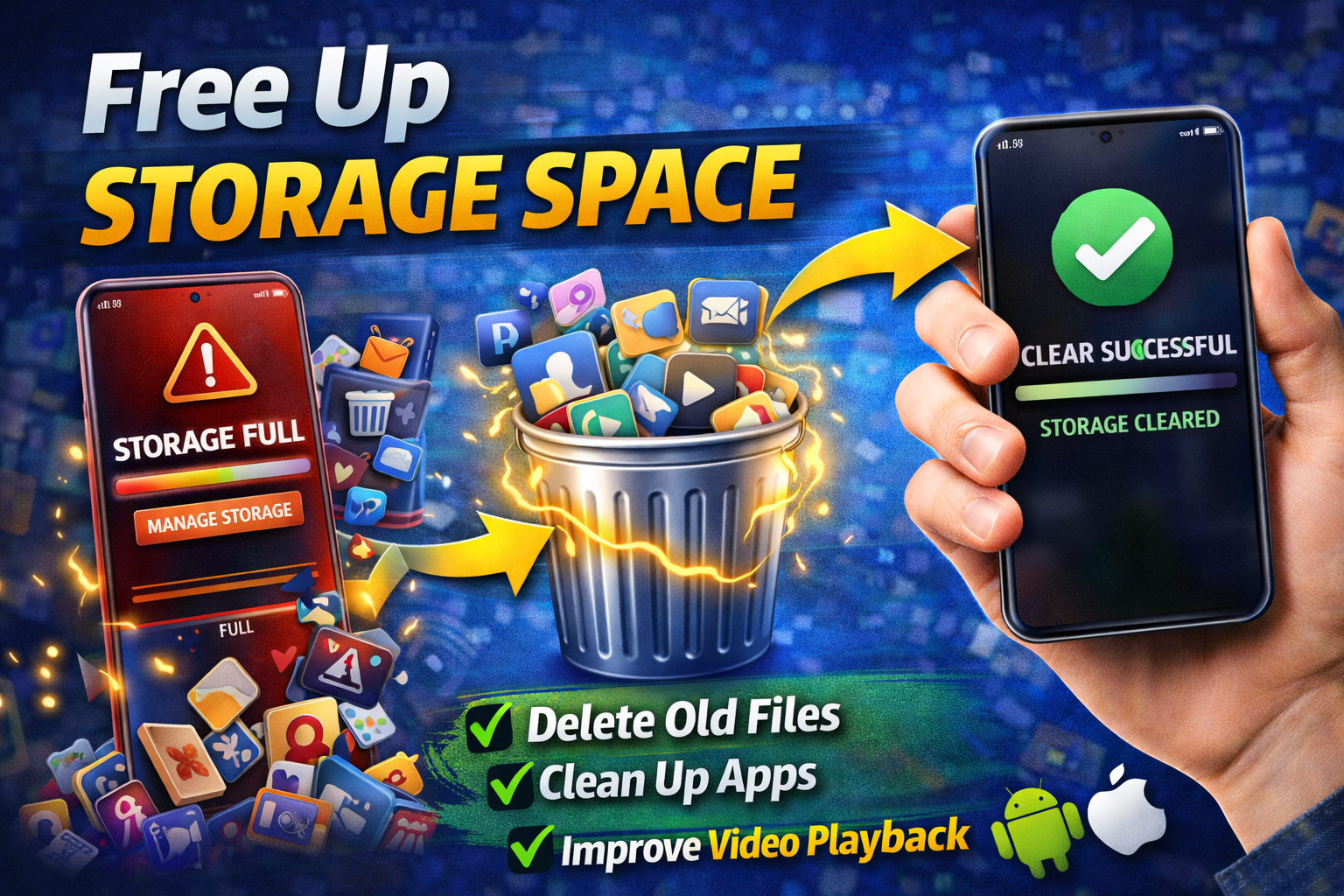
Low storage can stop videos from loading properly.
Steps:
- Delete unused apps
- Remove old videos/photos
- Clear downloads folder
👉 Aim for at least 1–2GB free space.
6. Force Stop and Reopen the App
This resets the app instantly.
Steps:
- Go to Settings > Apps
- Select the app
- Tap Force Stop
- Reopen the app
7. Update Your Phone Software
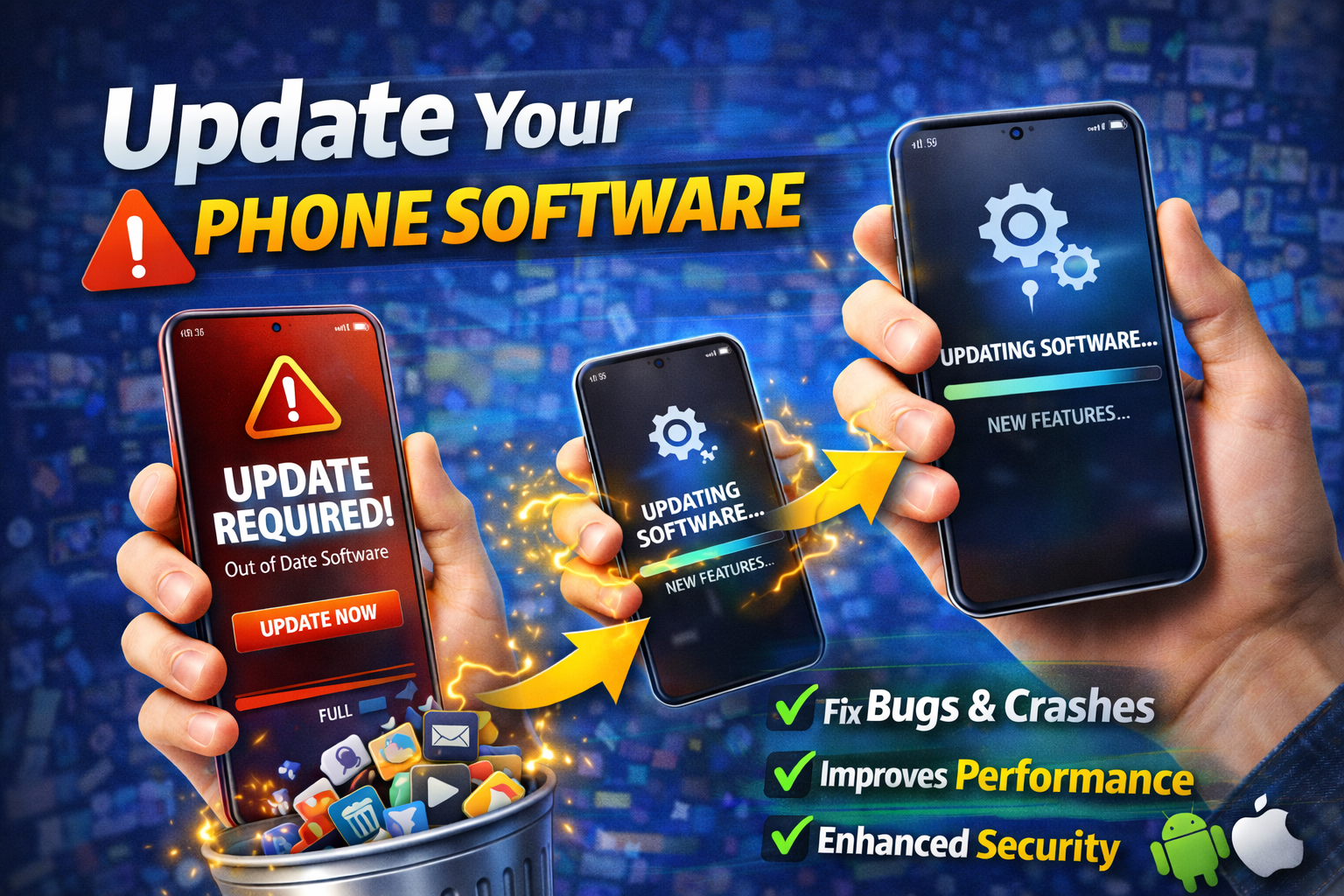
System updates fix compatibility issues.
Steps:
- Go to Settings > Software Update
- Tap Download and Install
8. Reinstall the App
If nothing works, reinstalling can fix deeper issues.
Steps:
- Uninstall the app
- Restart your phone
- Reinstall from the store
Advanced Fixes (Optional)
For more technical users:
1. Reset Network Settings
- Fixes deeper connectivity issues
- Found in Settings > Reset
2. Disable VPN
- VPNs can block video streaming
- Turn it off and test again
3. Check App Permissions
- Ensure app has access to:
- Storage
- Network
4. Change Video Quality Settings
- Lower quality reduces buffering
- Useful for slow connections
Prevent This Problem in the Future

Avoid dealing with this again by following these tips:
- ✅ Keep apps updated regularly
- ✅ Maintain enough storage space
- ✅ Use stable internet connections
- ✅ Restart your phone weekly
- ✅ Avoid installing too many background apps
- ✅ Clear cache occasionally
👉 Pro Insight: Regular maintenance keeps your apps running smoothly.
Common FAQs
1. Why are videos not playing on my phone but internet works?
This may be due to app bugs, cache issues, or unsupported formats—not just internet problems.
2. How do I fix videos not loading on Android apps?
Try clearing cache, updating the app, checking internet, and restarting your device.
3. Why do videos keep buffering on mobile apps?
Slow internet, server issues, or low storage are the most common causes.
4. Do I need to reinstall the app?
Only if other fixes don’t work. It’s a last resort but very effective.
5. Can VPN cause video playback issues?
Yes, VPNs can slow down or block video streaming in some apps.
Conclusion
Dealing with apps not playing videos on mobile can be annoying—but most of the time, it’s easy to fix.
Start with simple solutions like checking your internet, restarting your phone, or updating the app. If the issue continues, move on to clearing cache or reinstalling the app.
👉 Quick reminder: You’re not alone, and these fixes work for most users.
If this guide helped you, feel free to share it or explore more troubleshooting tips. Got questions? Drop them in the comments—we’re here to help!
