How to Fix Apps Not Showing in App Drawer Android (Easy Guide)
Introduction
You open your Android phone, swipe up to check your apps… and suddenly, one or more apps are missing. 😩
Don’t worry—you’re not alone.
Many Android users face this frustrating issue where apps don’t appear in the app drawer even though they are installed. The good news? It’s usually easy to fix.
In this guide, you’ll learn how to fix apps not showing in app drawer Android using simple, effective methods. Whether it’s a launcher glitch, hidden settings, or system bugs—here’s what works.
Table of Contents
- What is the Problem?
- Why Does This Problem Happen?
- How to Fix Apps Not Showing in App Drawer Android
- Advanced Fixes
- Prevent This Problem in the Future
- Common FAQs
- Conclusion
What is the Problem?
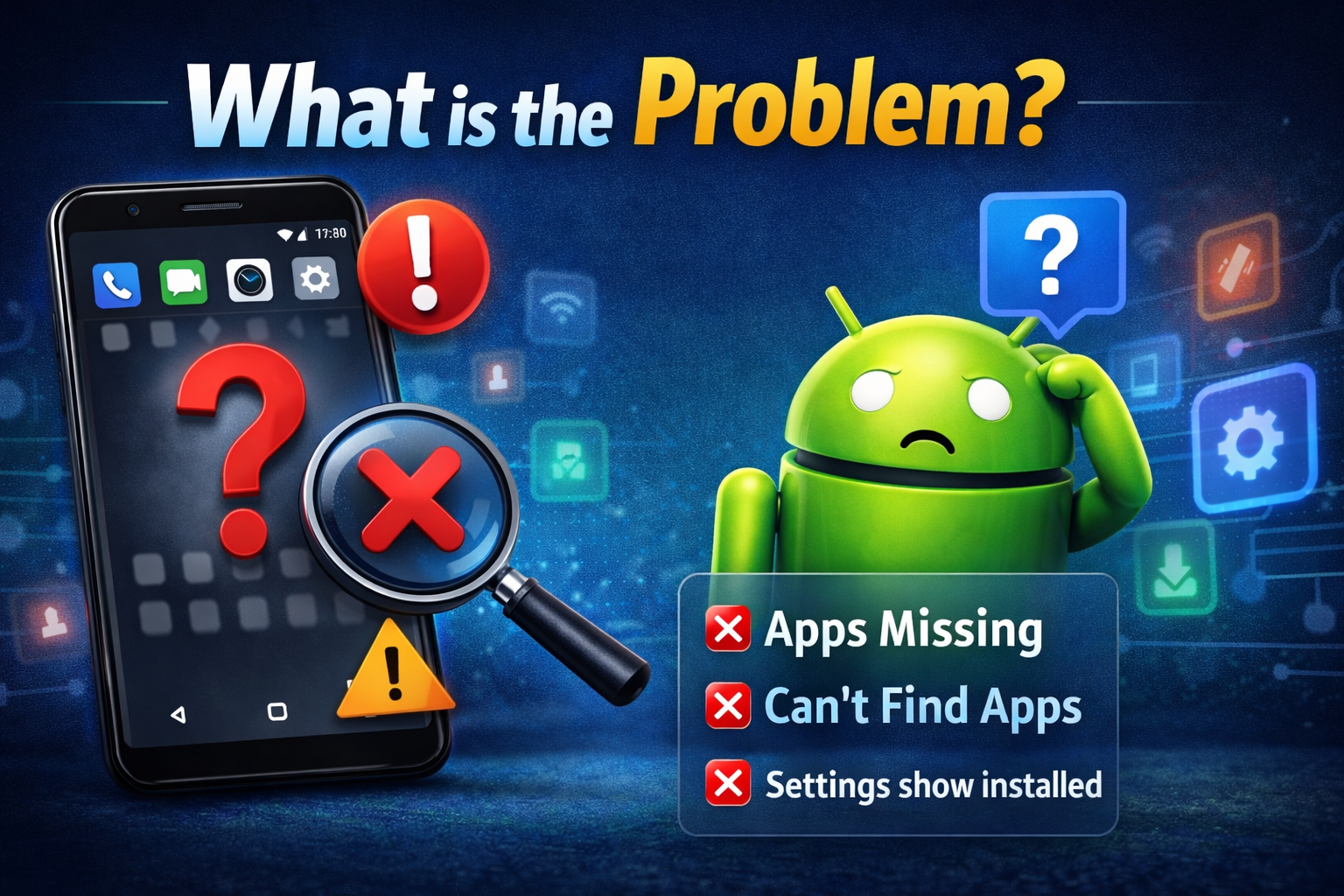
The issue occurs when installed apps don’t appear in your Android app drawer, even though they are still on your device.
Common Symptoms
- Apps are installed but missing from the app list
- You can find the app via search, but not in the drawer
- The app appears in Settings > Apps, but not on the screen
- Only certain apps are missing, not all
This can happen on any Android device—Samsung, Xiaomi, Oppo, Vivo, or stock Android.
Why Does This Problem Happen?
There are several reasons why apps may not show in your app drawer:
1. Apps Are Hidden
Some launchers allow you to hide apps from the drawer.
2. Launcher Glitches
Your home screen launcher might be buggy or outdated.
3. App Not Properly Installed
The installation process may not have completed correctly.
4. System UI Bugs
Temporary system glitches can cause apps to disappear.
5. Disabled Apps
The app might be disabled in settings.
6. App Drawer Settings
Filters or sorting options might hide certain apps.
7. Software Updates Issues
After updates, some apps may not sync properly.
How to Fix Apps Not Showing in App Drawer Android
Here’s the step-by-step guide to fix the issue quickly.
1. Check If the App Is Hidden (Quick Fix)
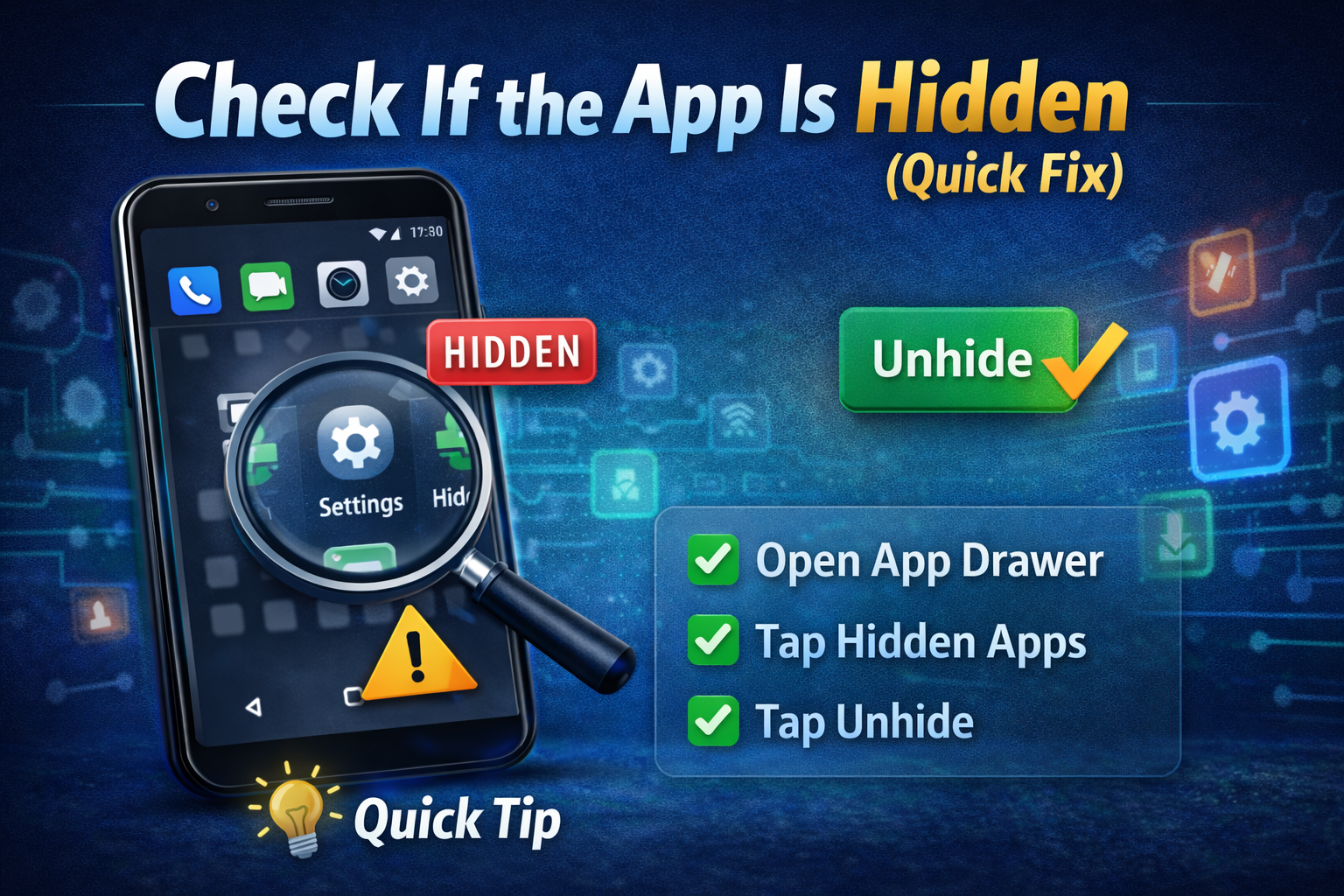
Many Android launchers include a feature to hide apps.
Steps:
- Open your app drawer
- Tap the three-dot menu or settings icon
- Select Hide Apps or App Drawer Settings
- Check if your missing app is listed
- Unhide it
👉 Pro Tip: This is the most common cause—always check this first.
2. Restart Your Phone
A simple restart can fix temporary system glitches.
Steps:
- Press and hold the power button
- Tap Restart
- Wait for the device to reboot
👉 This clears memory and refreshes system processes.
3. Check App Installation
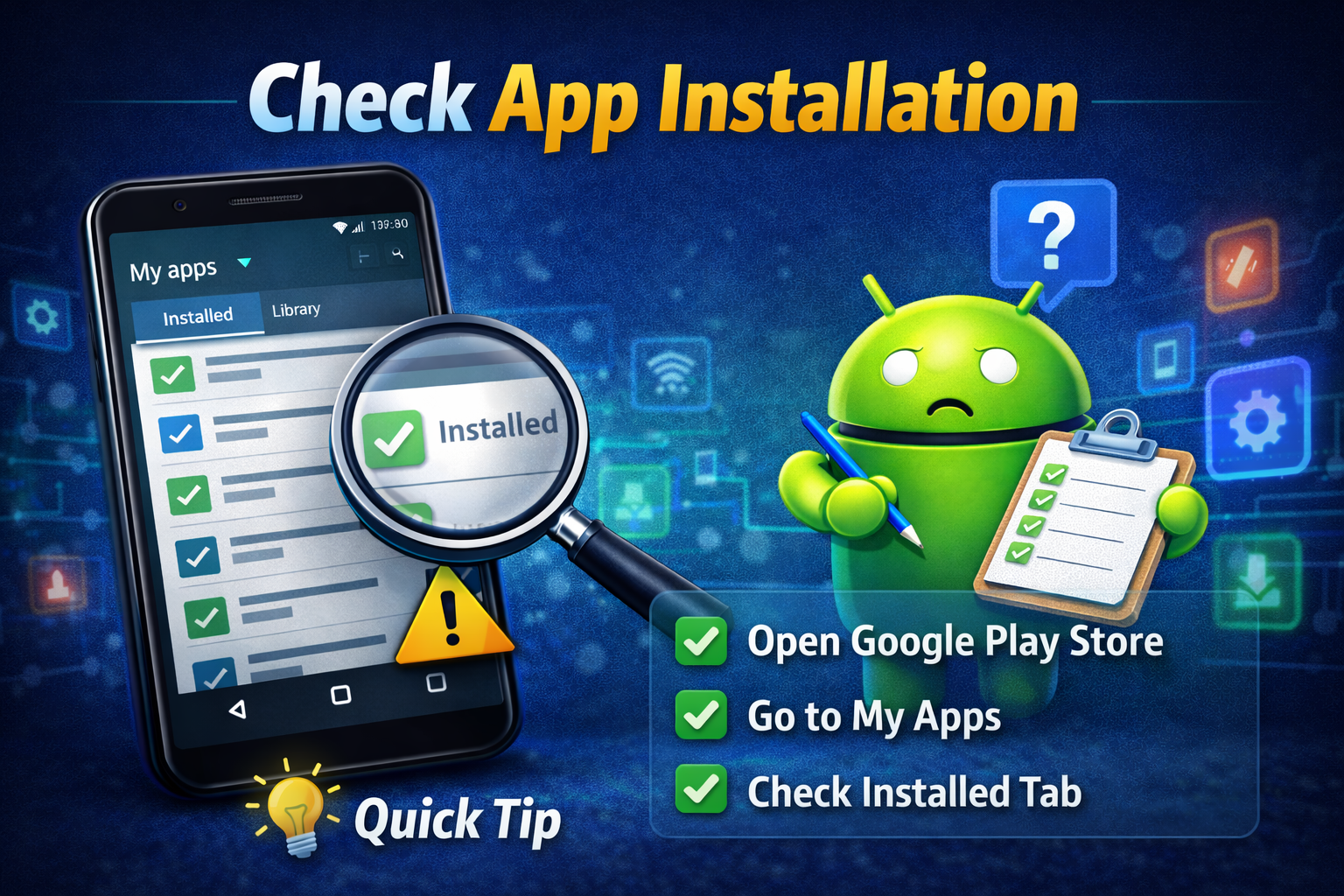
Sometimes apps don’t install properly.
Steps:
- Go to Settings > Apps
- Search for the missing app
- If found, open it
- If not working, uninstall and reinstall from Play Store
👉 This ensures a clean installation.
4. Reset App Drawer Settings
Your launcher settings might be hiding apps unintentionally.
Steps:
- Open launcher settings
- Look for App Drawer Settings
- Disable filters like:
- Hidden apps
- Categories
- Reset to default if available
👉 Quick Fix: Resetting often restores missing apps instantly.
5. Clear Launcher Cache
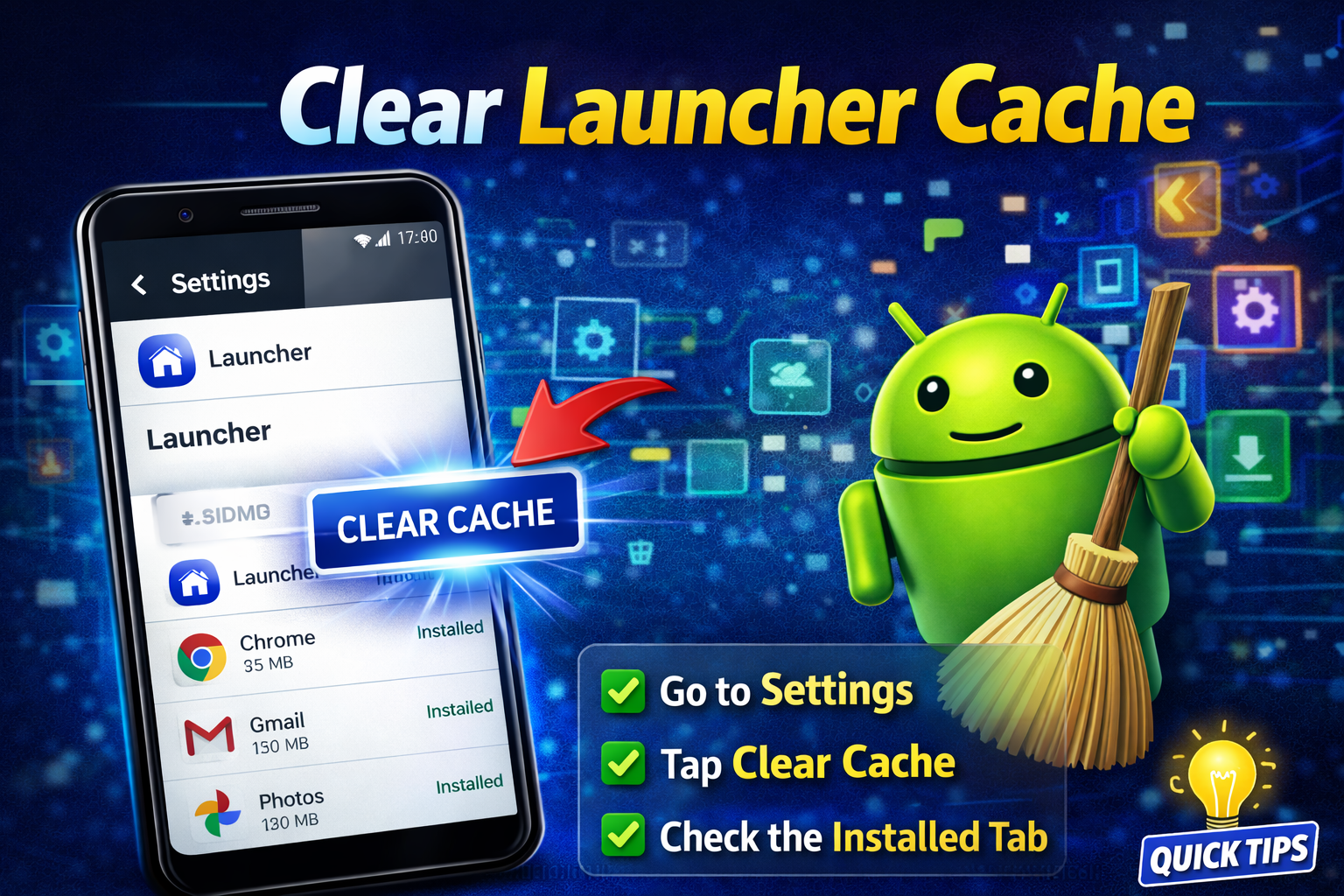
Launcher cache can become corrupted over time.
Steps:
- Go to Settings > Apps
- Find your launcher (e.g., One UI Home, Nova Launcher)
- Tap Storage
- Tap Clear Cache
👉 This won’t delete your data but refreshes the app display.
6. Enable Disabled Apps
Some apps may be accidentally disabled.
Steps:
- Go to Settings > Apps
- Tap Disabled Apps (if available)
- Find your app
- Tap Enable
👉 Disabled apps won’t show in the app drawer.
7. Update Your Launcher or System
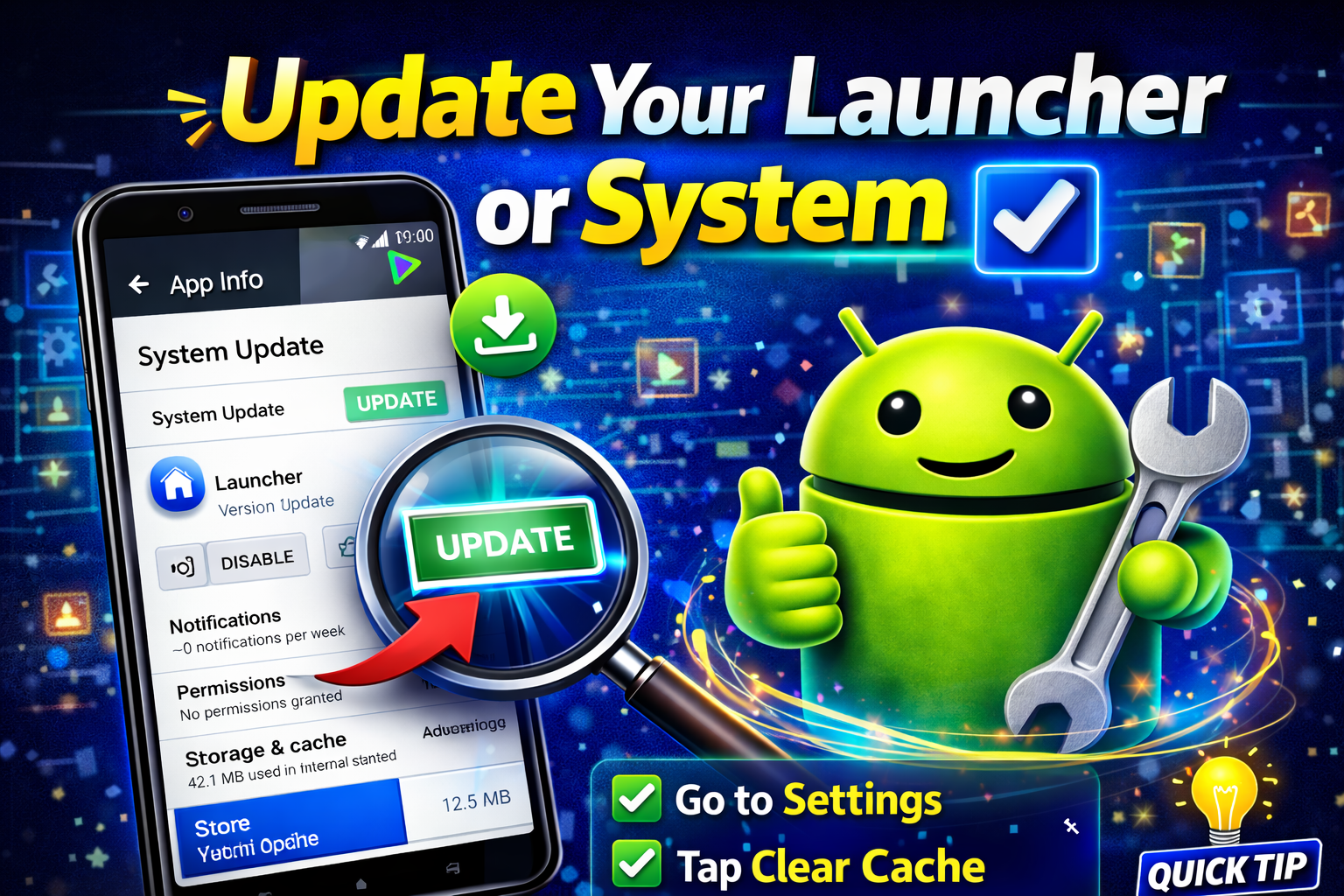
Outdated software can cause display issues.
Steps:
- Update apps via Google Play Store
- Check system updates:
- Settings > Software Update > Download & Install
👉 Keeping your system updated prevents bugs.
8. Use Search to Locate the App
Sometimes the app exists but isn’t visible.
Steps:
- Swipe up to open app drawer
- Use the search bar
- Type the app name
If it appears:
- Long press it
- Drag to home screen
👉 This confirms the app is installed but hidden.
Advanced Fixes (For Technical Users)
If the problem still persists, try these deeper solutions.
1. Reset App Preferences
This resets all app settings without deleting data.
Steps:
- Go to Settings > Apps
- Tap three-dot menu
- Select Reset App Preferences
👉 This can fix hidden or restricted apps.
2. Change Launcher
Your current launcher might be the problem.
Steps:
- Install a new launcher (e.g., Nova Launcher, Microsoft Launcher)
- Set it as default
- Check if apps appear
👉 If apps show up, your old launcher was the issue.
3. Factory Reset (Last Resort)
Only use this if nothing else works.
⚠️ Warning: This will erase all data.
Steps:
- Backup your data
- Go to Settings > System > Reset
- Tap Factory Data Reset
Prevent This Problem in the Future
Avoid dealing with missing apps again by following these tips:
✅ Keep Your Device Updated
Regular updates fix bugs and improve stability.
✅ Avoid Unknown Launchers
Use trusted launchers from the Play Store.
✅ Don’t Hide Apps Accidentally
Double-check settings before hiding apps.
✅ Install Apps Properly
Wait until installation is fully complete.
✅ Clear Cache Regularly
This keeps your system running smoothly.
👉 Pro Insight: Most app drawer issues are caused by launcher settings—not the apps themselves.
Common FAQs
1. Why are my apps installed but not showing in the app drawer?
This usually happens because apps are hidden, disabled, or affected by launcher glitches.
2. How do I unhide apps on Android?
Go to your launcher settings → Hide Apps → Uncheck the hidden apps.
3. Can a virus cause apps to disappear?
It’s rare, but malware can affect app visibility. Install apps only from trusted sources.
4. Will clearing cache delete my apps?
No, clearing cache only removes temporary files—it won’t delete apps or data.
5. Why did apps disappear after an update?
Software updates can reset settings or cause temporary glitches. Restarting or clearing cache usually fixes it.
Conclusion
If your apps are missing, don’t panic—you’re not alone, and the fix is usually simple.
To recap, the best ways to fix apps not showing in app drawer Android include:
- Checking hidden apps (Quick Fix)
- Restarting your device
- Clearing launcher cache
- Resetting settings
- Updating your system
👉 Here’s what works: Start with the simple fixes first—they solve most cases within minutes.
If this guide helped you, consider sharing it with others facing the same issue. And don’t forget to explore more of our App Problems guides for quick, practical solutions! 🚀
