Fix Apps Crashing When Opening Camera (Easy Guide)
Introduction
You’re trying to open your camera inside an app—maybe Instagram, WhatsApp, or Snapchat—and suddenly the app crashes. Frustrating, right? You’re not alone.
Many users face this exact issue where apps crash when opening the camera, especially after updates or due to hidden system problems.
In this guide, you’ll learn how to fix apps crashing when opening camera using simple, effective solutions that work on both Android and iPhone. Whether it’s a permission issue, a bug, or a system glitch—here’s what works.
Table of Contents
- What is the Problem?
- Why Does This Problem Happen?
- How to Fix Apps Crashing When Opening Camera
- Advanced Fixes
- Prevent This Problem in the Future
- Common FAQs
- Conclusion
What is the Problem?
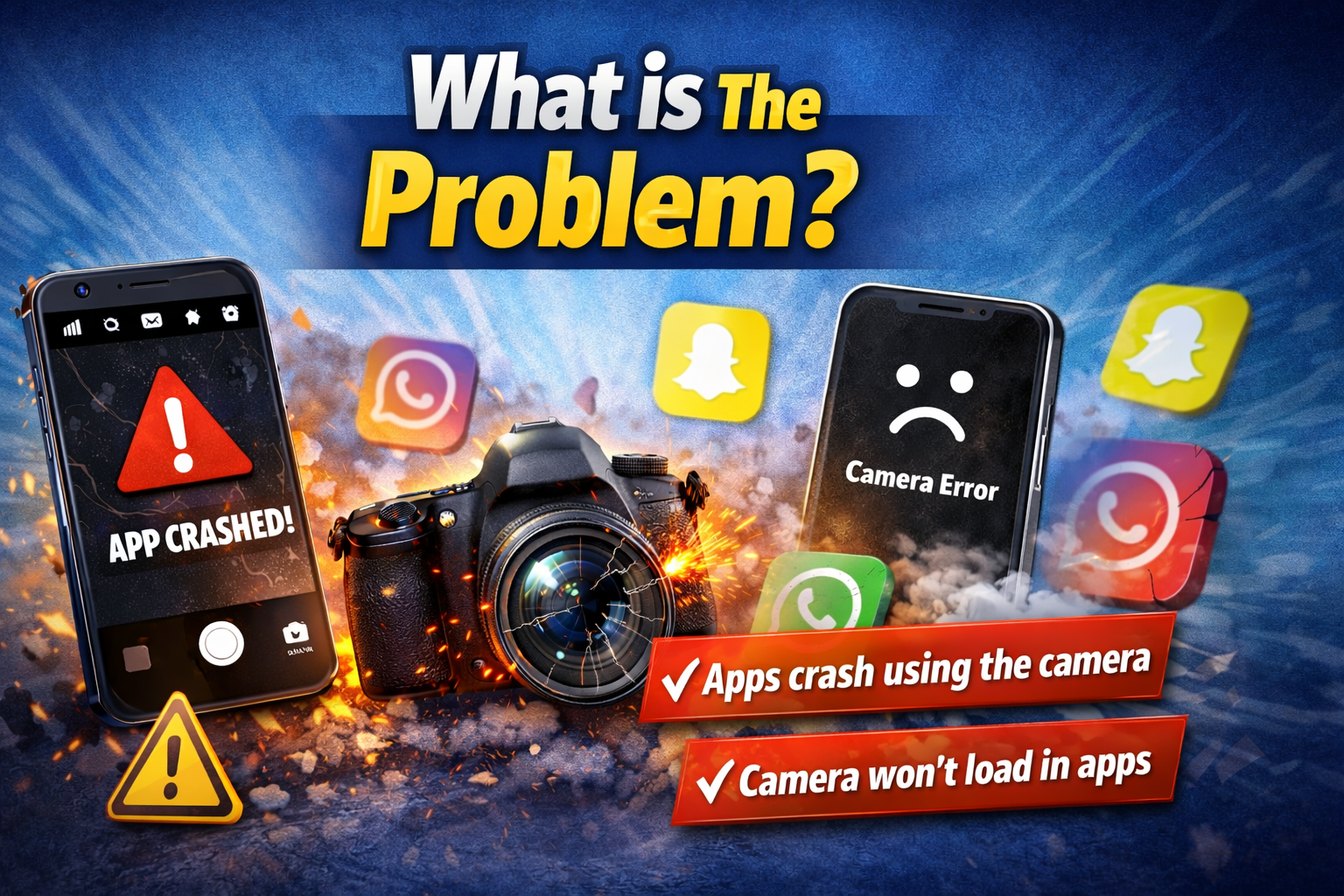
The issue occurs when an app crashes immediately or freezes when trying to access your device’s camera.
Common Symptoms
- App closes instantly when opening camera
- Black screen appears before crashing
- Camera fails to load inside apps
- Error messages like “App has stopped”
- Only certain apps crash (e.g., Instagram, TikTok)
This problem can affect both Android and iPhone users, especially after updates or changes in settings.
Why Does This Problem Happen?
There are several reasons why apps crash when opening the camera:
1. Camera Permission Issues
If the app doesn’t have proper camera access, it may crash instead of showing a prompt.
2. App Bugs or Glitches
Outdated or buggy apps often fail when accessing hardware like the camera.
3. Software Conflicts
System updates (Android/iOS) can cause compatibility issues with apps.
4. Corrupted Cache or Data
Temporary files can become corrupted and cause crashes.
5. Low Storage or RAM
If your device is overloaded, apps may crash when using resource-heavy features like the camera.
6. Camera Hardware Conflict
Another app using the camera in the background can cause conflicts.
How to Fix Apps Crashing When Opening Camera
Here’s what works—follow these step-by-step fixes:
1. Restart Your Device (Quick Fix)
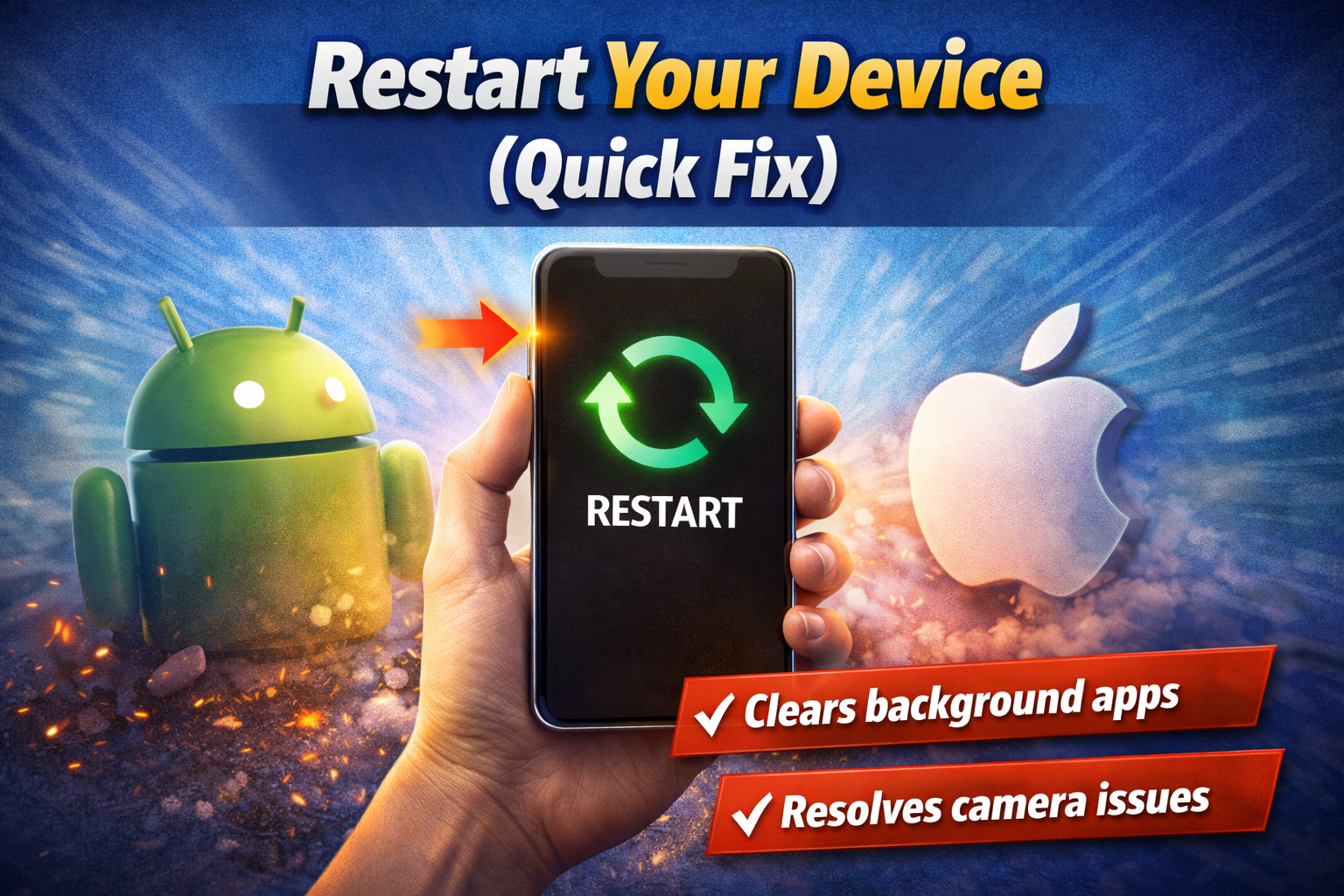
Sometimes, a simple restart solves temporary glitches.
Steps:
- Hold the power button
- Tap Restart
- Reopen the app and try again
👉 Pro Tip: This clears background processes using your camera.
2. Check Camera Permissions
If permissions are disabled, apps may crash instantly.
On Android:
- Go to Settings > Apps > [App Name] > Permissions
- Enable Camera
On iPhone:
- Go to Settings > Privacy & Security > Camera
- Turn on access for the app
3. Update the App

Outdated apps often crash due to compatibility issues.
Steps:
- Open Google Play Store / App Store
- Search for the app
- Tap Update
👉 Here’s what works: Developers frequently release bug fixes for camera issues.
4. Clear App Cache (Android Only)
Corrupted cache is a common cause.
Steps:
- Go to Settings > Apps
- Select the app
- Tap Storage
- Tap Clear Cache
⚠️ Avoid “Clear Data” unless necessary—it may log you out.
5. Close Background Apps
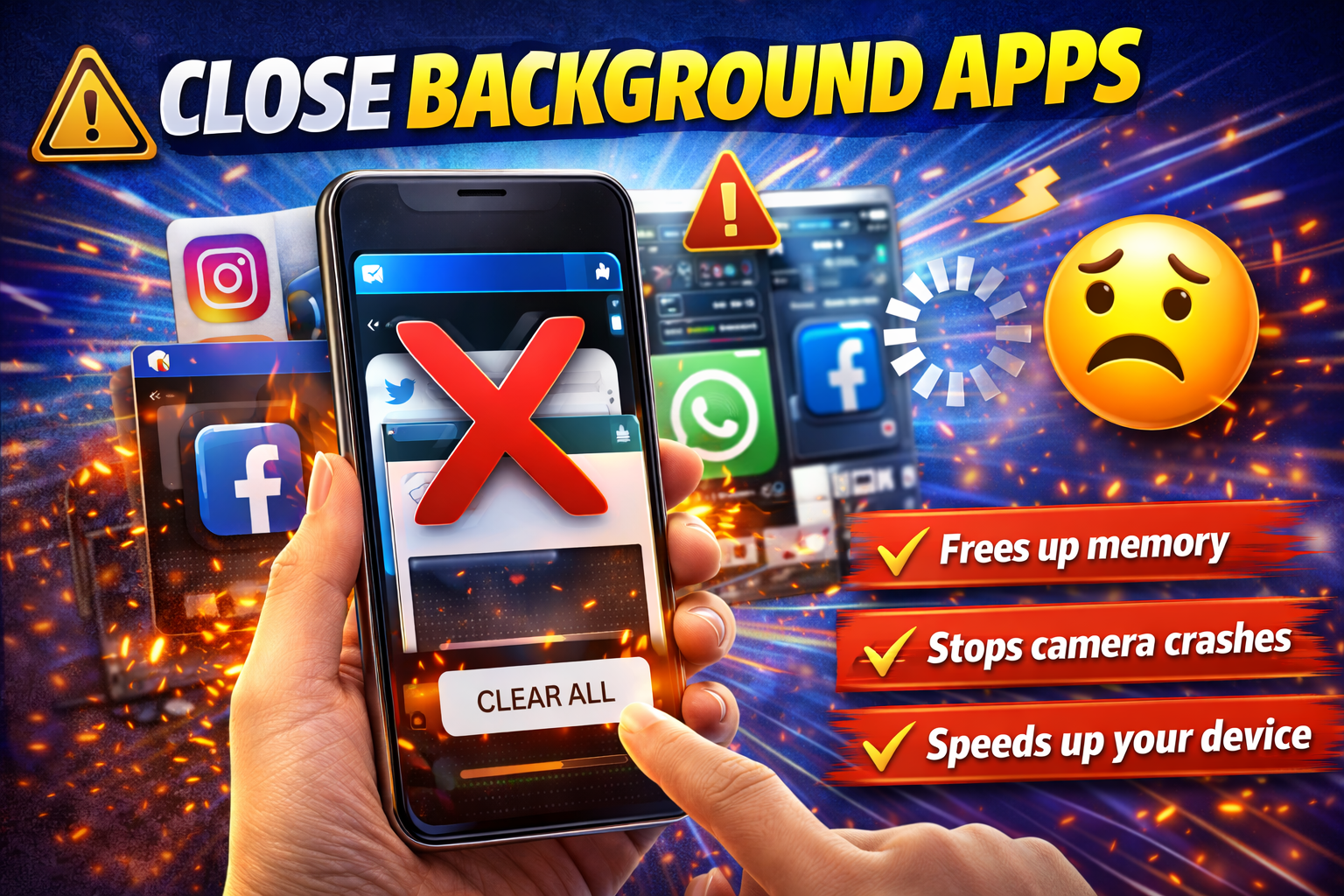
Another app might be using your camera.
Steps:
- Open recent apps
- Swipe away all running apps
- Reopen your app
6. Check Storage Space
Low storage can cause crashes when opening the camera.
Fix:
- Delete unused apps, photos, or videos
- Ensure at least 1–2 GB free space
7. Update Your Phone Software
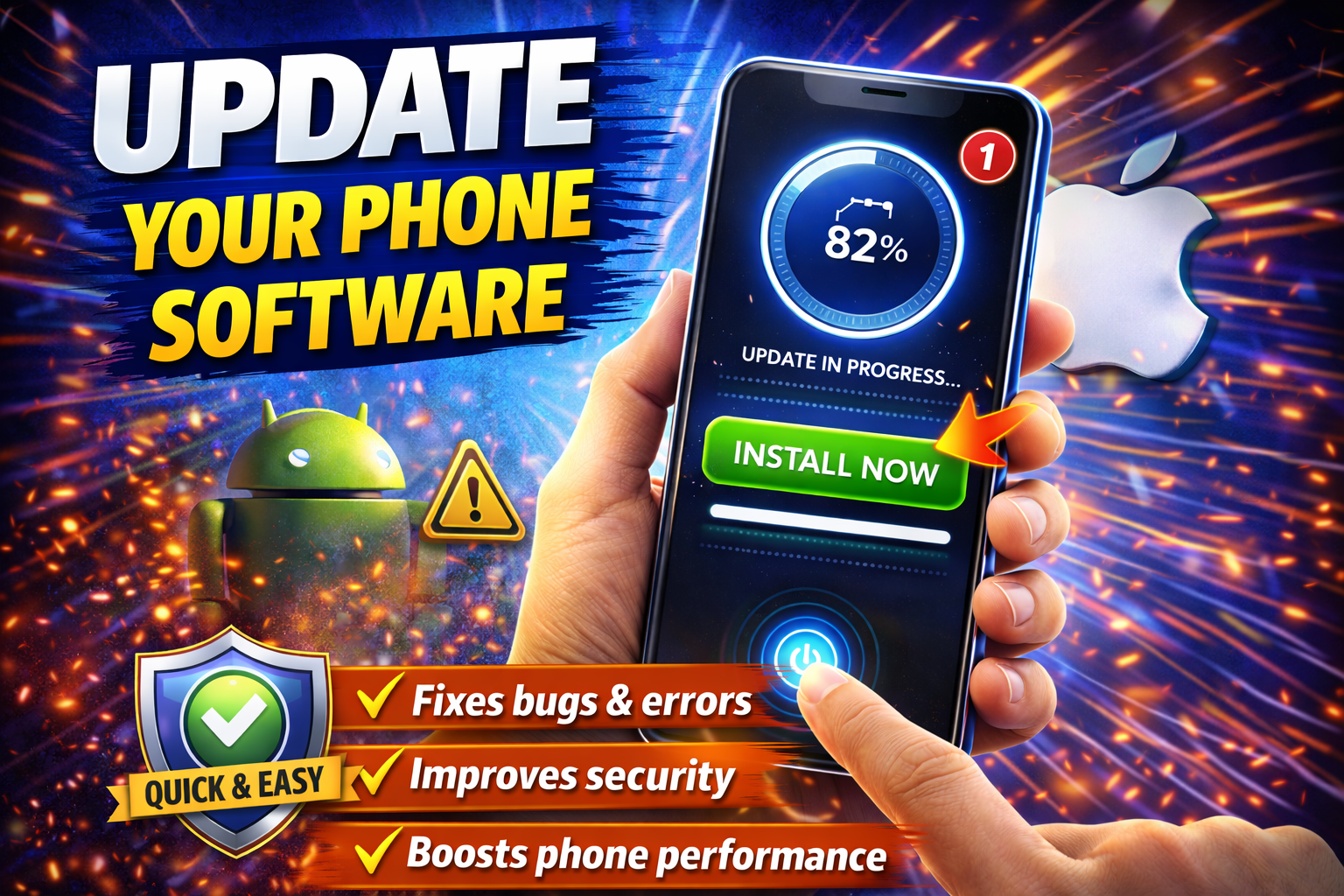
System bugs can cause camera-related crashes.
Steps:
- Go to Settings > Software Update
- Install any available updates
👉 This is especially important after major updates (iOS/Android).
8. Reinstall the App
If nothing works, reinstalling can fix corrupted files.
Steps:
- Uninstall the app
- Restart your phone
- Reinstall from the store
Advanced Fixes (Optional)
If the issue persists, try these more technical solutions:
1. Reset App Preferences (Android)
- Go to Settings > Apps > Reset App Preferences
- This restores permissions and defaults
2. Check for Third-Party Conflicts
- Disable screen recorders or camera apps
- Boot in Safe Mode (Android) to test
3. Reset All Settings (iPhone)
- Go to Settings > General > Transfer or Reset iPhone > Reset > Reset All Settings
⚠️ This won’t delete data but resets system settings.
Prevent This Problem in the Future
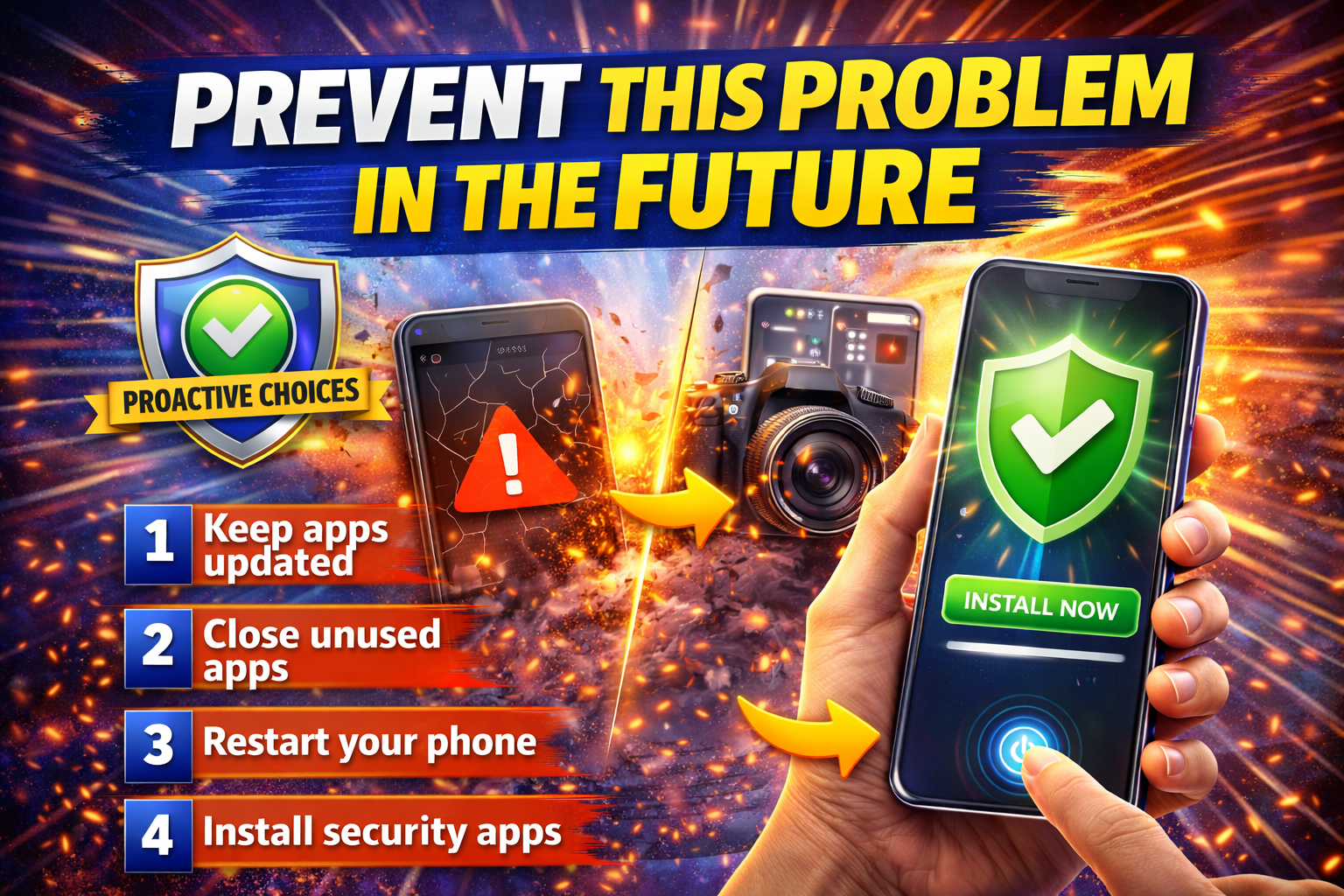
Avoid future crashes with these simple tips:
- ✅ Keep apps and system updated
- ✅ Don’t overload your device storage
- ✅ Avoid installing untrusted apps
- ✅ Regularly clear cache (Android)
- ✅ Close apps running in the background
- ✅ Grant permissions properly when prompted
👉 Pro Insight: Camera-related crashes often happen after updates—always check permissions after updating.
Common FAQs
1. Why do apps crash only when using the camera?
Because the camera uses hardware resources. If permissions, memory, or software conflicts exist, the app may crash.
2. Does low RAM cause camera crashes?
Yes. Apps need extra memory to open the camera. Low RAM can force the app to close.
3. Why does Instagram crash when opening camera?
Usually due to:
- Outdated app
- Permission issues
- Cache corruption
Updating and clearing cache often fixes it.
4. Is this a hardware problem?
Not usually. Most cases are software-related unless your camera doesn’t work at all.
5. Will resetting my phone fix the issue?
Yes, but it’s a last resort. Try all other fixes first.
Conclusion
Apps crashing when opening the camera can be annoying, but the good news is—it’s usually easy to fix.
Start with quick fixes like restarting your device and checking permissions, then move to updates, cache clearing, and reinstalling apps. In most cases, one of these solutions will solve the problem fast.
👉 You’re not alone—and now you know exactly what to do.
If this guide helped you, consider sharing it with others facing the same issue or explore more of our App Problems guides for quick solutions.
