Fix Apps Not Opening Links on Android (Easy Guide)
Introduction
You tap a link, expecting it to open in your favorite app… but nothing happens. Or worse—it opens in the wrong app or browser. Frustrating, right?
If you’re dealing with apps not opening links on Android, you’re definitely not alone. This is a common issue that can interrupt your daily tasks, whether you’re trying to open a Facebook post, a YouTube video, or a payment link.
The good news? This guide will show you how to fix apps not opening links on Android quickly and effectively. From simple tweaks to advanced solutions, here’s what works.
Table of Contents
- What is the Problem?
- Why Does This Problem Happen?
- How to Fix Apps Not Opening Links on Android
- Advanced Fixes
- Prevent This Problem in the Future
- Common FAQs
- Conclusion
What is the Problem?
The issue of apps not opening links on Android occurs when your device fails to launch the correct app when you click a link.
Common Symptoms:
- Links open in a browser instead of the app
- Nothing happens when you tap a link
- A pop-up asks you to choose an app every time
- Apps like YouTube, Instagram, or Facebook don’t open links properly
- Deep links (like payment or login links) fail to work
This problem can affect both system apps and third-party apps.
Why Does This Problem Happen?
Understanding the cause helps you apply the right fix. Here are the most common reasons:
1. Default App Settings Are Incorrect
Android may not know which app should open certain links.
2. Disabled “Open Supported Links” Option
Apps have a setting that allows them to handle links—this may be turned off.
3. App Cache or Data Issues
Corrupted cache can prevent proper functionality.
4. Outdated App or Android Version
Older versions may contain bugs affecting link handling.
5. Conflicting Apps
Multiple apps trying to open the same type of link can cause confusion.
6. Browser Overrides
Your browser might be set as the default for all links.
7. System Glitches
Temporary bugs can interrupt link redirection.
How to Fix Apps Not Opening Links on Android (Step-by-Step)
Here’s what works. Try these solutions in order for the best results.
1. Enable “Open Supported Links” (Quick Fix)
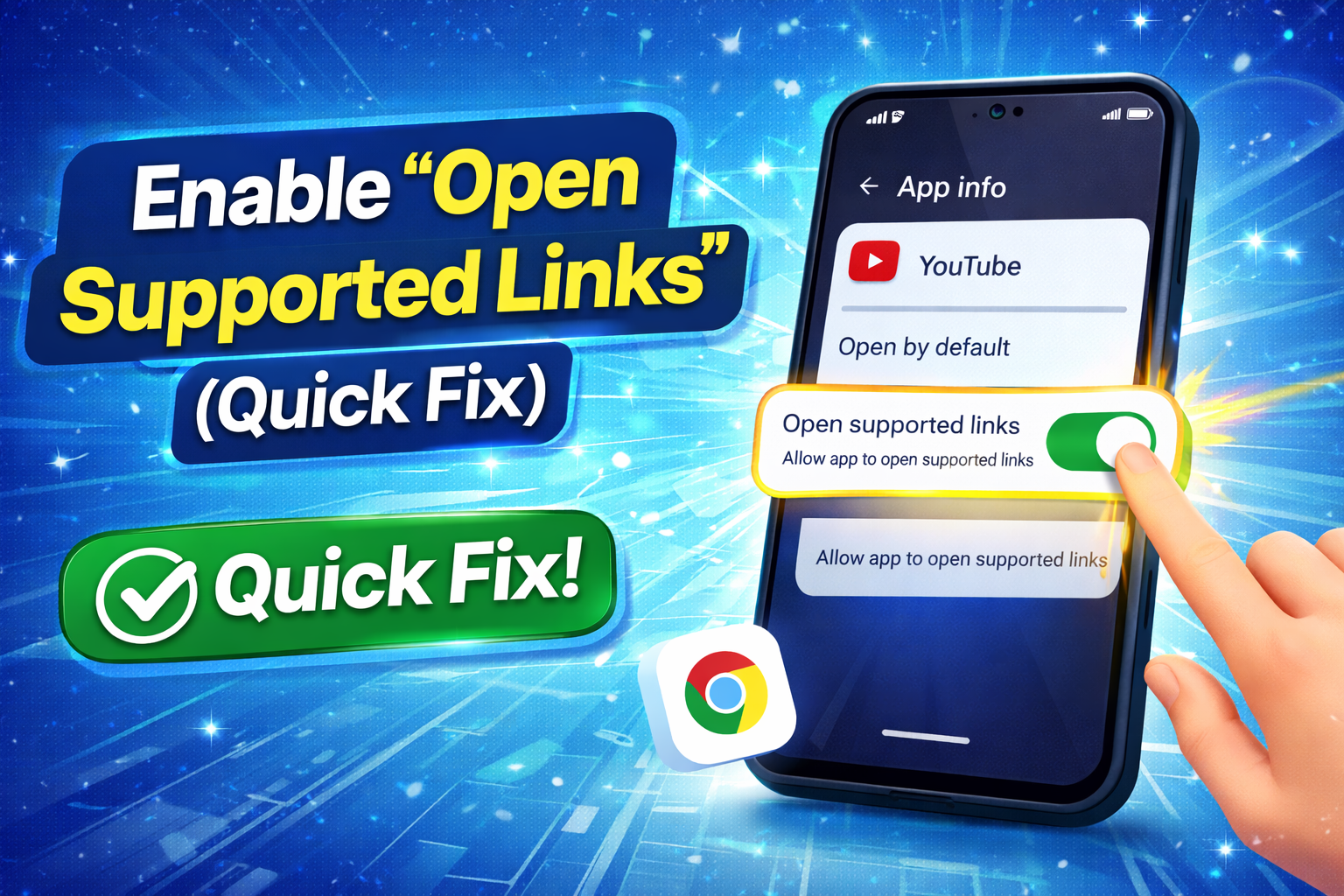
This is the most effective solution.
Steps:
- Go to Settings
- Tap Apps
- Select the app (e.g., YouTube, Instagram)
- Tap Open by default
- Enable Open supported links
- Set it to Allow app to open supported links
👉 Pro Tip: This fixes most cases instantly.
2. Set Default Apps Properly
If Android doesn’t know which app to use, links won’t open correctly.
Steps:
- Go to Settings
- Tap Apps
- Select Default apps
- Choose categories like:
- Browser app
- Opening links
- Assign the correct app
3. Clear App Cache and Data

Corrupted cache can break link functionality.
Steps:
- Go to Settings > Apps
- Select the problematic app
- Tap Storage
- Tap Clear Cache
- If needed, tap Clear Data
⚠️ Warning: Clearing data may log you out.
4. Update the App
Outdated apps often cause bugs.
Steps:
- Open Google Play Store
- Search for the app
- Tap Update (if available)
5. Reset App Preferences
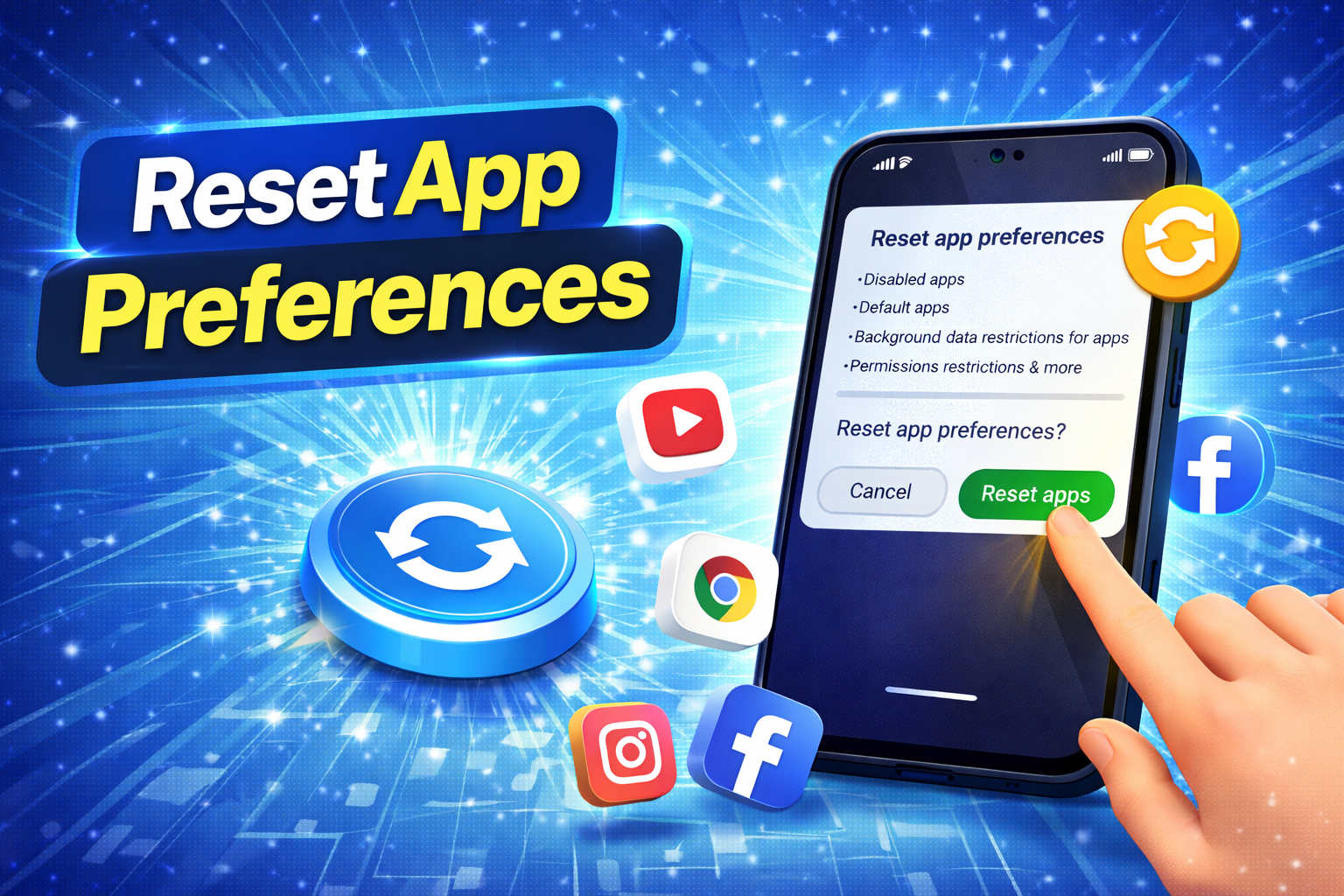
This resets all default settings without deleting data.
Steps:
- Go to Settings
- Tap Apps
- Tap the three-dot menu
- Select Reset app preferences
- Confirm
👉 This helps if multiple apps are conflicting.
6. Check Browser Settings
Sometimes your browser takes over all links.
Steps:
- Go to Settings > Apps
- Select your browser (Chrome, etc.)
- Tap Open by default
- Clear defaults or disable link handling
7. Restart Your Device
Simple but powerful.
👉 A quick restart can fix temporary system glitches.
8. Reinstall the App
If nothing works, reinstalling can fix deeper issues.
Steps:
- Uninstall the app
- Restart your phone
- Reinstall from Play Store
Advanced Fixes (Optional)
If you’re still facing issues, try these:
1. Check Android System WebView
This system component controls how links open.
Steps:
- Update Android System WebView via Play Store
2. Use Safe Mode
Booting in Safe Mode helps identify problematic apps.
Steps:
- Press and hold the power button
- Tap and hold Power Off
- Select Safe Mode
👉 If links work in Safe Mode, a third-party app is causing the issue.
3. Reset Network Settings
Sometimes link handling depends on network configuration.
Steps:
- Go to Settings > System > Reset options
- Tap Reset Wi-Fi, mobile & Bluetooth
Prevent This Problem in the Future
Avoid dealing with apps not opening links on Android again with these tips:
- ✅ Keep apps updated regularly
- ✅ Avoid installing duplicate apps (e.g., multiple browsers)
- ✅ Set default apps correctly after installing new apps
- ✅ Don’t disable system apps like WebView
- ✅ Clear cache occasionally
- ✅ Use trusted apps only
👉 Pro Insight: Most link issues happen after installing new apps or updates.
Common FAQs
1. Why are links opening in Chrome instead of the app?
Because Chrome is set as the default app. Change this in Default Apps settings.
2. How do I force links to open in apps on Android?
Enable “Open supported links” in the app settings.
3. Why do links not respond when I tap them?
This could be due to app cache issues, disabled permissions, or system glitches.
4. Does clearing cache fix link problems?
Yes, in many cases it resolves bugs affecting link behavior.
5. Is this an Android bug?
Sometimes yes—especially after updates. Updating apps or system software usually fixes it.
Conclusion
Dealing with apps not opening links on Android can be annoying, but the fix is usually simple. From enabling supported links to resetting app preferences, these solutions cover almost every scenario.
👉 Quick Recap:
- Enable “Open supported links”
- Set correct default apps
- Clear cache and update apps
- Reset preferences if needed
Now that you know how to fix apps not opening links on Android, try these steps and get things working smoothly again.
💬 Did this guide help? Share it with others facing the same issue or drop a comment below. Explore more app troubleshooting guides to keep your Android running perfectly!
