How to Fix Apps Not Working After Storage Full (Easy Guide)
Introduction
You’re not alone—many users face this frustrating issue: your phone storage gets full, and suddenly your apps stop working, crash, or won’t open at all.
It can feel like your device is broken, but the truth is, this problem is very common—and fixable.
In this guide, you’ll learn how to fix apps not working after storage full using simple, practical steps. Whether you’re on Android or iPhone, these solutions will help restore your apps quickly.
Table of Contents
- What is the Problem?
- Why Does This Problem Happen?
- How to Fix Apps Not Working After Storage Full
- Advanced Fixes
- Prevent This Problem in the Future
- Common FAQs
- Conclusion
What is the Problem?
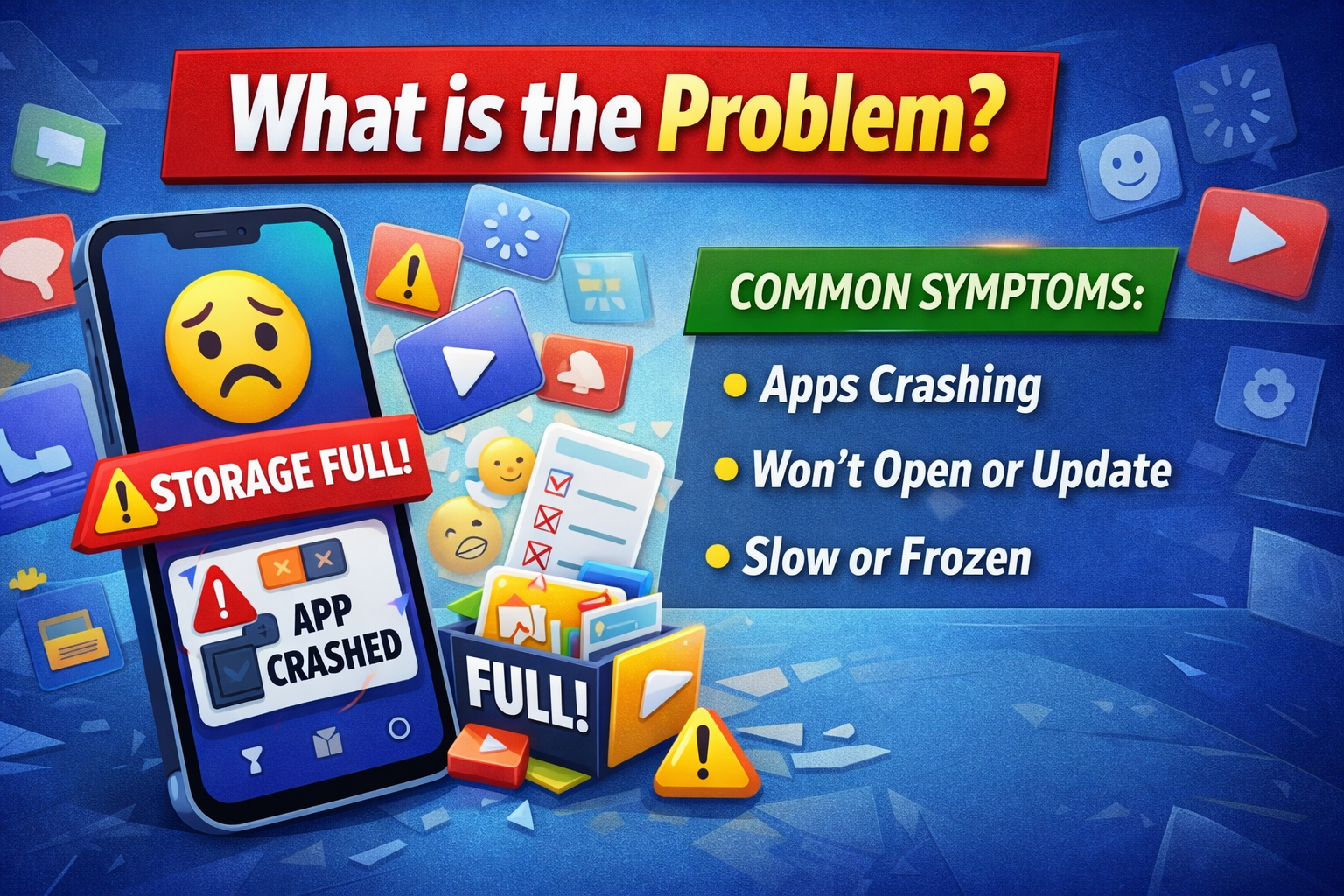
When your device storage becomes full, apps may stop functioning properly. This happens because apps need free space to run smoothly.
Common Symptoms:
- Apps won’t open or keep crashing
- Slow performance or freezing
- Error messages like “Storage Full”
- Apps not loading content
- Updates failing or stuck
If you’ve noticed these signs, your storage is likely the main cause.
Why Does This Problem Happen?
Understanding the root cause helps you fix it faster.
1. No Space for App Data
Apps need storage for temporary files (cache). When storage is full, they can’t function properly.
2. System Performance Issues
Your phone needs free space to manage processes. Without it, apps may freeze or crash.
3. Corrupted Cache Files
When storage runs out, apps may create incomplete or corrupted data.
4. Failed App Updates
Apps may break if updates were interrupted due to low storage.
5. Background Processes Overload
Too many apps running with no storage can overwhelm your system.
How to Fix Apps Not Working After Storage Full
Here’s what works 👇
1. Free Up Storage Space (Quick Fix)
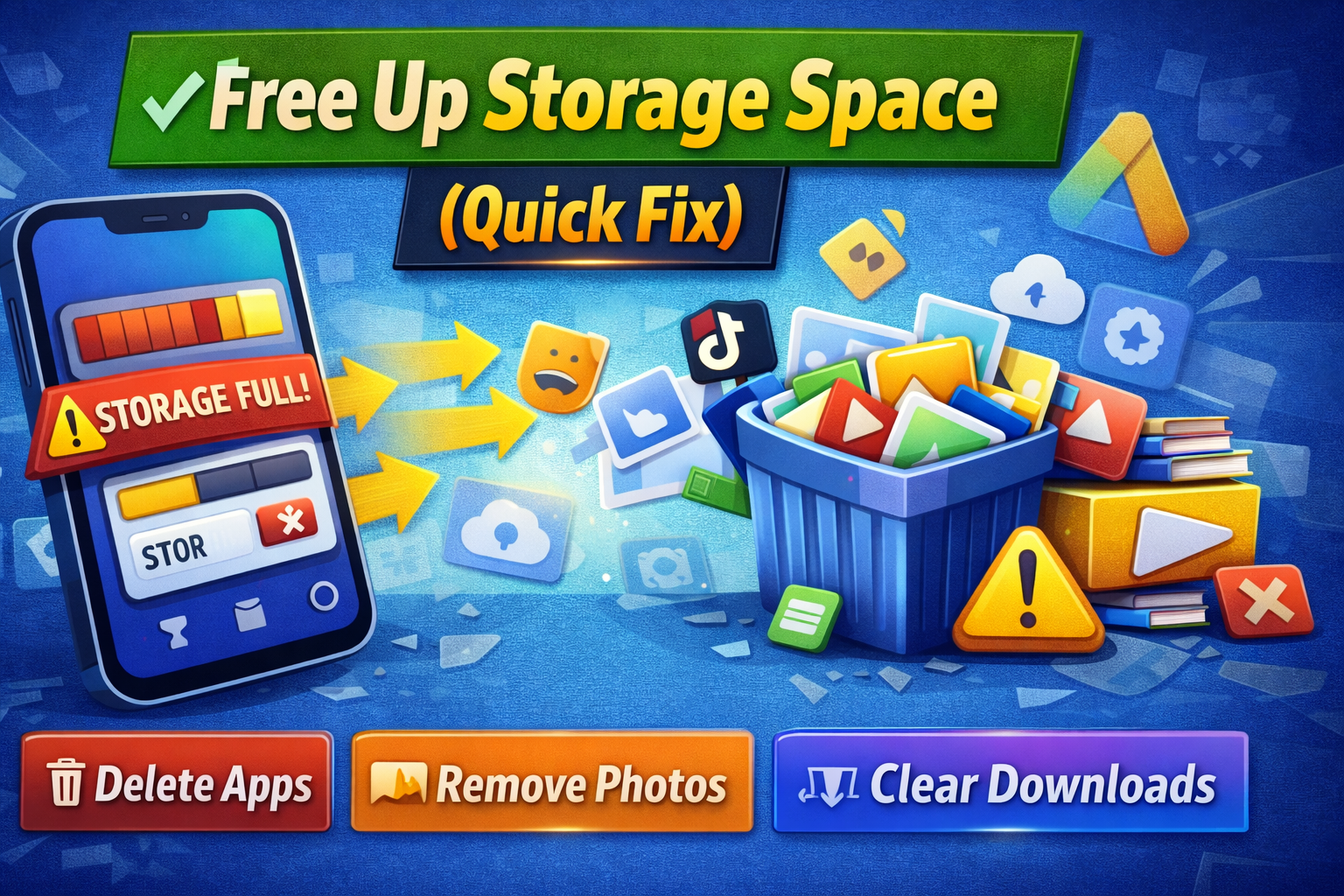
This is the most important step.
- Delete unused apps
- Remove large videos or photos
- Clear downloads folder
- Use cloud storage (Google Drive, iCloud)
👉 Pro Tip: Aim to keep at least 10–20% free storage.
2. Restart Your Device
A simple restart can clear temporary glitches.
Steps:
- Press and hold the power button
- Tap “Restart”
- Wait for the device to reboot
3. Clear App Cache (Android)
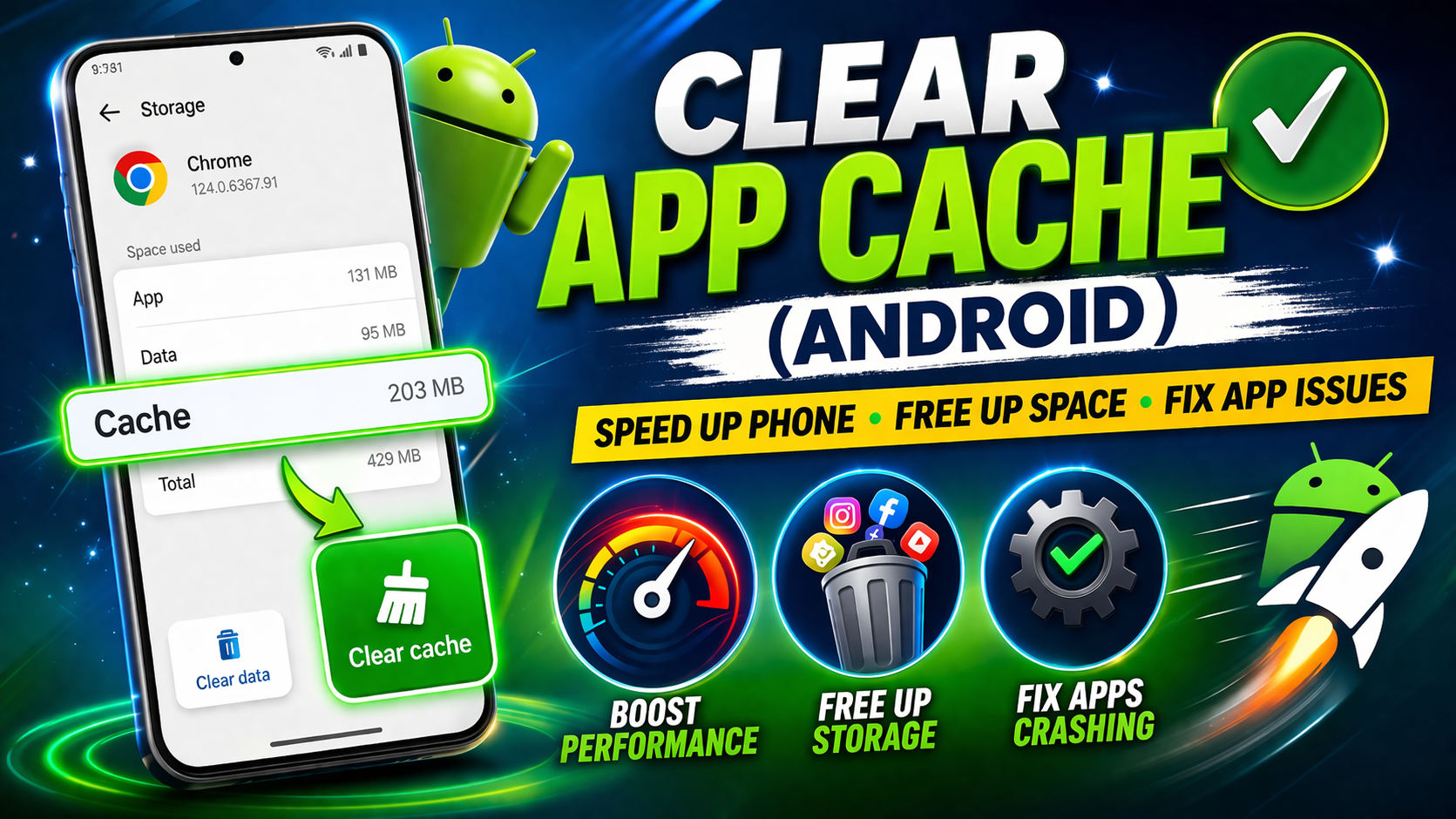
Cache files can become corrupted after storage issues.
Steps:
- Go to Settings > Apps
- Select the problematic app
- Tap Storage
- Tap Clear Cache
⚠️ Avoid “Clear Data” unless necessary (it resets the app).
4. Update the App
Outdated apps may not function correctly after storage problems.
Steps:
- Open Google Play Store / App Store
- Search for the app
- Tap Update
5. Reinstall the App
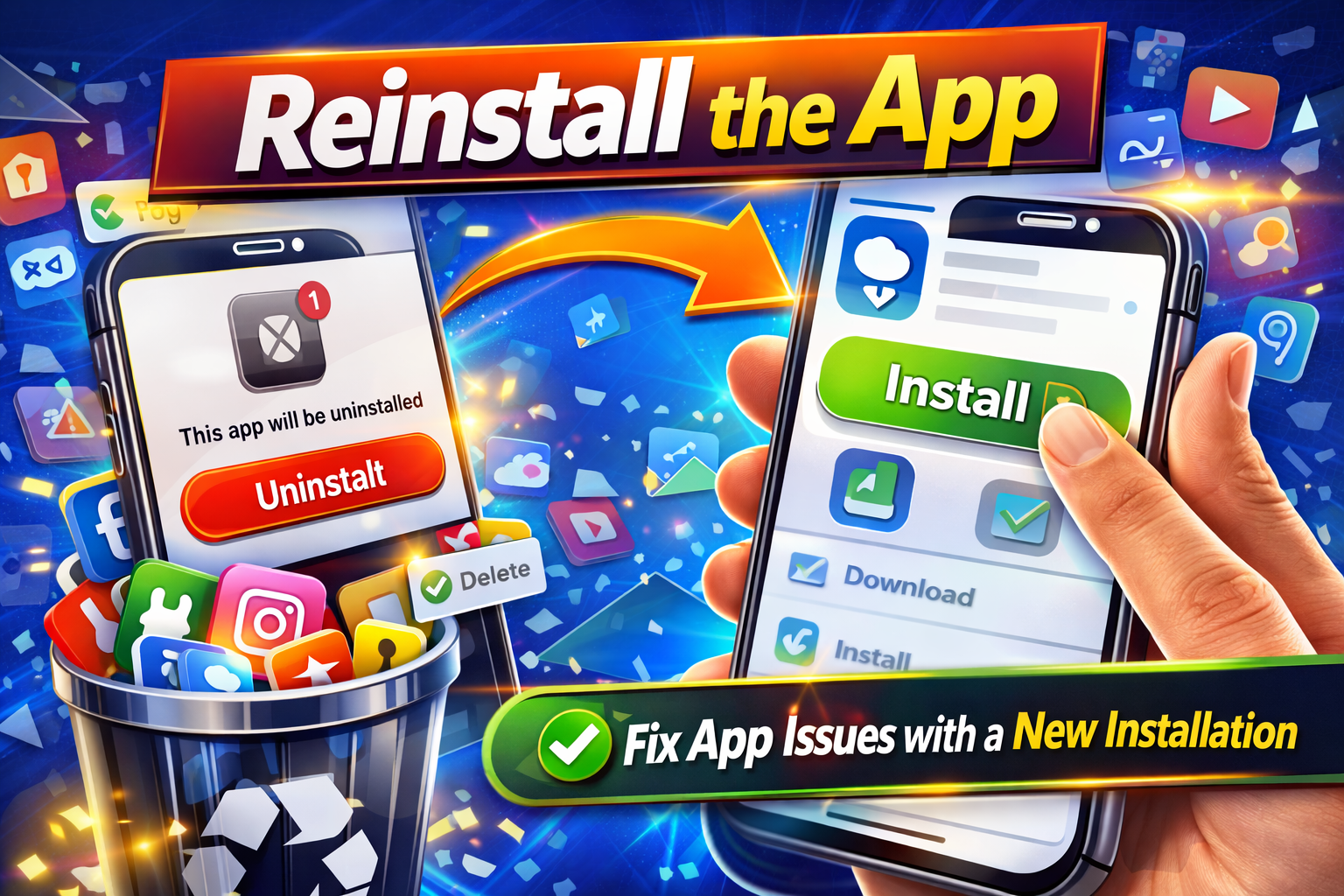
If the app is still not working, reinstalling can fix deeper issues.
Steps:
- Uninstall the app
- Restart your device
- Reinstall from the store
6. Check System Storage Settings
Some devices show what’s taking up space.
- Go to Settings > Storage
- Identify large files/apps
- Remove unnecessary data
7. Turn Off Background Apps
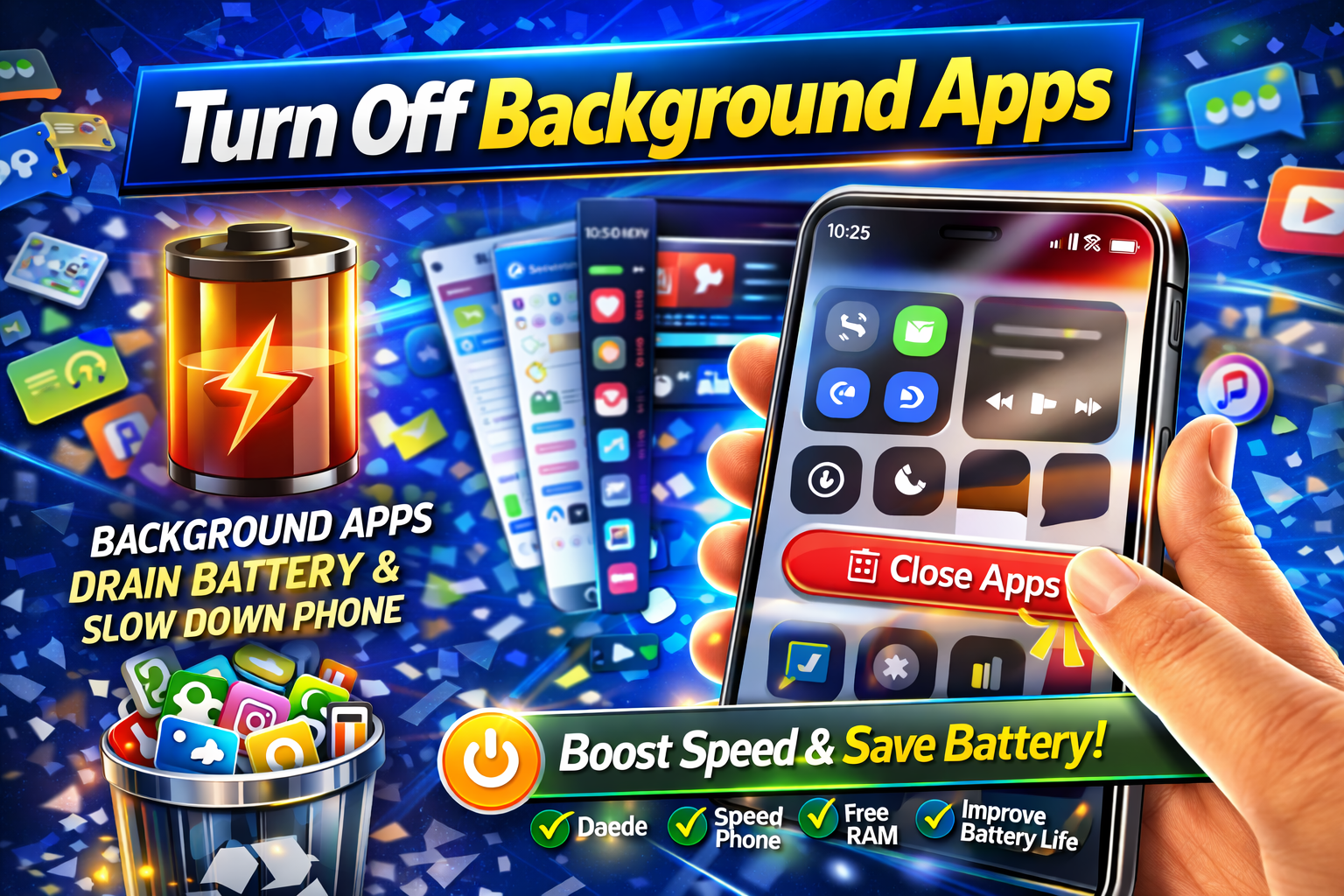
Too many apps running can worsen performance.
- Close unused apps
- Disable auto-start apps (Android)
8. Update Your Operating System
System bugs can also cause app issues.
Steps:
- Go to Settings > Software Update
- Download and install updates
Advanced Fixes (Optional)
For more technical users:
1. Reset App Preferences (Android)
- Go to Settings > Apps > Reset App Preferences
- This won’t delete data but resets permissions
2. Factory Reset (Last Resort)
If nothing works:
⚠️ Warning: This will erase all data.
- Backup your files first
- Go to Settings > System > Reset
Prevent This Problem in the Future
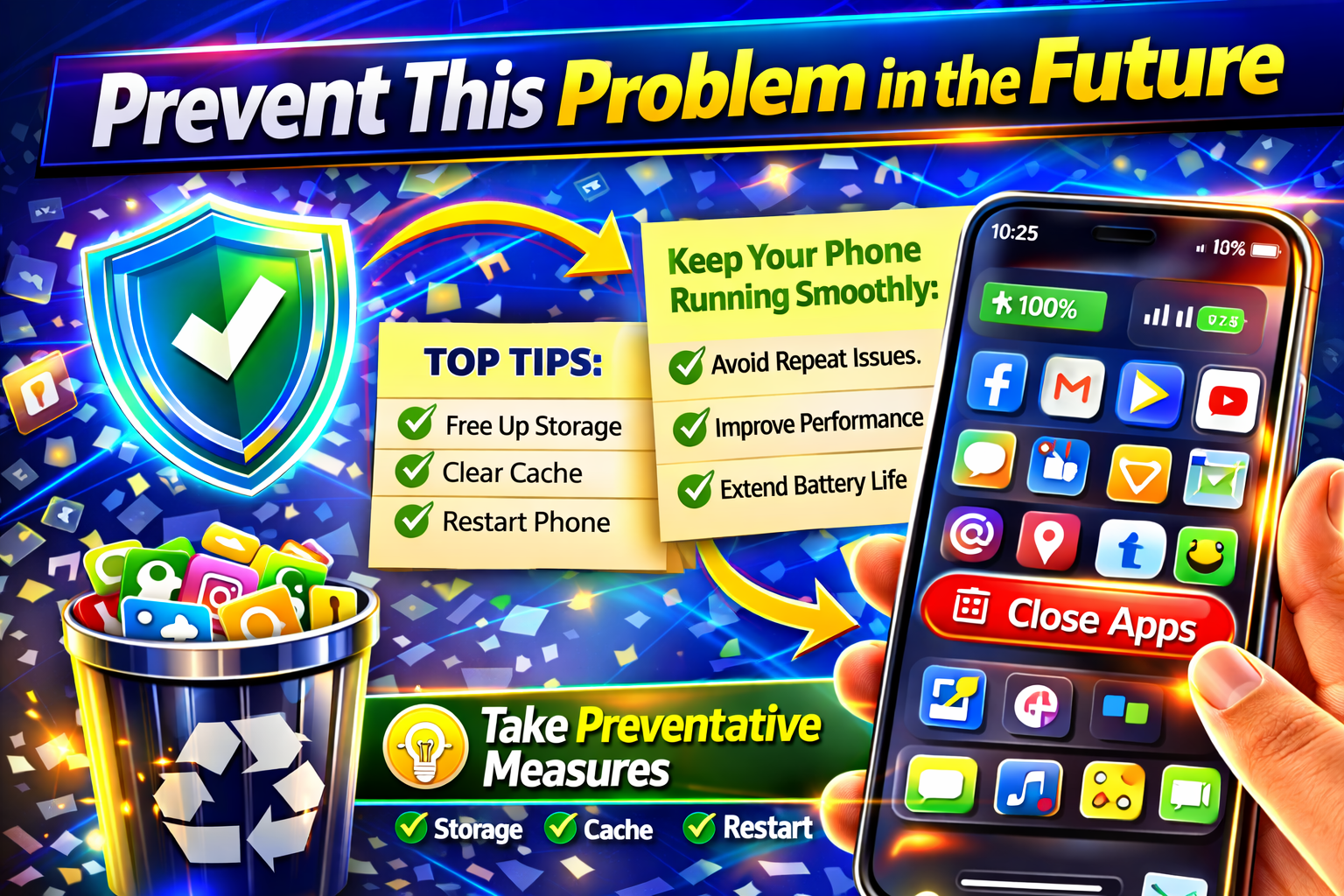
Here’s how to avoid it happening again:
✅ 1. Monitor Storage Regularly
Check storage weekly to avoid reaching full capacity.
✅ 2. Enable Auto-Clean Tools
Use built-in cleaners or apps like Files by Google.
✅ 3. Use Cloud Storage
Store photos/videos online instead of locally.
✅ 4. Avoid Installing Too Many Apps
Keep only what you actually use.
✅ 5. Clear Cache Periodically
Especially for heavy apps like Facebook, TikTok, or Instagram.
Common FAQs
1. Why do apps stop working when storage is full?
Because apps need free space for temporary files and processes. Without it, they crash or freeze.
2. How much free storage should I keep?
At least 10–20% of your total storage for smooth performance.
3. Will deleting apps fix the issue?
Yes, freeing up storage often resolves the problem immediately.
4. Is clearing cache safe?
Yes, it’s completely safe and does not delete personal data.
5. What if apps still don’t work after freeing space?
Try reinstalling the app or updating your system.
Conclusion
Dealing with apps that stop working after storage full can be frustrating—but the good news is, it’s easy to fix.
By freeing up space, clearing cache, and updating your apps, you can quickly restore normal performance.
👉 Quick recap:
- Free storage (most important)
- Restart your device
- Clear cache and update apps
- Reinstall if needed
Now that you know how to fix apps not working after storage full, give these steps a try and get your apps running smoothly again.
💬 If this guide helped you, consider sharing it or exploring more “App Problems” solutions for faster fixes!
