Fix Apps Not Working on Old Android Versions (Easy Guide)
Introduction
You open your favorite app… and suddenly it crashes, freezes, or won’t even launch. Sound familiar? You’re not alone.
Many Android users face this frustrating issue, especially when using older devices. Apps evolve quickly, but older Android versions often struggle to keep up. That’s exactly why apps stop working properly or fail to open altogether.
In this guide, we’ll show you how to fix apps not working on old Android versions using simple, practical steps. Whether your apps keep crashing, won’t install, or load incorrectly—here’s what works.
Table of Contents
- What is the Problem?
- Why Does This Problem Happen?
- How to Fix Apps Not Working on Old Android Versions
- Advanced Fixes (Optional)
- Prevent This Problem in the Future
- Common FAQs
- Conclusion
What is the Problem?
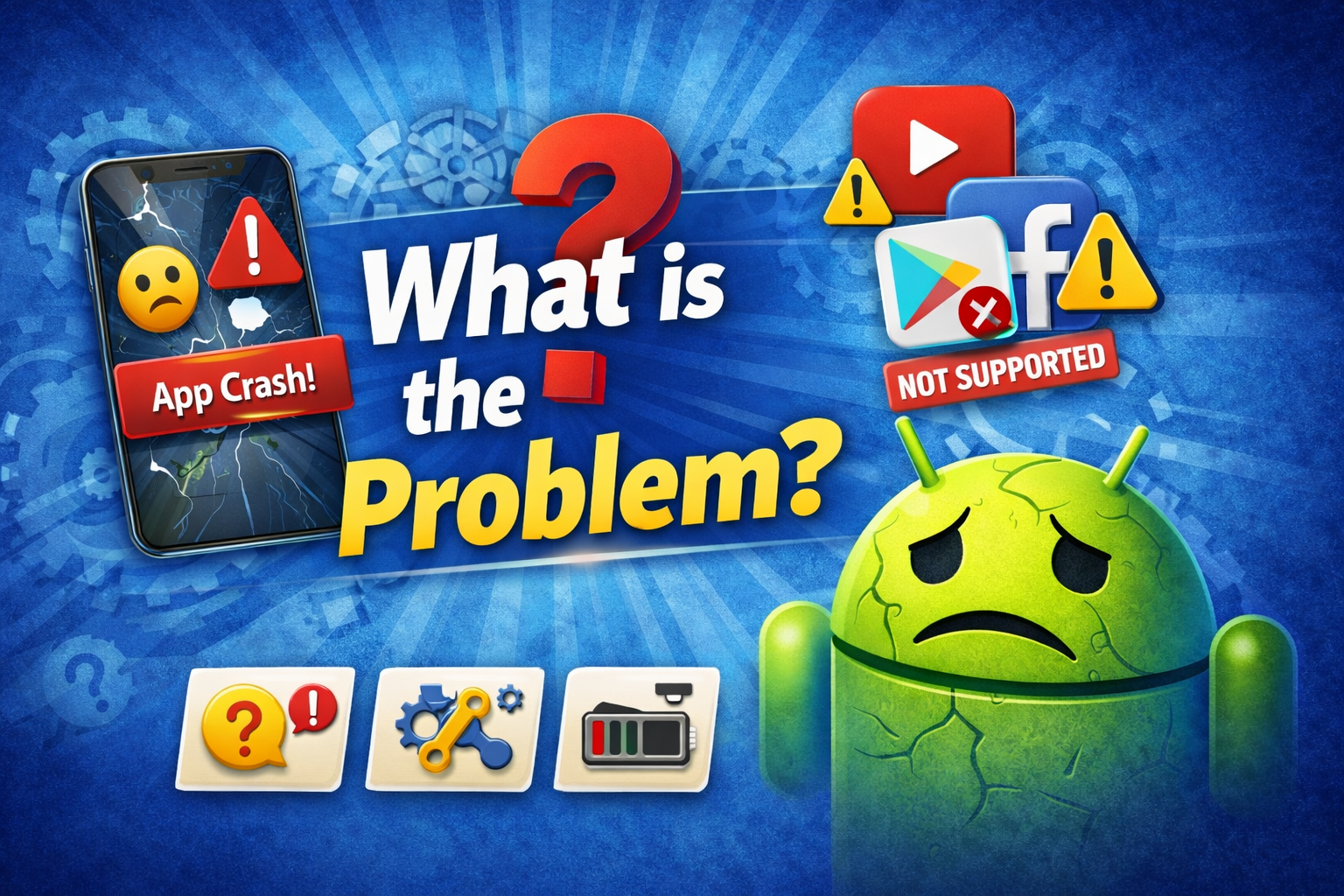
When apps don’t work on older Android versions, it usually means the app is no longer fully compatible with your device’s operating system.
Common Symptoms
- Apps crash immediately after opening
- App won’t install from Google Play
- Features missing or not working
- App freezes or runs very slowly
- Error messages like “App not supported on your device”
This problem is especially common on Android 5, 6, 7, or older versions.
Why Does This Problem Happen?
Understanding the cause helps you fix it faster.
1. App Compatibility Issues
Developers update apps for newer Android versions, dropping support for older systems.
2. Outdated Android OS
Older Android versions lack modern features required by new apps.
3. Insufficient RAM or Storage
Old devices often have limited hardware, causing performance issues.
4. App Updates Break Compatibility
New updates may not work properly on outdated systems.
5. Google Play Restrictions
Some apps are hidden or blocked on older devices.
6. Corrupted Cache or Data
Old system files can interfere with app performance.
How to Fix Apps Not Working on Old Android Versions
Here are quick fixes and proven solutions you can try right now:
1. Restart Your Device (Quick Fix)
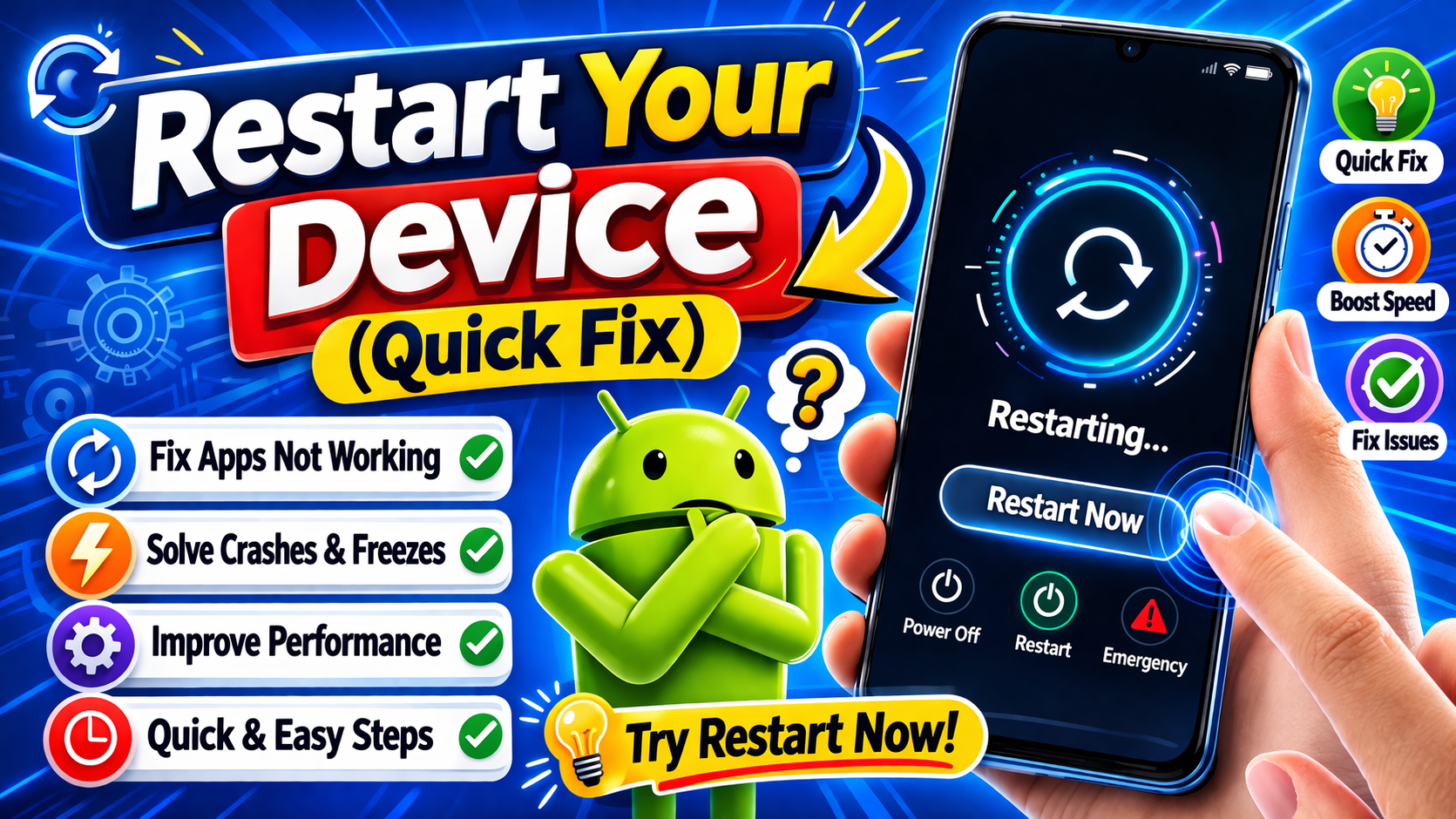
Sometimes the simplest solution works best.
Steps:
- Press and hold the power button
- Tap Restart
- Open the app again
👉 This clears temporary glitches and refreshes system memory.
2. Clear App Cache and Data
Old or corrupted cache can break app functionality.
Steps:
- Go to Settings > Apps
- Select the problematic app
- Tap Storage
- Tap Clear Cache
- Tap Clear Data (optional but effective)
⚠️ Warning: Clearing data may log you out of the app.
3. Install an Older Version of the App
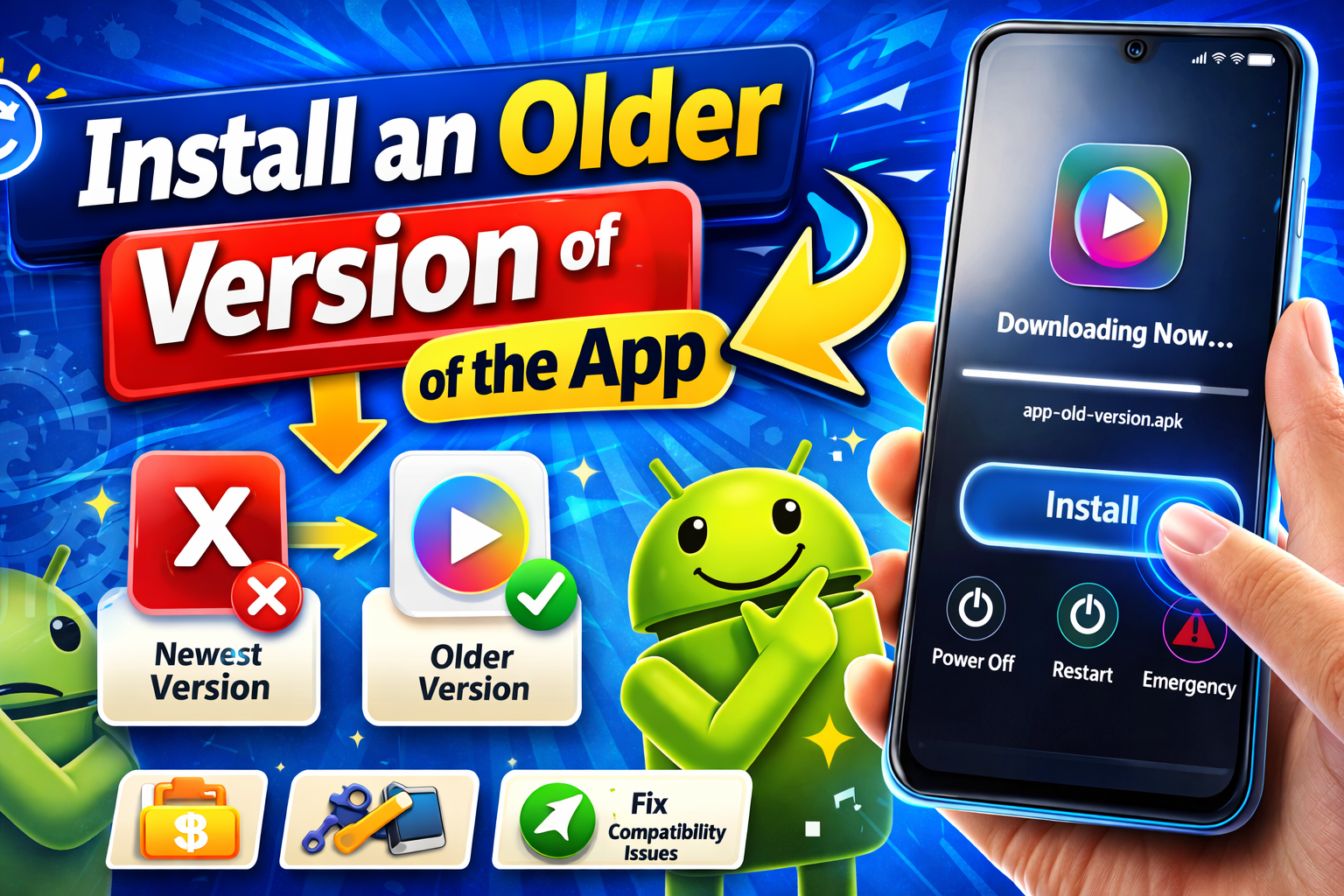
Here’s what works when newer versions fail.
Many apps still have older versions that support your Android version.
How to do it:
- Search for a trusted APK source (like APKMirror)
- Download a version compatible with your Android
- Enable Install Unknown Apps
- Install manually
👉 This is one of the most effective solutions.
4. Update Google Play Services
Even on old devices, this is critical.
Steps:
- Open Google Play Store
- Search for Google Play Services
- Tap Update
👉 This helps apps run properly and improves compatibility.
5. Free Up Storage Space
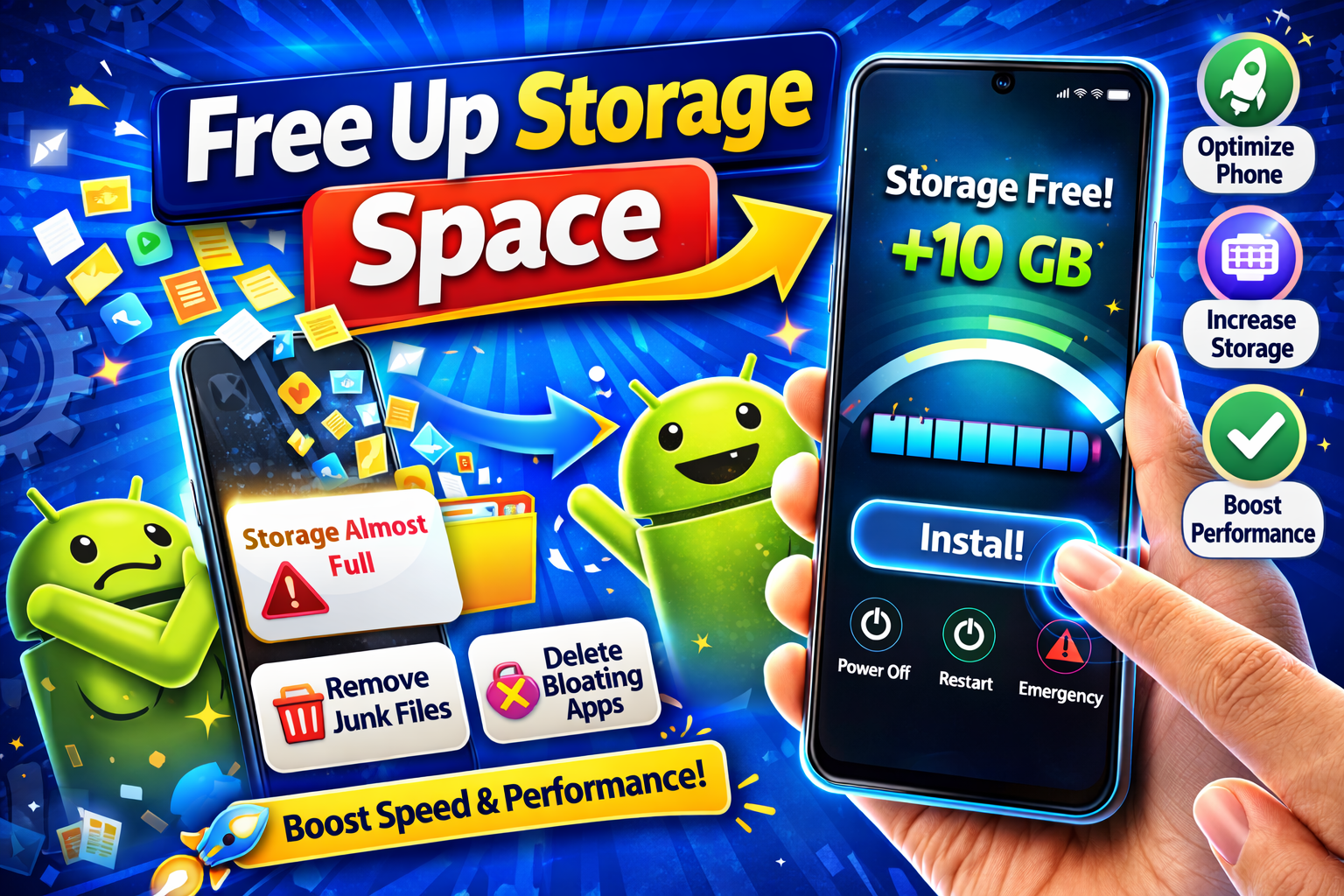
Low storage can cause apps to crash or fail.
Steps:
- Delete unused apps
- Clear downloads and media files
- Use Storage Cleaner apps
💡 Tip: Keep at least 1–2 GB free space for smooth performance.
6. Disable Unnecessary Background Apps
Older devices struggle with multitasking.
Steps:
- Go to Settings > Apps
- Force stop unused apps
- Disable apps you don’t need
👉 This improves RAM usage and app stability.
7. Update Your Android Version (If Possible)
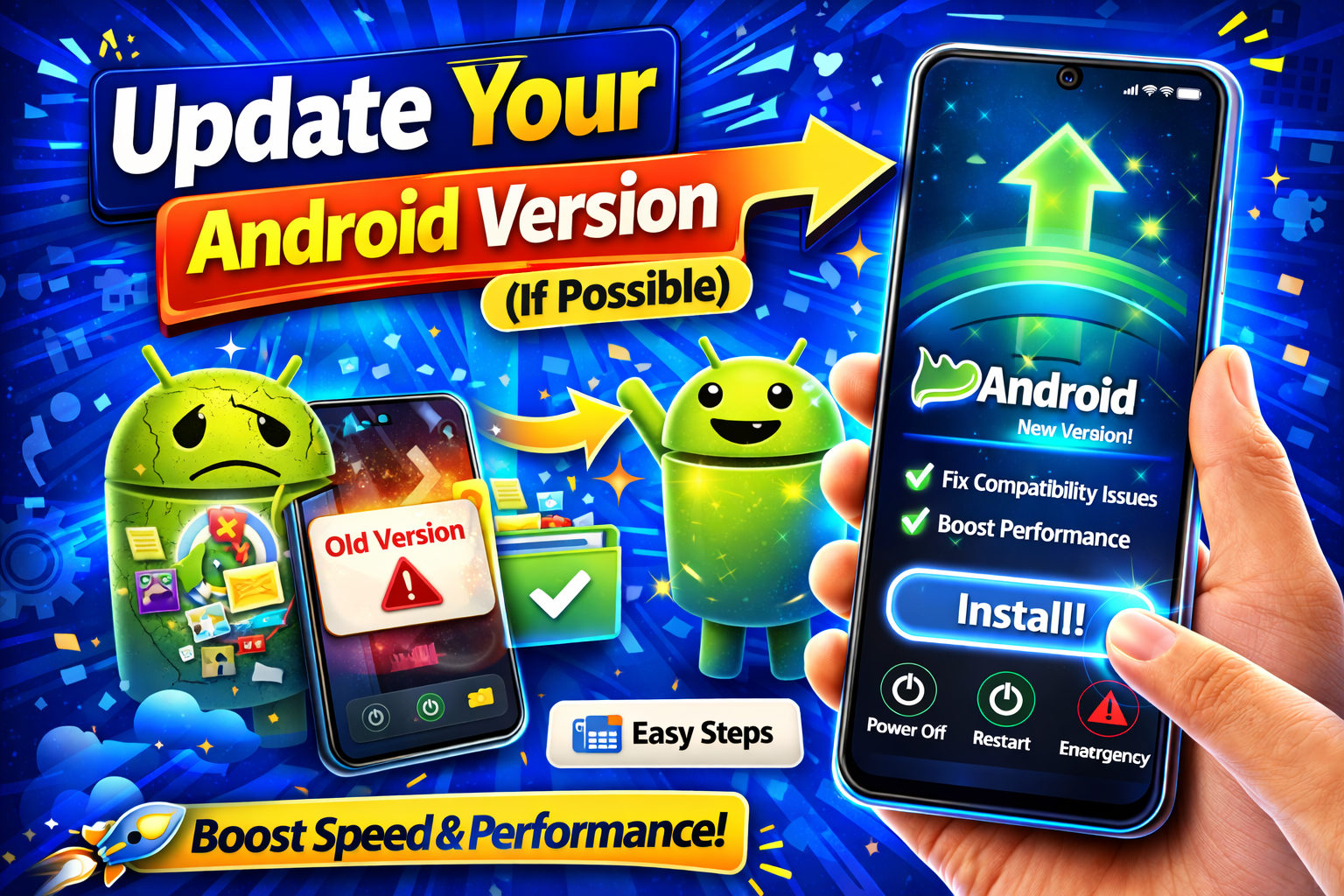
Even a small update can fix major issues.
Steps:
- Go to Settings > System > Software Update
- Check for updates
⚠️ Not all older devices support updates—but it’s worth checking.
8. Use Lite Versions of Apps
Many apps offer lighter alternatives.
Examples:
- Facebook Lite
- Messenger Lite
- YouTube Go
👉 These versions are optimized for older Android devices and work much better.
Advanced Fixes (Optional)
For more technical users, here are deeper solutions:
1. Install Custom ROM (Advanced Users Only)
You can upgrade your Android version using a custom ROM like LineageOS.
Benefits:
- Access to newer Android versions
- Better performance
- Extended device life
⚠️ Warning: This process requires technical knowledge and may void your warranty.
2. Root Your Device
Rooting gives you full control over your device.
What you can do:
- Remove system bloatware
- Install compatibility patches
- Optimize performance
⚠️ Risky and not recommended for beginners.
3. Use Web Versions of Apps
If the app doesn’t work, try the browser version.
Examples:
- Facebook via browser
- YouTube via Chrome
- Gmail web version
👉 This is a simple workaround that often works surprisingly well.
Prevent This Problem in the Future
Want to avoid this issue again? Follow these tips:
✅ Avoid Updating Apps Automatically
- Turn off auto-updates in Google Play
- Update apps only when necessary
✅ Use Lightweight Apps
- Prefer Lite versions over full apps
- They consume less RAM and storage
✅ Keep Storage Clean
- Regularly delete unnecessary files
- Use cleaner apps occasionally
✅ Avoid Installing Heavy Apps
- Some modern apps are too demanding for old devices
✅ Backup Important Data
- In case apps stop working permanently
💡 Pro Tip: Stick to apps that still support your Android version. Always check compatibility before updating.
Common FAQs
1. Why are apps not working on my old Android phone?
Because newer apps require updated Android versions and better hardware, which older devices lack.
2. Can I still use apps on old Android versions?
Yes, but you may need older app versions or Lite apps for compatibility.
3. Is it safe to install APK files?
Yes, if downloaded from trusted sources like APKMirror. Avoid unknown websites.
4. What is the best fix for compatibility issues?
Installing an older version of the app is usually the most effective solution.
5. Should I upgrade my phone?
If apps frequently stop working, upgrading your device may be the best long-term solution.
Conclusion
Dealing with apps not working on old Android versions can be frustrating—but it’s not the end of the road.
By following these steps, you can:
- Fix crashing or non-working apps
- Improve device performance
- Extend the life of your phone
Start with simple fixes like clearing cache or installing older app versions—these often solve the problem quickly.
👉 If this guide helped you, feel free to share it with others facing the same issue.
👉 Have questions or another app problem? Drop a comment or explore more helpful guides!
