How to Fix Apps Not Updating Due to Storage Issues (Easy Guide)
Introduction
You’re not alone—many users face the frustrating problem where apps simply won’t update because of storage issues. You tap “Update,” but nothing happens… or worse, you get an error saying there isn’t enough space.
If you’ve been stuck wondering how to fix apps not updating due to storage issues, this guide is exactly what you need. Here’s what works: simple, fast solutions that help you free up space and get your apps updating again in minutes.
Table of Contents
- What is the Problem?
- Why Does This Problem Happen?
- How to Fix Apps Not Updating Due to Storage Issues
- Advanced Fixes
- Prevent This Problem in the Future
- Common FAQs
- Conclusion
What is the Problem?
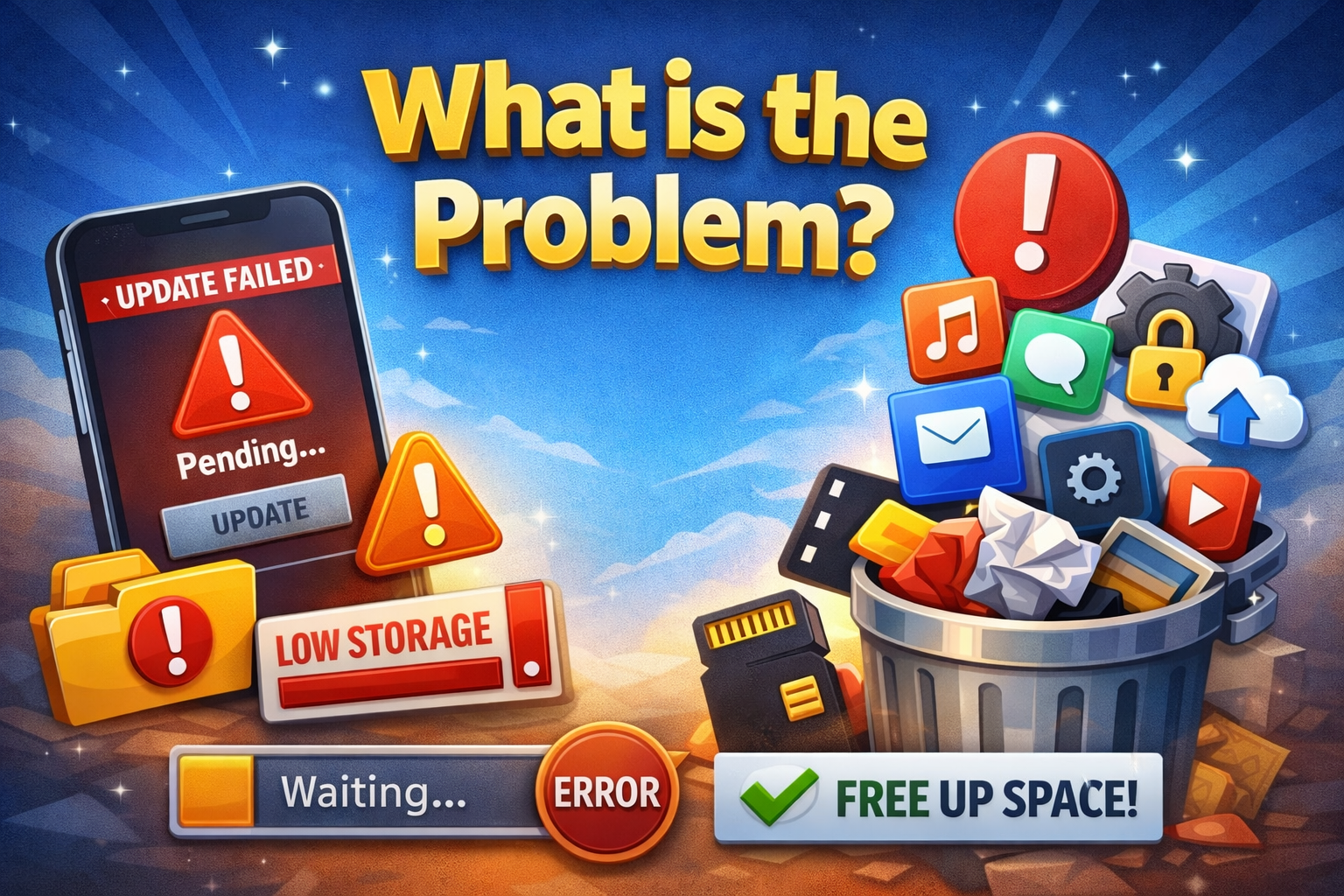
The issue occurs when your device doesn’t have enough available storage to download and install app updates. Even if the update is small, your system may require extra temporary space to process it.
Common Symptoms
- Apps stuck on “Pending” or “Waiting”
- Error messages like “Insufficient Storage”
- Updates fail to install repeatedly
- Apps not updating automatically
- Device becomes slow or unresponsive
This problem affects both Android and iPhone users, especially those with limited storage capacity.
Why Does This Problem Happen?
Understanding the cause helps you fix it faster. Here are the most common reasons:
1. Full Storage Space
Your device has no free space left for downloading updates.
2. Cache and Junk Files
Temporary files build up over time and consume hidden storage.
3. Large App Sizes
Modern apps require more space for updates than before.
4. System Storage Requirements
Your phone needs extra space beyond the app size to install updates.
5. Media Files Overload
Photos, videos, and downloads can quickly fill up your storage.
6. Background App Data
Apps store data even when you’re not actively using them.
How to Fix Apps Not Updating Due to Storage Issues (Step-by-Step)
Here’s the quick fix section—follow these steps one by one.
1. Free Up Storage Space Immediately
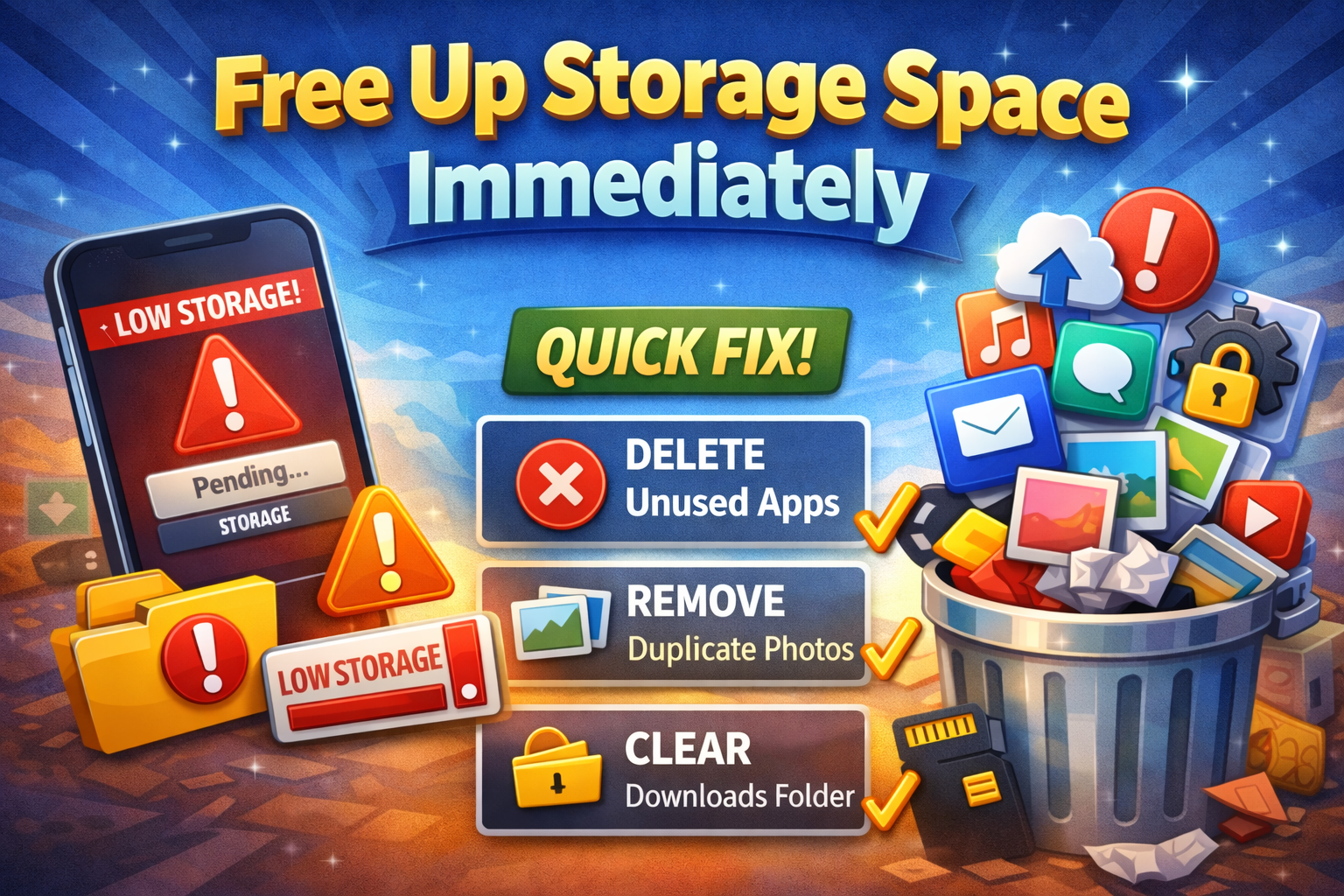
Start by deleting unnecessary files:
- Remove unused apps
- Delete duplicate photos/videos
- Clear downloads folder
👉 Pro Tip: Focus on large files—they free up space faster.
2. Clear App Cache (Android Only)
Cache files can take up a surprising amount of space.
Steps:
- Go to Settings
- Tap Apps
- Select an app
- Tap Storage
- Click Clear Cache
⚠️ Do not clear data unless necessary—it may log you out.
3. Offload or Delete Unused Apps (iPhone)
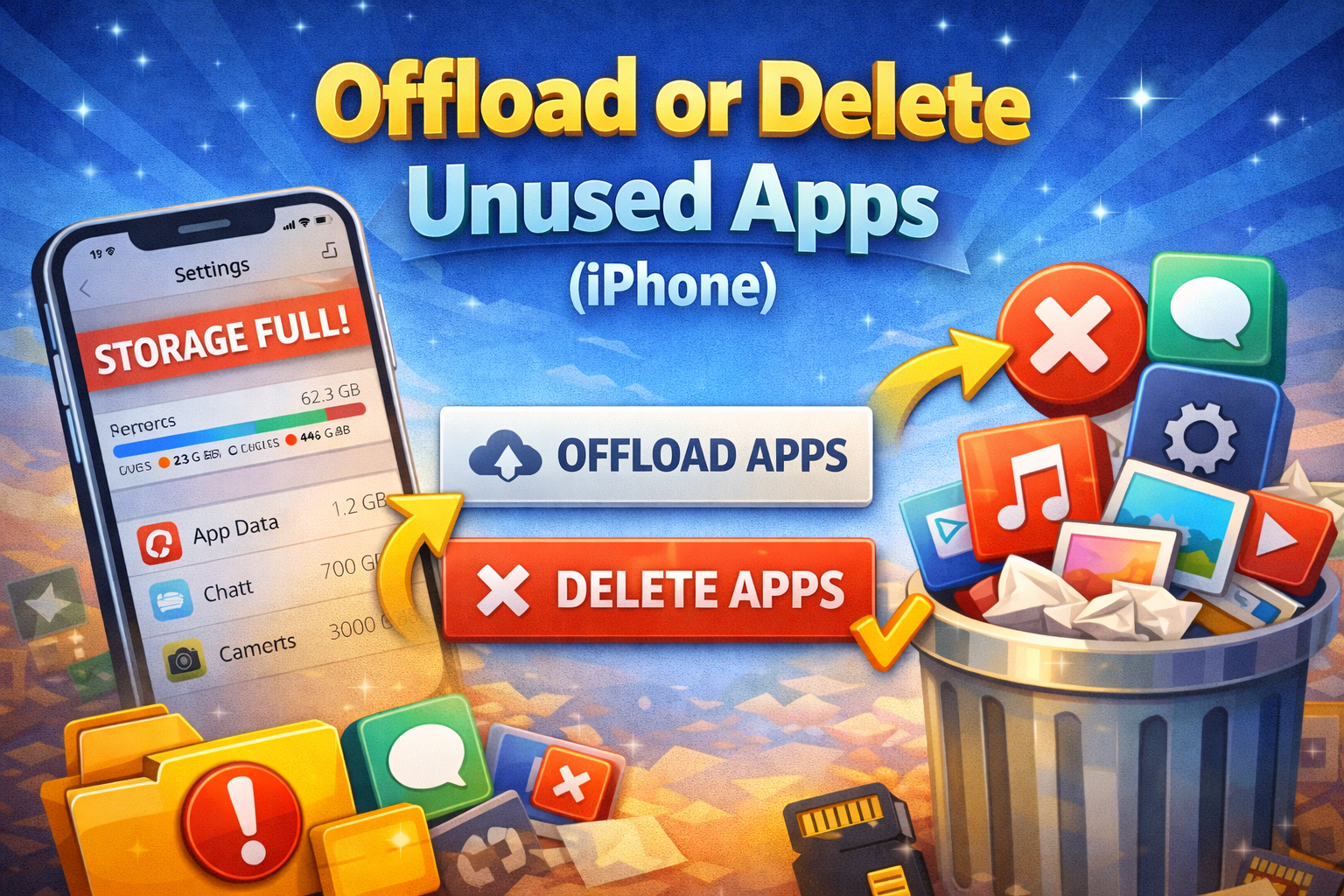
iPhone has a smart feature to save space.
Steps:
- Go to Settings
- Tap General → iPhone Storage
- Select unused apps
- Tap Offload App
This removes the app but keeps your data.
4. Move Files to Cloud Storage
Free up space without losing data:
- Use Google Drive, iCloud, or Dropbox
- Upload photos and videos
- Delete local copies after backup
👉 This is one of the easiest long-term solutions.
5. Restart Your Device
It may sound simple, but it works.
Restarting:
- Clears temporary system files
- Frees up memory
- Fixes minor glitches
6. Update Apps One by One
Instead of updating all apps at once:
- Go to App Store / Play Store
- Update apps individually
👉 This reduces storage pressure on your device.
7. Delete and Reinstall the App
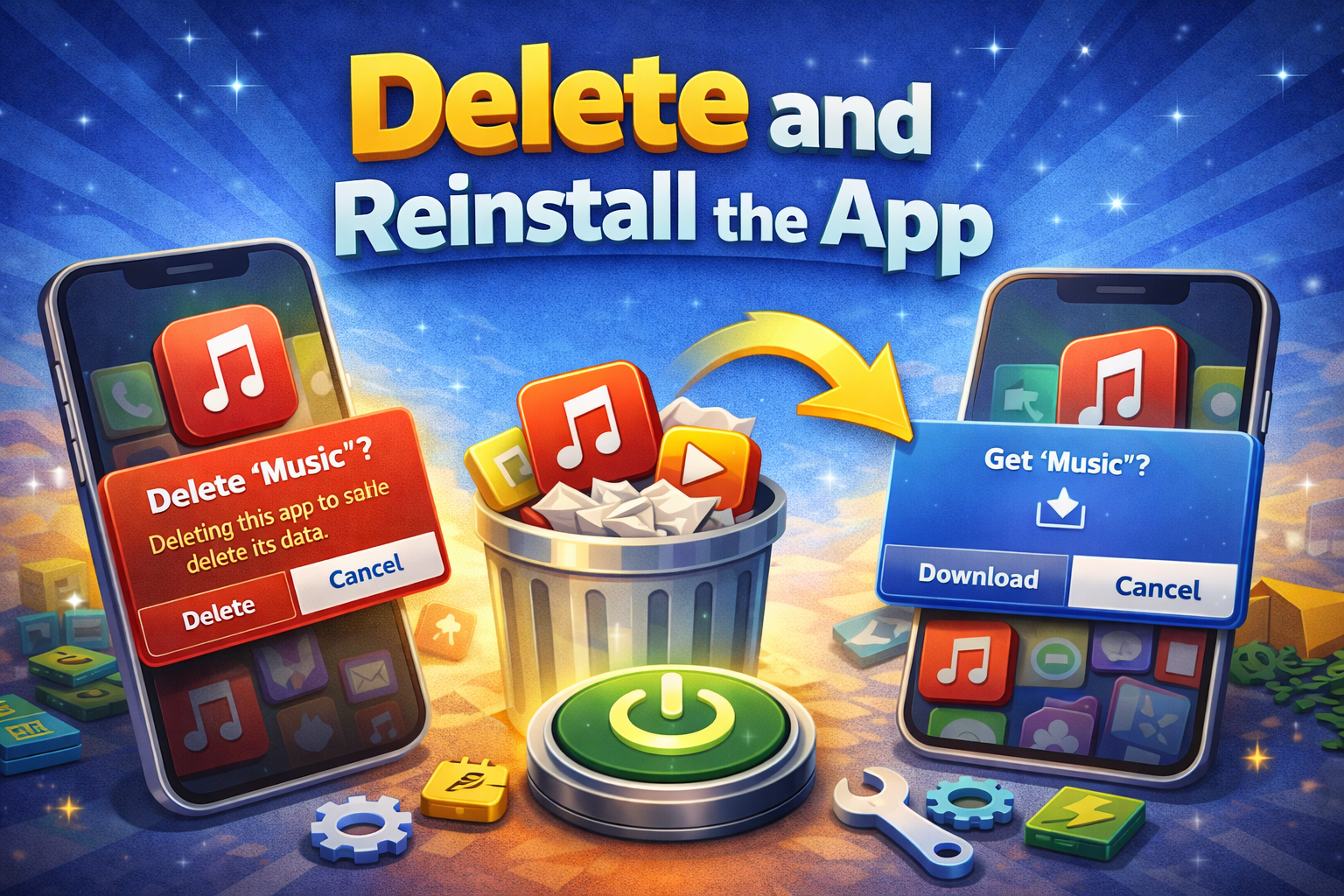
If one app refuses to update:
- Uninstall the app
- Restart your device
- Reinstall it from the store
⚠️ Make sure your data is backed up before doing this.
8. Check System Storage Recommendations
Both Android and iOS provide suggestions:
- Go to Storage Settings
- Follow recommended cleanup actions
These suggestions are often optimized for quick results.
Advanced Fixes (Optional)
For users who want deeper solutions:
1. Use Storage Cleaner Apps (Android)
Apps like Files by Google help identify large files quickly.
2. Reset App Preferences (Android)
This can fix update-related glitches:
- Settings → Apps → Reset Preferences
3. Factory Reset (Last Resort)
If storage issues persist:
- Backup your data
- Reset your device
⚠️ Only use this if nothing else works.
Prevent This Problem in the Future
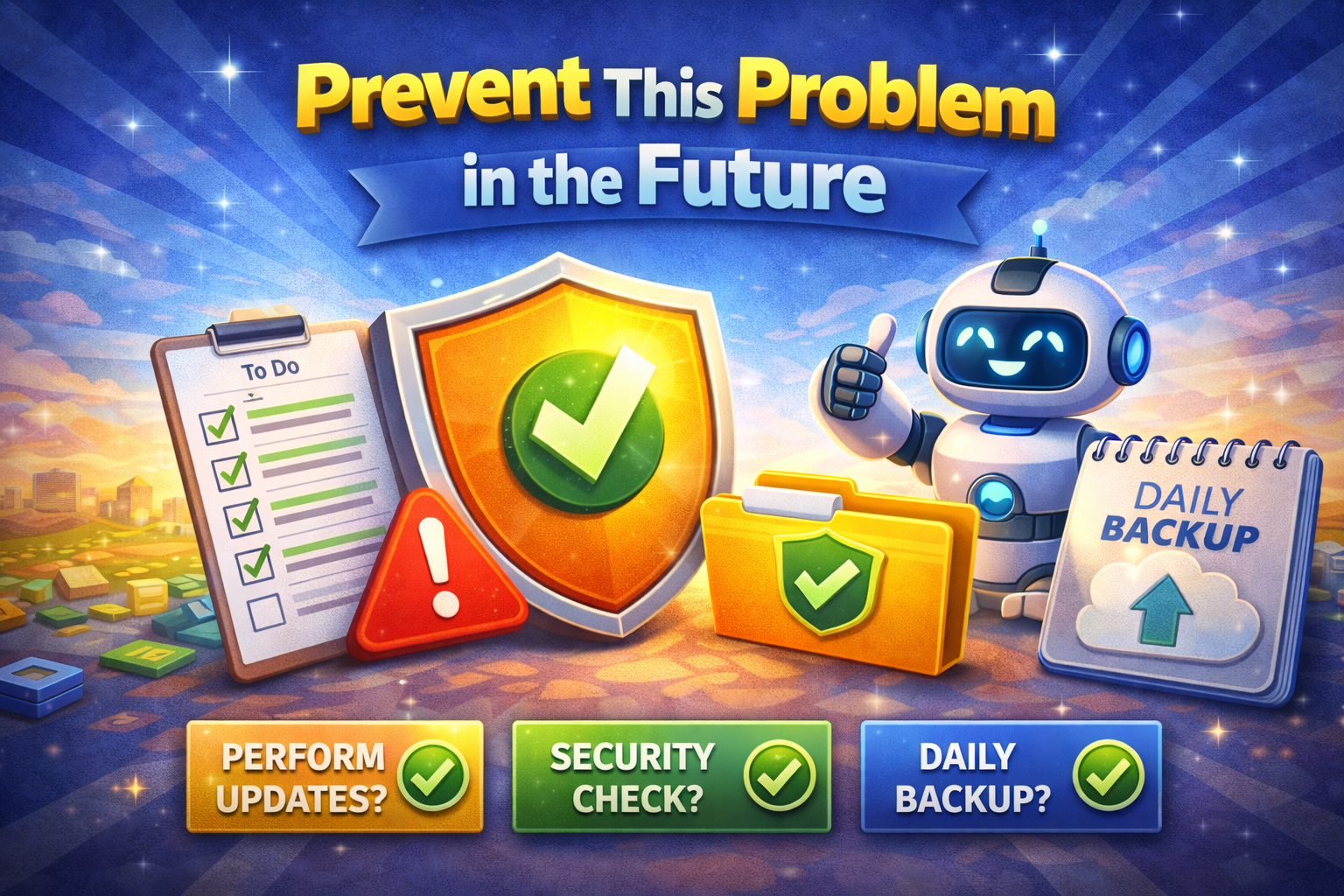
Here’s how to avoid running into storage issues again:
1. Enable Automatic Storage Optimization
- iPhone: Enable Offload Unused Apps
- Android: Use built-in storage tools
2. Regularly Clean Your Device
- Delete junk files weekly
- Clear cache periodically
3. Use Cloud Storage by Default
Store photos/videos in the cloud instead of your device.
4. Avoid Installing Too Many Apps
Keep only what you actually use.
5. Monitor Storage Usage
Check storage settings regularly to avoid surprises.
Common FAQs
1. Why are my apps not updating even after freeing space?
Sometimes the system needs more temporary space than expected. Try freeing additional storage and restarting your device.
2. How much free space do I need for updates?
At least 1–2 GB of free space is recommended for smooth app updates.
3. Is clearing cache safe?
Yes, clearing cache is safe and helps free up storage without deleting important data.
4. Will deleting apps remove my data?
Yes, unless the app stores data in the cloud. Always back up important information first.
5. Why do apps need extra space to update?
Apps require temporary storage during installation, which increases the total space needed.
Conclusion
Dealing with apps not updating due to storage issues can be frustrating—but the good news is, it’s easy to fix.
Here’s what works:
- Free up storage space
- Clear cache and junk files
- Use cloud storage
- Update apps one at a time
By following these steps, you can quickly solve the problem and keep your apps running smoothly.
👉 Quick Tip: Make storage management a habit to avoid this issue in the future.
If this guide helped you, feel free to share it with others or explore more “App Problems” solutions to keep your device performing at its best! 🚀
