How to Fix Apps Not Working After System Update (Easy Guide)
Introduction
You just updated your phone or device, expecting better performance—only to find your favorite apps suddenly not working. Frustrating, right? You’re not alone.
Many users face this exact issue after a system update. Apps may crash, freeze, refuse to open, or behave unpredictably. The good news? Most of these problems are fixable without needing expert help.
In this guide, we’ll show you how to fix apps not working after system update using simple, proven solutions. Whether you’re on Android or iPhone, here’s what works.
Table of Contents
- What is the Problem?
- Why Does This Problem Happen?
- How to Fix Apps Not Working After System Update
- Advanced Fixes (For Power Users)
- How to Prevent This Problem in the Future
- Common FAQs
- Conclusion
What is the Problem?
After installing a system update, some apps may stop functioning properly. This issue can affect both Android and iOS devices.
Common Symptoms
- Apps crashing immediately after opening
- Apps freezing or lagging
- Blank or black screens
- Features not working correctly
- Apps failing to load or connect
This issue is commonly searched as “apps not working after system update”, and it can affect both pre-installed and third-party apps.
Why Does This Problem Happen?
Understanding the cause helps you fix it faster. Here are the most common reasons:
1. Compatibility Issues
Apps may not yet be optimized for the new system version.
2. Corrupted Cache or Data
Old system data may conflict with the updated OS.
3. Outdated Apps
Apps that haven’t been updated may not work properly.
4. System Bugs
New updates sometimes introduce bugs or glitches.
5. Storage Problems
Low storage can cause apps to malfunction.
6. Background Process Conflicts
System updates may disrupt app permissions or background services.
How to Fix Apps Not Working After System Update (Step-by-Step)
Here’s what works—start with these quick fixes before moving to advanced solutions.
1. Restart Your Device (Quick Fix)
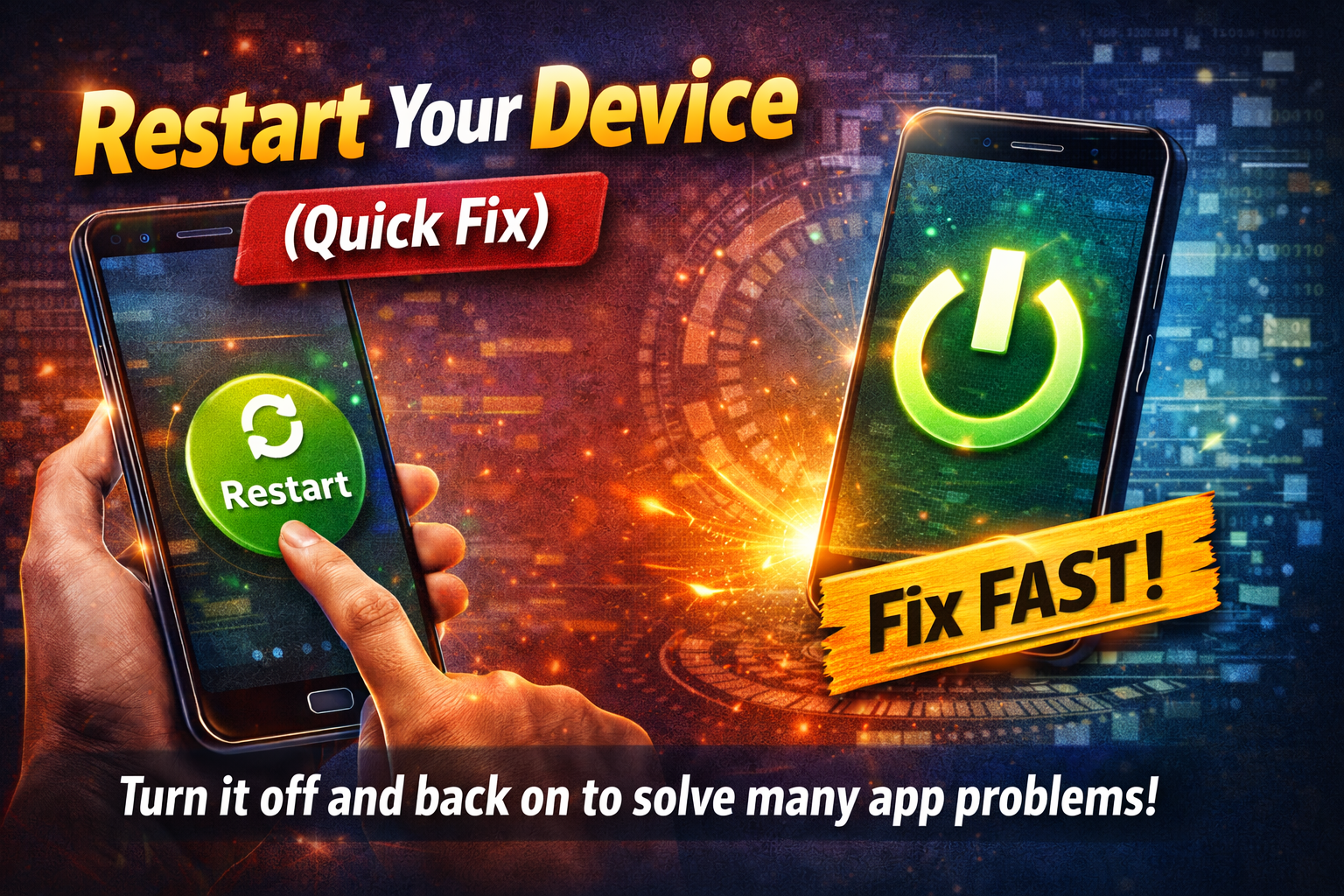
This simple step solves many issues.
Steps:
- Press and hold the power button
- Tap “Restart”
- Wait for your device to reboot
👉 Why it works: It clears temporary glitches caused by the update.
2. Update All Apps
Outdated apps are the #1 cause of this issue.
Steps (Android/iPhone):
- Open Google Play Store or App Store
- Go to “Updates”
- Tap “Update All”
👉 Pro Tip: Enable auto-updates to avoid future issues.
3. Clear App Cache (Android Only)
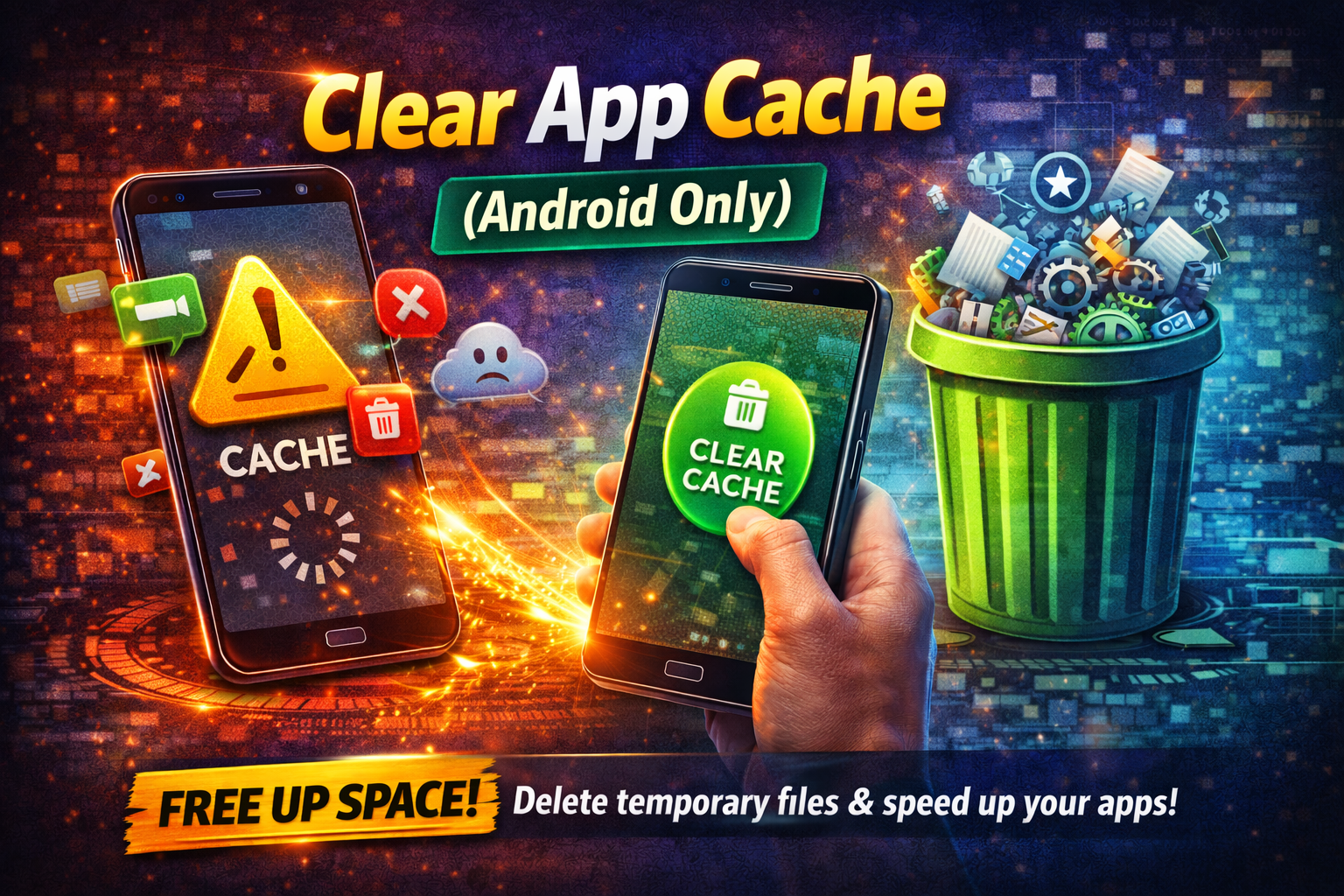
Corrupted cache is a common problem.
Steps:
- Go to Settings
- Tap Apps → Select the problematic app
- Tap Storage
- Click “Clear Cache”
⚠️ Warning: Don’t tap “Clear Data” unless necessary—it may delete app data.
4. Reinstall the App
If an app still isn’t working, reinstalling can fix broken files.
Steps:
- Uninstall the app
- Restart your device
- Reinstall from the app store
👉 Here’s what works: Fresh installation removes corrupted files.
5. Check App Permissions
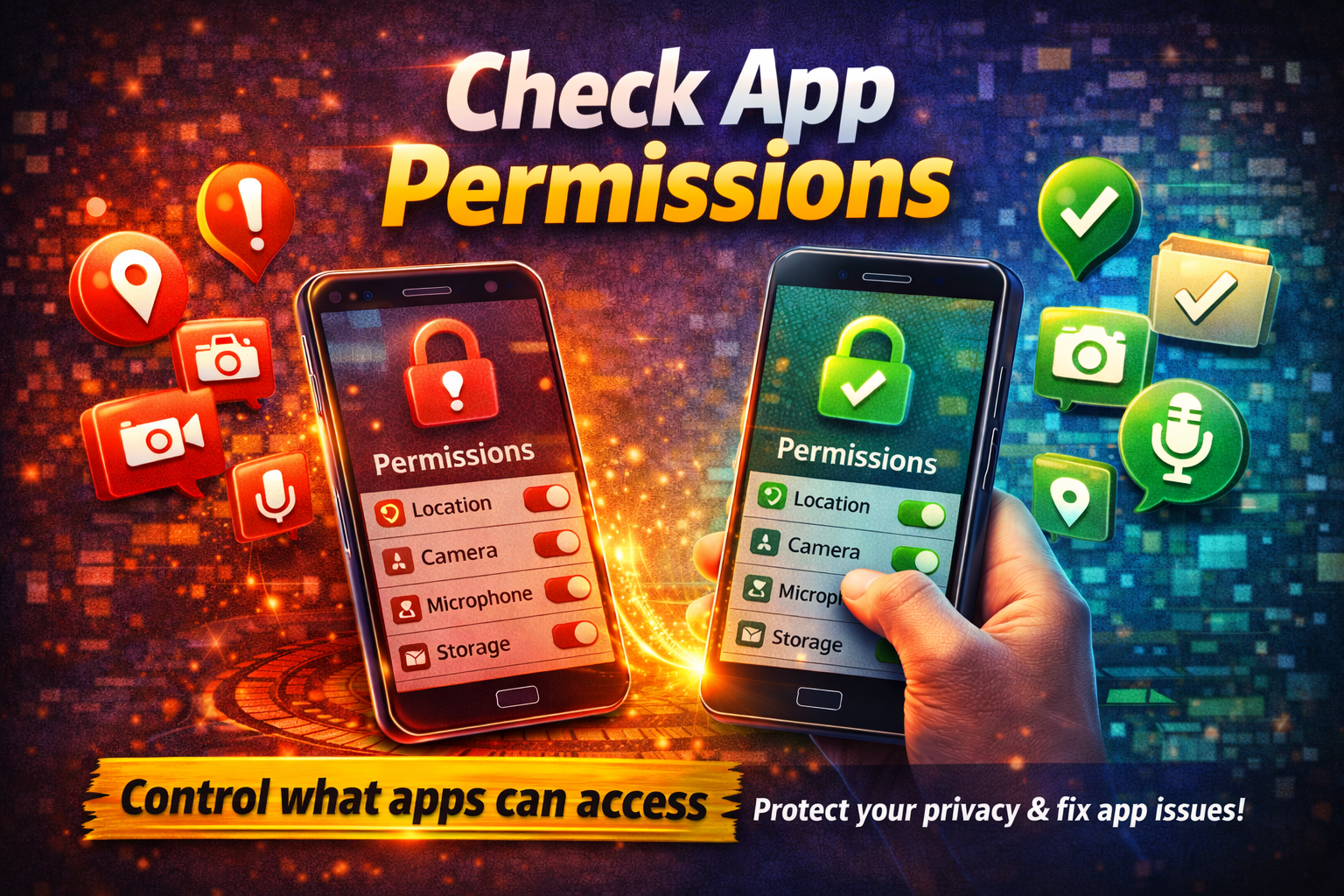
System updates can reset permissions.
Steps:
- Go to Settings
- Tap Apps → Select app
- Tap Permissions
- Enable required permissions
6. Free Up Storage Space
Low storage can break app performance.
Steps:
- Delete unused apps
- Clear photos/videos
- Use storage cleaner tools
👉 Aim for at least 2–3 GB free space.
7. Check for Another System Update
Sometimes, a follow-up patch fixes bugs.
Steps:
- Go to Settings
- Tap Software Update
- Install any available updates
8. Reset App Preferences (Android)
This resets all app settings without deleting data.
Steps:
- Go to Settings
- Tap Apps
- Tap the three-dot menu
- Select “Reset App Preferences”
Advanced Fixes (Optional)
If basic solutions don’t work, try these more technical methods.
1. Boot in Safe Mode (Android)
This helps identify problematic apps.
Steps:
- Press and hold power button
- Tap and hold “Restart”
- Select Safe Mode
👉 If apps work fine here, a third-party app is causing the issue.
2. Factory Reset (Last Resort)
This will erase everything—use only if necessary.
Steps:
- Backup your data
- Go to Settings → System → Reset
- Tap “Factory Data Reset”
⚠️ Warning: This deletes all data permanently.
3. Roll Back the Update (Advanced Users Only)
Sometimes, reverting to the previous OS version is the only fix.
👉 Requires technical knowledge and may void warranty.
Prevent This Problem in the Future
Want to avoid dealing with apps not working after system update again? Follow these tips:
✔ Always Update Apps First
Before installing a system update, update all apps.
✔ Backup Your Device
Use cloud or local backups before major updates.
✔ Wait Before Updating
Let others test the update first—early bugs are common.
✔ Keep Storage Available
Maintain at least 20% free space.
✔ Install Updates from Official Sources
Avoid unofficial firmware or beta versions unless necessary.
Common FAQs
1. Why are my apps not working after system update?
Most likely due to compatibility issues, outdated apps, or corrupted cache.
2. How do I fix apps crashing after update?
Start by restarting your device, updating apps, and clearing cache.
3. Will reinstalling apps fix the problem?
Yes, in many cases it removes corrupted files and resolves the issue.
4. Is it safe to clear app cache?
Yes, clearing cache is safe and often improves performance.
5. Should I factory reset my phone?
Only as a last resort if nothing else works.
Conclusion
Dealing with apps not working after a system update can be frustrating—but it’s usually fixable. From simple restarts to reinstalling apps, these solutions are designed to get things back to normal quickly.
Start with the Quick Fixes, and only move to advanced steps if needed. Most users solve the issue within minutes.
👉 You’re not alone—and now you know exactly what to do.
If this guide helped you, feel free to share it with others facing the same issue. Got questions or another app problem? Drop a comment or explore more troubleshooting guides!
